

Bachs
Connect Bachs to PayLexer to accept cards, bank transfers, mobile money and crypto across Africa through Bachs's hosted checkout, with Bachs-billed subscriptions and refunds.
Bachs is a payments and billing platform for African internet businesses. Shoppers pay on Bachs's hosted checkout page with a card, a Nigerian bank transfer, mobile money in nine African currencies, or crypto. Bachs settles your takings in US dollars or Nigerian naira and can bill subscriptions for you, charging the saved card on every renewal date.
- Supported Regions (Merchant Accounts): Businesses and individuals accepted by Bachs's account verification - view full list
- Supported Currencies: USD, NGN, GHS, KES, TZS, UGX, RWF, MWK, ZMW, XAF, XOF - view full list
Supported Features
- Hosted checkout that redirects shoppers to Bachs's secure payment page
- Card payments in USD and NGN
- Bank transfer in NGN
- Mobile money in GHS, KES, TZS, UGX, RWF, MWK, ZMW, XAF and XOF
- Crypto payments (USDT, USDC, ETH, SOL and BNB), credited to you in USD
- Subscriptions billed by Bachs on USD cards, including free trials
- Full refunds, and partial refunds for USD and NGN orders, from your store or the Bachs dashboard
- Real-time payment, refund and subscription notifications, signed by Bachs and verified by PayLexer
- Each shopper return is confirmed with Bachs before the order result is shown
- Unpaid checkouts that expire mark the order as failed
Bachs subscriptions bill USD cards only. Subscriptions with a sign-up fee or a fixed number of billing cycles are not available with Bachs, and a shopper choosing one sees a message at checkout.
Before You Start
Make sure you have:
- Bachs Account – Don't have one? Sign up for Bachs →
- Verified Bachs account for live payments – The sandbox works as soon as you sign up, but live keys only work once Bachs has verified your account. See Bachs's verification guide →
- PayLexer Account – Required to configure the integration. Create your account →
- A website where you want to integrate
Looking for a different payment processor? View all supported gateways →
Configuring Bachs
You need a Secret Key from Bachs for this integration, plus a Webhook Signing Secret for payment notifications.
Getting API Credentials
Bachs keeps your sandbox and live accounts separate, each with its own keys. Repeat these steps in each account you want to use.
Choose the sandbox or live account
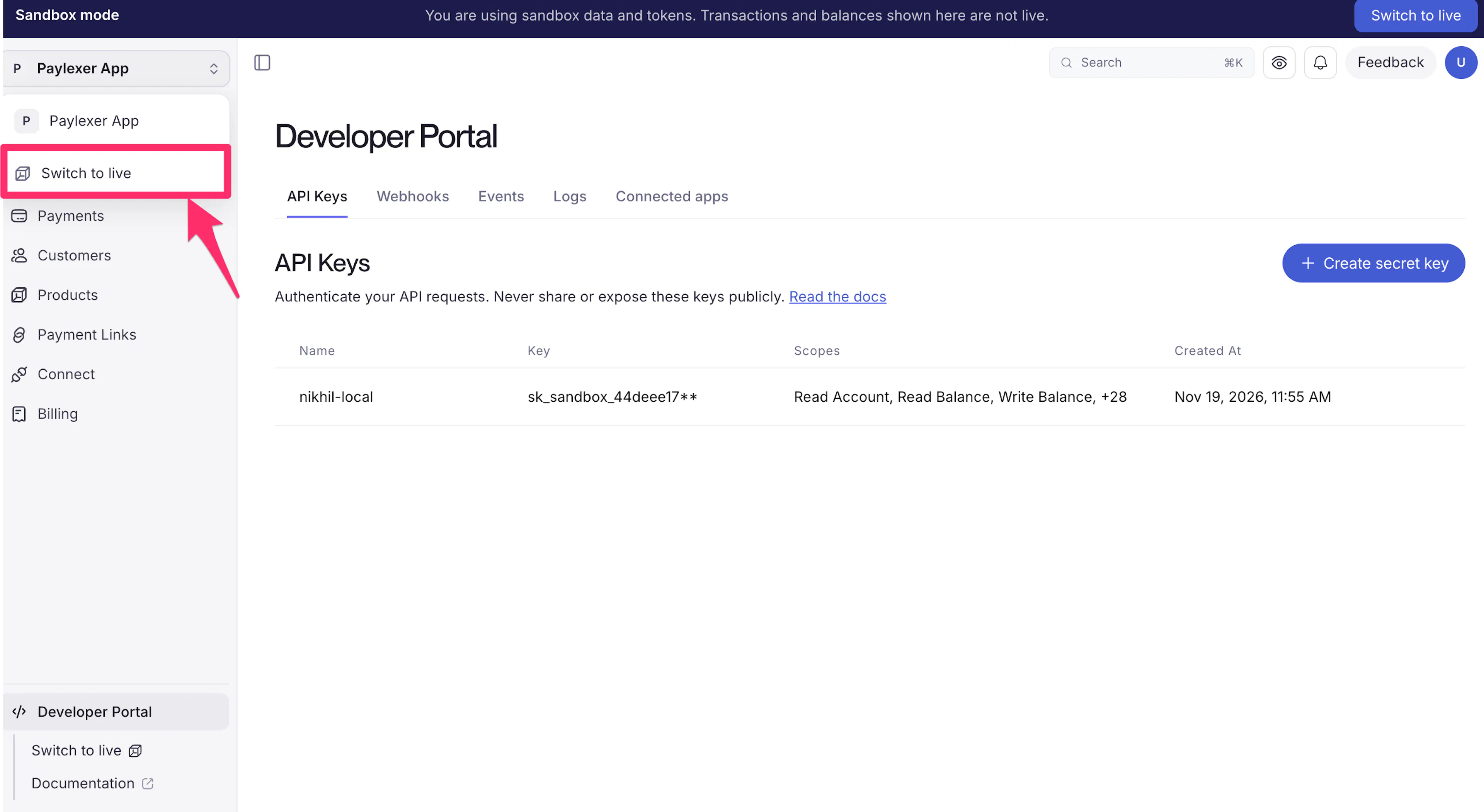
Log in to the Bachs dashboard. Open the organization switcher at the top left and choose Sandbox for test keys, or your organization name for live keys.
Open API keys
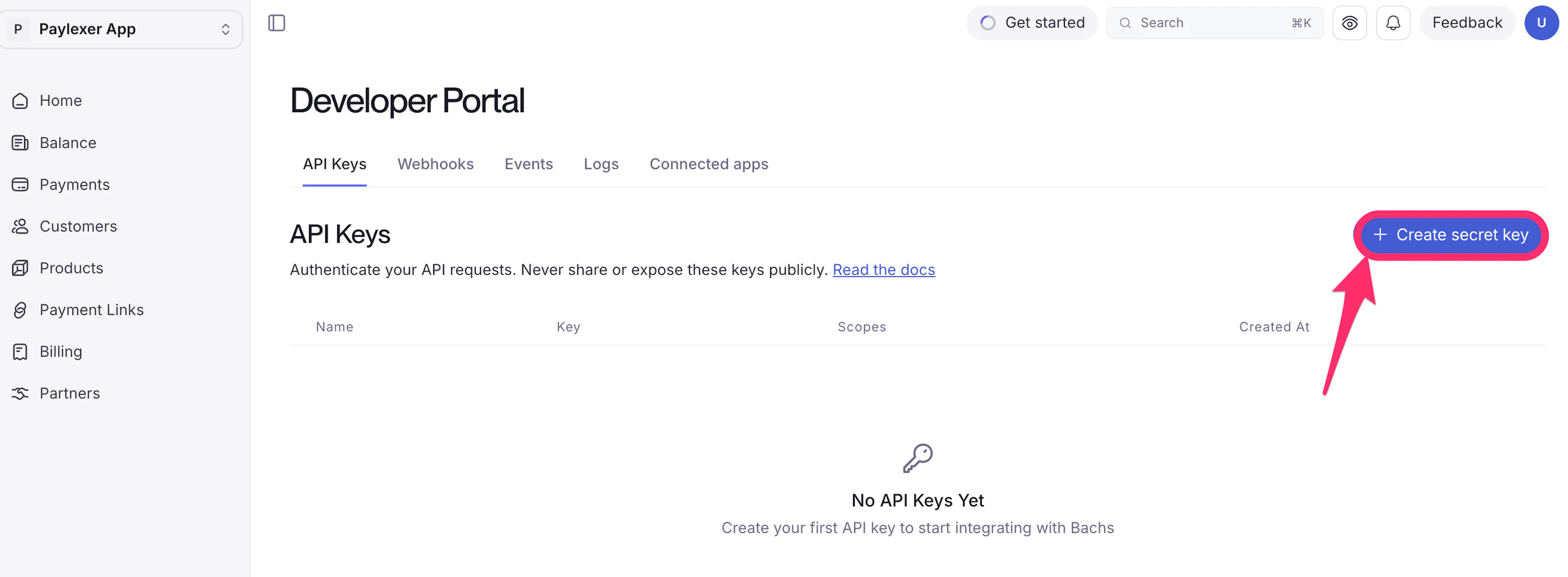
Click Developer Portal at the bottom left of the sidebar, open the API keys tab and click Create secret key.
Name the key and keep all scopes
Give the key a name such as paylexer. Leave Select all ticked so PayLexer can create checkouts, issue refunds, create subscription products and manage subscriptions.
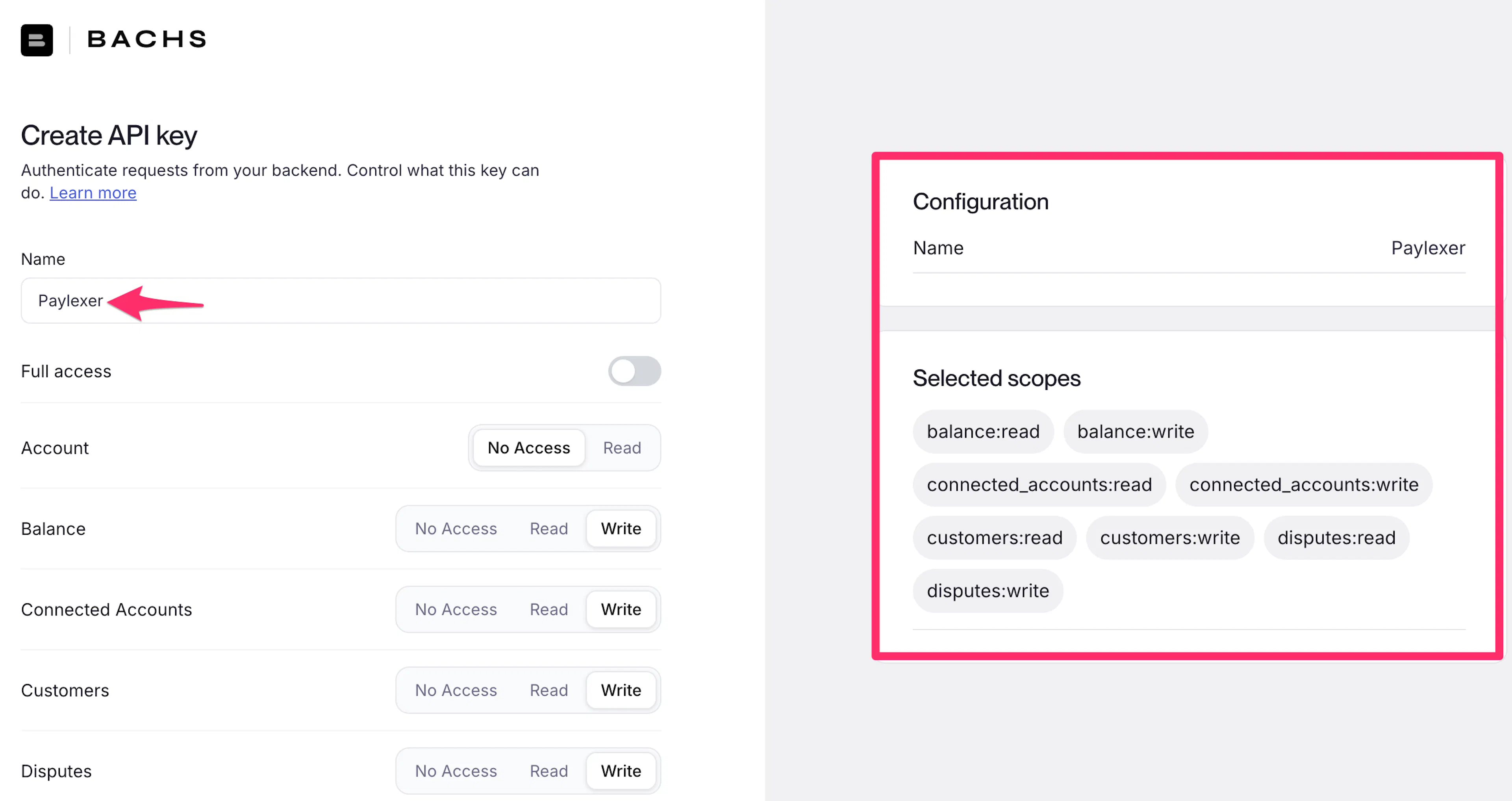
A key with fewer scopes may pass some checks and then fail at checkout, refund or cancellation. Keep Select all ticked for the key you give PayLexer.
Copy the Secret Key
Copy the key. Sandbox keys start with sk_sandbox_ and live keys with sk_live_.
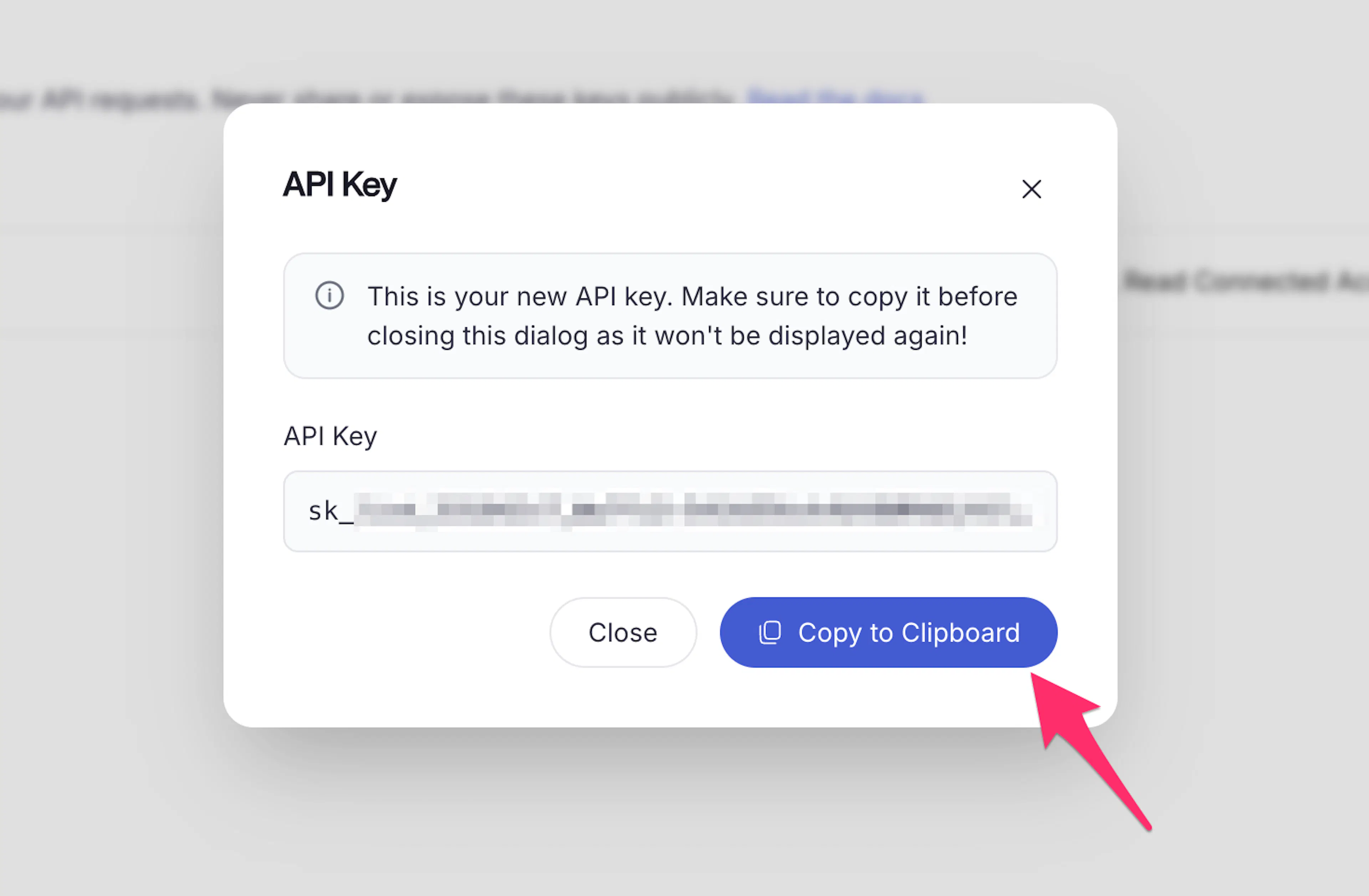
Bachs shows the full key only once. Copy it before you close the dialog. If you lose it, rotate the key in Bachs and paste the new one into PayLexer.
Adding Credentials to PayLexer
Open PayLexer Dashboard
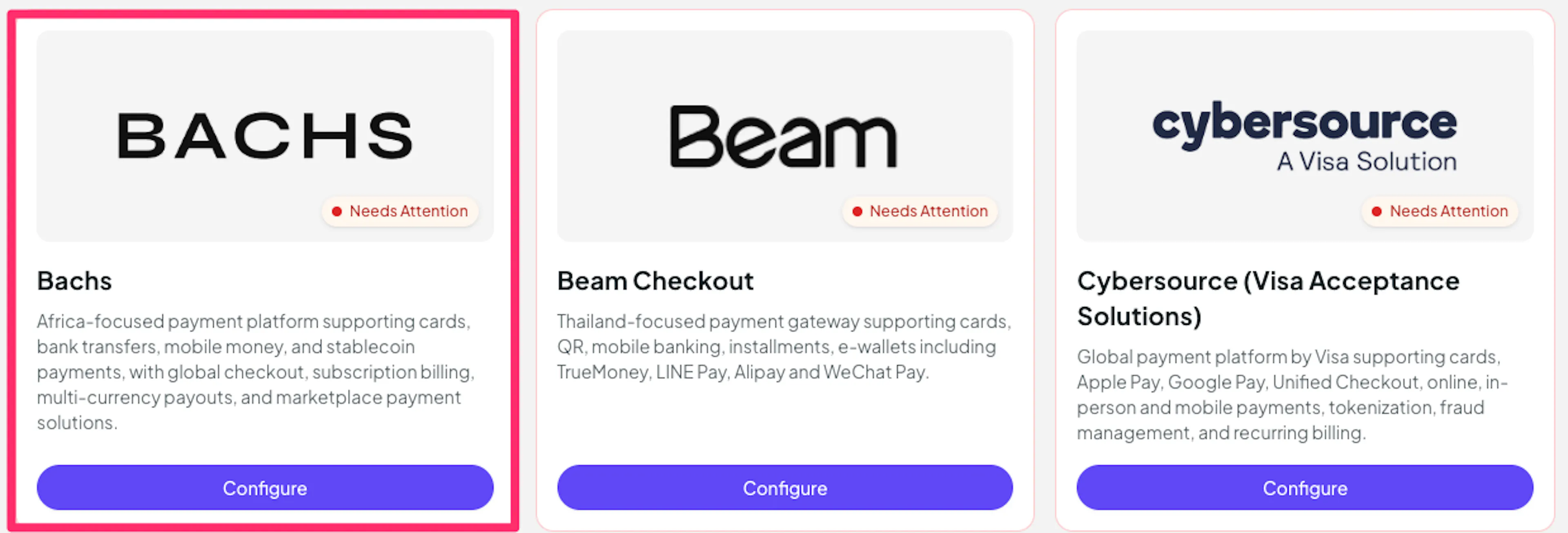
Log in to your PayLexer dashboard and go to Payment Gateways, find Bachs and click Configure.
Enter your credentials
Paste the Secret Key you copied from Bachs into the Secret Key field. Use the Sandbox tab for your sk_sandbox_ key and the Live tab for your sk_live_ key.
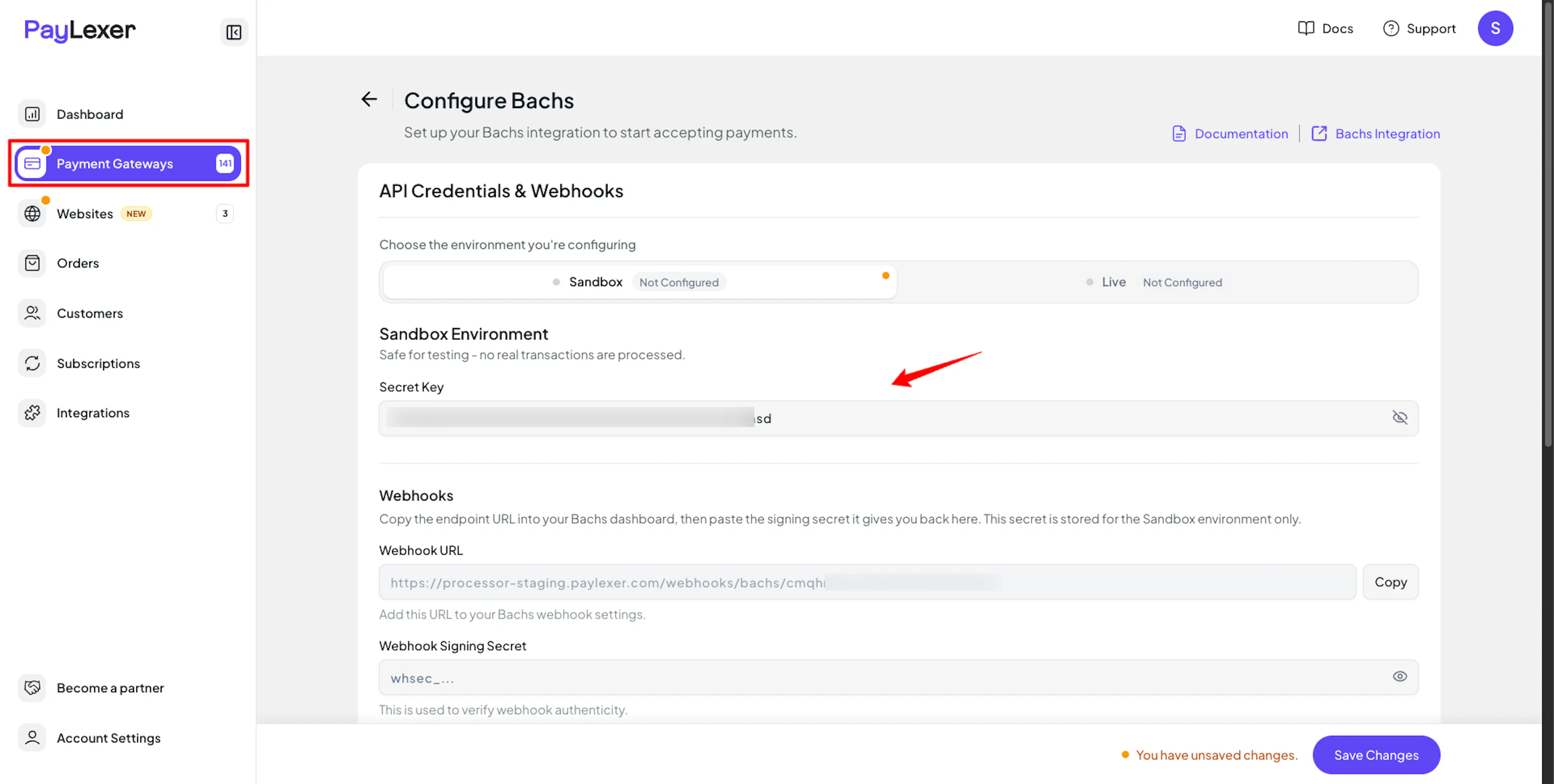
Understanding Live/Production and Sandbox Settings:
| Environment | Purpose |
|---|---|
| Live / Production | Used for real transactions. |
| Test / Sandbox | Used for testing only. No real money is processed. |
How PayLexer selects credentials:
- Debug/Test mode ON → Test credentials are used
- Debug/Test mode OFF → Live credentials are used
Verify and save
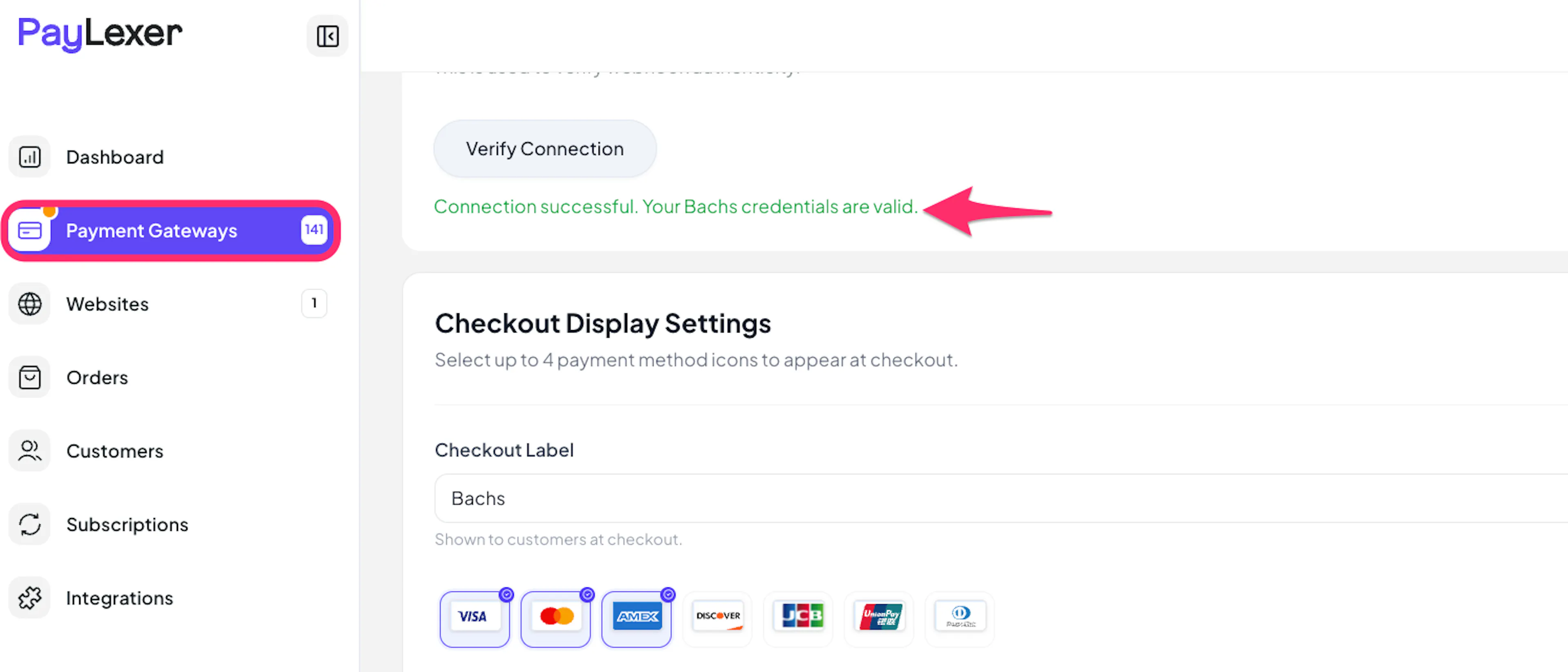
Click Verify Connection to check your credentials with Bachs, then click Save Changes.
Configuring Webhooks (Mandatory)
Webhooks enable real-time payment updates and significantly improve reliability.
Benefits of Webhooks:
- Instant payment status updates
- Automatic refund processing
- Subscription renewals, failed renewals and cancellations recorded automatically
- Orders complete even if the shopper closes the browser before returning to your store
Bachs's sandbox and live accounts each need their own webhook endpoint. Repeat these steps in each account you use.
Copy your PayLexer webhook URL
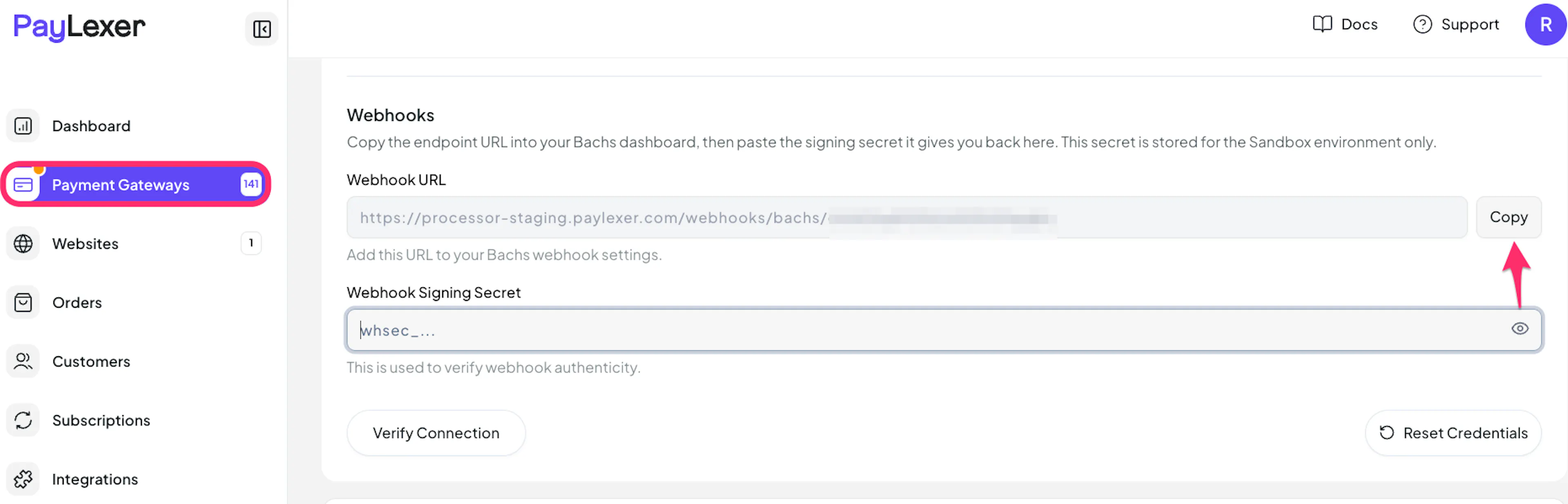
On the Payment Gateways → Bachs page in PayLexer, copy the Webhook URL. It is generated for your account and shown as a read-only field.
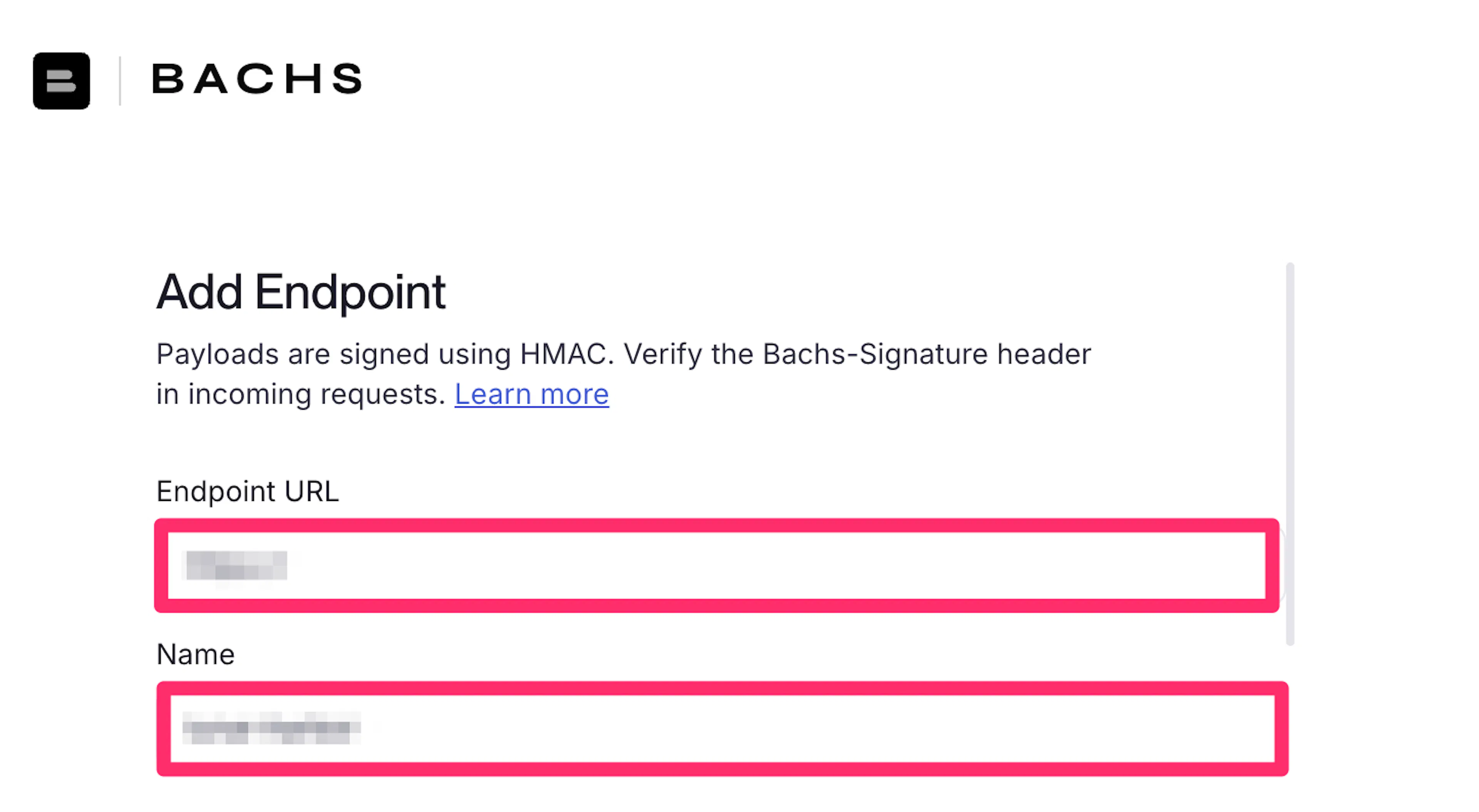
Add an endpoint in Bachs
In the Bachs dashboard, click Developer Portal, open the Webhooks section and click Add endpoint. Paste the PayLexer webhook URL and give the endpoint a name.
Select the events
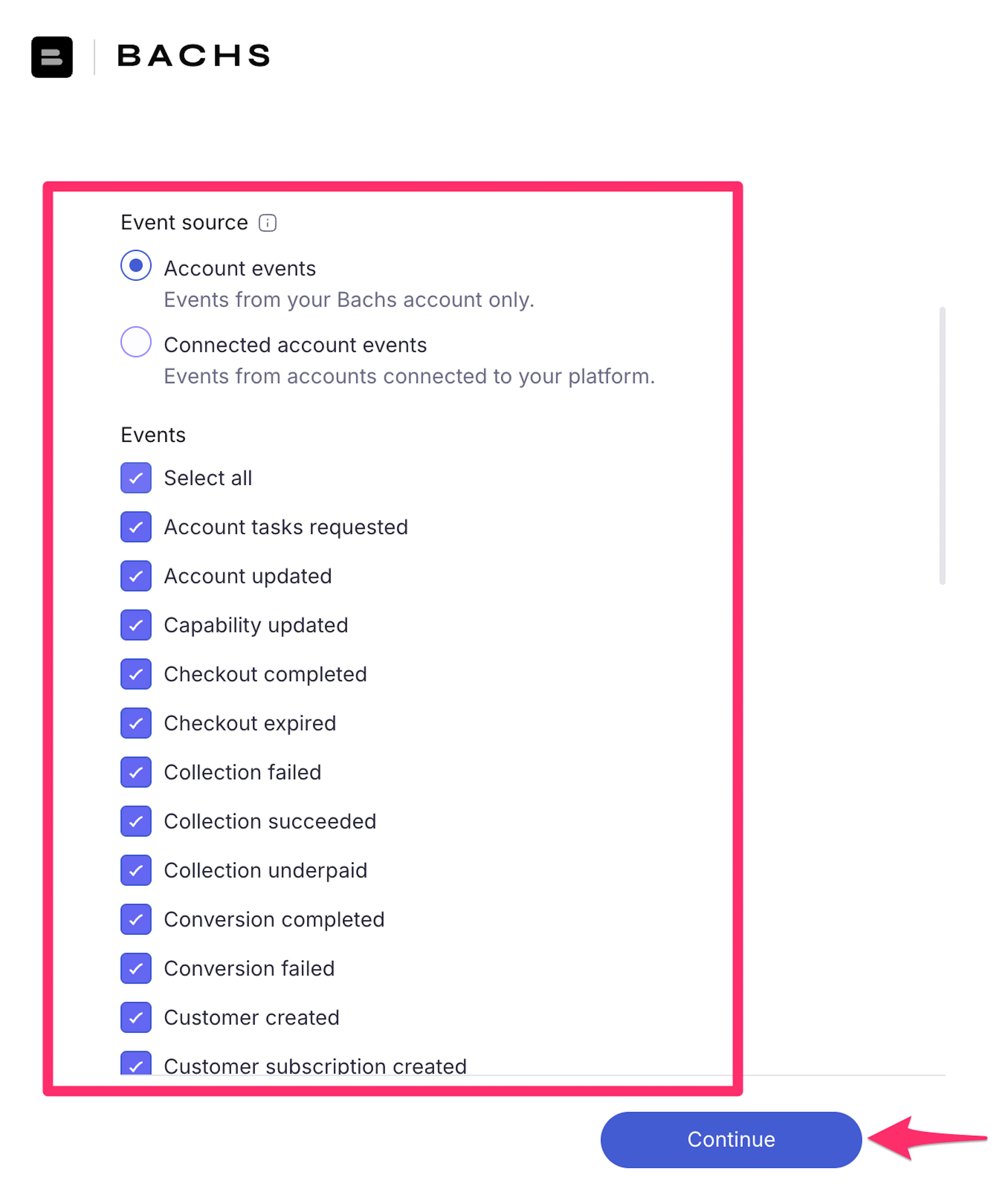
Select at least these events:
collection.succeeded,collection.failedandcheckout.expiredrefund.paidandrefund.failedcustomer.subscription.created,customer.subscription.updatedandcustomer.subscription.deletedinvoice.paidandinvoice.payment_failed
Then save the endpoint.
Copy the signing secret
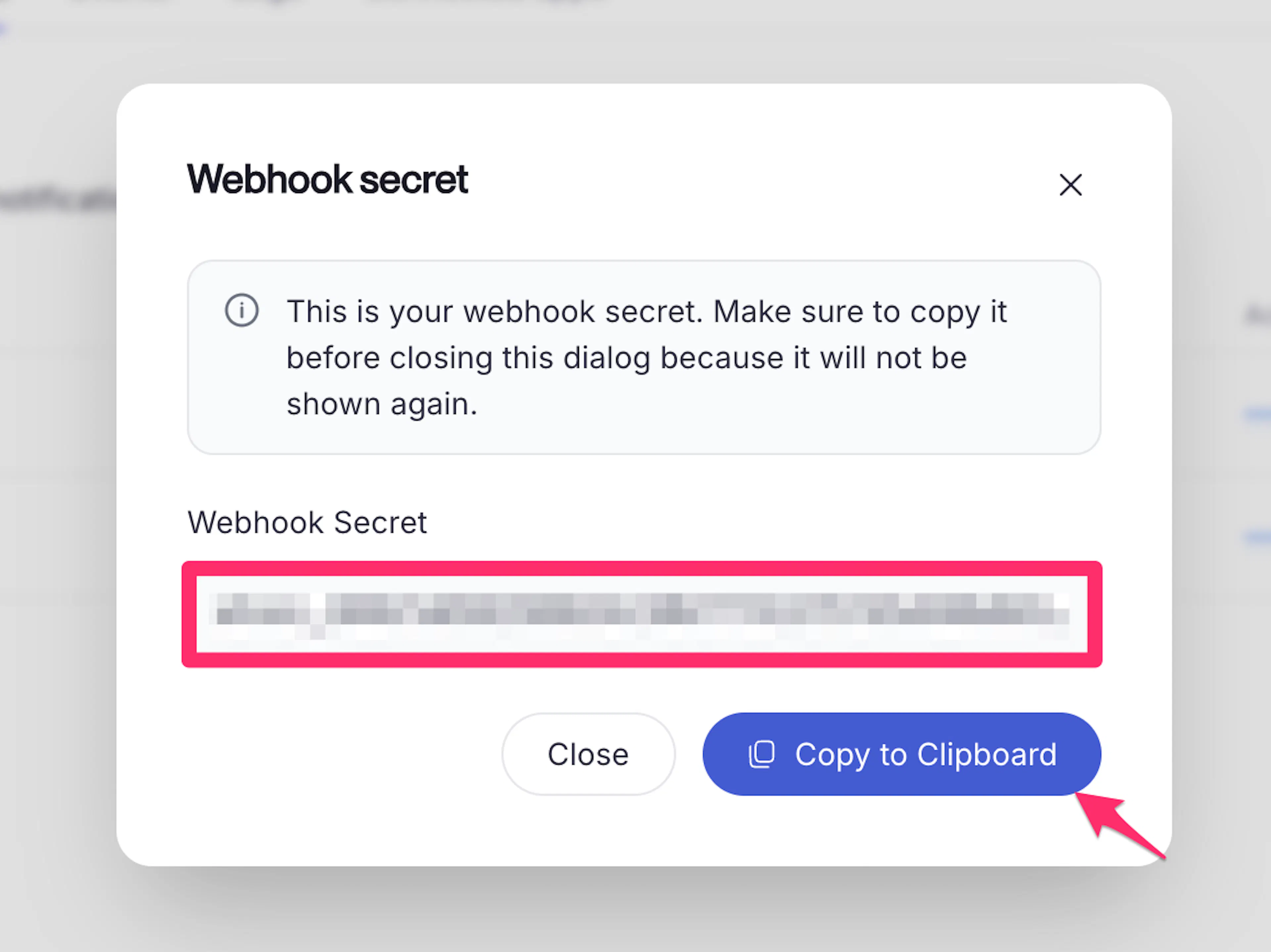
Open the endpoint you just created and copy its Signing secret. It starts with whsec_.
Add the signing secret to PayLexer
Back in PayLexer, paste the whsec_ value into the Webhook Signing Secret field on the matching tab (Sandbox for the sandbox endpoint, Live for the live one) and click Save Changes.
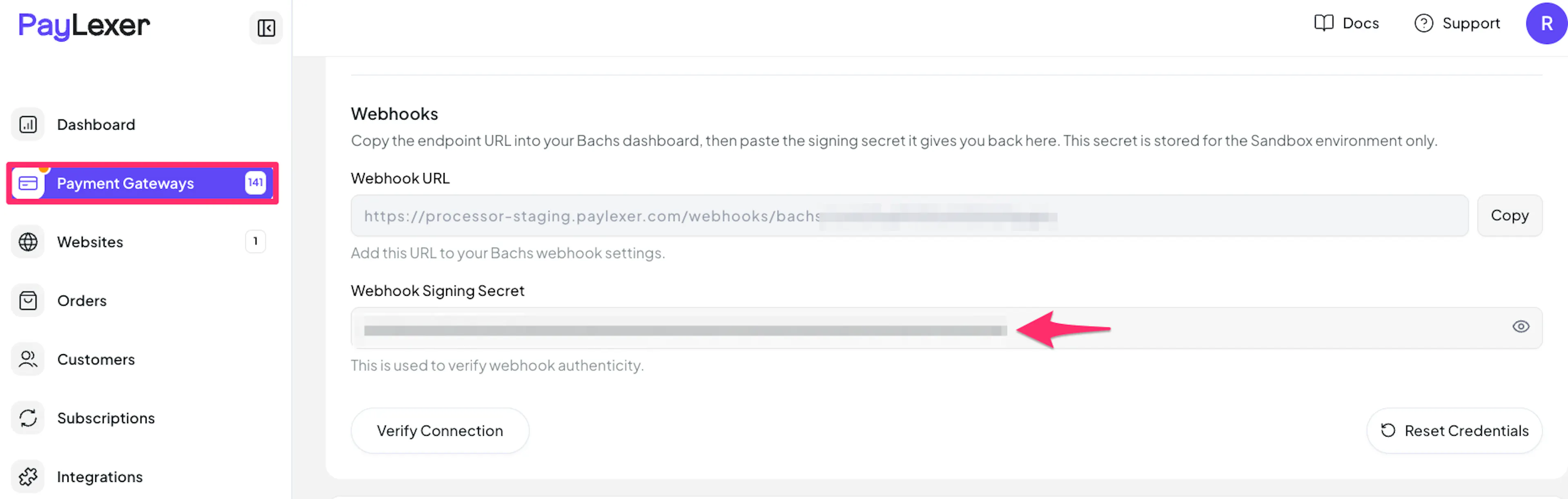
PayLexer only accepts a notification about an order when it is signed with the secret saved for that order's environment. Until the live Webhook Signing Secret is saved, live orders do not complete from Bachs's notifications.
Integrate Bachs to Your Website
If you have already added and configured your site, you can enable Bachs in your existing setup.
Go to Websites
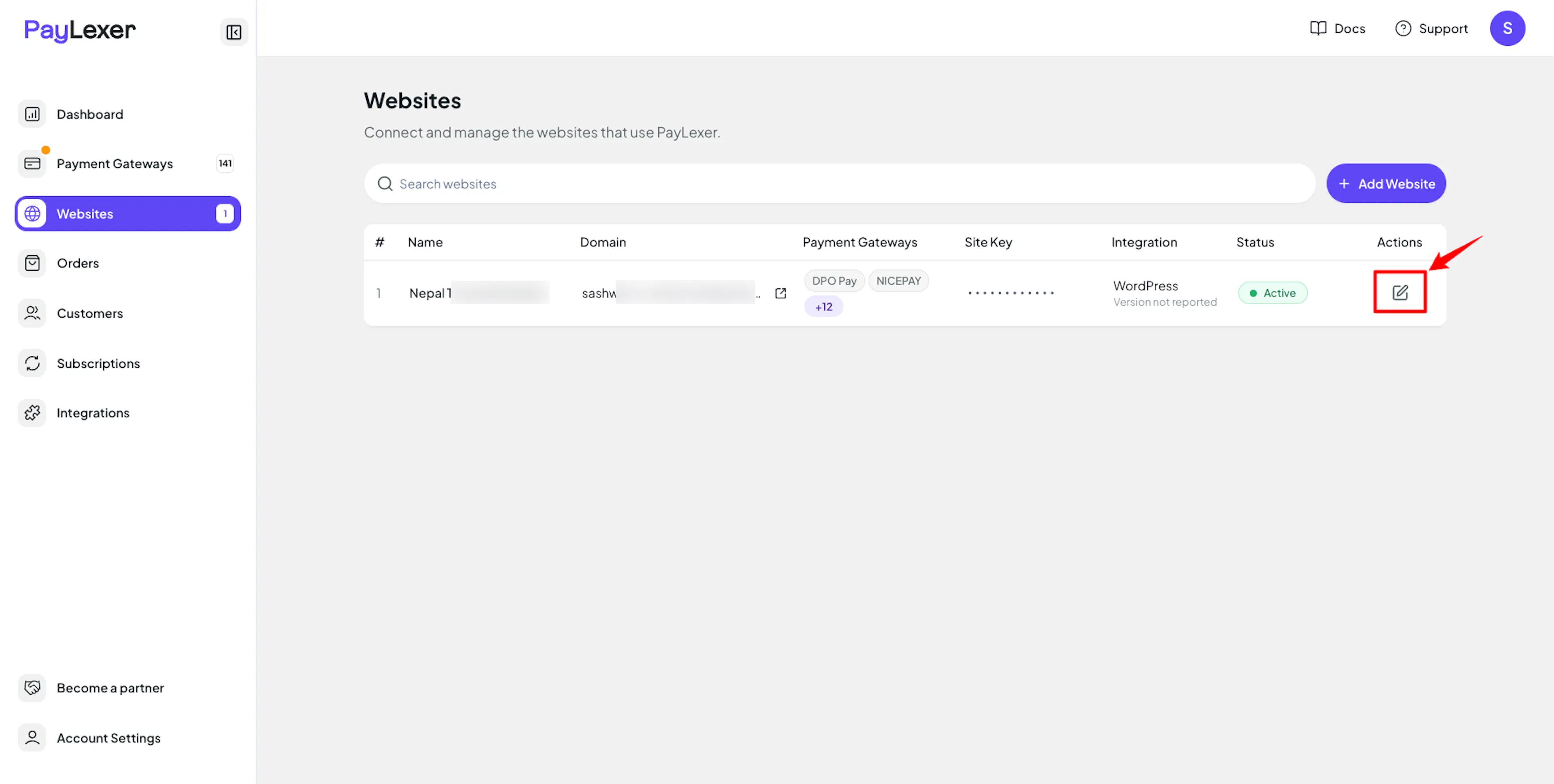
Navigate to Websites in your PayLexer dashboard.
Open your website
In your website's row, click the Edit icon in the Actions column to open its page.
Enable Bachs
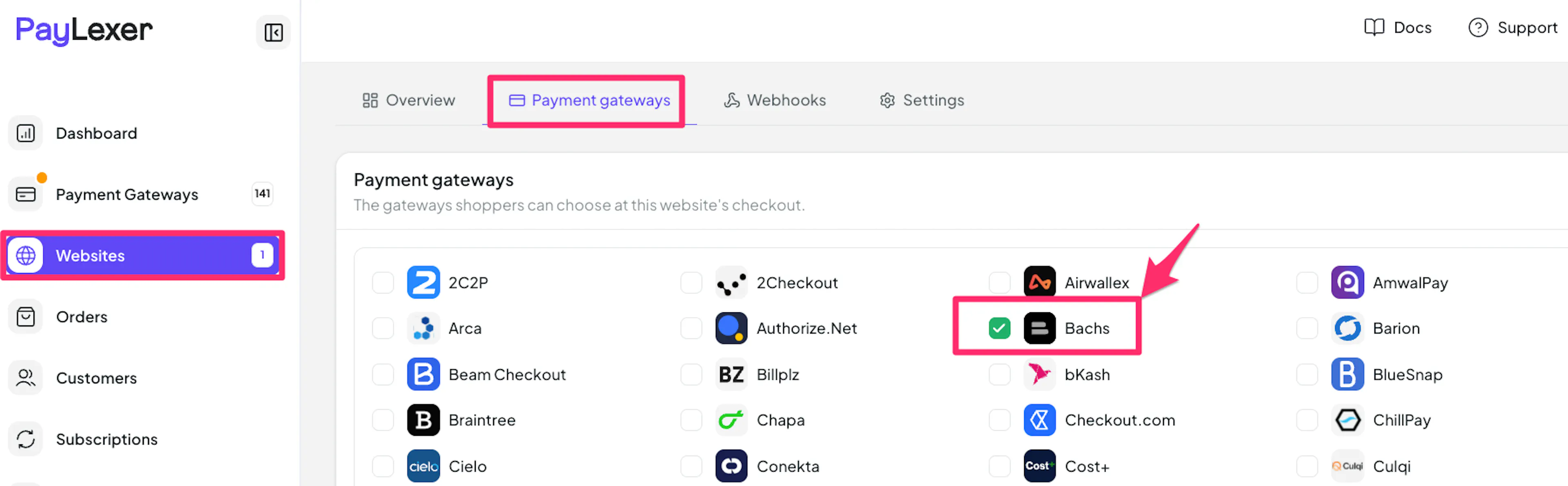
Open the Payment gateways tab, tick the checkbox for Bachs, then click Save gateways.
If you haven't added a website yet, Continue to Add Your Website →
Troubleshooting
Best Practices
- Test in the Bachs sandbox before enabling production. In the sandbox, any card number succeeds except Bachs's decline test cards, and the Test cards panel on the checkout page lets you complete mobile money, bank transfer and crypto payments
- Add a webhook endpoint and signing secret in both the sandbox and live Bachs accounts before taking payments
- Keep Select all scopes on the Secret Key you give PayLexer
- Reconcile your PayLexer orders against the Bachs dashboard periodically
FAQs
Still Have Questions?
- Bachs Support:
- Help Center: Bachs Help Center
- Support Email: support@bachs.io
- Documentation: Bachs Docs
- PayLexer Support: Contact Support