

Redsys
Connect your bank's Redsys terminal to PayLexer to accept euro card payments in Spain and Andorra through the bank's own hosted card page, with 3-D Secure handled for you.
Redsys is the payment switch behind most card payments in Spain, owned and operated on behalf of the Spanish banks. Merchants in Andorra reach the same platform through Creand Crèdit Andorrà. You do not sign up with Redsys directly. Your bank issues you a terminal (Redsys calls the product TPV Virtual) as part of your merchant account, and that terminal is what accepts cards. PayLexer connects to that terminal, so shoppers pay on the bank's own hosted card page and 3-D Secure runs there.
- Supported Regions (Merchant Accounts): Spain and Andorra - view full list
- Supported Currencies: EUR - view full list
This gateway appears in checkout only when the selected currency is EUR.
Supported Features
- Bank-hosted card page, so card details are never entered on your site or in PayLexer
- 3-D Secure authentication run by the bank as part of the hosted page
- Signed server-to-server notifications that confirm each payment independently of the shopper's browser
- Card brand, last four digits, bank authorization code, and 3-D Secure status recorded against each order
Refunds are not issued from PayLexer for Redsys. Redsys reports an outcome only to the address carried by the request that created the operation, and it offers no way to look an operation up afterwards, so the two sides cannot be kept in step automatically. Refund in the Redsys administration portal, then mark the order refunded in your store by hand. See the refunds notes under Troubleshooting and Best Practices.
Before You Start
Make sure you have:
- Redsys Terminal – Redsys does not sell terminals directly. Contact the bank that holds your merchant account and ask them to provision a TPV Virtual terminal and issue your credentials.
- PayLexer Account – Required to configure the integration. Create your account →
- A website where you want to integrate
Looking for a different payment processor? View all supported gateways →
Configuring Redsys
You need a Merchant Code (FUC), Terminal Number, and SHA-256 Merchant Key from Redsys for this integration.
Getting API Credentials
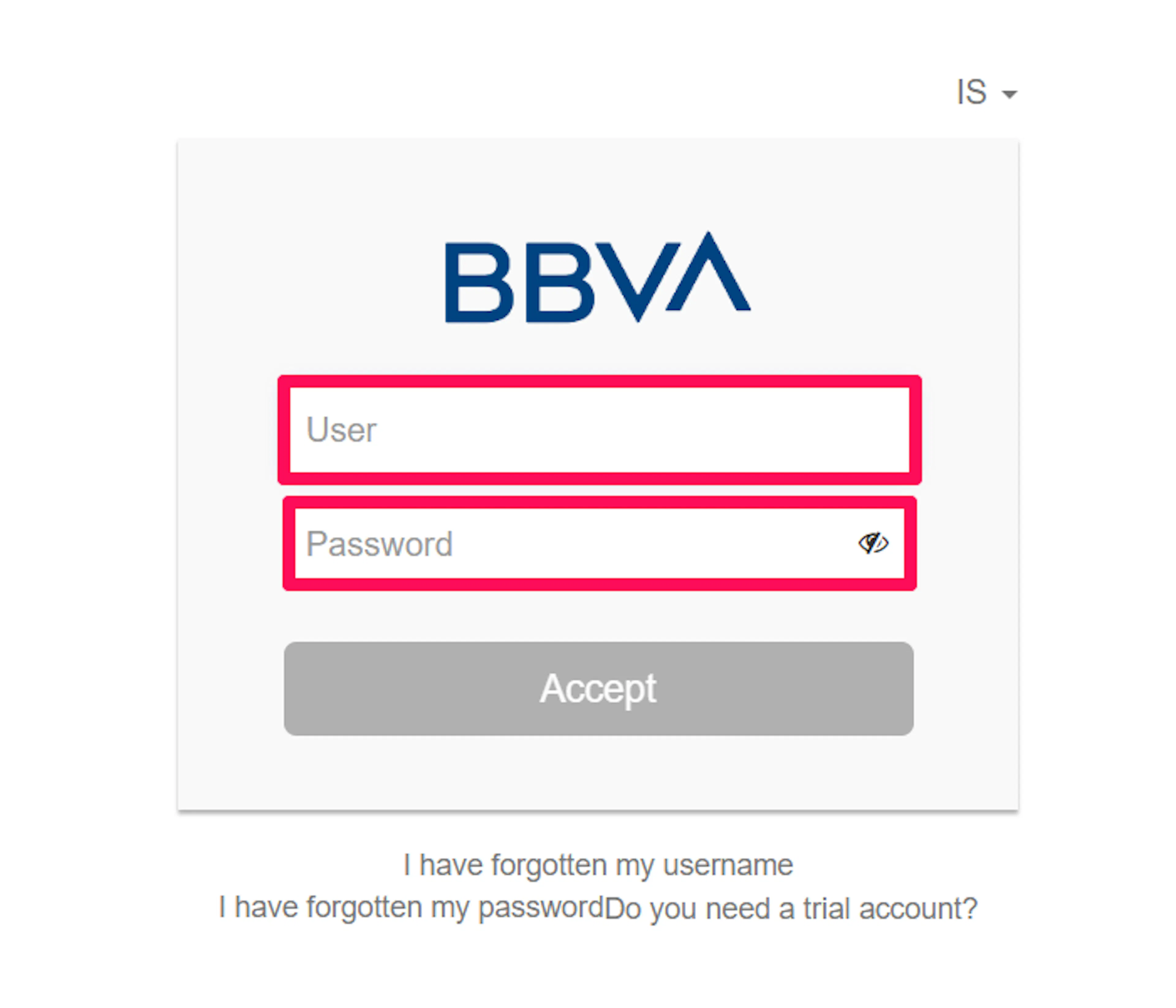
Open your Redsys administration portal
Log in to the Redsys administration portal (Canales) with the user your bank issued you.
The portal is bank-branded, so yours may carry your own bank's name and colours. Use the address your bank gave you if it differs from the one above.
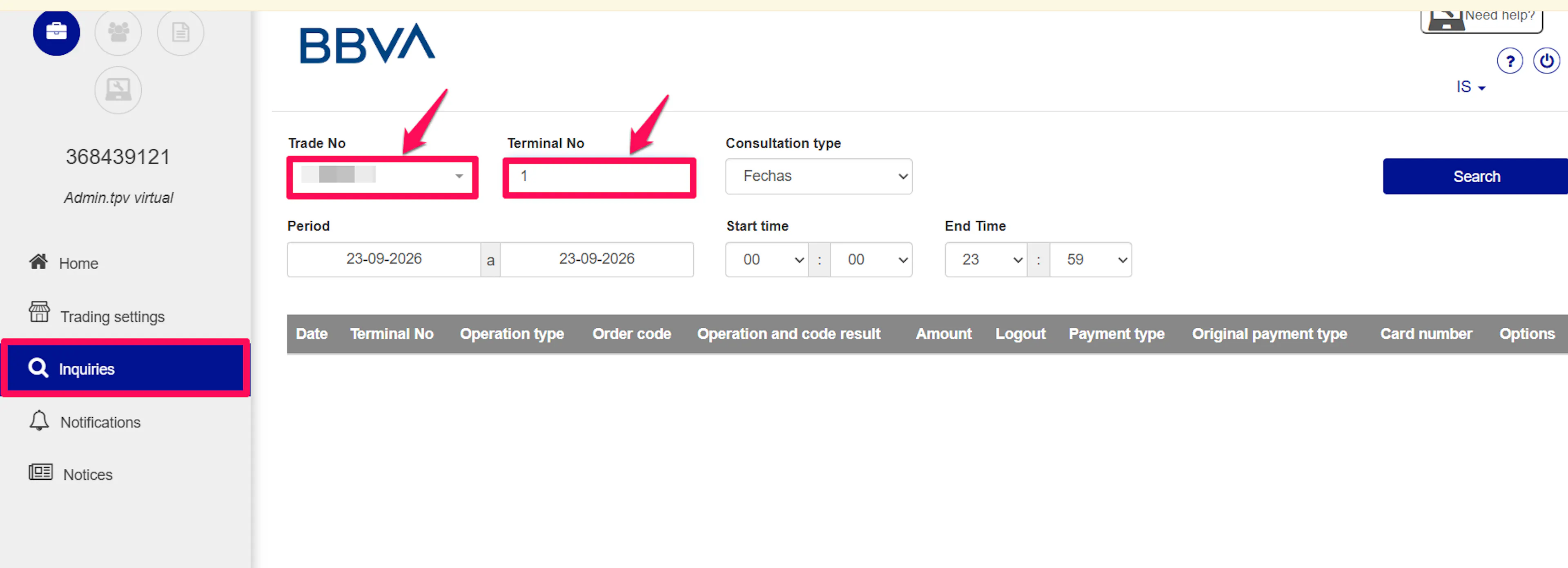
Search for your terminal
Go to Merchant Configuration → Search, leave Terminal No. blank so that every terminal on your account is listed, and run the search.
All three credentials come from this one screen.
Read the Merchant Code and Terminal Number
Both values are printed directly in the results grid, on the row for your terminal:
- Merchant Code (FUC) - nine digits identifying your business to Redsys
- Terminal Number - which of your terminals to charge
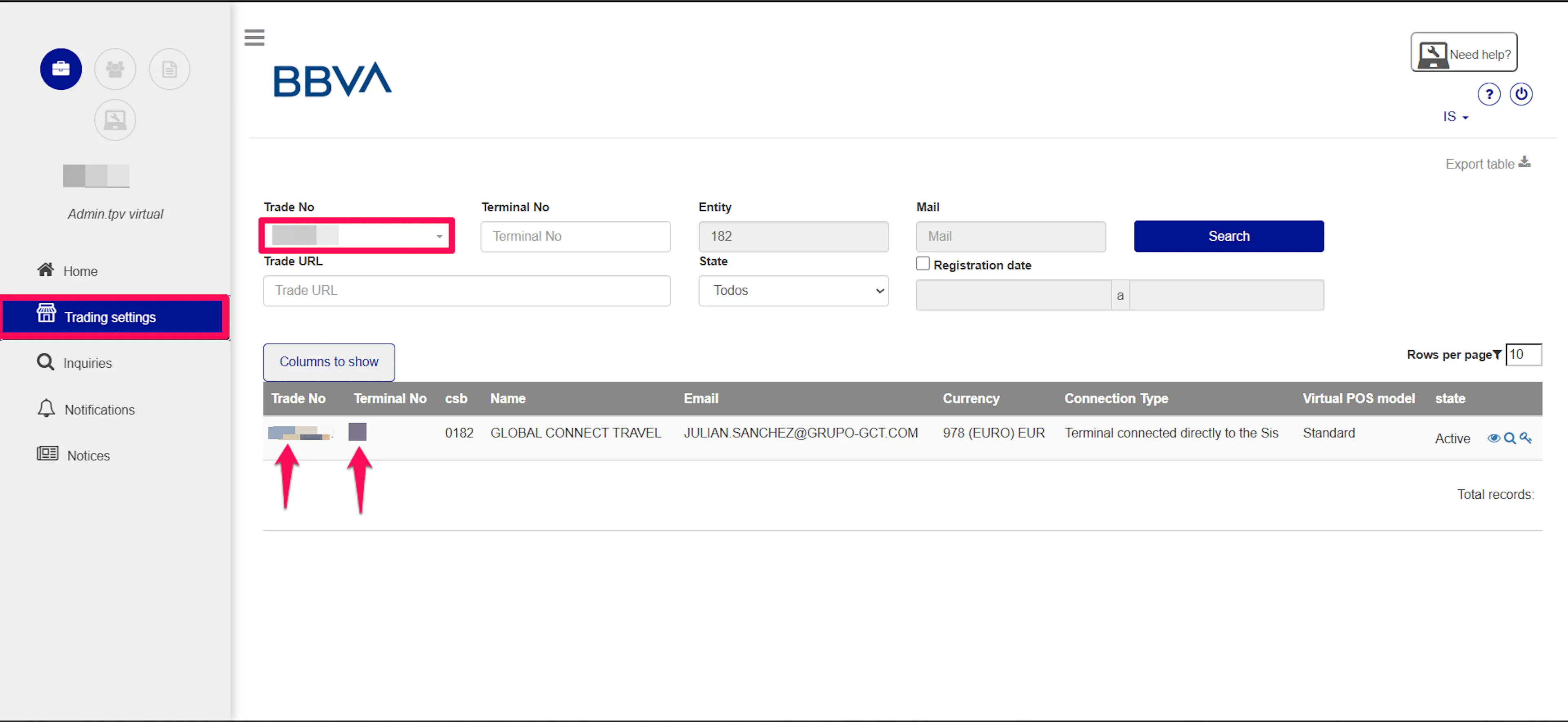
Copy the Terminal Number exactly as the grid prints it. If it shows 1, enter 1 and not 001. The terminal number is part of the signed payload, so padding it changes the signature and every payment is rejected.
Copy your SHA-256 Merchant Key
On the same terminal row, click See key (Ver clave in Spanish). The portal asks for your login password again before it will reveal the key.
The popup shows two keys. Copy the longer one. It is base64 and 32 characters.
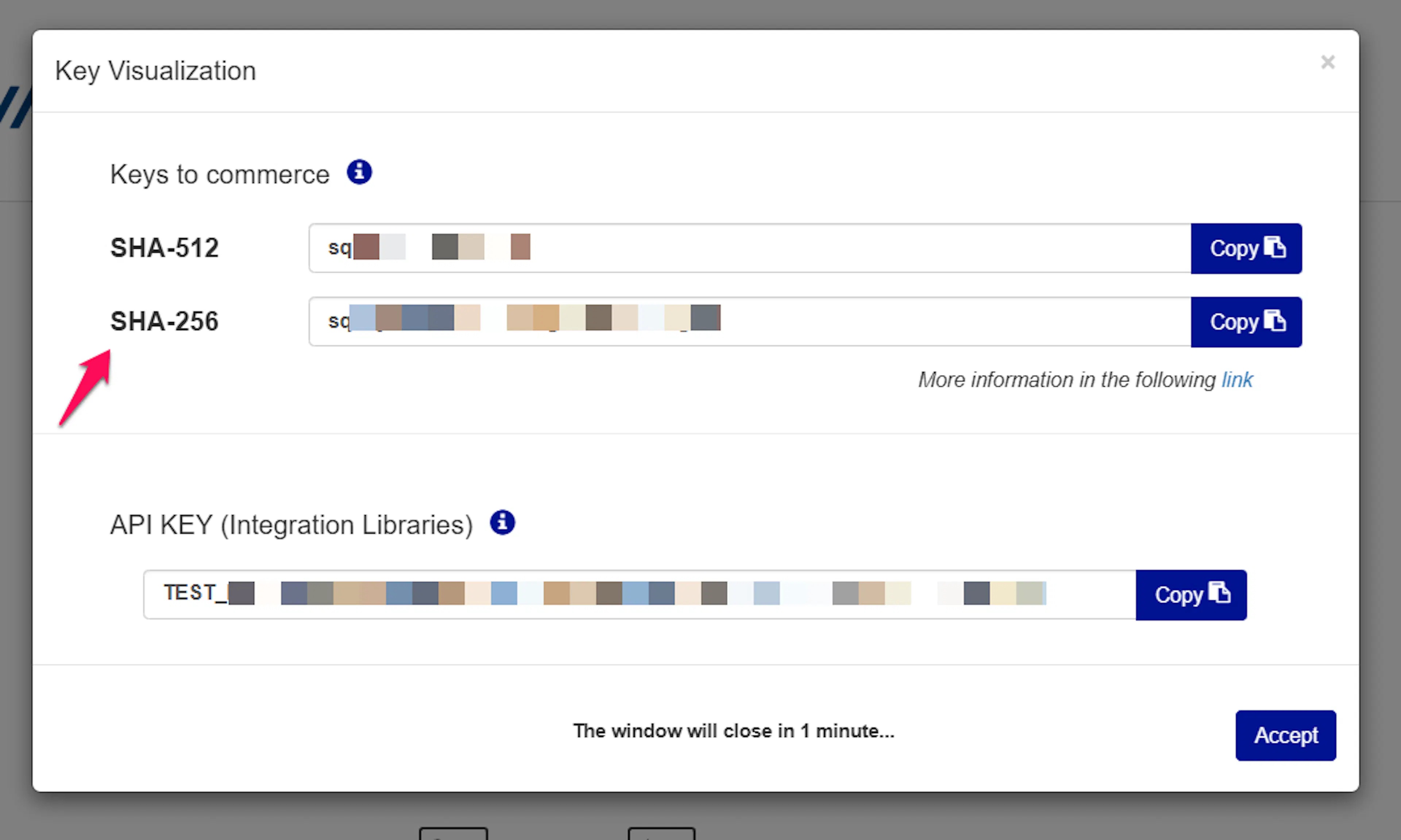
The shorter key is the legacy SHA-1 key and will not work. Using it produces a signature error that Redsys reports as SIS0042 - a code its own documentation describes as a recurring-payments problem, which it is not.
Adding Credentials to PayLexer
Open PayLexer Dashboard
Log in to your PayLexer dashboard and navigate to Payment Gateways → Redsys.
Enter your credentials
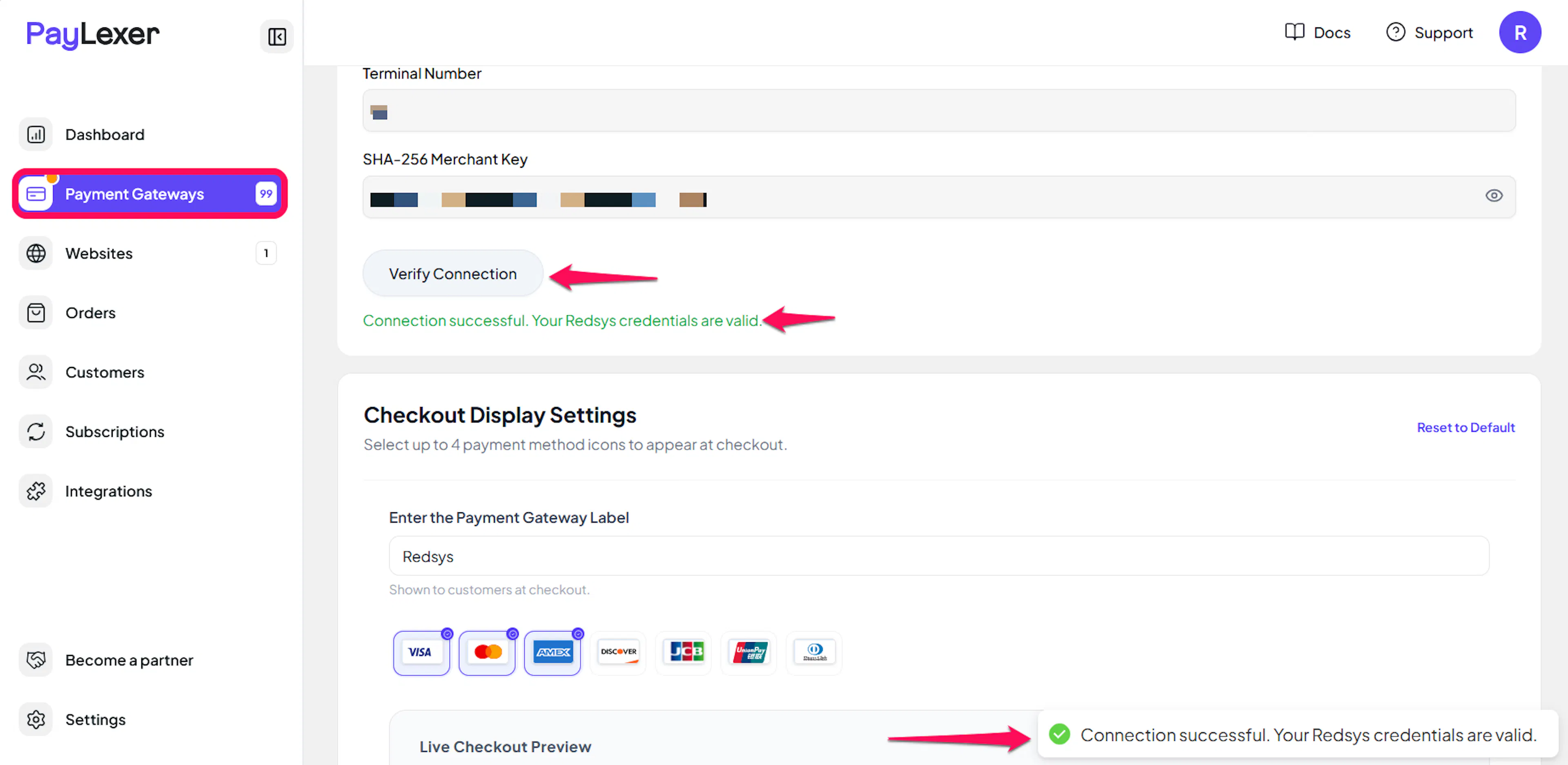
Paste the Merchant Code (FUC), Terminal Number, and SHA-256 Merchant Key you copied from Redsys into the corresponding fields.
Understanding Live/Production and Sandbox Settings:
| Environment | Purpose |
|---|---|
| Live / Production | Used for real transactions. |
| Test / Sandbox | Used for testing only. No real money is processed. |
How PayLexer selects credentials:
- Debug/Test mode ON → Test credentials are used
- Debug/Test mode OFF → Live credentials are used
Your bank issues one set of credentials that works on both the test and live Redsys hosts - the two differ only by address. If you paste live credentials into the Test fields, payments fail as a signature error rather than as an authentication error, which can be misleading.
Test and save
Click Save to save your configuration and verify your credentials. Click Verify Connection to test the connection.
Configuring Webhooks (Mandatory)
Webhooks enable real-time payment updates and significantly improve reliability.
Benefits of Webhooks:
- Instant payment status updates
- Orders completed even when the shopper closes the browser mid-payment
- A record of what the bank actually authorized, rather than what the browser reported
Redsys works differently from most gateways here. There is no webhook URL to copy and no separate webhook secret. PayLexer sends the notification address with every transaction, and the SHA-256 Merchant Key you already entered is what verifies the notifications Redsys sends back.
What you do need to check is that online notification is switched on for your terminal. If it is off, payments will complete at the bank but your orders will stay pending, and nothing will correct them later.
Open your terminal's configuration
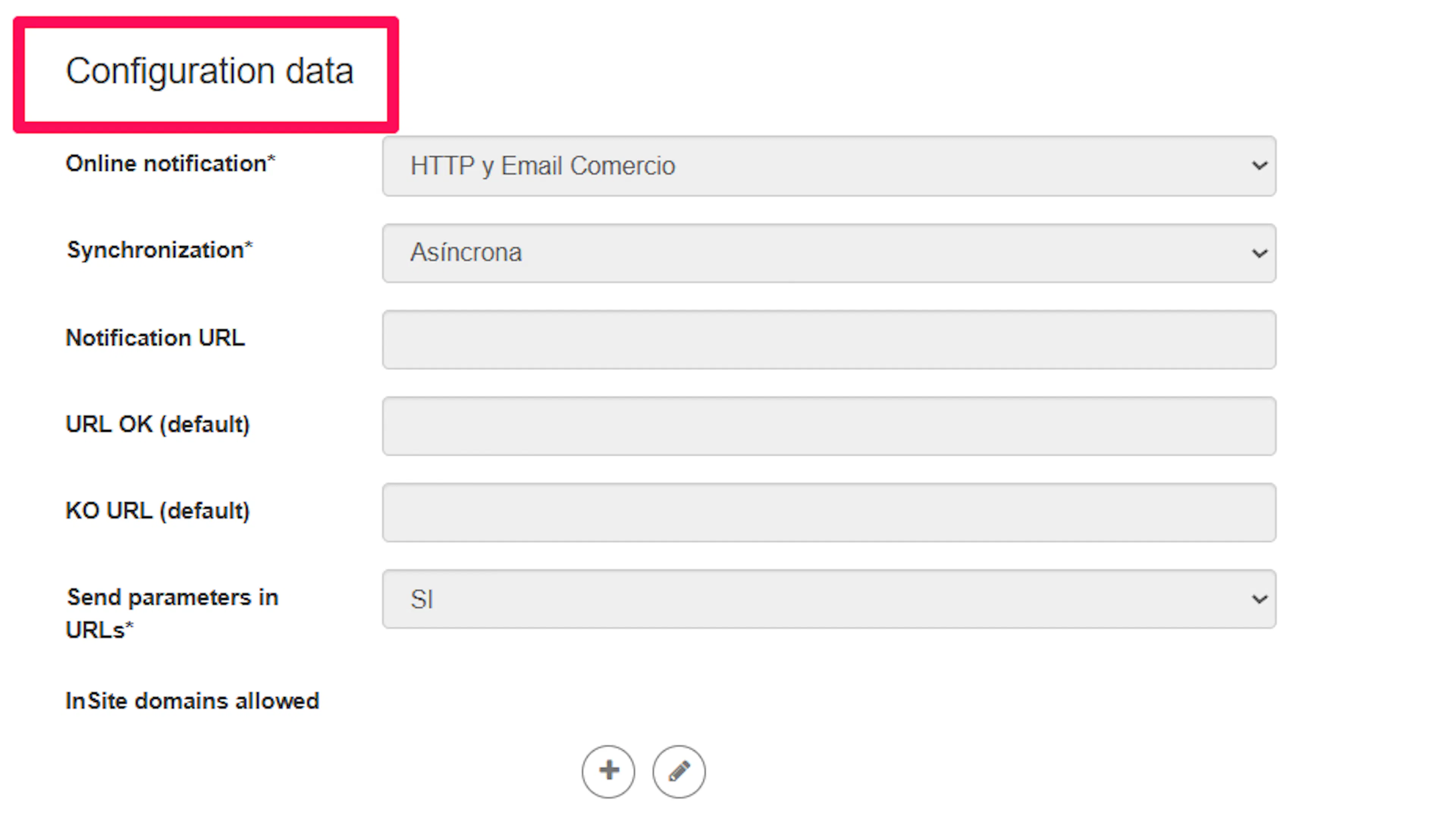
In the Redsys administration portal, open your terminal and find the Configuration data section.
Enable online notification
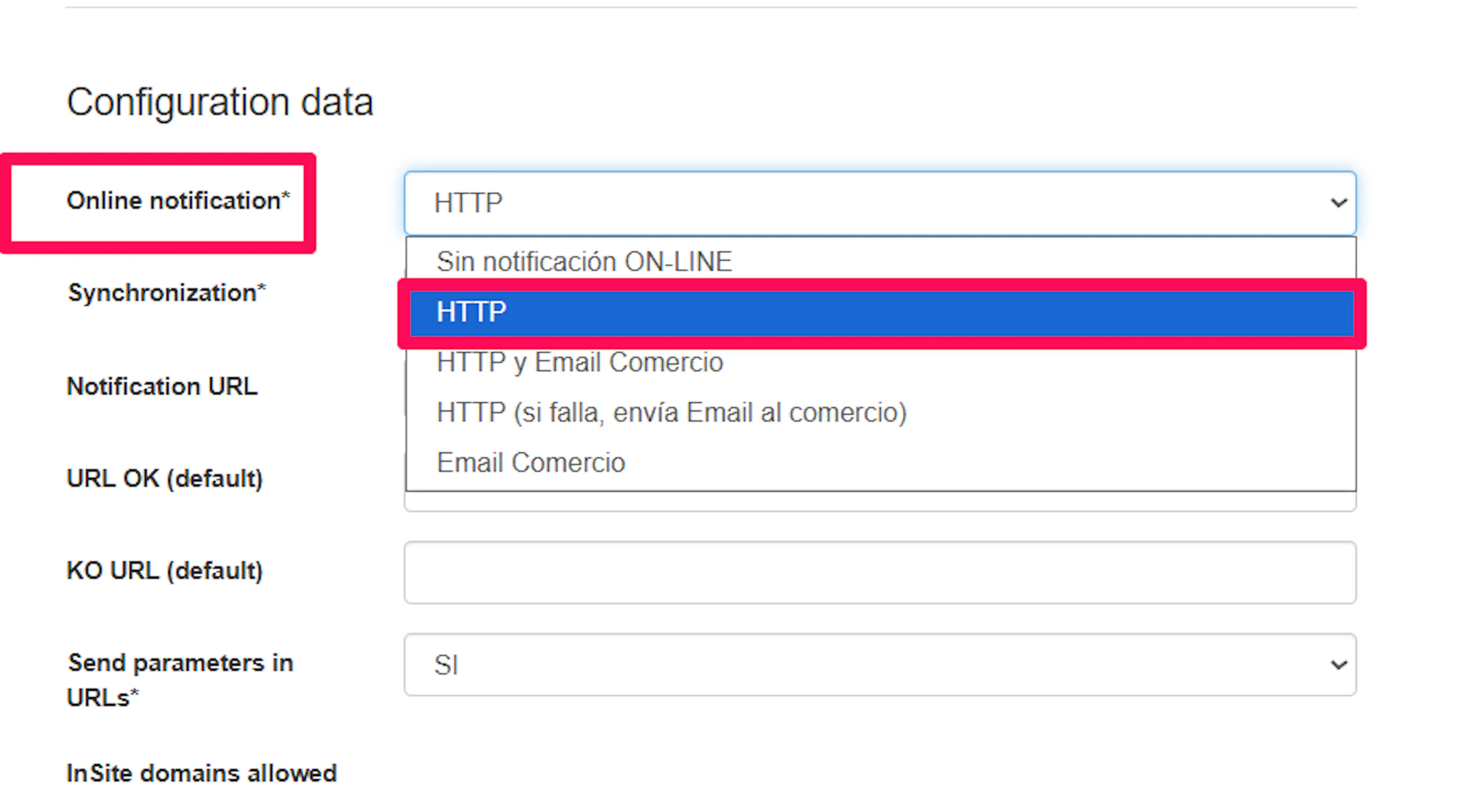
Set Online notification to an option that includes HTTP:
- With ON-LINE notification: HTTP
- With ON-LINE notification: HTTP + Business Email
Do not use Without ON-LINE notification or With ON-LINE notification: Business Email. Neither sends PayLexer anything, so your orders will never leave pending.
Enable parameters in the return URLs
Set Parameters in the URLs to YES. Some portals label this field URL parameters.
Redsys then appends its signed result to the address the shopper comes back to, which is how PayLexer tells a completed payment from an abandoned one at the moment the shopper returns.
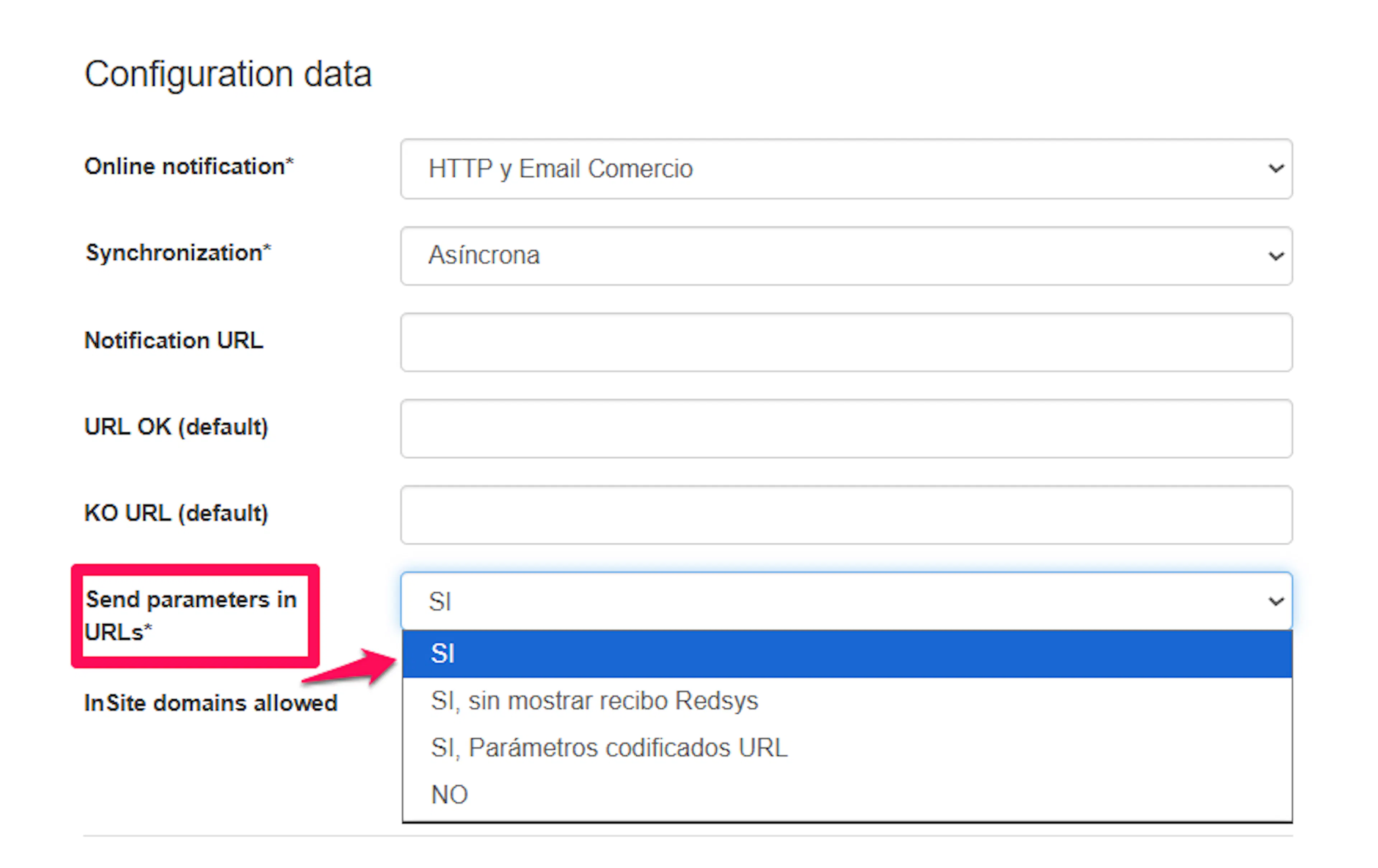
With this set to NO, every shopper who paid is shown your cancel page instead of your success page. The orders themselves are still correct, because the server-to-server notification is what marks an order paid - but the shopper is told their payment failed when it did not.
Confirm the remaining settings
Leave Synchronisation set to Asynchronous.
You can leave Notification URL empty. PayLexer supplies the address with each transaction, and that address takes precedence over anything set here.
These settings only affect payments that PayLexer starts. Refunds are always performed in the Redsys portal, and they notify PayLexer nothing whatever these are set to - see the refunds note under Best Practices.
Integrate Redsys to Your Website
If you have already added and configured your site, you can enable Redsys in your existing setup.
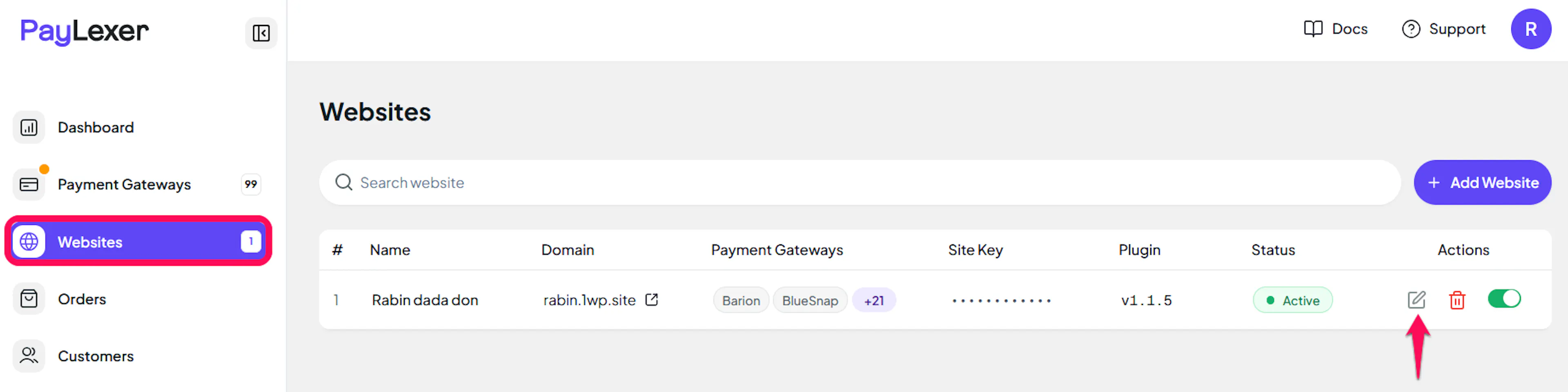
Go to Websites
Navigate to Websites in your PayLexer dashboard.
Edit your website
Click the Edit Icon of your added website.
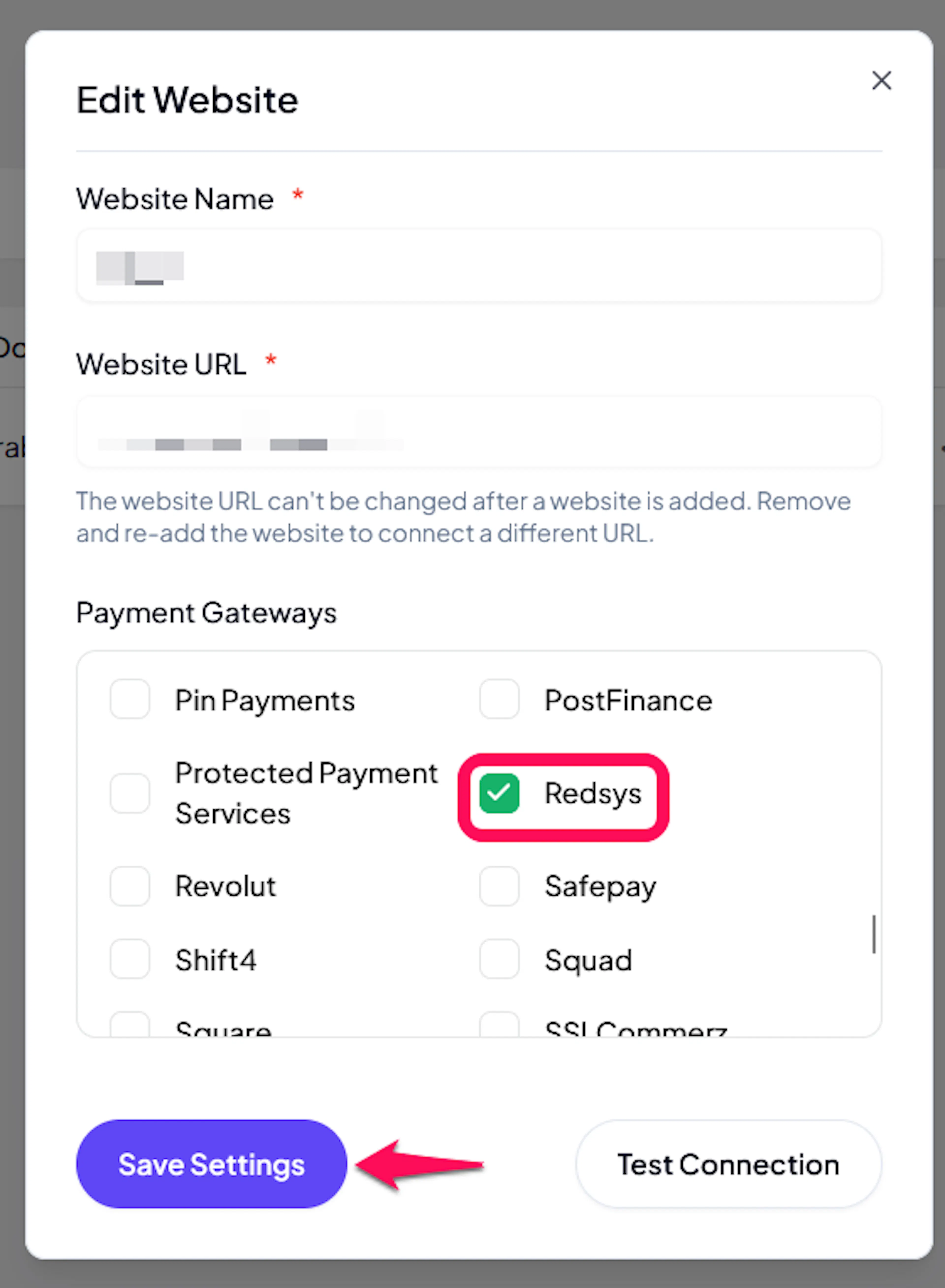
Enable Redsys
Click the checkbox to enable Redsys for the website.
If you haven't added a website yet, Continue to Add Your Website →
Troubleshooting
Best Practices
- Test in sandbox before enabling production. Complete a full payment on your test credentials before switching to live.
- Issue refunds in the Redsys administration portal, then mark the order refunded in your store. Redsys tells PayLexer nothing about a refund, so the order here will go on reading as paid until you update it yourself.
- Confirm online notification is enabled on your terminal before taking your first live payment. It is the only way an order can be marked paid.
- Keep your SHA-256 Merchant Key confidential. It both signs your payment requests and verifies the results Redsys sends back, so anyone holding it can act as your terminal.
- Ask your bank whether partial refunds are enabled on your account before you need one. Redsys supports them, but not every acquiring bank does, so a partial refund can be declined in the portal.
FAQs
Still Have Questions?
- Redsys Support: Contact the bank that issued your terminal. They provision your terminal and are the first line of support for it. General information is available at redsys.es.
- PayLexer Support: Contact Support