

HBL (Himalayan Bank Limited)
Learn how to configure Himalayan Bank Limited (HBL) as a payment gateway in PayLexer, including credentials, security, and website integration.
Himalayan Bank Limited (HBL) is a Nepal-based commercial bank, headquartered in Kathmandu, offering cards, POS merchant services, e-commerce payments, and mobile and internet banking to businesses across Nepal. Unlike most PayLexer gateways, HBL is connected through a direct bank partnership rather than a self-service sign-up, and every payment message is protected with bank-grade encryption in addition to standard authentication.
- Supported Regions (Merchant Accounts): Nepal
- Supported Currencies: NPR (Nepali Rupee), USD (US Dollar)
Use THB (Thai Baht) currency for testing.
Supported Features
- Hosted checkout page for card payments, so raw card details never touch your store or PayLexer
- Automatic, real-time payment status updates with no manual configuration required
- Every payment result is independently re-verified with HBL before an order is marked paid
- Bank-grade encrypted messaging between PayLexer and HBL for every transaction
HBL does not currently support subscriptions, free trials, sign-up fees, or refunds through PayLexer.
Before You Start
Make sure you have:
- HBL/PACO Merchant Credentials – Issued directly by Himalayan Bank Limited after a merchant partnership agreement, not through a self-service sign-up. Contact your Himalayan Bank relationship manager to get started.
- PayLexer Account – Required to configure the integration. Create your account →
- A website where you want to integrate
Looking for a different payment processor? View all supported gateways →
Configuring HBL
You need an Office ID, API Key, Merchant Signing Private Key, Merchant Decryption Private Key, PACO Encryption Public Key, PACO Signing Public Key, and Encryption Key ID from HBL for this integration.
Getting API Credentials
Contact Himalayan Bank
Reach out to your Himalayan Bank relationship manager or merchant services contact to set up a merchant account on HBL's PACO Core Payment API platform.
Generate your own signing and decryption keys
HBL secures every message with encryption, not a simple secret key. You will need to generate your own RSA key pairs (one for signing, one for decryption) and share the public halves with HBL as part of onboarding.
Receive your credentials from HBL
HBL will issue you:
- Office ID (Merchant ID)
- API Key
- PACO Encryption Public Key and PACO Signing Public Key
- Encryption Key ID
Keep your own Merchant Signing Private Key and Merchant Decryption Private Key from the step above alongside these.
Adding Credentials to PayLexer
Open PayLexer Dashboard
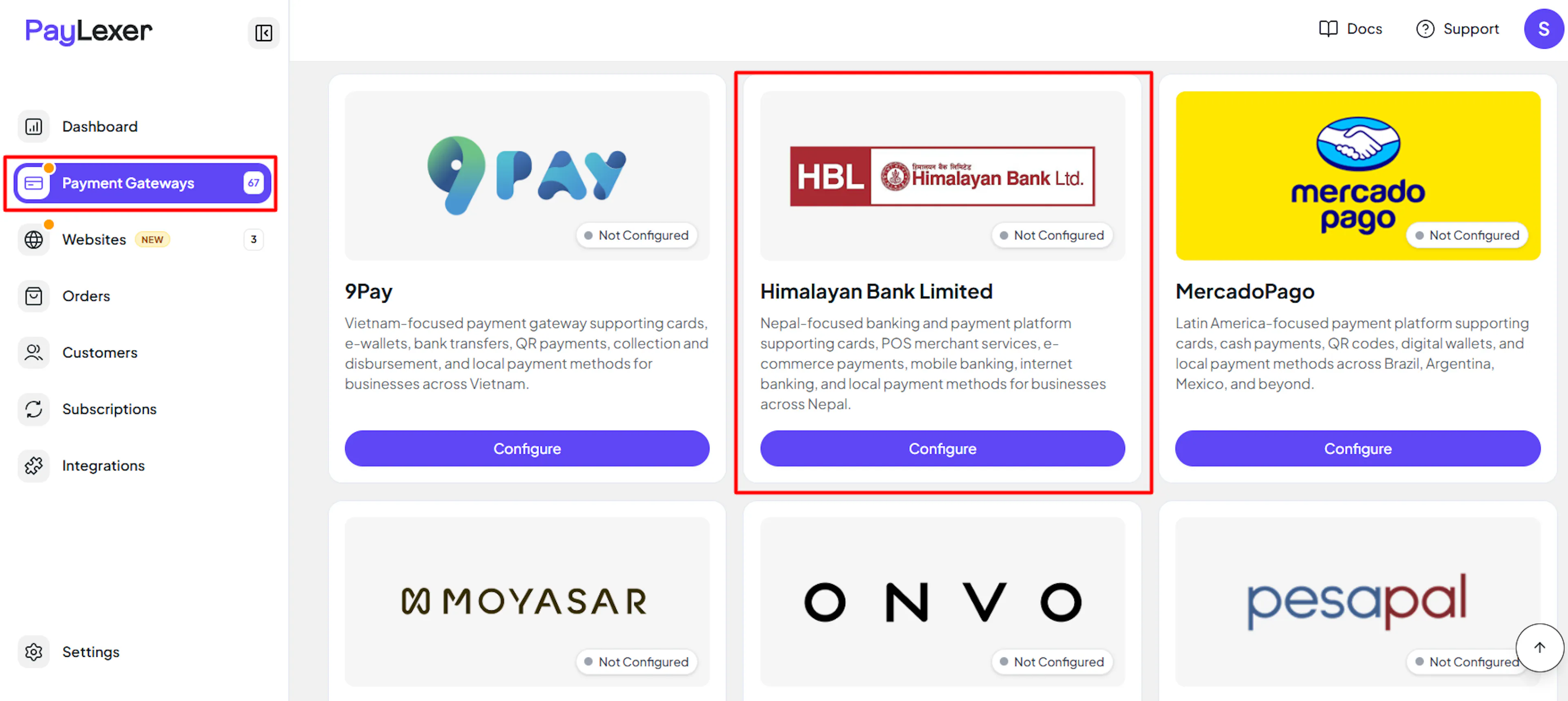
Log in to your PayLexer dashboard and navigate to Payment Gateways → HBL.
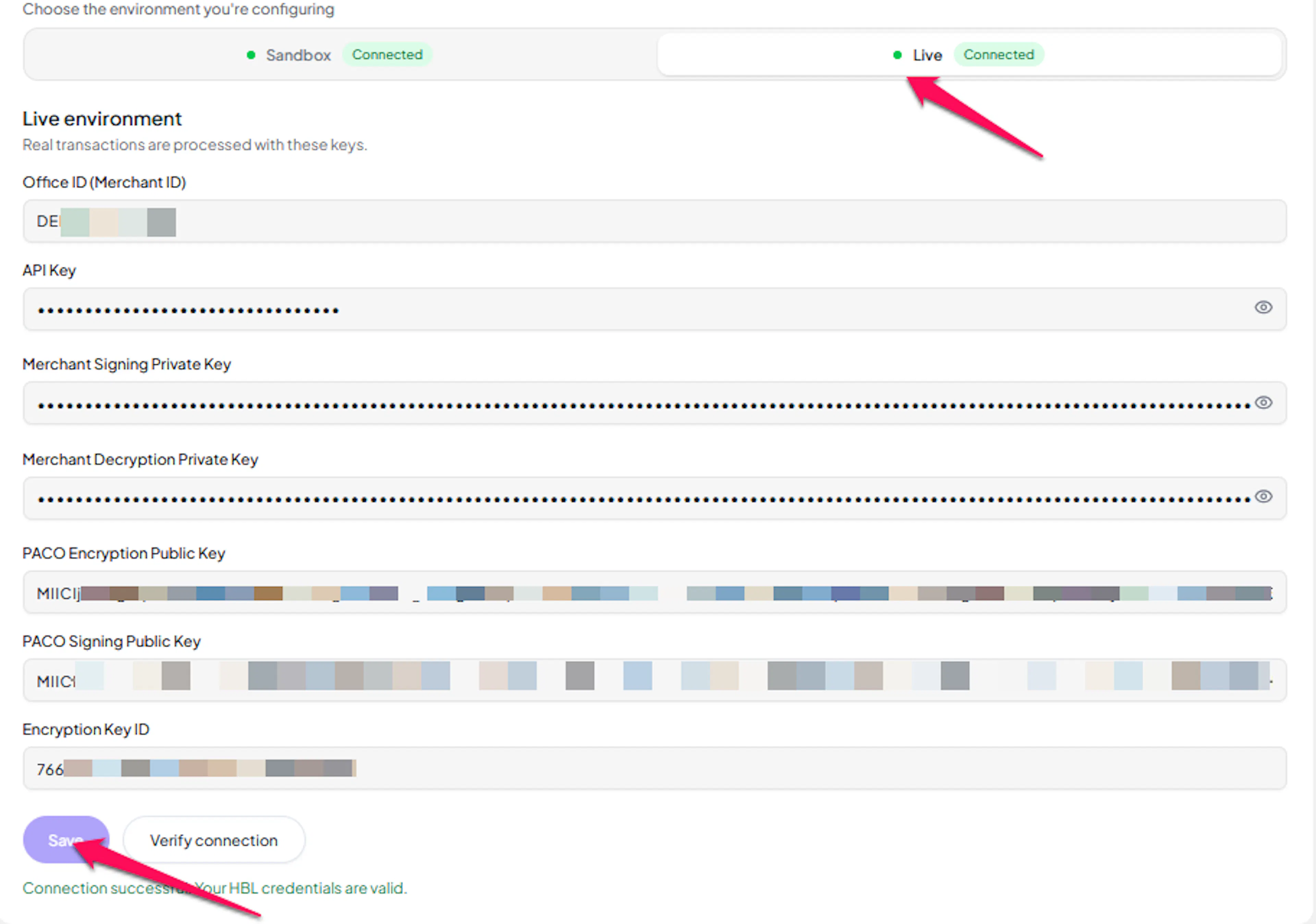
Enter your credentials
Paste the Office ID (Merchant ID), API Key, Merchant Signing Private Key, Merchant Decryption Private Key, PACO Encryption Public Key, PACO Signing Public Key, and Encryption Key ID you received from HBL into the corresponding fields.
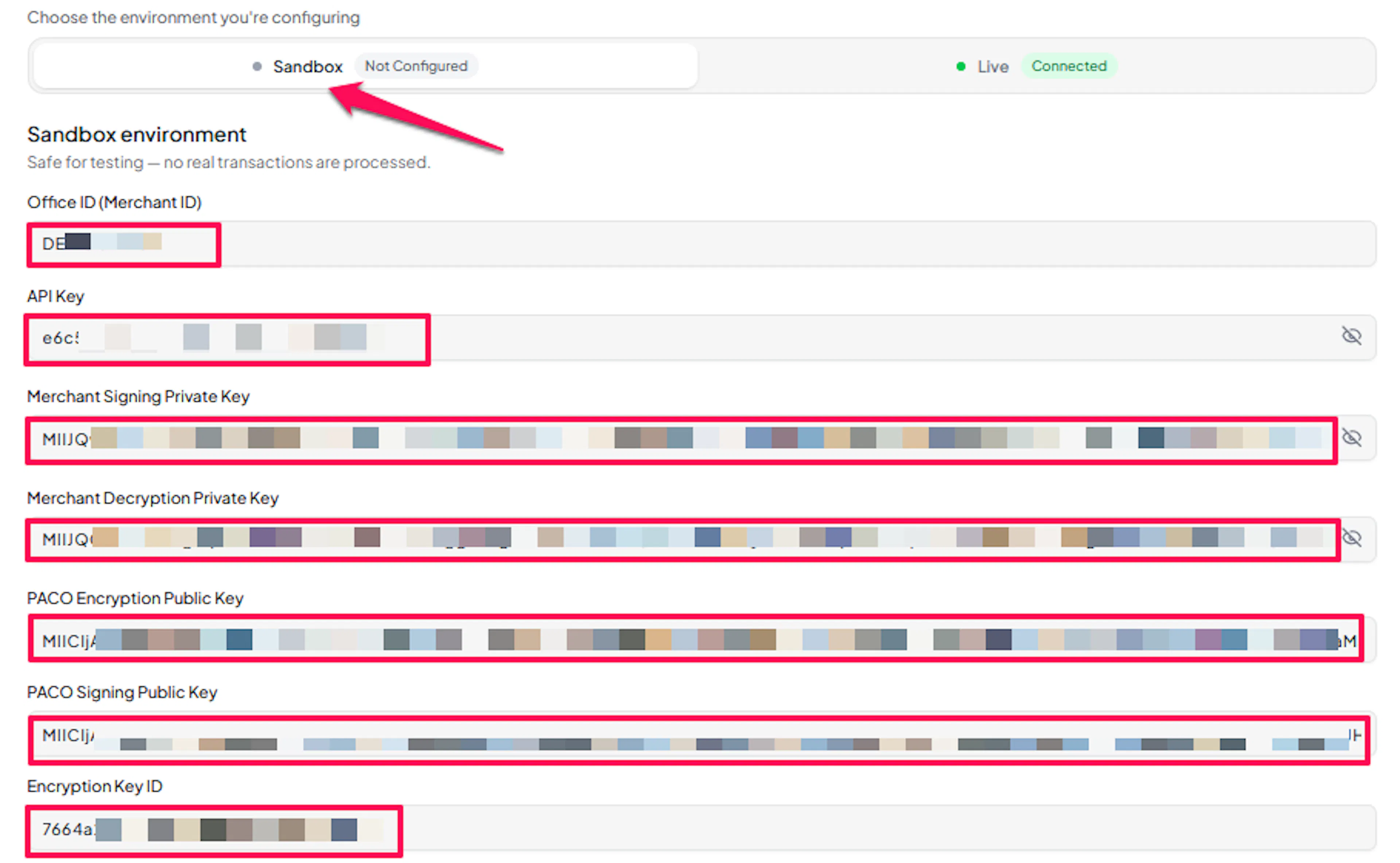
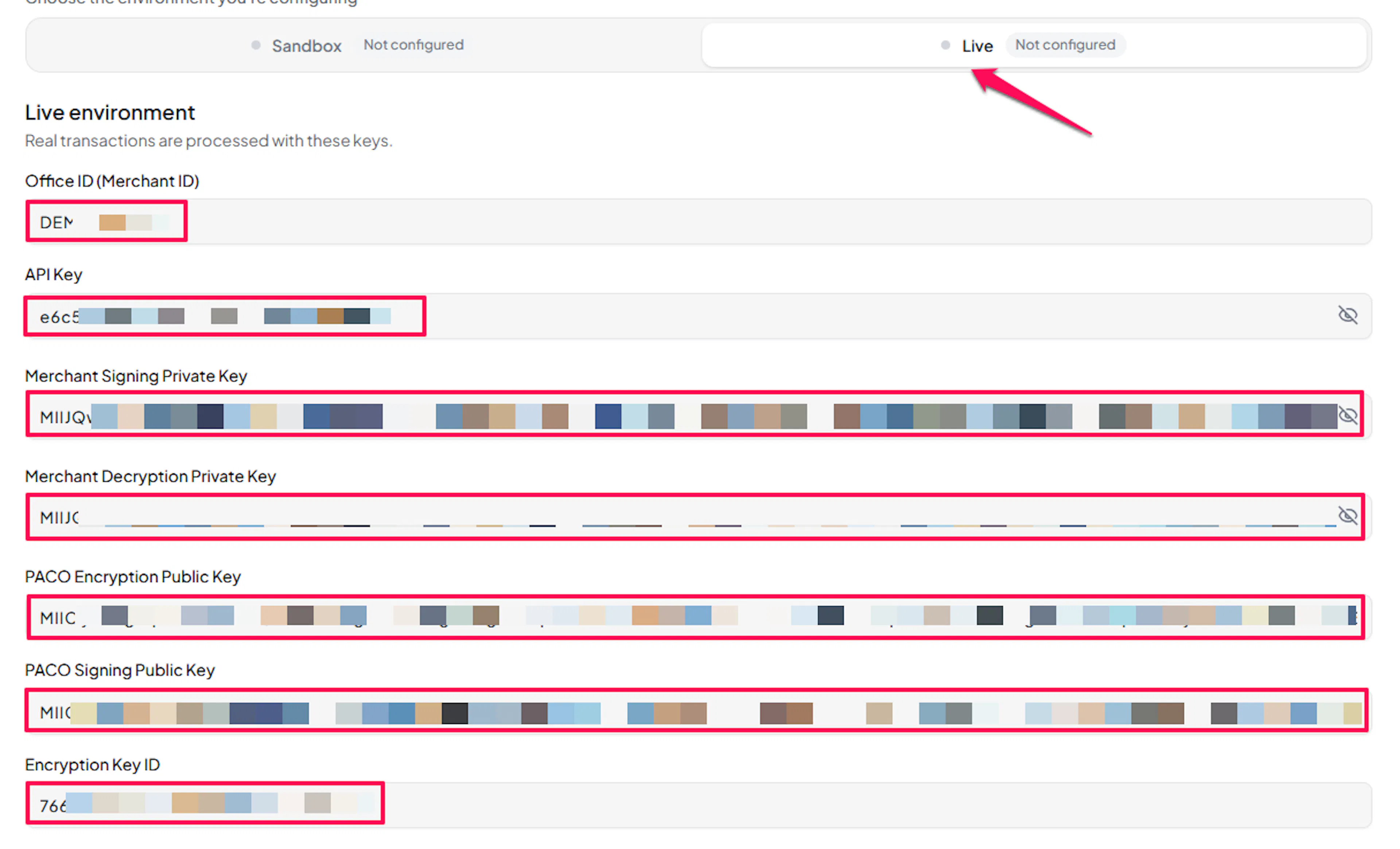
Understanding Live/Production and Sandbox Settings:
| Environment | Purpose |
|---|---|
| Live / Production (Mandatory) | Used for real transactions. Cannot be empty, even when testing. |
| Test / Sandbox (Optional) | Used for testing only. No real money is processed. |
How PayLexer selects credentials:
- Debug/Test mode ON → Test credentials are used
- Debug/Test mode OFF → Live credentials are used
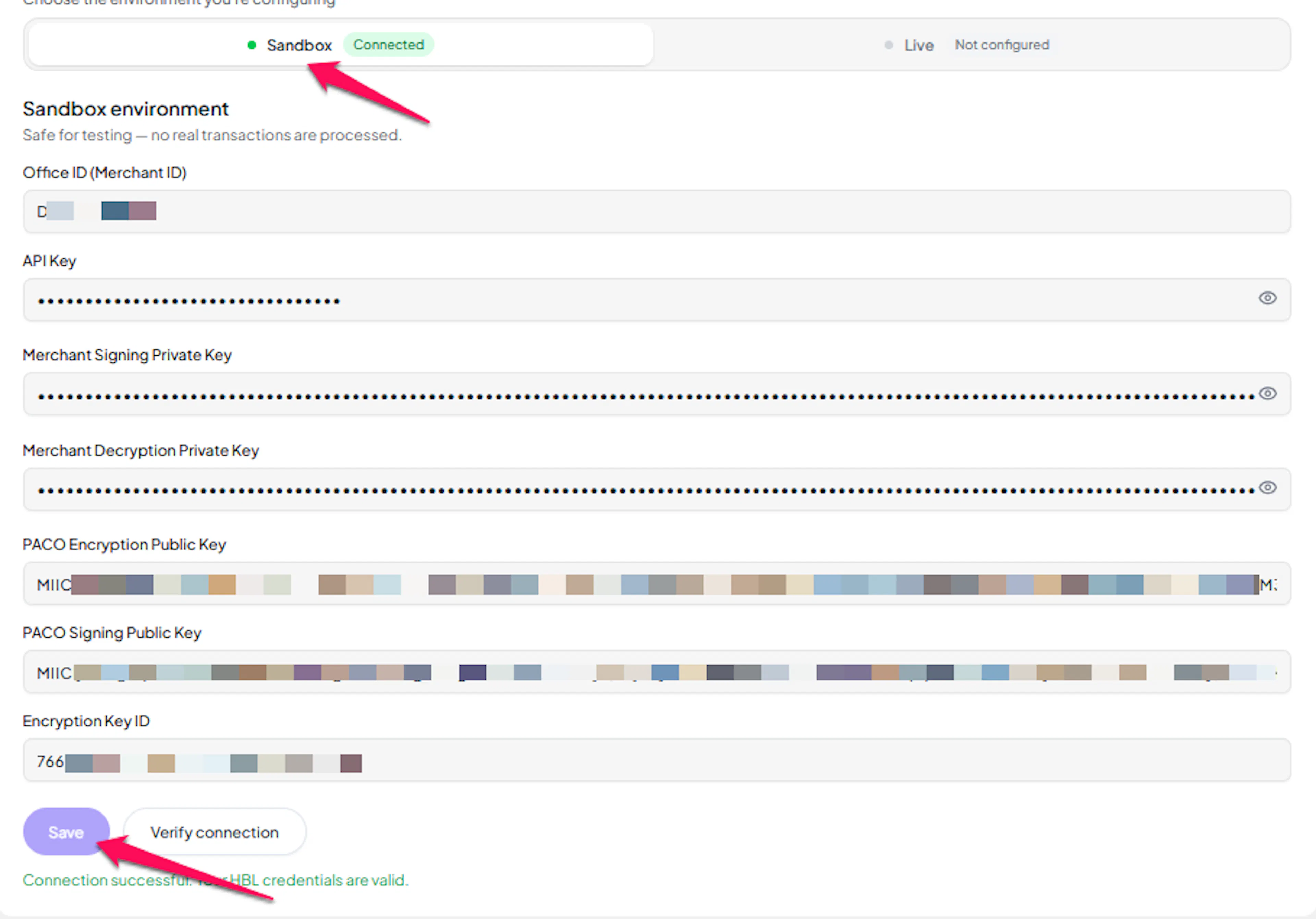
Test and save
Click Save to save your configuration and verify your credentials. Click Verify Connection to test the connection.
Webhooks (Automatic, No Setup Required)
HBL delivers real-time payment updates automatically for every transaction. Unlike most other gateways, there is no webhook URL or webhook secret for you to configure in the HBL merchant dashboard.
- PayLexer registers the notification address with HBL automatically each time a payment is created
- No manual setup step is required on your end
Integrate HBL to Your Website
If you have already added and configured your site, you can enable HBL in your existing setup.
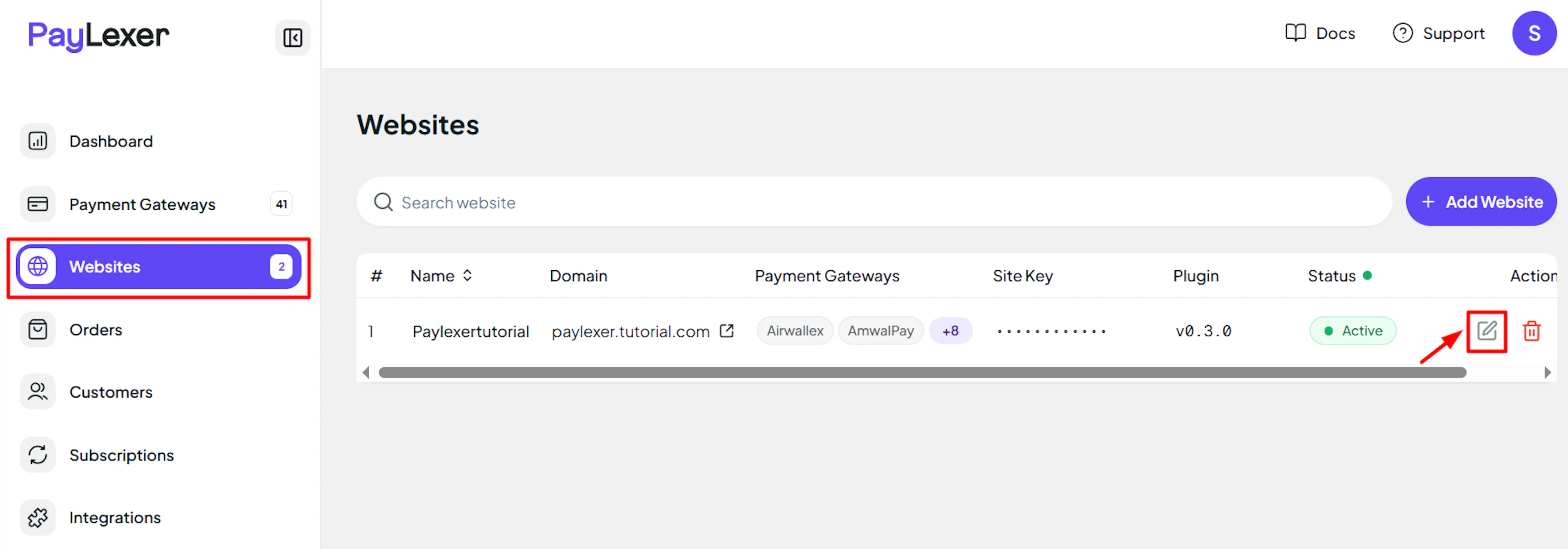
Go to Websites
Navigate to Websites in your PayLexer dashboard.
Edit your website
Click the Edit Icon of your added website.
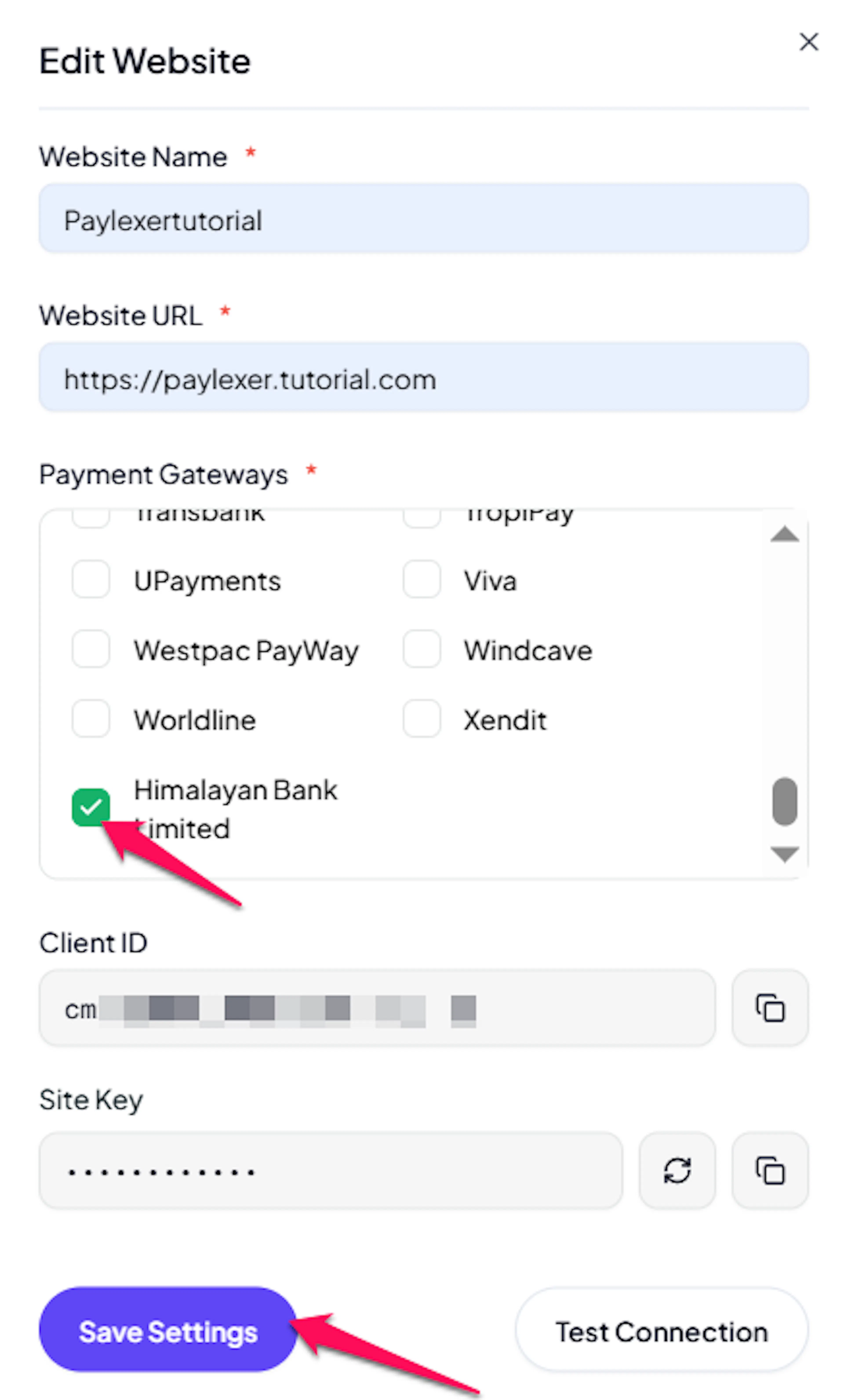
Enable HBL
Click the checkbox to enable HBL for the website.
If you haven't added a website yet, Continue to Add Your Website →
Troubleshooting
Best Practices
- Test in sandbox before enabling production
- Keep your Merchant Signing Private Key and Merchant Decryption Private Key confidential - never share them outside your integration with HBL
- Confirm which currencies your specific HBL merchant account supports before enabling it for customers paying in a currency other than NPR
- Since refunds are not available through PayLexer, agree on a refund process with Himalayan Bank directly before going live
FAQs
Still Have Questions?
- HBL Support: Contact your Himalayan Bank relationship manager or merchant services representative.
- PayLexer Support: Contact Support