

Windcave
Connect Windcave to PayLexer to accept card payments through a Windcave-hosted payment page, with full and partial refunds, across New Zealand, Australia, and 12 supported currencies.
Windcave is a global payment gateway headquartered in Auckland, New Zealand, founded in 1997 and formerly known as Payment Express and DPS. It is one of the largest payment processors in New Zealand and Australia, with offices across Asia-Pacific, Europe, and North America, and it handles online, in-store, and unattended payments for merchants of every size.
- Supported Regions (Merchant Accounts): New Zealand, Australia, and selected markets across Asia-Pacific, Europe, and North America - view full list
- Supported Currencies: NZD, AUD, USD, GBP, EUR, CAD, JPY, SGD, HKD, CHF, ZAR, and FJD - view full list
Your Windcave account is enabled for a specific set of currencies. A currency that appears in the list above still has to be enabled on your merchant account before you can charge in it, so confirm your account's currencies with Windcave before pricing products in one.
Supported Features
- Card payments through Windcave's hosted payment page
- Digital wallets offered automatically on supported devices, where your Windcave account is enabled for them
- Full refunds from the PayLexer dashboard
- Partial refunds, including several against the same order
- Automatic payment notifications, with no webhook setup required
- Orders completed reliably even when the shopper closes the browser mid-payment
- Separate test and live environments for safe testing
PayLexer sends every Windcave order to a Windcave-hosted payment page, so card details are entered on Windcave's own domain and never touch your website or PayLexer. This keeps your business in the lightest PCI compliance category.
Before You Start
Make sure you have:
- Windcave Account – Windcave does not offer online self-service signup. Contact their sales team to request an account and API credentials. Contact Windcave →
- PayLexer Account – Required to configure the integration. Create your account →
- A website where you want to integrate
Looking for a different payment processor? View all supported gateways →
Configuring Windcave
You need an API Username and an API Key from Windcave for this integration.
Getting API Credentials
Windcave issues separate credentials for your development account and your live account, and manages both through its merchant portal, Payline. The two are not interchangeable, so collect whichever pair matches the environment you are setting up.
Request your account and credentials
Windcave has no self-service developer signup. Contact Windcave sales and complete their requirements form. They will provision your account and issue your API Username and API Key, along with a Payline login.
Ask for a development account as well as a live account so you can test before going live.
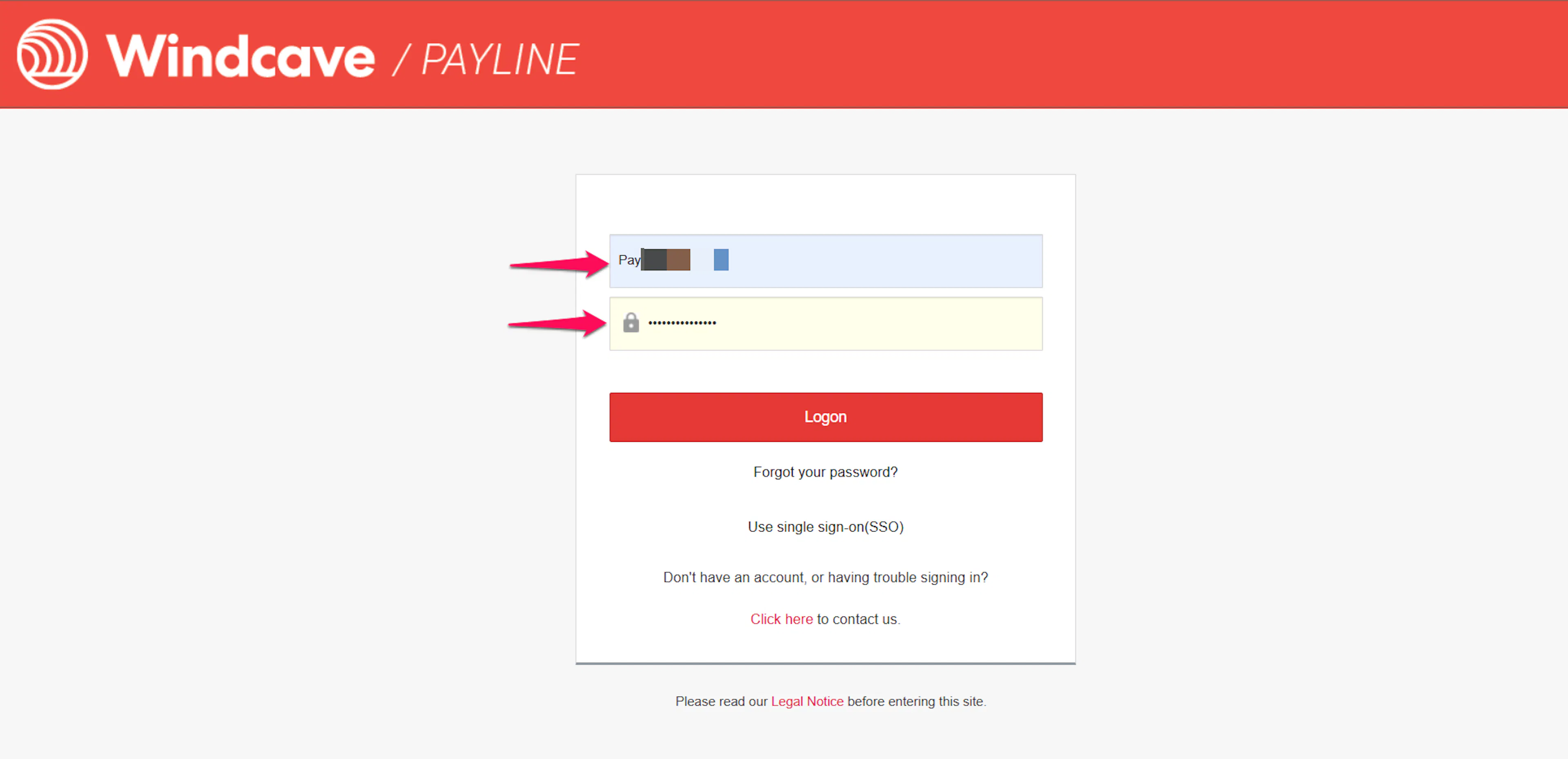
Log in to Payline
Sign in to Payline for the environment you are configuring. Development accounts and live accounts sign in at different addresses.
- Test: Payline test login
- Live: Payline live login
Open the Restful API section
In Payline, go to Restful API. Your API Username and API Key for that account are shown there.
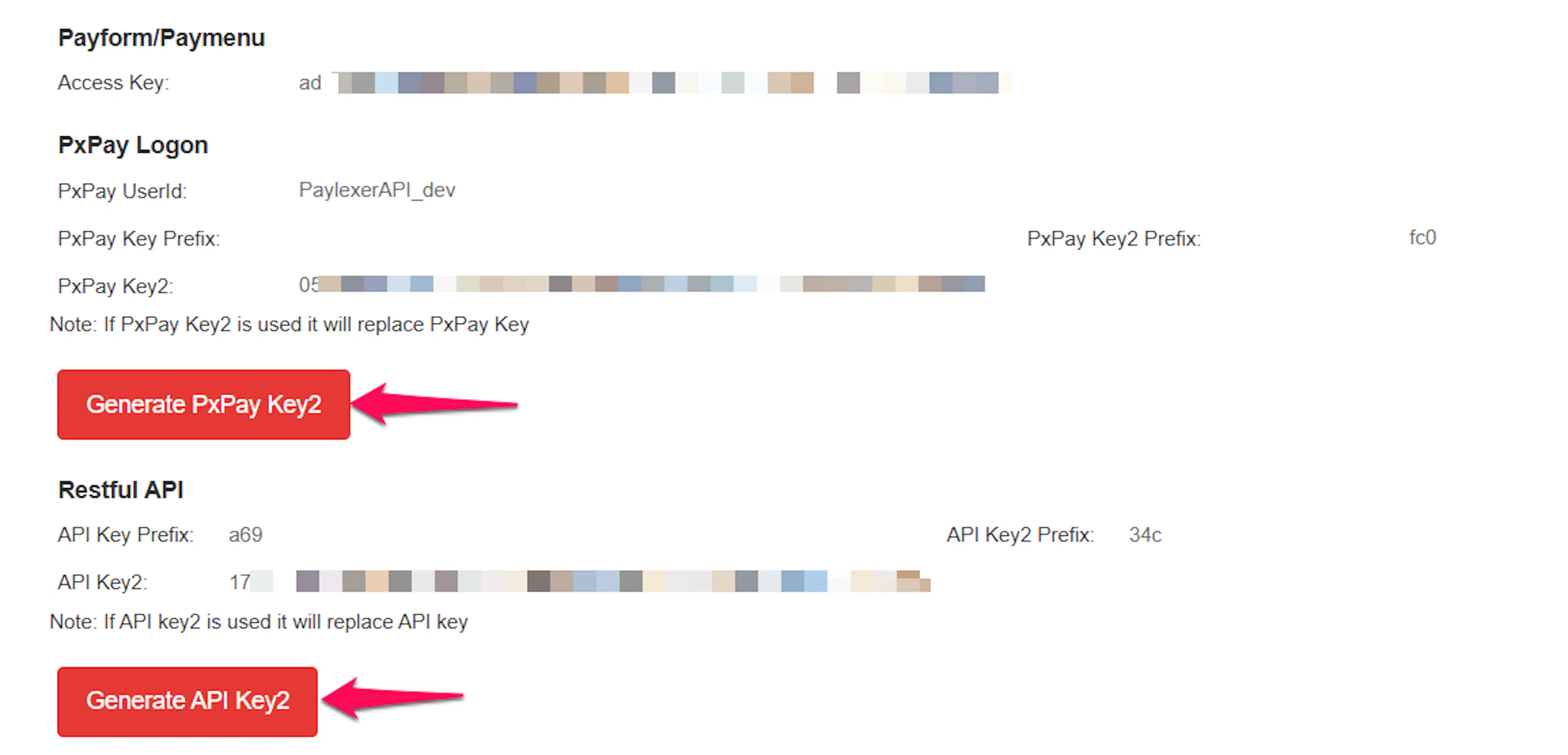
Copy the API Username and API Key
Copy both values for the environment you are configuring.
Payline shows a short prefix next to your API Key. The prefix identifies the key that is currently active. If the key on screen has just been regenerated and its first characters do not match the prefix, that new key has not been applied yet and will be rejected. Apply it in Payline before pasting it into PayLexer.
Your API Key authorises payments and refunds on your account. Treat it like a password, keep it server-side only, and never place it in client-side code.
Adding Credentials to PayLexer
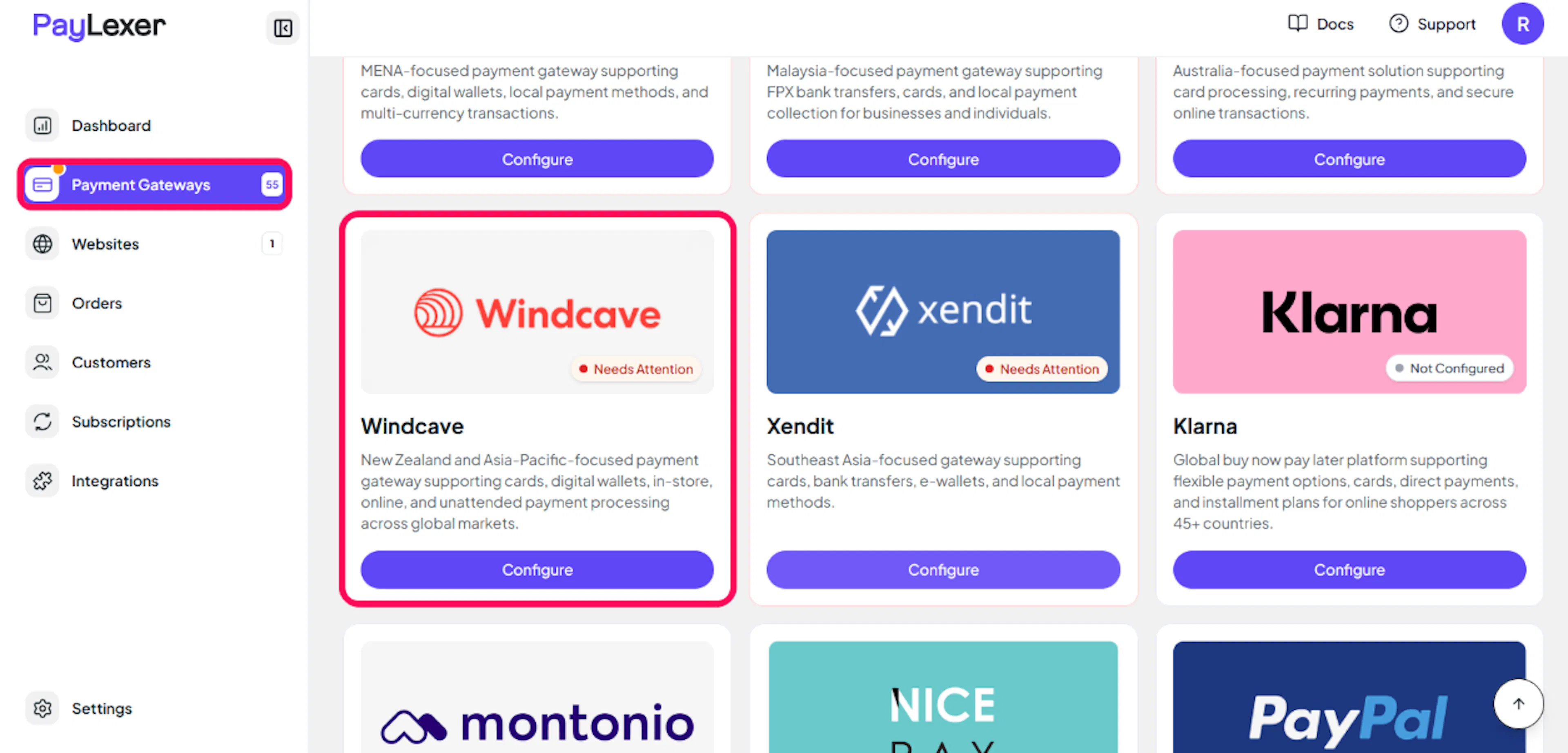
Open PayLexer Dashboard
Log in to your PayLexer dashboard and navigate to Payment Gateways → Windcave.
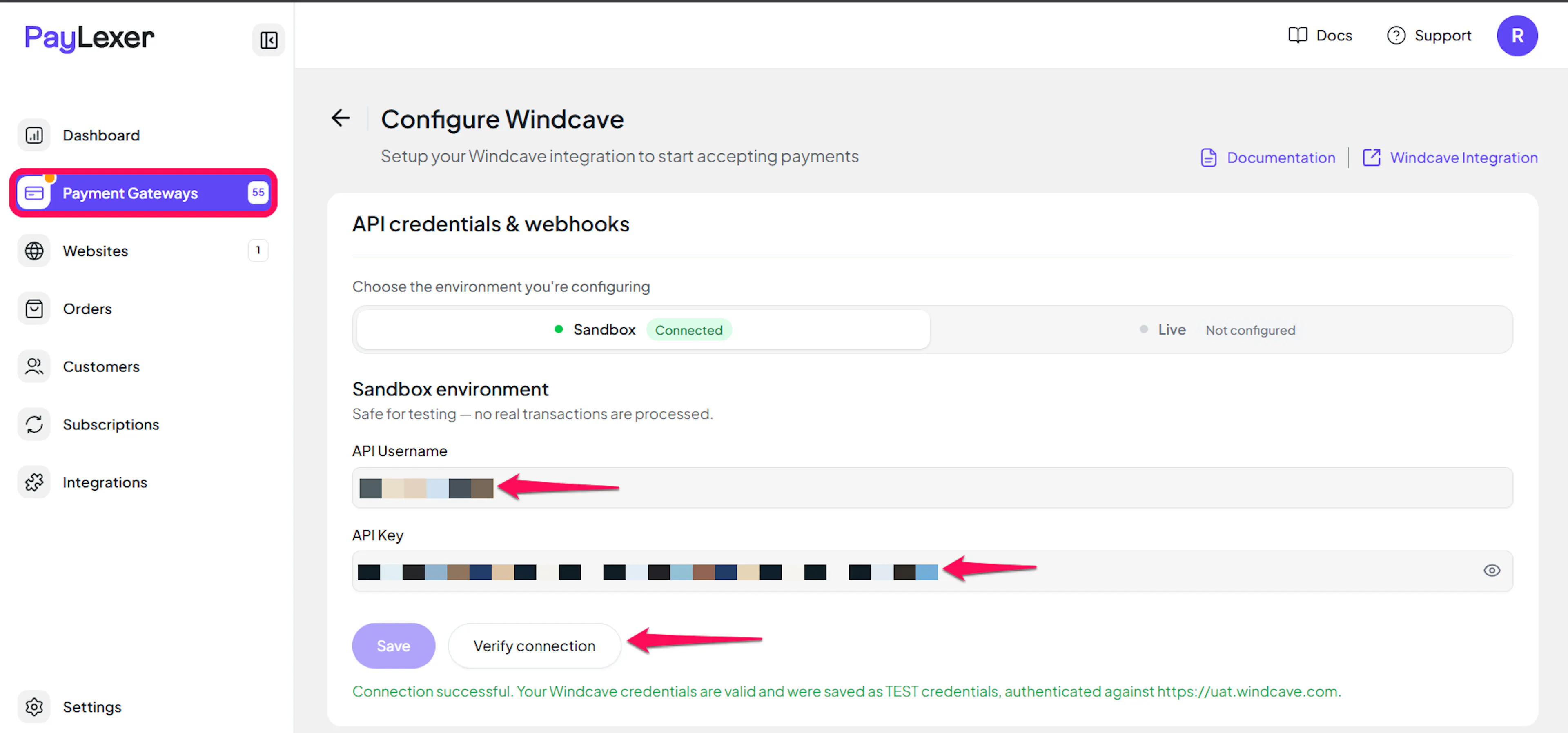
Enter your credentials
Paste the API Username and API Key you copied from Payline.
Understanding Live/Production and Sandbox Settings:
| Environment | Purpose |
|---|---|
| Live / Production (Mandatory) | Used for real transactions. Cannot be empty, even when testing. |
| Test / Sandbox (Optional) | Used for testing only. No real money is processed. |
How PayLexer selects credentials:
- Debug/Test mode ON → Test credentials are used
- Debug/Test mode OFF → Live credentials are used
Test and save
Click Save to save your configuration and verify your credentials. Click Verify Connection to test the connection.
Windcave development credentials and live credentials work only on their own environment. Paste test credentials into the Test / Sandbox fields and live credentials into the Live / Production fields. A perfectly valid key entered under the wrong environment is rejected as "Invalid username or key", exactly as if it were mistyped.
Webhooks (Automatic)
PayLexer registers a notification address with Windcave every time it creates a payment, so there is nothing to copy, paste, or configure in Payline, for either your development account or your live account.
Benefits of Webhooks:
- Instant payment status updates
- Automatic order reconciliation
- Accurate failure and cancellation records
How PayLexer handles the notification:
- Windcave's notification is not signed, so PayLexer never trusts what the message says. It reads only which payment the message refers to, then asks Windcave's API directly what happened and acts on that answer
- Because a forged notification cannot change the answer Windcave gives, it can at worst make PayLexer re-confirm a result Windcave already reports
- The notification is sent server to server and does not involve the shopper's browser, so an order is still completed correctly when someone pays and immediately closes the tab
- A payment Windcave has not finished processing is reported as pending rather than guessed at
Returning from Windcave's payment page is never treated as proof of payment on its own. PayLexer re-reads the payment from Windcave's API before deciding where to send the shopper, so an abandoned or declined payment returns them to your checkout rather than your thank-you page, and the order stays unpaid.
Windcave does not notify PayLexer about refunds issued directly in Payline, or about chargebacks and disputes. Refunds made through PayLexer are recorded correctly. Anything done directly in Payline will not be reflected back into your PayLexer orders, so issue refunds from PayLexer wherever possible.
Integrate Windcave to Your Website
If you have already added and configured your site, you can enable Windcave in your existing setup.
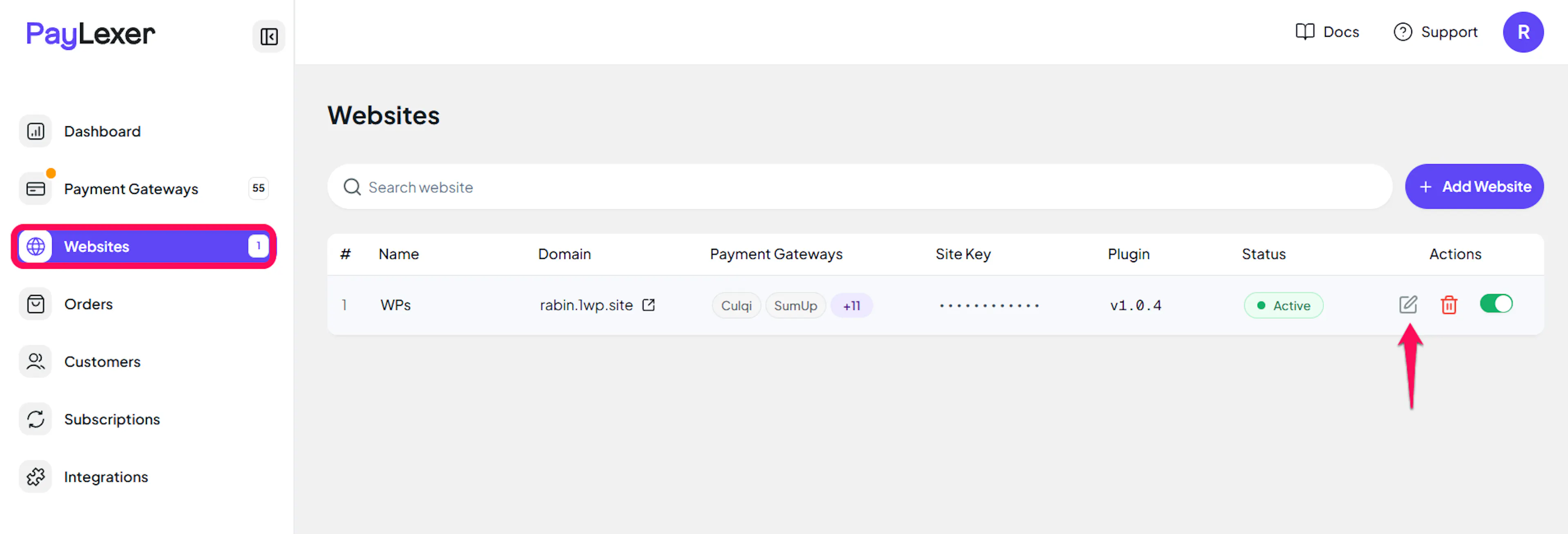
Go to Websites
Navigate to Websites in your PayLexer dashboard.
Edit your website
Click the Edit Icon of your added website.
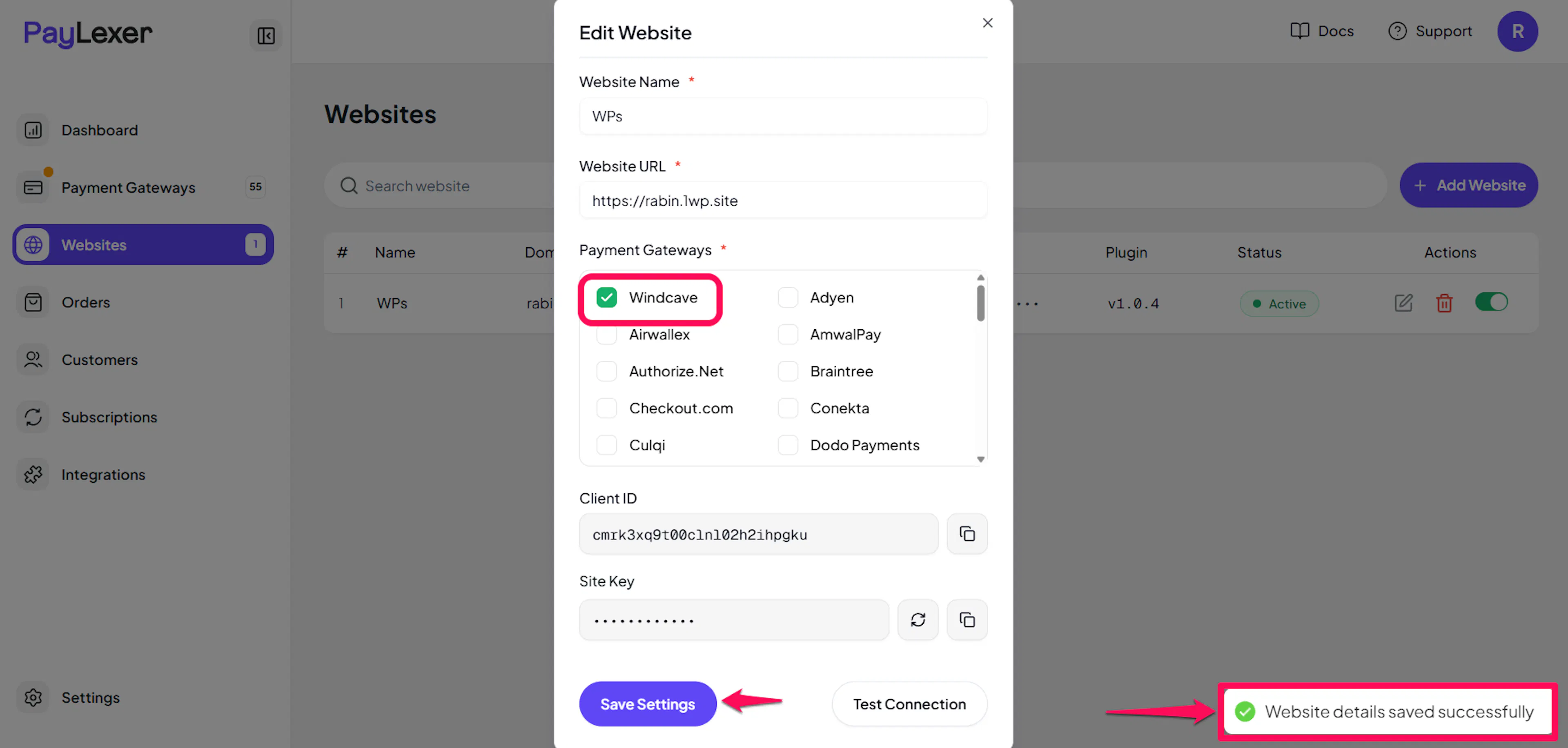
Enable Windcave
Click the checkbox to enable Windcave for the website.
If you haven't added a website yet, Continue to Add Your Website →
Troubleshooting
Best Practices
- Test in sandbox before enabling production, using your Windcave development API Username and API Key
- Keep test and live credentials strictly in their own environment fields, since a valid key in the wrong field looks identical to a wrong key
- Keep your API Key server-side only, and regenerate it in Payline if you suspect it has been exposed
- Confirm which currencies your Windcave account is enabled for before pricing products in them
- Issue refunds from PayLexer rather than Payline, so your PayLexer orders stay accurate
- Reconcile PayLexer Dashboard → Orders against Payline regularly, since chargebacks and Payline-issued refunds are not reported back to PayLexer
FAQs
Still Have Questions?
- Windcave Support: Windcave Contact Support
- PayLexer Support: Contact Support