

iPaymu
Connect iPaymu to PayLexer to accept bank virtual accounts, QRIS, convenience store, e-wallet and card payments from Indonesian shoppers, in Indonesian rupiah.
iPaymu is an Indonesian payment gateway and merchant aggregator built for digital businesses and small-to-medium enterprises. It lets merchants accept bank virtual accounts, QRIS, convenience store payments (Alfamart, Indomaret), e-wallets and cards through a single hosted payment page, so bank and card details never touch your website or PayLexer.
- Supported Regions (Merchant Accounts): Indonesia
- Supported Currencies: IDR
This gateway appears in checkout only when the selected currency is IDR.
Supported Features
- Hosted checkout that redirects shoppers to iPaymu's secure payment page
- Bank virtual accounts, QRIS, convenience store payments, e-wallets and cards, depending on what is enabled on your iPaymu account
- Pay-later methods, where the order completes automatically once the shopper's payment arrives
- Real-time payment notifications, signed by iPaymu and confirmed with iPaymu before an order is marked paid
- Payment status checked with iPaymu before a shopper is sent to the thank-you page
- Transaction ID in PayLexer links straight to the transaction in your iPaymu dashboard
- Separate test and live credentials for safe testing
iPaymu does not support refunds or subscriptions in PayLexer. iPaymu has no way to refund a payment automatically, and it cannot re-bill a shopper on a schedule. Only one-time payments are available.
Before You Start
Make sure you have:
- iPaymu Account – Don't have one? Sign up for iPaymu →
- iPaymu sandbox account – Needed for testing. It is a separate, free account. Sign up for the iPaymu sandbox →
- PayLexer Account – Required to configure the integration. Create your account →
- A website where you want to integrate
Looking for a different payment processor? View all supported gateways →
Configuring iPaymu
You need a VA Number and API Key from iPaymu for this integration.
Getting API Credentials
Log in to iPaymu
Sign in to your iPaymu account. For test credentials, sign in to the iPaymu sandbox instead, which is a separate account with its own login and keys.
Open the Integration page
In the sidebar, click Integrasi (Integration).

Copy your VA Number and API Key
Copy the VA Number and the API Key shown on the page. Keep the API Key private.
Copy the values exactly, with no leading or trailing spaces. iPaymu uses the VA Number to sign every payment notification, so a single stray character makes PayLexer reject them.
Adding Credentials to PayLexer
Open PayLexer Dashboard
Log in to your PayLexer dashboard and navigate to Payment Gateways → iPaymu.
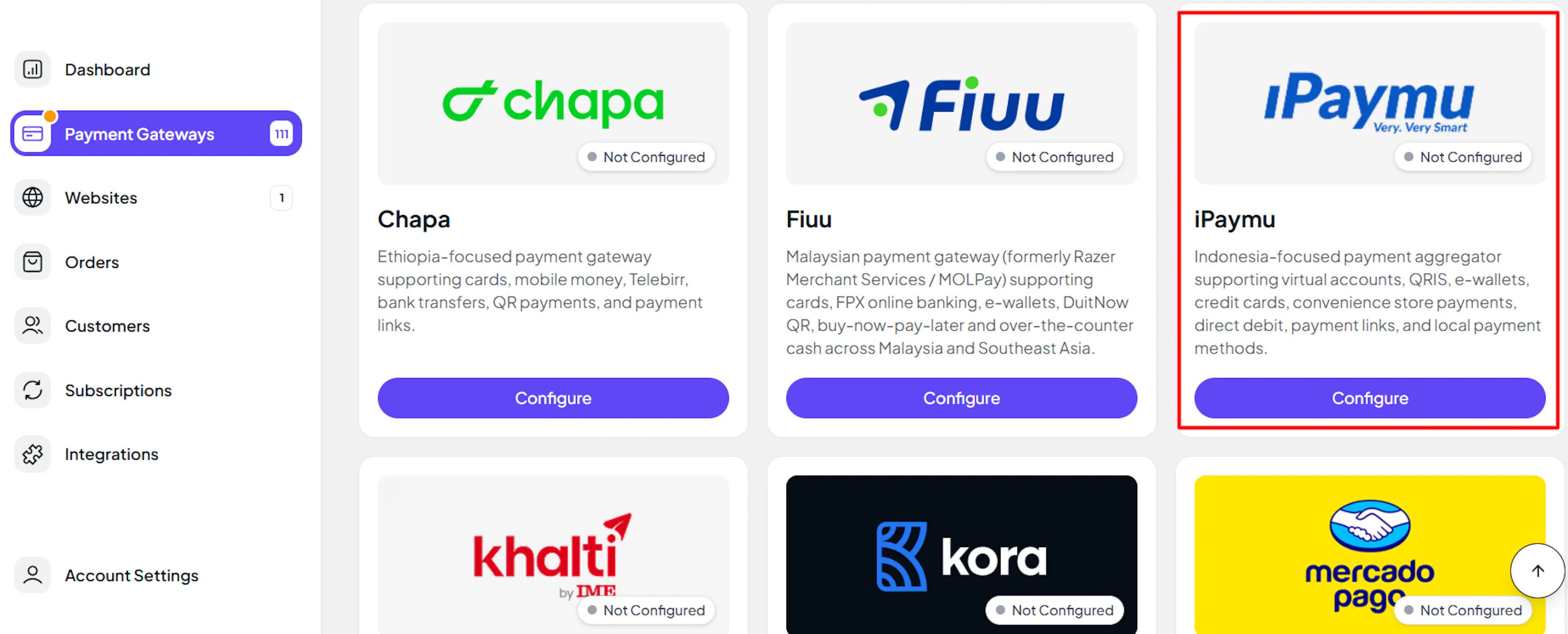
Enter your credentials
Paste the VA Number and API Key you copied from iPaymu into the corresponding fields.
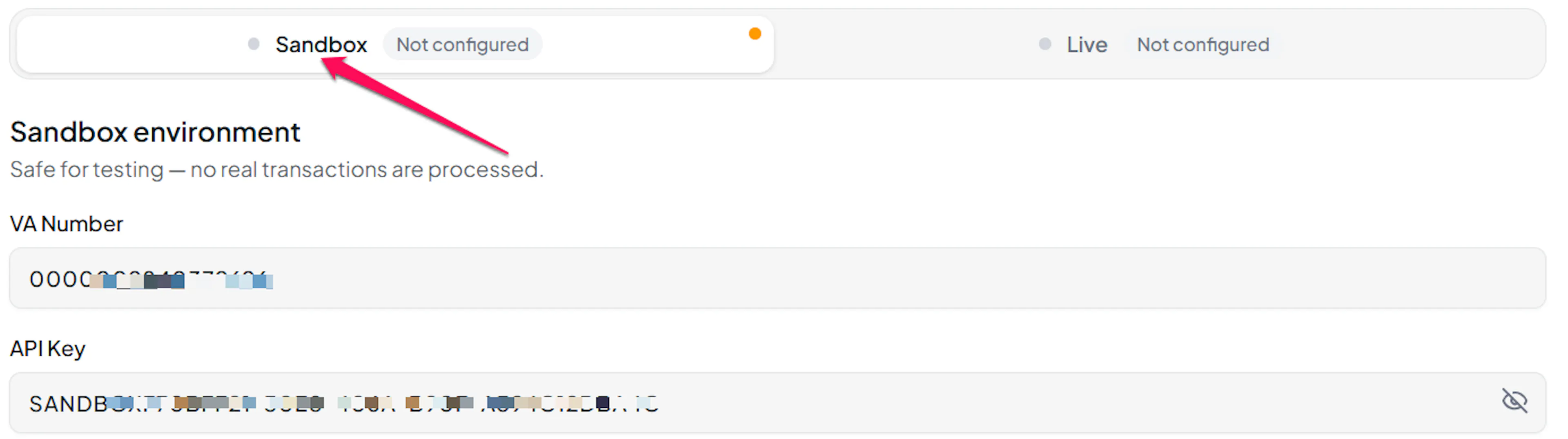
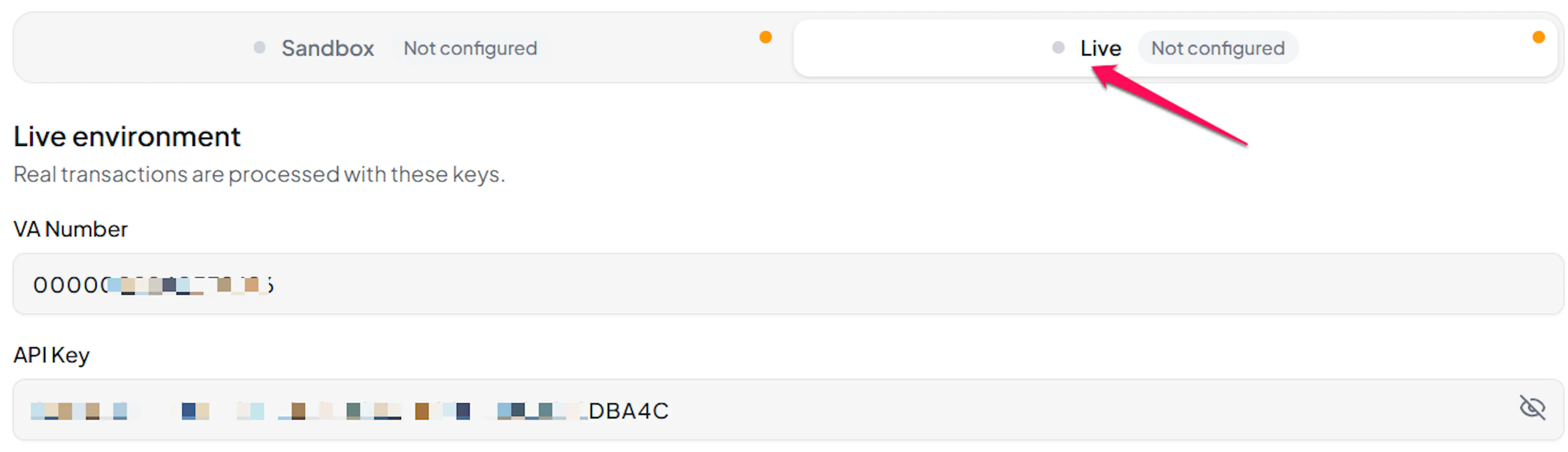
Understanding Live/Production and Sandbox Settings:
| Environment | Purpose |
|---|---|
| Live / Production | Used for real transactions. |
| Test / Sandbox | Used for testing only. No real money is processed. |
How PayLexer selects credentials:
- Debug/Test mode ON → Test credentials are used
- Debug/Test mode OFF → Live credentials are used
iPaymu's sandbox and live systems are entirely separate accounts, and their VA Numbers look alike. Sandbox credentials work only in the Test fields and live credentials only in the Live fields. Mixing them up produces an authentication failure.
Test and save
Click Save to save your configuration and verify your credentials. Click Verify Connection to test the connection.
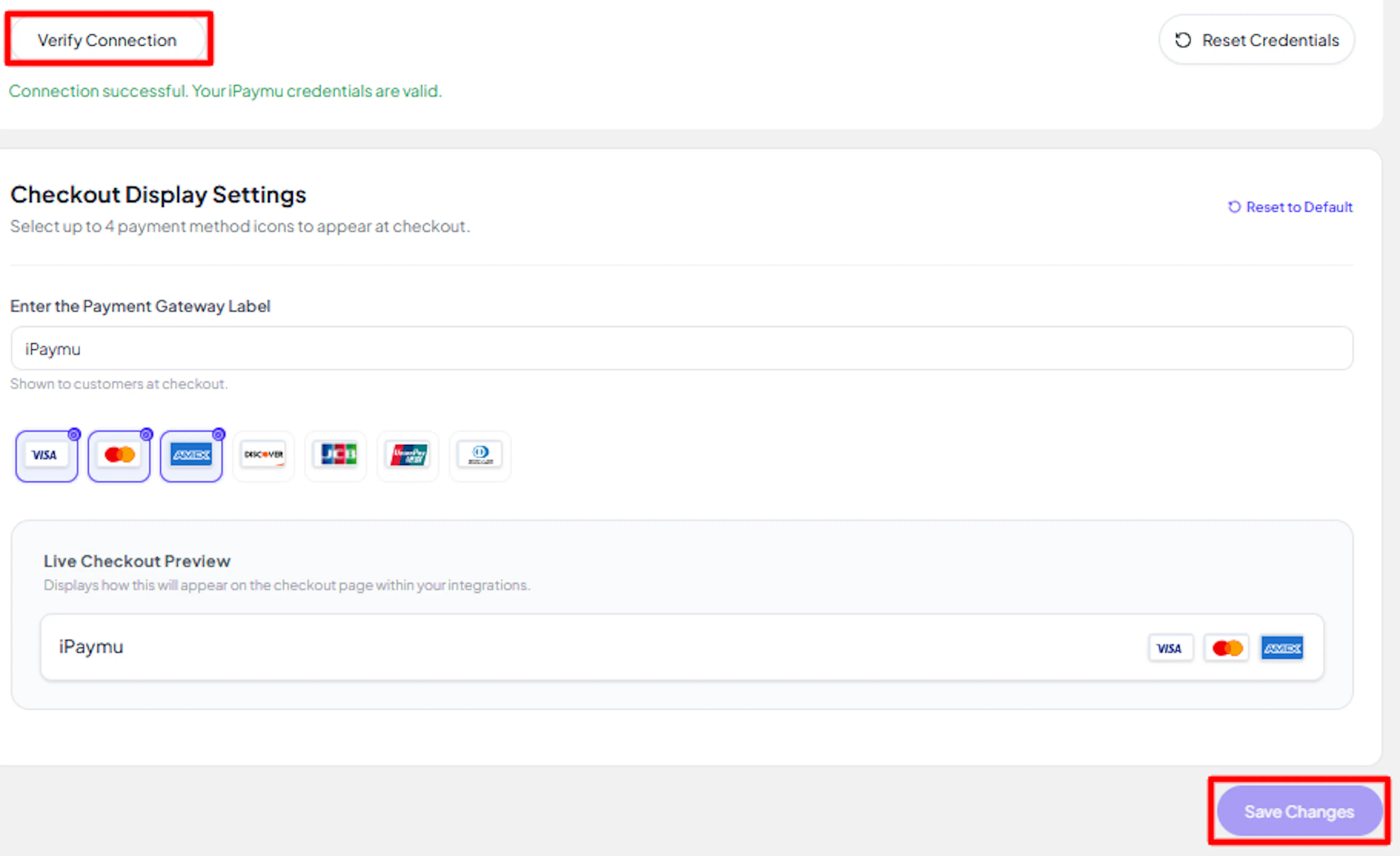
If the connection test fails, the message tells you what is wrong: iPaymu does not recognise the VA Number in that environment, or the API Key does not match the VA Number.
Configuring Webhooks (Mandatory)
Webhooks enable real-time payment updates and significantly improve reliability.
Benefits of Webhooks:
- Instant payment status updates
- Orders completed automatically when a pay-later payment arrives, even after the shopper has left your site
iPaymu is different from most gateways here. PayLexer sends its notification address to iPaymu with every payment, so there is no webhook URL to paste into iPaymu and no separate webhook secret. iPaymu signs every notification with your VA Number, and PayLexer confirms each one with iPaymu before it changes an order. For live payments, you do need to allow PayLexer in your iPaymu account.
Register PayLexer's domain (Live only)
In your live iPaymu account, go to Domain Management and add PayLexer callback domain. iPaymu reviews new domains within 2 business days.
Register PayLexer's server IP (Live only)
Go to IP Management and add PayLexer static server IP.
In live mode, iPaymu rejects every request from a server IP or domain you have not registered, with an "Invalid IP" or "Invalid Domain" error. Customers cannot start a payment until both are registered and approved. The sandbox does not need this step.
Place a test payment
With Debug/Test mode ON, place a test order of at least Rp 1,000 using Virtual Account or QRIS. In iPaymu Sandbox, open Tes Notify, enter the transaction ID, select Success, and click Submit. Verify the order is marked paid in PayLexer.
Integrate iPaymu to Your Website
If you have already added and configured your site, you can enable iPaymu in your existing setup.
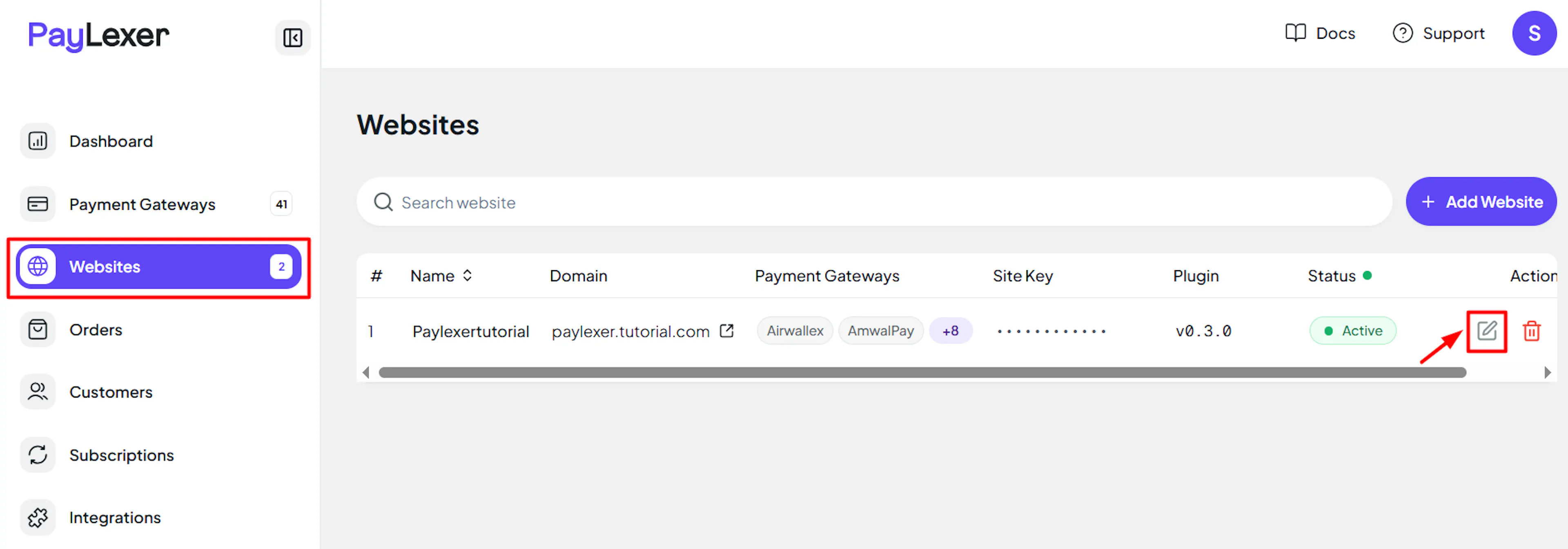
Go to Websites
Navigate to Websites in your PayLexer dashboard.
Edit your website
Click the Edit Icon of your added website.
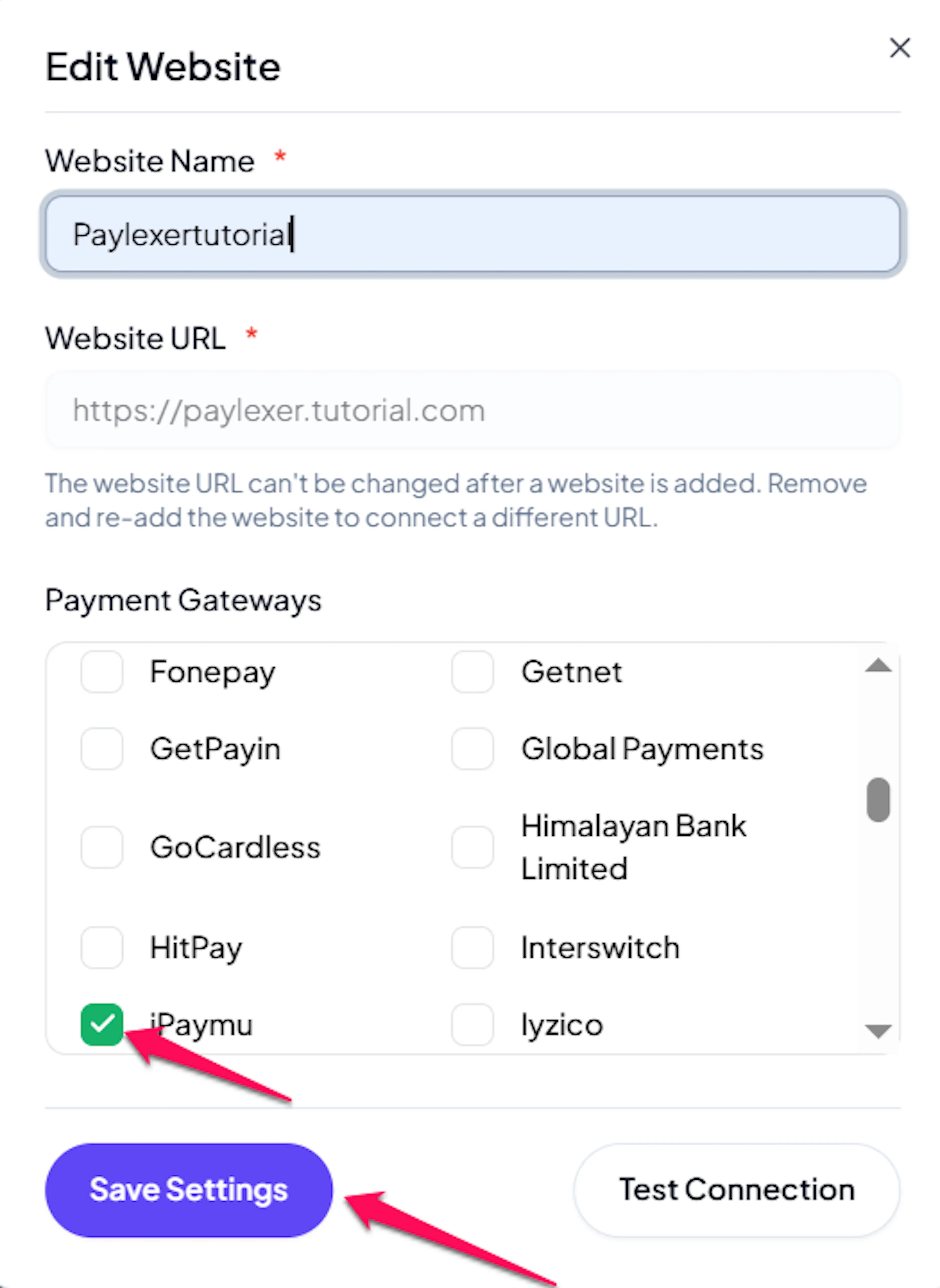
Enable iPaymu
Click the checkbox to enable iPaymu for the website.
If you haven't added a website yet, Continue to Add Your Website →
Troubleshooting
Best Practices
- Test in sandbox before enabling production, using your iPaymu sandbox account with Debug/Test mode ON
- Register PayLexer's server IP and domain in your live iPaymu account before switching Debug/Test mode OFF, and allow up to 2 business days for domain approval
- Use the sandbox Tes Notify page to test both successful and expired payments
- Keep your API Key private, and update PayLexer straight away if you change your credentials in iPaymu
- Reconcile your PayLexer orders against your iPaymu transaction history periodically
FAQs
Still Have Questions?
- iPaymu Support:
- Support Email: support@ipaymu.com
- Help Center: iPaymu Help Center
- PayLexer Support: Contact Support