

AppotaPay
Connect AppotaPay to PayLexer to accept Vietnamese Dong payments by domestic ATM card, international card, and e-wallet through an AppotaPay-hosted checkout page.
AppotaPay is a Vietnam-focused payment gateway built for merchants selling to shoppers in Vietnam. It supports domestic ATM cards, international Visa and Mastercard cards, and e-wallets on a single hosted checkout page, so you can accept Vietnam's local payment methods without building a custom integration.
- Supported Regions (Merchant Accounts): Vietnam
- Supported Currencies: Vietnamese Dong (VND)
This gateway appears in checkout only when the selected currency is VND.
Supported Features
- Hosted checkout page for one-time payments by domestic ATM card, international card, or e-wallet
- Full refunds on completed payments
- Automatic payment notifications
- Automatic detection of declined payments, so orders never stay pending indefinitely
- Separate sandbox and live credentials, so test payments never touch real money
Before You Start
Make sure you have:
- AppotaPay Account – Don't have one? Sign up for AppotaPay →
- PayLexer Account – Required to configure the integration. Create your account →
- A website where you want to integrate
Looking for a different payment processor? View all supported gateways →
Configuring AppotaPay
You need a Partner Code, an API Key, and a Secret Key from AppotaPay for this integration.
Getting API Credentials
AppotaPay issues all three credentials together when you create an application in the AppotaPay Partner portal.
Testing without an AppotaPay account? AppotaPay publishes a shared sandbox Partner Code, API Key, and Secret Key in its documentation. Copy them from there and paste them under the Test tab in PayLexer.
Log in to the AppotaPay Partner portal
Go to the AppotaPay Partner portal and sign in to your merchant account.
Open your application
Open the application you use for payments. If you haven't created one yet, create a new application first.
Copy your credentials
Copy the Partner Code, API Key, and Secret Key shown for the application. Sandbox and live use separate credentials, so repeat this for both environments to get your Test and Live credentials.
Keep the Secret Key private. It signs every request PayLexer sends to AppotaPay and verifies every payment notification AppotaPay sends back.
Adding Credentials to PayLexer
Open PayLexer Dashboard
Log in to your PayLexer dashboard and navigate to Payment Gateways → AppotaPay.
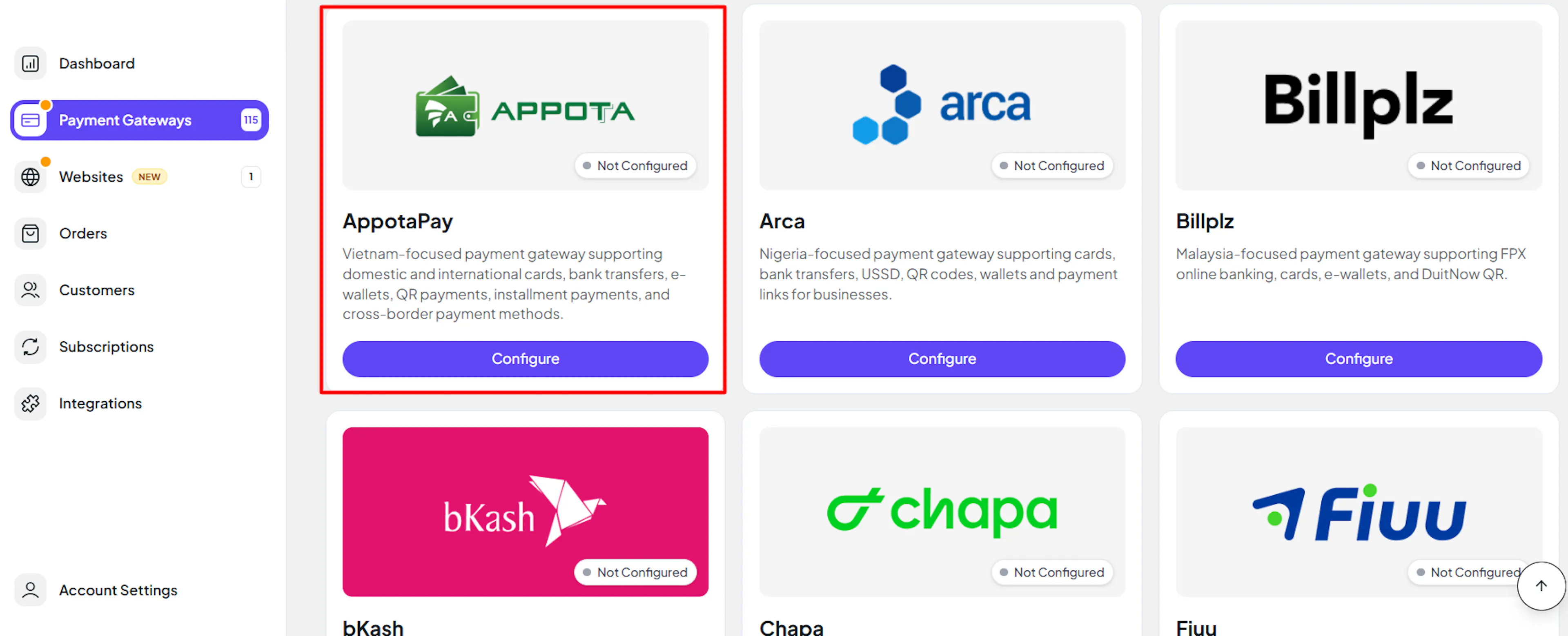
Enter your credentials
Paste the Partner Code, API Key, and Secret Key you copied from AppotaPay into the corresponding fields. Use your live credentials under the Live tab and your sandbox credentials under the Test tab.
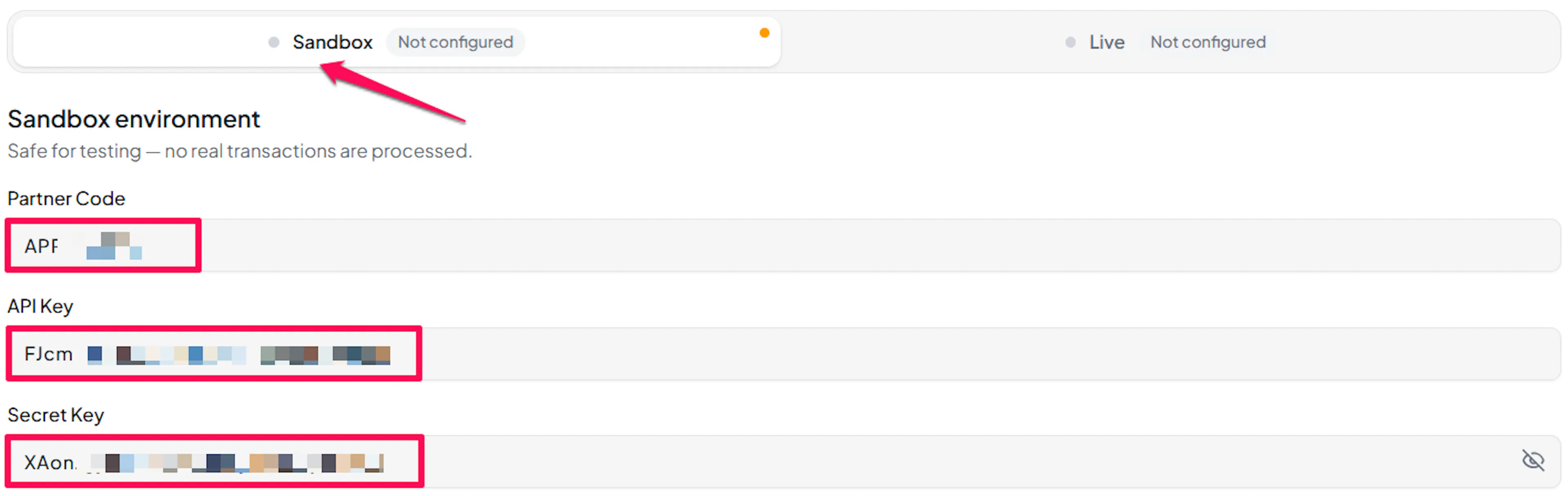
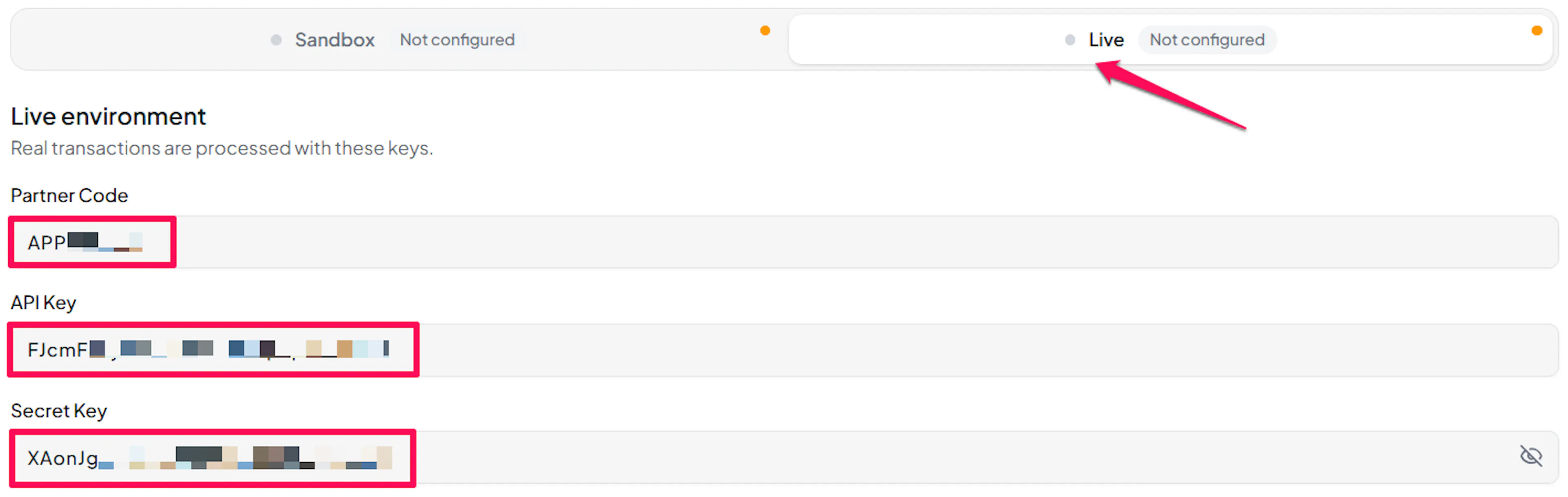
Understanding Live/Production and Sandbox Settings:
| Environment | Purpose |
|---|---|
| Live / Production | Used for real transactions. |
| Test / Sandbox | Used for testing only. No real money is processed. |
How PayLexer selects credentials:
- Debug/Test mode ON → Test credentials are used
- Debug/Test mode OFF → Live credentials are used
Test and save
Click Save to save your configuration and verify your credentials. Click Verify Connection to test the connection.

Webhooks (Automatic - No Setup Required)
AppotaPay doesn't need a separate webhook secret or a webhook URL in its dashboard. PayLexer sends AppotaPay a notification address with every payment and verifies each notification using the Secret Key you already entered. There's nothing extra for you to copy, paste, or generate.
- No webhook URL to add in the AppotaPay Partner portal
- No separate signing secret to manage
- Successful payments are confirmed in near real time
AppotaPay only sends a notification when a payment succeeds. PayLexer detects declined or failed payments by checking back with AppotaPay automatically, so a failed payment can take from about 15 minutes to an hour to show on your order.
Integrate AppotaPay to Your Website
If you have already added and configured your site, you can enable AppotaPay in your existing setup.
Go to Websites
Navigate to Websites in your PayLexer dashboard.
Edit your website
Click the Edit Icon of your added website.
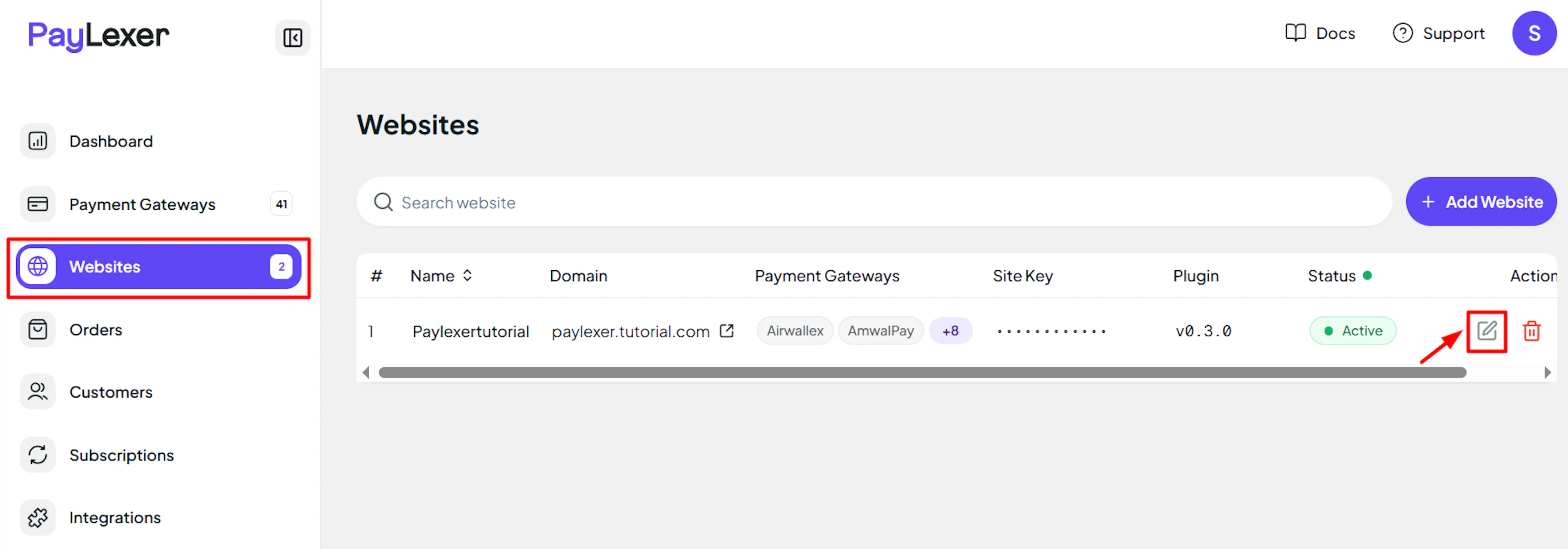
Enable AppotaPay
Click the checkbox to enable AppotaPay for the website.
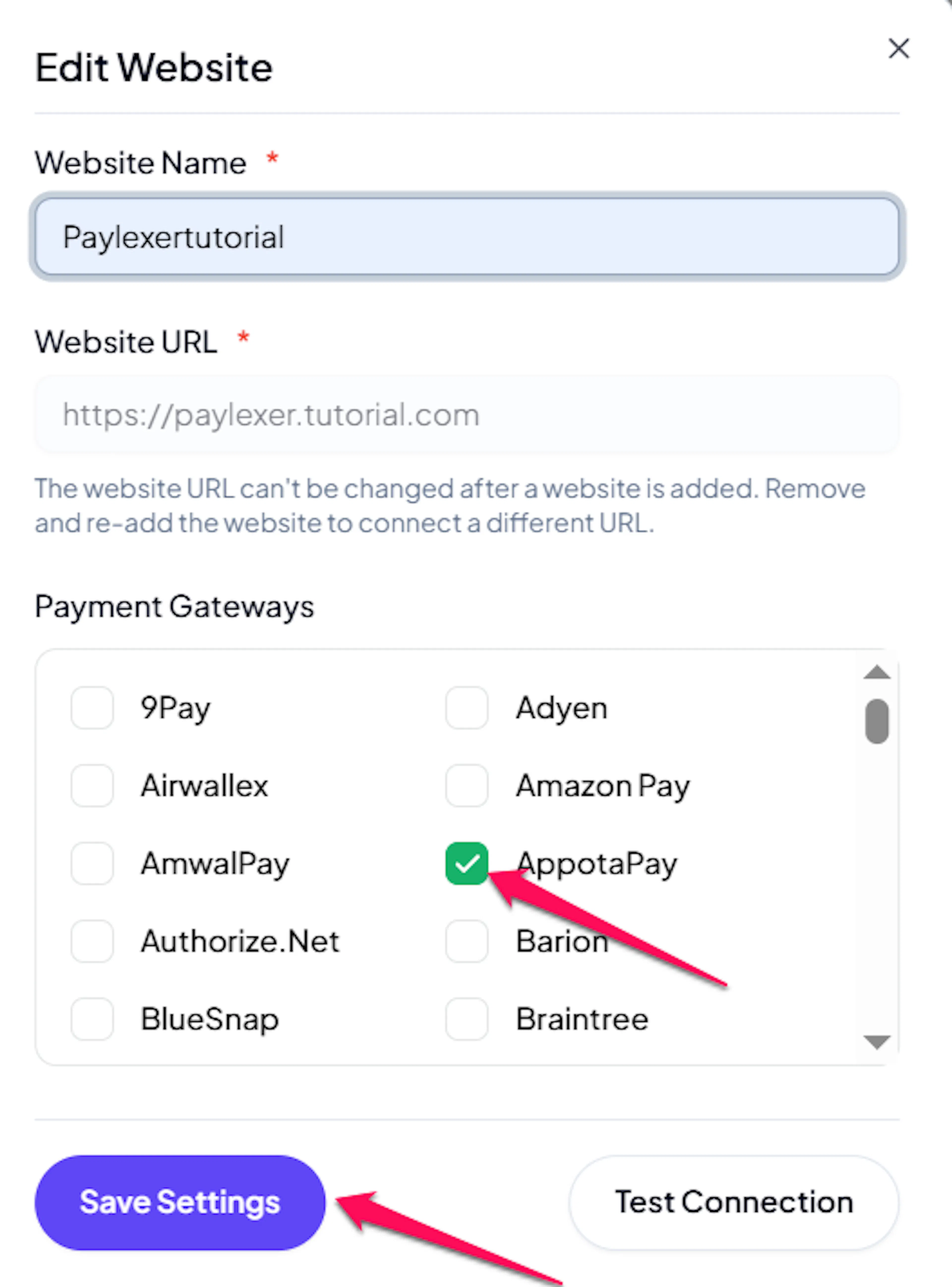
If you haven't added a website yet, Continue to Add Your Website →
Troubleshooting
Best Practices
- Test in sandbox before enabling production
- Store both Live and Test credentials so you can safely test before going live
- Keep your Secret Key private and never share it outside PayLexer
- Only enable AppotaPay on websites that sell in Vietnamese Dong
FAQs
Still Have Questions?
- AppotaPay Support: AppotaPay Contact
- PayLexer Support: Contact Support