

N-Genius Online
Connect N-Genius Online by Network International to PayLexer to accept card payments in the UAE through a secure hosted payment page.
N-Genius Online is the online payments product of Network International, the largest payment acquirer in the Middle East, headquartered in Dubai. Shoppers pay on N-Genius Online's own hosted payment page by Visa, Mastercard, American Express and, depending on your account, other card schemes and wallets such as Apple Pay. Card details are entered on N-Genius Online's page and never reach PayLexer.
- Supported Regions (Merchant Accounts): Middle East and Africa, including the United Arab Emirates, Saudi Arabia, Jordan, Egypt, Kenya, Nigeria and South Africa
- Supported Currencies: AED, USD, EUR, GBP, ZAR
Supported Features
- Hosted checkout that redirects shoppers to N-Genius Online's secure payment page
- Full and partial refunds
N-Genius Online does not support subscriptions or recurring billing in PayLexer. Only one-time payments are available.
Before You Start
Make sure you have:
- N-Genius Online Account – Don't have one? Sign up for N-Genius Online →
- PayLexer Account – Required to configure the integration. Create your account →
- A website where you want to integrate
Looking for a different payment processor? View all supported gateways →
Configuring N-Genius Online
You need an API Key and an Outlet Reference from N-Genius Online for this integration.
Getting API Credentials
Log in to the N-Genius Online portal
Sign in to the N-Genius Online sandbox portal for test credentials, or the N-Genius Online live portal for production credentials. Each portal issues its own set of credentials, so collect them one environment at a time.
Open Service accounts
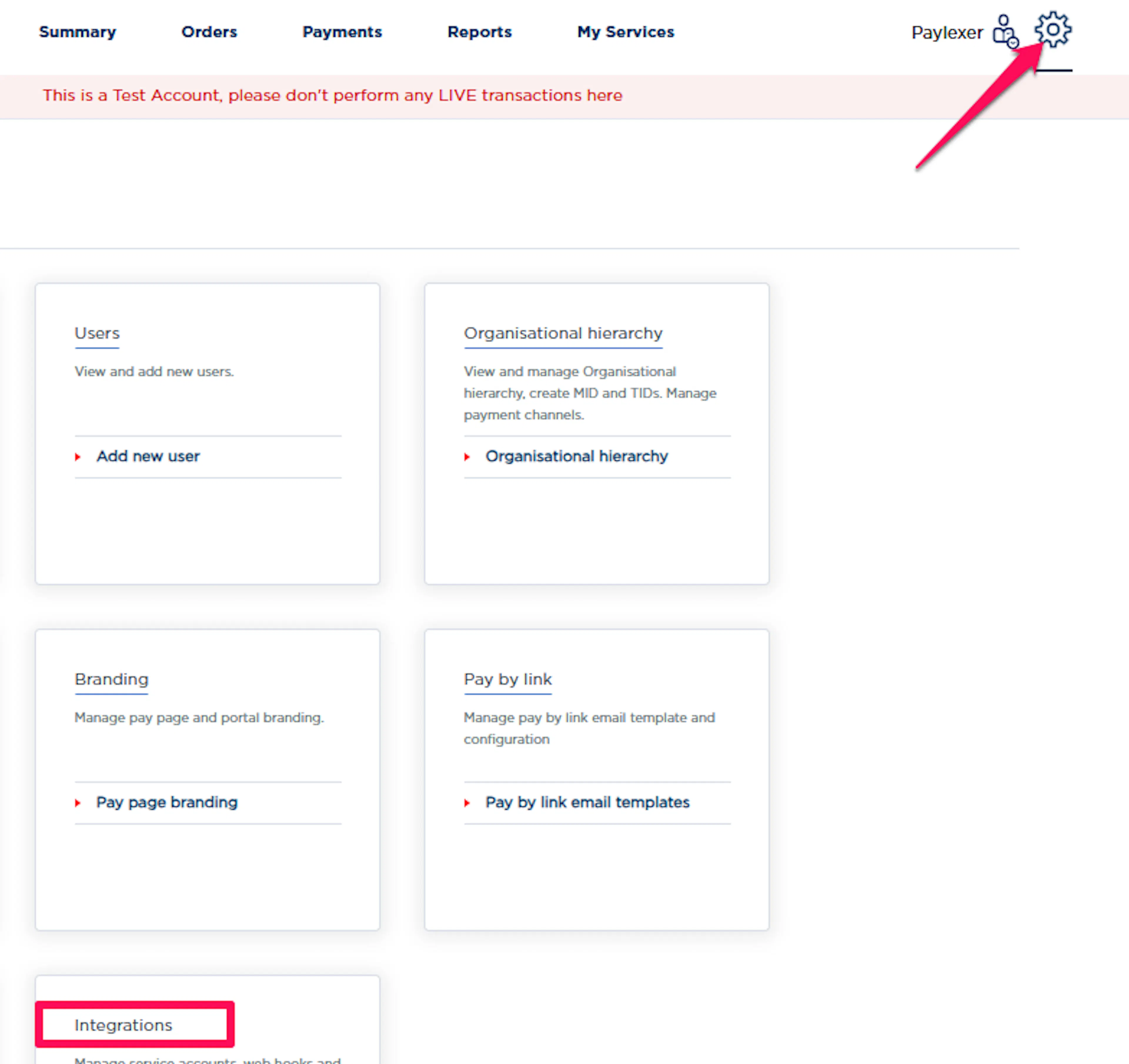
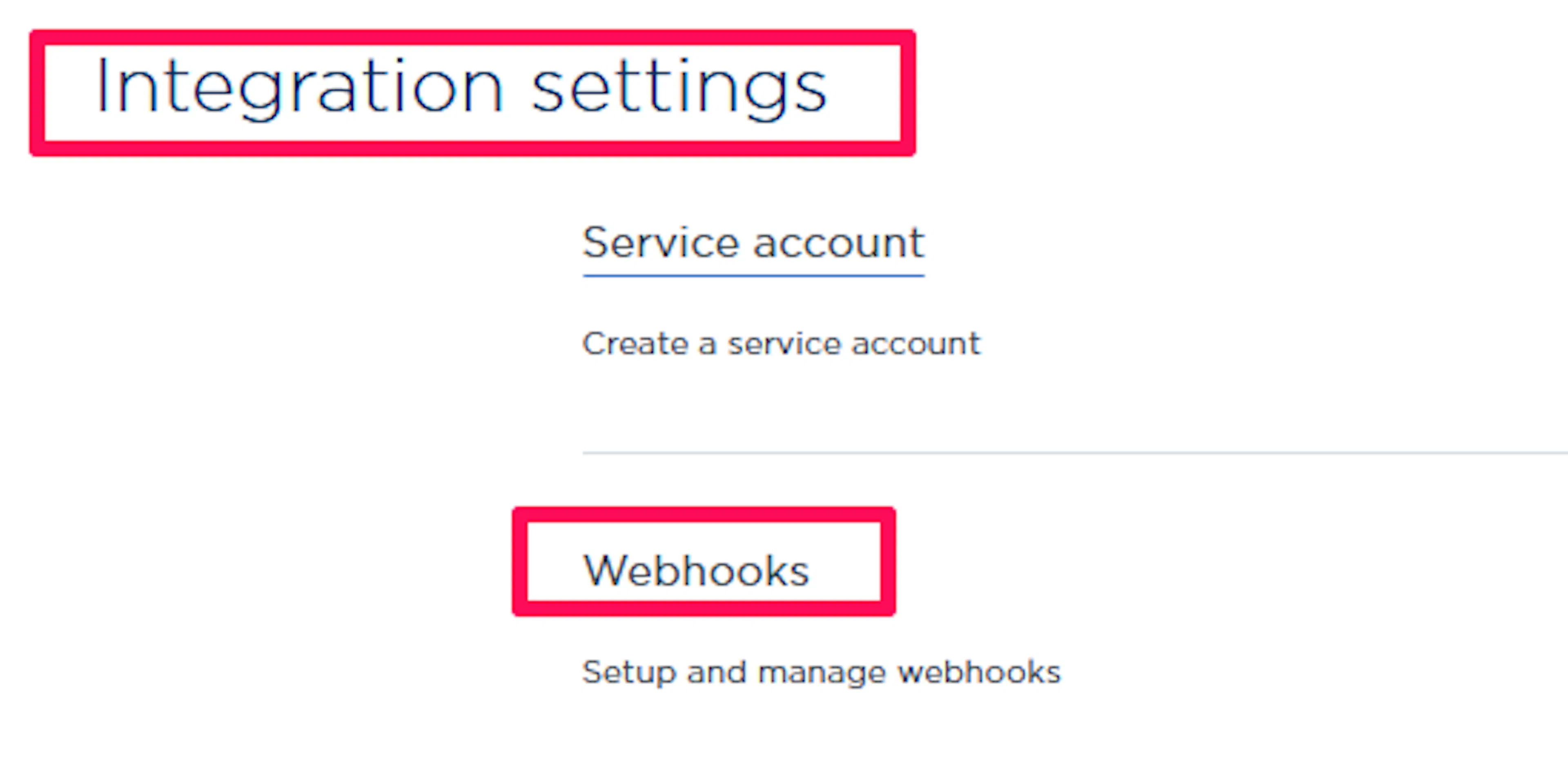
Click on the Settings, then go to Integrations → Service account.
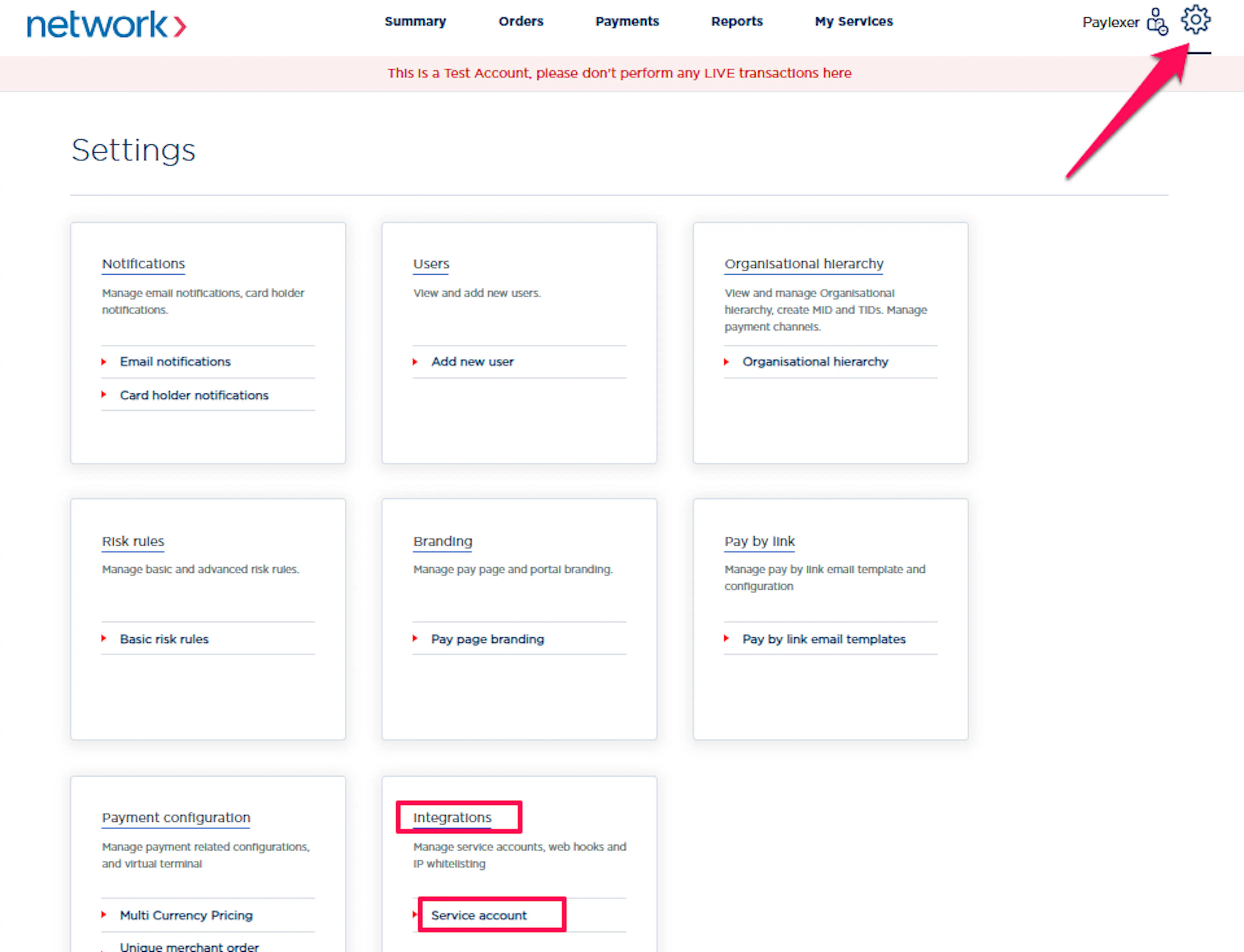
Copy the API Key
Find your service account in the list and click the eye icon in the API Key column to reveal the key, then copy it. If no service account exists, click New to create one first.

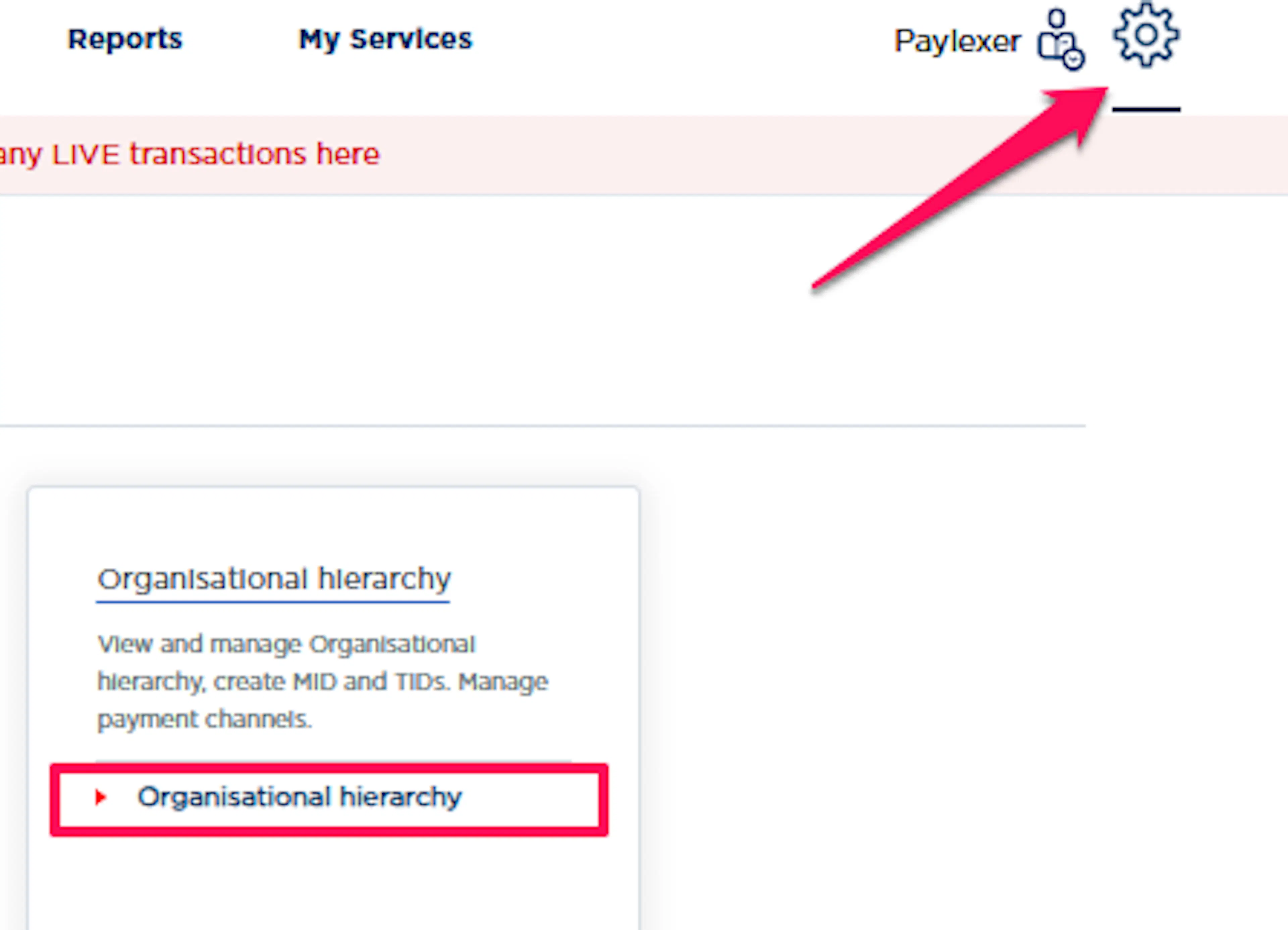
Open Organisational hierarchy
Go back to Settings and open Organisational hierarchy. Expand your organisation and organisational unit, then click your outlet.
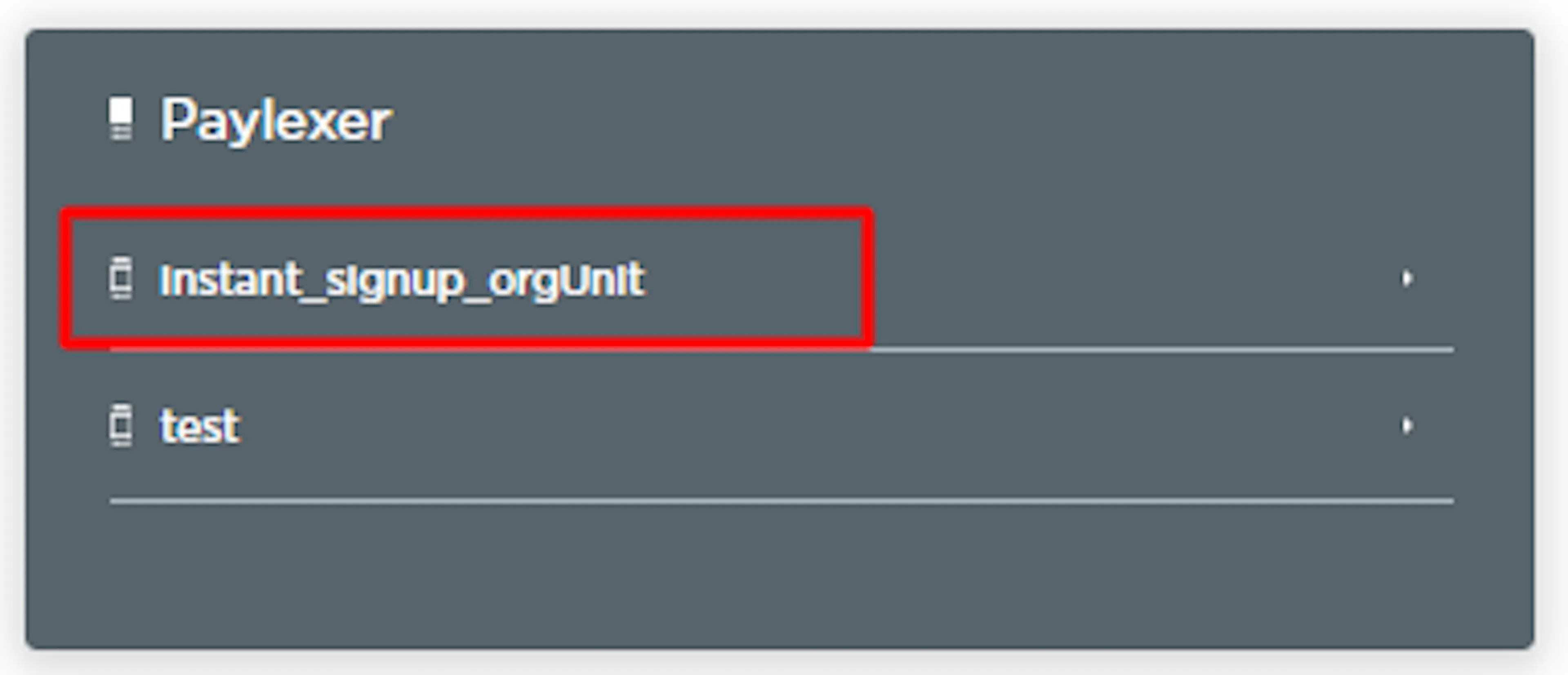
Copy the Outlet Reference
Confirm the details panel shows Type: Outlet, then copy the value in the Reference field.

The top level of the hierarchy (Type: Merchant organisation) also shows a Reference, but it is not an outlet and will be rejected. Only an outlet's Reference works. If you have more than one outlet, use the one that has active payment channels and at least one TID.
Adding Credentials to PayLexer
Open PayLexer Dashboard
Log in to your PayLexer dashboard and navigate to Payment Gateways → N-Genius Online.
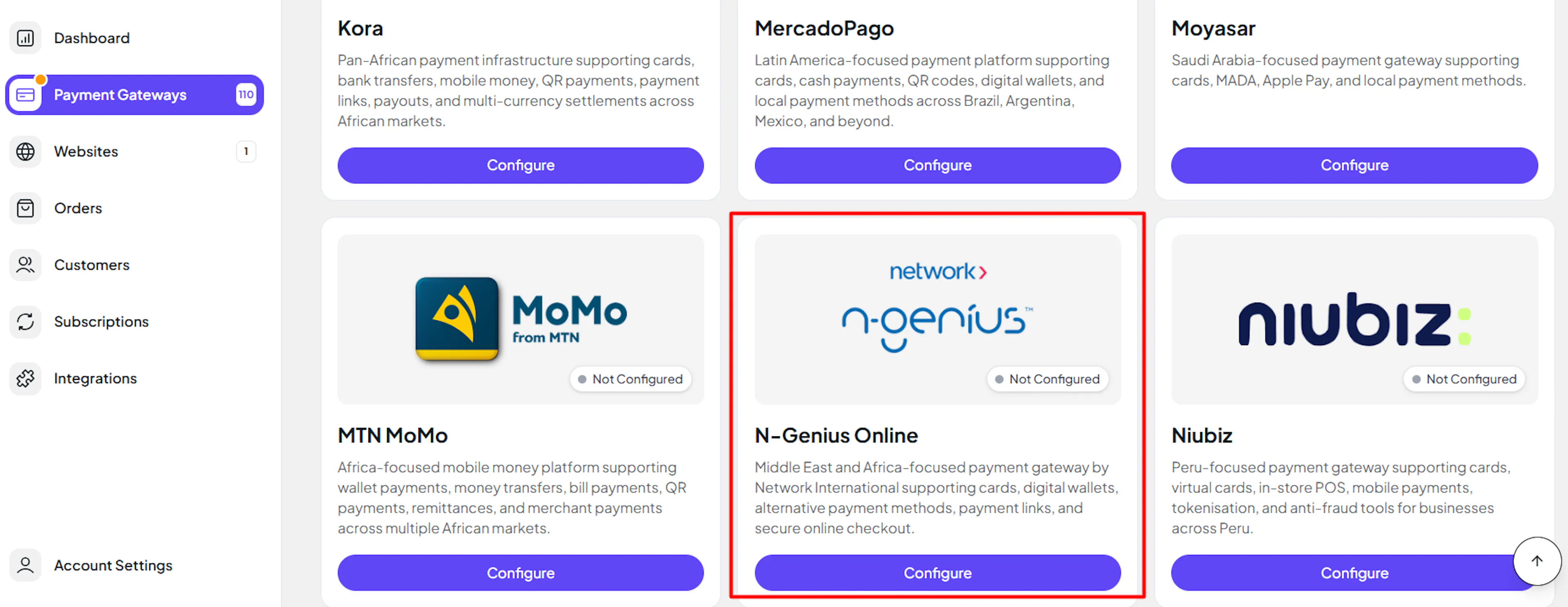
Enter your credentials
Paste the API Key and Outlet Reference you copied from N-Genius Online into the corresponding fields.
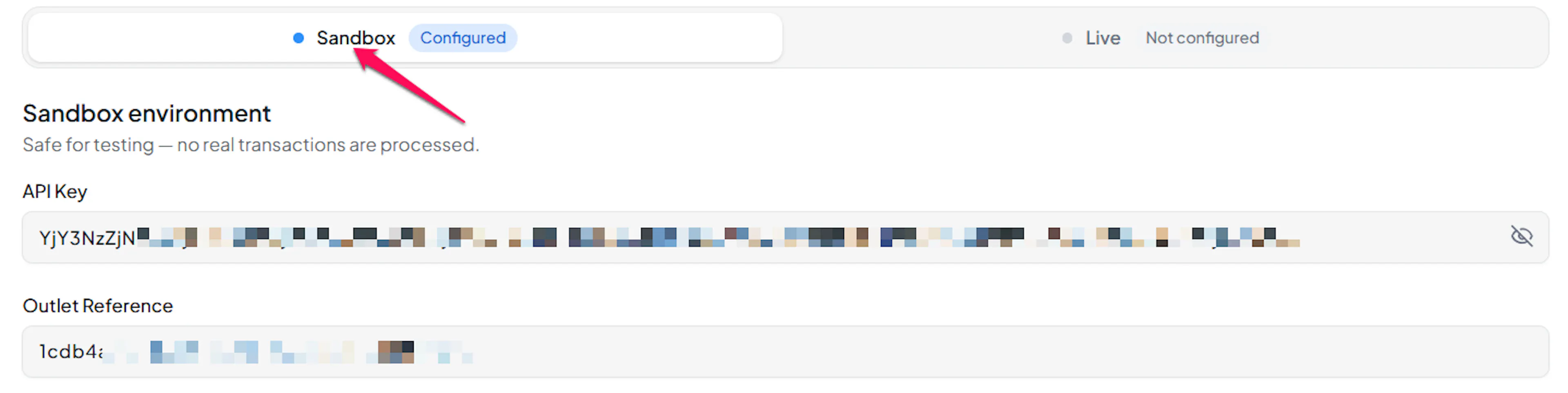
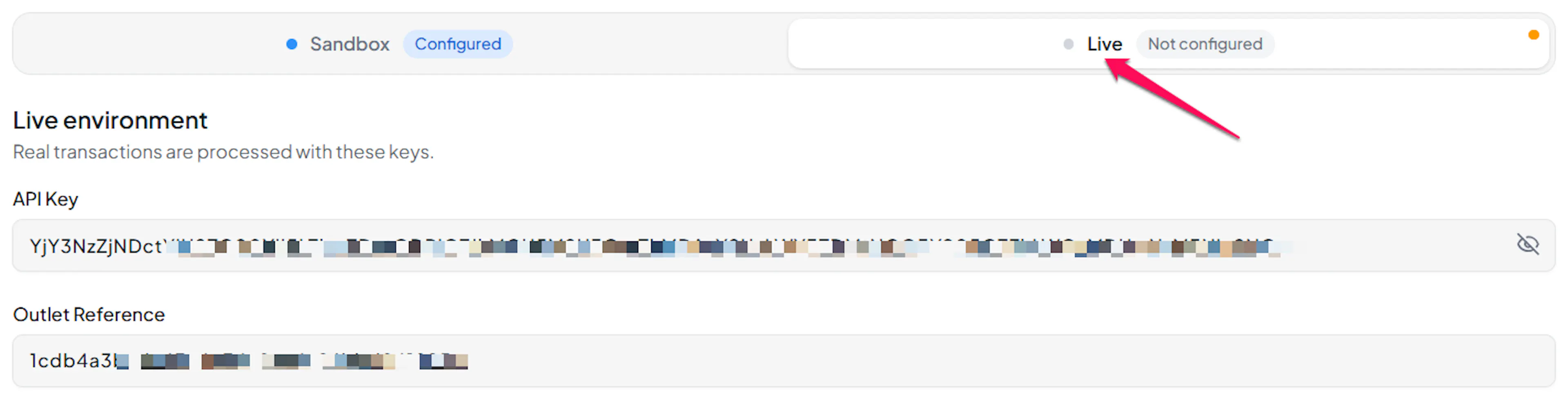
Understanding Live/Production and Sandbox Settings:
| Environment | Purpose |
|---|---|
| Live / Production | Used for real transactions. |
| Test / Sandbox | Used for testing only. No real money is processed. |
How PayLexer selects credentials:
- Debug/Test mode ON → Test credentials are used
- Debug/Test mode OFF → Live credentials are used
Configuring Webhooks
Webhooks enable real-time payment updates and significantly improve reliability.
Benefits of Webhooks:
- Instant payment status updates
- Automatic refund processing
Copy your PayLexer webhook URL
On the Payment Gateways → N-Genius Online page in PayLexer, copy the Webhook URL. It is generated for your account and shown as a read-only field.

Open Webhooks in N-Genius Online
In the N-Genius Online portal, go to Settings → Integrations → Webhooks and click New.
Add the webhook
Fill in the Add a webhook event form:
- Name - any label, for example
PayLexer - URL - the PayLexer webhook URL you copied
- Header key - any header name, for example
X-Webhook-Secret - Header value - a long, random secret value
Click Add.
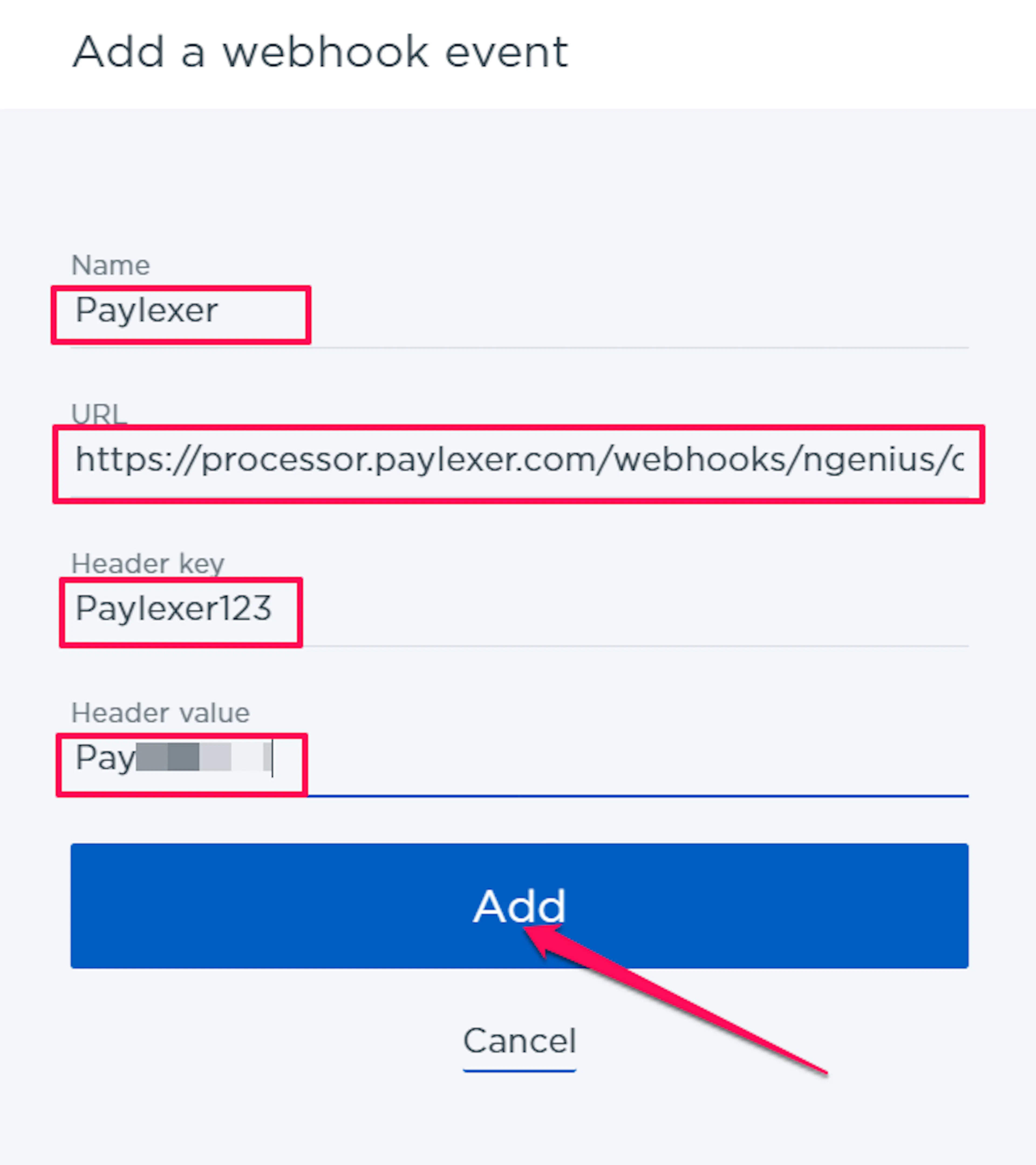
Use a different value for Header key and Header value. The Header value is the secret, so if it matches the header name anyone can guess it.
Add the webhook header value to PayLexer
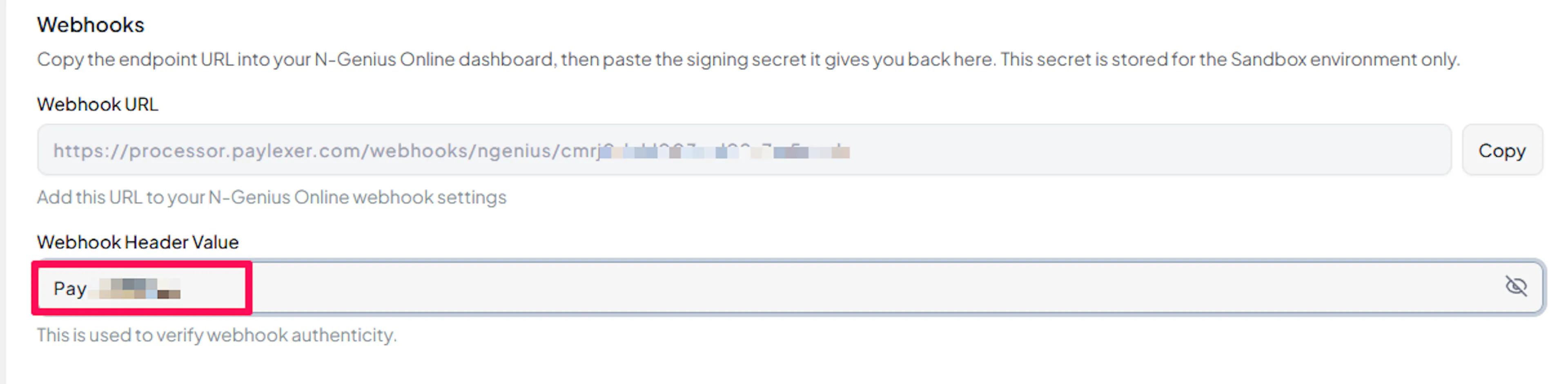
Back on the Payment Gateways → N-Genius Online page in PayLexer, paste the same secret into the Webhook Header Value field . Only the value is needed, not the header name.
Ask Network International to whitelist the URL
N-Genius Online only delivers notifications to URLs that Network International has approved. Email the PayLexer webhook URL to Network International and ask them to whitelist it:
- Sandbox: ecom-integration@network.global
- Live: ecomsupport@network.global
If your portal has no Webhooks screen under Integrations, ask them to enable it in the same email.
N-Genius Online notifications are not signed, so PayLexer verifies them using the saved Webhook Header Value and confirms accepted notifications with N-Genius. Unresolved orders are rechecked every 30 minutes if a notification is missed.
Test and Save
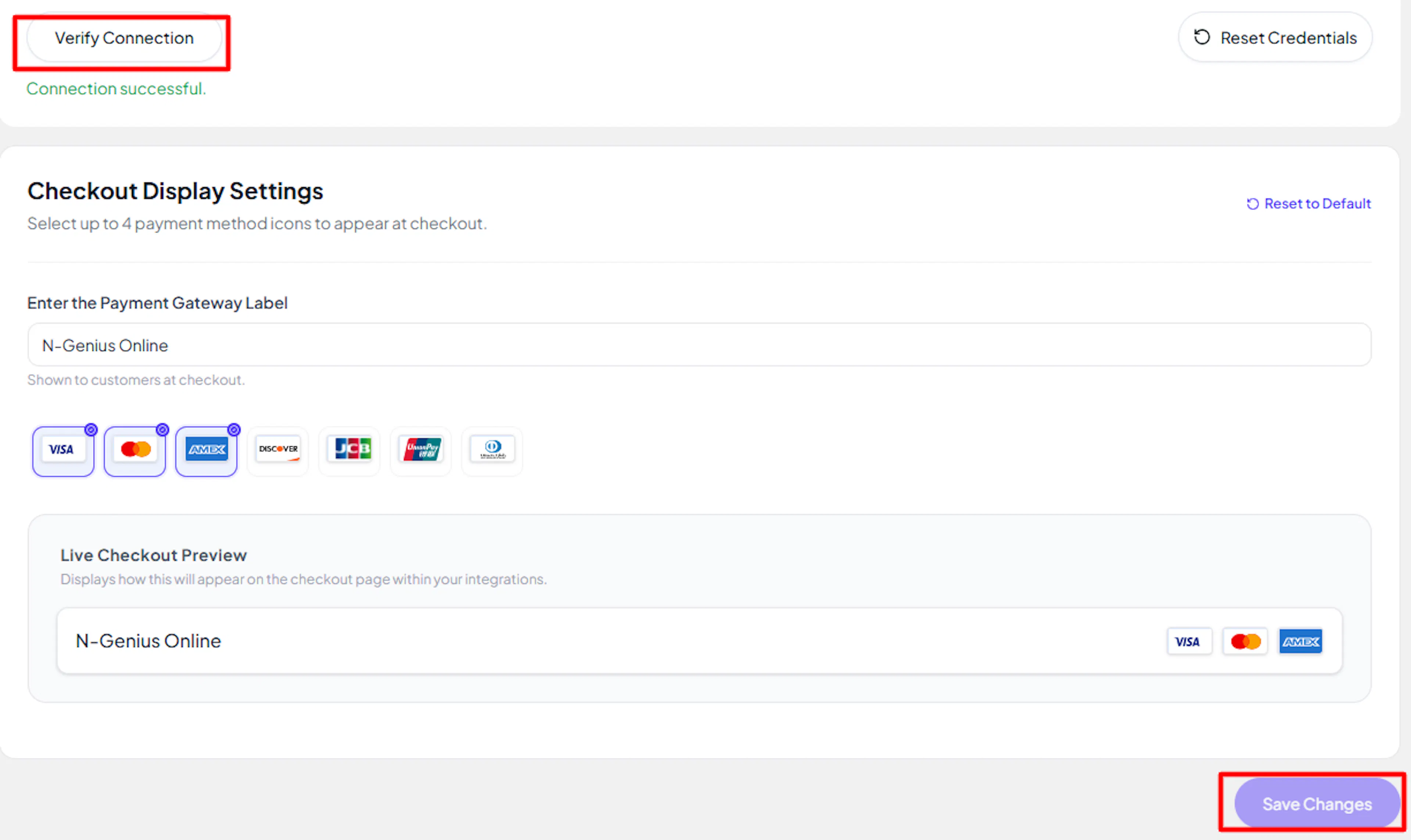
Click Save to save your configuration and verify your credentials. Click Verify Connection to test the connection. PayLexer checks the API Key and confirms the Outlet Reference belongs to the same account.
Integrate N-Genius Online to Your Website
If you have already added and configured your site, you can enable N-Genius Online in your existing setup.
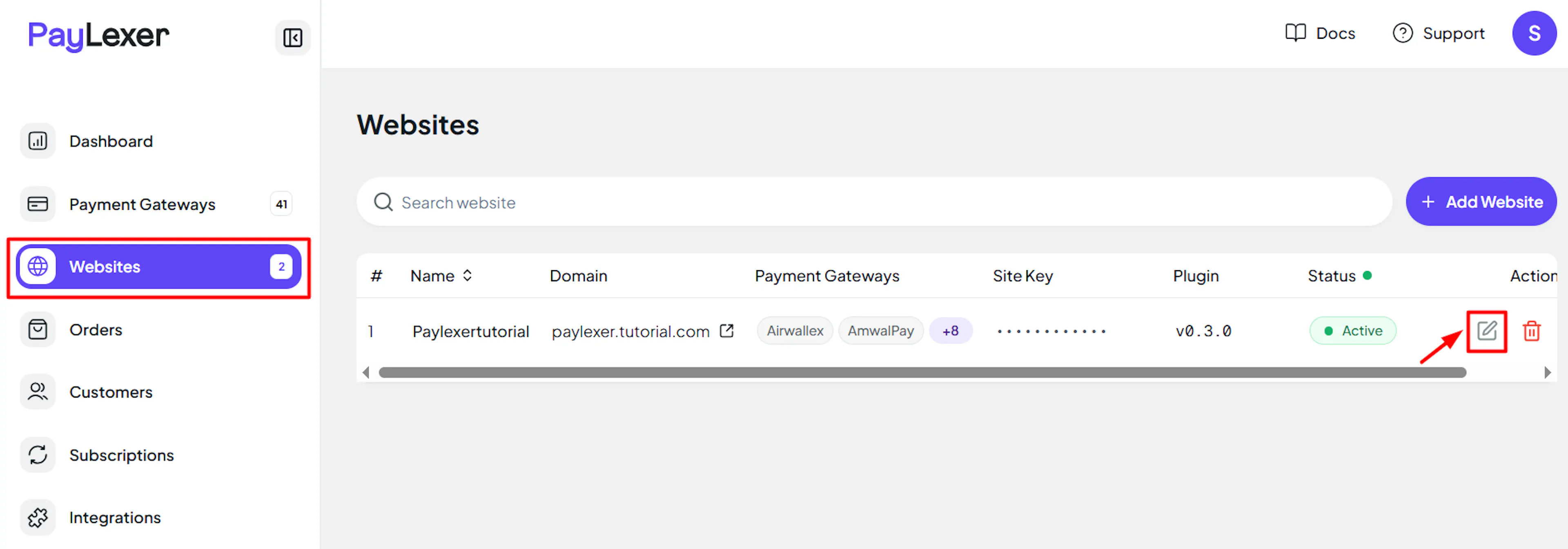
Go to Websites
Navigate to Websites in your PayLexer dashboard.
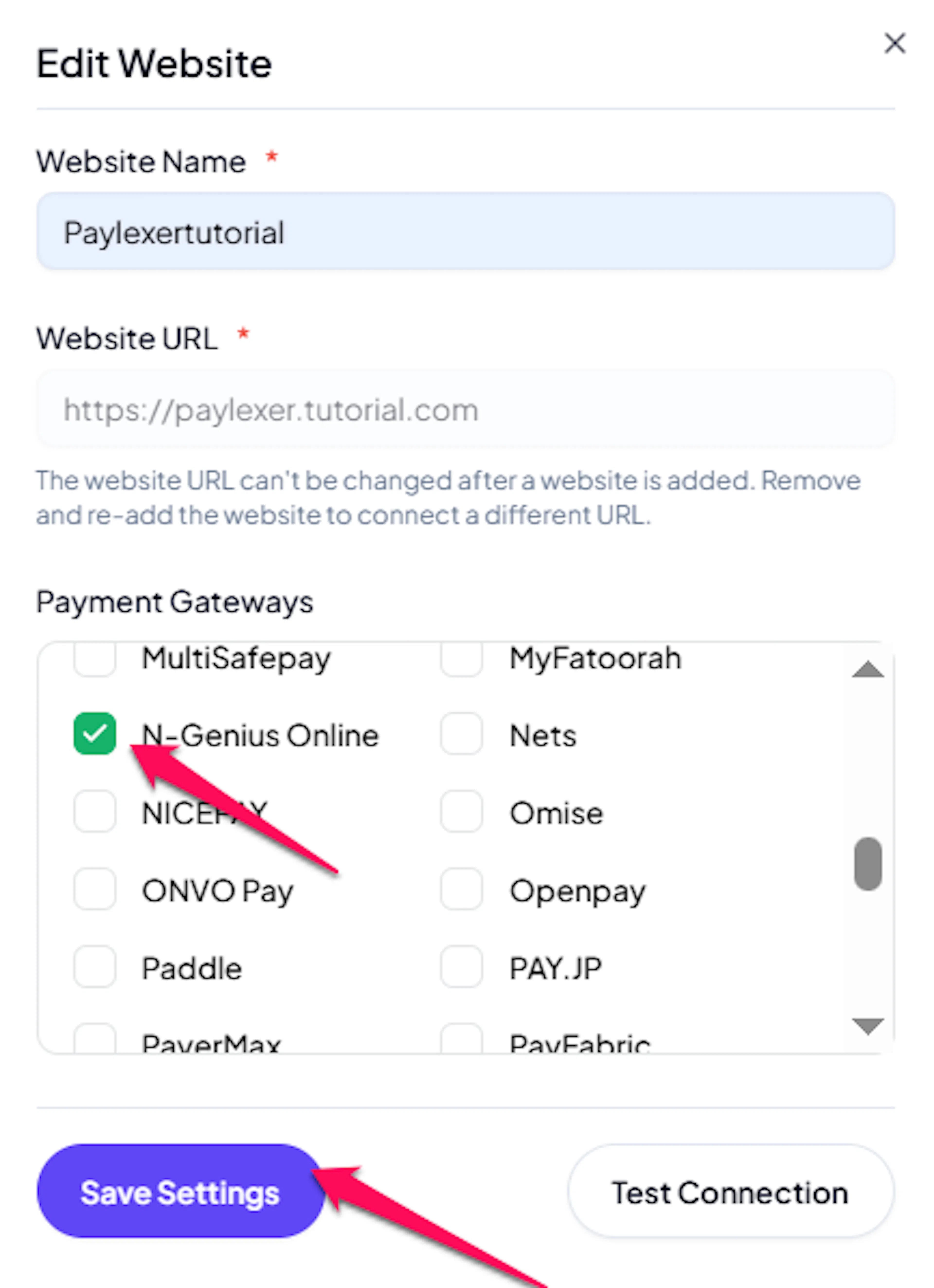
Edit your website
Click the Edit Icon of your added website.
Enable N-Genius Online
Click the checkbox to enable N-Genius Online for the website.
If you haven't added a website yet, Continue to Add Your Website →
Troubleshooting
Best Practices
- Test in sandbox before enabling production, using your sandbox credentials with Debug/Test mode ON
- Ask Network International to activate your card schemes and whitelist your webhook URL well before launch
- Set a long, random Header value on your webhook and keep it private
- Wait for overnight settlement before issuing refunds, and use a void for same-day reversals
- Reconcile your PayLexer orders against the N-Genius Online portal periodically
FAQs
Still Have Questions?
- N-Genius Online Support:
- Sandbox Support Email: ecom-integration@network.global
- Live Support Email: ecomsupport@network.global
- PayLexer Support: Contact Support