

bKash
Connect bKash to PayLexer to accept Bangladeshi taka payments straight from a shopper's bKash wallet through bKash's hosted payment page.
bKash is Bangladesh's largest mobile financial services platform, used for wallet payments, QR payments, money transfers, bill payments, remittances, and merchant payments. With PayLexer, your shoppers pay from their bKash wallet on bKash's own payment page, using their wallet number, a one-time code, and their PIN. bKash opens merchant accounts for businesses operating in Bangladesh.
- Supported Regions (Merchant Accounts): Bangladesh
- Supported Currencies: Bangladeshi Taka (BDT)
This gateway appears in checkout only when the selected currency is BDT.
Supported Features
- Hosted checkout on bKash's own payment page for one-time wallet payments
- Payments confirmed directly with bKash before an order is marked paid
- Automatic completion of paid orders when a shopper doesn't return to your store
- Full and partial refunds on completed payments, with an instant result
- Separate sandbox and live credentials, so test payments never touch real money
Before You Start
Make sure you have:
- bKash Merchant Account – Don't have one? Contact bKash to become a merchant →
- PayLexer Account – Required to configure the integration. Create your account →
- A website where you want to integrate
Looking for a different payment processor? View all supported gateways →
Configuring bKash
You need a Username, Password, App Key, and App Secret from bKash for this integration.
Getting API Credentials
bKash does not offer a self-service credentials page. Live credentials are issued by bKash once your business has been onboarded as a bKash merchant for online payments (Tokenized Checkout). Sandbox credentials are shared publicly by bKash for testing.
Sandbox and live are separate bKash environments with separate credentials. A sandbox set never works against live bKash, and a live set never works in the sandbox.
Get sandbox credentials
Open the bKash developer portal and copy the public sandbox Username, Password, App Key, and App Secret for Tokenized Checkout. The portal also lists the sandbox wallet numbers, one-time code, and PIN you can pay with.
Apply for live credentials
Ask your bKash account manager to onboard your business for online payments through Tokenized Checkout. When onboarding is complete, bKash sends you your live Username, Password, App Key, and App Secret.
Store the Password and App Secret securely, and use your bKash credentials only in PayLexer. bKash can temporarily block credentials that request new access too often, which can happen when the same set is used by another system at the same time.
Adding Credentials to PayLexer
Open PayLexer Dashboard
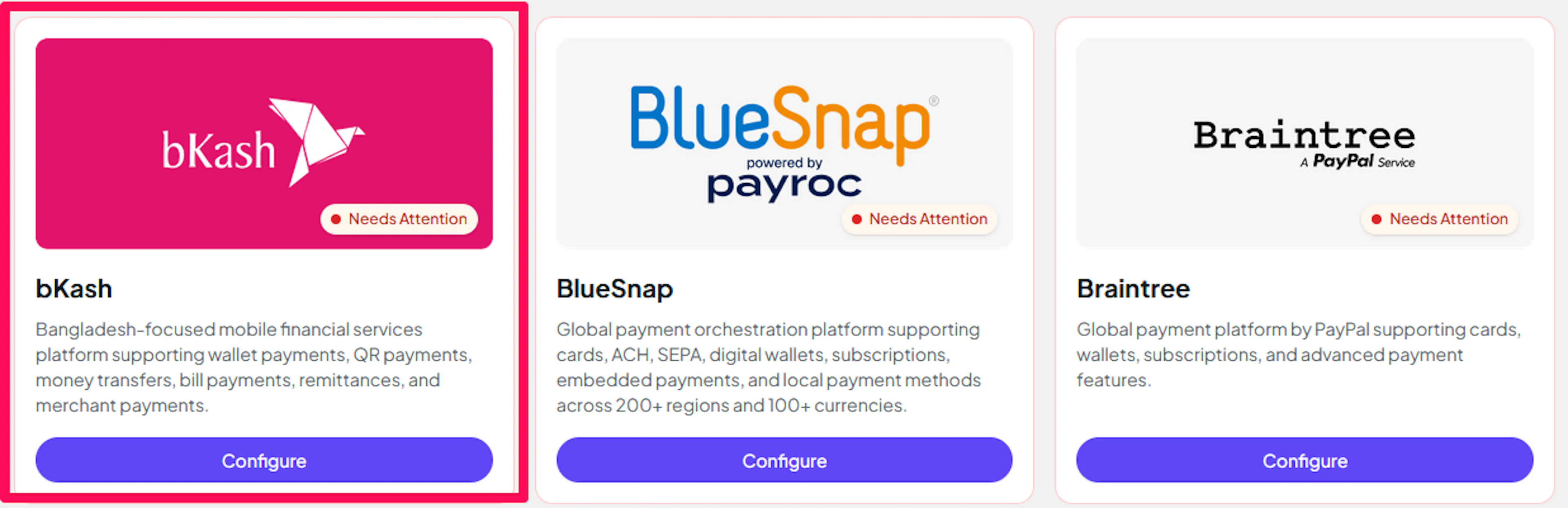
Log in to your PayLexer dashboard and navigate to Payment Gateways → bKash.
Enter your credentials
Under the Live tab, paste your Live Username, Live Password, Live App Key, and Live App Secret. Under the Sandbox tab, paste your Sandbox Username, Sandbox Password, Sandbox App Key, and Sandbox App Secret.
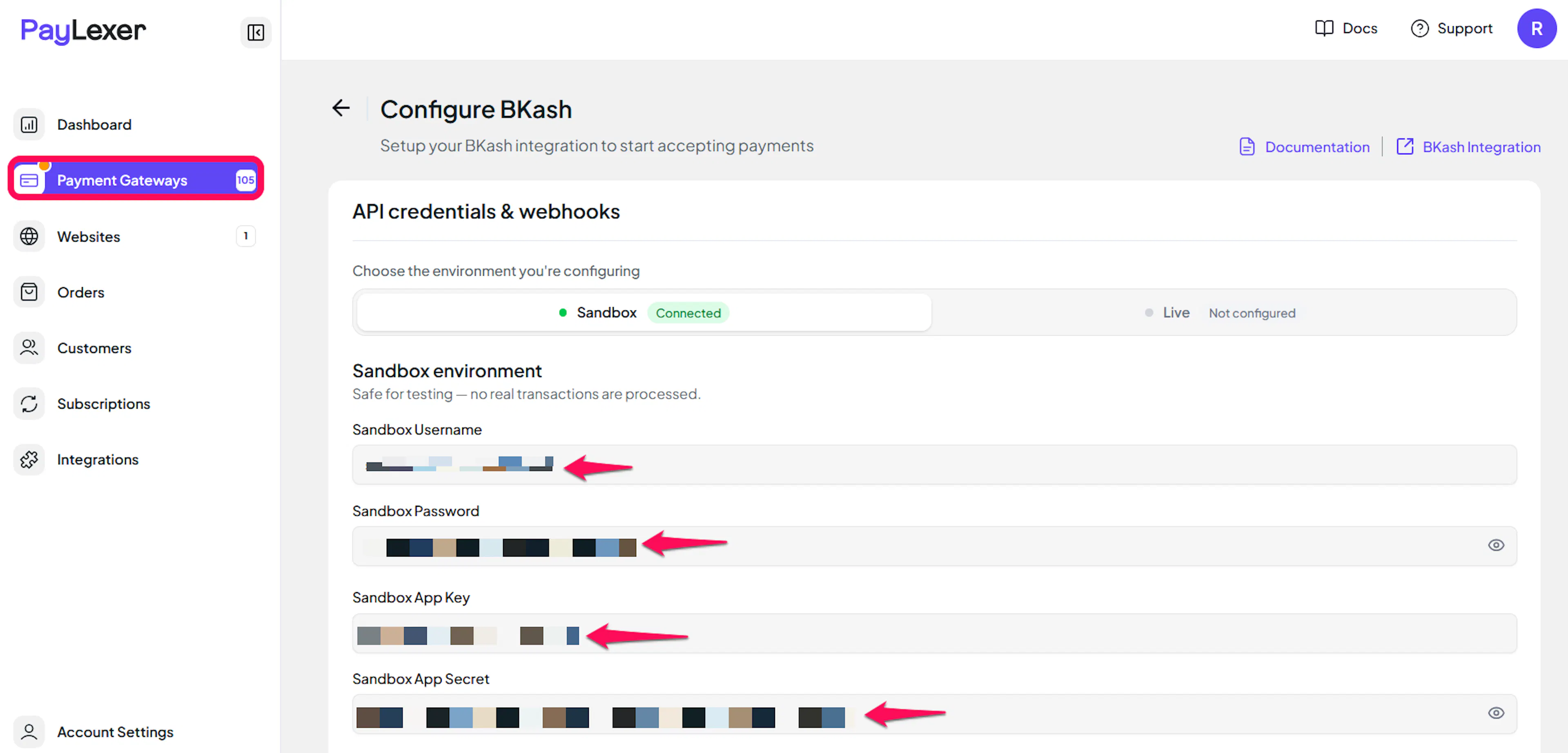
Understanding Live/Production and Sandbox Settings:
| Environment | Purpose |
|---|---|
| Live / Production (Mandatory) | Used for real transactions. Cannot be empty, even when testing. |
| Test / Sandbox (Optional) | Used for testing only. No real money is processed. |
How PayLexer selects credentials:
- Debug/Test mode ON → Test credentials are used
- Debug/Test mode OFF → Live credentials are used
Test and save
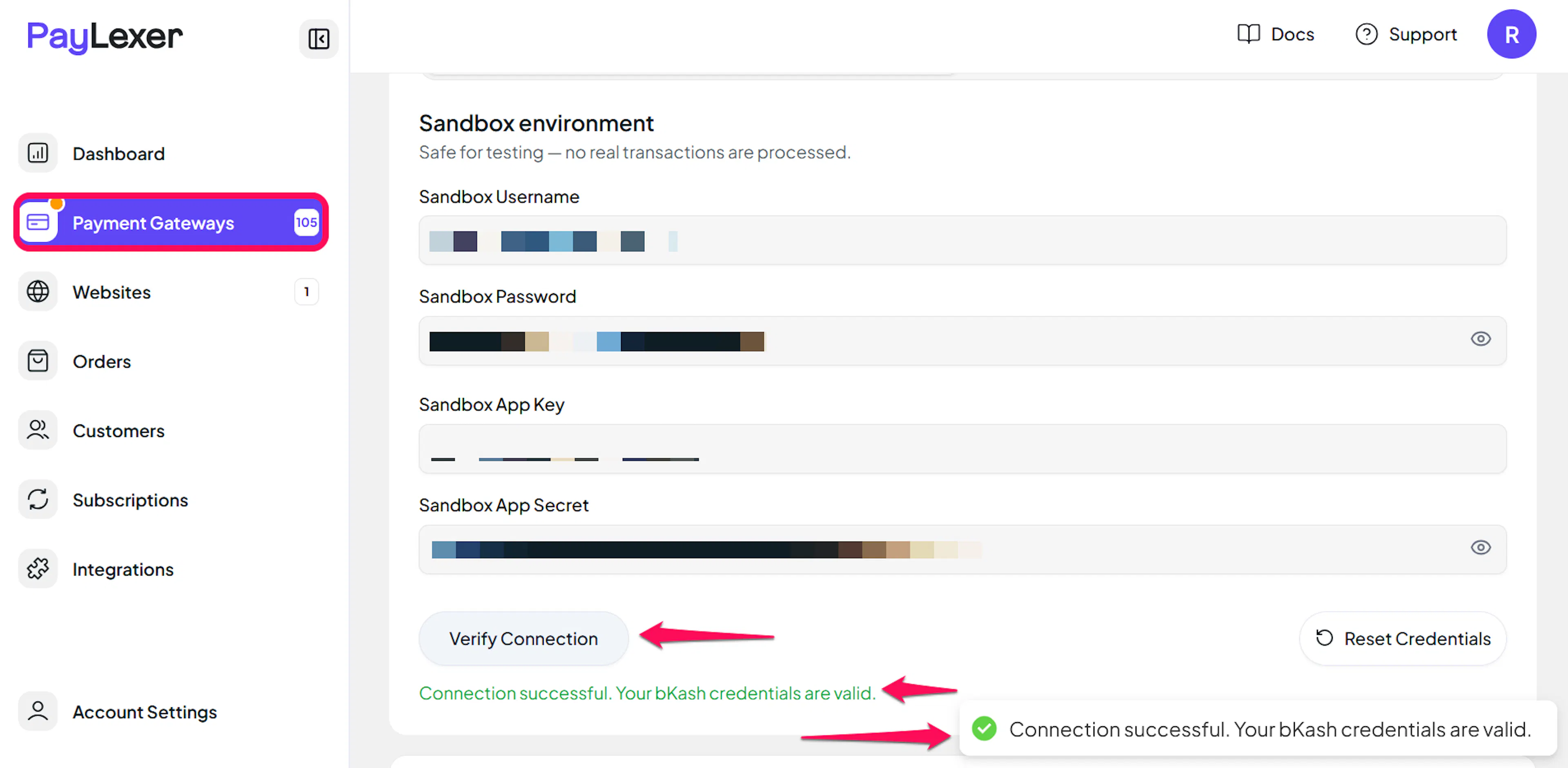
Click Save to save your configuration and verify your credentials. Click Verify Connection to test the connection.
Webhooks (Not Supported)
bKash does not currently support webhook integration with PayLexer.
- Payment updates are handled directly within bKash's processing flow
- Real-time event notifications are not available
- PayLexer confirms every payment directly with bKash when the shopper returns, and checks unpaid bKash orders in the background
This means a payment whose shopper never returns to your store may take a little longer to show as paid.
Integrate bKash to Your Website
If you have already added and configured your site, you can enable bKash in your existing setup.
Go to Websites
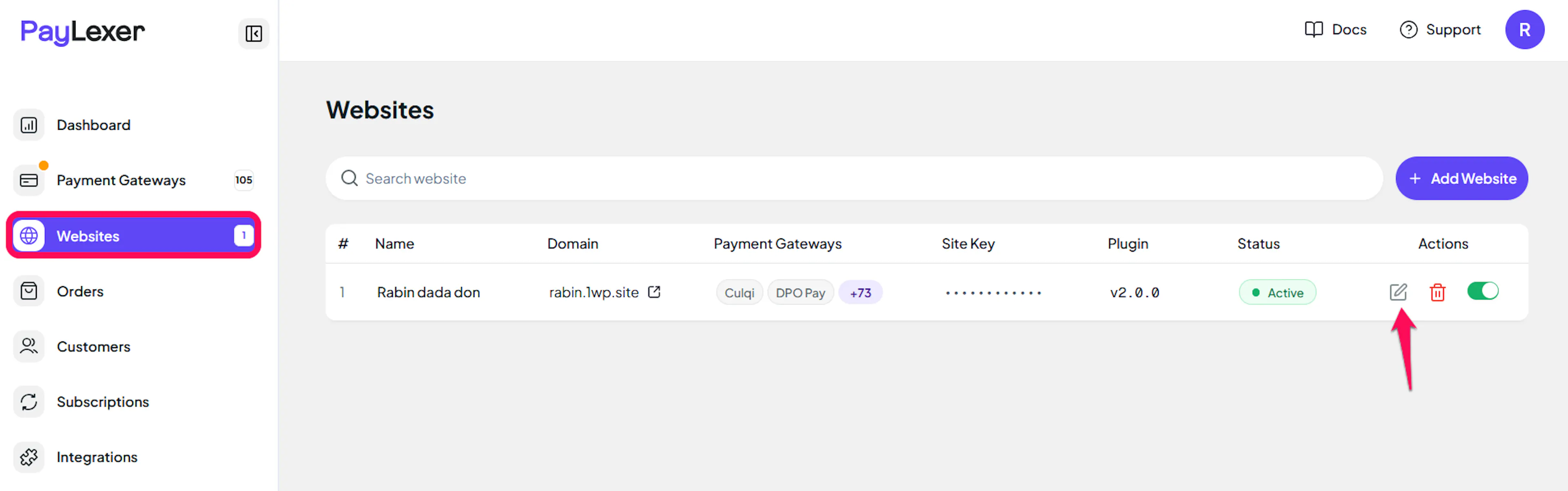
Navigate to Websites in your PayLexer dashboard.
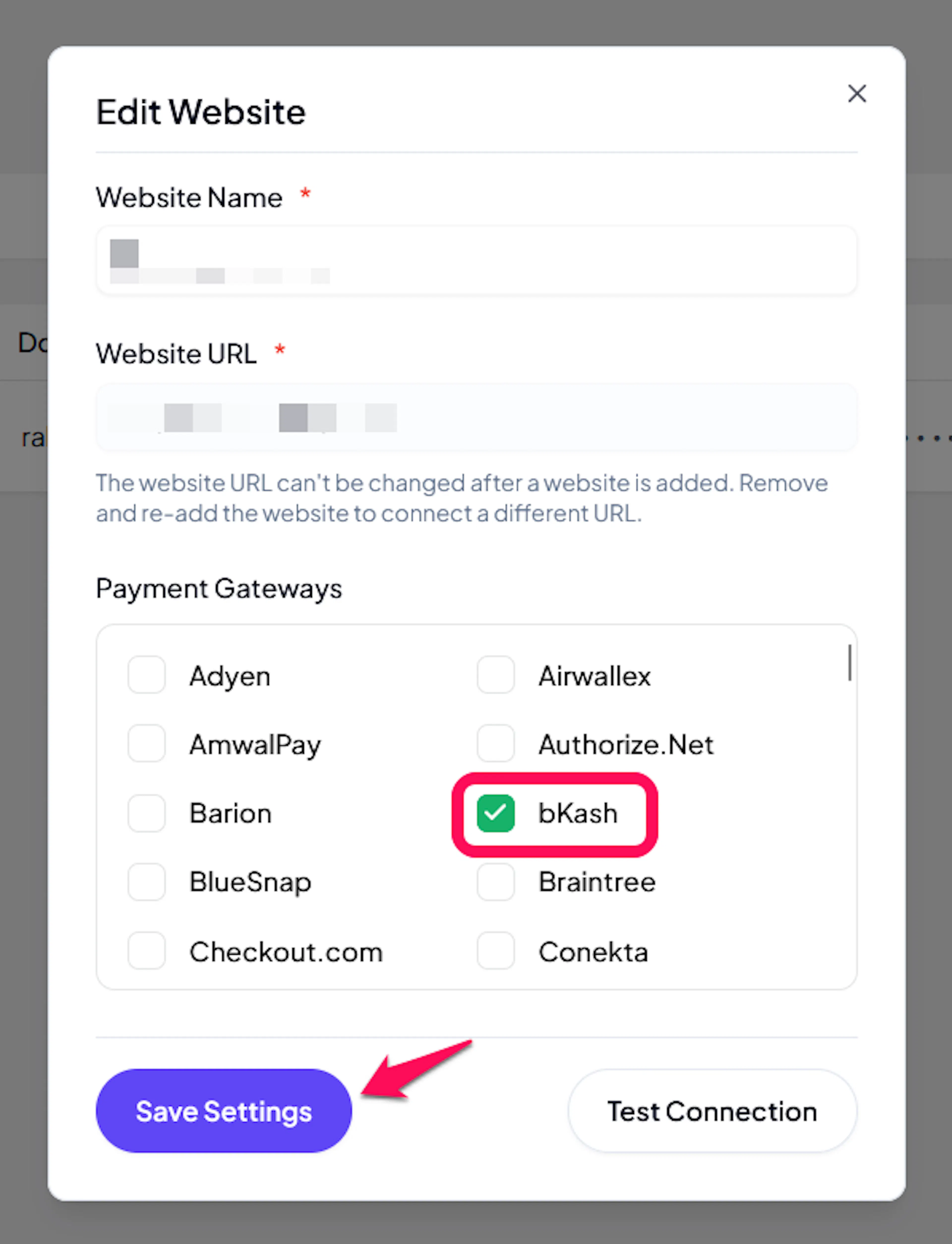
Edit your website
Click the Edit Icon of your added website.
Enable bKash
Click the checkbox to enable bKash for the website.
If you haven't added a website yet, Continue to Add Your Website →
Troubleshooting
Best Practices
- Test in sandbox before enabling production
- Save both Live and Sandbox credentials so you can test safely before going live
- Use your bKash credentials only in PayLexer to avoid temporary access blocks
- Issue refunds through your store or PayLexer rather than bKash's merchant portal, so your order records stay accurate
FAQs
Still Have Questions?
- bKash Support: bKash Help Center
- PayLexer Support: Contact Support
For API details and advanced configuration, see the bKash developer documentation.