

Cybersource
Connect Cybersource (Visa Acceptance Solutions) to PayLexer so shoppers can pay by card without their card details ever touching your website.
Cybersource is a global payment gateway owned by Visa and sold today as part of the Visa Acceptance Solutions family of brands. It is one of the longest-established card-processing platforms in the world, used by enterprise merchants and accepting payments in over 190 countries and territories, and it is often the processor a business is already tied to through its acquiring bank. On PayLexer it accepts card payments through Unified Checkout, Cybersource's own secure payment form, so the card number is entered directly into Cybersource and never passes through your website or PayLexer.
- Supported Regions (Merchant Accounts): North America, Latin America, Europe, Middle East, Africa, Asia Pacific - view full list
- Supported Currencies: AED, AUD, BRL, CAD, CHF, CNY, COP, DKK, EUR, GBP, HKD, IDR, ILS, INR, USD, VND, ZAR - view full list
The currencies you can actually settle in depend on your own acquiring bank, not on Cybersource alone. If a currency you need is missing at checkout, check which currencies your Cybersource merchant account is configured for.
Supported Features
- Card payments through Unified Checkout, with the card entered inside Cybersource's own secure form
- Visa, Mastercard, American Express, Discover, JCB, and Diners Club
- Shoppers stay on your website for the whole payment, with no redirect to another site
- Immediate approval or decline, so the order is marked paid in the same moment the shopper pays
- Full and partial refunds from the PayLexer dashboard
- Separate Test (Sandbox) and Live environments with completely separate credentials
- Each transaction links straight through to its record in the Cybersource Business Center
Cybersource does not currently support subscriptions or recurring billing in PayLexer. It is available for one-time payments only. Digital wallets such as Apple Pay, Google Pay, and Click to Pay are also not available through this integration.
Before You Start
Make sure you have:
- Cybersource Account – Don't have one? Sign up for Cybersource →
- PayLexer Account – Required to configure the integration. Create your account →
- A website where you want to integrate
Looking for a different payment processor? View all supported gateways →
Configuring Cybersource
You need a Merchant ID, Key ID, and Shared Secret Key from Cybersource for this integration.
All three come from the same Cybersource Business Center, and all three are needed together. PayLexer signs every request to Cybersource with these values, so a missing or mistyped value causes every payment to be rejected.
Sandbox and Live credentials come from two completely separate Business Centers and look identical. A Sandbox key used in Live (or the reverse) is rejected as an authentication failure, with nothing in the message to say the environment is the problem. Generate each set from the matching portal.
Getting API Credentials
Sign in to the Business Center
For Live credentials, sign in to the Cybersource Business Center. For Sandbox credentials, sign in to the Cybersource Sandbox Business Center instead.
Sign in to your transacting merchant account, not the parent account whose ID ends in _acct. Only transacting merchant account users can generate the REST key used here.
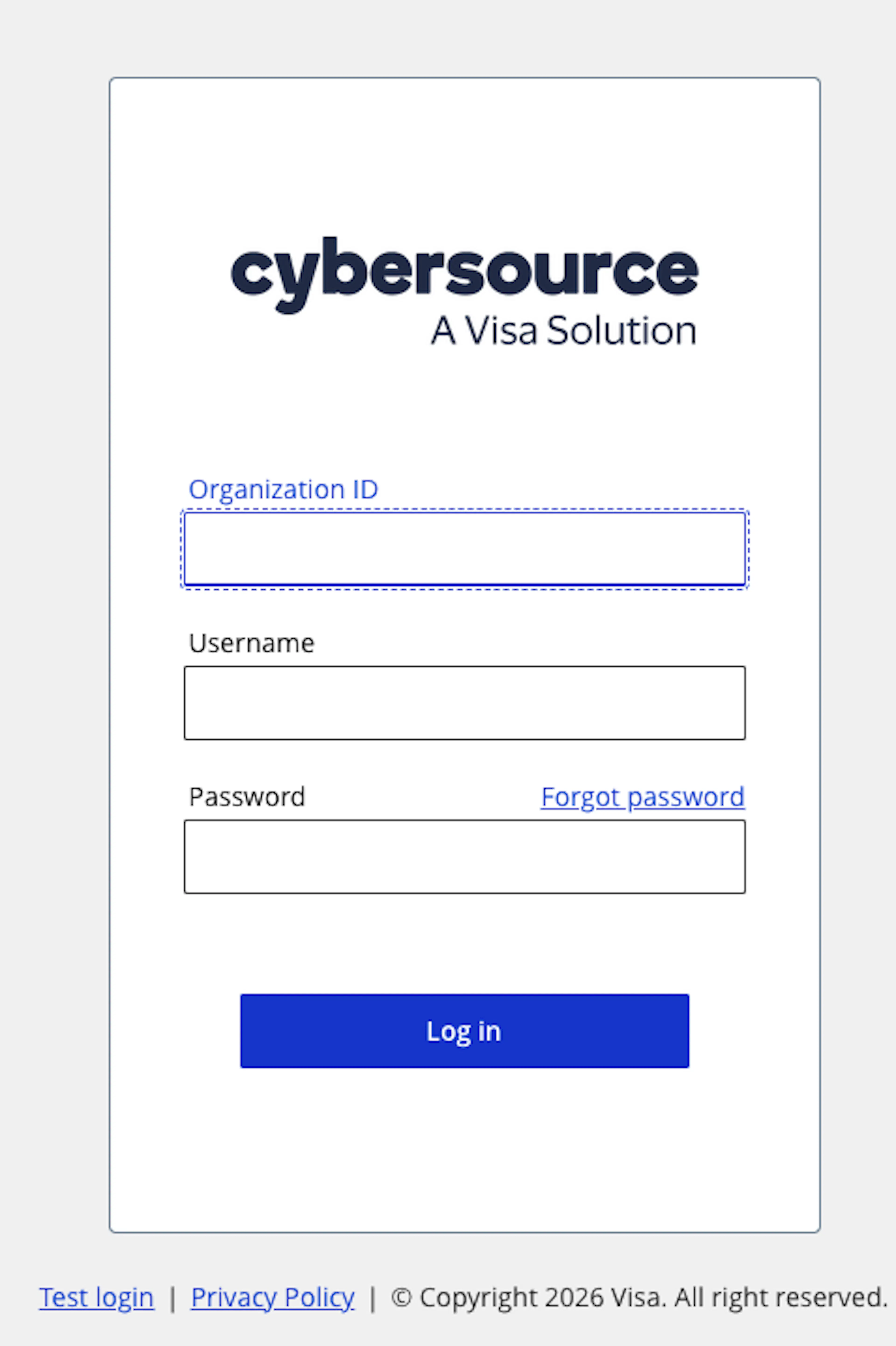
Copy your Merchant ID
Your Merchant ID is shown in the header bar at the top of every Business Center page, next to the Account ID. Cybersource also calls it your Organization ID.
Generate a REST Shared Secret key
Go to Payment Configuration → Key Management, click Generate Key, and choose REST - Shared Secret.
Copy the Key ID and Shared Secret Key
Cybersource shows a Key ID and a Shared Secret Key. Copy both with the copy icons, or click Download key to save them as a file.
Copy or download the Shared Secret Key as soon as it is created and store it somewhere secure. If you lose it, generate a new key in the Business Center and update PayLexer with the new Key ID and Shared Secret Key.
Adding Credentials to PayLexer
Open PayLexer Dashboard
Log in to your PayLexer dashboard and go to Payment Gateways, find Cybersource and click Configure.
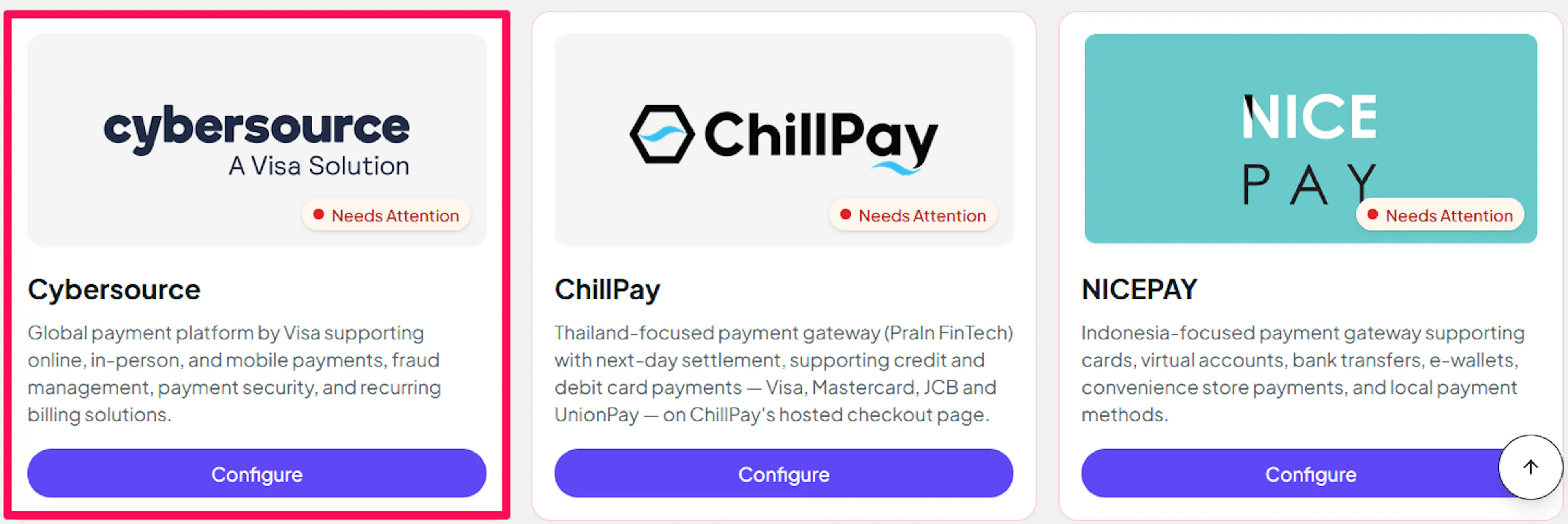
Enter your credentials
In API Credentials & Webhooks, choose the Sandbox or Live tab, then paste the Merchant ID, Key ID, and Shared Secret Key you copied from Cybersource into the corresponding fields.
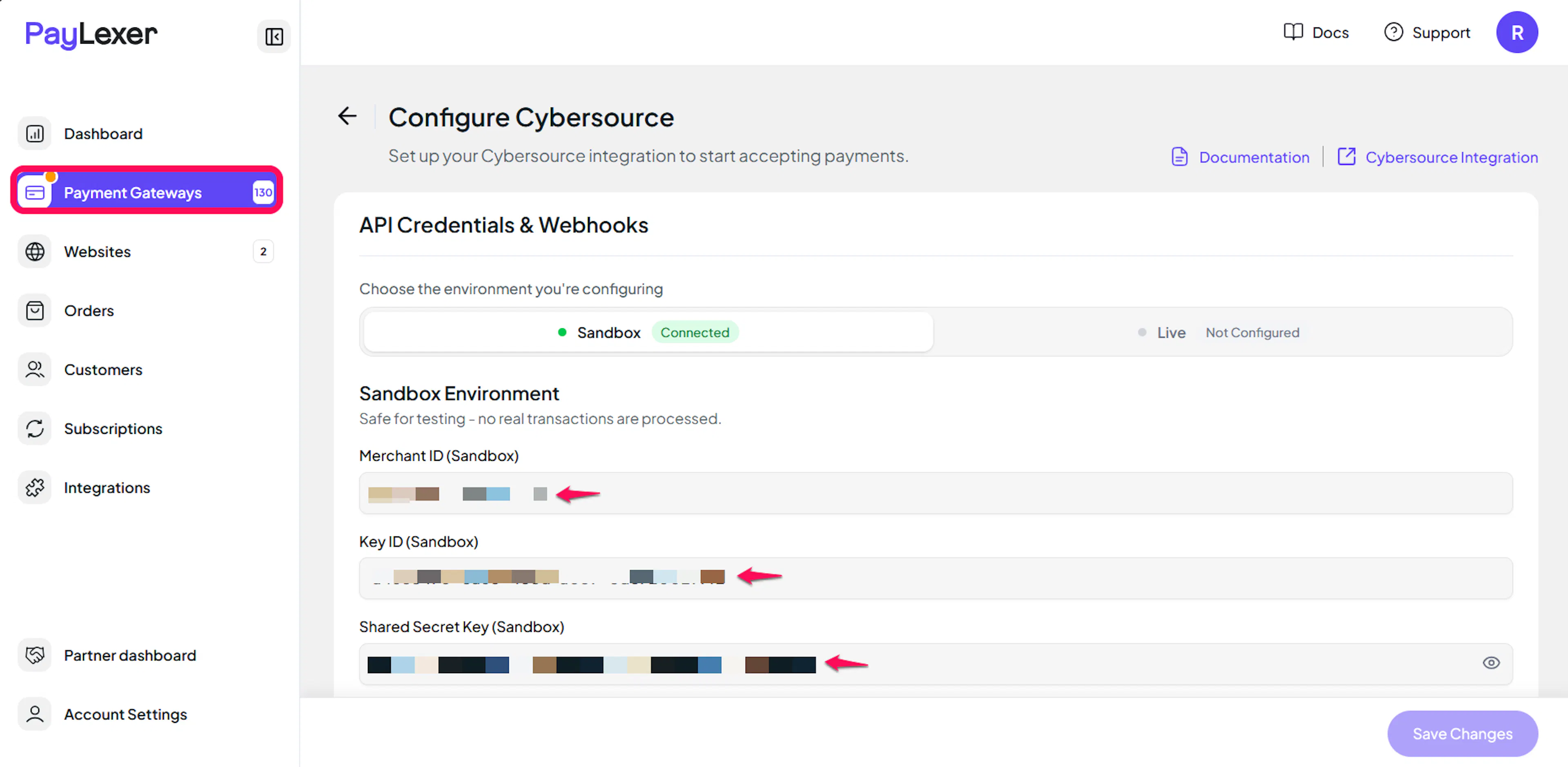
Paste each value carefully and avoid picking up a trailing space or line break. The Shared Secret Key is used to sign every request, so an extra character causes every payment to be rejected as an authentication failure.
Understanding Live/Production and Sandbox Settings:
| Environment | Purpose |
|---|---|
| Live / Production | Used for real transactions. |
| Test / Sandbox | Used for testing only. No real money is processed. |
How PayLexer selects credentials:
- Debug/Test mode ON → Test credentials are used
- Debug/Test mode OFF → Live credentials are used
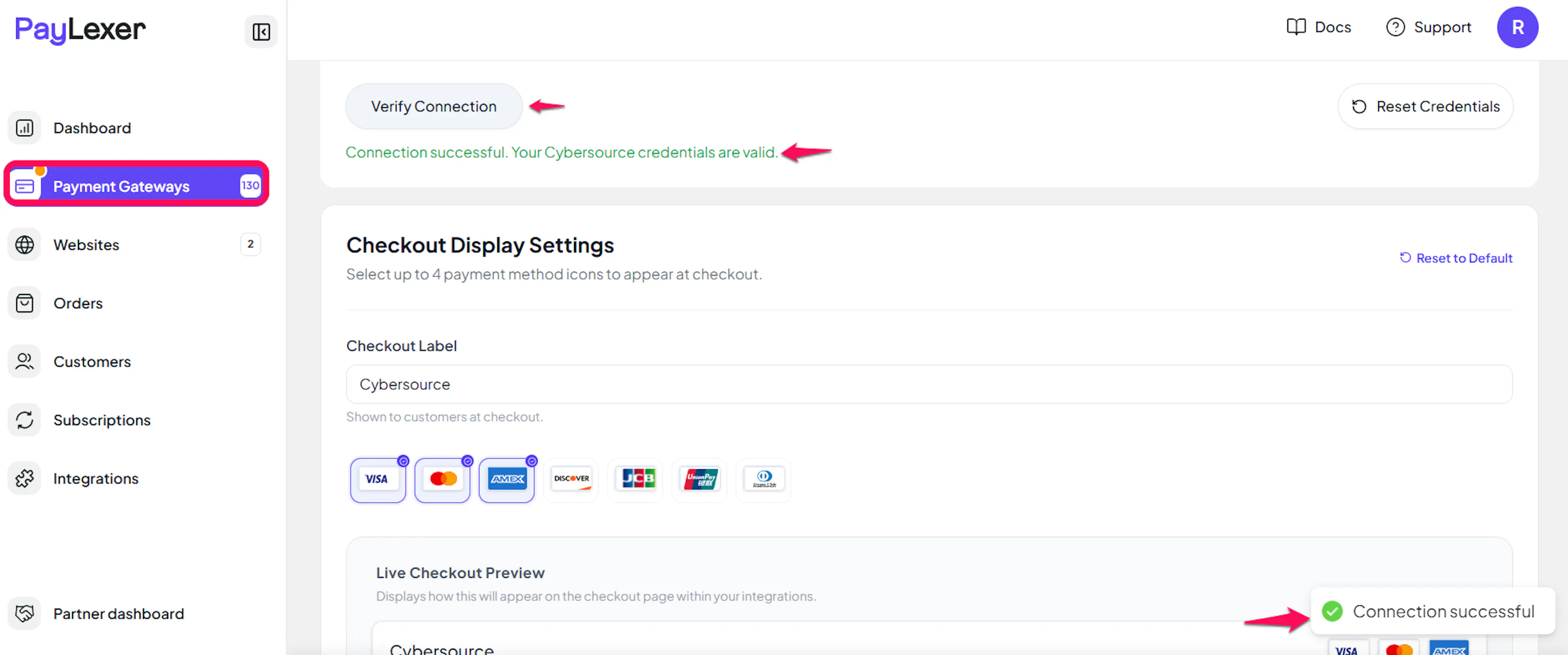
Verify and save
Click Verify Connection to check your credentials with Cybersource, then click Save Changes.
Webhooks (Not Supported)
PayLexer's Cybersource integration does not currently use webhooks.
- Payment results are returned directly within Cybersource's processing flow
- No webhook notifications are sent to PayLexer
- There is no webhook URL to register in the Business Center
In practice this does not slow anything down. The payment result is returned immediately when the shopper pays, so the order is marked paid or declined straight away, and refunds are confirmed as soon as you issue them.
Integrate Cybersource to Your Website
If you have already added and configured your site, you can enable Cybersource in your existing setup.
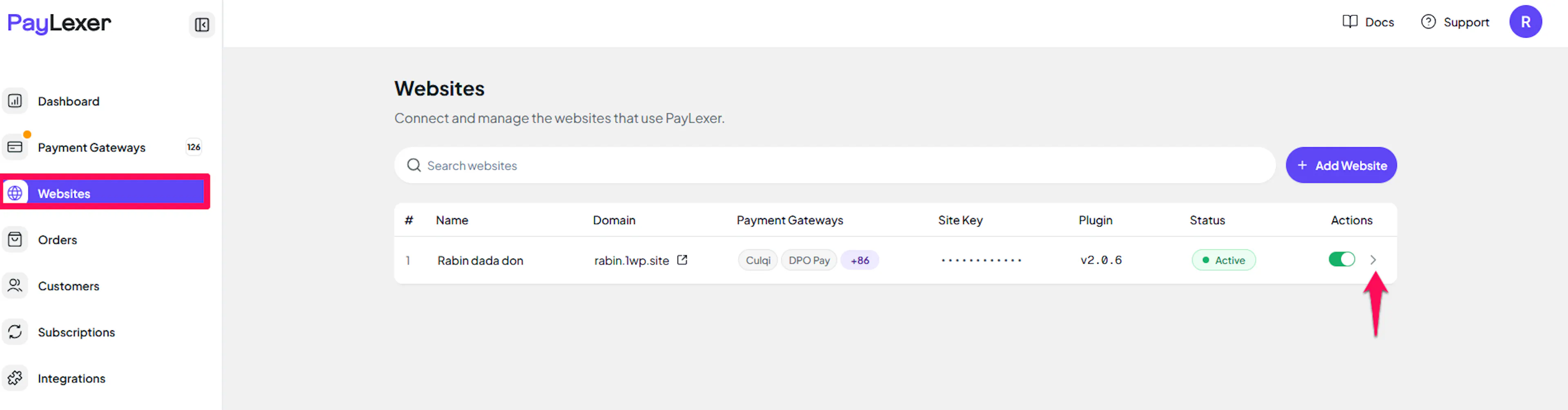
Go to Websites
Navigate to Websites in your PayLexer dashboard.
Open your website
Click your website's row (or the arrow at the end of it) to open its page.
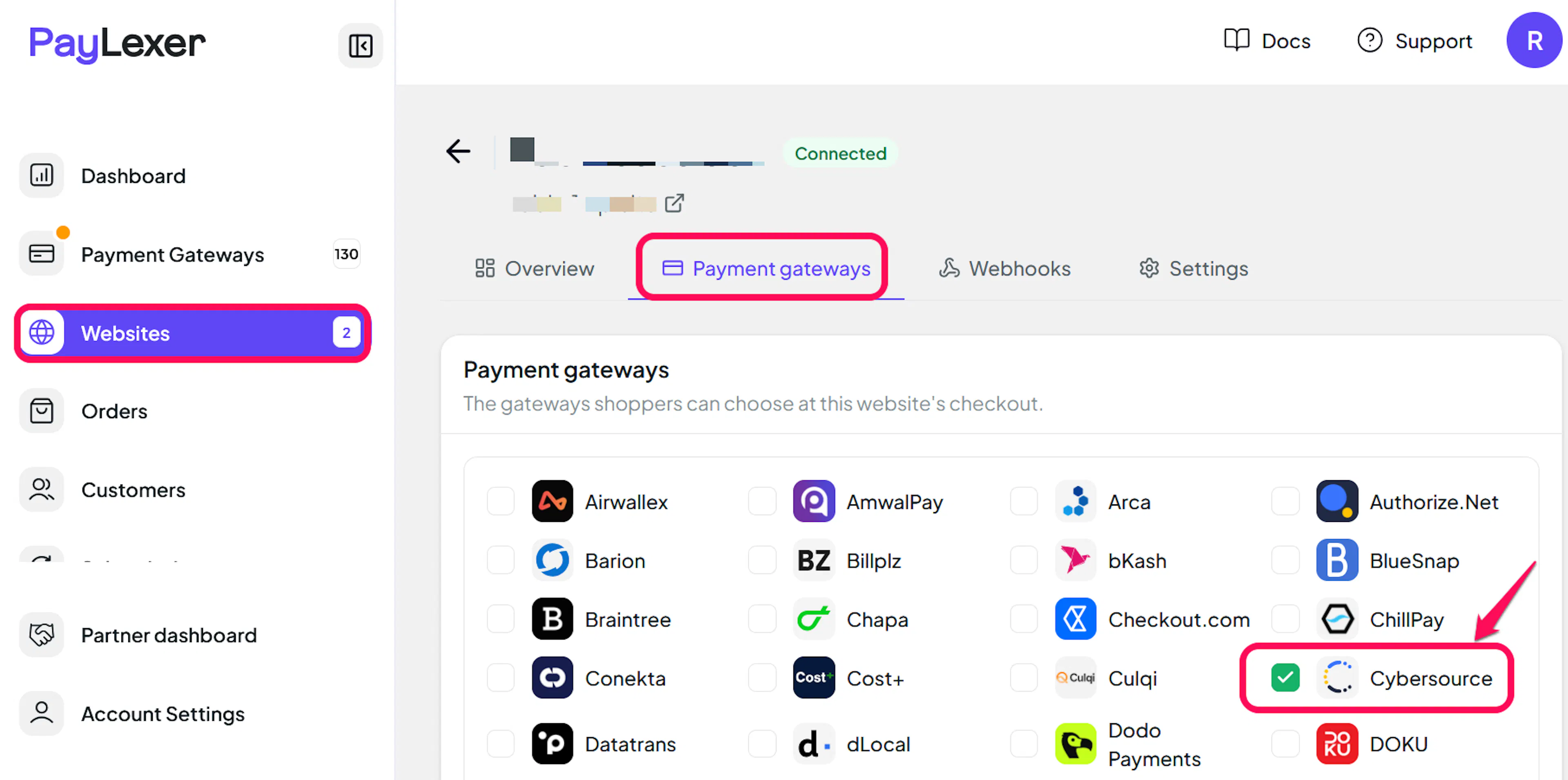
Enable Cybersource
Open the Payment gateways tab, tick the checkbox for Cybersource, then click Save gateways.
If you haven't added a website yet, Continue to Add Your Website →
Troubleshooting
Best Practices
- Test in Sandbox before enabling production, and confirm a full payment and a refund both work end to end
- Generate separate keys for Sandbox and Live, and store the Shared Secret Key somewhere safe as soon as it is created
- Always issue refunds from the PayLexer dashboard rather than the Cybersource Business Center, so your orders and your gateway stay in step
- Keep your Cybersource processor configuration up to date with your acquiring bank, since most payment-level failures trace back to account setup
- Rotate your Shared Secret Key if you suspect it has been exposed, and update PayLexer in the same sitting so payments are not interrupted
FAQs
Still Have Questions?
- Cybersource Support: Cybersource Support Center
- PayLexer Support: Contact Support