

Galaxy Pay
Connect Galaxy Pay to PayLexer to accept international card payments in Vietnamese Dong and 14 other currencies through a hosted payment page.
Galaxy Pay is a licensed Vietnamese payment provider whose UPC payment gateway lets merchants in Vietnam accept card payments on a secure hosted payment page. Shoppers enter their card details on Galaxy Pay's page and complete any bank verification there, so your website never handles card data.
Galaxy Pay collects payments in 15 currencies, including Vietnamese Dong and US Dollar.
- Supported Regions (Merchant Accounts): Vietnam
- Supported Currencies: VND, USD, THB, JPY, INR, TWD, MYR, SGD, KRW, KHR, MMK, IDR, HKD, CNY, AUD - view full list
Supported Features
- Hosted payment page for one-time payments by international card, including Visa, Mastercard, American Express, and JCB
- 3-D Secure and bank verification handled on Galaxy Pay's page
- Automatic, signed payment notifications with no webhook setup required in Galaxy Pay
- Separate UAT (test) and live credentials so test payments never touch real money
Before You Start
Make sure you have:
- Galaxy Pay Account – Galaxy Pay onboards Vietnamese merchant businesses directly. Contact Galaxy Pay to open an account →
- PayLexer Account – Required to configure the integration. Create your account →
- A website where you want to integrate
Looking for a different payment processor? View all supported gateways →
Configuring Galaxy Pay
You need an API Key and a Salt from Galaxy Pay for this integration.
Getting API Credentials
Galaxy Pay issues credentials through your account manager, not through a self-service dashboard. You receive one API Key and Salt pair for the test environment, called UAT, and a separate pair for production.
Request your credentials
Ask your Galaxy Pay account manager for your API Key and Salt for both UAT and production. In the same request, ask Galaxy Pay to register processor.paylexer.com as an approved callback domain.
Register PayLexer's callback domain with Galaxy Pay first. Galaxy Pay only sends payment results to web addresses it has approved for your account. Payments fail until the domain is approved. Ask Galaxy Pay to register processor.paylexer.com over HTTPS for both your UAT and production accounts.
Keep both pairs separate
Note which pair is for UAT and which is for production. The values look alike, and each pair works only in its own environment. Keep the Salt private. PayLexer uses it to sign every request sent to Galaxy Pay and to verify every payment notification Galaxy Pay sends back.
Adding Credentials to PayLexer
Open PayLexer Dashboard
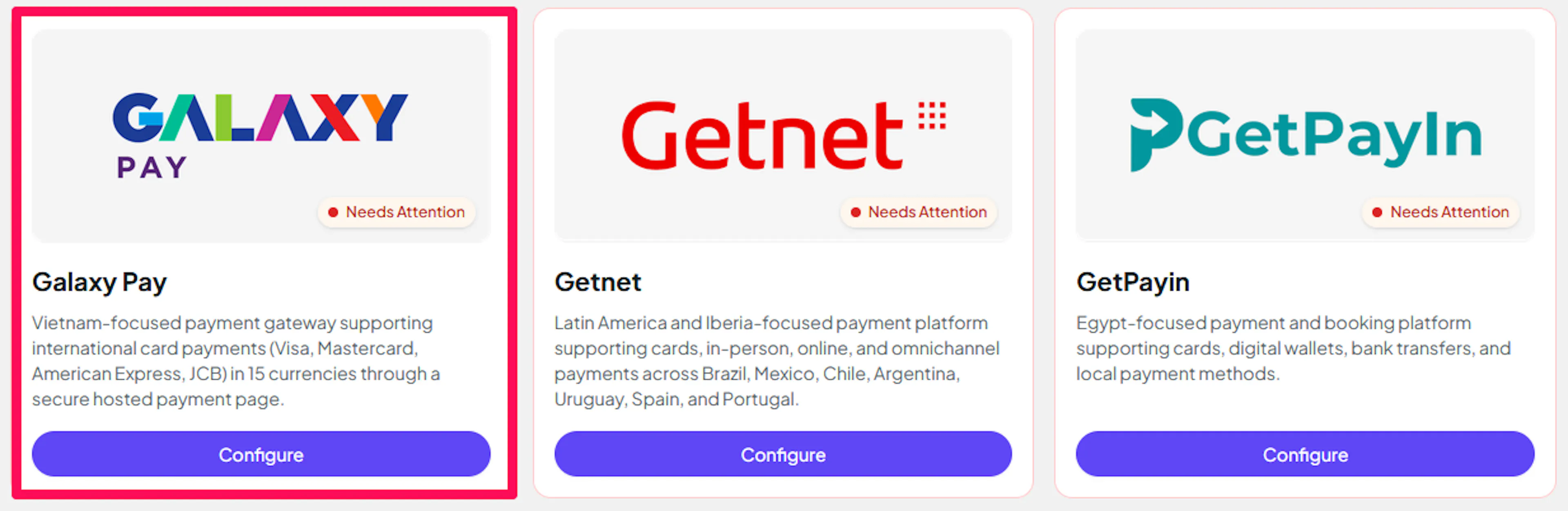
Log in to your PayLexer dashboard and navigate to Payment Gateways → Galaxy Pay.
Enter your credentials
Paste the API Key and Salt you received from Galaxy Pay. Enter your production pair under the Live tab and your UAT pair under the Sandbox tab.
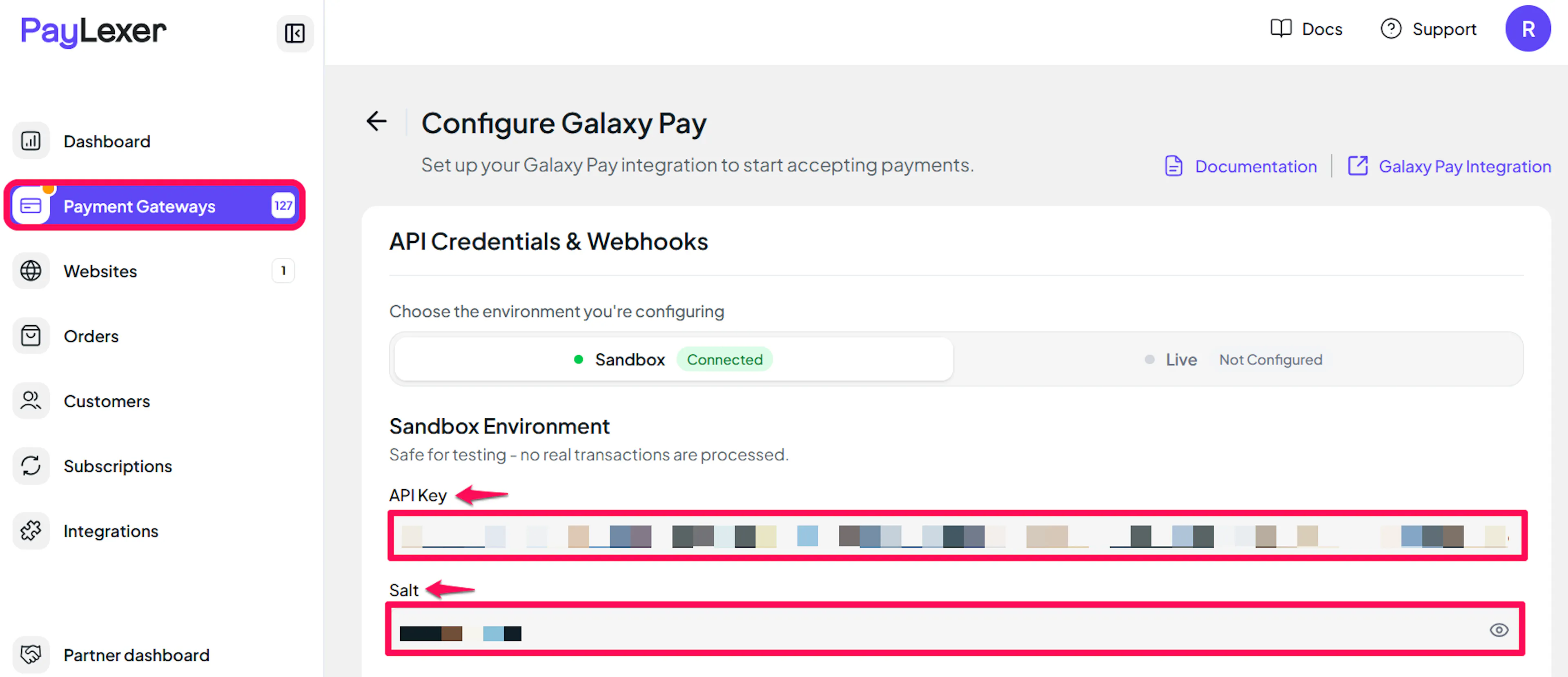
Understanding Live/Production and Sandbox Settings:
| Environment | Purpose |
|---|---|
| Live / Production (Mandatory) | Used for real transactions. Cannot be empty, even when testing. |
| Test / Sandbox (Optional) | Used for testing only. No real money is processed. |
How PayLexer selects credentials:
- Debug/Test mode ON → Test credentials are used
- Debug/Test mode OFF → Live credentials are used
Test and save
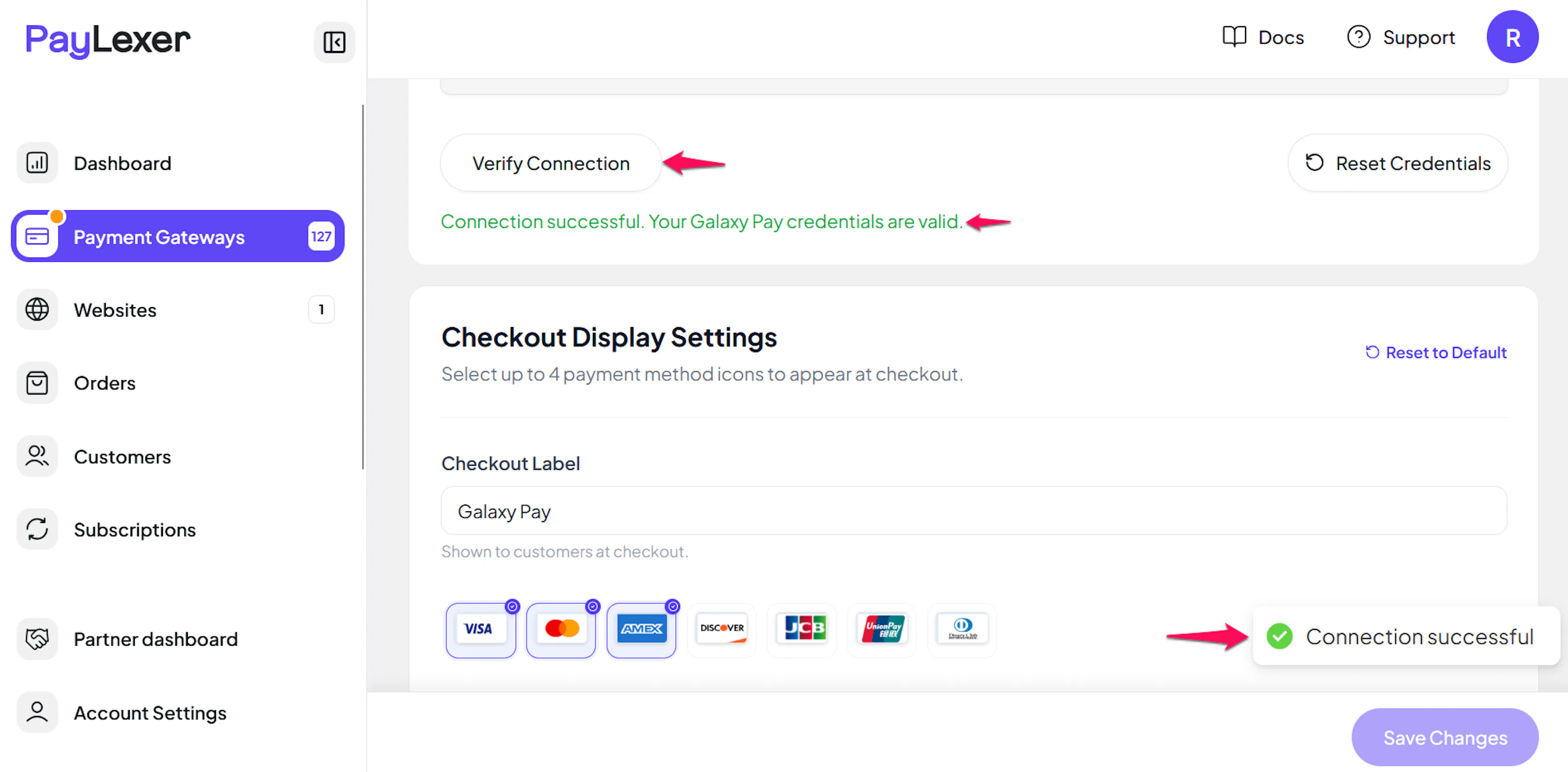
Click Save to save your configuration and verify your credentials. Click Verify Connection to test the connection.
Webhooks (Automatic)
Galaxy Pay does not use a separate webhook secret or a webhook URL in its portal. PayLexer sends Galaxy Pay a notification address on processor.paylexer.com with every payment and verifies each notification using the Salt you entered. You do not need to copy, paste, or generate anything else.
- No webhook URL to add in Galaxy Pay
- No separate signing secret to manage
- Payment results confirmed in near real time
Integrate Galaxy Pay to Your Website
If you have already added and configured your site, you can enable Galaxy Pay in your existing setup.
Go to Websites
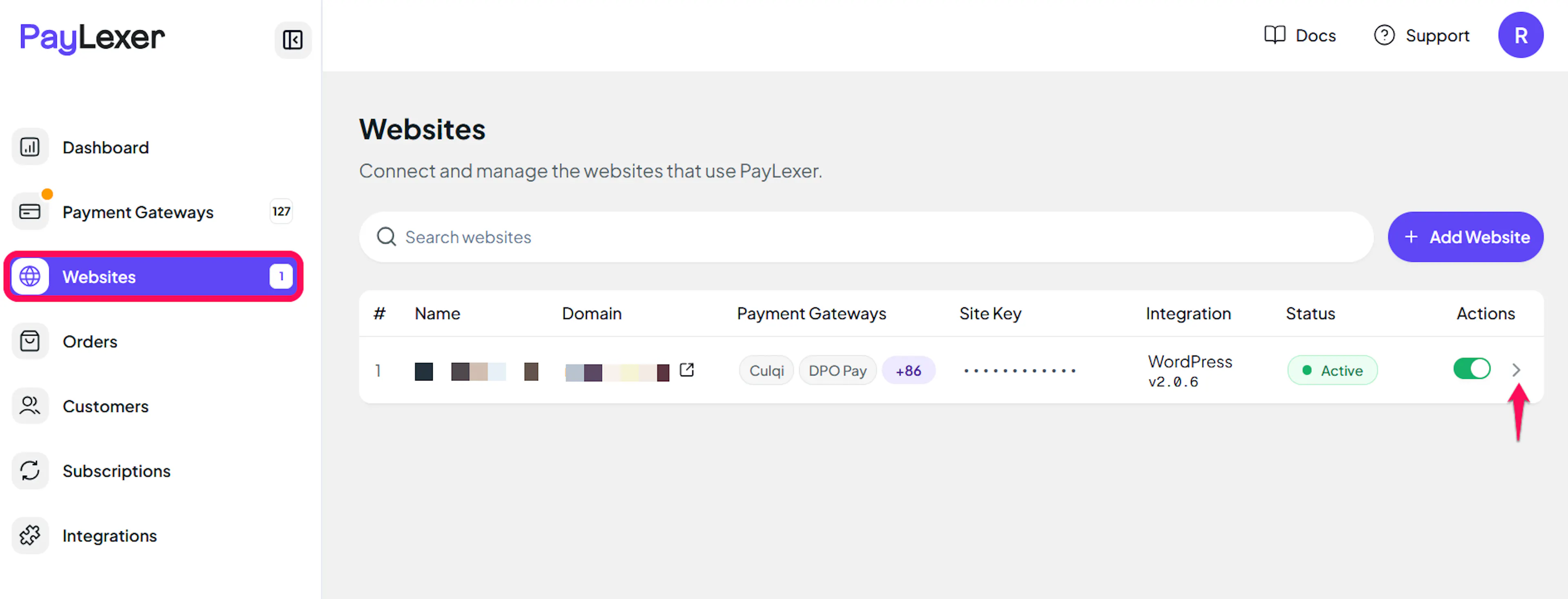
Navigate to Websites in your PayLexer dashboard.
Edit your website
Click the Edit Icon of your added website.
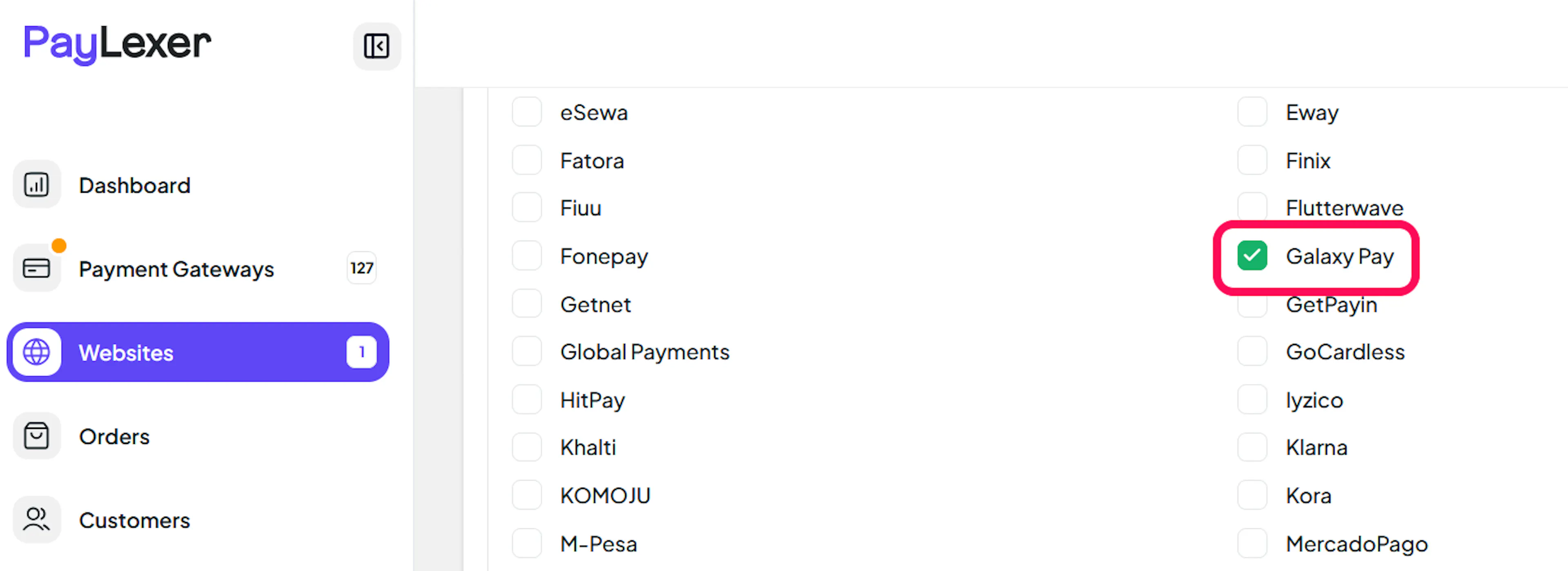
Enable Galaxy Pay
Click the checkbox to enable Galaxy Pay for the website.
If you haven't added a website yet, Continue to Add Your Website →
Troubleshooting
Best Practices
- Test in Sandbox before enabling production.
- Ask Galaxy Pay to register
processor.paylexer.comfor both UAT and production before your first test. - Store both Live and Test credentials so you can safely test before going live.
- Keep your Salt private and never share it outside PayLexer.
FAQs
Still Have Questions?
- Contact Support: Galaxy Pay Support
- Galaxy Pay Documentation: Galaxy Pay payment gateway docs
- PayLexer Support: Contact Support