

Fonepay
Connect Fonepay to PayLexer to accept payments from more than fifty Nepali bank and wallet apps through an on-page QR code or bank deep link, in Nepalese Rupees.
Fonepay is Nepal’s interbank payment network, powering QR codes and “scan to pay” services across more than 50 Nepali bank and wallet apps. PayLexer integrates Checkout by Fonepay, keeping customers on your checkout page. On desktop, customers scan a QR code with their banking app; on mobile, they select their bank and are redirected to the app with payment details pre-filled. They simply approve the payment using their PIN or fingerprint. No card is required.
- Supported Regions (Merchant Accounts): Nepal
- Supported Currencies: NPR
Supported Features
- On-page checkout - the shopper pays without ever leaving your site, using a QR code or their own banking app
- Orders that complete on their own within seconds of the shopper approving the payment, while their checkout page is still open
- A Check Status button for a shopper who would rather not wait
Before You Start
Make sure you have:
- Fonepay Merchant Account – Fonepay has no self-serve sign-up. Live credentials are issued through your acquiring bank as part of merchant onboarding. Ask your bank for a Checkout by Fonepay merchant account.
- PayLexer Account – Required to configure the integration. Create your account →
- A website where you want to integrate
Looking for a different payment processor? View all supported gateways →
Configuring Fonepay
You need a Username, Password, Terminal ID, and RSA Private Key from Fonepay for this integration, plus an API Base URL for live mode. All of them arrive as part of Fonepay onboarding through your bank.
Getting API Credentials
Ask your bank for a Checkout by Fonepay account
Fonepay issues merchant accounts through your acquiring bank rather than through self-service sign-up. Request a Checkout by Fonepay merchant account, and ask for sandbox access so you can configure PayLexer before going live.
Fonepay sells different checkout products. Ask specifically for Checkout by Fonepay, the QR and bank-app product. Credentials for Fonepay's older hosted Web Checkout use a completely different scheme and will not work in PayLexer.
Collect the values Fonepay issues
Fonepay provides the rest with your account:
| What you enter | What it is for |
|---|---|
| Username | Names your business when PayLexer signs in to Fonepay's API. |
| Password | Proves that sign-in. Paired with the username. |
| Terminal ID | Your Fonepay number, the identity each payment and QR belongs to. |
| RSA Private Key | Signs each request so Fonepay can prove it came from you. |
| API Base URL | The address of the Fonepay system your live account sits on. Live only. |
Keep test and live separate
Test and live are entirely separate Fonepay accounts, each with its own username, password, key, and terminal ID.
Live credentials cannot be used for testing, or the reverse, so keep the two sets clearly labelled.
Adding Credentials to PayLexer
Open PayLexer Dashboard
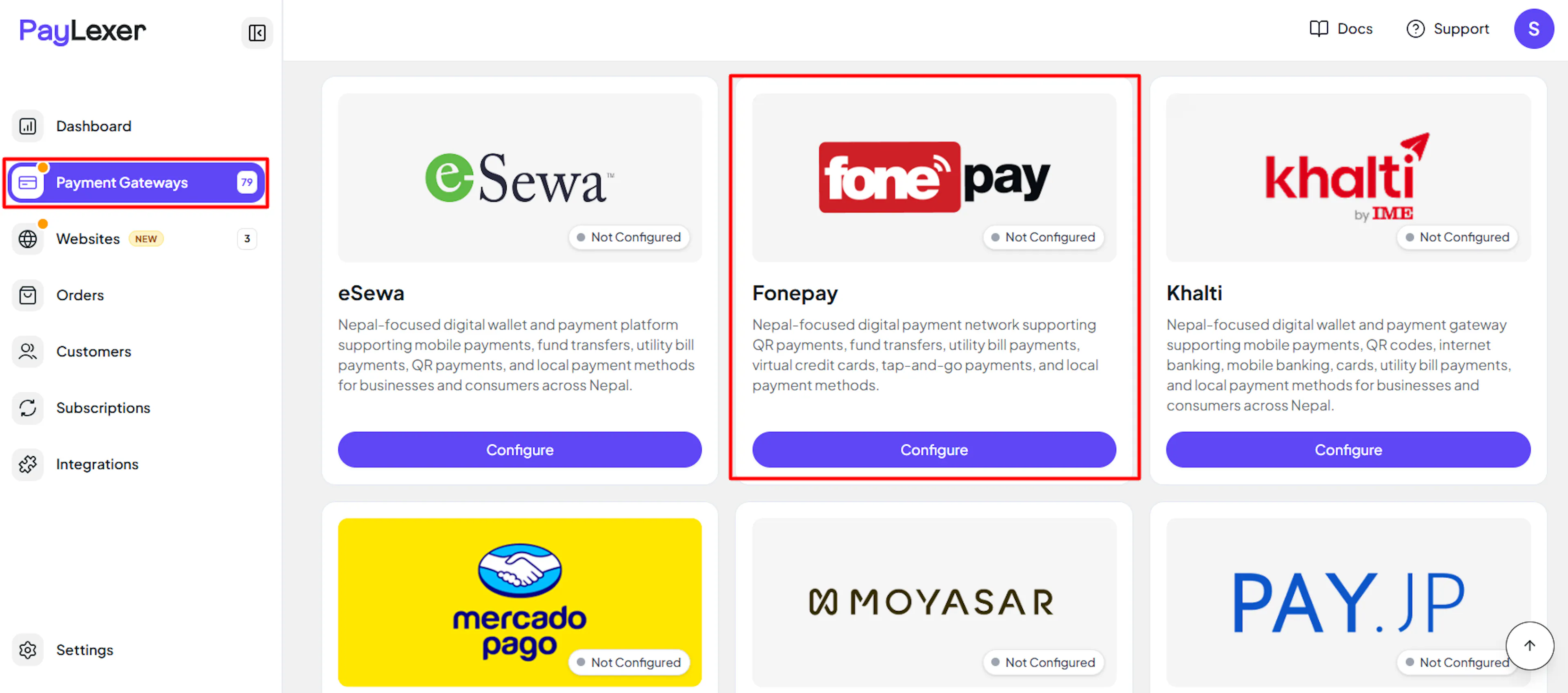
Log in to your PayLexer dashboard and navigate to Payment Gateways → Fonepay.
Enter your credentials
Paste the Username, Password, Terminal ID, and RSA Private Key into the corresponding fields. In the Live fields, also enter the API Base URL Fonepay issued you.
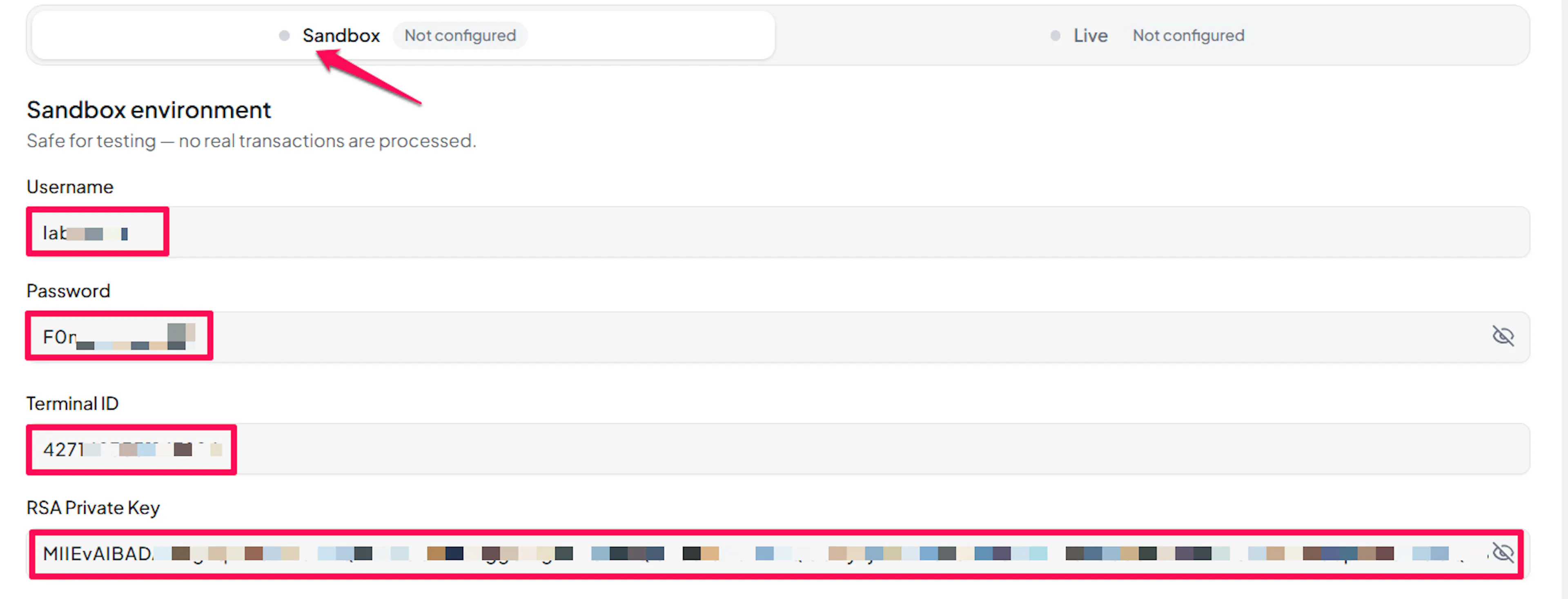
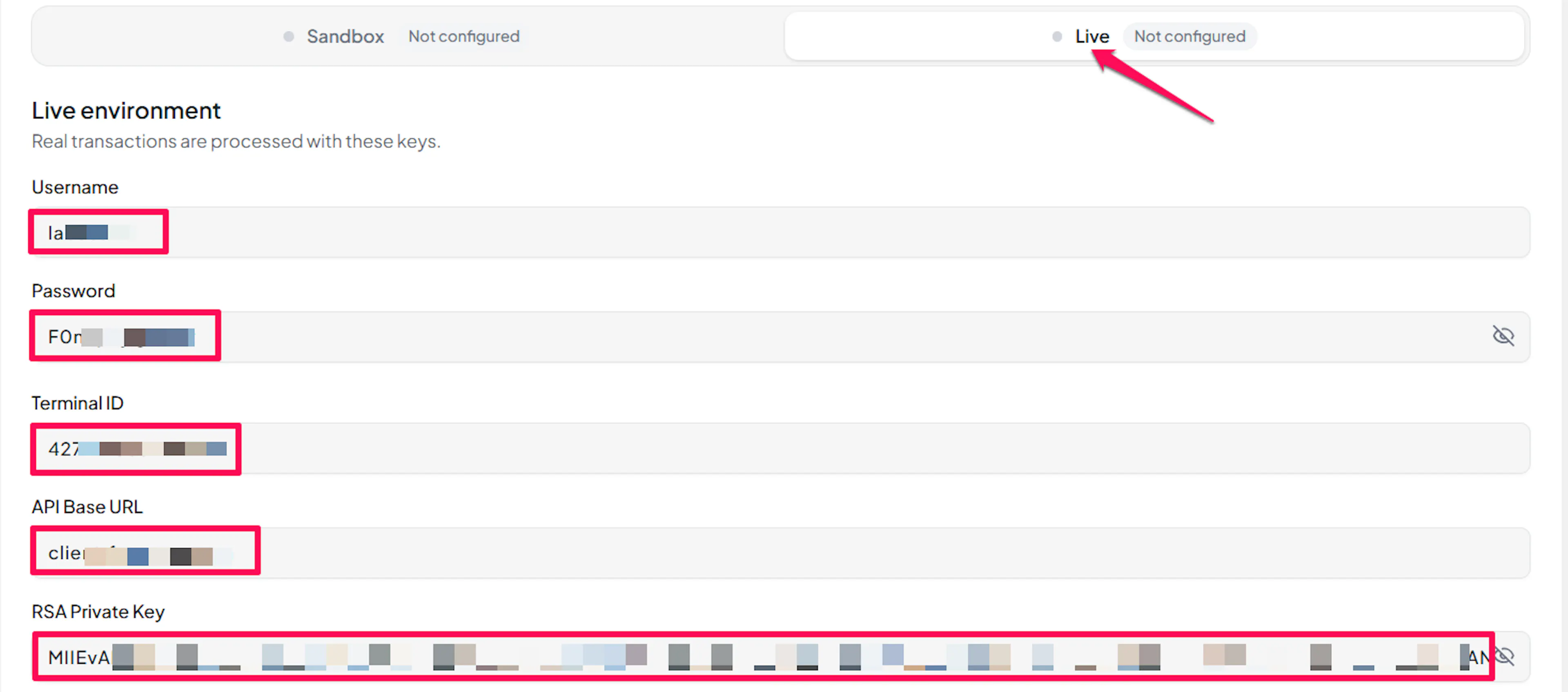
Understanding Live/Production and Sandbox Settings:
| Environment | Purpose |
|---|---|
| Live / Production | Used for real transactions. |
| Test / Sandbox | Used for testing only. No real money is processed. |
How PayLexer selects credentials:
- Debug/Test mode ON → Test credentials are used
- Debug/Test mode OFF → Live credentials are used
Test and save
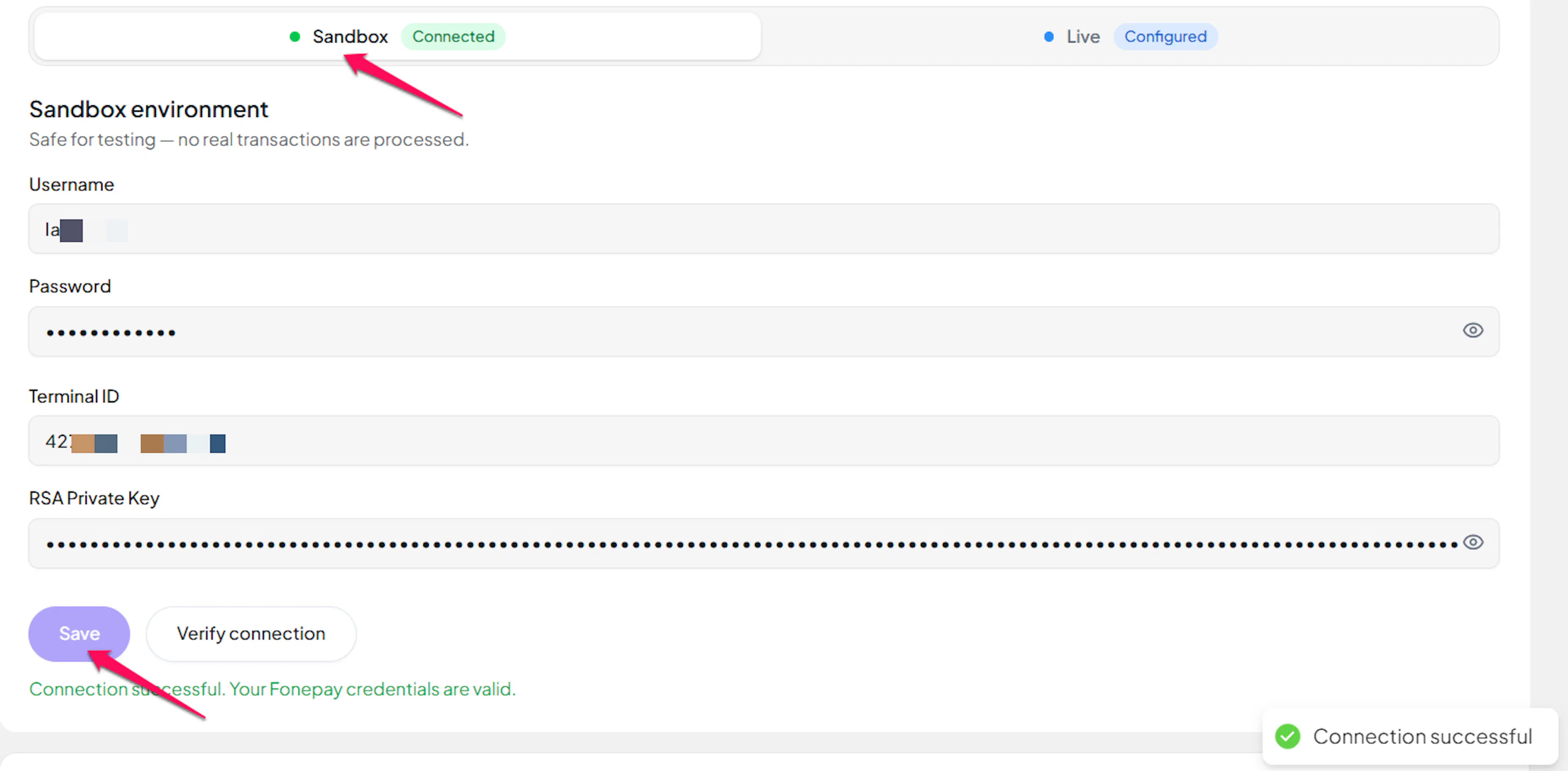
Click Save to save your configuration and verify your credentials. Click Verify Connection to test the connection.
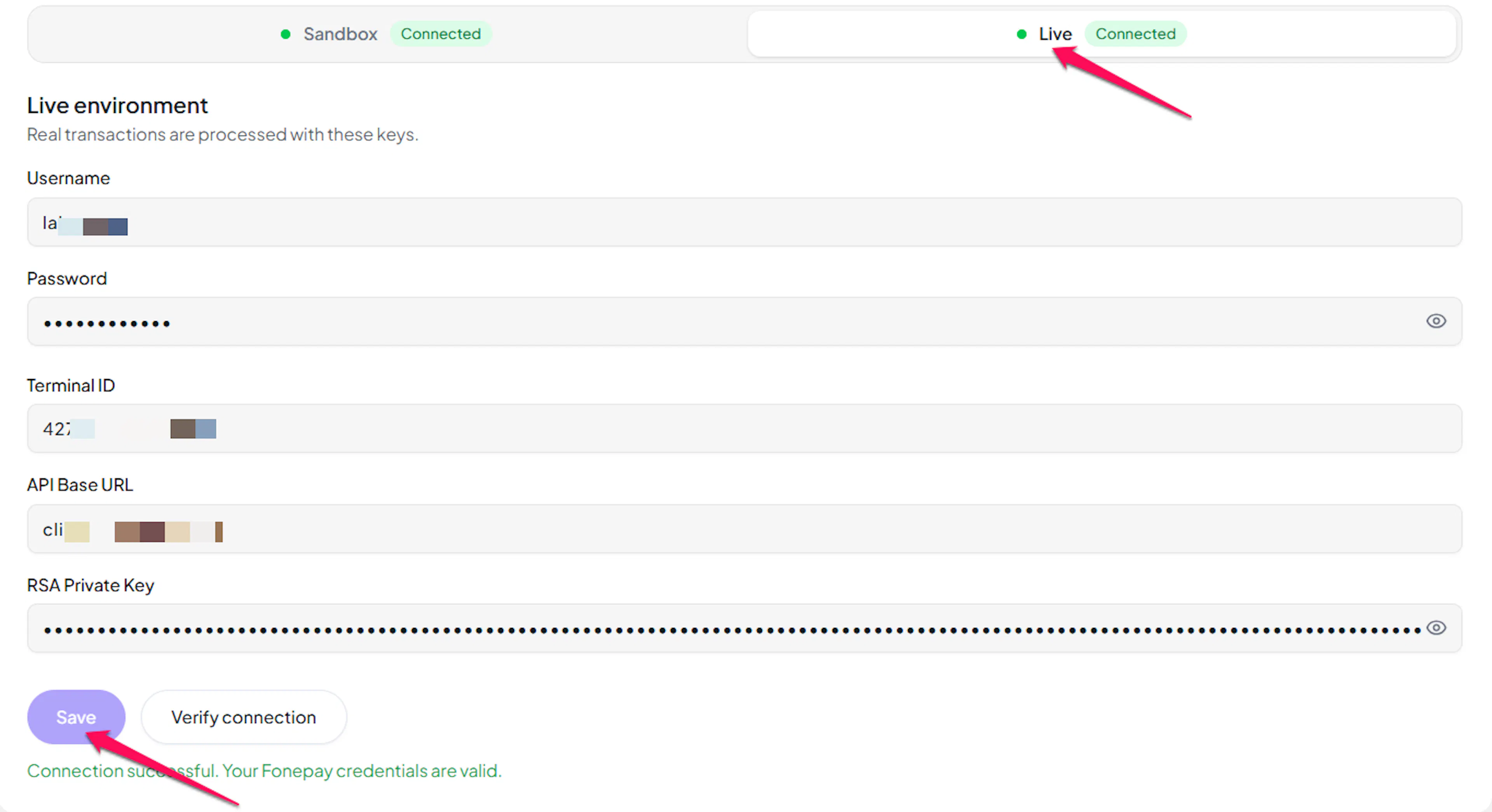
Fonepay limits how often an account may call it. If you see a "too many attempts" message just after saving correct details, wait a few minutes and retry. This is a rate limit, not a credential problem.
Webhooks (Not Supported)
Fonepay does not currently support webhook integration.
- Payment updates are handled directly within Fonepay's processing flow
- Payment status updates occur through standard API polling
There’s nothing to register or configure. While the shopper’s checkout page is open, PayLexer monitors the payment and completes the order within seconds of approval. If the shopper closes their browser first, an automatic check every ten minutes verifies the payment directly with Fonepay and completes the order.
Because Fonepay reports "not paid yet", "expired", and "never seen this payment" identically, PayLexer never marks a Fonepay order failed on its own. An abandoned order stays unpaid rather than showing as declined.
Integrate Fonepay to Your Website
If you have already added and configured your site, you can enable Fonepay in your existing setup.
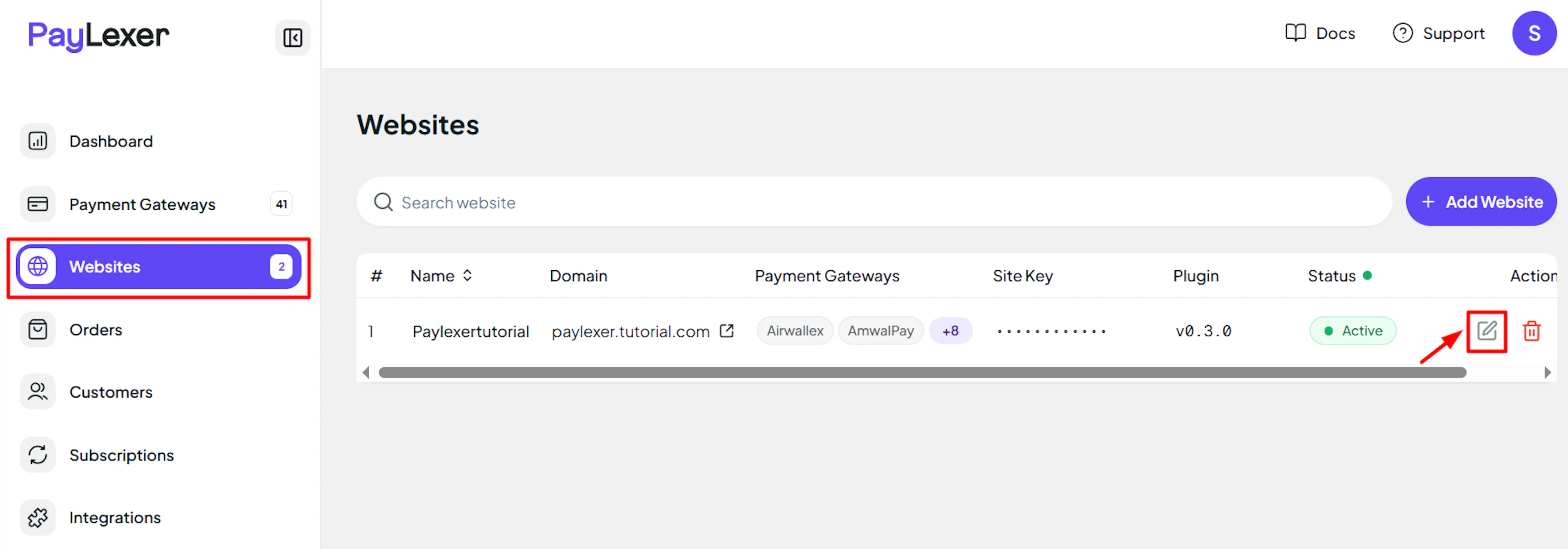
Go to Websites
Navigate to Websites in your PayLexer dashboard.
Edit your website
Click the Edit Icon of your added website.
Enable Fonepay
Click the checkbox to enable Fonepay for the website.
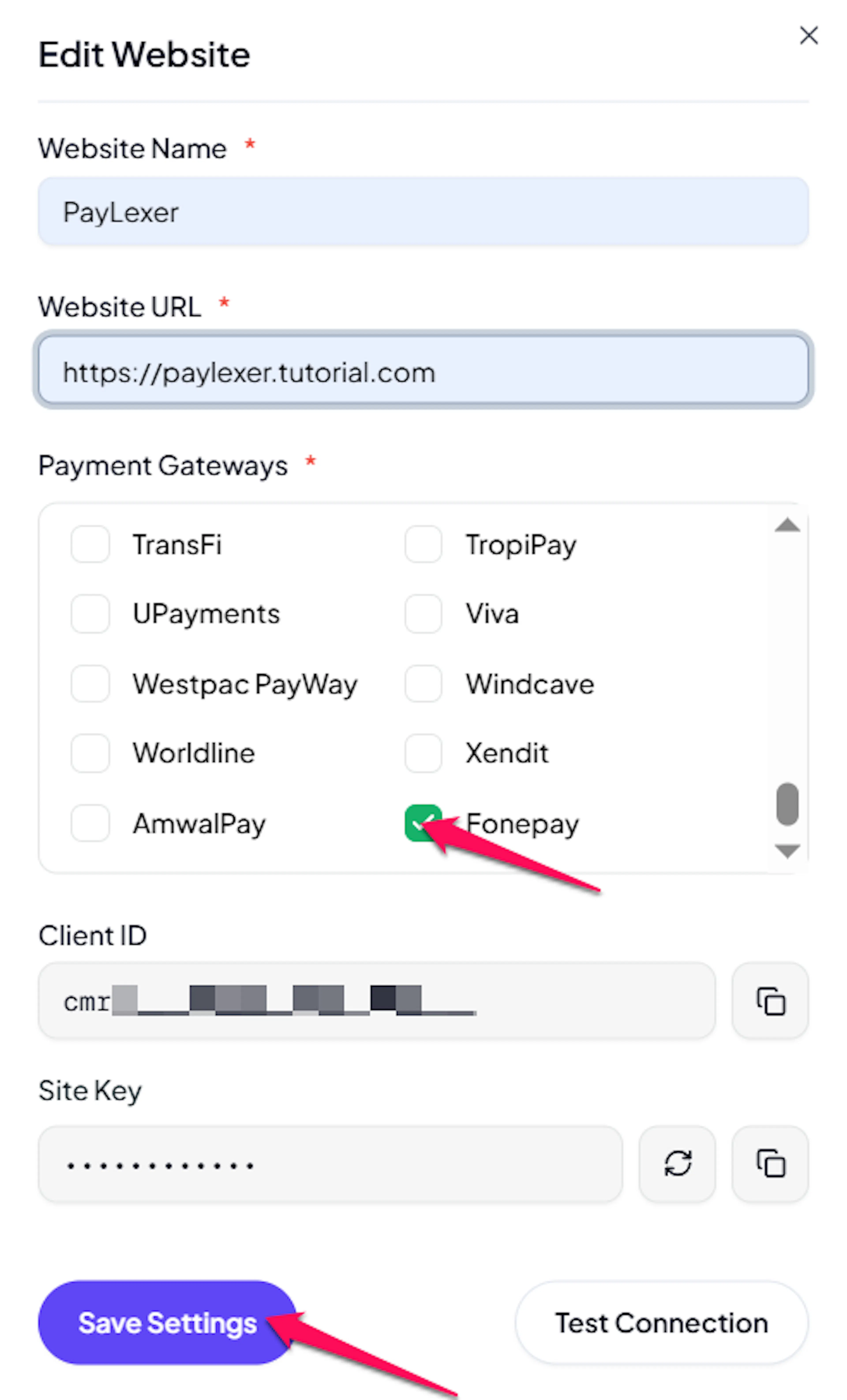
Fonepay is now active for this website. Run a test transaction before switching off Debug/Test mode.
If you haven't added a website yet, Continue to Add Your Website →
Troubleshooting
Best Practices
- Test in sandbox before enabling production. Everything up to the shopper's approval is verifiable with sandbox credentials, so confirm the QR renders, the bank list loads, and your connection check passes before switching to live.
- Plan a small real payment as your first live test. Fonepay's sandbox issues real QR codes but provides no working app to pay them, so the paid path can only be proven on live credentials.
- Confirm with your bank that your account is for Checkout by Fonepay before you start, since the other Fonepay product's credentials cannot work here.
- Keep your RSA Private Key secret and store it somewhere safe. Test and live use different keys, so label them clearly.
- Enter your live API Base URL before switching off Debug/Test mode, or live payments will refuse to start.
- Keep order totals within 1 to 9,999,999 NPR so shoppers are not refused before the QR appears.
- Agree a refund process outside PayLexer, since Fonepay refunds happen in the Business app and PayLexer cannot see them.
- Use a different gateway for any recurring billing, since Fonepay payments always need the shopper's approval.
FAQs
Still Have Questions?
- Fonepay Support:
- Support Portal: complain.fonepay.com
- Support Email: csd@fonepay.com
- Contact: +977-15970044
- PayLexer Support: Contact Support