

Elavon
Connect Elavon Payment Gateway (EPG) to PayLexer to accept one-time payments and subscriptions across the US, Canada, UK, and Europe.
Elavon Payment Gateway (EPG) is the payment platform of Elavon, a U.S. Bank company, serving merchants across the United States, Canada, United Kingdom, and Europe. It provides a hosted checkout page for card payments, so shoppers never enter card details directly on your site or on PayLexer's servers.
- Supported Regions (Merchant Accounts): United States, Canada, United Kingdom, Europe - view full list
- Supported Currencies: USD, CAD, GBP, EUR - view full list
Supported Features
- Hosted checkout page - shoppers pay on an Elavon-hosted page, so card data never touches your site or PayLexer
- One-time payments
- Recurring subscriptions, including an optional one-time sign-up fee added to the first charge
- Subscription cancellation - immediately, or at the end of the current billing period
- Full and partial refunds - refunds you issue from your PayLexer dashboard are confirmed immediately, with no polling delay
- Live mode lets you select a North America or Europe processing region
Before You Start
Make sure you have:
- Elavon Merchant Account – Don't have one? Elavon issues merchant accounts through its own sales and underwriting process rather than instant self-service sign-up. Contact Elavon to get started.
- Elavon Developer Account – Required to access the Elavon Developer Portal, create a project, and obtain the API keys.
- PayLexer Account – Required to configure the integration. Create your account →
- A website where you want to integrate
Looking for a different payment processor? View all supported gateways →
Configuring Elavon
You need a Merchant Alias and Secret Key from Elavon for this integration.
Getting API Credentials
Open the Elavon Developer Portal
Open the Elavon Developer Portal and sign in to your developer account.
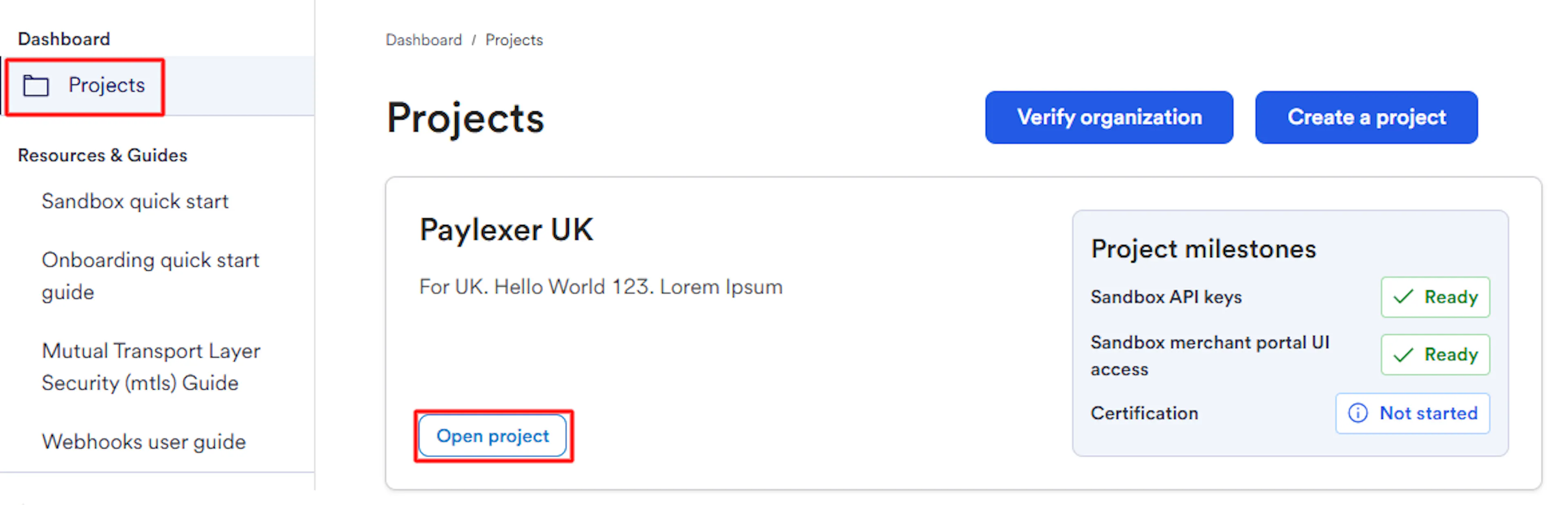
Create or open your project
If you do not already have a project, create one from your developer-account dashboard. Then open the project you want to use for PayLexer.
Copy your API credentials
Go to the project's API tab, then locate and copy the API keys displayed for the project.
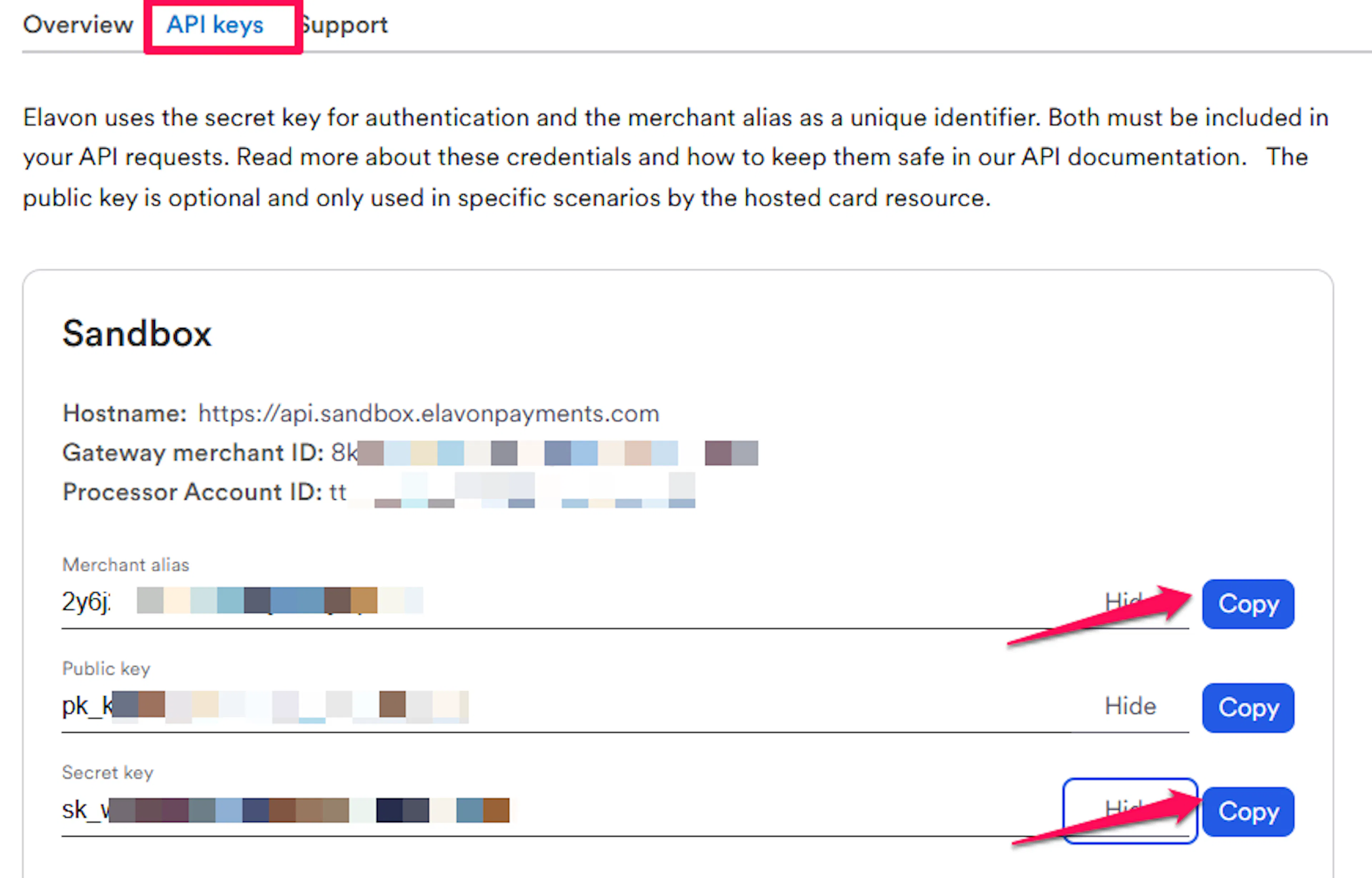
Copy your Merchant Alias and Secret Key. These are separate for your Test/Sandbox account and your Live account - copy both if you have them.
If you plan to go live, note which processing region your Elavon account was set up in: North America or Europe.
Adding Credentials to PayLexer
Open PayLexer Dashboard
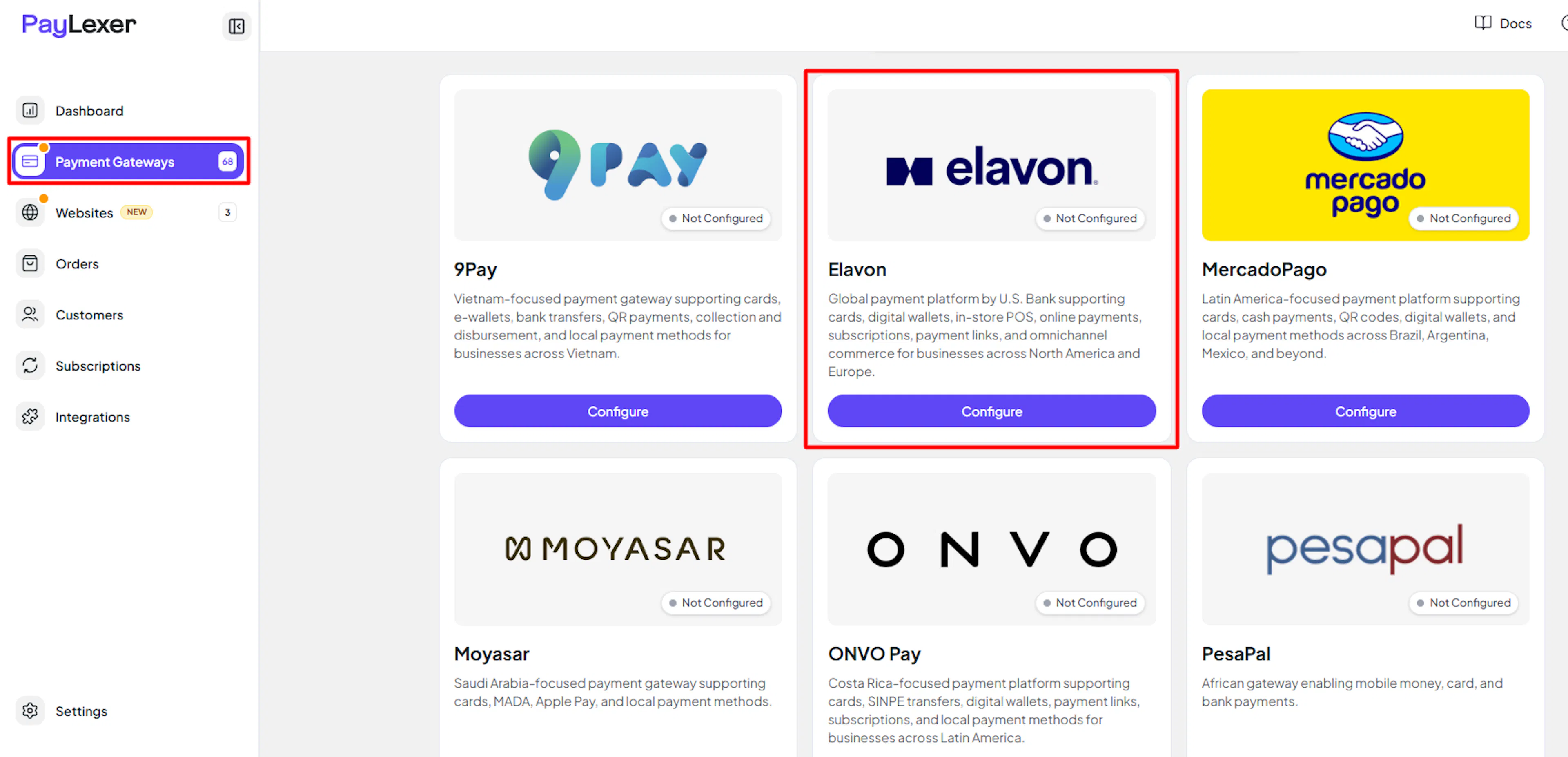
Log in to your PayLexer dashboard and navigate to Payment Gateways → Elavon.
Enter your credentials
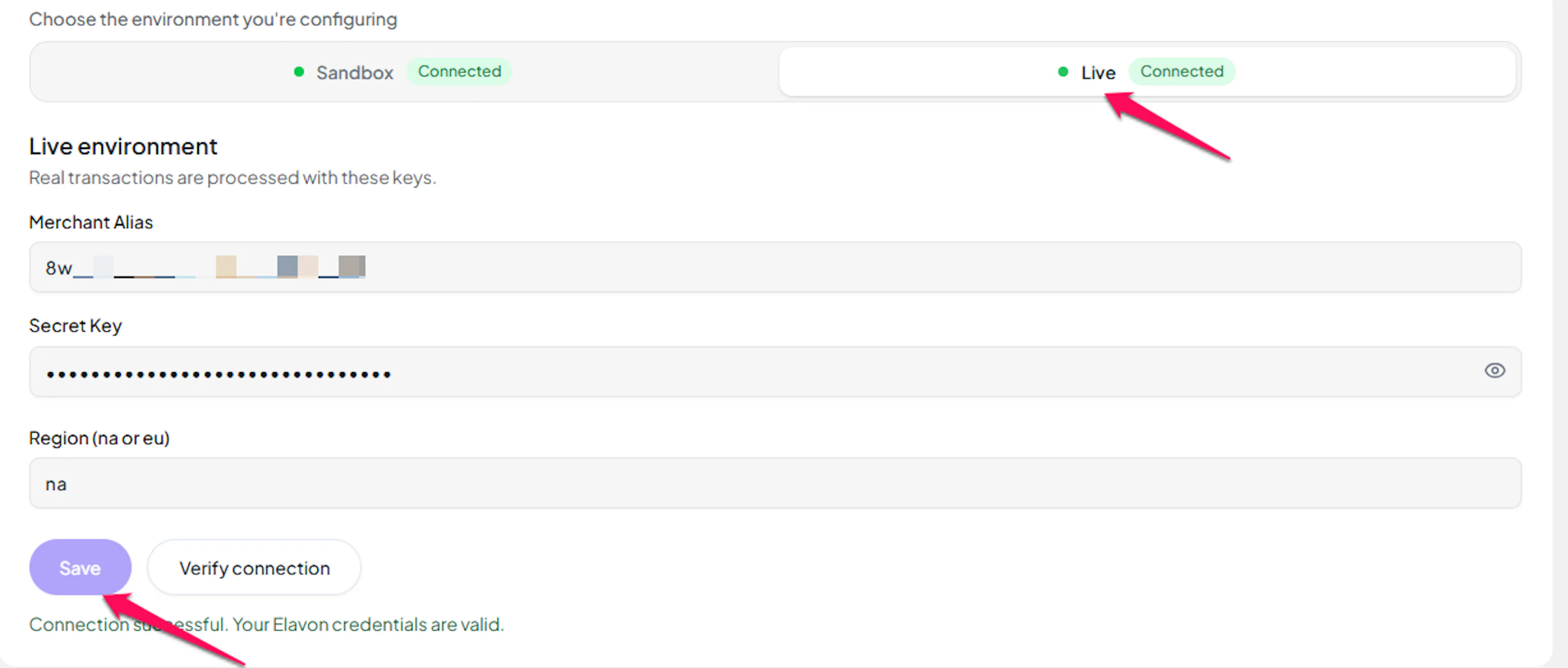
Paste the Merchant Alias and Secret Key you copied from Elavon into the corresponding fields. If you're going live, also select your Region (North America or Europe) to match your Elavon account.
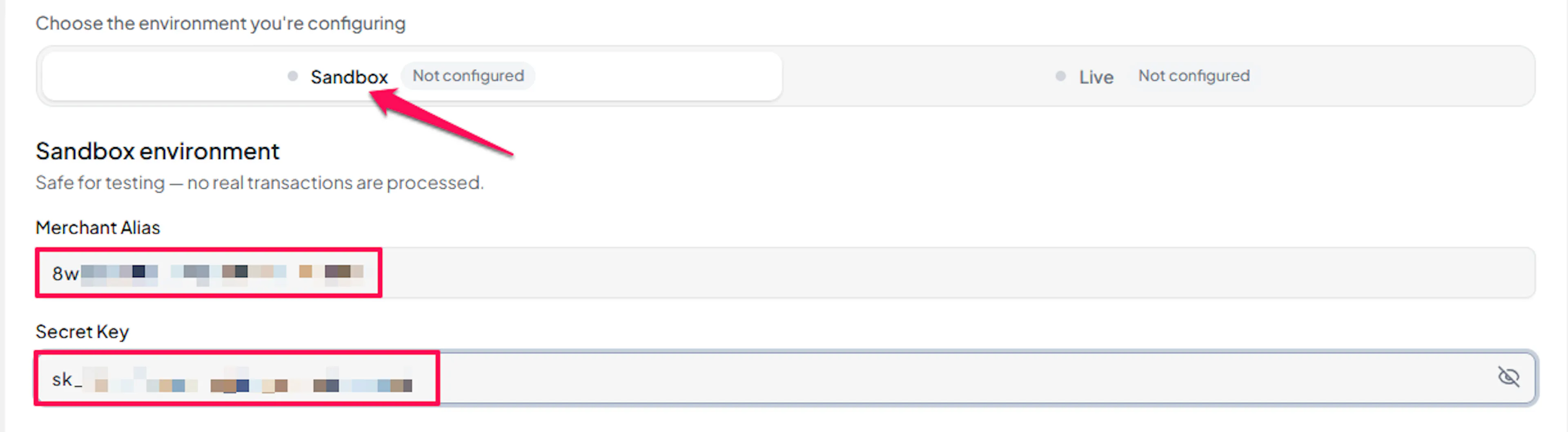
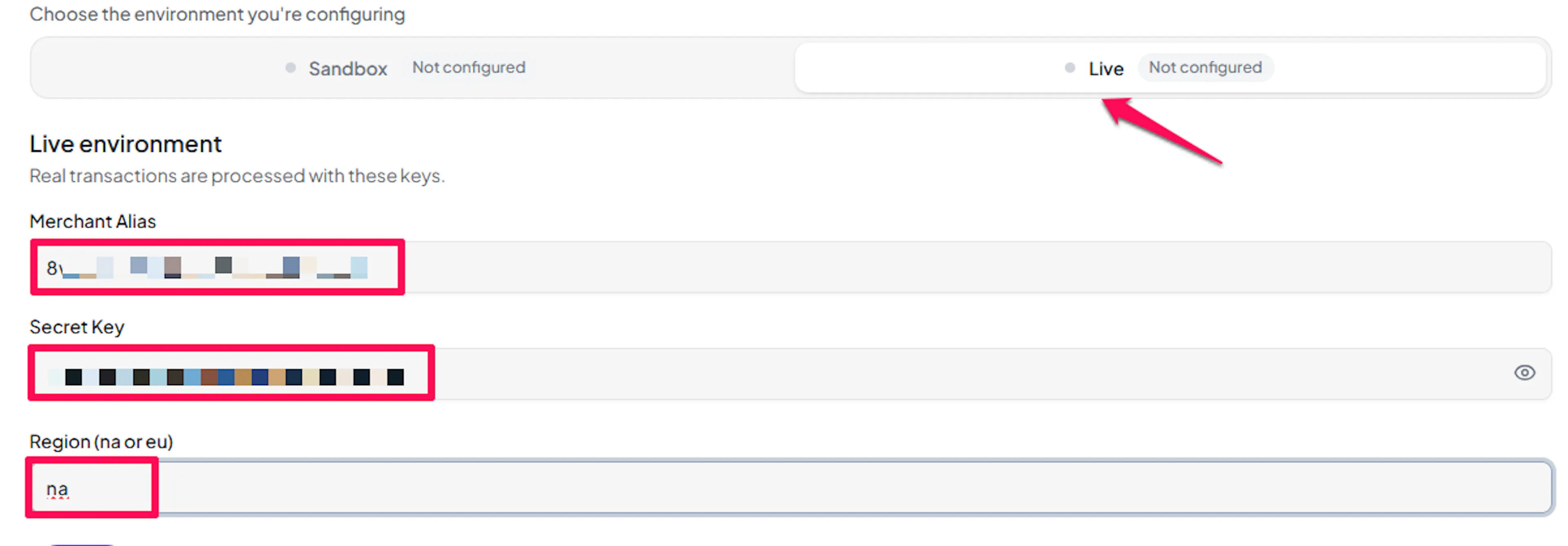
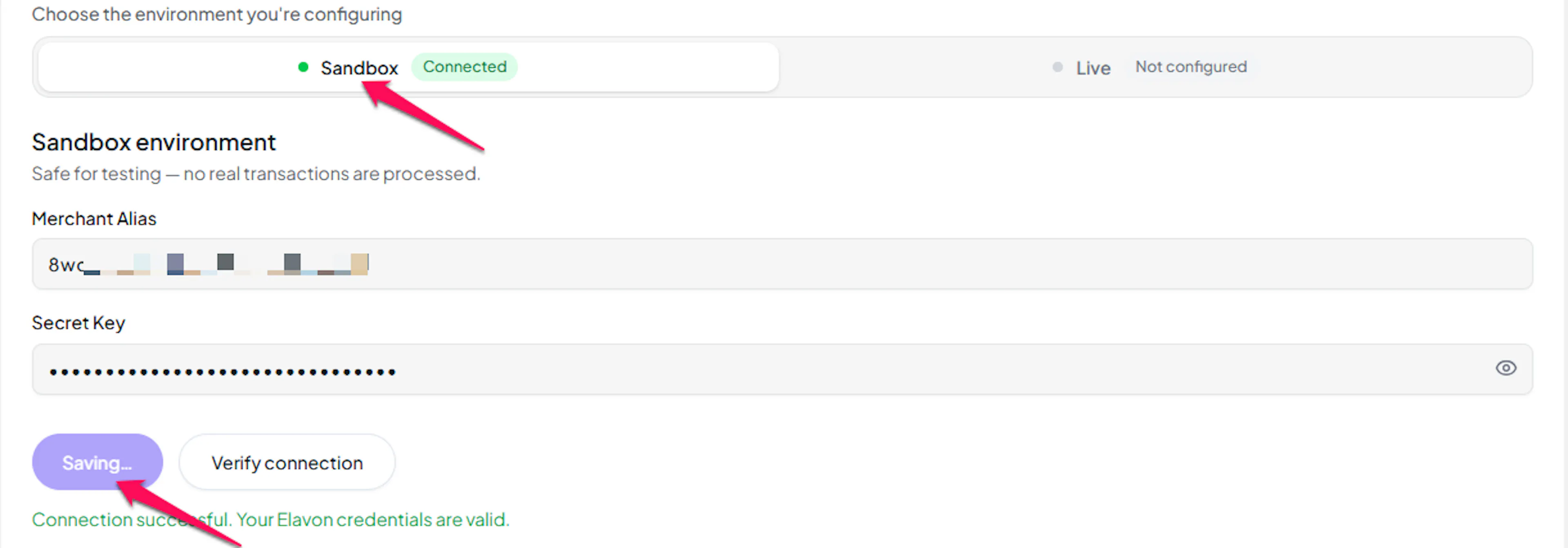
Understanding Live/Production and Sandbox Settings:
| Environment | Purpose |
|---|---|
| Live / Production (Mandatory) | Used for real transactions. Cannot be empty, even when testing. |
| Test / Sandbox (Optional) | Used for testing only. No real money is processed. |
How PayLexer selects credentials:
- Debug/Test mode ON → Test credentials are used
- Debug/Test mode OFF → Live credentials are used
Test and save
Click Test Connection to verify your credentials, then click Save Configuration.
Webhooks (Not Supported)
Elavon does not currently support webhook integration in this PayLexer setup.
- Payment updates are handled directly within Elavon's processing flow
- Real-time event notifications are not available
- Payment status updates occur through standard API polling instead
What this means for timing:
| Action | Typical delay |
|---|---|
| A shopper completes a one-time payment, or a subscription's first charge | Up to ~3 minutes |
| A subscription activates, renews, or is cancelled - whether on Elavon's own schedule or directly in Elavon's merchant portal | Up to ~5 minutes |
| A refund made directly in Elavon's own merchant portal (not through PayLexer) | Up to ~30 minutes |
Exception: a refund you issue from your own PayLexer dashboard confirms immediately - Elavon's response to that request is itself the confirmation, so there's no polling delay for that specific action.
Integrate Elavon to Your Website
If you have already added and configured your site, you can enable Elavon in your existing setup.
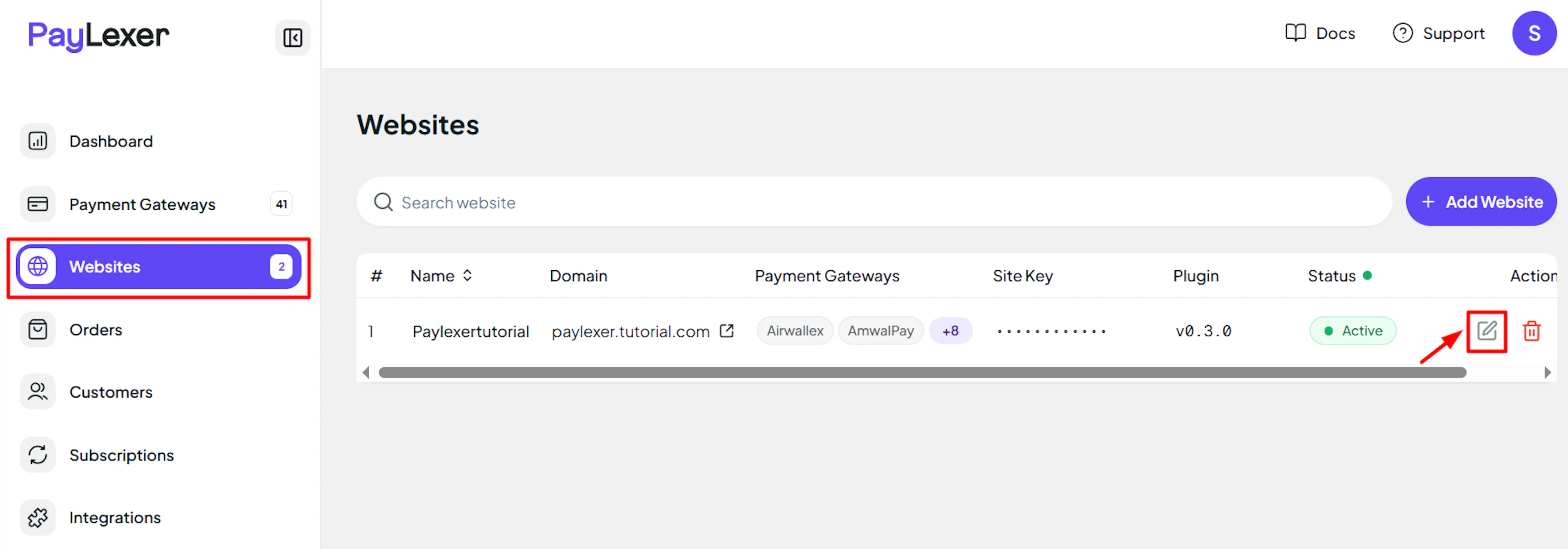
Go to Websites
Navigate to Websites in your PayLexer dashboard.
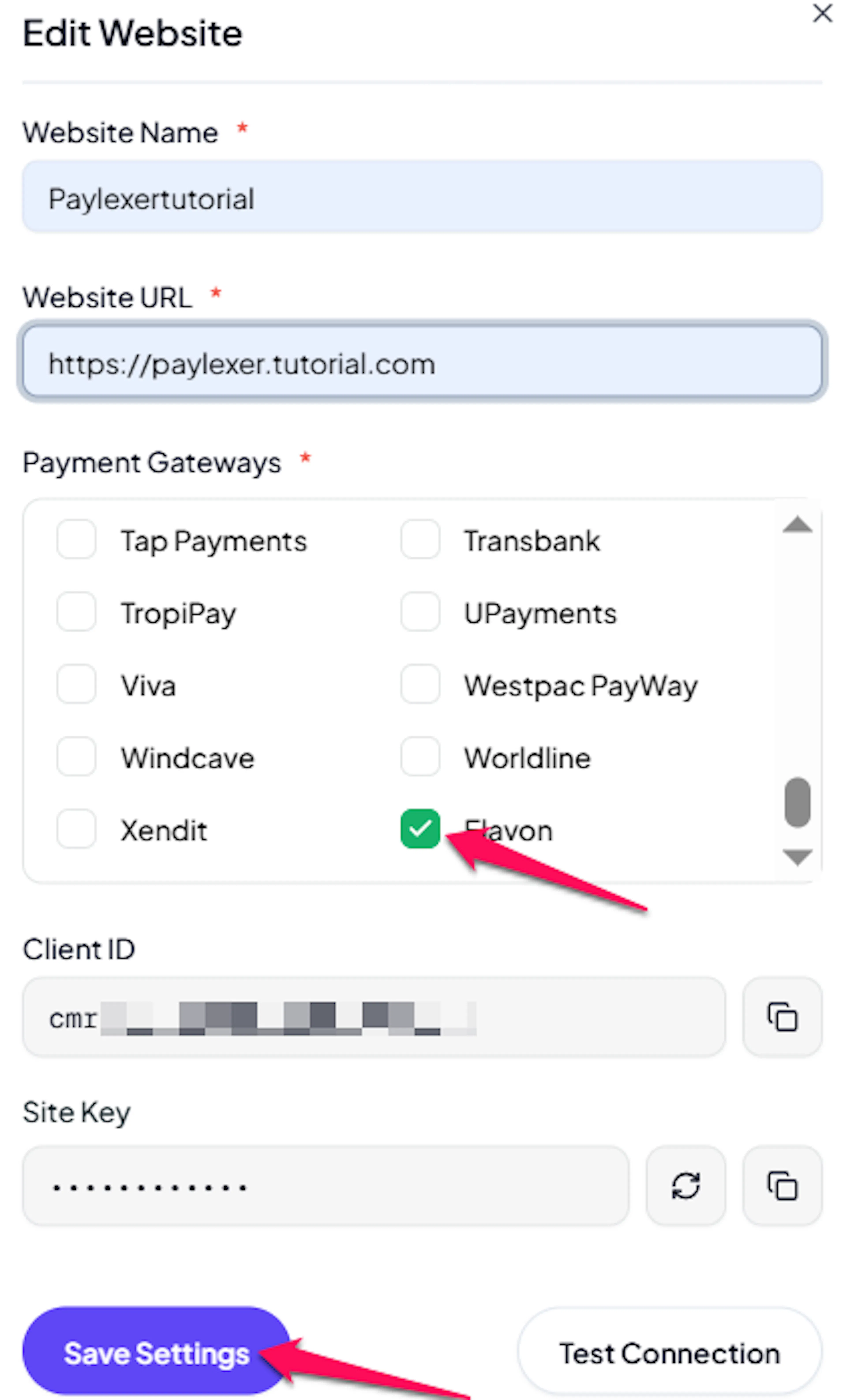
Edit your website
Click the Edit Icon of your added website.
Enable Elavon
Click the checkbox to enable Elavon for the website.
If you haven't added a website yet, Continue to Add Your Website →
Troubleshooting
Best Practices
- Test in sandbox before enabling production
- Keep your Test and Live credentials in their correct fields - they point to entirely separate Elavon environments
- If you plan to sell in both North America and Europe, confirm which region your Live Elavon account belongs to before going live
- Don't offer free trials through Elavon subscriptions - Elavon has no way to save a card without a real charge, so trial periods aren't supported on this gateway
FAQs
Still Have Questions?
- Elavon Support: Elavon Developer Portal
- PayLexer Support: Contact Support