

Worldline
Connect Worldline (North America) to PayLexer to accept card payments on a secure hosted checkout page, with refunds, voids, and provider-scheduled subscriptions.
Worldline is a global payment platform and one of Europe’s largest processors. PayLexer connects to its Bambora / Beanstream platform in North America, using a secure hosted checkout so card details never pass through your site or PayLexer. Worldline also handles subscription renewals automatically, so PayLexer doesn’t re-charge cards each cycle.
- Supported Regions (Merchant Accounts): United States and Canada (Worldline North America) - view full list
- Supported Currencies: USD, CAD, EUR, GBP, AUD, NZD - view full list
Supported Features
- One-time card payments through Worldline's secure hosted checkout page
- Full and partial refunds on settled payments
- Same-day voids on transactions that have not yet settled
- Provider-scheduled subscriptions (daily, weekly, monthly, or yearly) where Worldline charges each renewal automatically
- Subscription sign-up fees and free trials
- Automatic status reconciliation, so orders and refunds are never left stuck if a notification is missed
Before You Start
Make sure you have:
- Worldline Account (North America) – Your merchant account for processing payments. Don't have one? Sign up for Worldline →
- PayLexer Account – Required to configure the integration. Create your account →
- A website where you want to integrate
Looking for a different payment processor? View all supported gateways →
Configuring Worldline
You need a Merchant ID, Payments API Passcode, and Hash Key from Worldline for this integration. To offer subscriptions, you also need a Recurring Billing API Passcode, and for back-office refund reconciliation you can add a Reporting API Passcode.
Getting API Credentials
All of these values live in the Worldline (Bambora) Member Area, under Administration → Account Settings → Order Settings.
Log in to the Member Area
Log in to the Worldline North America Member Area with your merchant login.
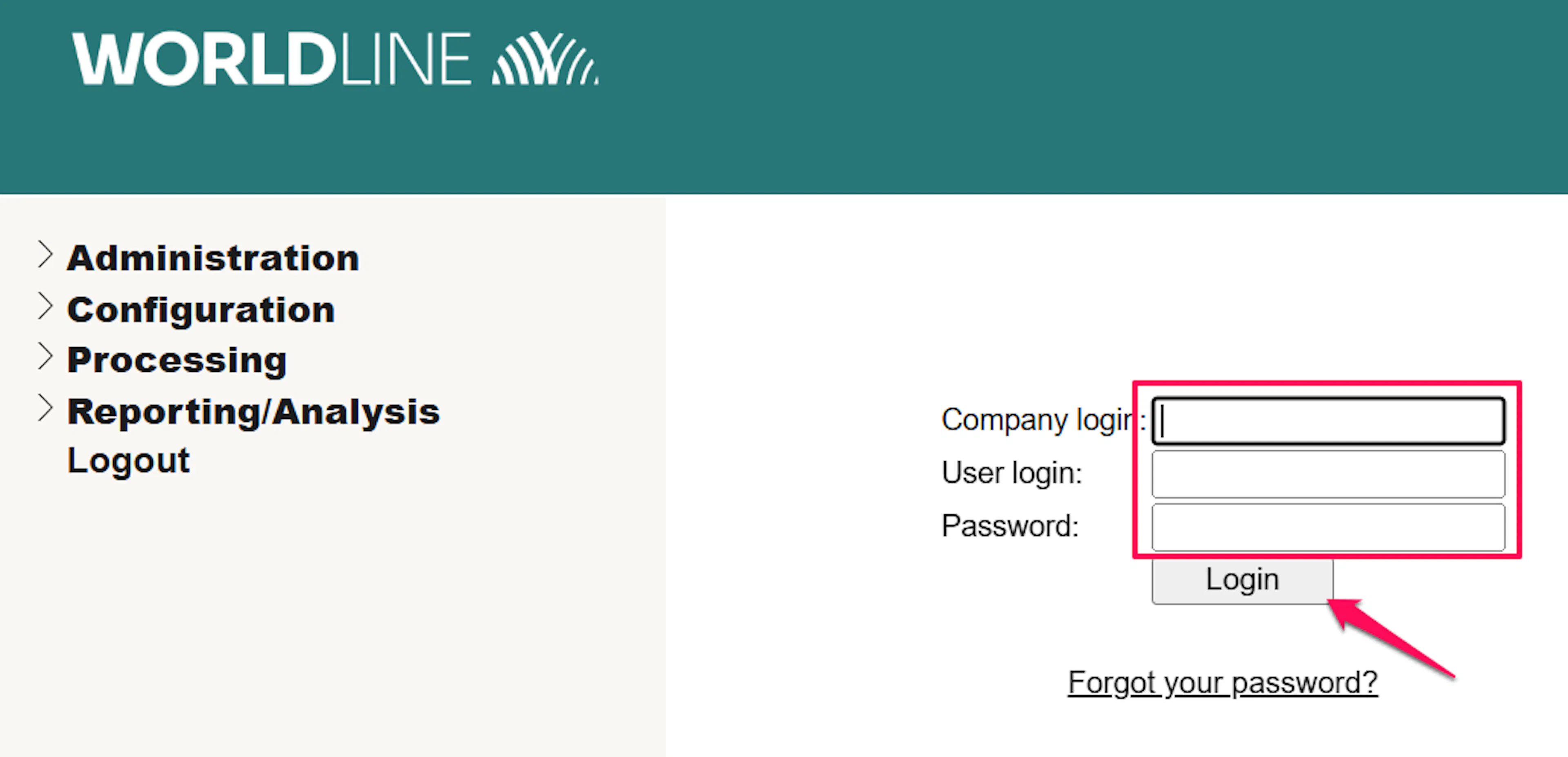
Copy your Merchant ID
Your Merchant ID is the merchant number shown at the top of the Member Area. Copy it - you will paste it into PayLexer.

Copy your Payments API Passcode
Go to Administration → Account Settings → Order Settings. In the Payment Gateway section, generate or copy the API access passcode - this is your Payments API Passcode.
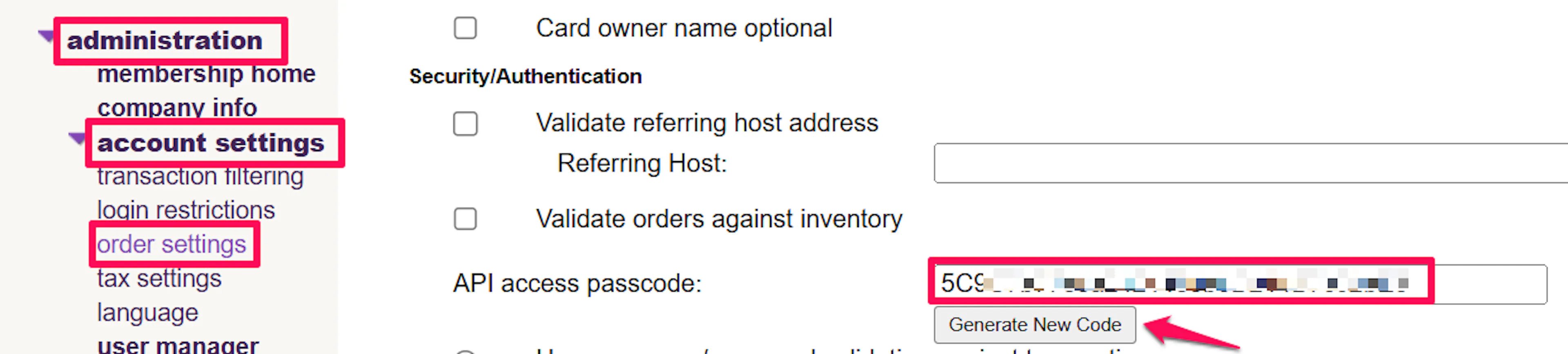
The Payments API Passcode is a secret. Store it securely and never share it or expose it in client-side code.
Set the Redirect Rules
Still in Order Settings, find the Redirect Rules section. Select the first option "Allow any domain name in the approval/decline redirect parameters." Add your PayLexer connector domain name to the Allowed domain names list.
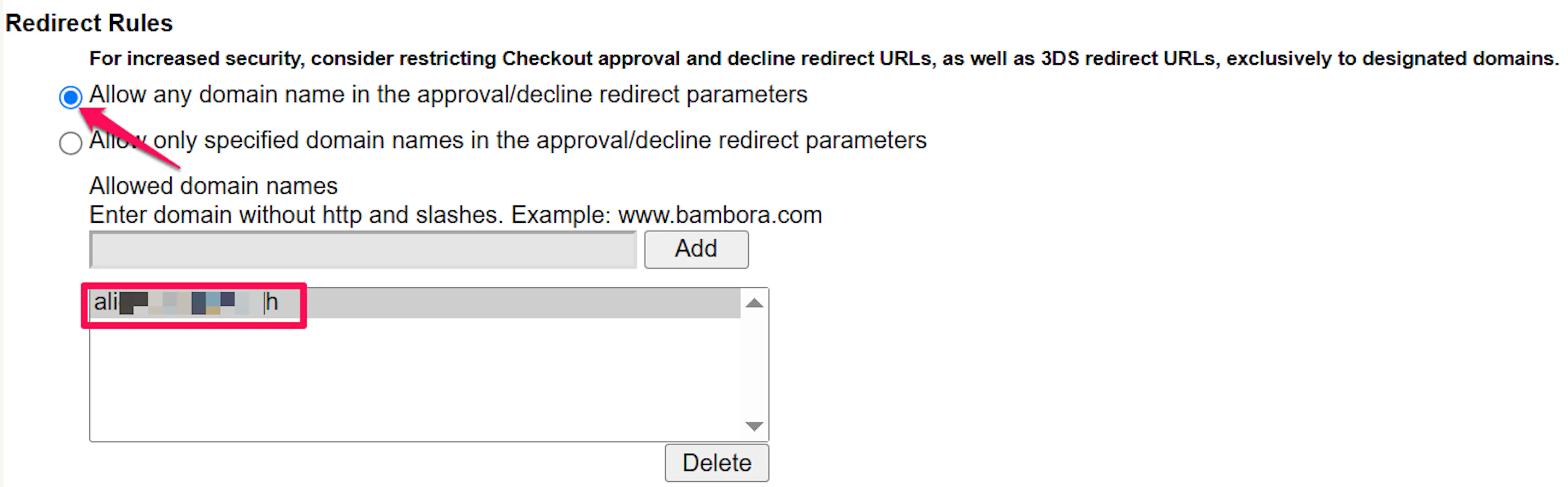
Set and copy your Hash Key
Still in Order Settings, find the Hash Validation section. Enter a Hash Key (a secret value of your choice) and choose a hash algorithm. Save the page, then copy the same Hash Key - PayLexer uses it to sign the checkout link so it cannot be tampered with.

Copy the optional passcodes
In the same Order Settings page, copy these if you need them:
- Recurring Billing API Passcode - the API access passcode in the Recurring Billing section. Required to offer subscriptions.
- Reporting API Passcode - the API access passcode in the Reporting section. PayLexer can reconcile refunds you issue directly from the Worldline dashboard.
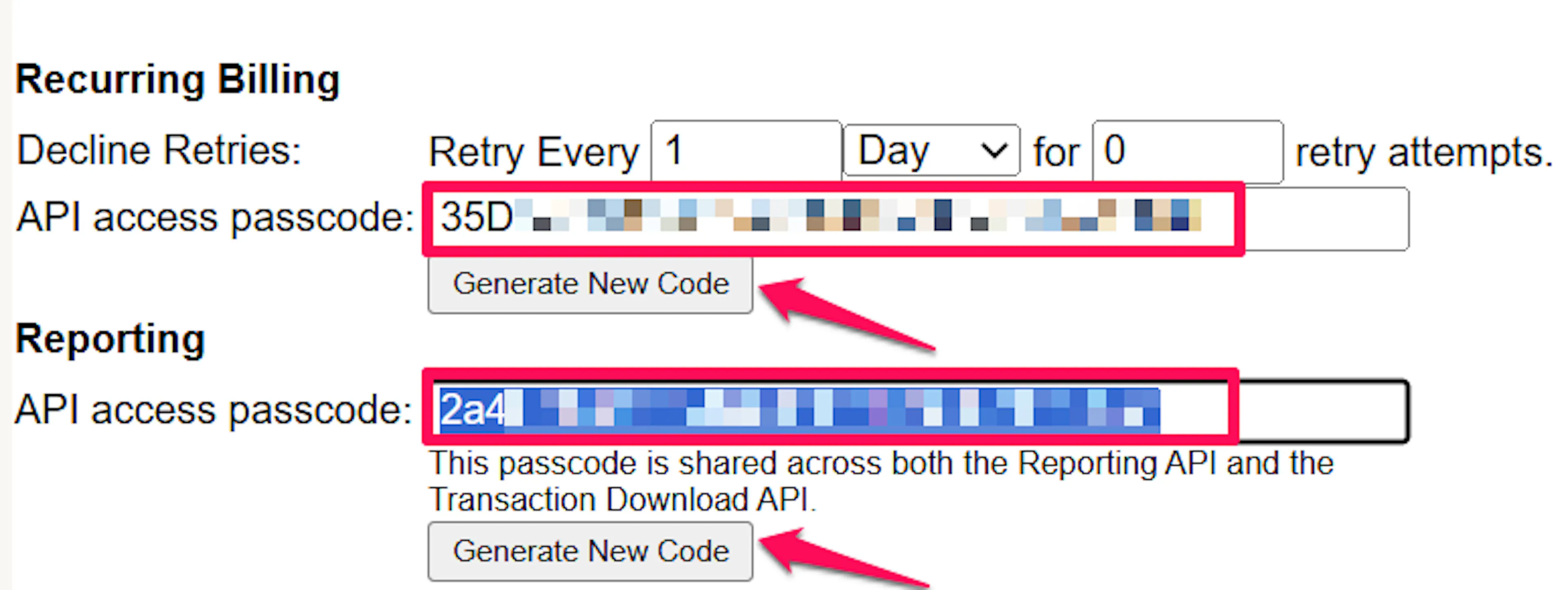
Worldline uses the same host for testing and live payments - your account and passcodes determine the mode. Use your test merchant account for sandbox testing and your live merchant account for production.
Adding Credentials to PayLexer
Open PayLexer Dashboard
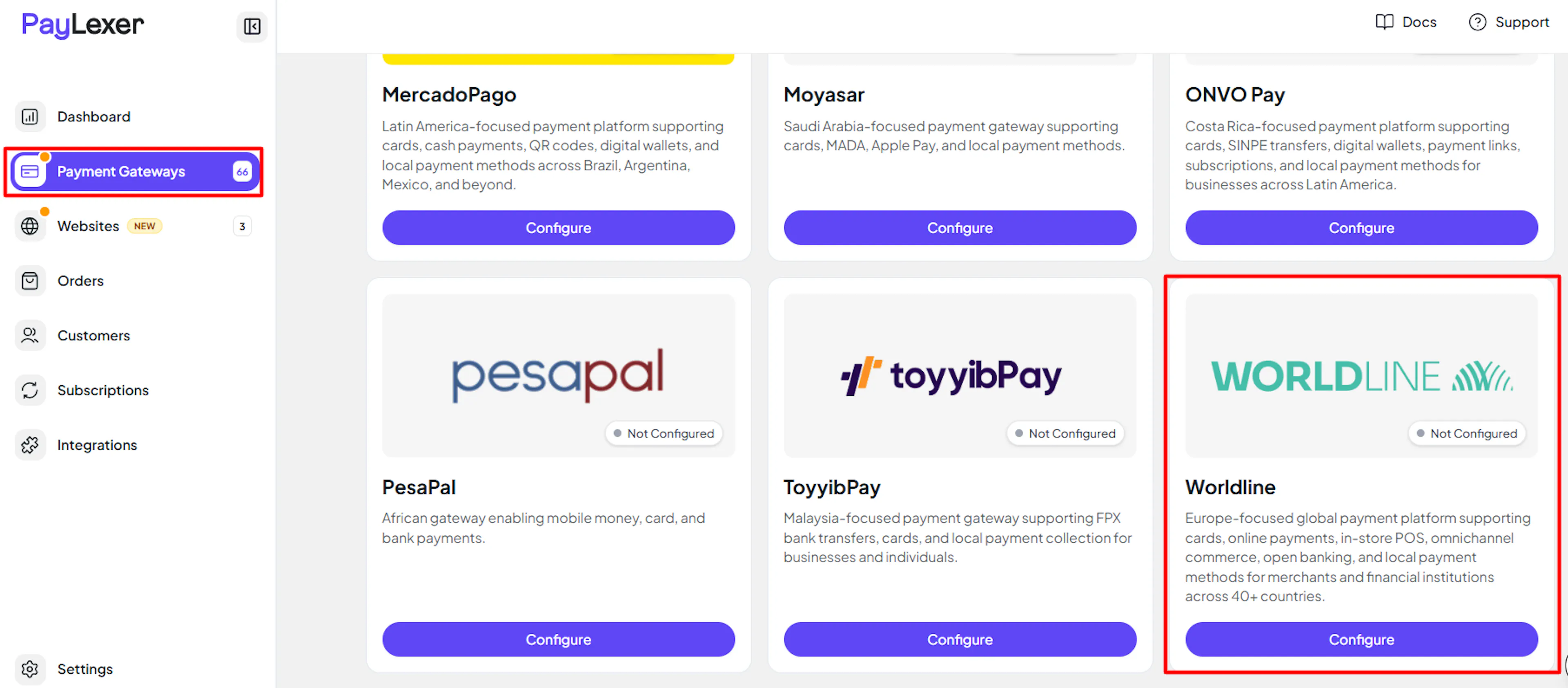
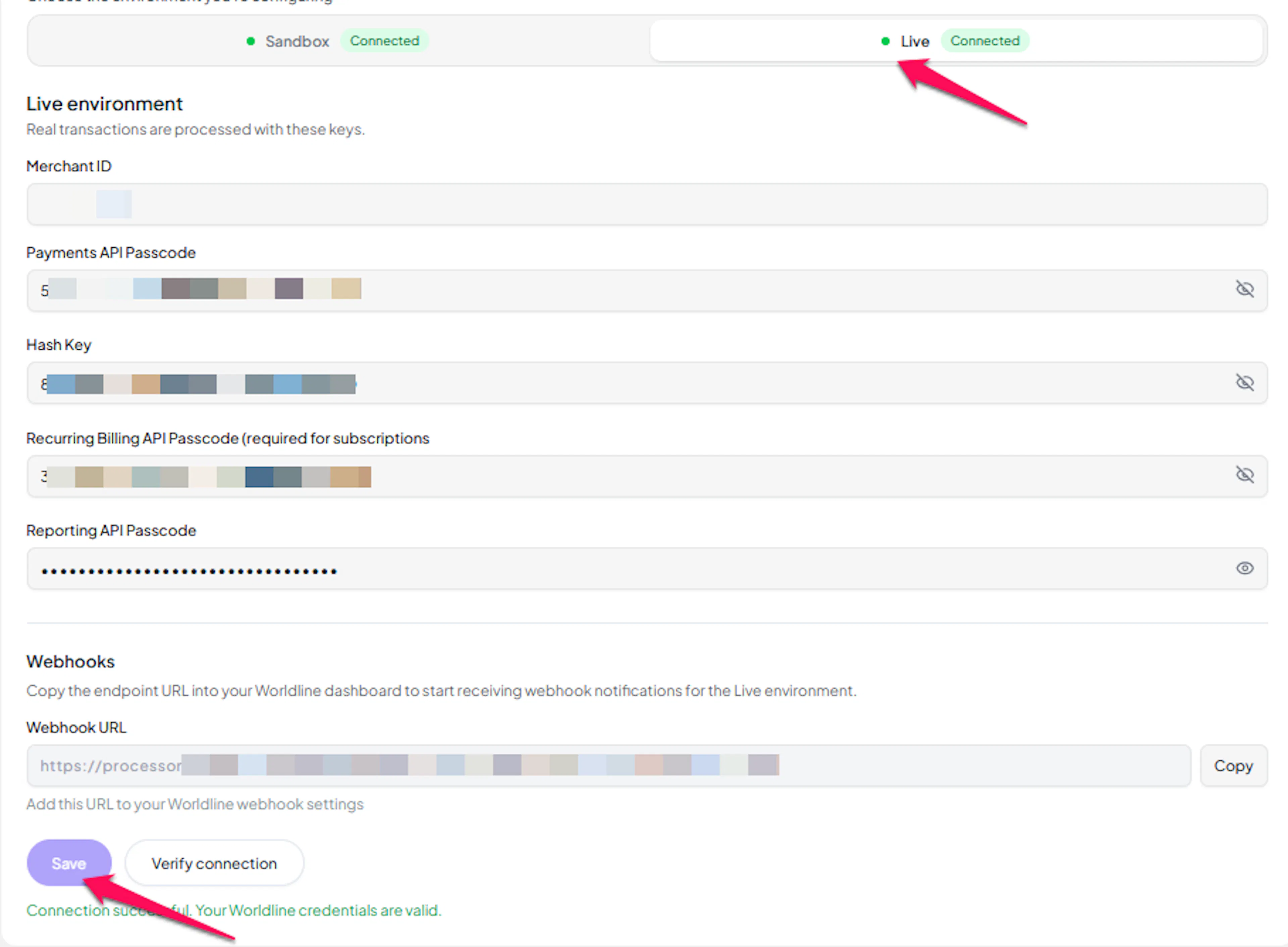
Log in to your PayLexer dashboard and navigate to Payment Gateways → Worldline.
Enter your credentials
Paste the Merchant ID, Payments API Passcode, and Hash Key you copied from Worldline. Add the Recurring Billing API Passcode if you plan to offer subscriptions, and the Reporting API Passcode if you want automatic refund reconciliation.
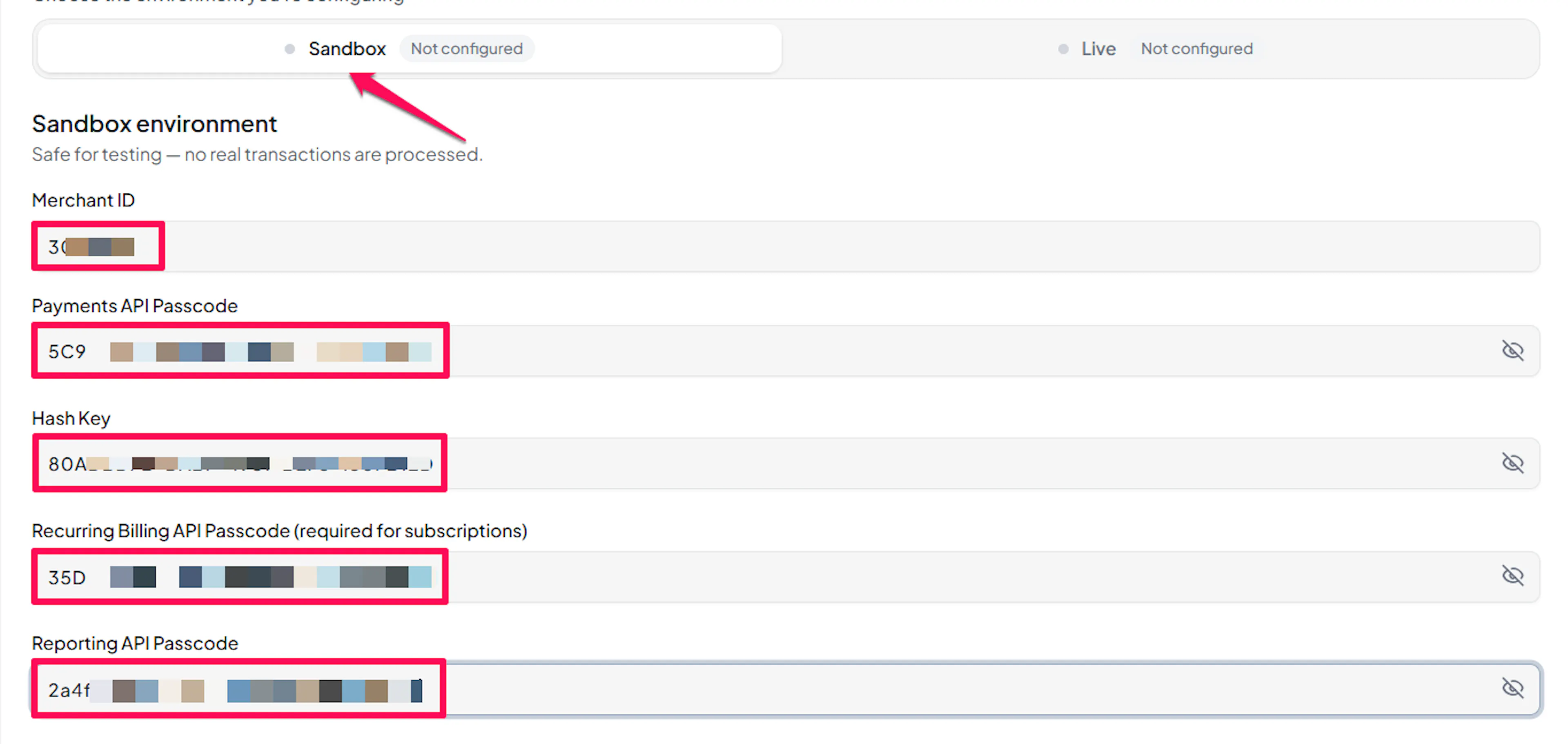
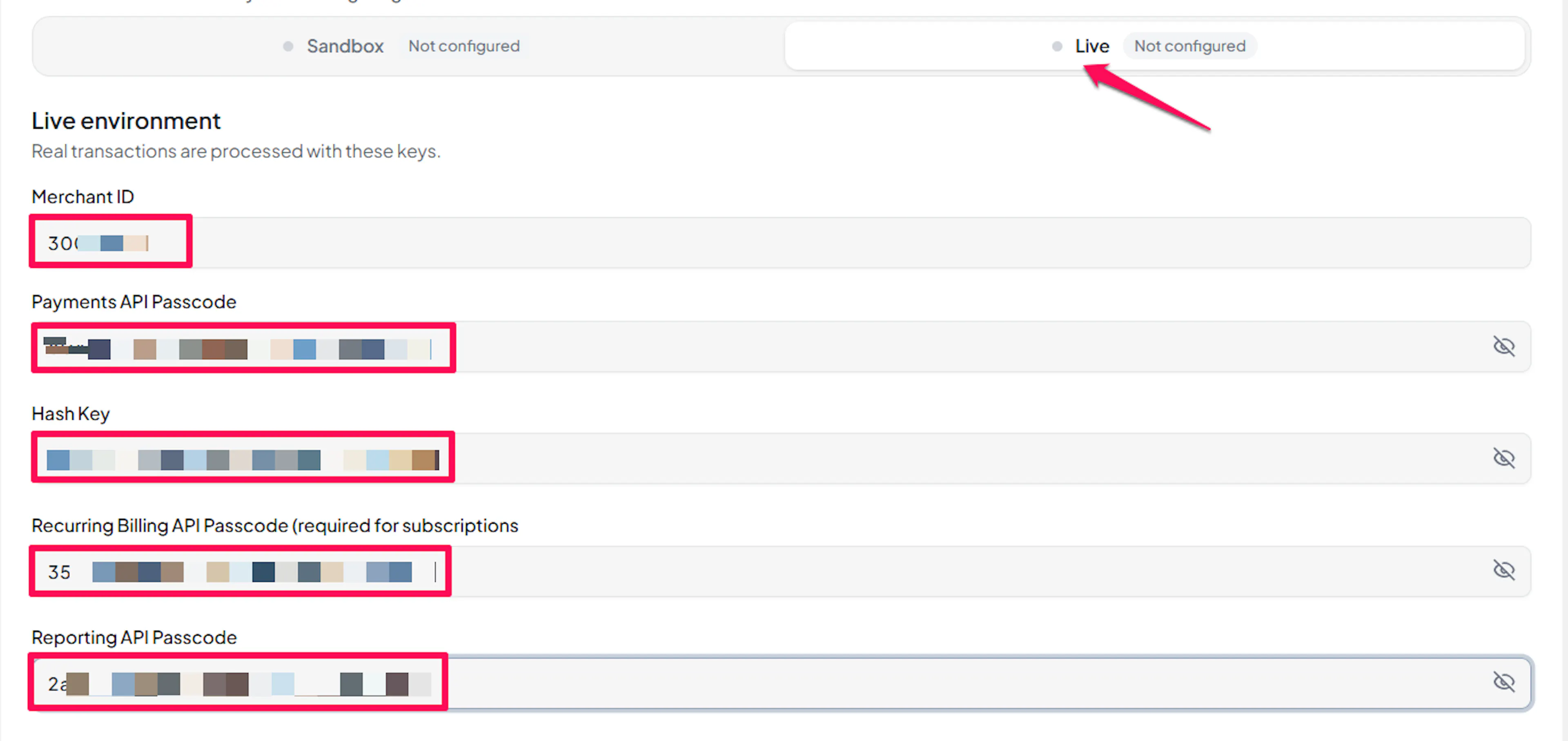
Understanding Live/Production and Sandbox Settings:
| Environment | Purpose |
|---|---|
| Live / Production (Mandatory) | Used for real transactions. Cannot be empty, even when testing. |
| Test / Sandbox (Optional) | Used for testing only. No real money is processed. |
How PayLexer selects credentials:
- Debug/Test mode ON → Test credentials are used
- Debug/Test mode OFF → Live credentials are used
Test and save
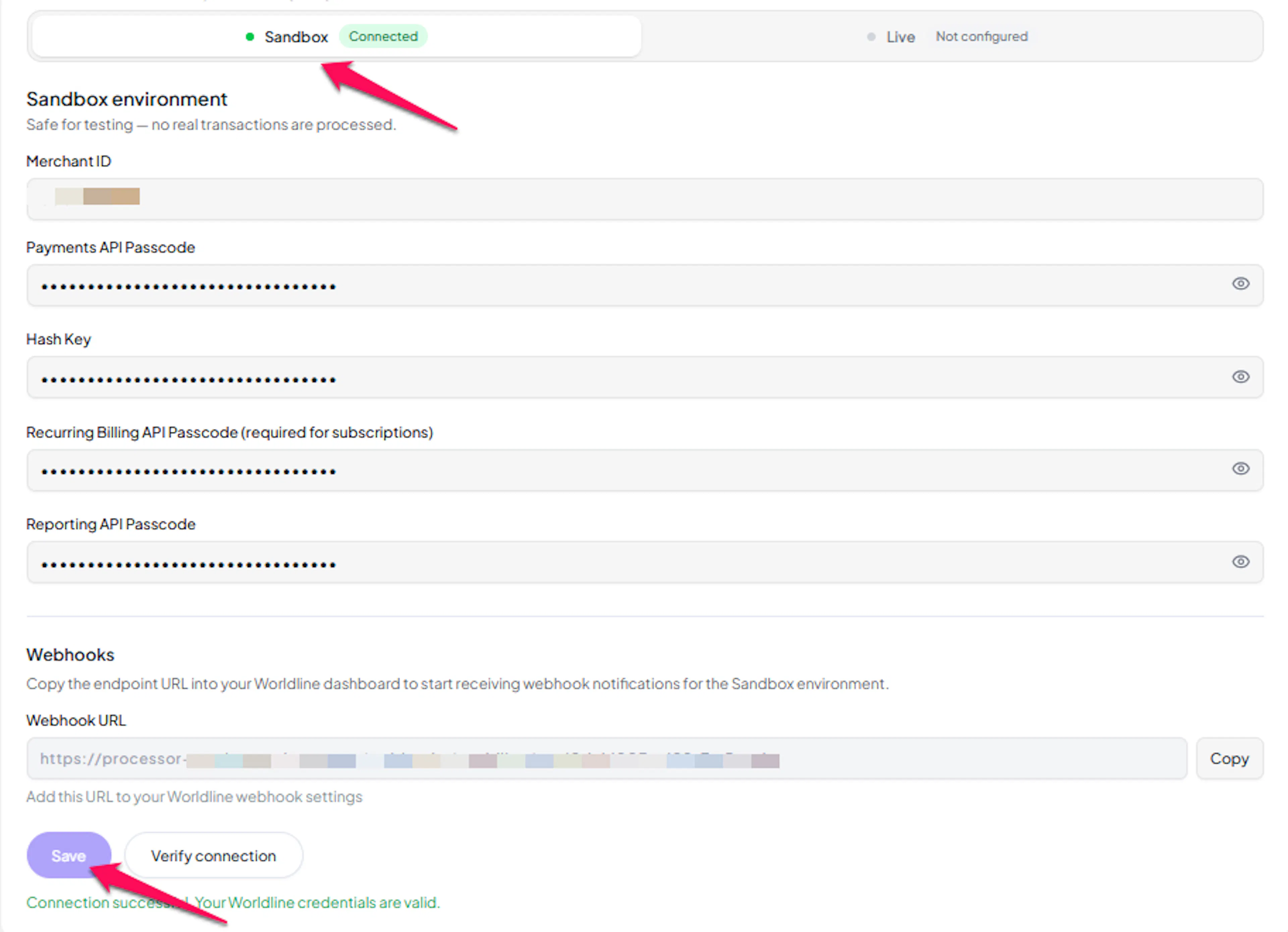
Click Save to save your configuration and verify your credentials. Click Verify Connection to test the connection.
Configuring Webhooks (Mandatory)
Webhooks enable real-time payment updates and significantly improve reliability. For Worldline, PayLexer receives a Response Notification each time a payment or a scheduled renewal happens.
Benefits of Webhooks:
- Instant payment status updates
- Automatic subscription renewal tracking
- Refund and dispute notifications
Copy your Webhook URL
In the PayLexer Worldline configuration, copy the Webhook URL that PayLexer provides for your account.

Open Order Settings and Configure Response Notifications
In the Worldline Member Area, go to Administration → Account Settings → Order Settings and find the Response Notification section.
Paste the Webhook URL into recurring billing and payment gateway, and save the page.

Worldline's automated renewal notifications are unsigned, so PayLexer accepts them only from Worldline's own servers and re-verifies every transaction directly with Worldline before updating an order or subscription. If a notification is ever missed, PayLexer's reconciliation check catches up the order or refund within a few minutes.
Integrate Worldline to Your Website
If you have already added and configured your site, you can enable Worldline in your existing setup.
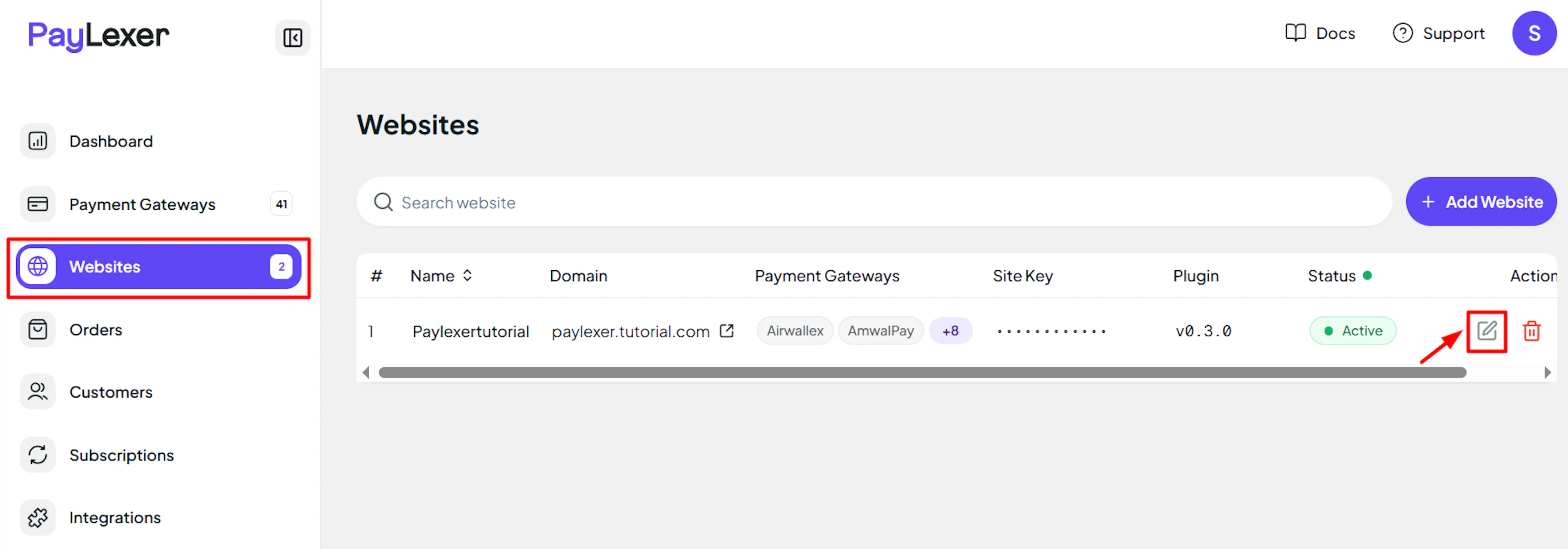
Go to Websites
Navigate to Websites in your PayLexer dashboard.
Edit your website
Click the Edit Icon of your added website.
Enable Worldline
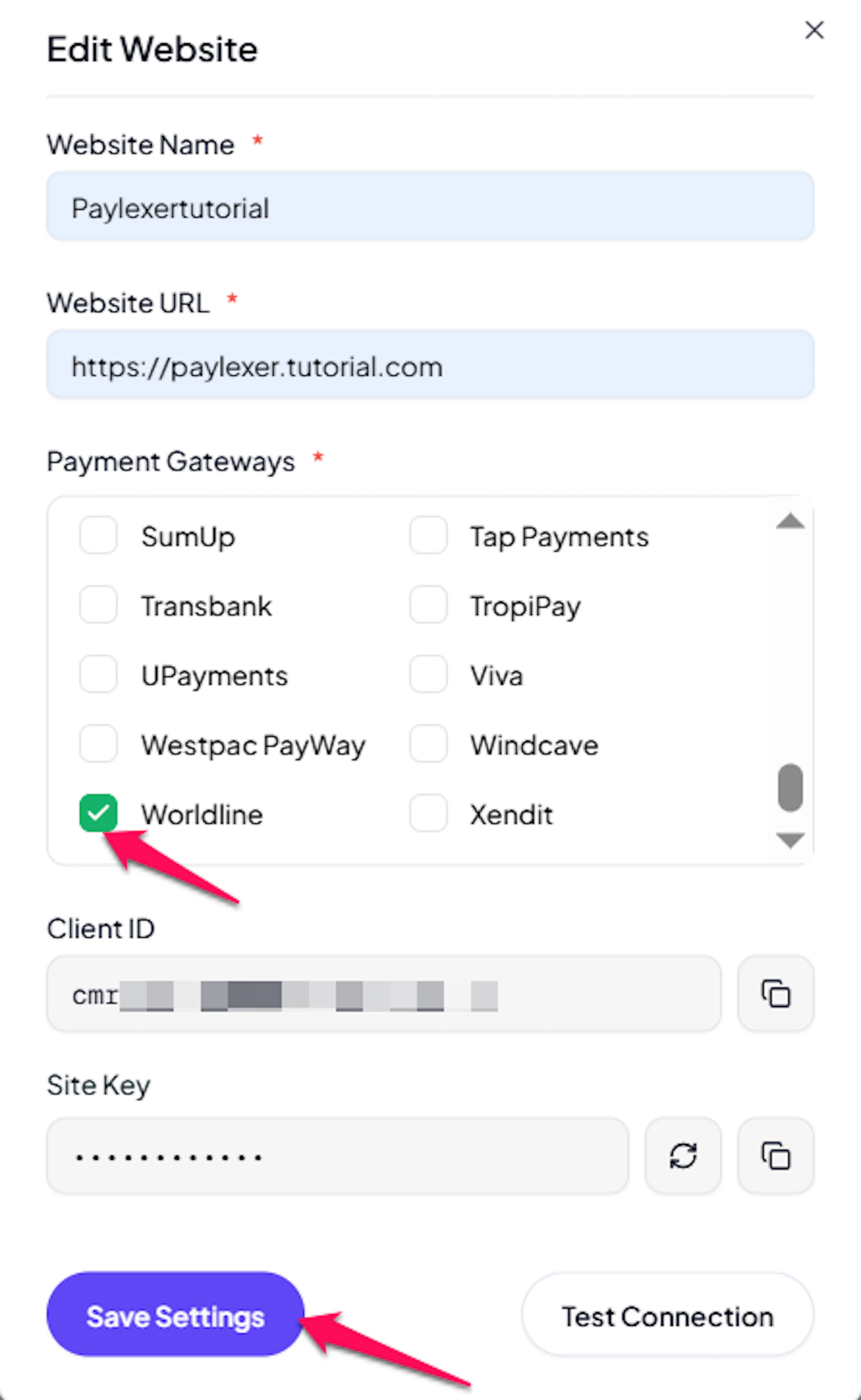
Click the checkbox to enable Worldline for the website.
If you haven't added a website yet, Continue to Add Your Website →
Troubleshooting
Best Practices
- Test in your Worldline sandbox account before enabling production credentials.
- Keep your Payments API Passcode, Recurring Billing API Passcode, and Hash Key secret - never share them or expose them in client-side code.
- Enter the Recurring Billing API Passcode before offering subscriptions, and the Reporting API Passcode if you issue refunds directly from the Worldline dashboard.
- Use only supported currencies (USD, CAD, EUR, GBP, AUD, NZD) at checkout to avoid declined payments.
- Remember that a transaction can only be voided the same day before it settles - after that, use a refund.
FAQs
Still Have Questions?
- Worldline Support: Worldline North America Help Center
- PayLexer Support: Contact Support