

MTN MoMo
Accept MTN Mobile Money payments through PayLexer using MTN's Collections API, with phone-based approval prompts across 11 African markets.
MTN MoMo (Mobile Money) is MTN Group's mobile wallet payment network, live across 11 African markets. Rather than a card or a redirect page, a customer pays by approving a prompt sent directly to their MTN Mobile Money phone number.
- Supported Regions (Merchant Accounts): Uganda, Ghana, Ivory Coast, Zambia, Cameroon, Benin, Congo, Eswatini, Guinea, South Africa and Liberia - view full list
- Supported Currencies: EUR in sandbox. In live, the local currency of the MTN market your account is issued for
MTN's sandbox environment only accepts payments in EUR, regardless of which country you plan to launch in. Live transactions use the currency of the specific MTN market (OpCo) your credentials were issued for.
Supported Features
- Direct mobile wallet payments through MTN's Collections API (Request to Pay)
- Payment approval prompts sent straight to the customer's phone
- Embedded checkout on your own site, no redirect to an external payment page
- Coverage across 11 African markets
- Separate test and live credentials for safe testing
Refunds and subscriptions are not available through MTN MoMo in PayLexer. Only one-time payments are supported, and refunds must be handled directly with your customer.
Before You Start
Make sure you have:
- MTN MoMo Developer Account – Don't have one? Sign up for MTN MoMo →
- PayLexer Account – Required to configure the integration. Create your account →
- A website where you want to integrate
Looking for a different payment processor? View all supported gateways →
Configuring MTN MoMo
You need a Subscription Key, API User and API Key from MTN MoMo for this integration. Live accounts also need an MTN OpCo Code.
Getting API Credentials
Sign up and subscribe to Collections
Create an account at the MTN MoMo Developer Portal, then subscribe to the Collections product from the Products page.
MTN's portal also lists a separate product called Collection Widget. This is a QR payment widget you paste into your page, not the API PayLexer integrates with. Make sure the tile you subscribe to is named exactly Collections, or your subscription key won't work with this integration.
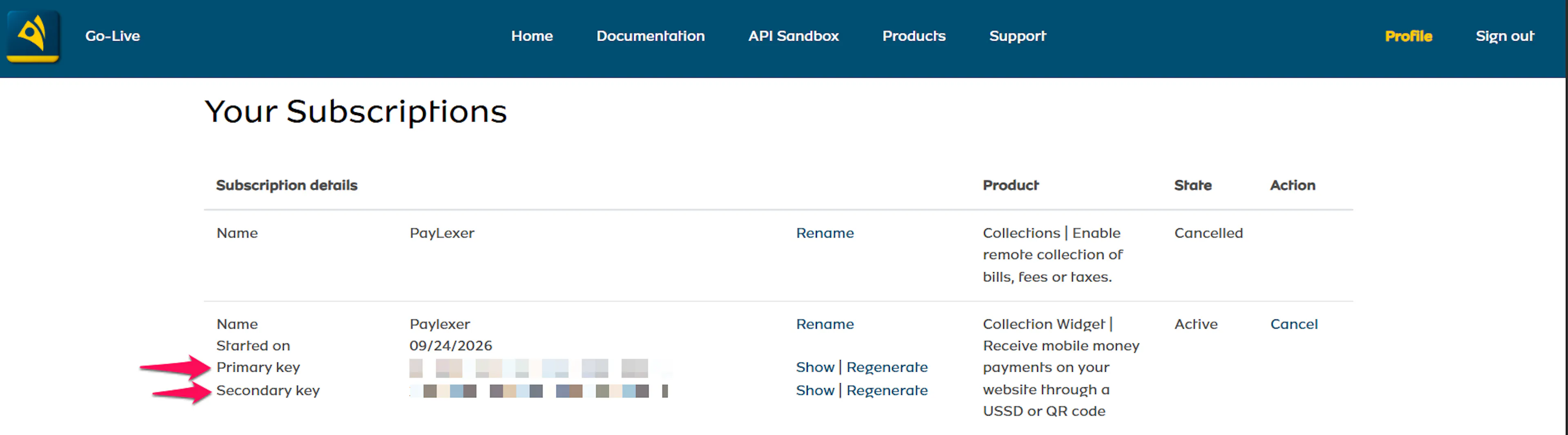
Copy your Subscription Key
On the Collections subscription, click Show next to the Primary key and copy it. This is your Subscription Key. Each MTN product has its own key, so make sure you copy the one from Collections.
For live credentials, MTN issues a separate Subscription Key once your KYC review is approved. Copy it from your profile on the MTN MoMo production portal.
Provision your API User and API Key
Unlike most gateways, MTN does not display an API User or API Key anywhere in the portal. In sandbox, you create them yourself with MTN's Sandbox Provisioning API, using the Subscription Key from the previous step:
- Send
POST /v1_0/apiuserwith a UUID you choose as theX-Reference-Idheader. That UUID is your API User. In the request body, setproviderCallbackHostto [VERIFY: value PayLexer merchants should enter]. - Send
POST /v1_0/apiuser/{API User}/apikey. The response contains your API Key. MTN cannot show it again, so save it immediately.
No MTN approval is required for any of this in sandbox. In production, the API User and API Key are created in your country's MTN Partner Portal under API Access → Create API User, after MTN completes a KYC review of your business. When asked for the Provider Callback Host and Payment Server URL, enter [VERIFY: values PayLexer merchants should enter].
Note your MTN OpCo Code (Live accounts only)
MTN MoMo has no single global production environment. A live account is issued for one specific country, and each country has its own OpCo code. You'll need this code when adding live credentials to PayLexer.
| Country | OpCo Code |
|---|---|
| Uganda | mtnuganda |
| Ghana | mtnghana |
| Ivory Coast | mtnivorycoast |
| Zambia | mtnzambia |
| Cameroon | mtncameroon |
| Benin | mtnbenin |
| Congo | mtncongo |
| Eswatini | mtnswaziland |
| Guinea | mtnguineaconakry |
| South Africa | mtnsouthafrica |
| Liberia | mtnliberia |
Adding Credentials to PayLexer
Open PayLexer Dashboard
Log in to your PayLexer dashboard and navigate to Payment Gateways → MTN MoMo.
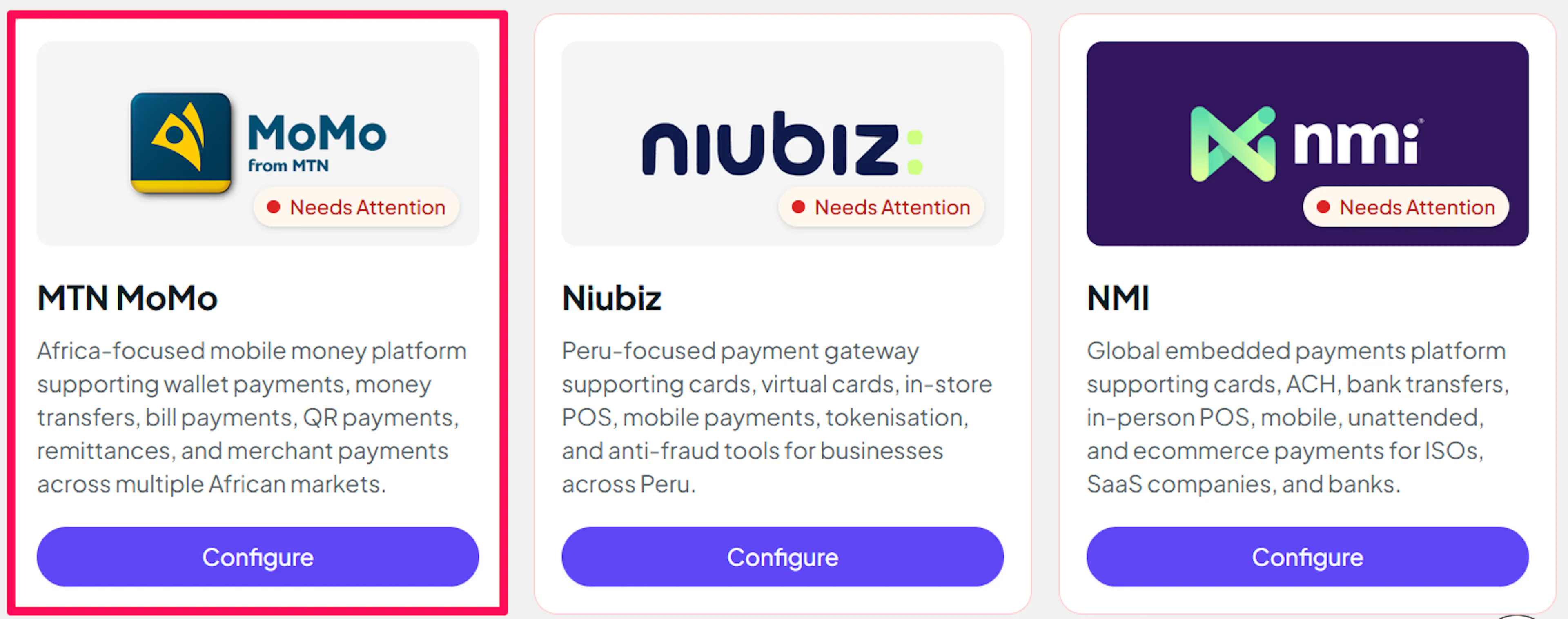
Enter your credentials
Paste the Subscription Key (Collections), API User, and API Key you copied from MTN MoMo into the corresponding fields. If you're configuring a Live account, also enter your MTN OpCo Code.
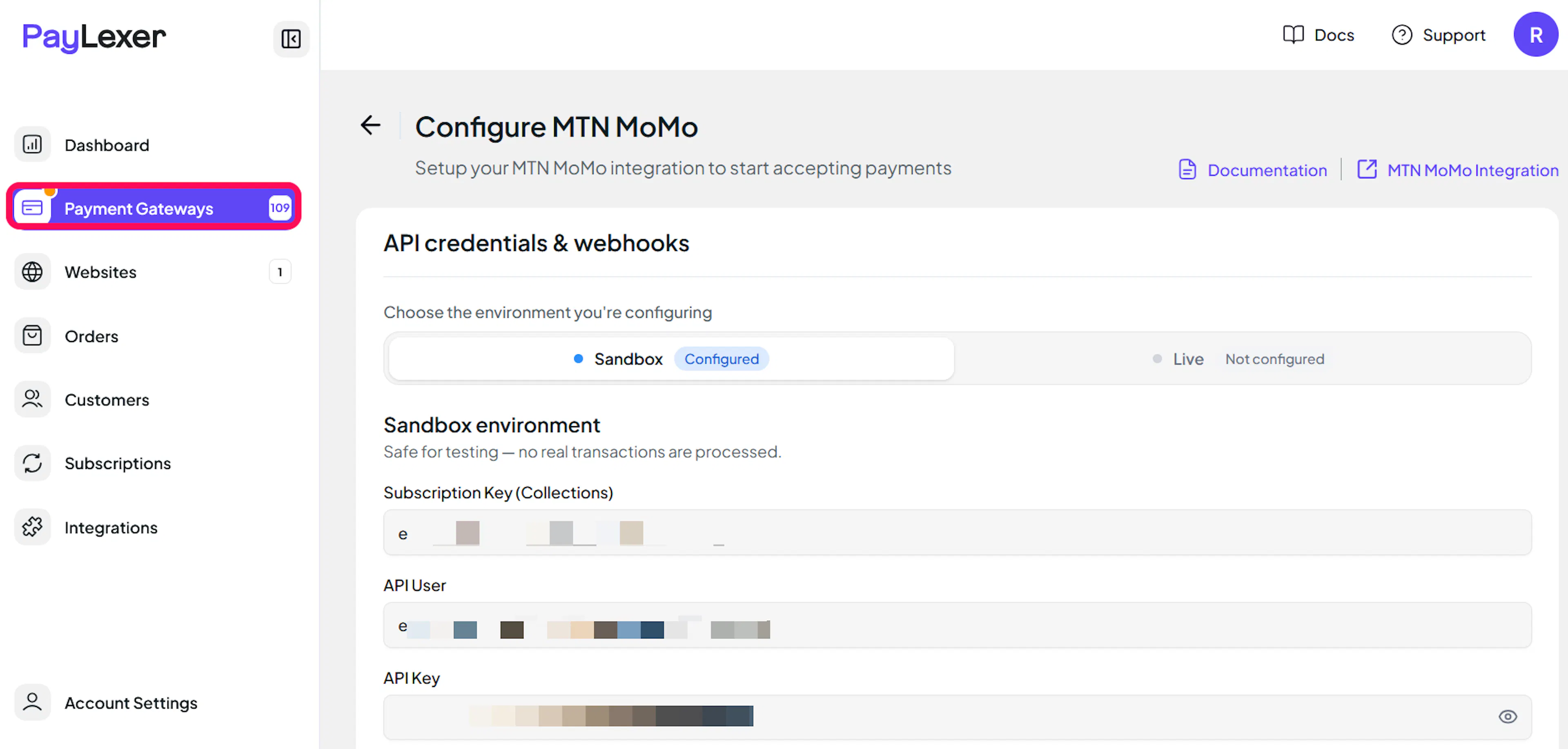
Understanding Live/Production and Sandbox Settings:
| Environment | Purpose |
|---|---|
| Live / Production | Used for real transactions. |
| Test / Sandbox | Used for testing only. No real money is processed. |
How PayLexer selects credentials:
- Debug/Test mode ON → Test credentials are used
- Debug/Test mode OFF → Live credentials are used
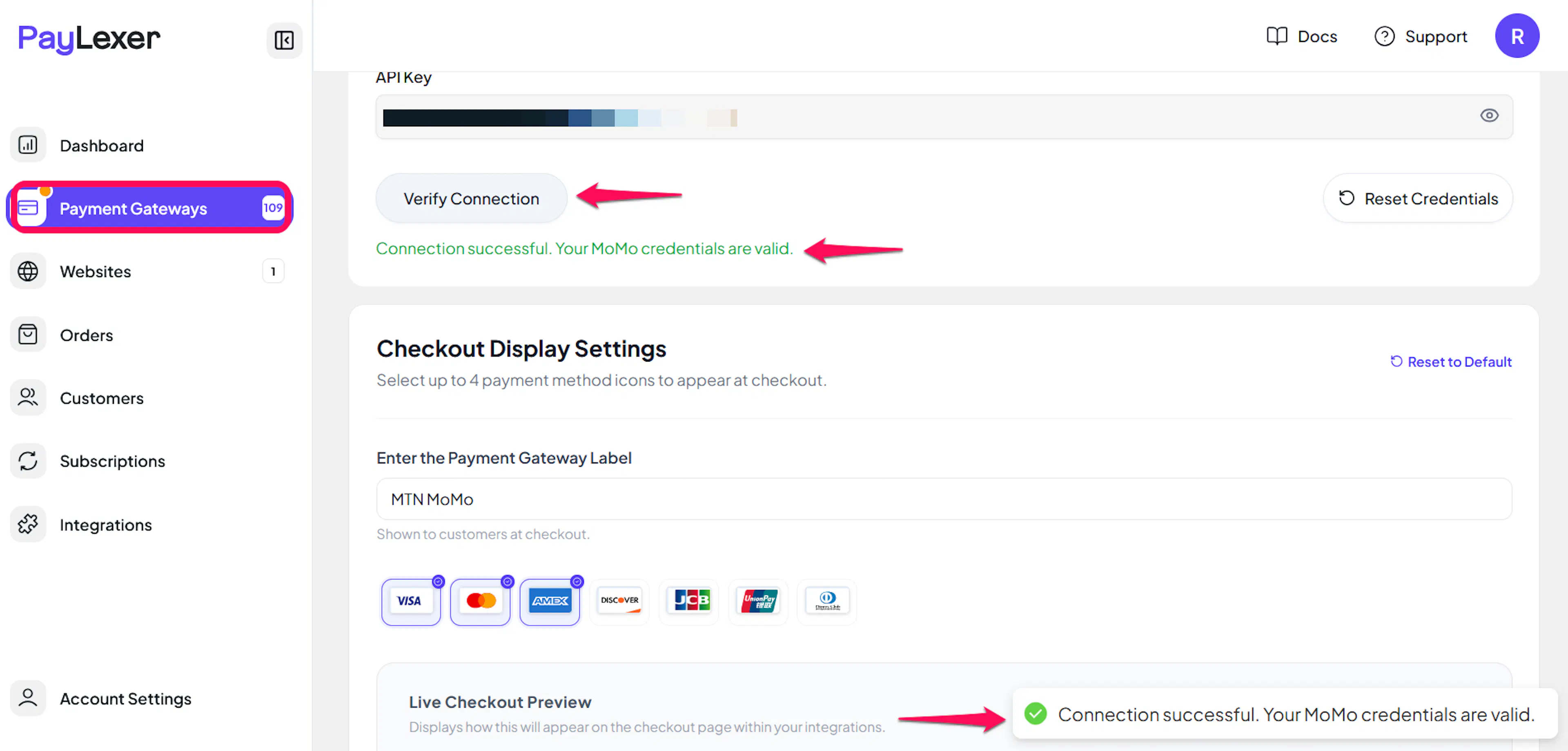
Test and save
Click Save to save your configuration and verify your credentials. Click Verify Connection to test the connection.
Webhooks (Not Supported)
PayLexer does not use webhooks for MTN MoMo. MTN sends its payment result only once, with no retry, and recommends checking the payment status as a backup. PayLexer checks the payment status with MTN directly instead.
- Nothing needs to be configured for webhooks
- The checkout page keeps checking with MTN until the customer approves or declines the prompt
- The order updates as soon as MTN reports a final result
This means payment confirmations may take slightly longer to appear compared to gateways that support webhooks.
Integrate MTN MoMo to Your Website
If you have already added and configured your site, you can enable MTN MoMo in your existing setup.
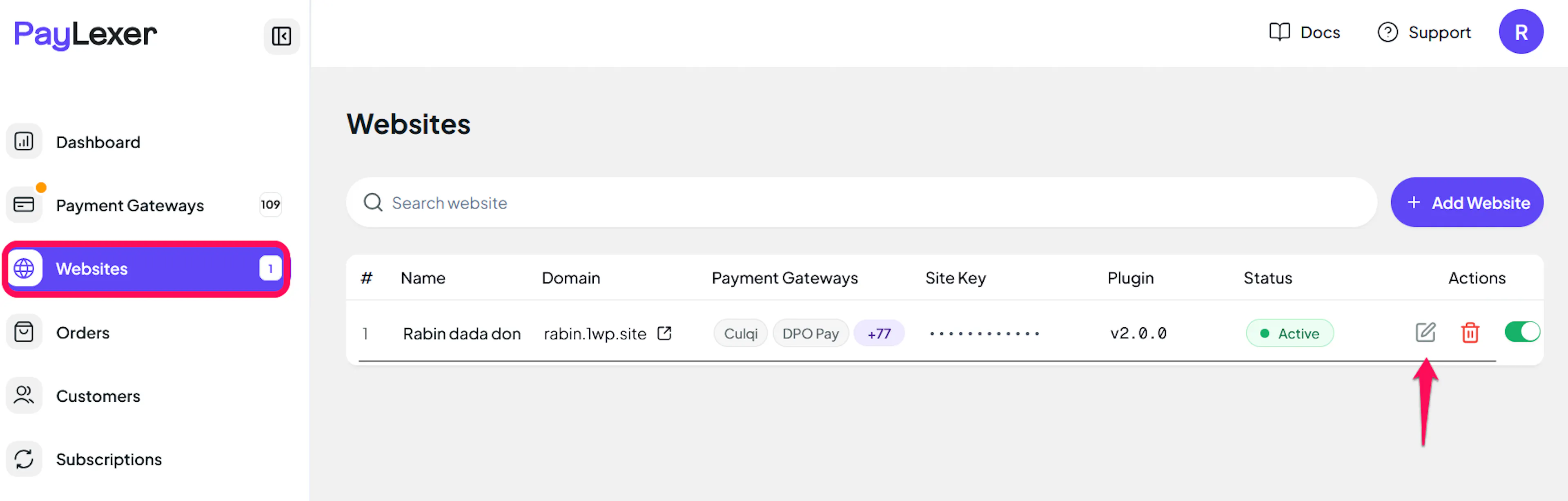
Go to Websites
Navigate to Websites in your PayLexer dashboard.
Edit your website
Click the Edit Icon of your added website.
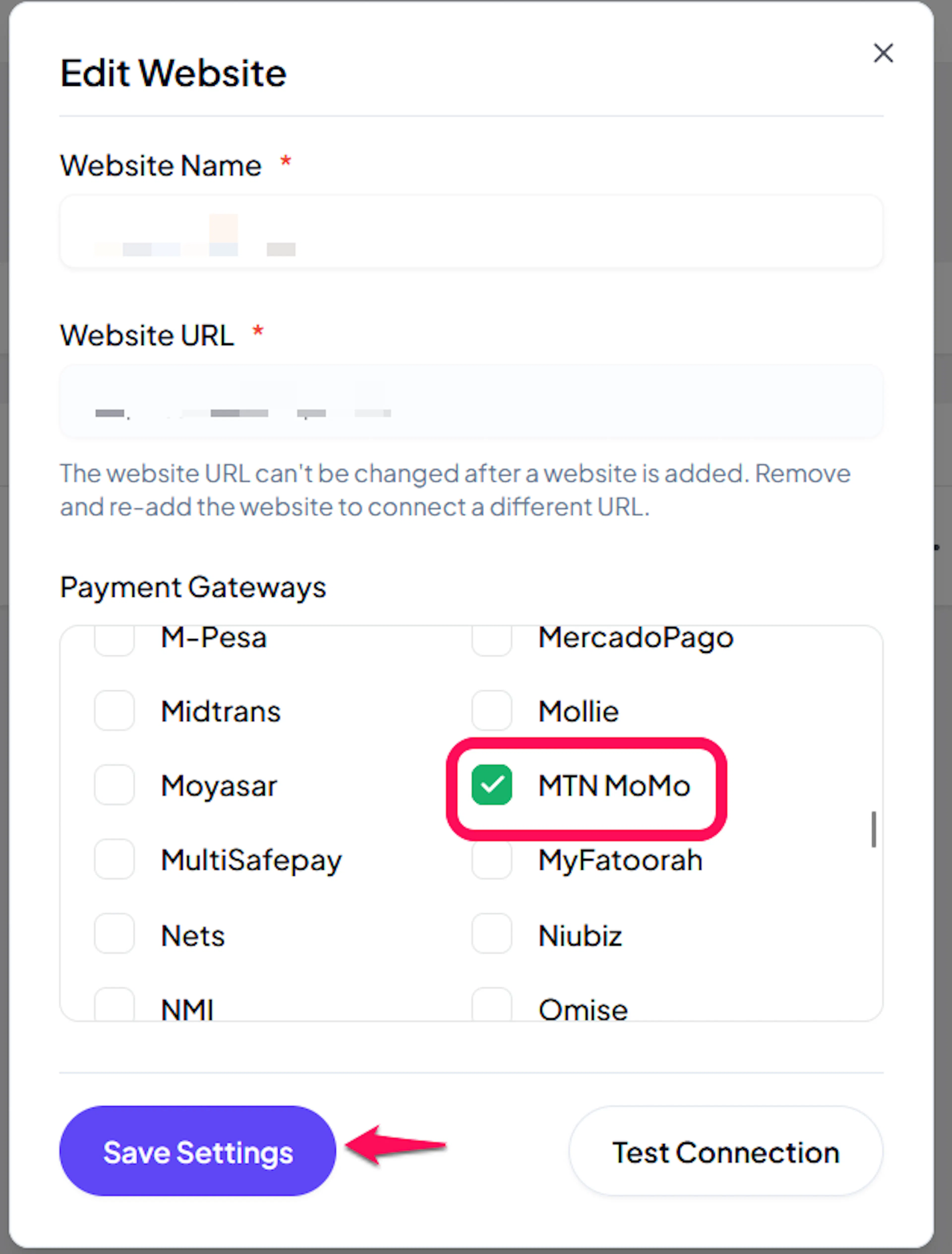
Enable MTN MoMo
Click the checkbox to enable MTN MoMo for the website.
If you haven't added a website yet, Continue to Add Your Website →
Troubleshooting
Best Practices
- Test in sandbox before enabling production
- Always collect the customer's phone number with the correct country code
- Remember that MTN MoMo does not support refunds or subscriptions through PayLexer. Plan your return and recurring-billing policies around this before launch
- If you operate in more than one MTN market, set up a separate Live configuration for each country's OpCo code
FAQs
Still Have Questions?
- MTN MoMo Support: MTN MoMo Developer Community
- PayLexer Support: Contact Support