

Squad
Connect Squad to PayLexer to accept cards, bank transfers, USSD, and local Nigerian payment methods.
Squad is a Nigeria-based payment gateway built by HabariPay Ltd., a subsidiary of GTCO Plc (Guaranty Trust Holding Company), offering a secure hosted checkout for cards, bank transfers, USSD, and direct bank account payments. Through PayLexer, Squad supports one-time payments for merchants serving Nigerian customers.
- Supported Regions (Merchant Accounts): Nigeria
- Supported Currencies: NGN, USD
Squad only appears at checkout when the transaction currency is NGN or USD. Orders in other currencies will not show Squad as a payment option.
Supported Features
- Cards, bank transfers, USSD, and direct account payments via Squad's hosted checkout
- Test and Live environments via separate portals
- Pending payments are automatically reconciled if a webhook notification is delayed - PayLexer polls Squad every 30 minutes to catch missed notifications
Before You Start
Make sure you have:
- Squad Account - Don't have one? Sign up for Squad →
- PayLexer Account - Required to configure the integration. Create your account →
- A website where you want to integrate
Looking for a different payment processor? View all supported gateways →
Configuring Squad
You need a Secret Key from Squad for this integration. Squad uses the same Secret Key for both API authentication and webhook signature verification - there is no separate webhook secret.
Getting API Credentials
Find your Webhook URL in PayLexer
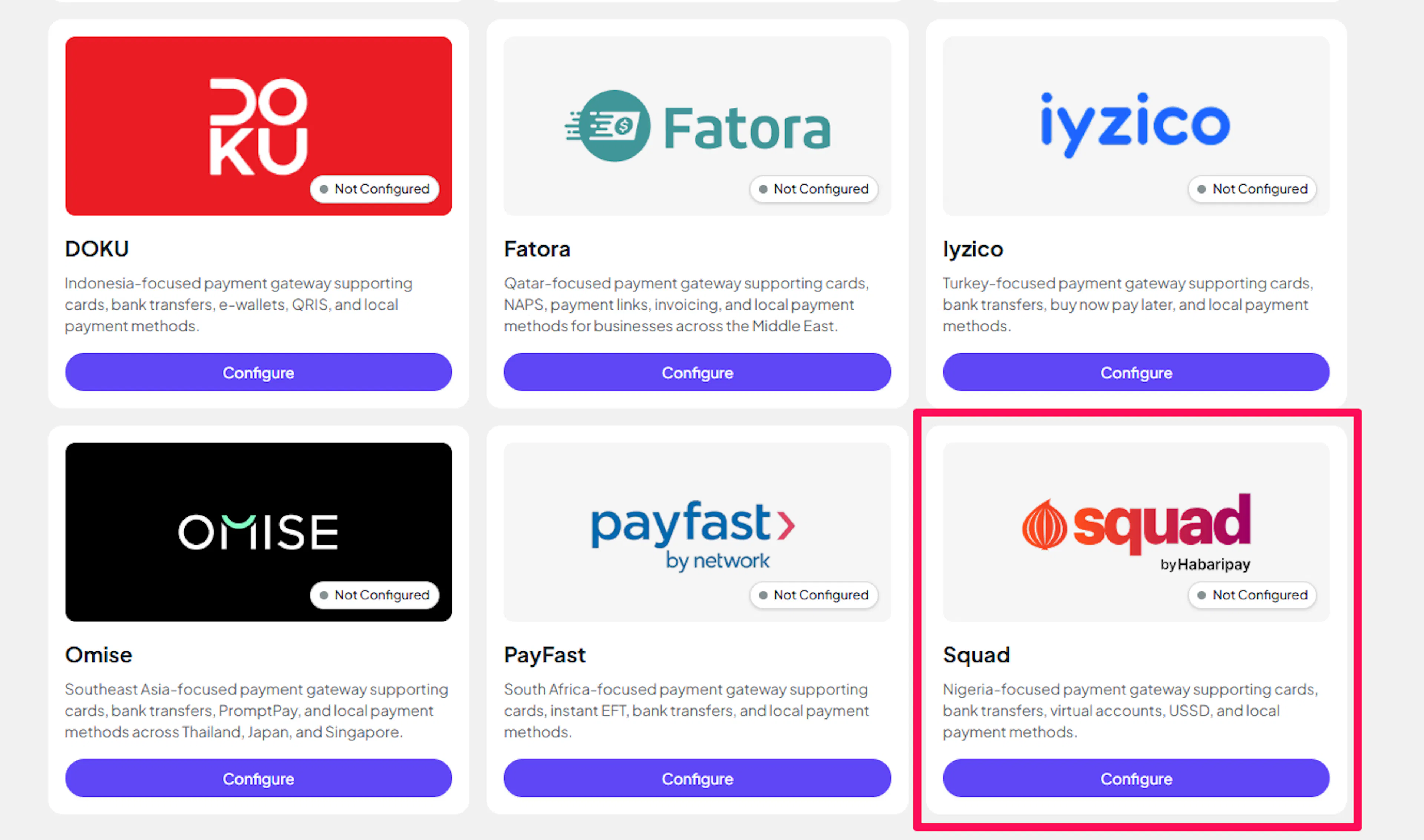
Log in to your PayLexer dashboard and navigate to Payment Gateways → Squad.
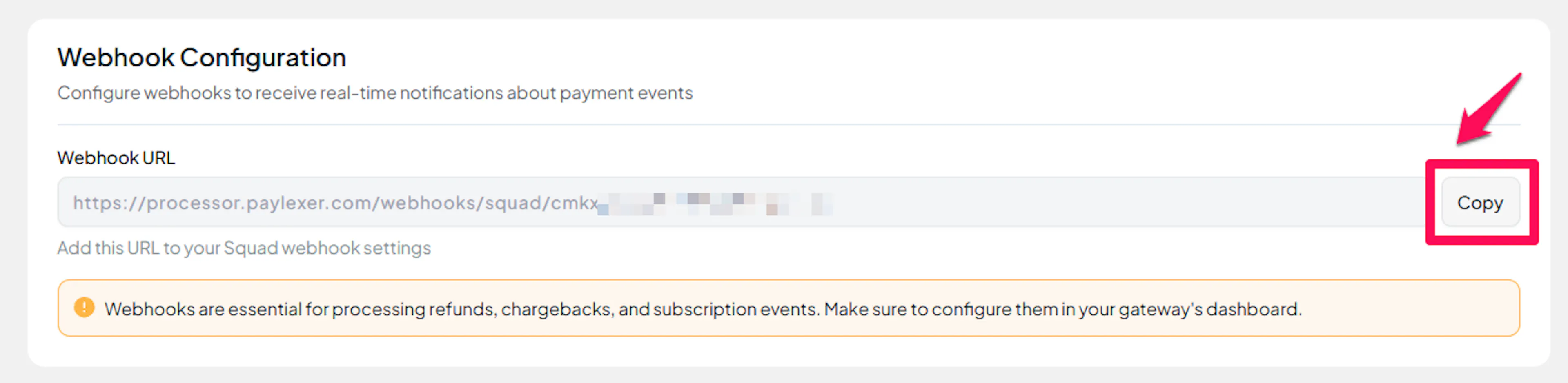
Copy the Webhook URL shown on the page - you will need it in the next step.
Configure API and Webhooks in Squad
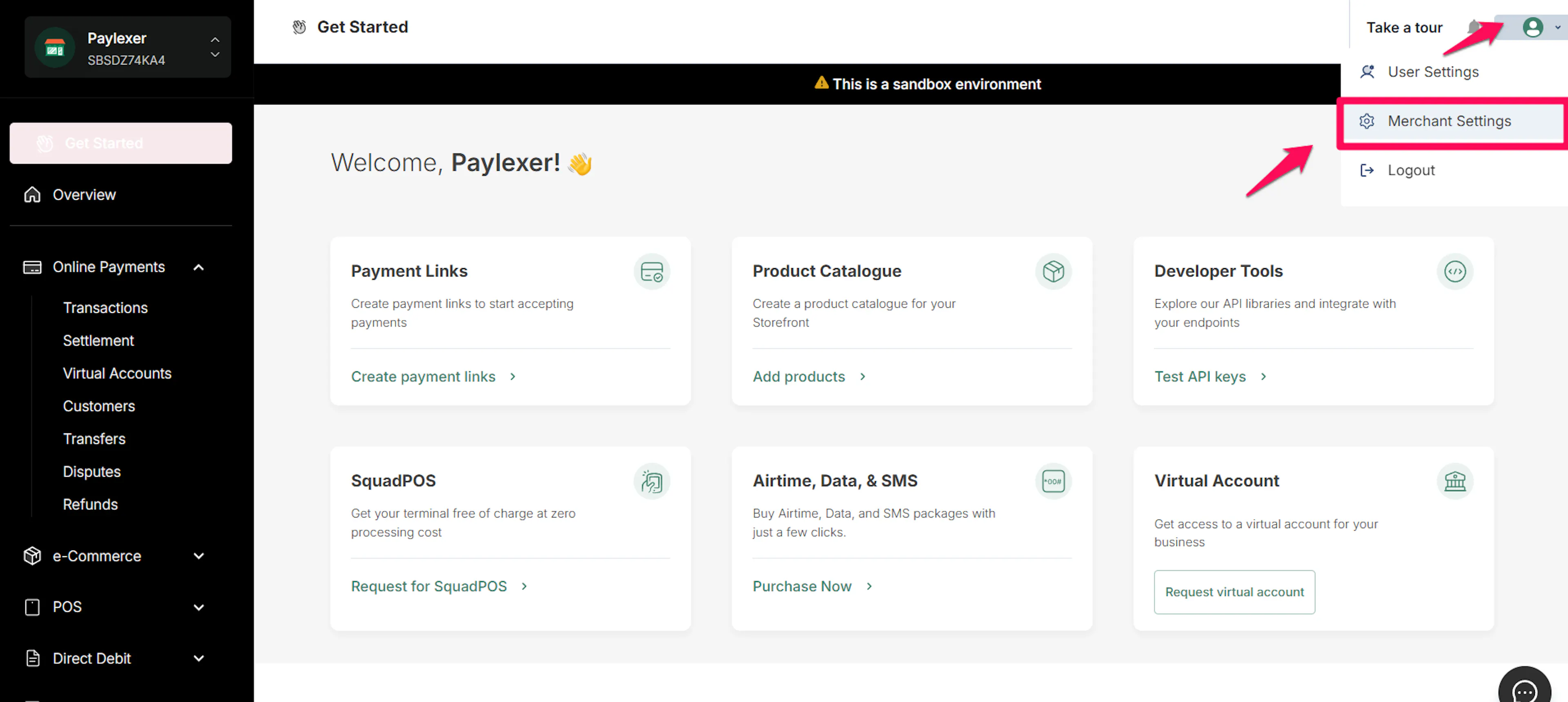
Log in to your Squad portal and click on the profile dropdown in the top corner, then select Merchant Settings.
Open the API & Webhooks tab.
On this tab:
- Copy your Secret Key (labeled "Test Secret Key" in sandbox or "Live Secret Key" in production)
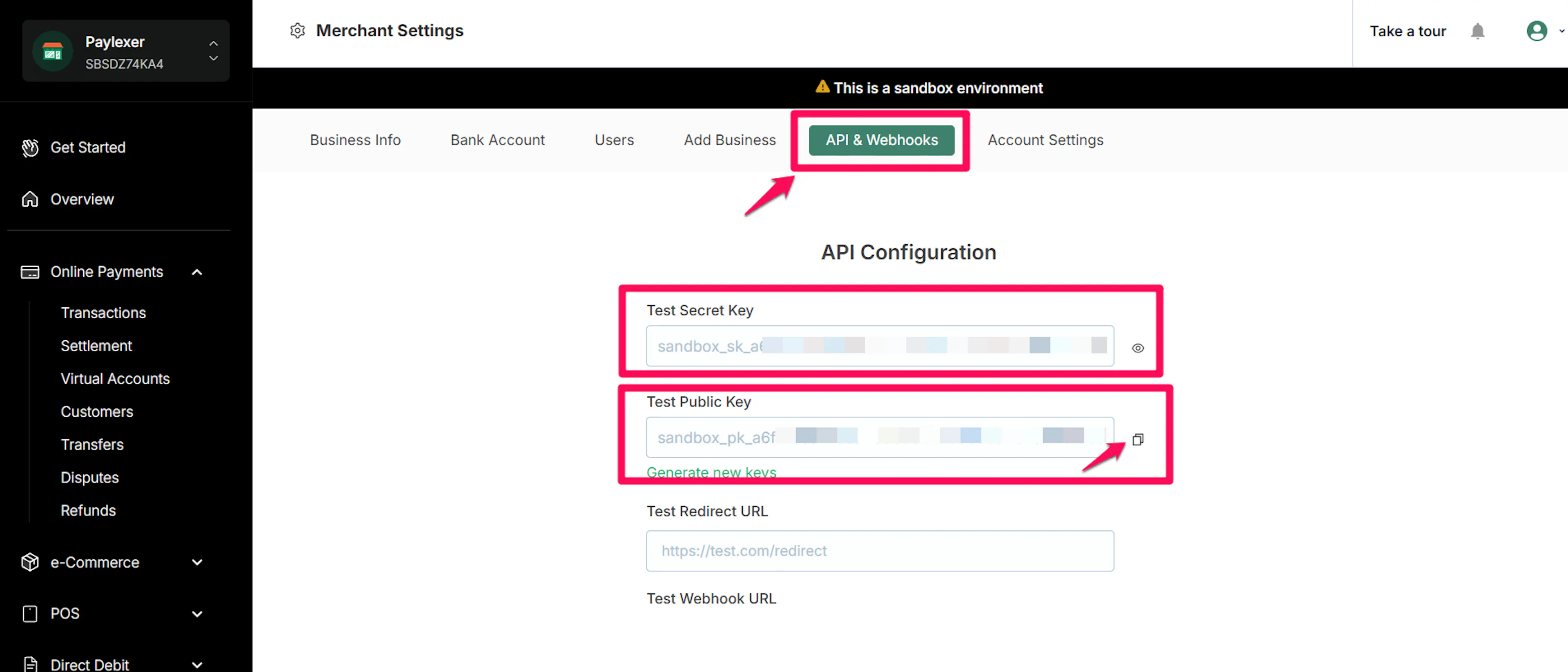
- Paste the Webhook URL you copied from PayLexer into the Webhook URL field
- Save your changes
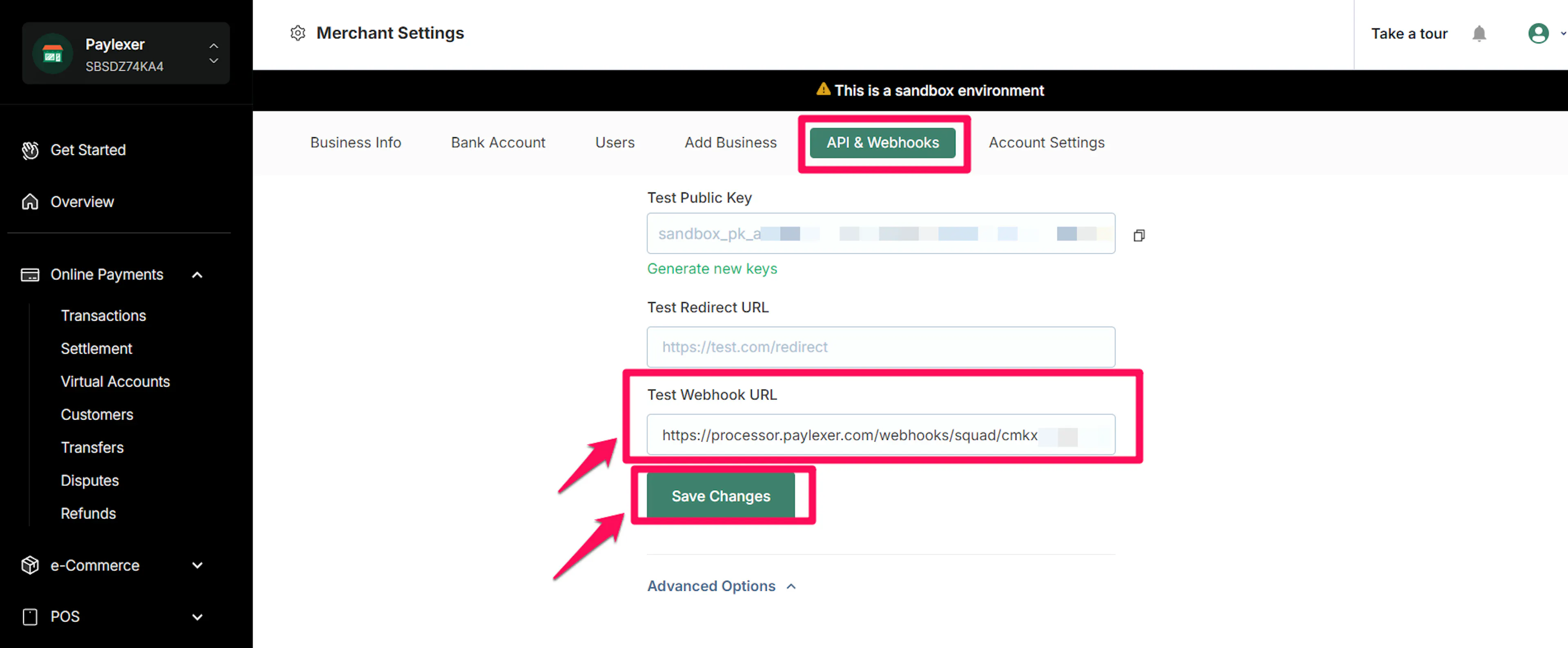
Use the sandbox portal (sandbox.squadco.com) for Test credentials, and the live portal (dashboard.squadco.com) for Live credentials. The Secret Key and Webhook URL must be configured separately in each portal.
Repeat the steps above for the other environment (sandbox or live) to get a second set of credentials.
Adding Credentials to PayLexer
Open PayLexer Dashboard
Log in to your PayLexer dashboard and navigate to Payment Gateways → Squad.
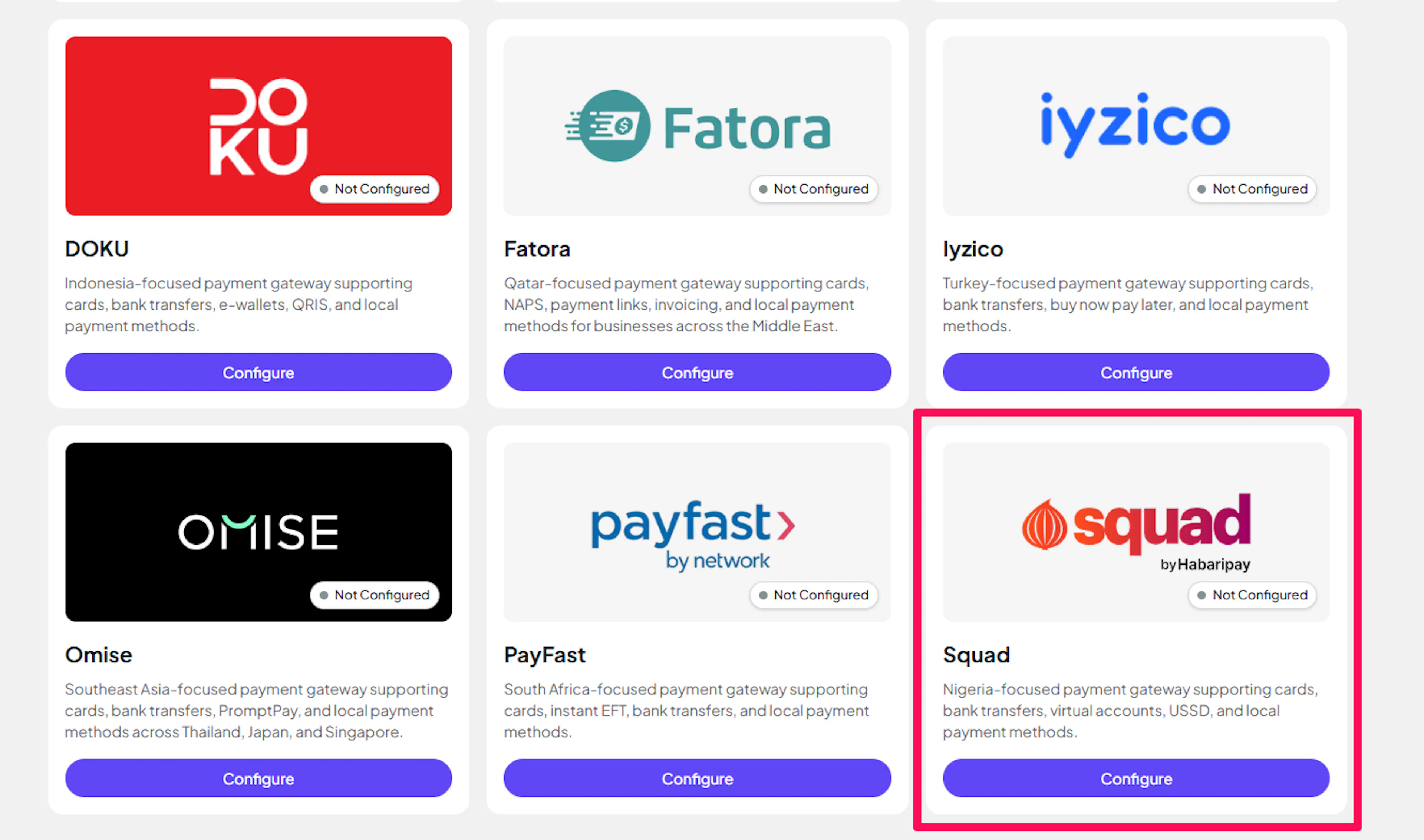
Enter your credentials
Paste your Live and Test Secret Keys into the respective fields:
- Secret Key - the Secret Key from your Squad live portal
- Secret Key (Test) - the Secret Key from your Squad sandbox portal
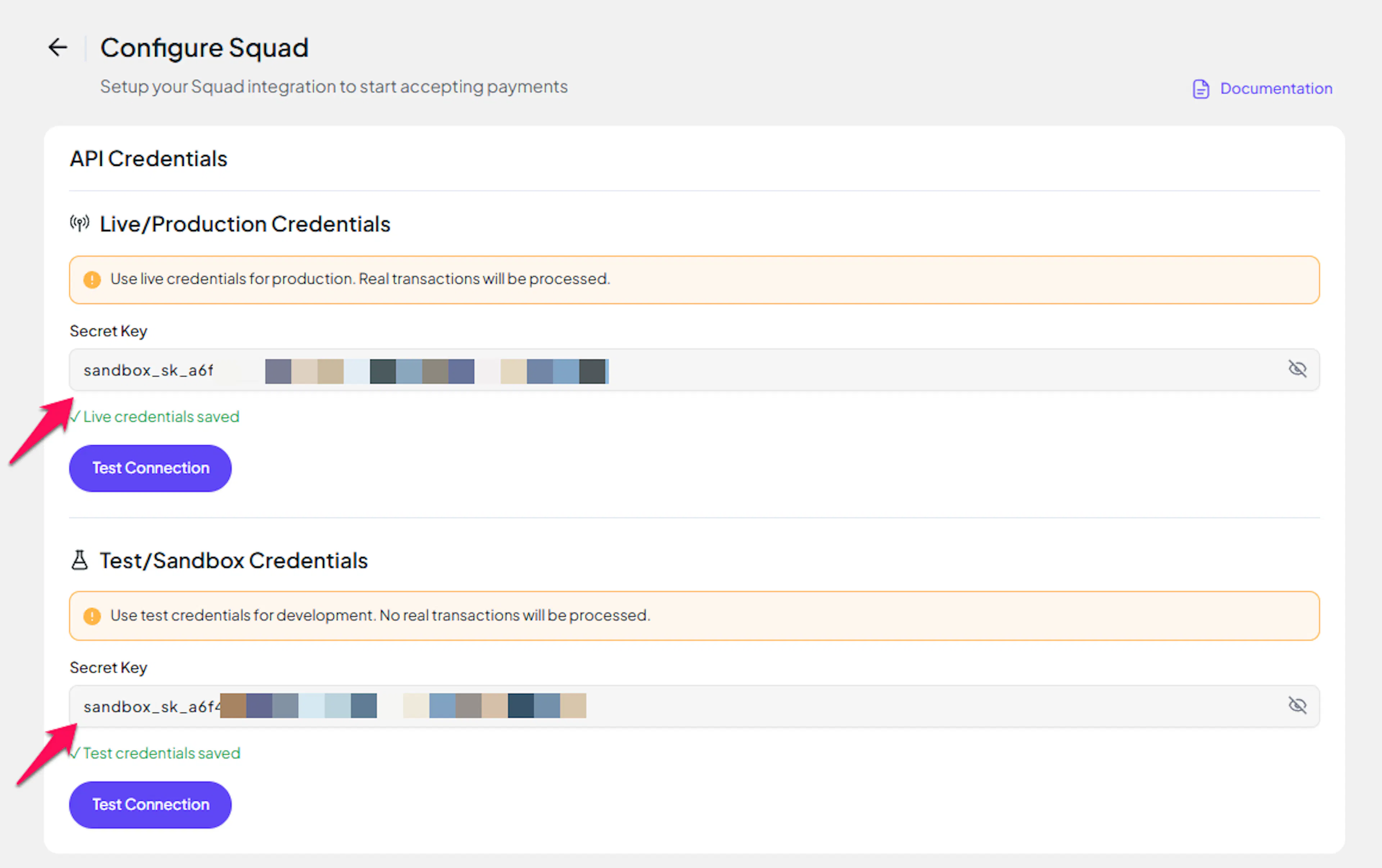
Understanding Live/Production and Sandbox Settings:
| Environment | Purpose |
|---|---|
| Live / Production (Mandatory) | Used for real transactions. Cannot be empty, even when testing. |
| Test / Sandbox (Optional) | Used for testing only. No real money is processed. |
How PayLexer selects credentials:
- Debug/Test mode ON → Test credentials are used
- Debug/Test mode OFF → Live credentials are used
Save your configuration
Click Save. PayLexer validates the credentials against Squad's API and shows Connected if both environments authenticate successfully.
Credentials saved. You can now enable Squad on any of your websites.
Webhooks
Squad sends payment notifications to PayLexer the moment a transaction is confirmed. PayLexer validates every incoming notification using the Secret Key and the x-squad-encrypted-body header - notifications with invalid signatures are rejected automatically.
- Squad sends one webhook event:
charge_successful- received when a payment completes - Failed or abandoned payments do not generate a webhook from Squad - PayLexer's polling service handles these by re-verifying pending transactions every 30 minutes
- No separate webhook secret is required - Squad uses your Secret Key to sign all notifications
Integrate Squad to Your Website
If you have already added and configured your site, you can enable Squad in your existing setup.
Go to Websites
Navigate to Websites in your PayLexer dashboard.
Edit your website
Click the Edit Icon of your added website.
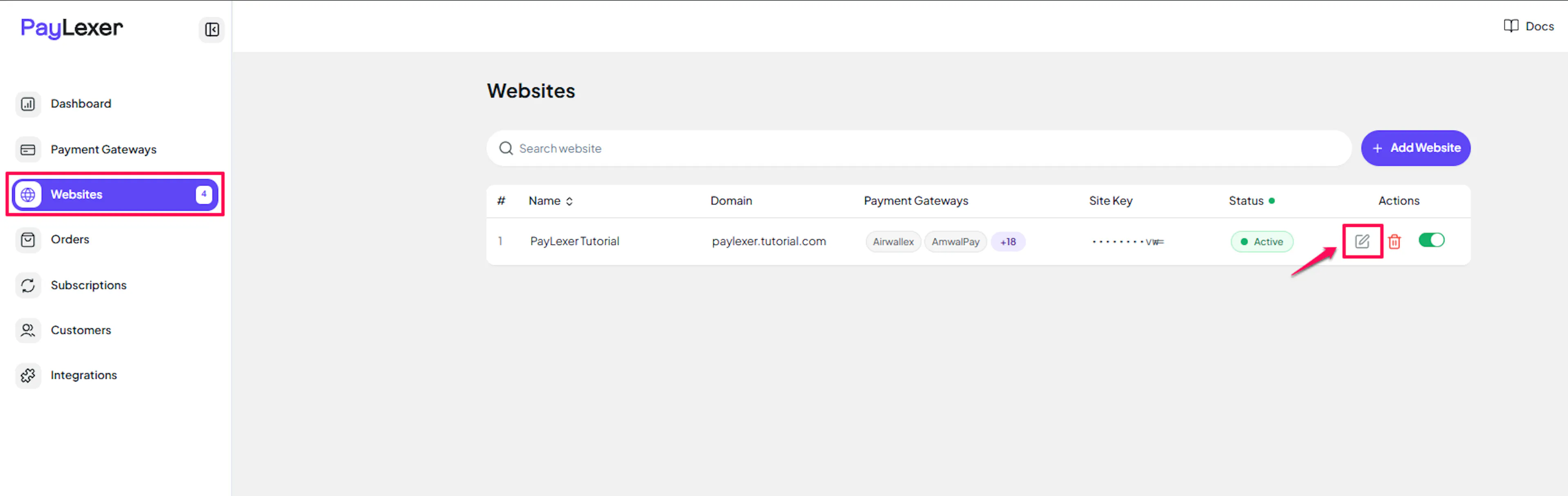
Enable Squad
Click the checkbox to enable Squad for the website.
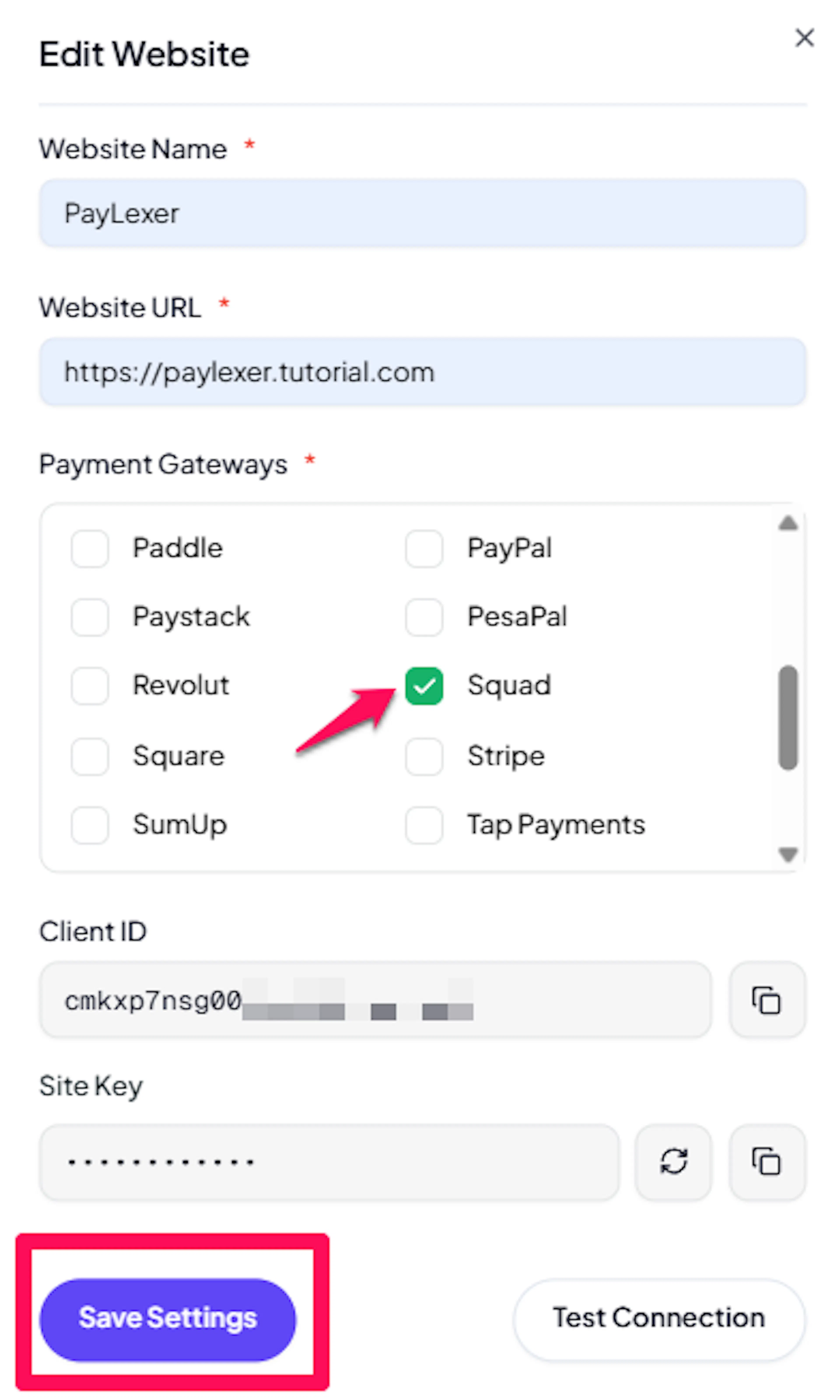
Squad is now active for this website. Run a test transaction before switching off Debug/Test mode.
If you haven't added a website yet, Continue to Add Your Website →
Troubleshooting
Best Practices
- Run at least one full test transaction in sandbox before going live. The sandbox portal (sandbox.squadco.com) and live portal (dashboard.squadco.com) are isolated - test transactions do not affect live data.
- Confirm the Webhook URL is saved in Squad's API & Webhooks tab. This is the most common reason payment notifications do not arrive in PayLexer.
- Keep your Secret Key confidential. It is used for both API calls and webhook verification - if it is compromised, rotate it in Squad's dashboard and update it in PayLexer immediately.
- Going live with Squad requires completing Squad's KYC process (BVN/NIN for individuals; CAC documents for businesses). Start this early to avoid delays when you are ready to launch.
- Confirm the checkout currency is NGN or USD before enabling Squad. Unsupported currencies will prevent Squad from appearing at checkout.
FAQs
Still Have Questions?
- Squad Support: Squad Help Center
- PayLexer Support: Contact Support
For API references and advanced configuration, see the Squad developer documentation.