

WiPay
Connect WiPay to PayLexer to accept card payments across the Caribbean through a secure hosted checkout page.
WiPay is a Caribbean payment provider that gives merchants in Barbados, Grenada, Guyana, Jamaica and Trinidad & Tobago a way to accept card payments online. Shoppers pay on WiPay's own hosted checkout page, so card details are entered on WiPay's site and never reach PayLexer or your store. WiPay runs a separate platform for each territory, so your account belongs to one country and the country you select in PayLexer has to match it.
- Supported Regions (Merchant Accounts): Barbados, Grenada, Guyana, Jamaica, Trinidad & Tobago
- Supported Currencies: TTD, JMD, BBD, USD
Not every currency works on every territory. Card payments were accepted in US dollars for Barbados and Guyana, and in local currency for Trinidad & Tobago (TTD) and Jamaica (JMD). WiPay decides this and rejects an unsupported combination with its own message, so test your currency in sandbox before going live.
Supported Features
- Hosted checkout that redirects shoppers to WiPay's secure payment page
- Card payments in four currencies
- A separate sandbox environment for every territory
- Signed webhooks for payments, refunds, chargebacks and confirmed fraud
WiPay does not support subscriptions or recurring billing in PayLexer. Only one-time payments are available.
Refunds are not currently available from PayLexer for WiPay. Issue refunds in your WiPay dashboard instead. PayLexer still records the refund when WiPay notifies it.
Before You Start
Make sure you have:
- Verified WiPay BUSINESS Account – Don't have one? Sign up for WiPay →
- PayLexer Account – Required to configure the integration. Create your account →
- A website where you want to integrate
Looking for a different payment processor? View all supported gateways →
Configuring WiPay
You need an Account Number, API Key and Country from WiPay for this integration.
Getting API Credentials
Sign in to WiPay
Log in to your WiPay dashboard for your territory, for example tt.wipayfinancial.com for Trinidad & Tobago. Each country has its own dashboard address.
Find your Account Number
Your Account Number is the WiPay account identifier shown on your account or profile page. It is the number WiPay uses to identify your business on checkout requests.
Copy your API Key
Open Developer from your profile menu, then the Payment API tab. If no website is registered yet, enter your Website URL and click Submit. Your API Key then appears on the page. Keep it private, since it is what proves a payment result genuinely came from WiPay.
Note your territory
Note which country your WiPay account belongs to. An account number only works on its own territory's platform, so selecting the wrong country in PayLexer will make every payment fail.
For sandbox testing you can use WiPay's own published test credentials, Account Number 1234567890 and API Key 123, with Country set to Trinidad & Tobago. See WiPay's testing documentation.
Adding Credentials to PayLexer
Open PayLexer Dashboard
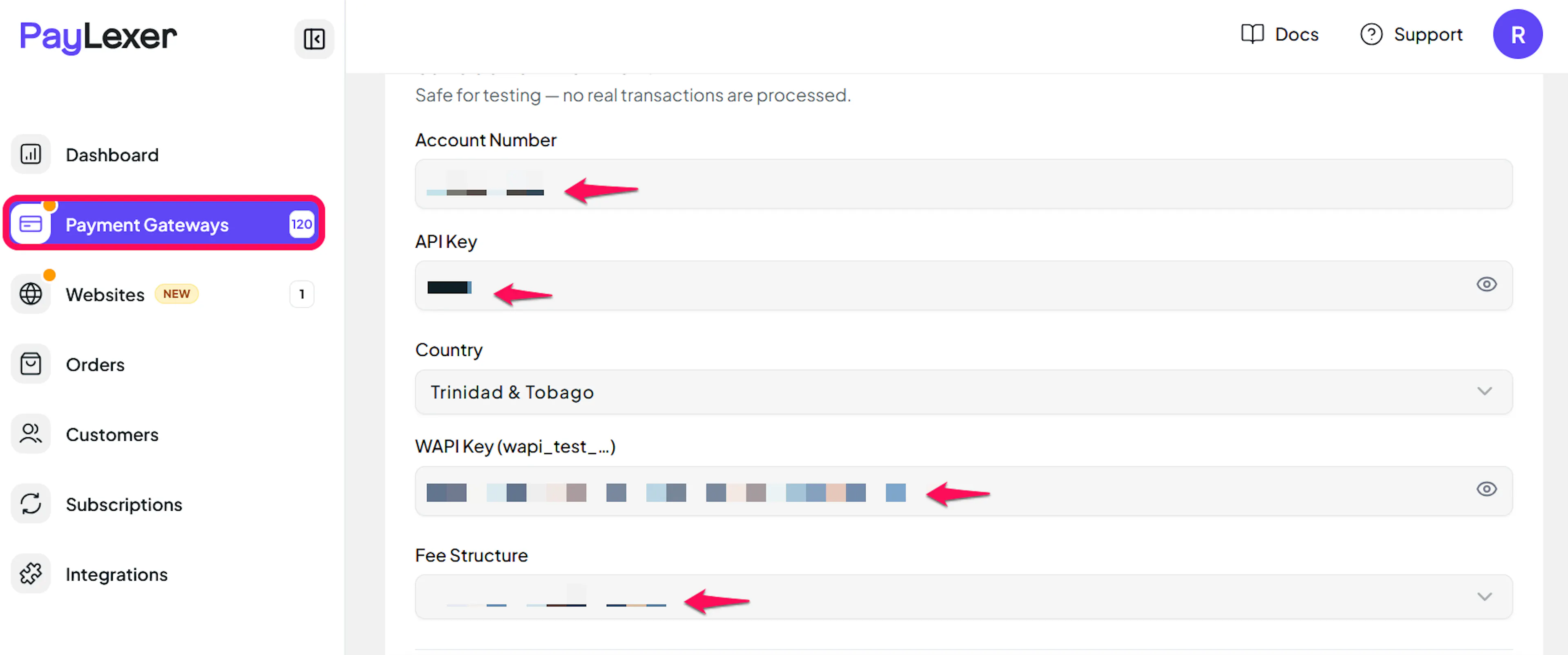
Log in to your PayLexer dashboard and navigate to Payment Gateways → WiPay.
Enter your credentials
Paste the Account Number and API Key you copied from WiPay into the corresponding fields, then choose your Country from the dropdown.
Two further fields are optional:
- Fee Structure sets who pays WiPay's processing fee. Leave it on the default so the amount charged matches your order total. Choosing Customer pays the fee charges the shopper more than the order says.
- WAPI Key is only issued to verified WiPay BUSINESS accounts. Leave it blank if you do not have one.
Understanding Live/Production and Sandbox Settings:
| Environment | Purpose |
|---|---|
| Live / Production | Used for real transactions. |
| Test / Sandbox | Used for testing only. No real money is processed. |
How PayLexer selects credentials:
- Debug/Test mode ON → Test credentials are used
- Debug/Test mode OFF → Live credentials are used
Test and save
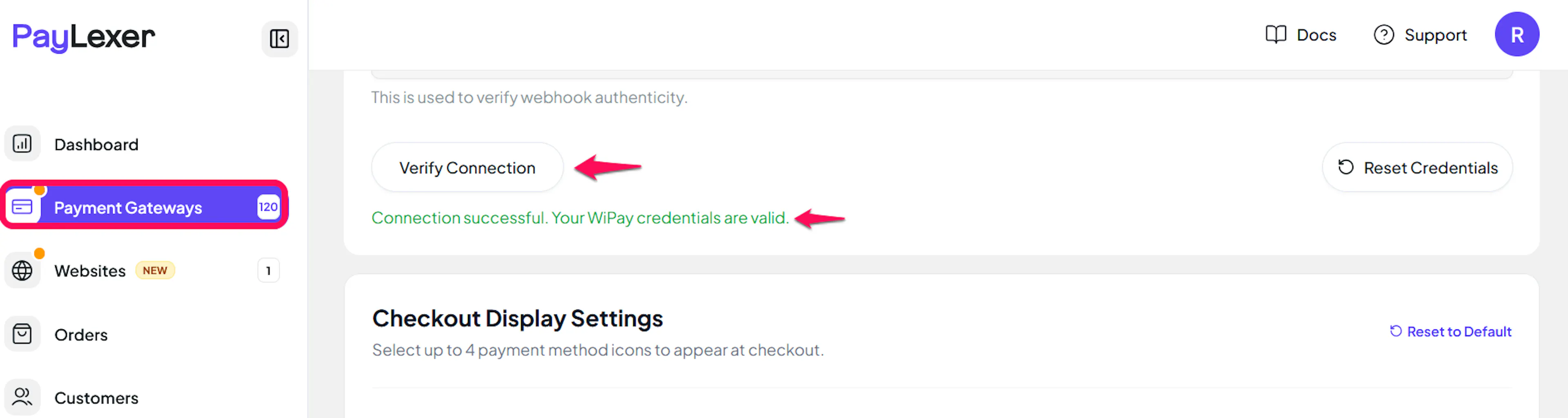
Click Save to save your configuration and verify your credentials. Click Verify Connection to test the connection.
Configuring Webhooks
Webhooks enable real-time payment updates and significantly improve reliability.
Benefits of Webhooks:
- Instant payment status updates
- Automatic refund processing
- Dispute notifications
Webhooks are registered from the Developer page of your verified WiPay BUSINESS account. If you skip this step you can still take payments, because PayLexer confirms each payment from the signed result WiPay returns with the shopper. Webhooks add refund, chargeback and fraud notifications on top of that.
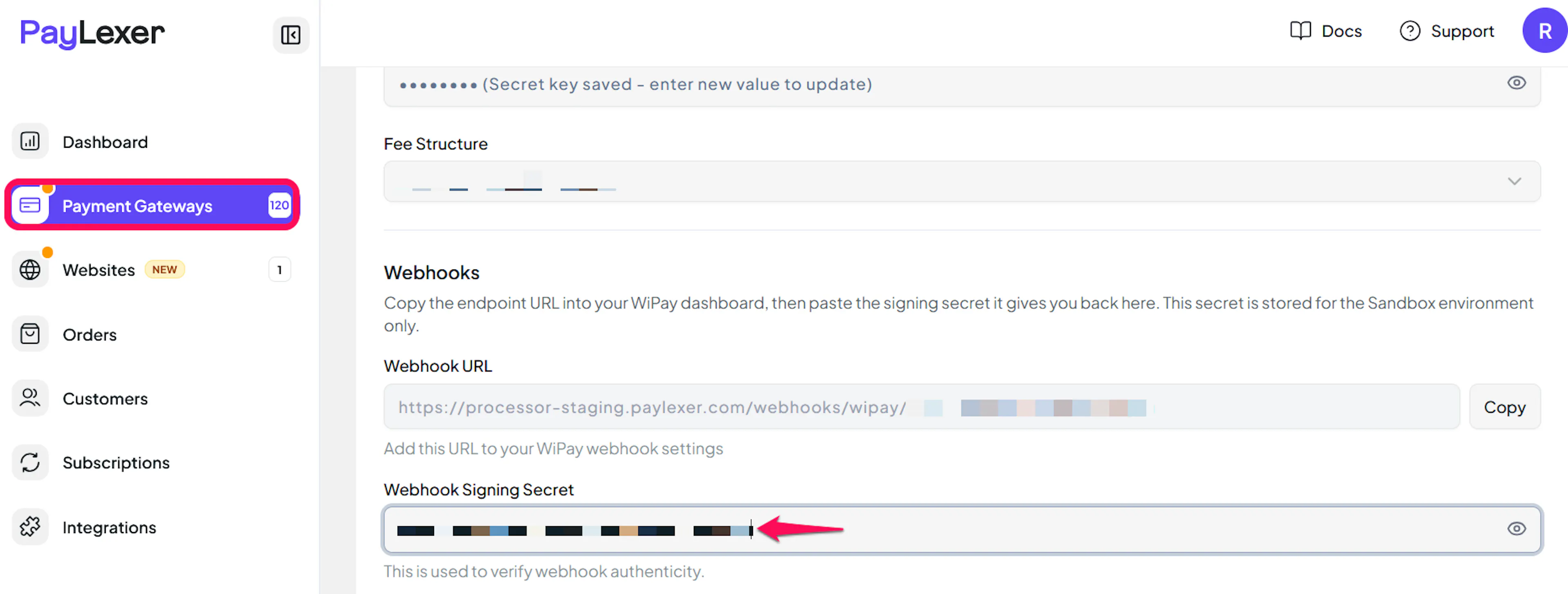
Copy your PayLexer webhook URL
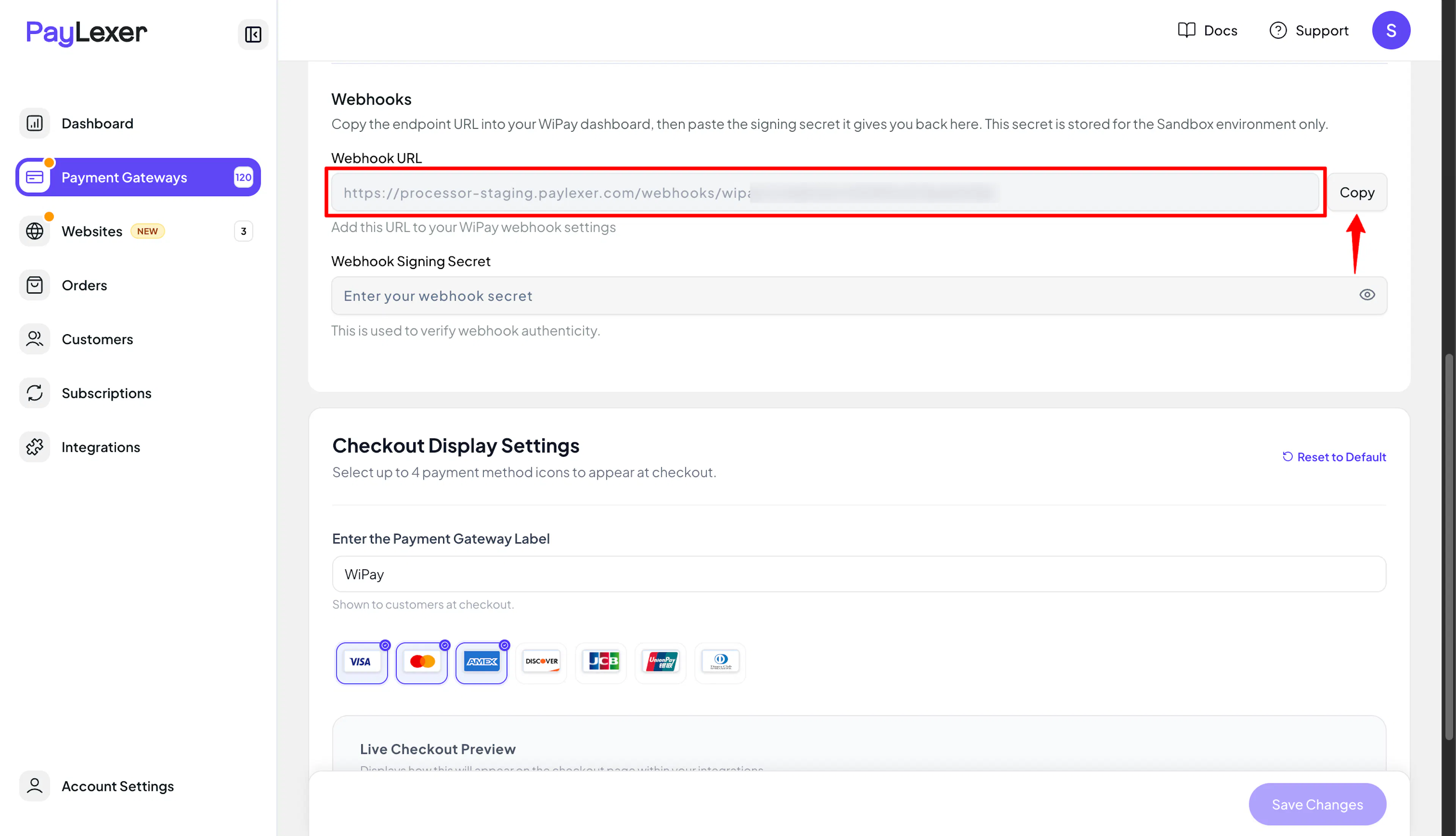
On the Payment Gateways → WiPay page in PayLexer, copy the Webhook URL. It is generated for your account and shown as a read-only field.
Open Webhooks in WiPay
In your WiPay dashboard, go to the Developer section and open Webhooks.
Register the endpoint
Create a new webhook endpoint and paste the PayLexer webhook URL you copied.
Copy the signing secret
WiPay shows you a signing secret when the endpoint is created.
The signing secret is displayed once, at creation. Copy it before closing the dialog. If you lose it you will need to rotate the endpoint secret and paste the new value into PayLexer.
Add the Webhook Signing Secret to PayLexer
Back on the Payment Gateways → WiPay page in PayLexer, paste the value into the Webhook Signing Secret field and click Save.
Integrate WiPay to Your Website
If you have already added and configured your site, you can enable WiPay in your existing setup.
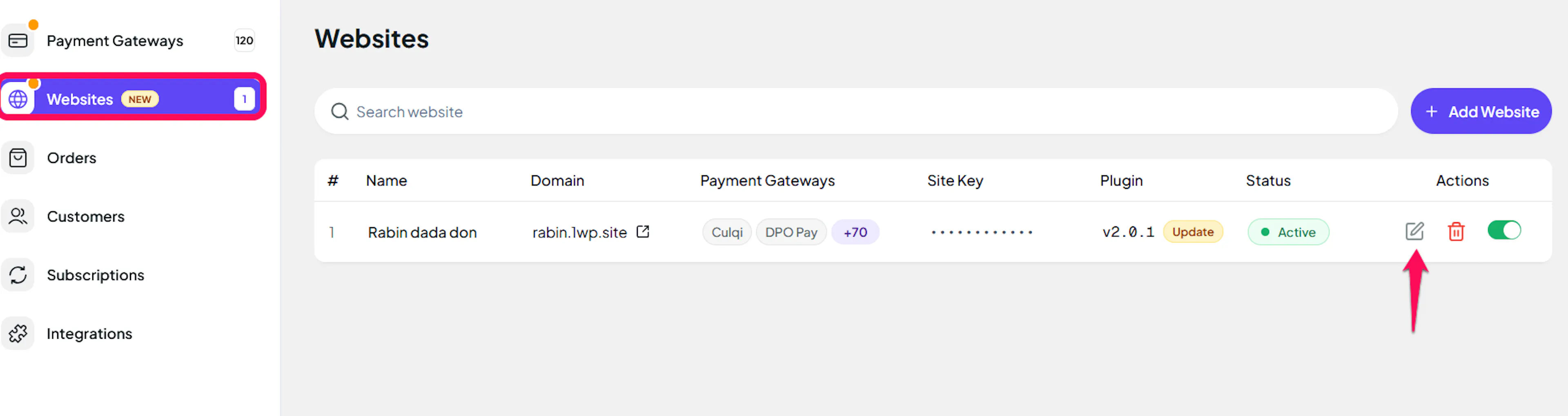
Go to Websites
Navigate to Websites in your PayLexer dashboard.
Edit your website
Click the Edit Icon of your added website.
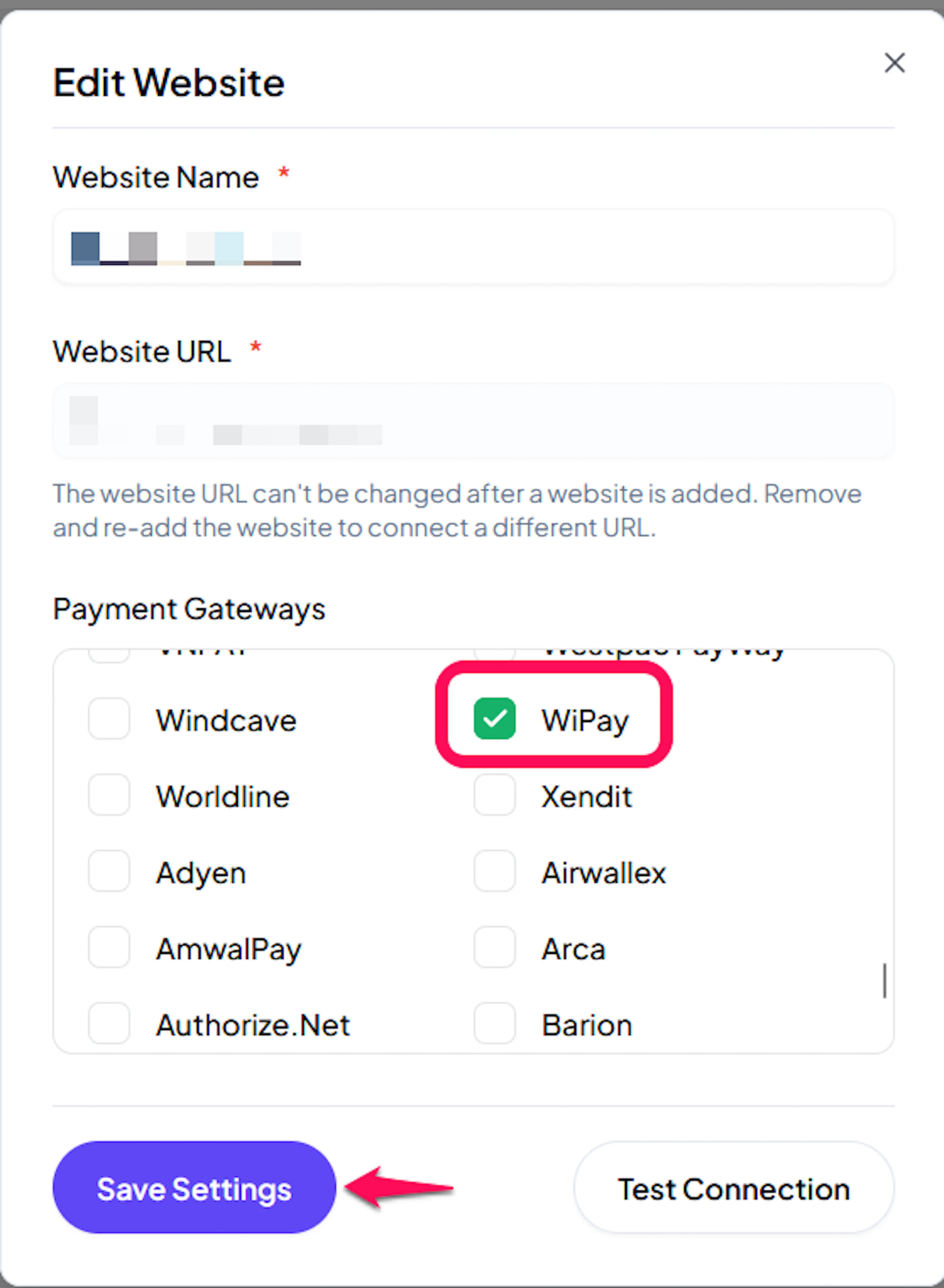
Enable WiPay
Click the checkbox to enable WiPay for the website.
If you haven't added a website yet, Continue to Add Your Website →
Troubleshooting
Best Practices
- Test in sandbox before enabling production. WiPay publishes sandbox credentials so you can run a full checkout before going live.
- Keep Fee Structure on the default so the amount charged matches your order total.
- Select the Country that matches your WiPay account. This is the single most common configuration mistake.
- Keep order amounts above WiPay's minimum. It enforces a per-currency minimum, for example $5.00 TTD, and rejects anything below it.
- Store the Webhook Signing Secret somewhere safe when WiPay first shows it, since it is only displayed once.
- Never share your API Key. It is what PayLexer uses to confirm a payment result is genuine.
FAQs
Still Have Questions?
- WiPay Support: WiPay Support
- PayLexer Support: Contact Support