

TropiPay
Connect TropiPay to PayLexer to accept payments for customers in Cuba, Latin America, and the Caribbean.
TropiPay is a digital payments platform specializing in remittances and online payments for Cuba, Latin America, and the Caribbean. It enables businesses to accept payments from customers in these regions using local and international payment methods.
- Supported Regions (Merchant Accounts): Spain, UK, USA, and other countries where TropiPay operates - view full list
- Supported Currencies: EUR, USD, and other supported currencies
Supported Features
- One-time payments
- Refunds
- Real-time payment status updates
- Payments from Cuba and Latin America
- Remittance-linked payment flows
Before You Start
Make sure you have:
- TropiPay Business Account – Don't have one? Sign up for TropiPay →
- PayLexer Account – Required to configure the integration. Create your account →
- A website where you want to integrate
Looking for a different payment processor? View all supported gateways →
Configuring TropiPay
You need a Client ID and Client Secret from TropiPay for this integration.
Getting API Credentials
Log in to TropiPay Business
Log in to your TropiPay Dashboard.
Navigate to Developer Settings
Click on Profile Icon - Applications and credentials.
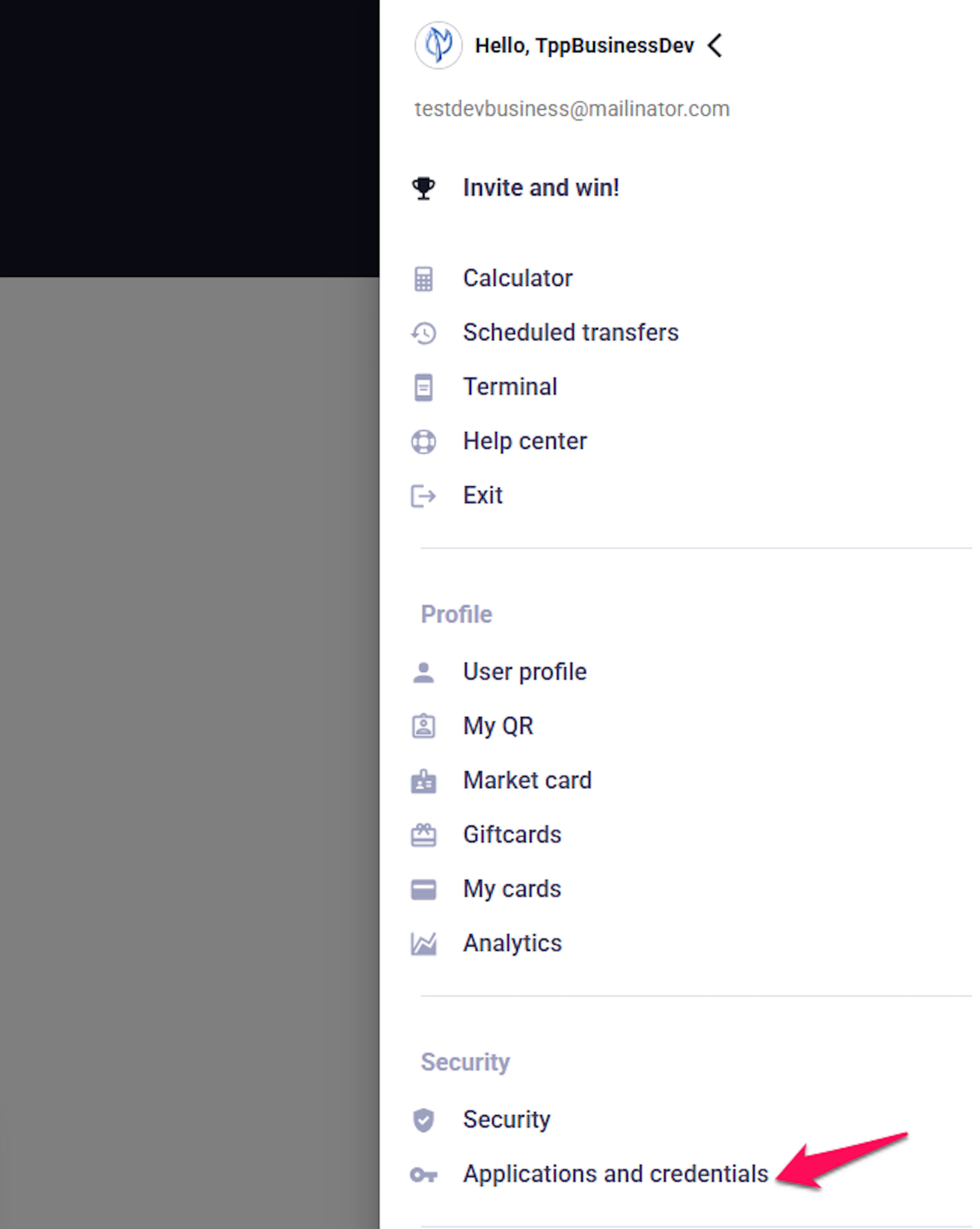
Get credentials
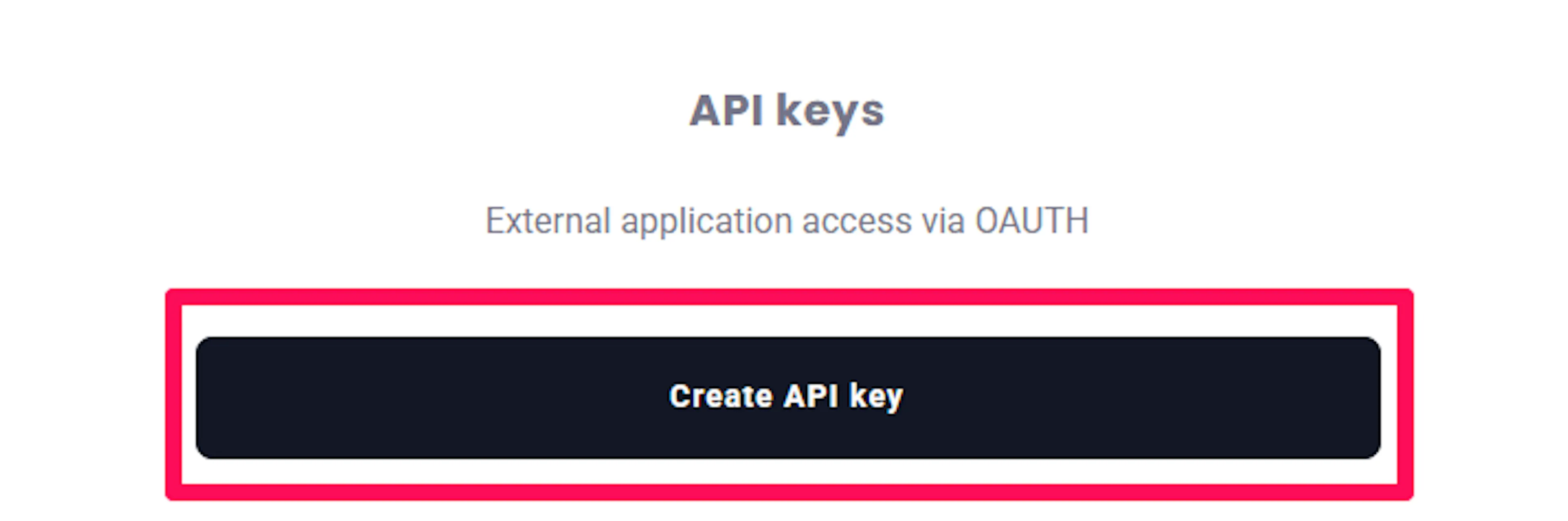
Enter SMS code then click Next and click Create API Key
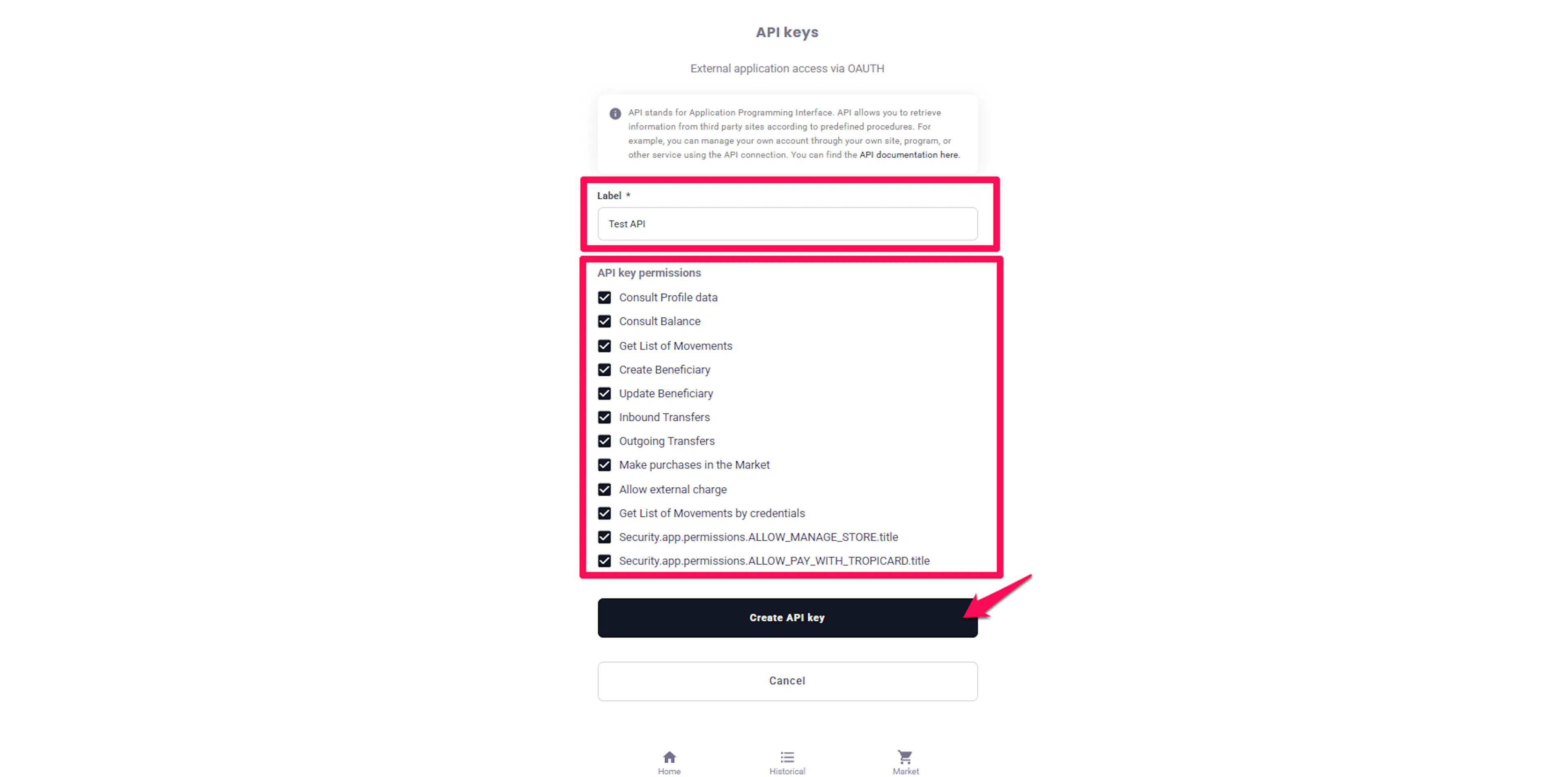
Enter Label name and select API key permissions and click Create API Key then enter SMS code and click Next
Copy your credentials
Copy your Client ID and Client Secret.
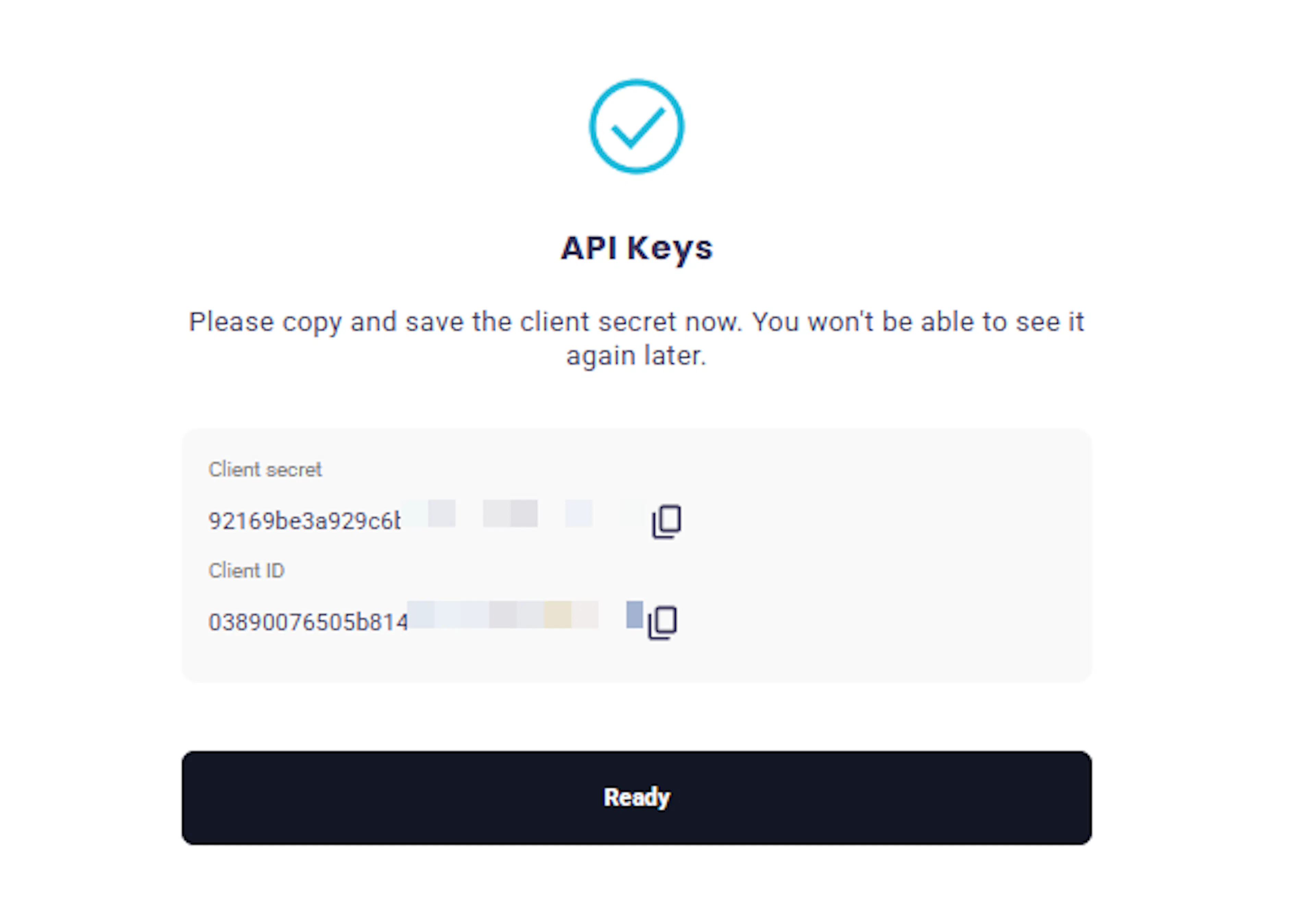
TropiPay provides separate credentials for Sandbox (testing) and Production environments.
Adding Credentials to PayLexer
Open PayLexer Dashboard
Log in to your PayLexer dashboard and navigate to Payment Gateways → TropiPay.
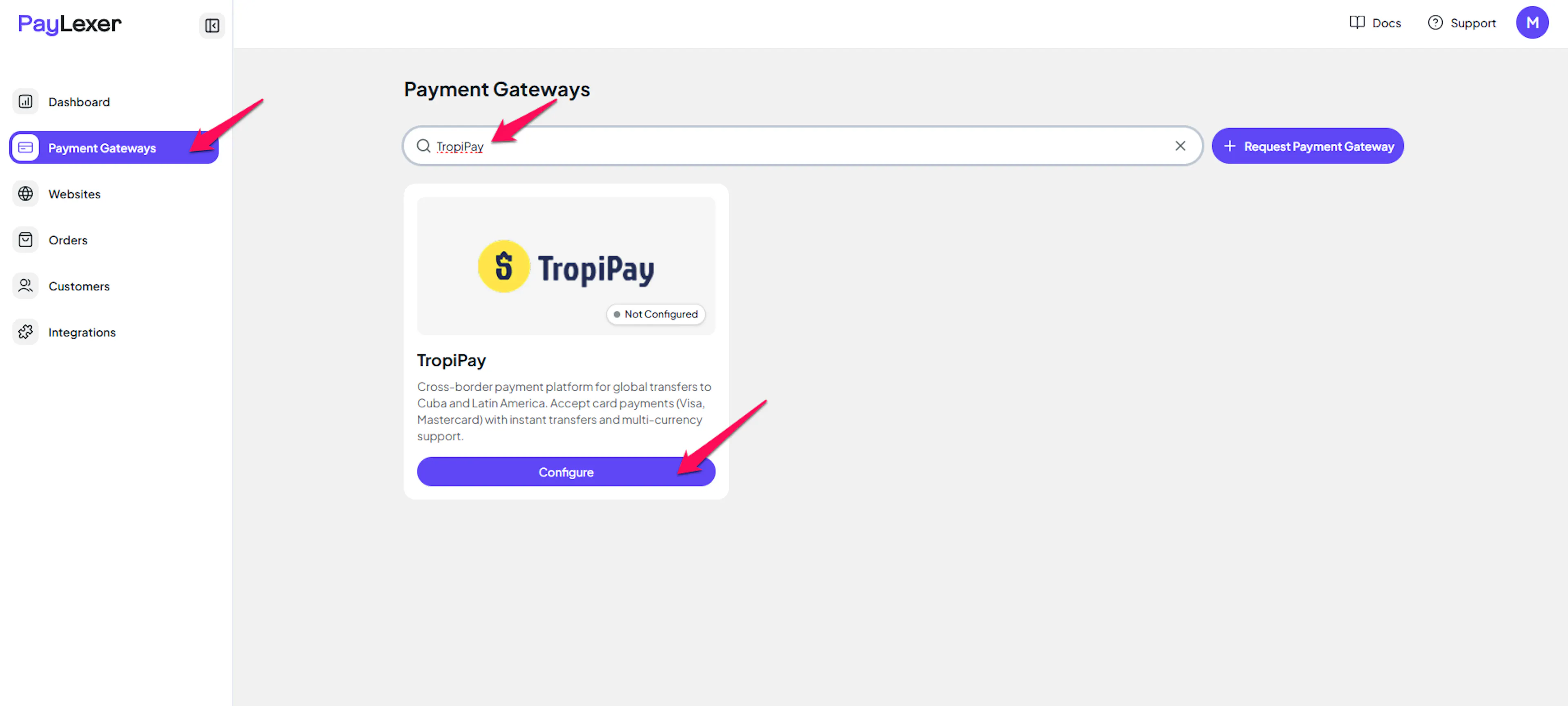
Enter your credentials
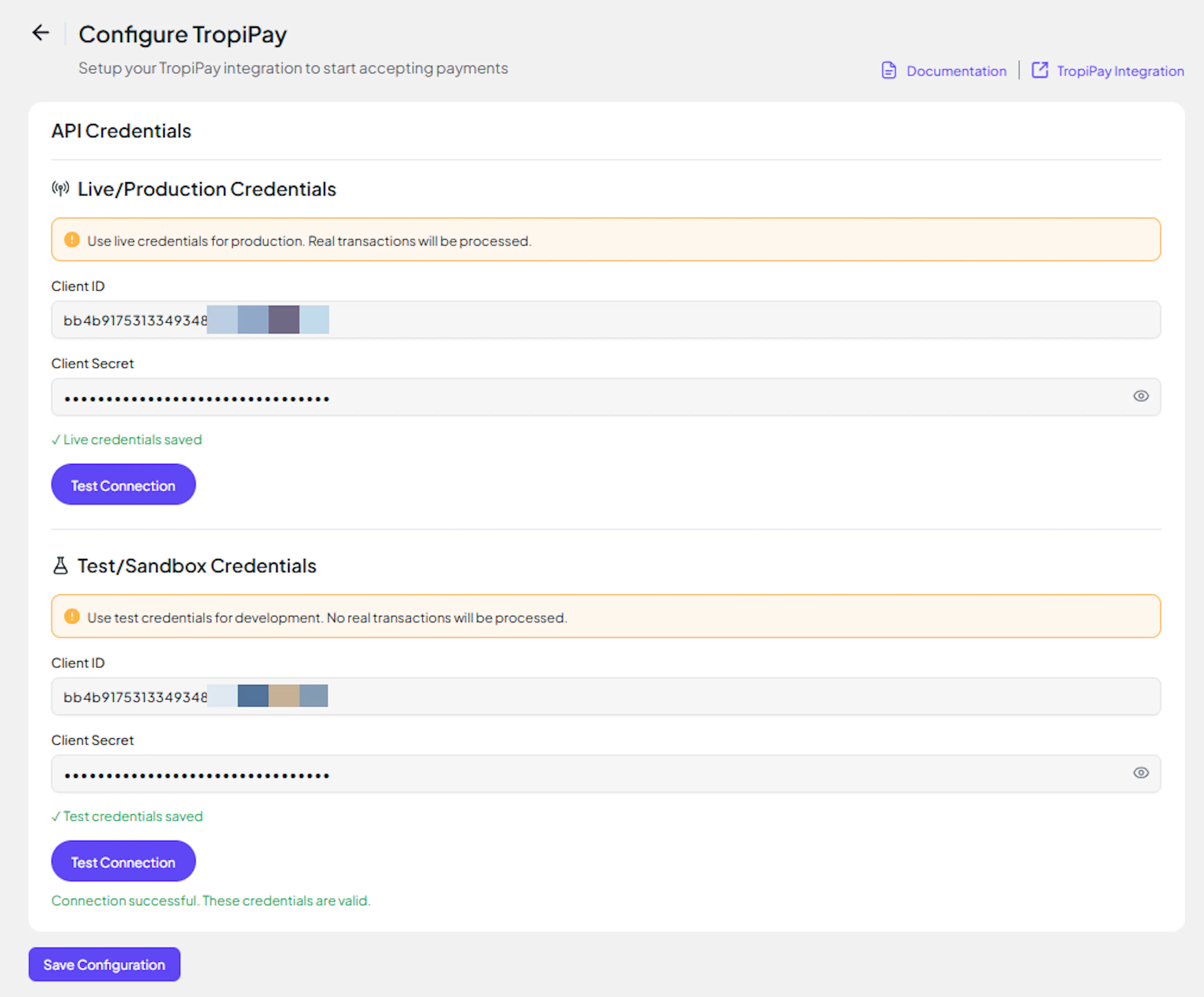
Paste the Client ID and Client Secret you copied from TropiPay.
Understanding Live/Production and Sandbox Settings:
| Environment | Purpose |
|---|---|
| Live / Production (Mandatory) | Used for real transactions. Cannot be empty, even when testing. |
| Test / Sandbox (Optional) | Used for testing only. No real money is processed. |
How PayLexer selects credentials:
- Debug/Test mode ON → Test credentials are used
- Debug/Test mode OFF → Live credentials are used
Test and save
Click Test Connection to verify your credentials, then click Save Configuration.
Understanding Payment Notifications
TropiPay supports payment notifications through notification URLs. When creating a payment, you can specify a notification URL where TropiPay will send payment status updates.
How Payment Notifications Work
When you create a payment through TropiPay:
- Payment link is created with your notification URL
- Customer completes payment
- TropiPay sends notification to your URL
- Payment status is updated instantly
- Order is updated in your platform
PayLexer automatically handles notification configuration for each payment - no manual setup required.
Integrate TropiPay to Your Website
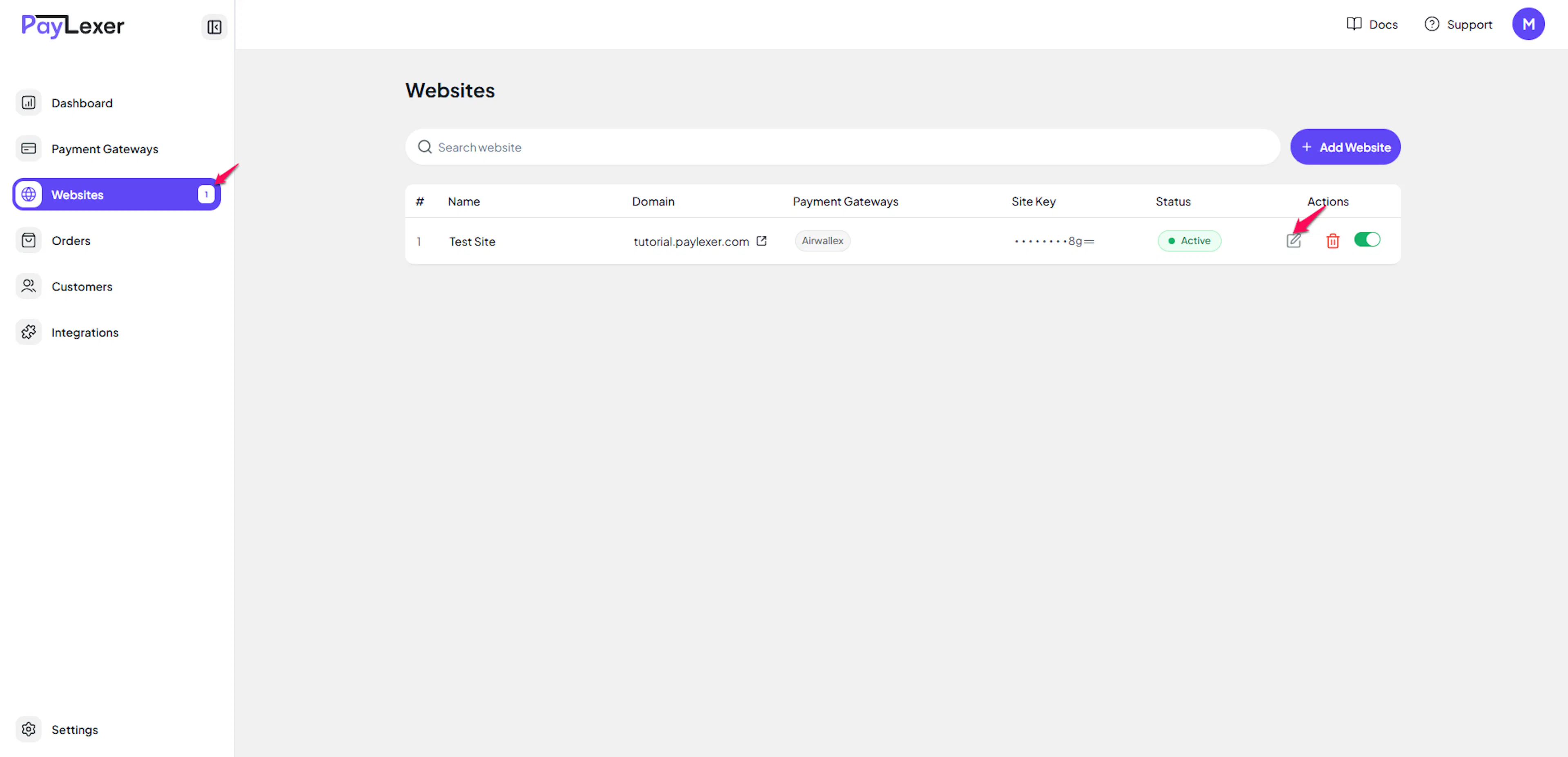
Go to Websites
Navigate to Websites in your PayLexer dashboard.
Edit your website
Click the Edit Icon of your added website.
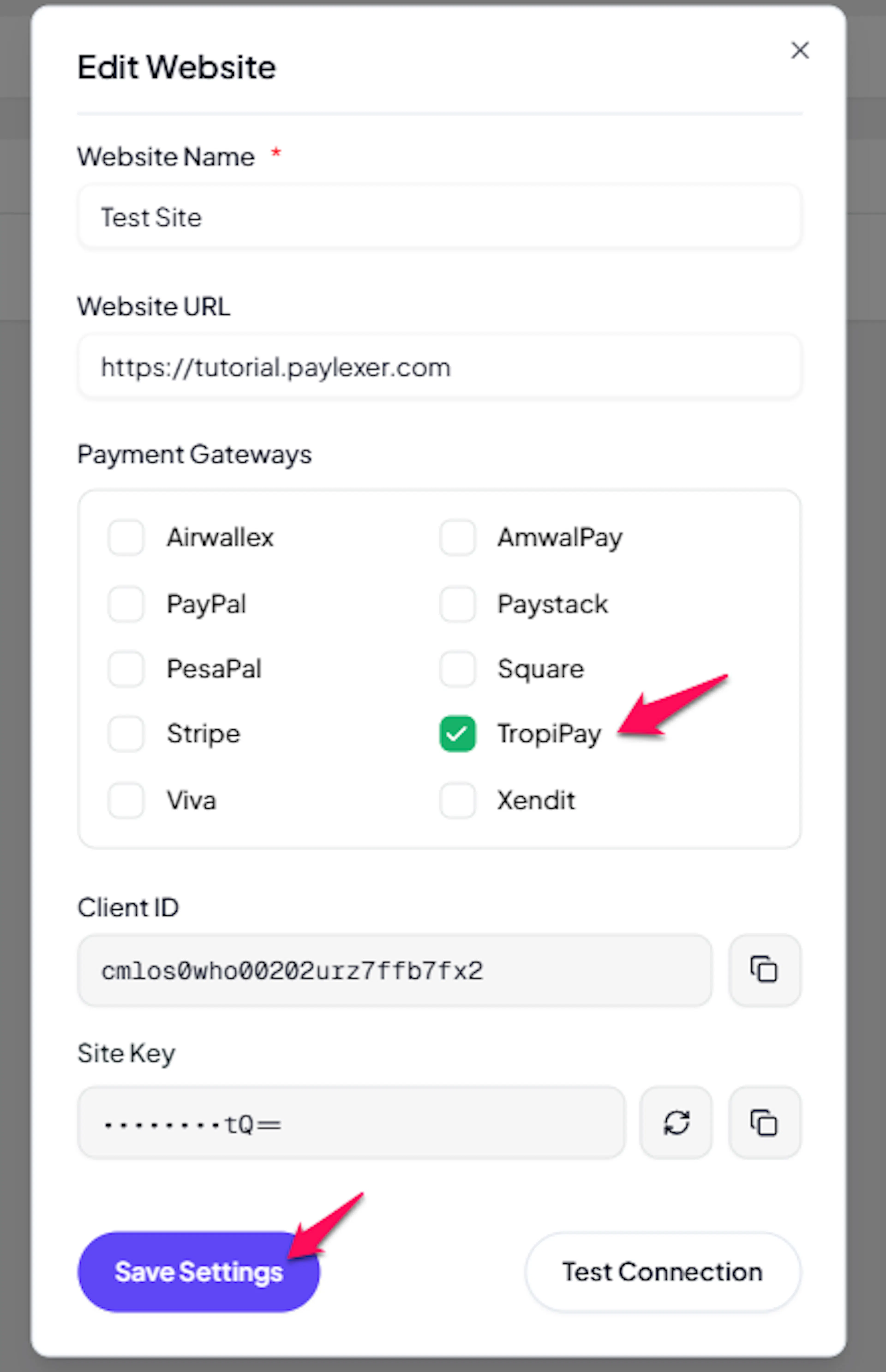
Enable TropiPay
Click the checkbox to enable TropiPay for the website.
If you haven't added a website yet, → Continue to Add Your Website
Troubleshooting
Best Practices
- Test in Sandbox before enabling Production mode
- Validate the first live transaction
- Keep Client Secret secure
- Use separate Sandbox and Production credentials
FAQs
Still Have Questions?
- TropiPay Support: TropiPay Help Center
- PayLexer Support: Contact Support