

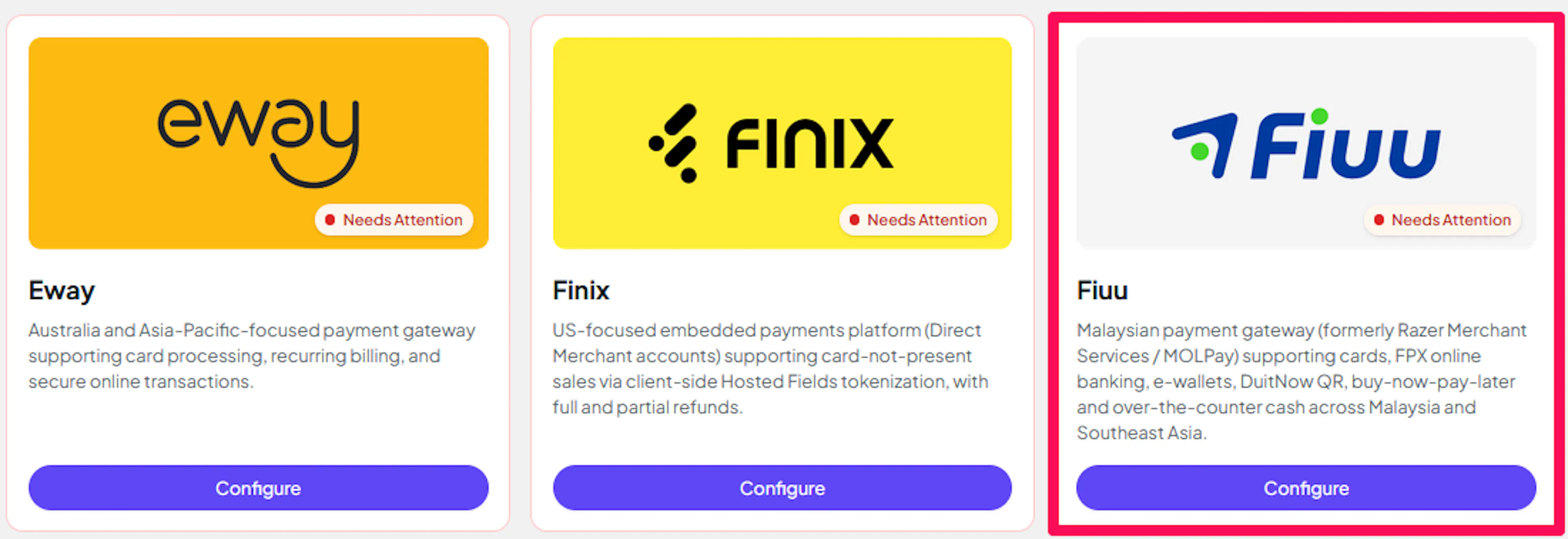
Fiuu
Connect Fiuu to PayLexer to accept cards, FPX online banking, e-wallets, DuitNow QR and over-the-counter cash across Malaysia and Southeast Asia.
Fiuu is Malaysia's largest home-grown payment gateway, known previously as Razer Merchant Services and, before that, MOLPay. Through a single integration, Fiuu lets merchants collect the payment methods Southeast Asian shoppers use most: cards, FPX online banking, e-wallets such as Touch 'n Go, GrabPay, Boost and ShopeePay, DuitNow QR, buy-now-pay-later and even over-the-counter cash.
- Supported Regions (Merchant Accounts): Southeast Asia and beyond (including Malaysia, Singapore, Thailand, Indonesia, Philippines, Vietnam, China and Taiwan) - view full list
- Supported Currencies: MYR, SGD, THB, IDR, PHP, VND, USD, CNY, TWD, AUD, EUR, GBP - view full list
Supported Features
- Hosted checkout that redirects shoppers to Fiuu's secure payment page
- Card payments, FPX online banking, e-wallets, DuitNow QR, buy-now-pay-later and over-the-counter cash
- Full and partial refunds
- Real-time payment notifications, signed by Fiuu and verified by PayLexer
- Automatic follow-up on payments that fail on Fiuu's page, since Fiuu sends no notification for them
- Automatic reconciliation of refunds issued inside the Fiuu portal, once they settle
- Separate test and live credentials for safe testing
Subscriptions and recurring billing are not available through Fiuu in PayLexer. Fiuu's recurring API charges a saved card only when asked, with no schedule of its own, and the plans that do bill automatically can be created only by hand inside the Fiuu portal. Only one-time payments are available.
Before You Start
Make sure you have:
- Fiuu Account – Don't have one? Get started with Fiuu →
- Fiuu sandbox credentials – Fiuu does not offer self-service test accounts. Email support@fiuu.com to request a sandbox or developer account
- PayLexer Account – Required to configure the integration. Create your account →
- A website where you want to integrate
Looking for a different payment processor? View all supported gateways →
Configuring Fiuu
You need a Merchant ID, Verify Key and Secret Key from Fiuu for this integration.
Getting API Credentials
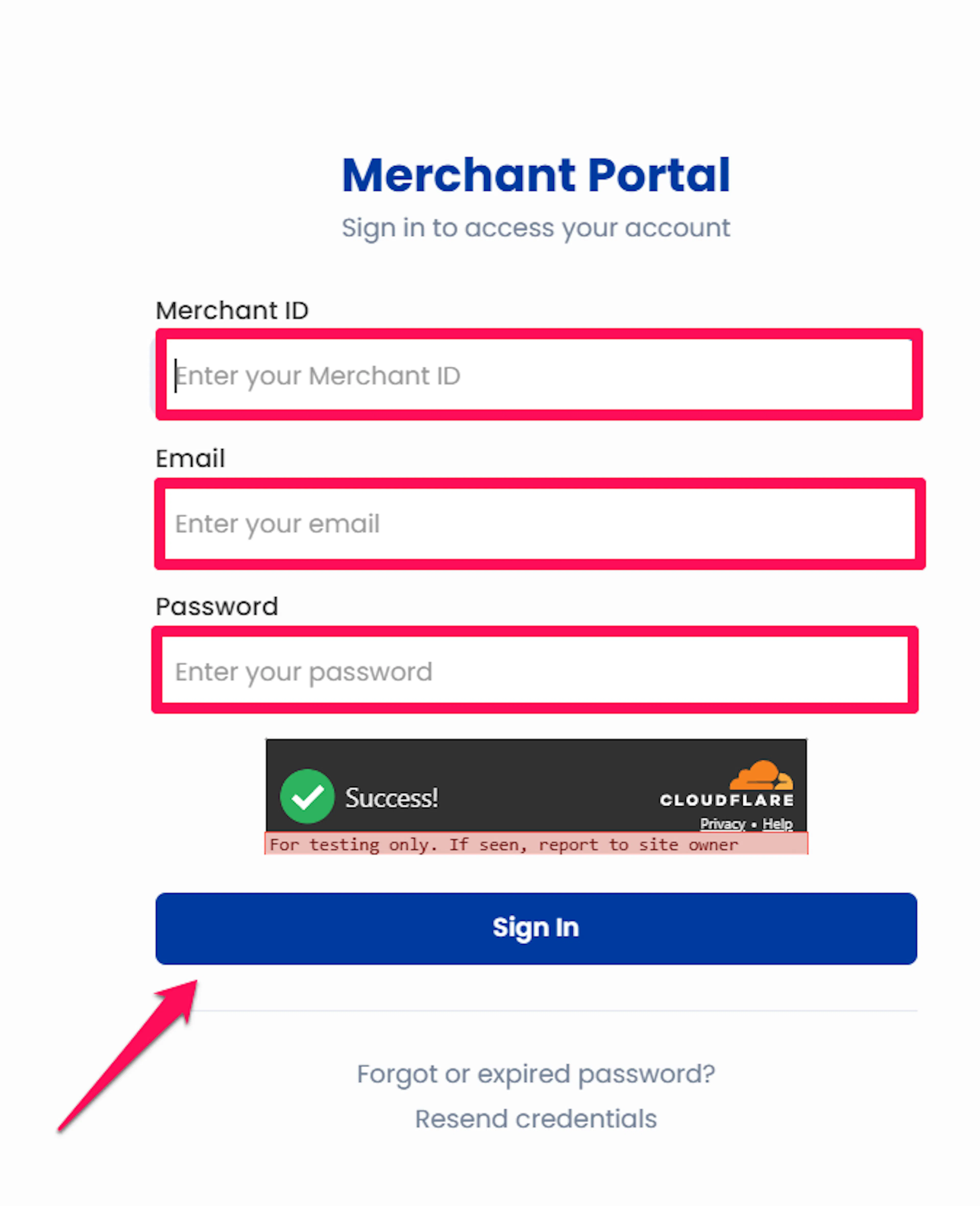
Log in to the Fiuu portal
Sign in to your Fiuu merchant portal. For sandbox credentials, sign in to the Fiuu sandbox portal instead, which is a separate system with its own login.
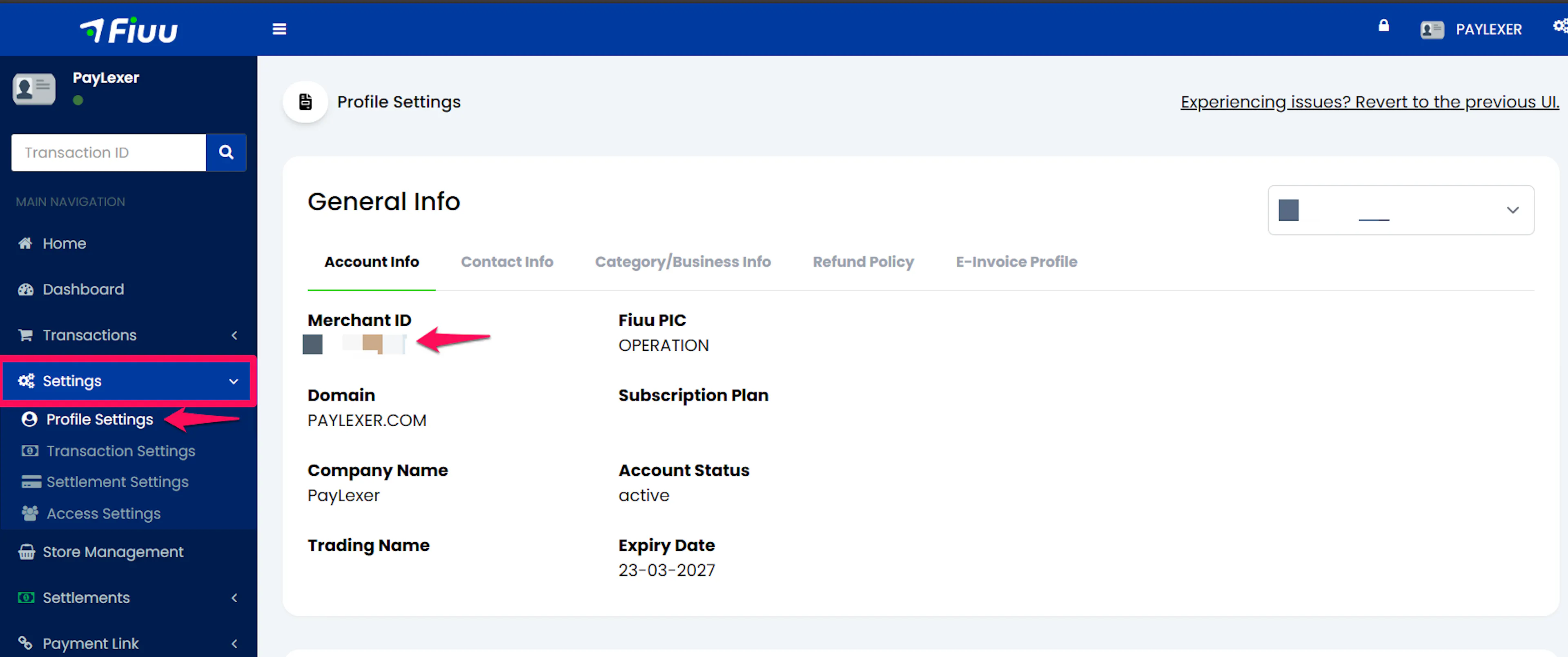
Copy your Merchant ID
Go to Settings → Profile Settings. Copy the Merchant ID shown there.
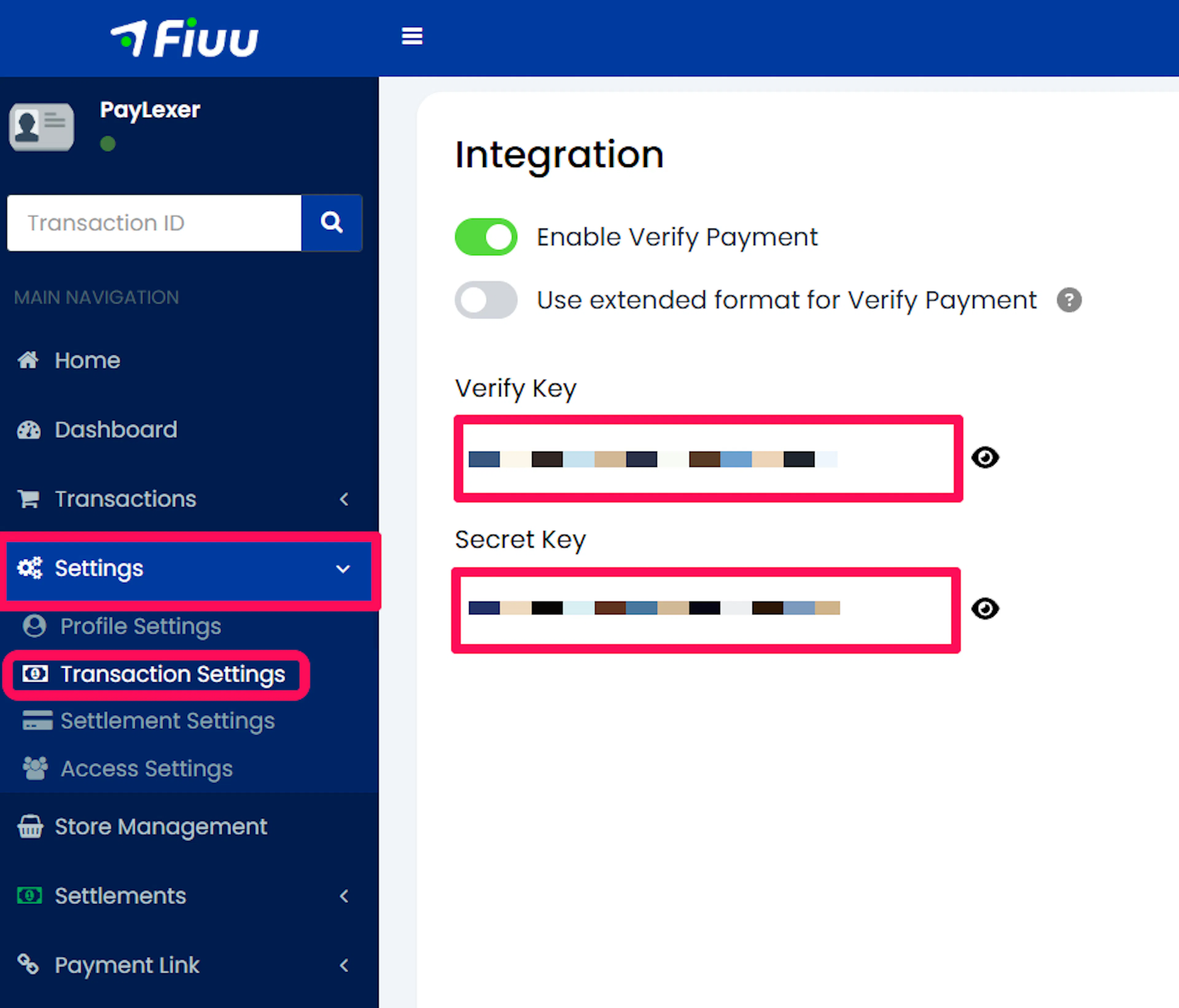
Copy the Verify Key and Secret Key
Go to Settings → Transaction Settings and find the Integration panel. Copy the Verify Key and the Secret Key shown there. Both are required: the Verify Key secures your payment requests, and the Secret Key lets PayLexer confirm that notifications genuinely came from Fiuu. Keep both private.
Copy all three values exactly, with no leading or trailing spaces. They are used to build security signatures, so a single stray space produces a signature Fiuu rejects, with no message explaining why.
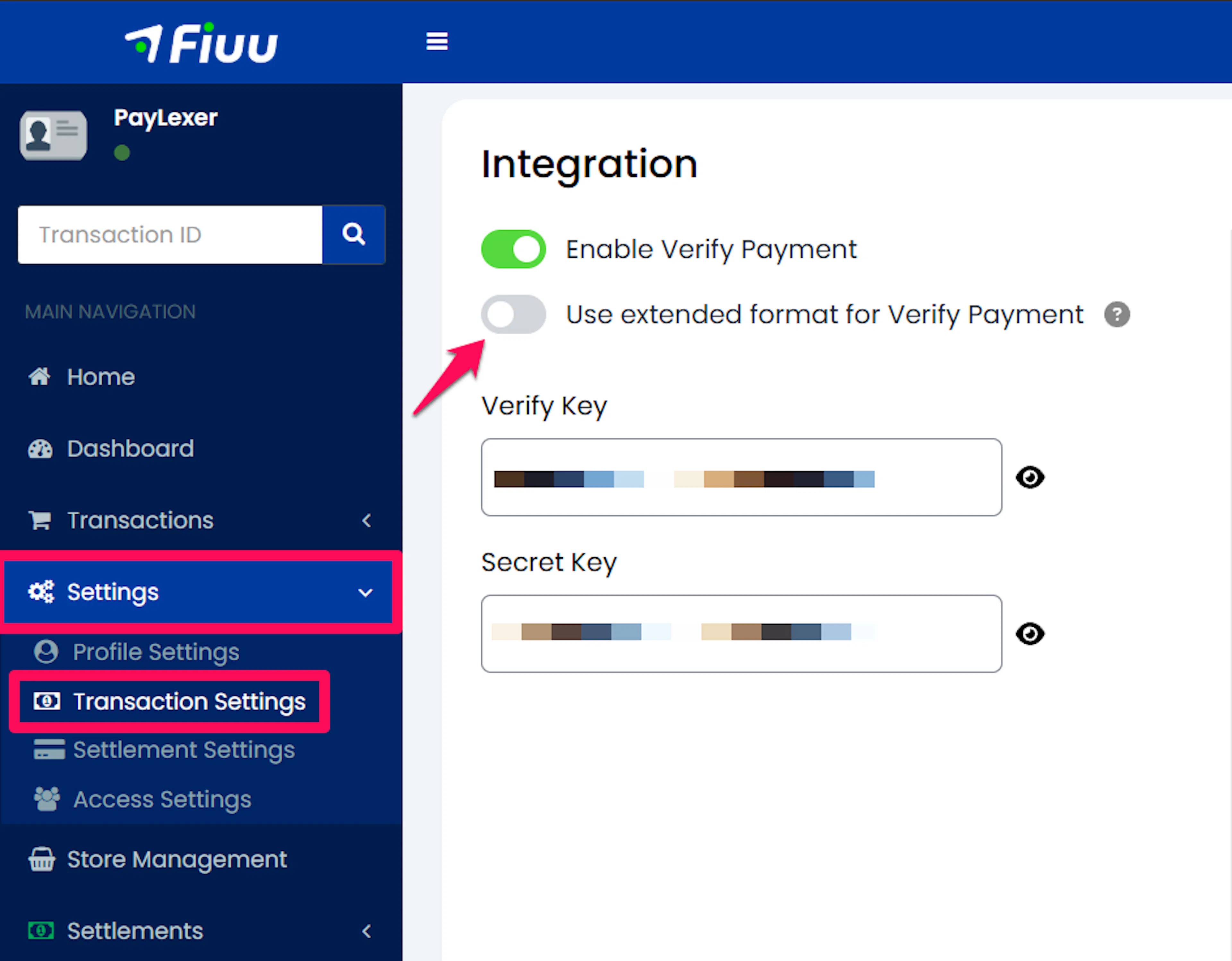
Check the Extended vcode setting
On the same Settings → Transaction Settings screen, in the Integration panel, look for Use extended format for Verify Payment. Note whether it is switched on or off. You will need to record this in PayLexer in the next section.
Adding Credentials to PayLexer
Open PayLexer Dashboard
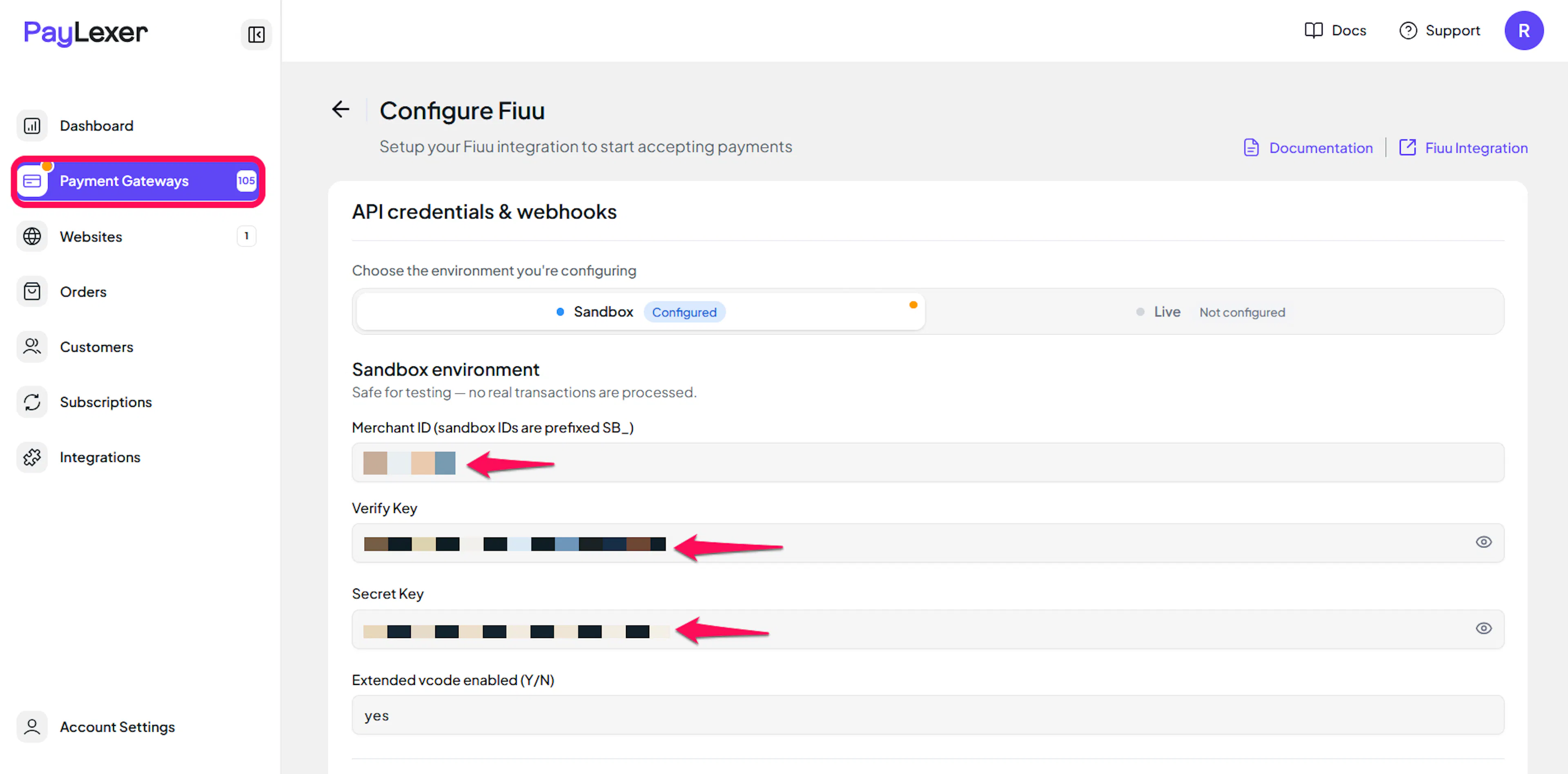
Log in to your PayLexer dashboard and navigate to Payment Gateways → Fiuu.
Enter your credentials
Paste the Merchant ID, Verify Key and Secret Key you copied from Fiuu into the corresponding fields. In Extended vcode enabled, choose Yes if Use extended format for Verify Payment is switched on in your Fiuu portal, or No if it is off.
Understanding Live/Production and Sandbox Settings:
| Environment | Purpose |
|---|---|
| Live / Production | Used for real transactions. |
| Test / Sandbox | Used for testing only. No real money is processed. |
How PayLexer selects credentials:
- Debug/Test mode ON → Test credentials are used
- Debug/Test mode OFF → Live credentials are used
Sandbox and live are entirely separate systems at Fiuu. A sandbox Merchant ID is prefixed SB_ and works only in test mode, and a live Merchant ID works only in live mode. Mixing them up produces a connection failure.
Save and verify
Click Save to store your configuration, then click Verify Connection to test your credentials.
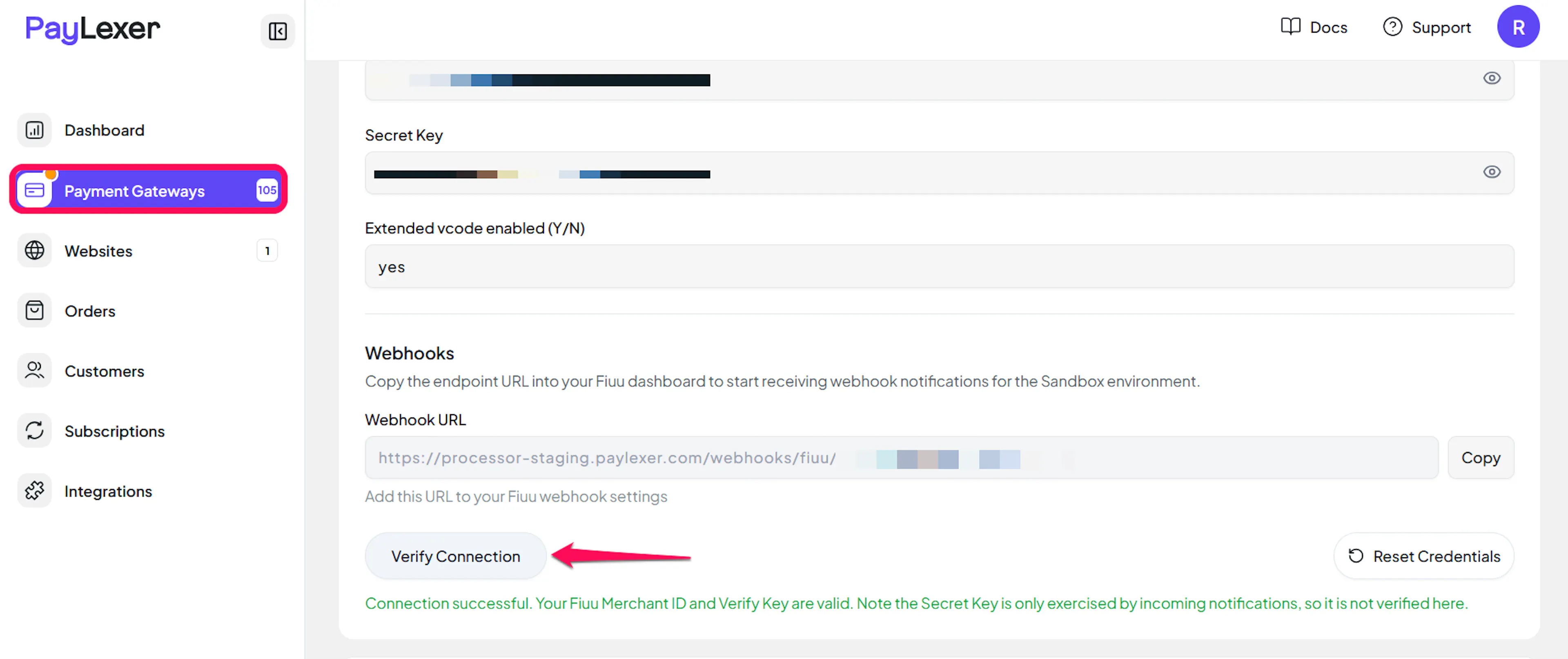
Verify Connection checks your Merchant ID and Verify Key together, because those are the only credentials Fiuu will check without a real transaction. Your Secret Key is used only to verify incoming notifications, so a mistake in it shows up later as notifications being rejected rather than as a failed connection test.
Configuring Webhooks (Mandatory)
Webhooks enable real-time payment updates and significantly improve reliability.
Benefits of Webhooks:
- Instant payment status updates
- Automatic refund status updates
Fiuu is different from most gateways here. PayLexer sends its webhook address to Fiuu with every payment, but Fiuu only uses addresses that are saved in your portal's End Points, so you still need to add it there once.
Copy your PayLexer webhook URL
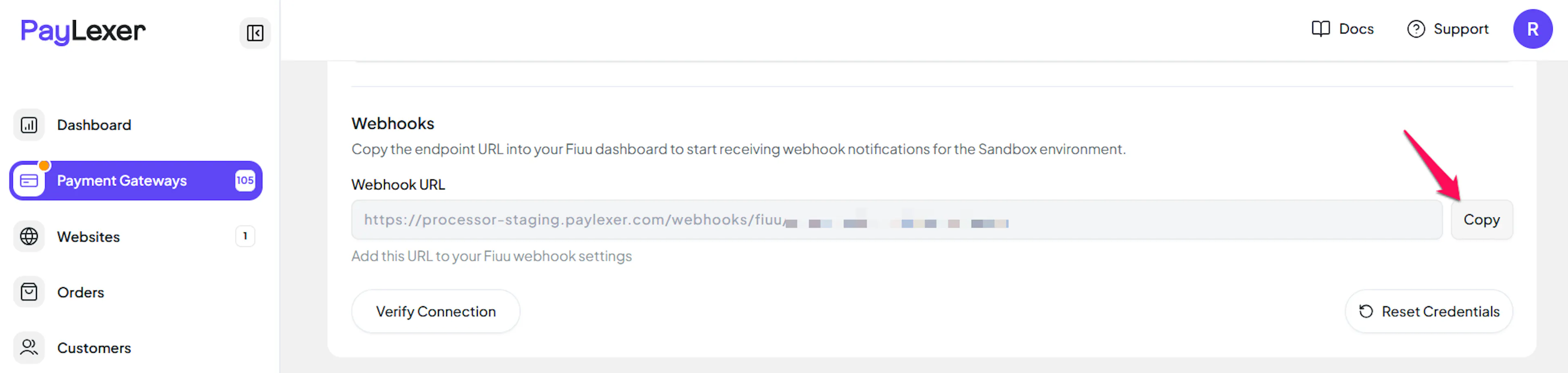
On the Payment Gateways → Fiuu page in PayLexer, copy the Webhook URL. It is generated for your account and shown as a read-only field.
Paste it into Fiuu's End Points
In the Fiuu portal, go to Settings → Transaction Settings and find the End Points panel. Using the pencil icon beside each field, paste the PayLexer webhook URL into Notification URL and Callback URL, then save.
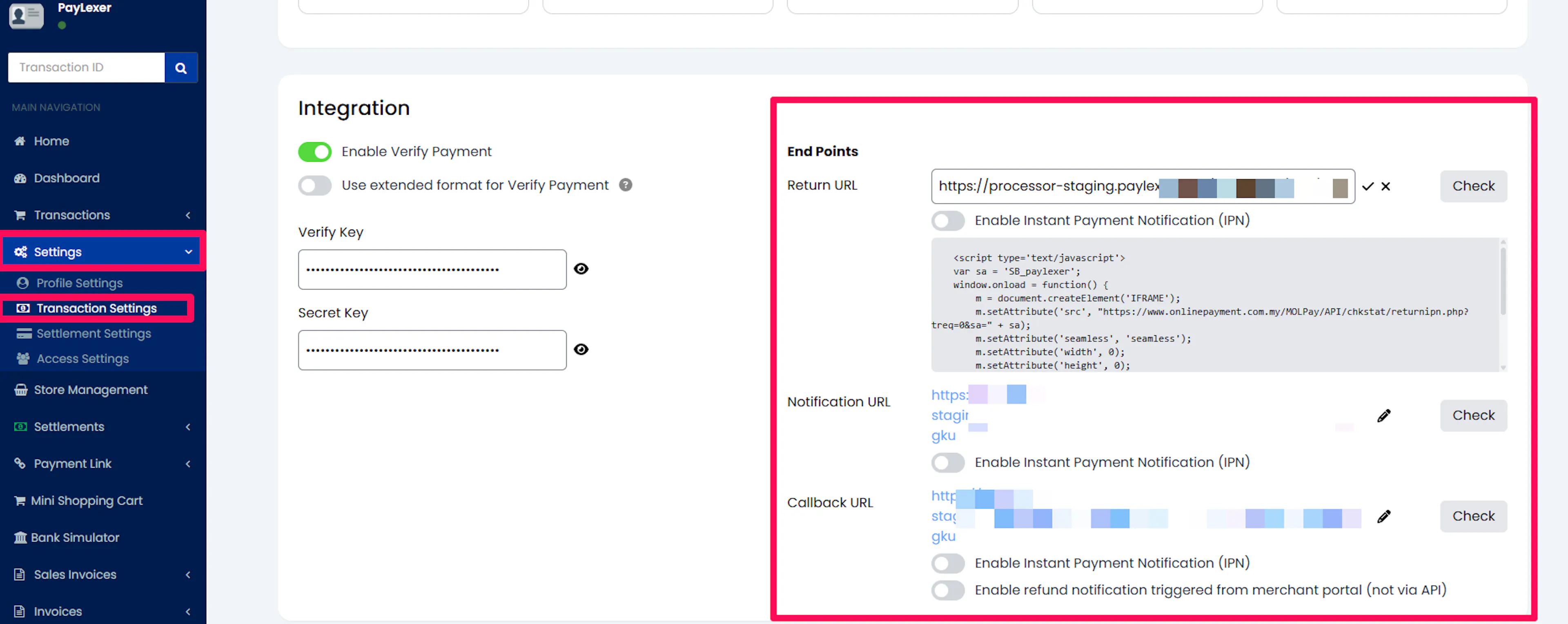
Return URL does not need changing. PayLexer sends its own return address on every payment, which overrides whatever is saved here, so that the shopper comes back through PayLexer and the result is verified before the order is completed.
Switch on the notification toggles
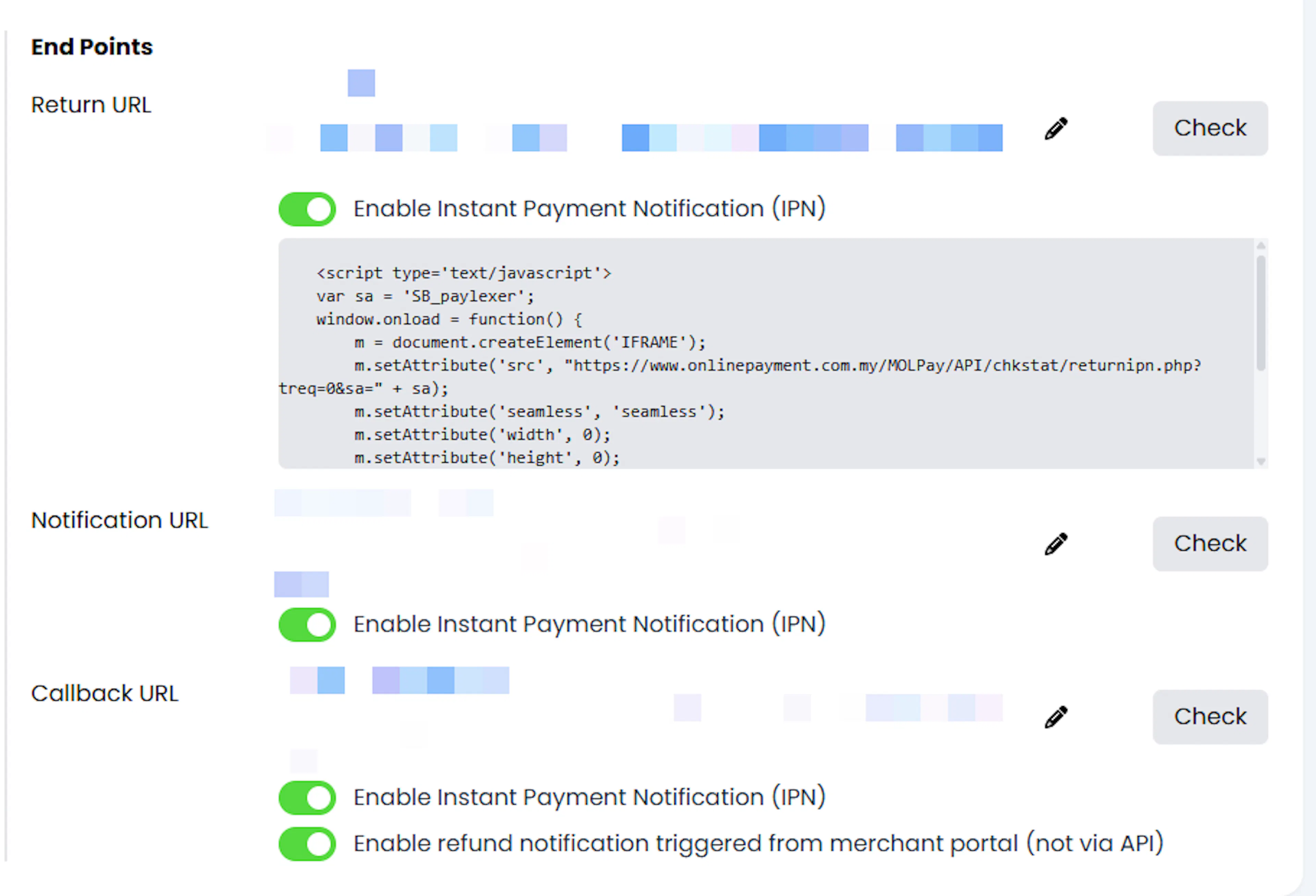
Under both Notification URL and Callback URL, turn on Enable Instant Payment Notification (IPN).
Under Callback URL, also turn on Enable refund notification triggered from merchant portal (not via API). Without it, a refund you issue inside the Fiuu portal is only picked up later from Fiuu's settlement report.
Test it
Place a small test payment with Debug/Test mode ON and check that the order updates in PayLexer. You can also use the Check button beside each End Point in Fiuu to confirm the address is reachable.
If Fiuu rejects the PayLexer address, or payments succeed while orders stay pending, ask Fiuu Support to register PayLexer's domain against your Merchant ID. Fiuu restricts return and callback addresses to your own registered website on some accounts, and PayLexer's domain is by definition a different one.
There is no separate webhook secret to enter. Fiuu signs every notification with your Secret Key, so saving your credentials is all PayLexer needs to verify that a notification genuinely came from Fiuu.
Integrate Fiuu to Your Website
If you have already added and configured your site, you can enable Fiuu in your existing setup.
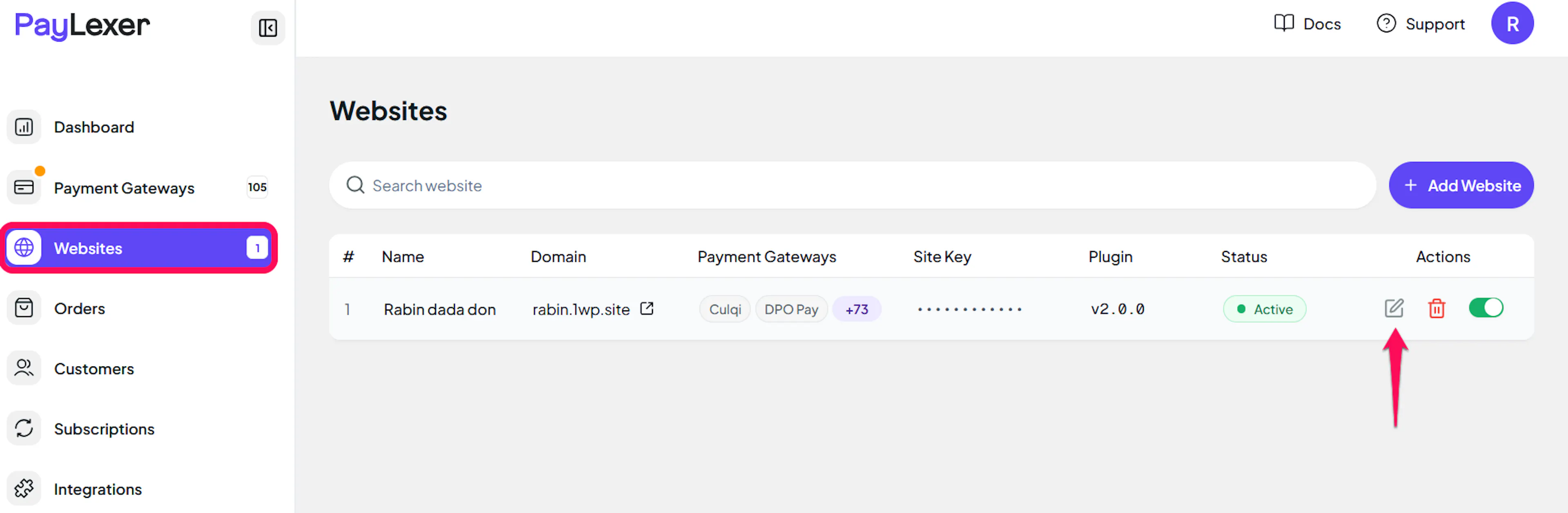
Go to Websites
Navigate to Websites in your PayLexer dashboard.
Edit your website
Click the Edit Icon of your added website.
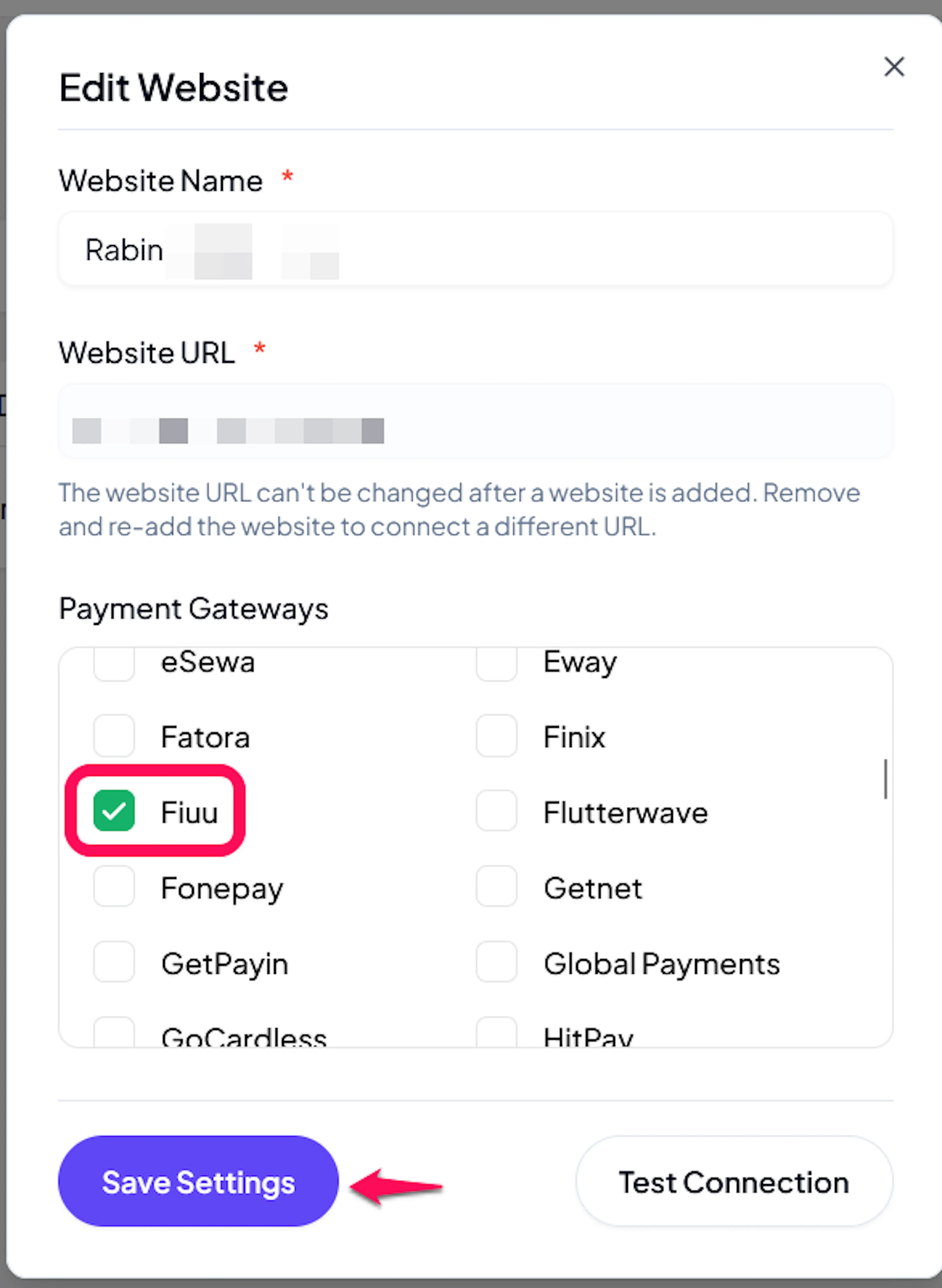
Enable Fiuu
Click the checkbox to enable Fiuu for the website.
If you haven't added a website yet, Continue to Add Your Website →
Troubleshooting
Best Practices
- Test in sandbox before enabling production, using your Fiuu sandbox credentials with Debug/Test mode ON
- Save the PayLexer webhook URL in Fiuu's End Points and switch on the IPN toggles before taking live payments
- Set Extended vcode enabled to match your Fiuu portal, and re-check it if you ever change it at Fiuu
- Collect a customer phone number at checkout, as Fiuu expects one
- Issue refunds from PayLexer rather than the Fiuu portal, so they appear straight away
- Keep your Verify Key and Secret Key private and ask Fiuu to reissue them if you suspect they have been exposed
- Reconcile your PayLexer orders against your Fiuu portal periodically
FAQs
Still Have Questions?
- Fiuu Support: Contact Support
- Support Email: support@fiuu.com
- PayLexer Support: Contact Support