

Khalti
Accept Khalti wallet, banking, connectIPS, and card payments in Nepalese rupees through PayLexer.
Khalti is Nepal's largest digital wallet and payment gateway, giving shoppers a single hosted checkout that covers the Khalti wallet, mobile banking, internet banking, connectIPS, and cards. It settles exclusively in Nepalese rupees, and the shopper completes payment entirely on Khalti's own page - your store never collects a wallet PIN or a card number.
- Supported Regions (Merchant Accounts): Nepal
- Supported Currencies: NPR
This gateway appears in checkout only when the selected currency is NPR.
Supported Features
- Hosted checkout covering the Khalti wallet, mobile banking, internet banking, connectIPS, and card payments
- Full and partial refunds initiated directly from your store
- Automatic completion of payments a shopper finished but never returned to confirm
- Automatic detection of full refunds issued from Khalti's own merchant dashboard
- Sandbox and live credentials stored and used separately
Before You Start
Make sure you have:
- Khalti Merchant Account – Don't have one? Sign up for Khalti →
- PayLexer Account – Required to configure the integration. Create your account →
- A website where you want to integrate
Looking for a different payment processor? View all supported gateways →
Configuring Khalti
You need a Live Secret Key (Sandbox Secret Key for testing) from Khalti for this integration.
Getting API Credentials
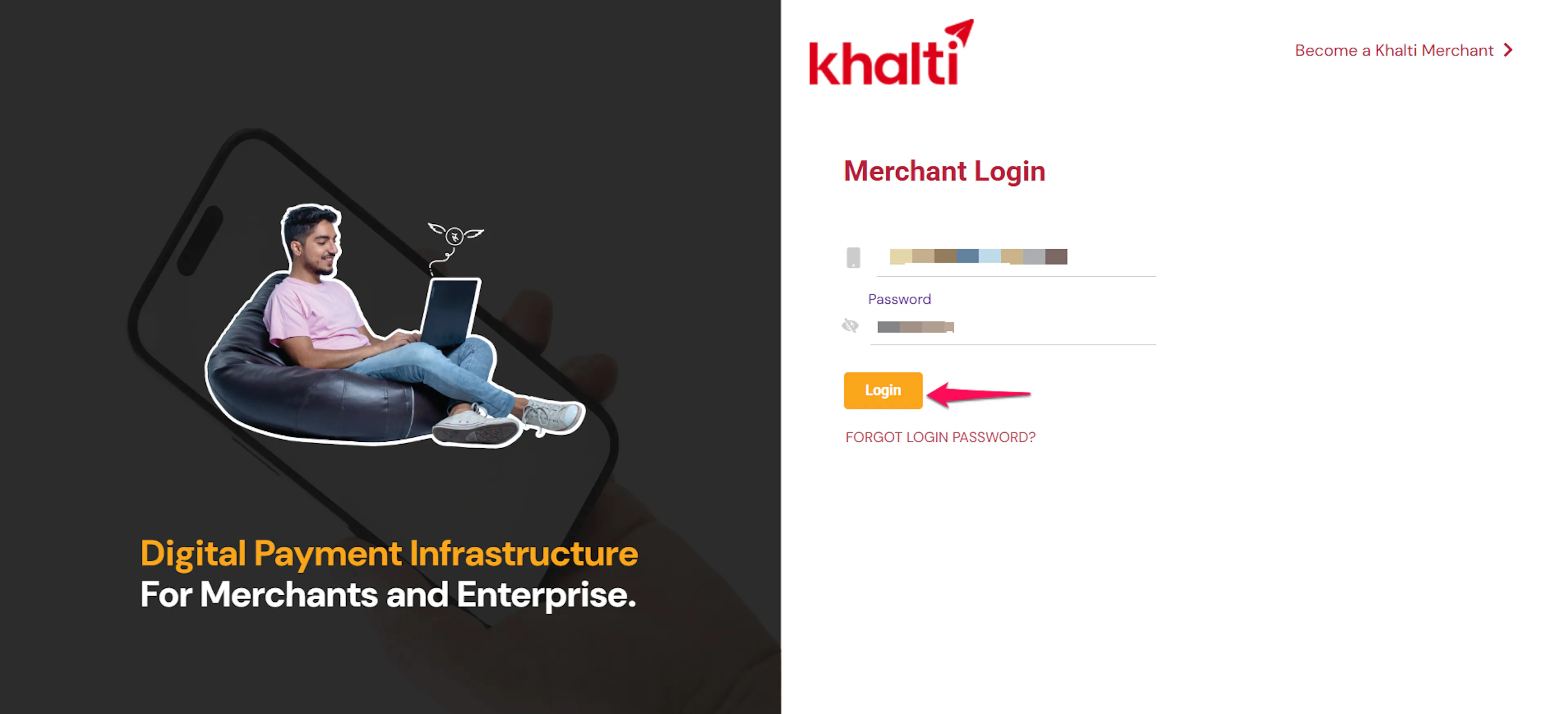
Log in to your Khalti merchant dashboard
Use admin.khalti.com for your live key, or test-admin.khalti.com for a sandbox key. Khalti issues these from two separate sites but labels the credential the same way on both.
Open your API keys
Navigate to the Settings section from the sidebar, select Keys, and copy the secret key shown on that page.
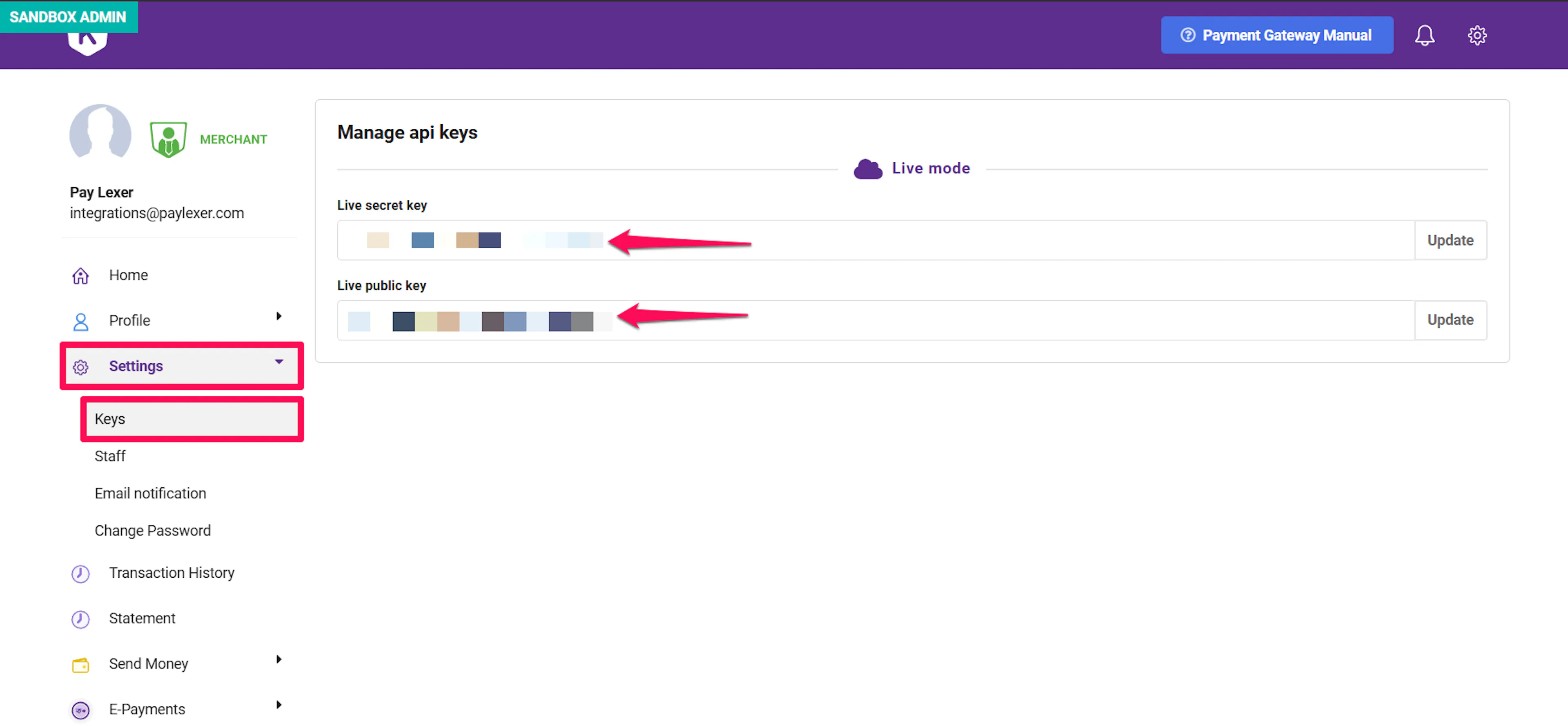
Khalti calls this credential live_secret_key on both the live and sandbox dashboards - the only difference is which site it came from. Double-check you copied it from the site you intended before pasting it into PayLexer.
Adding Credentials to PayLexer
Open PayLexer Dashboard
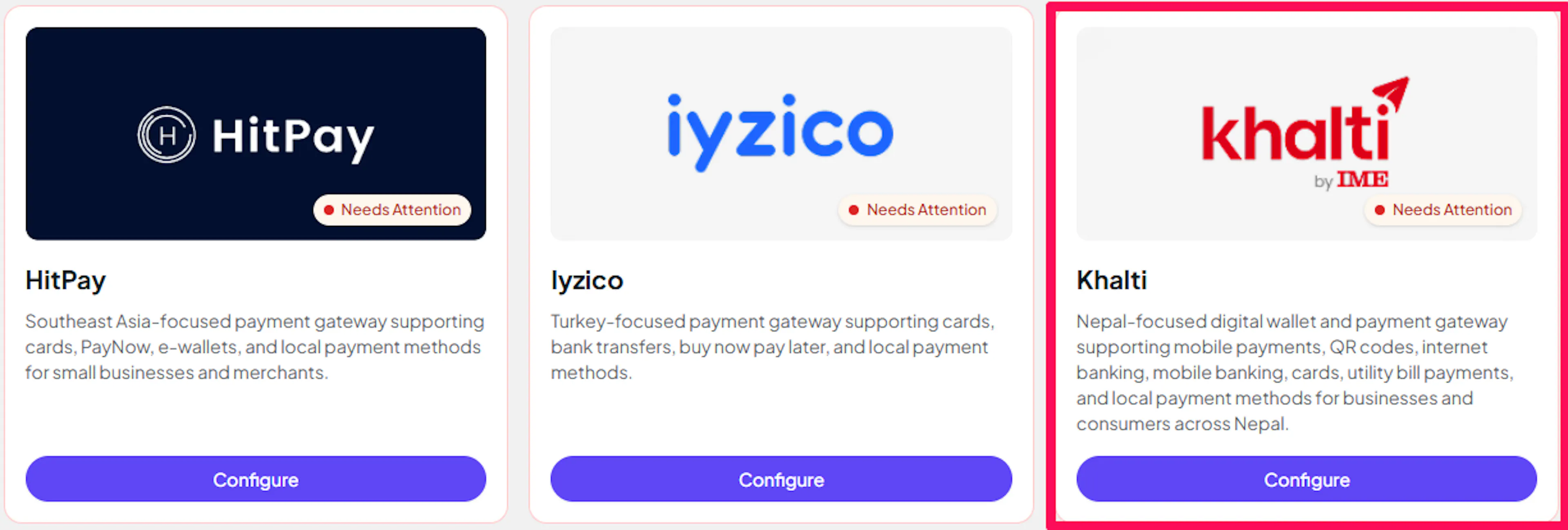
Log in to your PayLexer dashboard and navigate to Payment Gateways → Khalti.
Enter your credentials
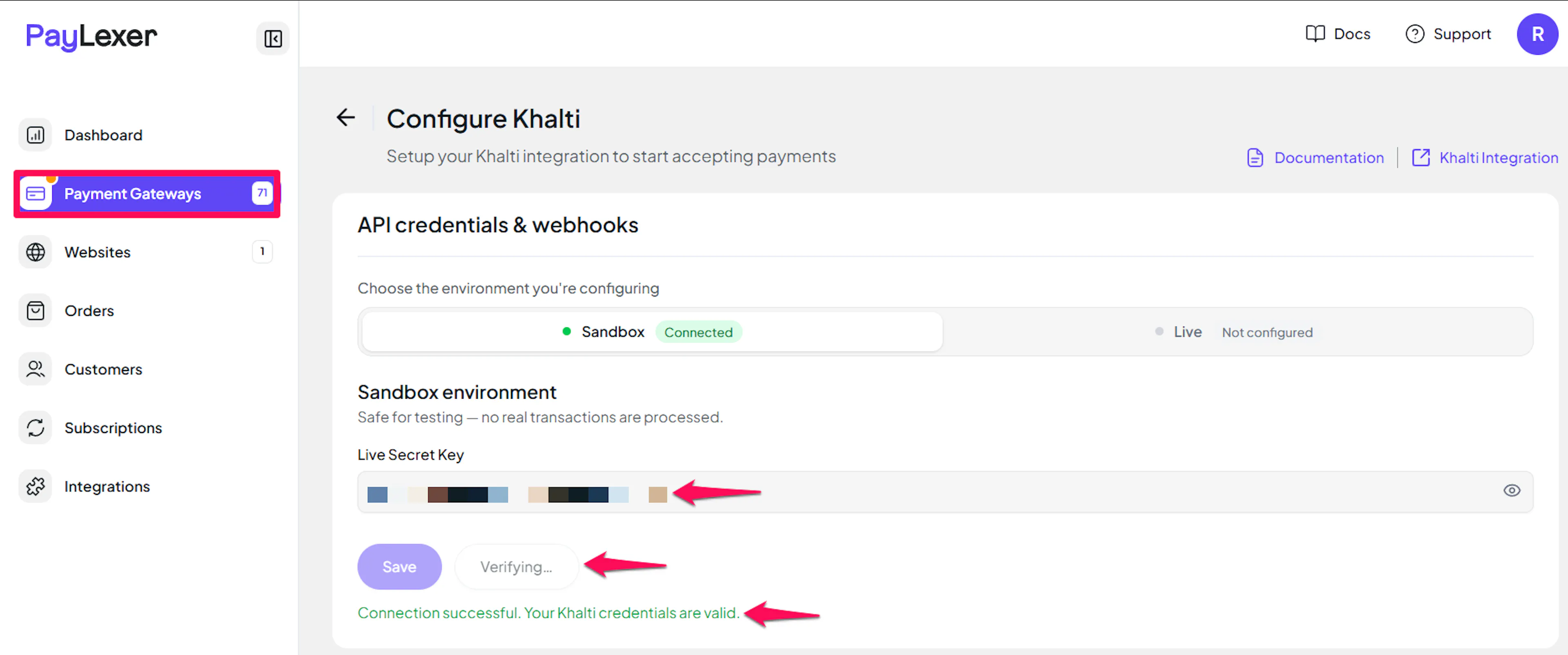
Paste the key you copied from Khalti into the matching field - Live Secret Key for your production key, Sandbox Secret Key for your test key.
Understanding Live/Production and Sandbox Settings:
| Environment | Purpose |
|---|---|
| Live / Production (Mandatory) | Used for real transactions. Cannot be empty, even when testing. |
| Test / Sandbox (Optional) | Used for testing only. No real money is processed. |
How PayLexer selects credentials:
- Debug/Test mode ON → Test credentials are used
- Debug/Test mode OFF → Live credentials are used
Test and save
Click Save to save your configuration and verify your credentials. Click Verify Connection to test the connection.
Webhooks (Not Supported)
Khalti does not currently support webhook integration.
- Payment updates are handled directly within Khalti's processing flow
- Real-time event notifications are not available
- Payment status updates occur through standard API polling
This means payment confirmations may take slightly longer to appear compared to gateways that support webhooks. For Khalti specifically, PayLexer closes this gap by re-checking with Khalti directly the moment a shopper returns to your store, and by periodically re-checking any payment or refund the shopper's return trip missed.
Integrate Khalti to Your Website
If you have already added and configured your site, you can enable Khalti in your existing setup.
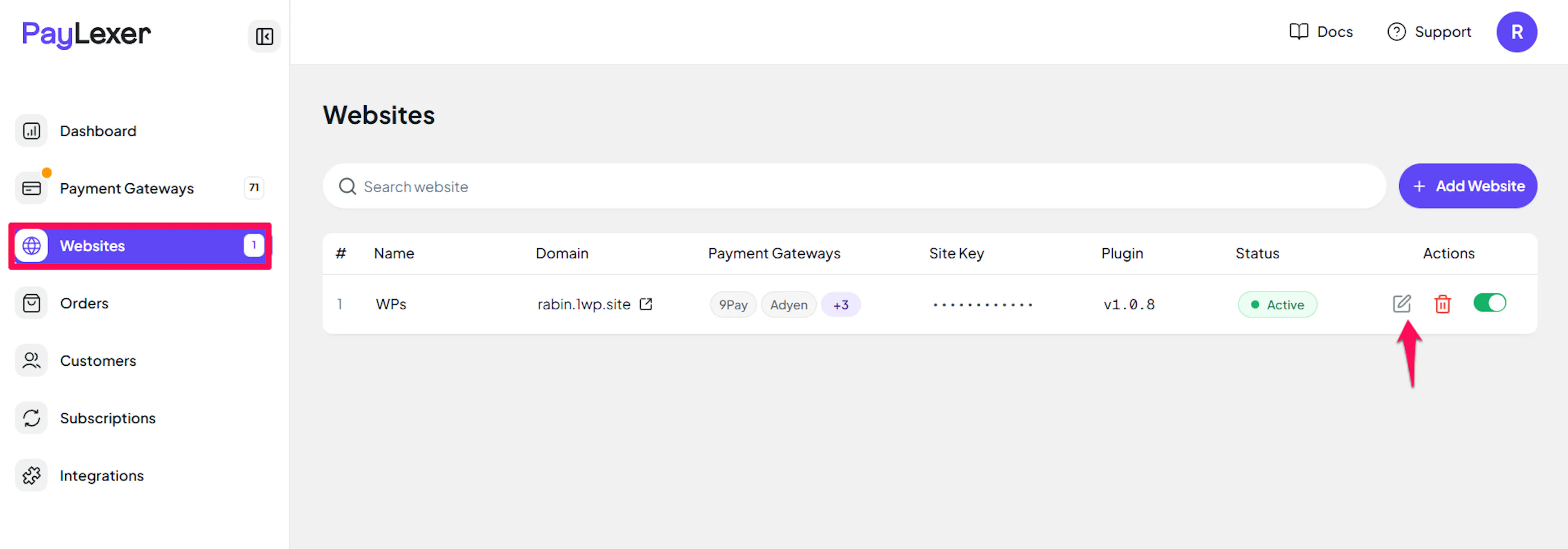
Go to Websites
Navigate to Websites in your PayLexer dashboard.
Edit your website
Click the Edit Icon of your added website.
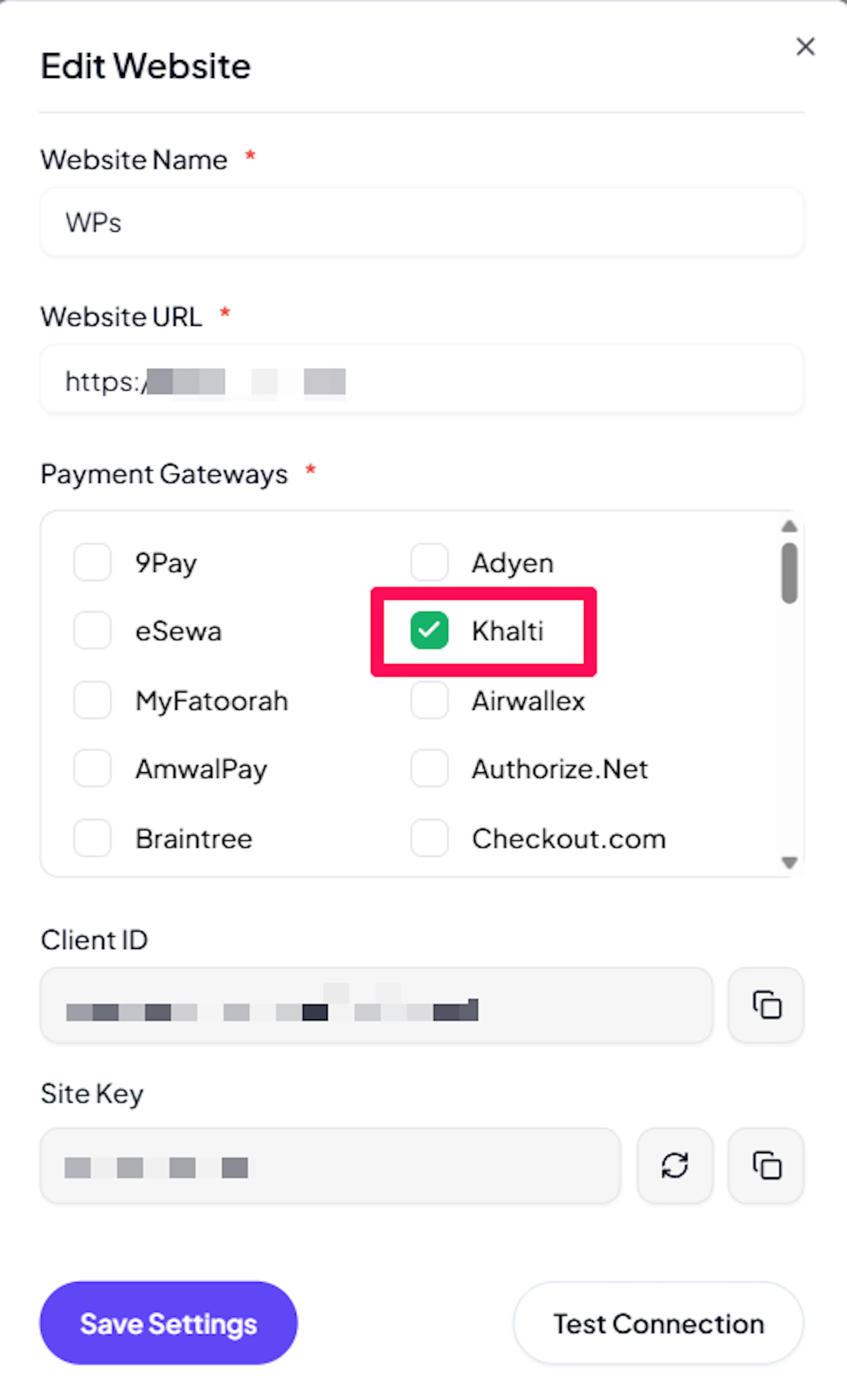
Enable Khalti
Click the checkbox to enable Khalti for the website.
If you haven't added a website yet, Continue to Add Your Website →
Troubleshooting
Best Practices
- Test in sandbox before enabling production
- Reconcile occasionally against your Khalti merchant dashboard, since Khalti sends no automatic notifications of any kind
- Keep your live and sandbox secret keys in their matching fields - Khalti names both credentials identically, so it is easy to paste the wrong one
- Confirm order currency is NPR before relying on Khalti at checkout - it is the only currency Khalti accepts
FAQs
Still Have Questions?
- Khalti Support:
- Merchant Care: merchantcare@khalti.com
- Technical Support: techsupport@khalti.com
- PayLexer Support: Contact Support