

PayJustNow
Connect PayJustNow to PayLexer to let South African shoppers pay in instalments while you are paid upfront.
PayJustNow is a South African buy-now-pay-later provider, founded in 2019 and headquartered in Cape Town, majority-owned by Weaver Fintech since 2022. With Pay in 3, shoppers pay the first third at checkout and PayJustNow collects the remaining two interest-free instalments on their following pay dates. PayJustNow also offers longer repayment plans with interest, where available. PayJustNow carries the credit risk and the collection, so you are paid upfront, in full.
PayLexer does not select the repayment plan. You send the order total, and PayJustNow's checkout page offers the shopper whichever plans their account and yours are enabled for. That is Pay in 3, and longer-term plans where available. You are paid upfront in full either way.
- Supported Regions (Merchant Accounts): South Africa
- Supported Currencies: ZAR
This gateway appears in checkout only when the selected currency is ZAR.
Supported Features
- Hosted checkout that redirects shoppers to PayJustNow's secure payment page
- Instalment plans for the shopper (Pay in 3, and longer-term plans where available), with settlement to you upfront
- Full refunds
- Partial refunds, including repeat partial refunds on the same order
- Real-time payment notifications, secured with HMAC-SHA256 signatures and registered automatically by PayLexer
- Configurable minimum and maximum order amounts
- Separate sandbox and live environments for safe testing
PayJustNow does not support subscriptions or recurring billing. The instalments are collected by PayJustNow directly from the shopper, so there is no repeating charge for PayLexer to schedule. Use PayJustNow for one-time payments only.
Before You Start
Make sure you have:
- PayJustNow Account – PayJustNow approves merchant accounts manually. Apply through the PayJustNow business application →, then ask your account manager for your sandbox and live credentials.
- PayLexer Account – Required to configure the integration. Create your account →
- A website where you want to integrate
Looking for a different payment processor? View all supported gateways →
Configuring PayJustNow
You need a Merchant Account ID and Merchant Account API Key from PayJustNow for this integration. The configuration page also has a Signing Key field, which you normally leave blank because PayJustNow issues the key when you save.
Getting API Credentials
Contact your account manager
PayJustNow issues credentials manually. There is no page in the Merchant Portal to generate them yourself, for sandbox or for live. Email merchantsupport@payjustnow.com or your assigned account manager and request your Merchant Account ID and Merchant Account API Key.
Request the correct environment
Ask for sandbox credentials to test with and live credentials for real payments. These are two completely separate merchant accounts, and neither value carries a prefix identifying which is which. Label them carefully when you receive them.
Confirm Online Checkout is enabled
Ask your account manager to confirm your merchant account is enabled for Online Checkout v2. An account that has not been enabled will reject the connection even when the credentials themselves are correct.
Adding Credentials to PayLexer
Open PayLexer Dashboard
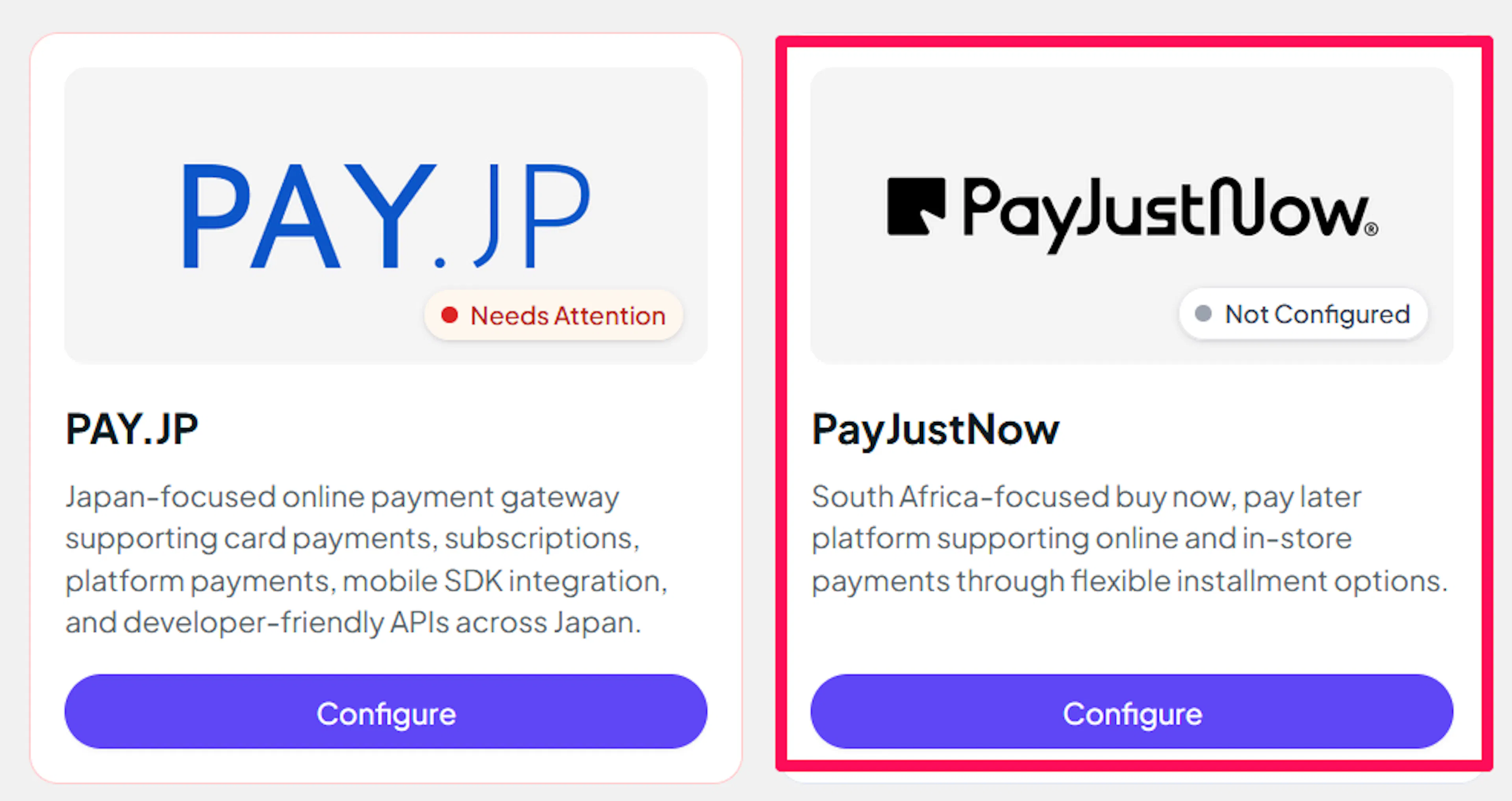
Log in to your PayLexer dashboard and navigate to Payment Gateways → PayJustNow.
Enter your credentials
Paste the Merchant Account ID and Merchant Account API Key you received from PayJustNow into the corresponding fields.
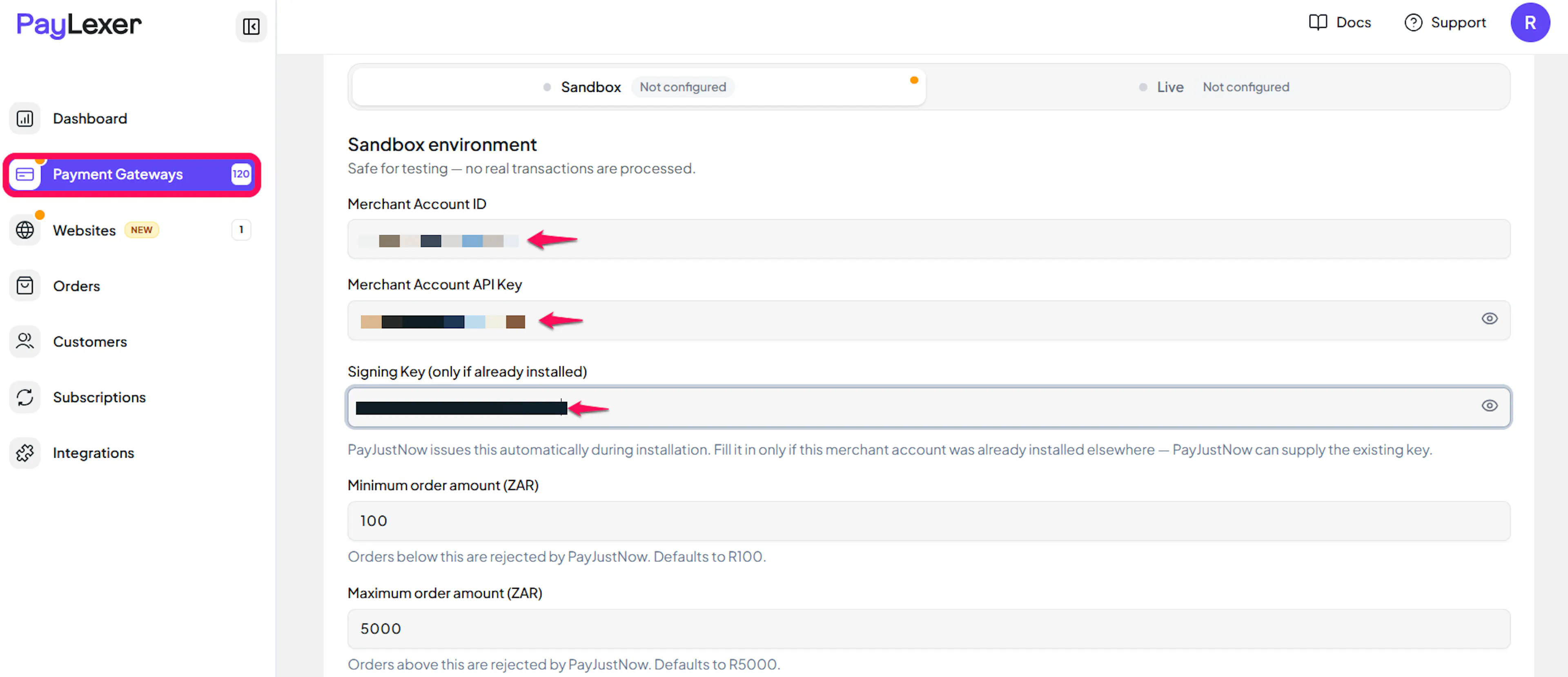
Leave the Signing Key field blank. PayJustNow issues this key automatically when you save your Merchant Account ID and API Key. Fill it in only if this PayJustNow account was already connected somewhere else. In that case, PayJustNow support can send you the existing key.
Understanding Live/Production and Sandbox Settings:
| Environment | Purpose |
|---|---|
| Live / Production (Mandatory) | Used for real transactions. Cannot be empty, even when testing. |
| Test / Sandbox (Optional) | Used for testing only. No real money is processed. |
How PayLexer selects credentials:
- Debug/Test mode ON → Test credentials are used
- Debug/Test mode OFF → Live credentials are used
Test and save
Click Save to save your configuration and verify your credentials. Click Verify Connection to test the connection.
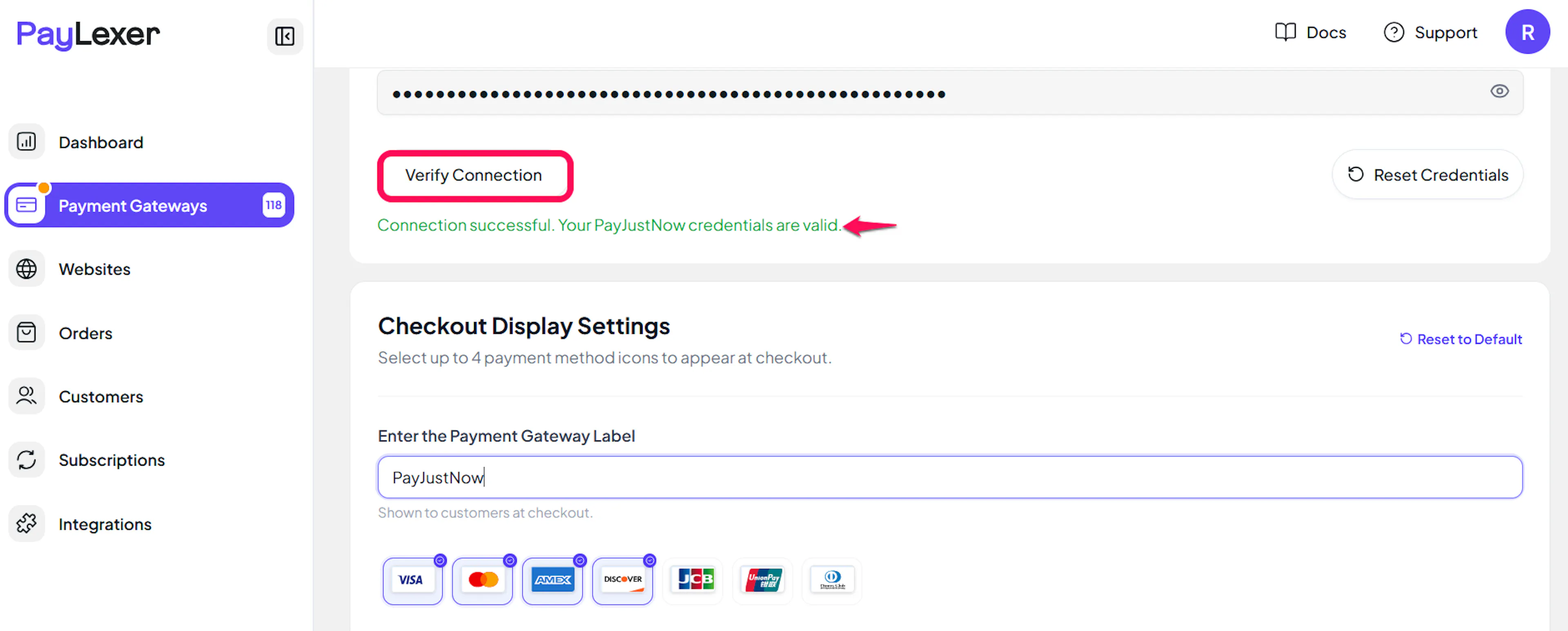
Verify Connection only works after you have saved. PayJustNow issues the key that signs every request during setup, which happens when you click Save. Until then there is nothing to verify. If you click Verify Connection first, PayLexer tells you to save the configuration first.
Setting Order Amount Limits
PayJustNow enforces a minimum and a maximum order value on your merchant account. Orders outside that range are rejected before the shopper reaches the payment page.
- Minimum order amount (ZAR) - Orders below this are rejected by PayJustNow.
- Maximum order amount (ZAR) - Orders above this are rejected by PayJustNow.
Both fields are optional. Left blank, PayLexer applies PayJustNow's standard defaults of R100 and R5000. If you agreed a different range with PayJustNow, enter it here so your dashboard and your merchant account stay in step. The limits are re-applied to PayJustNow every time you save.
Configuring Webhooks (Mandatory)
Webhooks enable real-time payment updates and significantly improve reliability.
Benefits of Webhooks:
- Instant payment status updates
- Automatic refund processing
No action needed. PayJustNow has no webhook screen to fill in. PayLexer registers your notification address with PayJustNow automatically when you save your credentials, and stores the signing key it receives in the same step. There is no webhook URL to copy and no webhook field on the configuration page.
If you change environments or reconnect the gateway, saving again refreshes the registration. You never need to enter a webhook secret for PayJustNow.
Integrate PayJustNow to Your Website
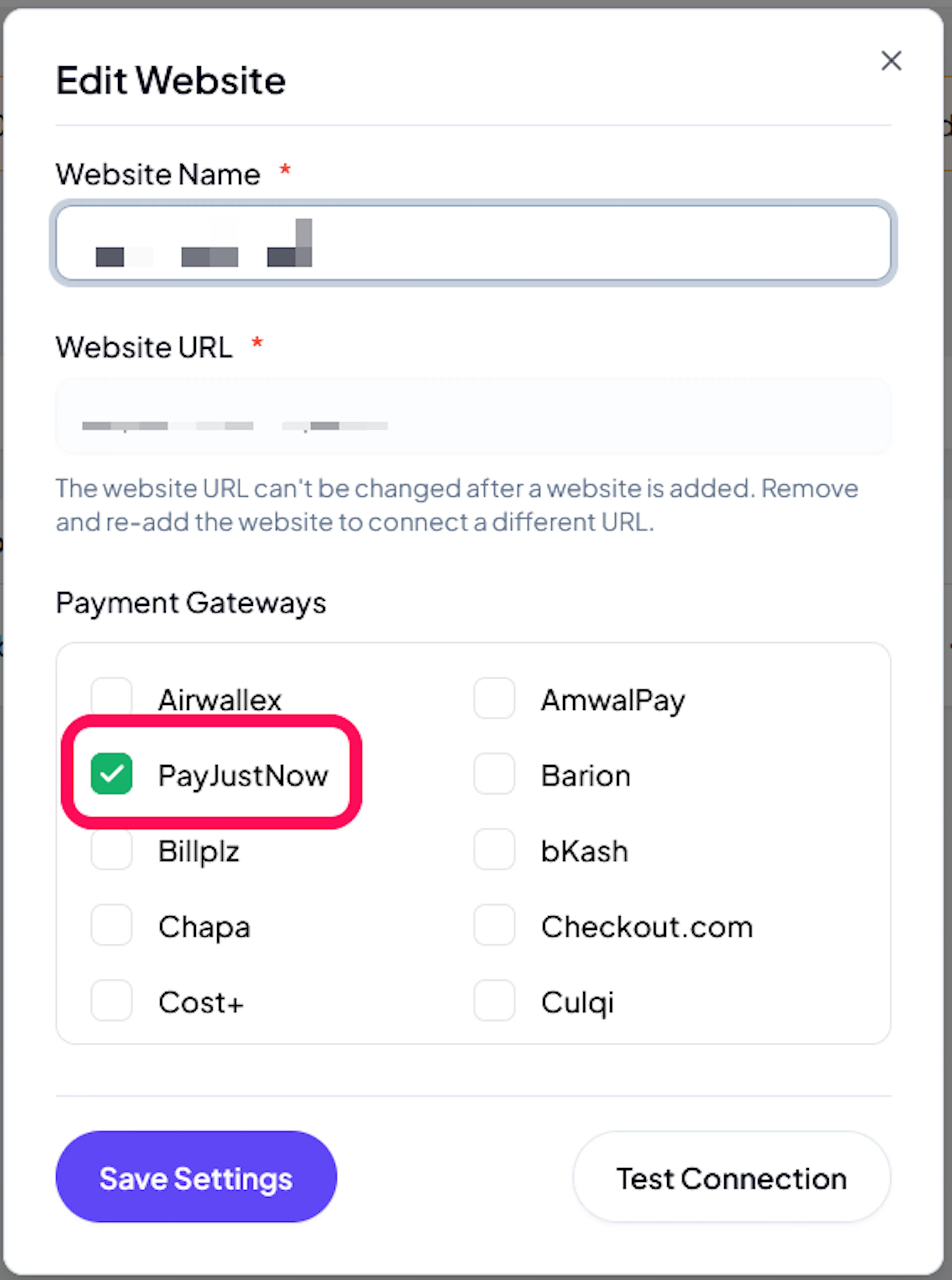
If you have already added and configured your site, you can enable PayJustNow in your existing setup.
Go to Websites
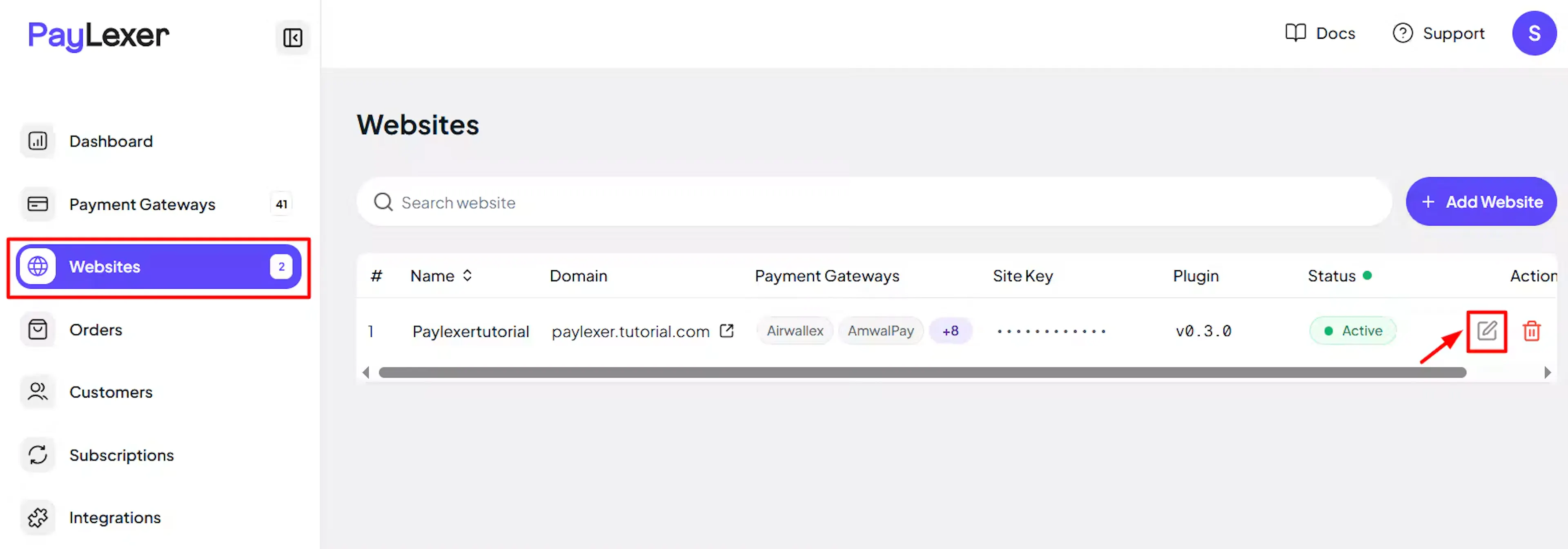
Navigate to Websites in your PayLexer dashboard.
Edit your website
Click the Edit Icon of your added website.
Enable PayJustNow
Click the checkbox to enable PayJustNow for the website.
If you haven't added a website yet, Continue to Add Your Website →
Troubleshooting
Best Practices
- Test in sandbox before enabling production
- Keep your minimum and maximum order amounts matched to what you agreed with PayJustNow, so the dashboard reflects what shoppers actually experience
- Store your credentials somewhere safe when your account manager sends them, and label which environment each belongs to
- Price products within your approved range if you want PayJustNow offered on them
- Refund through PayLexer rather than the PayJustNow Merchant Portal, so your order records stay accurate
- Mention on your product pages that PayJustNow instalments are available, so shoppers know before they reach checkout
FAQs
Still Have Questions?
- PayJustNow Support:
- Merchant Support Email: merchantsupport@payjustnow.com
- Help Centre: PayJustNow Community
- PayLexer Support: Contact Support