

Klix
Accept card, bank and Klix payments from shoppers in Latvia, Lithuania and Estonia through Klix hosted checkout, connected to your website with PayLexer.
Klix by Citadele is the online payment service of Citadele, a bank headquartered in Riga, Latvia. One hosted checkout offers the payment methods Baltic shoppers use: bank cards and Google Pay, MultiLink payments straight from the largest Baltic banks, paying with just a phone number through a Klix profile, and Klix Pay Later.
- Supported Regions (Merchant Accounts): Latvia, Lithuania, Estonia
- Supported Currencies: EUR
This gateway appears in checkout only when the selected currency is EUR.
Supported Features
- One-time payments through the Klix hosted checkout page
- Card payments, including Google Pay
- MultiLink bank payments from the largest Baltic banks
- Klix phone-number payments and Klix Pay Later
- Automatic payment confirmation, with no webhook to set up
- Automatic status checks for failed, cancelled and abandoned payments
- Full and partial refunds from PayLexer
- Separate Live and Test credentials
Subscriptions are not available for Klix in PayLexer yet. Klix can be used for one-time payments only.
Refund Klix orders from PayLexer or your store, not from the Klix portal. Klix does not report portal refunds back to PayLexer, so the order would still show as paid.
Before You Start
Make sure you have:
- Klix by Citadele Account – Don't have one? Apply for Klix →
- PayLexer Account – Required to configure the integration. Create your account →
- A website where you want to integrate
Looking for a different payment processor? View all supported gateways →
Configuring Klix
You need a Secret Key and Brand ID from Klix for this integration.
Getting API Credentials
Log in to the Klix portal
Sign in to the Klix merchant portal.
Open the Developers section
Go to the Developers section of your account. Your Brand ID and Secret Key are shown there.
Copy both values
Copy the Secret Key and the Brand ID. Keep the Secret Key private, because anyone with it can create payments on your account.
To try Klix before your own account is ready, use the shared test credentials from the Klix test environment page. Klix lists one Brand ID with two Secret Keys:
- The first key tests the full payment flow with cards and Google Pay
- The second key shows all available payment methods in a simplified flow
Enter the Brand ID and the key you want to use as your Test Brand ID and Test Secret Key, then pay with the test cards listed on the same page.
Adding Credentials to PayLexer
Open PayLexer Dashboard
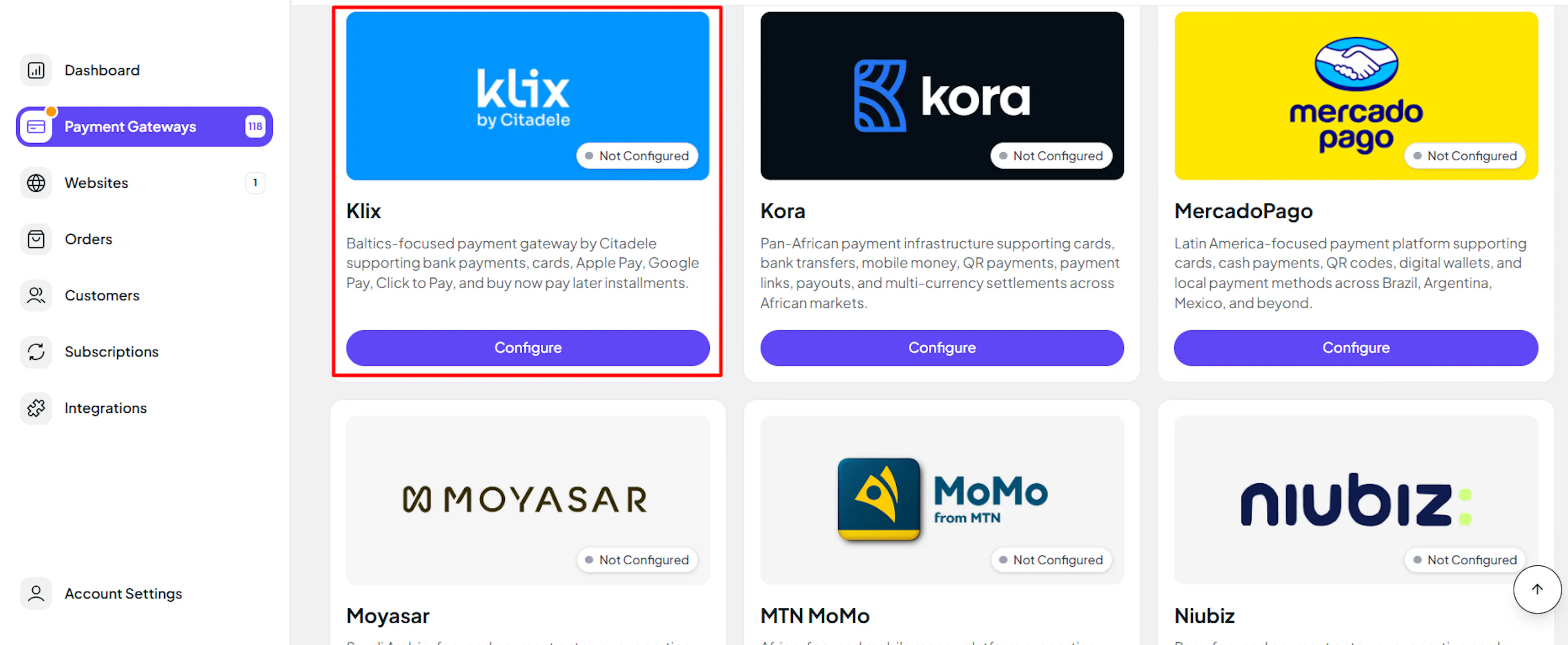
Log in to your PayLexer dashboard and navigate to Payment Gateways → Klix by Citadele.
Enter your credentials
Paste the Secret Key and Brand ID you copied from Klix by Citadele into the corresponding fields. In the test section, the fields are labelled Test Secret Key and Test Brand ID.
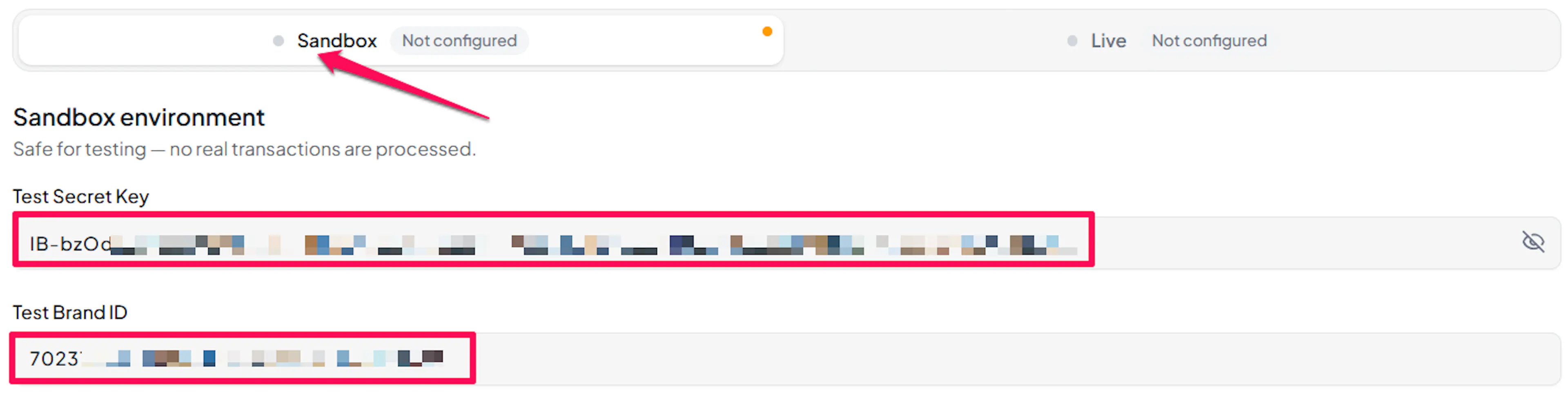
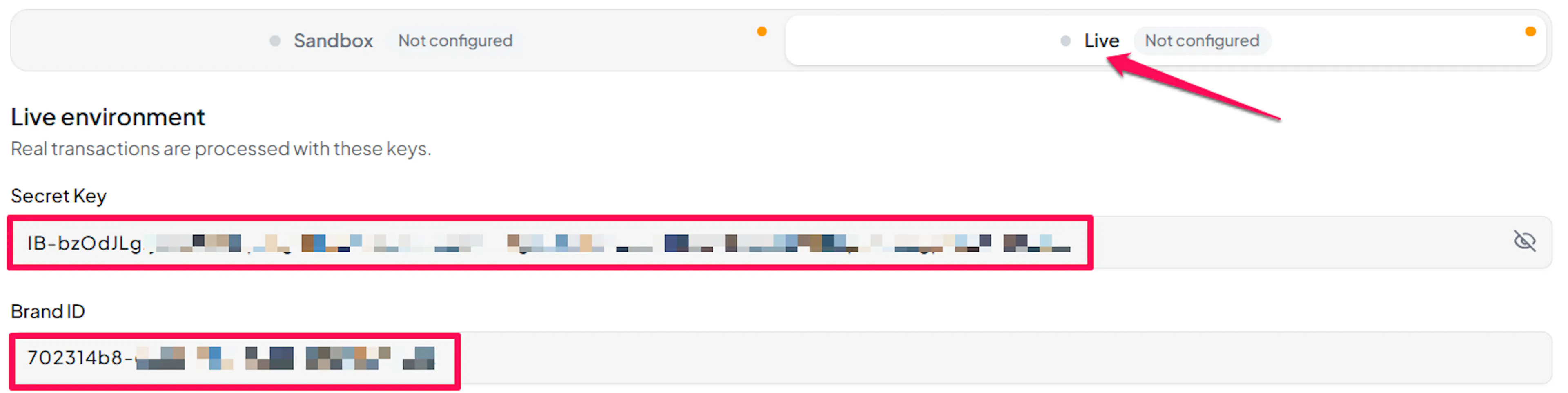
Understanding Live/Production and Sandbox Settings:
| Environment | Purpose |
|---|---|
| Live / Production (Mandatory) | Used for real transactions. Cannot be empty, even when testing. |
| Test / Sandbox (Optional) | Used for testing only. No real money is processed. |
How PayLexer selects credentials:
- Debug/Test mode ON → Test credentials are used
- Debug/Test mode OFF → Live credentials are used
Test and save
Click Save to save your configuration and verify your credentials. Click Verify Connection to test the connection.

Payment Notifications (Automatic)
Klix needs no webhook setup. There is no webhook address to register and no signing secret to paste.
- When PayLexer creates a payment, it tells Klix where to send the confirmation for that payment
- Klix signs every confirmation, and PayLexer checks the signature against the Klix published key before marking an order paid
- Failed, cancelled and abandoned payments are picked up by an automatic status check
- If a confirmation is ever lost, the same status check still completes the paid order
This means a successful payment is confirmed within seconds, while a failed or abandoned one can take up to about 40 minutes to show in PayLexer.
Integrate Klix to Your Website
If you have already added and configured your site, you can enable Klix in your existing setup.
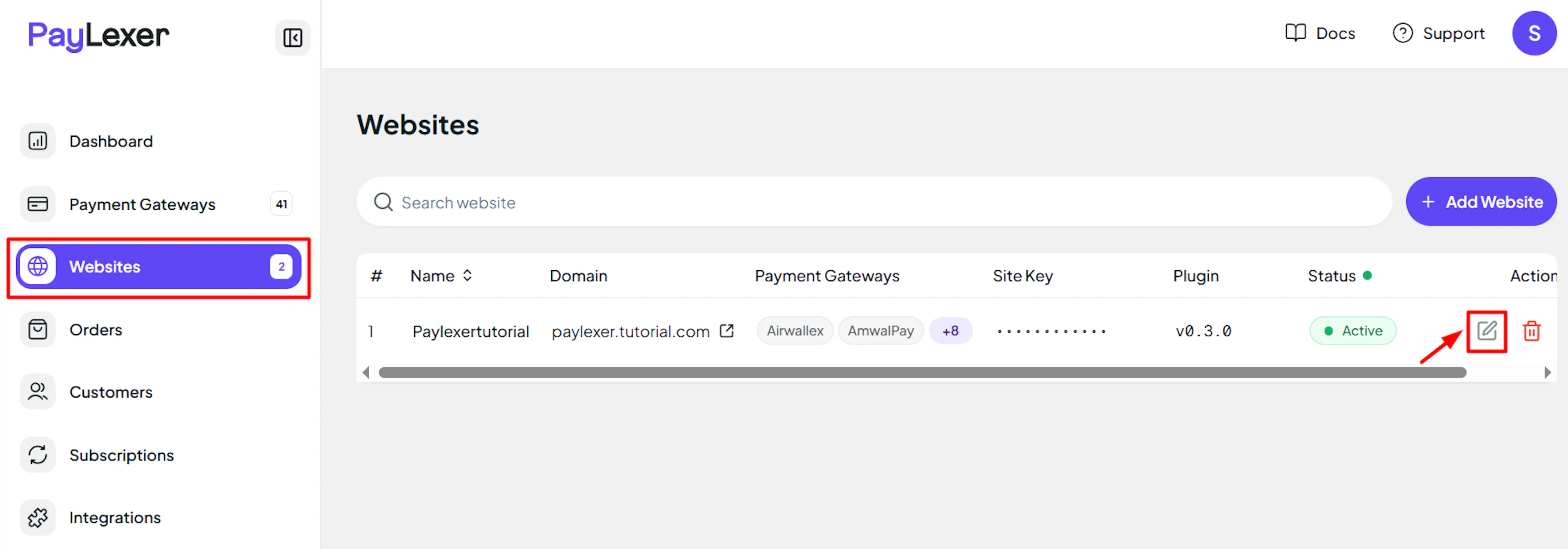
Go to Websites
Navigate to Websites in your PayLexer dashboard.
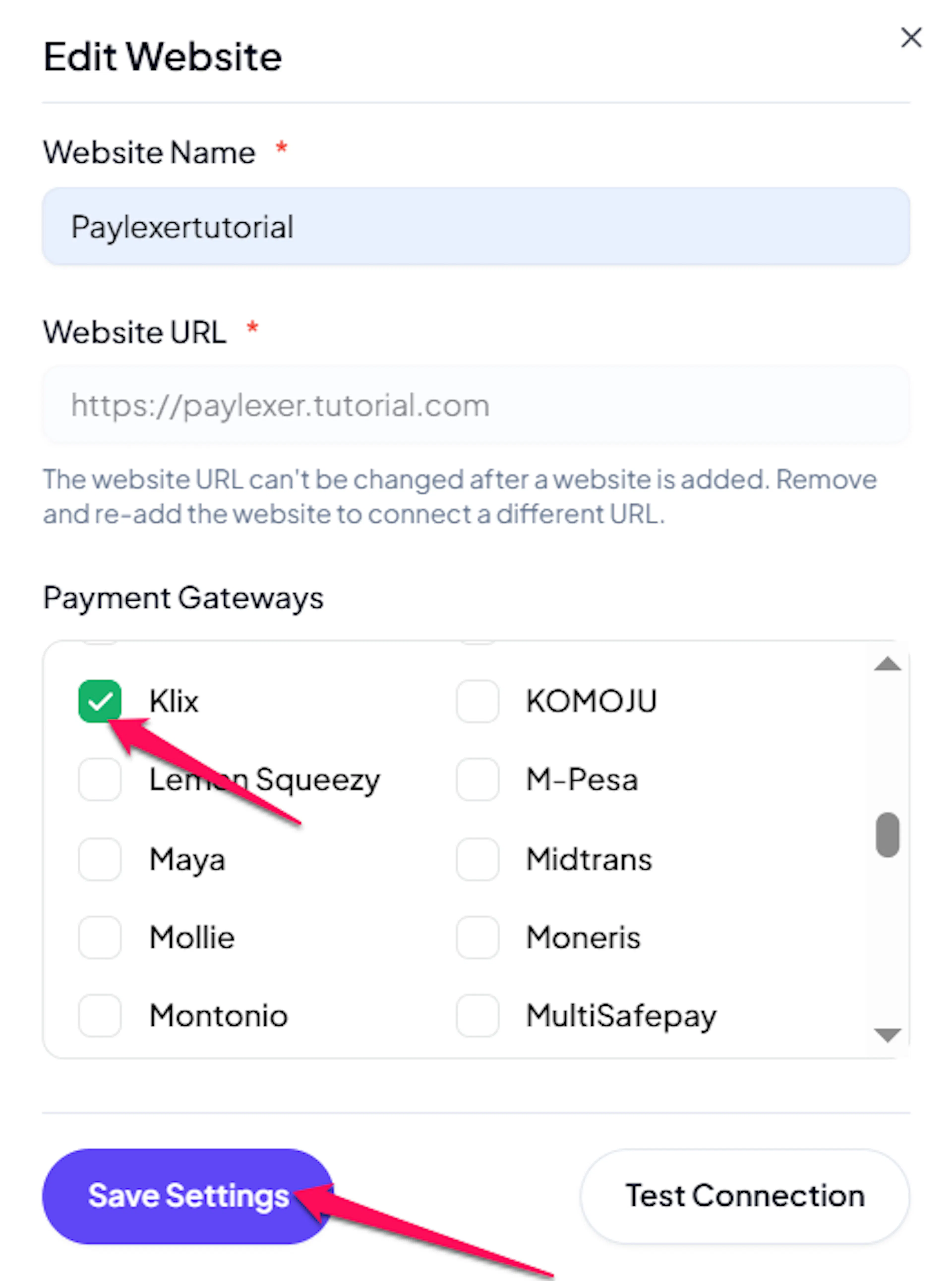
Edit your website
Click the Edit Icon of your added website.
Enable Klix by Citadele
Click the checkbox to enable Klix by Citadele for the website.
If you haven't added a website yet, Continue to Add Your Website →
Troubleshooting
Best Practices
- Test in sandbox before enabling production, using the Klix shared test credentials and test cards
- Keep your Secret Key private, and update it in PayLexer whenever you rotate it in the Klix portal
- Price orders in EUR so Klix is offered at checkout
- Refund Klix orders from PayLexer or your store, not the Klix portal, so the order is updated
FAQs
Still Have Questions?
- Klix Support: Klix Support
- PayLexer Support: Contact Support