

Connect Your Website To PayLexer
Connect your WordPress site to PayLexer from the PayLexer dashboard or the PayLexer plugin, with no credentials to copy or paste.
Overview
Connecting your website links your WordPress site to your PayLexer account, so the payment gateways you configure in PayLexer can take payments on it.
You can start the connection in two places:
- From the PayLexer dashboard. Add your website under Websites. PayLexer checks that the plugin is active on your site, then sends you to the plugin in WordPress to finish.
- From WordPress. Open the PayLexer plugin and select Connect Account.
Both ways finish in the plugin with Connect Account, and your website is added to the PayLexer Websites table automatically. Connect your website before running test transactions or going live.
There is no Client ID or Site Key to copy and paste anymore. The Connect Account button in the PayLexer plugin handles the whole connection.
Before You Start
Make sure you have:
- Admin access to your WordPress site so you can install and activate plugins.
- A supported platform installed such as WP Travel Engine, WooCommerce, Easy Digital Downloads or FluentCart.
- Your website URL ready, for example
https://yourwebsite.com, if you plan to start from the PayLexer dashboard. - The email address you want to use for PayLexer. If you start from WordPress and don't have a PayLexer account yet, one is created for you while you connect.
Setup Journey
Getting Started
Complete the PayLexer setup. Setup guide →
Configure Payment Gateway
Choose and configure your gateway. Gateway docs →
Connect Your Website
You're here! Continue below.
Platform Integration
Enable PayLexer in your platform.
Test Transactions
Verify everything works. Test guide →
Step 1: Install the PayLexer Plugin
The PayLexer plugin must be installed and active on your site whichever way you connect.
Install and activate the plugin
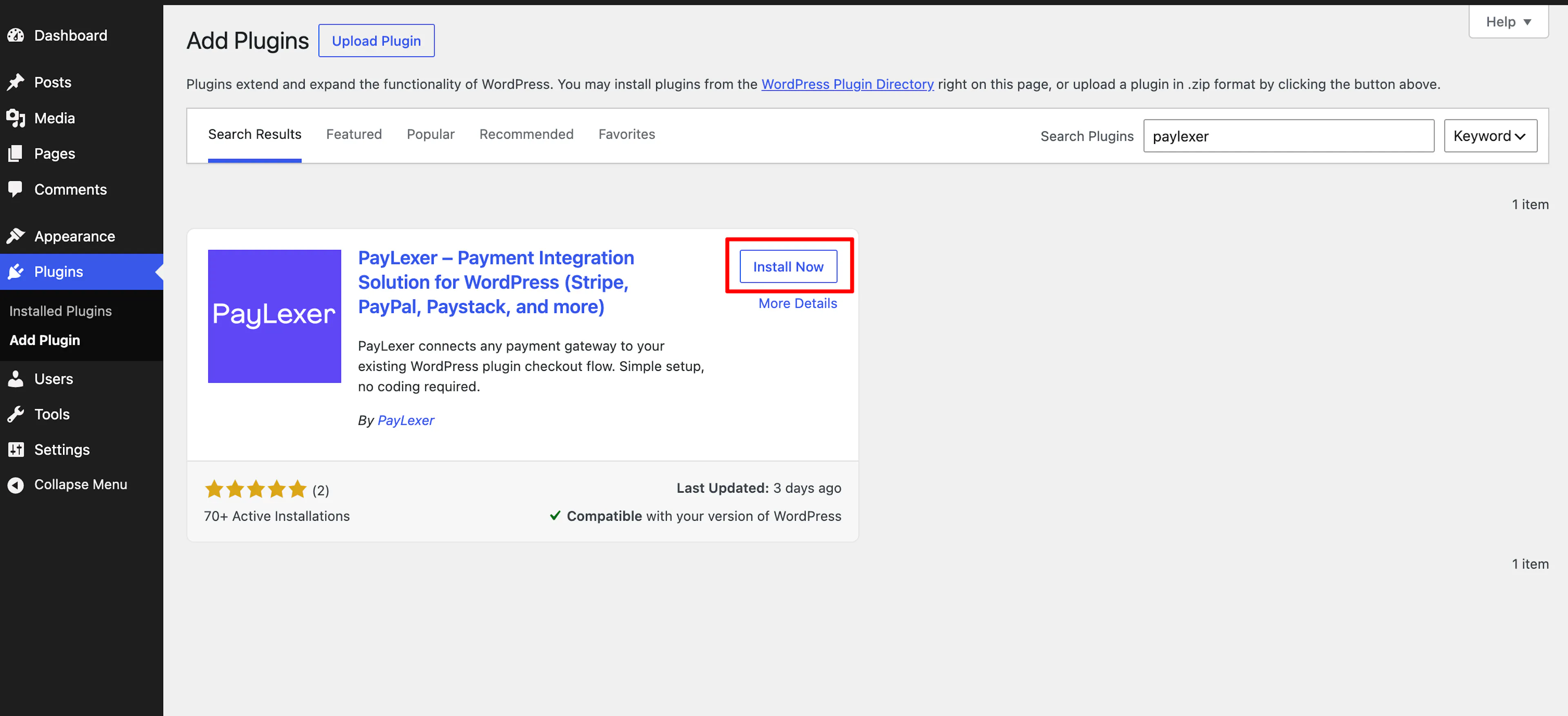
In WordPress, go to Plugins → Add New Plugin and search for PayLexer. Click Install Now, then click Activate.
Step 2: Start the Connection
Choose where you want to start. Both options take you to the Connect to PayLexer card in the plugin.
Open Websites
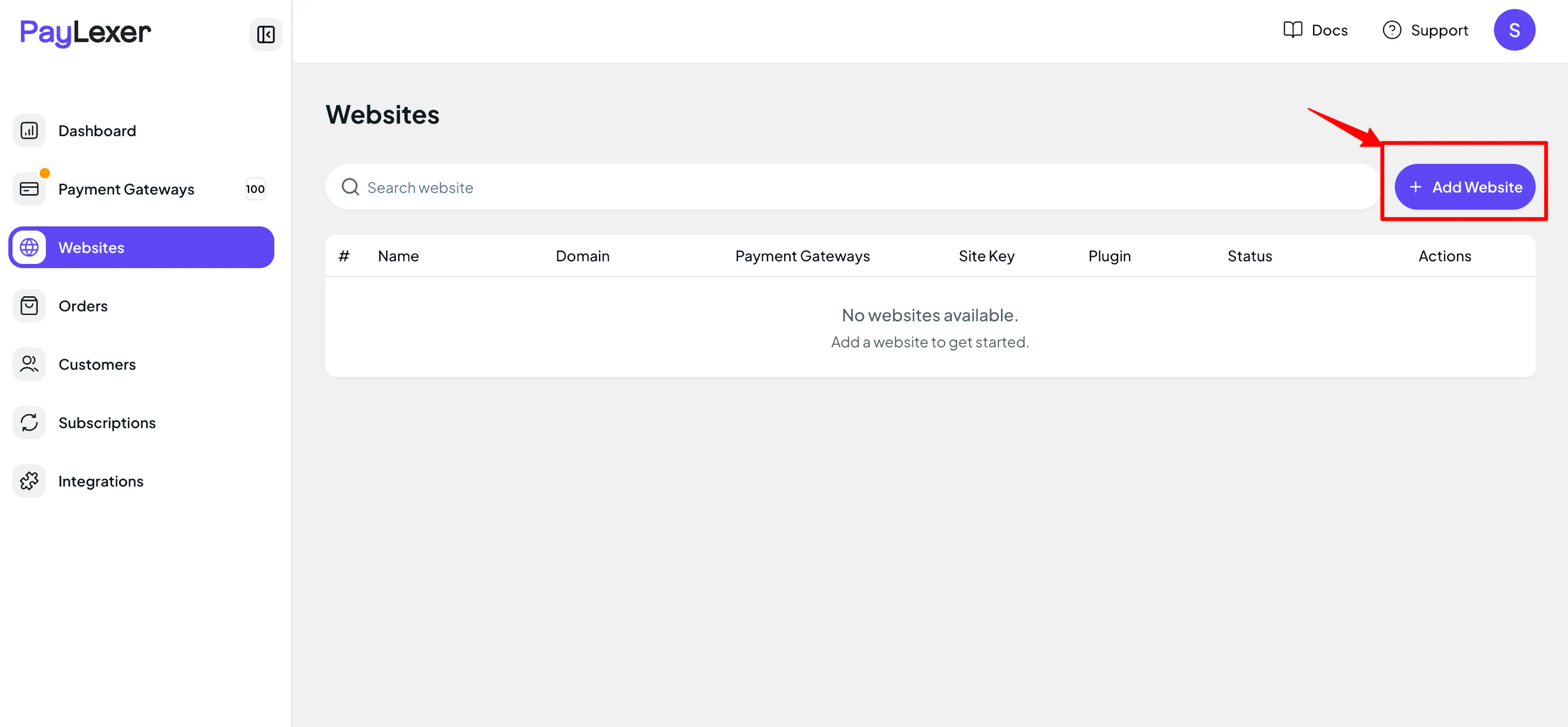
In your PayLexer dashboard, go to Websites and click Add Website.
Enter your website details
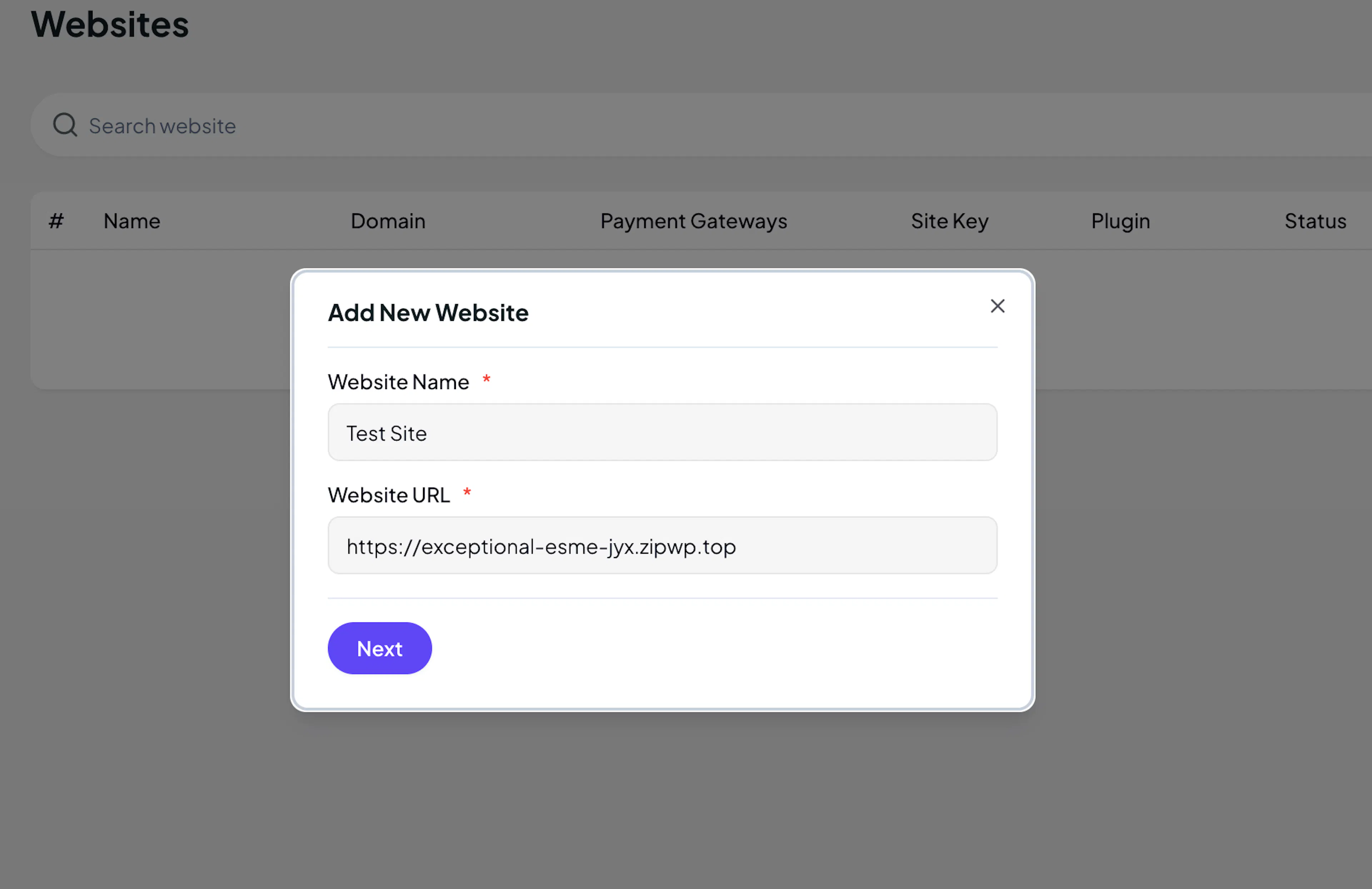
In the Add New Website window, fill in:
- Website Name, a friendly name to help you recognize the site.
- Website URL, the full URL of your site, for example
https://yourwebsite.com.
Both fields are required. Click Next.
Continue to the plugin
PayLexer checks your site for the plugin. When it finds it, you see PayLexer plugin found and active on this site.
Click Continue to Plugin Settings. The PayLexer plugin opens in your WordPress admin, ready for you to connect your account.
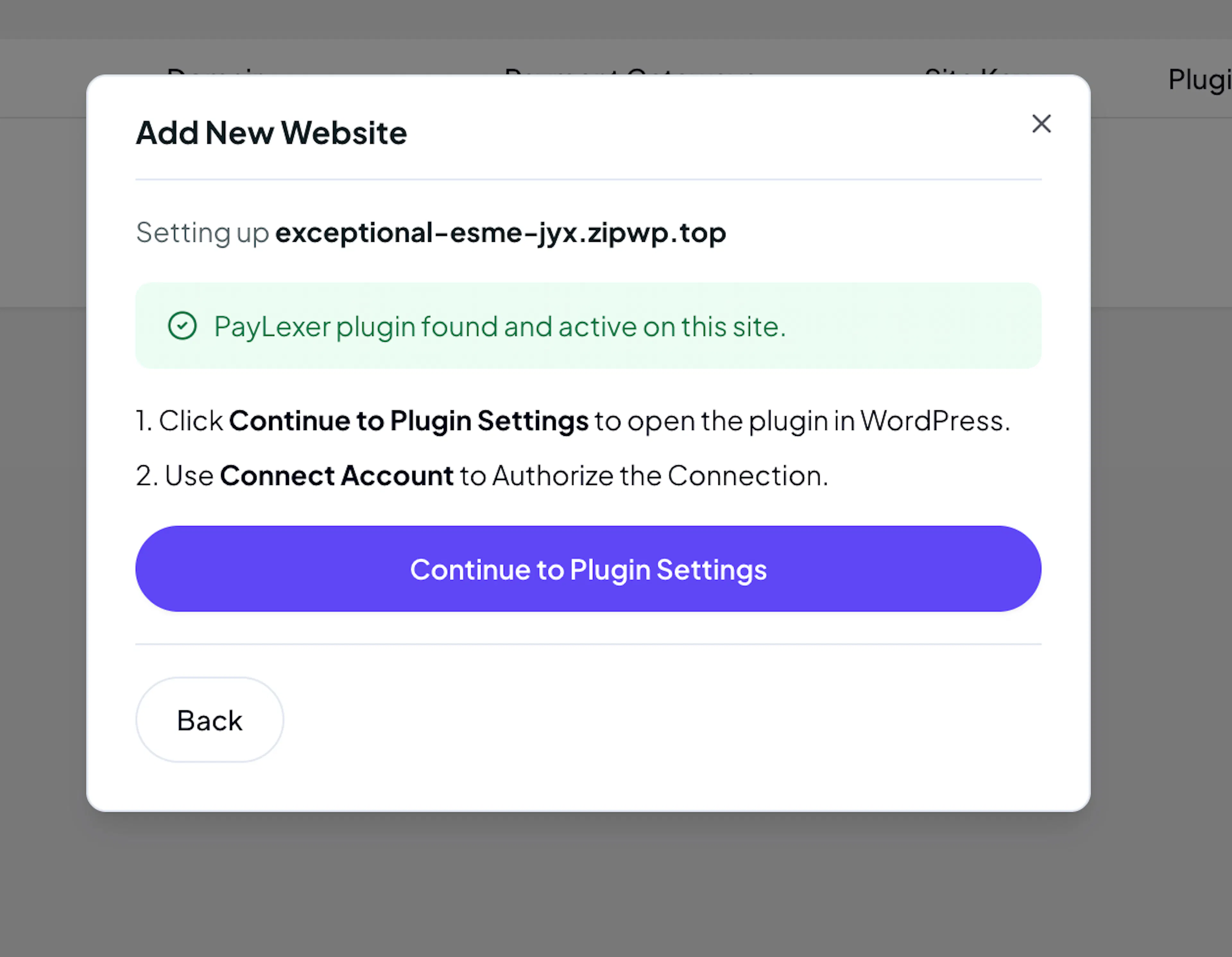
Entered the wrong URL? Click Back to edit your website details before you continue.
Open PayLexer in WordPress
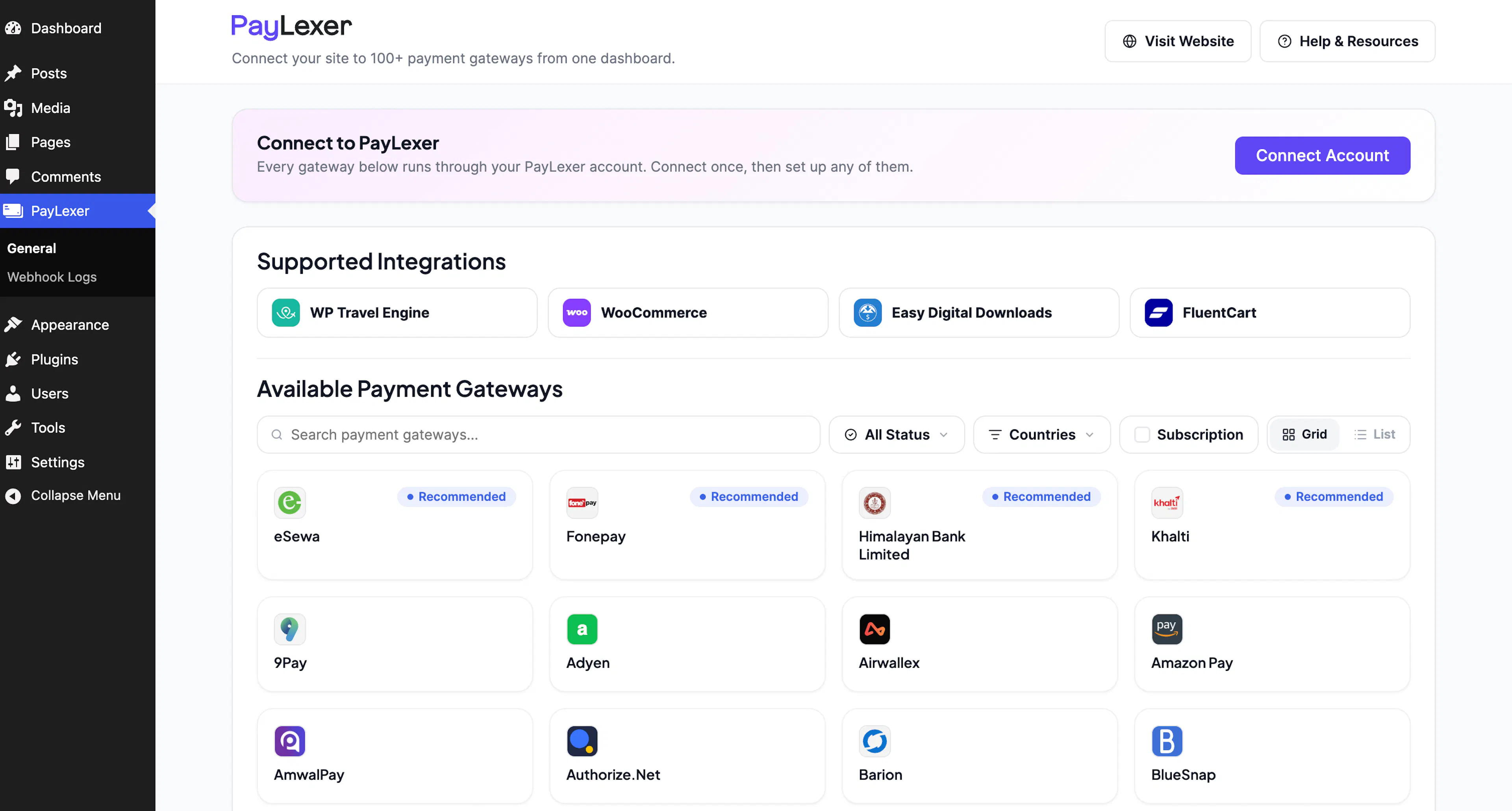
In the WordPress left sidebar, select PayLexer. The General page opens with the Connect to PayLexer card.
Step 3: Connect Your Account
Connect your account
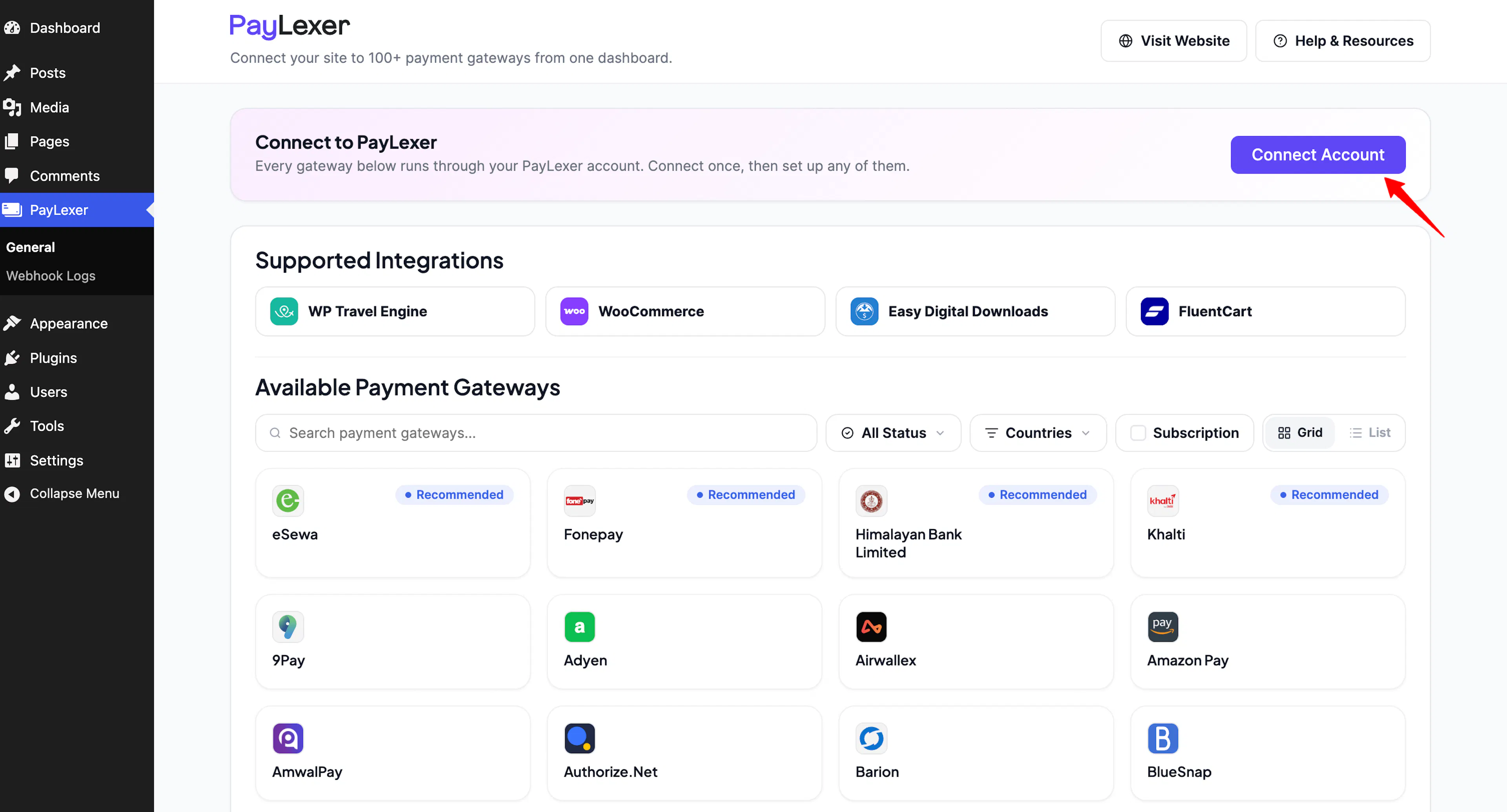
On the Connect to PayLexer card, click Connect Account and enter your email address. What happens next depends on your account:
- New to PayLexer: your account is created right away and your website is connected.
- Already have an account: enter your password to sign in, and your website is connected.
- Already signed in to PayLexer in the same browser: the password step is skipped and the Now let's connect your account page opens. Check the account and the Website to connect, tick I agree to the Terms and Conditions, then click Connect Account and Authorize.
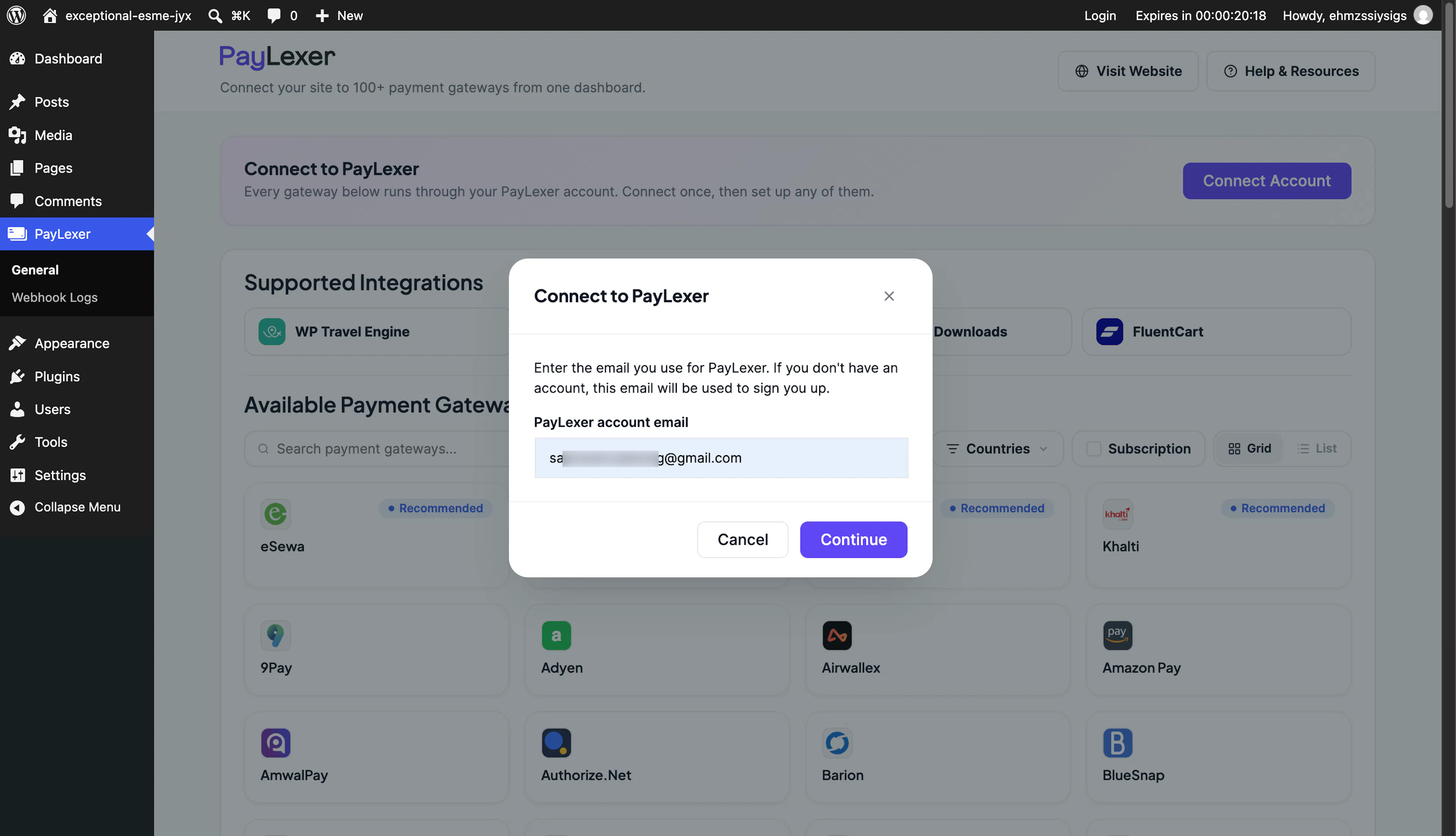
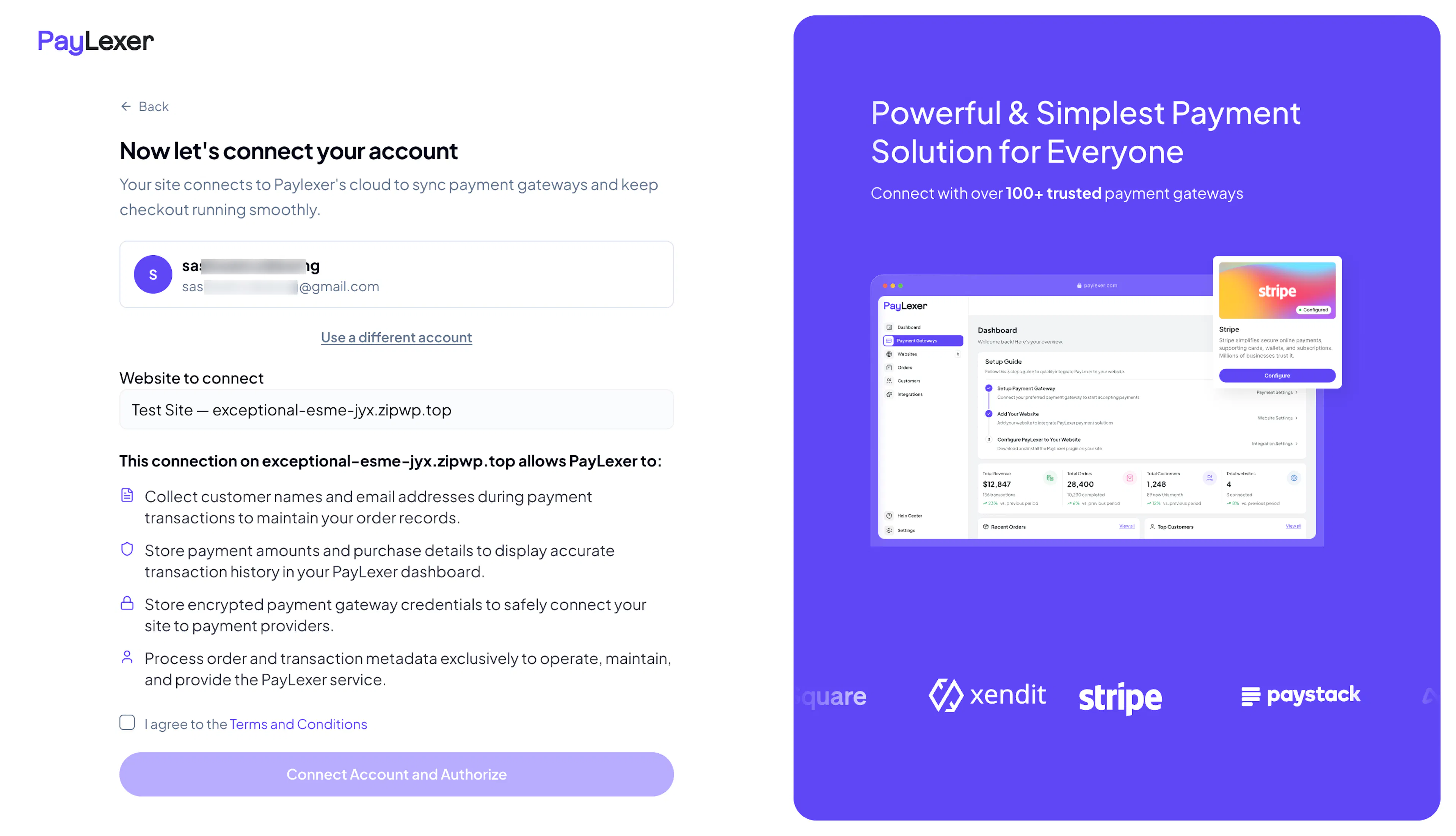
If the authorization page shows the wrong PayLexer account, click Use a different account before you authorize. The Connect Account and Authorize button stays disabled until you tick the terms checkbox.
Check the connection
Confirm the connection in both places:
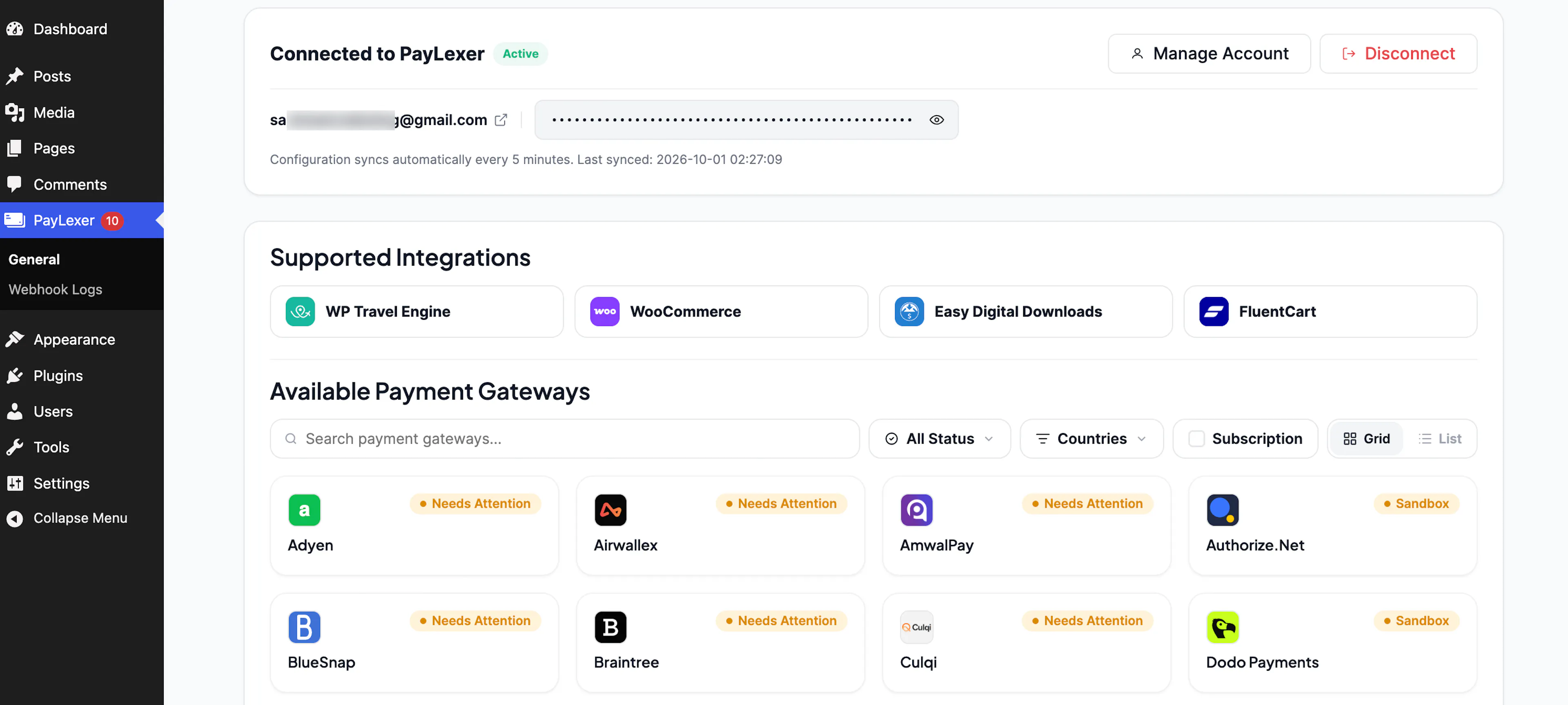
- In WordPress, the card on the PayLexer General page changes to Connected to PayLexer with the status Active. It shows the email of the PayLexer account your site is connected to.
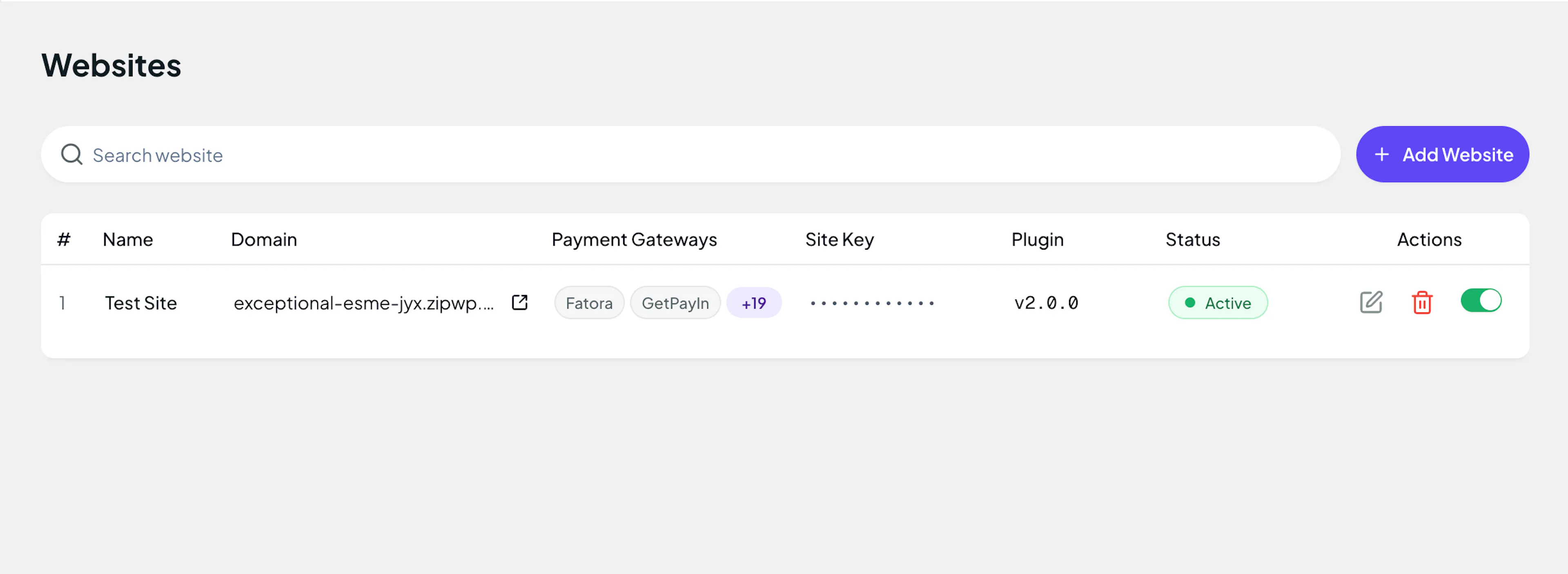
- In the PayLexer dashboard, go to Websites. Your website appears in the table with the status Connected.
If your website doesn't show as Connected, click Connect Account again and check the email and password you entered.
You only connect once per website. Every gateway you configure in PayLexer runs through this connection, so you don't need to reconnect when you add or change a gateway.
Step 4: Enable PayLexer in Your Platform
With your website connected, turn on PayLexer gateways in your platform's payment settings. Follow the guide for your platform:
| Platform | Guide |
|---|---|
| WP Travel Engine | WP Travel Engine Integration → |
| WooCommerce | WooCommerce Integration → |
| Easy Digital Downloads | Easy Digital Downloads Integration → |
| FluentCart | FluentCart Integration → |
Payments can't be processed until your website shows as Connected in the PayLexer Websites table.
FAQs
Next Step
Once your website shows as Connected and PayLexer is enabled in your platform, run your first test transaction: Test Transactions & Platform Integration→