

iyzico Payment Gateway
Connect iyzico to PayLexer to accept card, bank transfer, and local Turkish payments in TRY, USD, EUR, and GBP.
iyzico is a Turkey-focused payment gateway founded in 2013 and headquartered in Istanbul, now part of the PayU group. It supports card payments, bank transfers, buy now pay later, and local Turkish payment methods through a single hosted checkout.
- Supported Regions (Merchant Accounts): Turkey - view full list
- Supported Currencies: TRY, USD, EUR, GBP - view full list
Supported Features
- Hosted checkout for card payments and local Turkish payment methods
- Bank transfer and buy now pay later options at checkout
- Multi-currency processing in TRY, USD, EUR, and GBP
- Separate Sandbox and Live environments with independent credentials
- Optional webhook notifications for real-time payment status updates
iyzico on PayLexer is for one-time payments only. It does not support subscriptions or recurring billing.
Before You Start
Make sure you have:
- iyzico Account – Don't have one? Sign up for iyzico →
- PayLexer Account – Required to configure the integration. Create your account →
- A website where you want to integrate
Looking for a different payment processor? View all supported gateways →
Configuring iyzico
You need an API Key and a Secret Key from iyzico for this integration.
iyzico Sandbox keys start with sandbox-. Live keys do not. PayLexer checks this format, so use Sandbox keys for Test mode and Live keys for Live mode.
Getting API Credentials
Log in to your iyzico merchant panel
Use the Sandbox merchant panel for test credentials, or the Live merchant panel for production credentials.
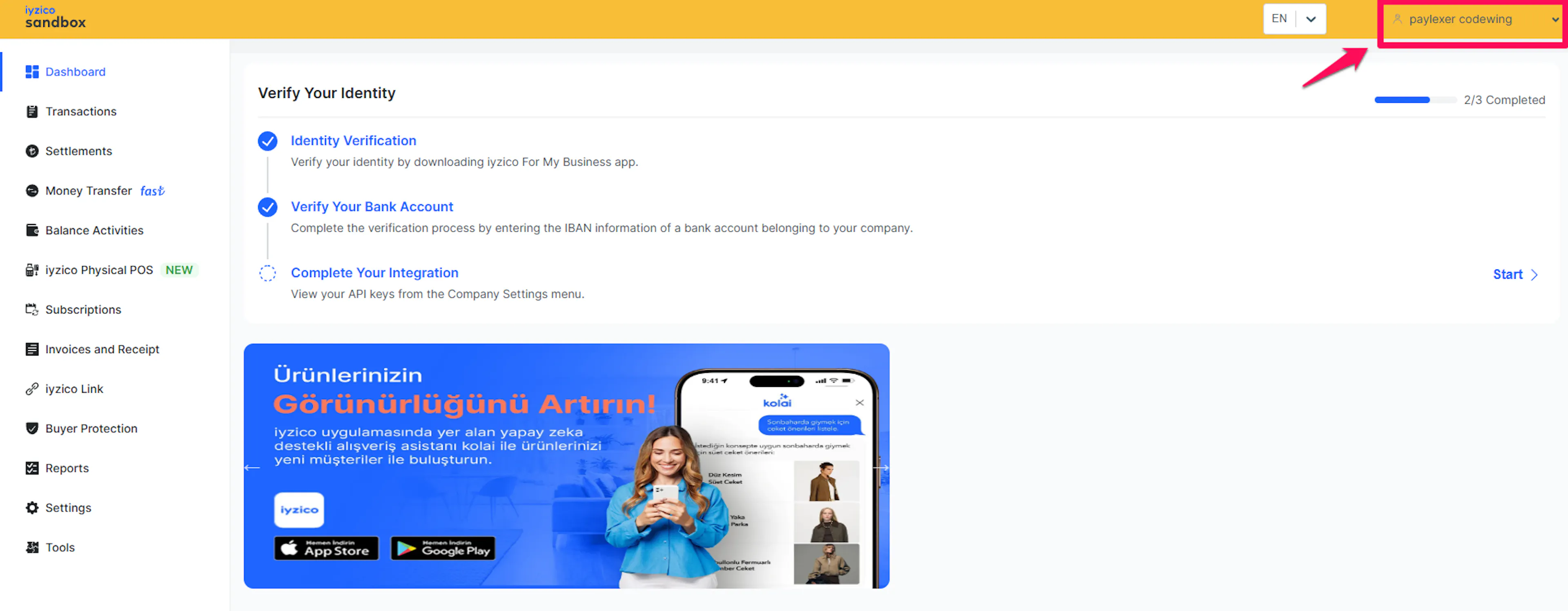
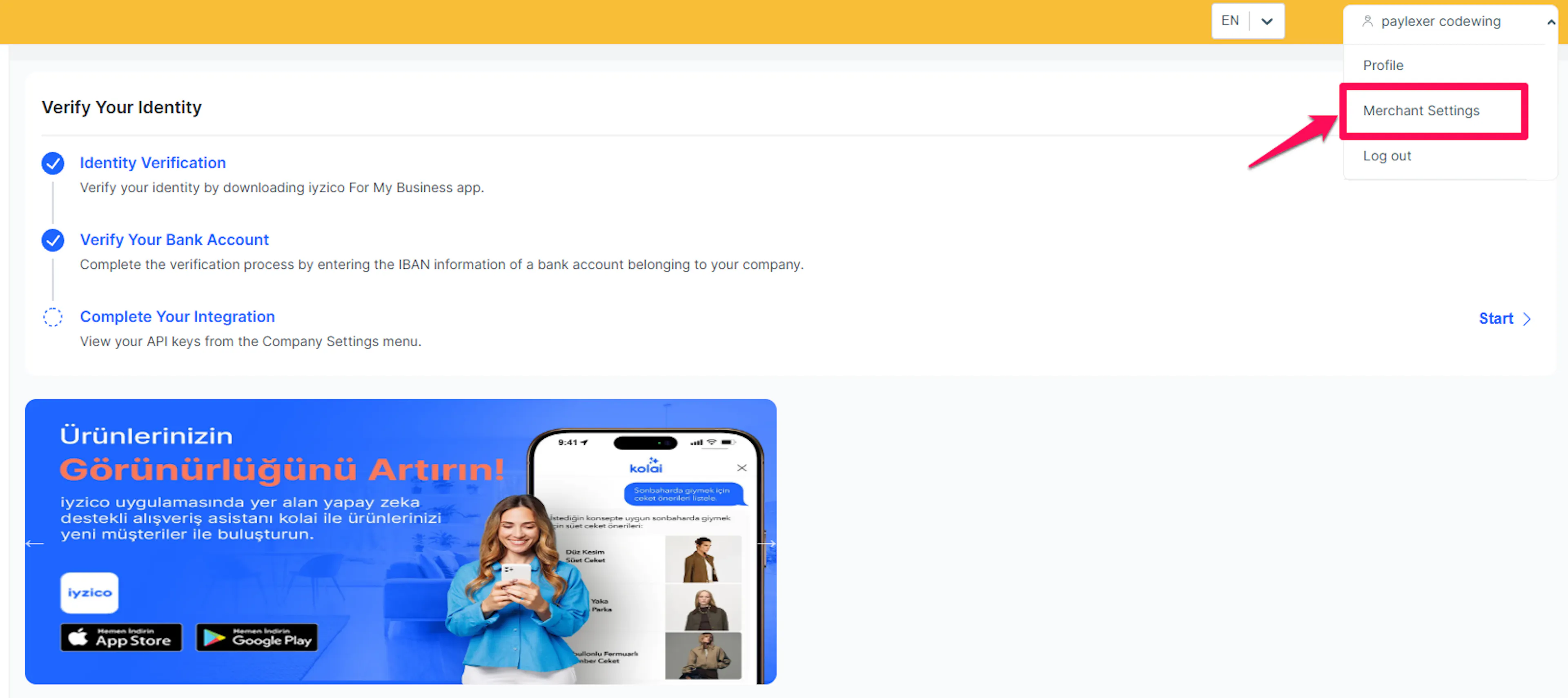
Open Merchant Settings
Go to Settings -> Merchant Settings in the merchant panel. Your API Key and Secret Key are shown in the API Keys card for the environment you are logged into.
Copy your API Key and Secret Key
From the API Keys card, copy both the API Key and the Secret Key. Sandbox and Live credentials are different, so copy them from the matching panel.
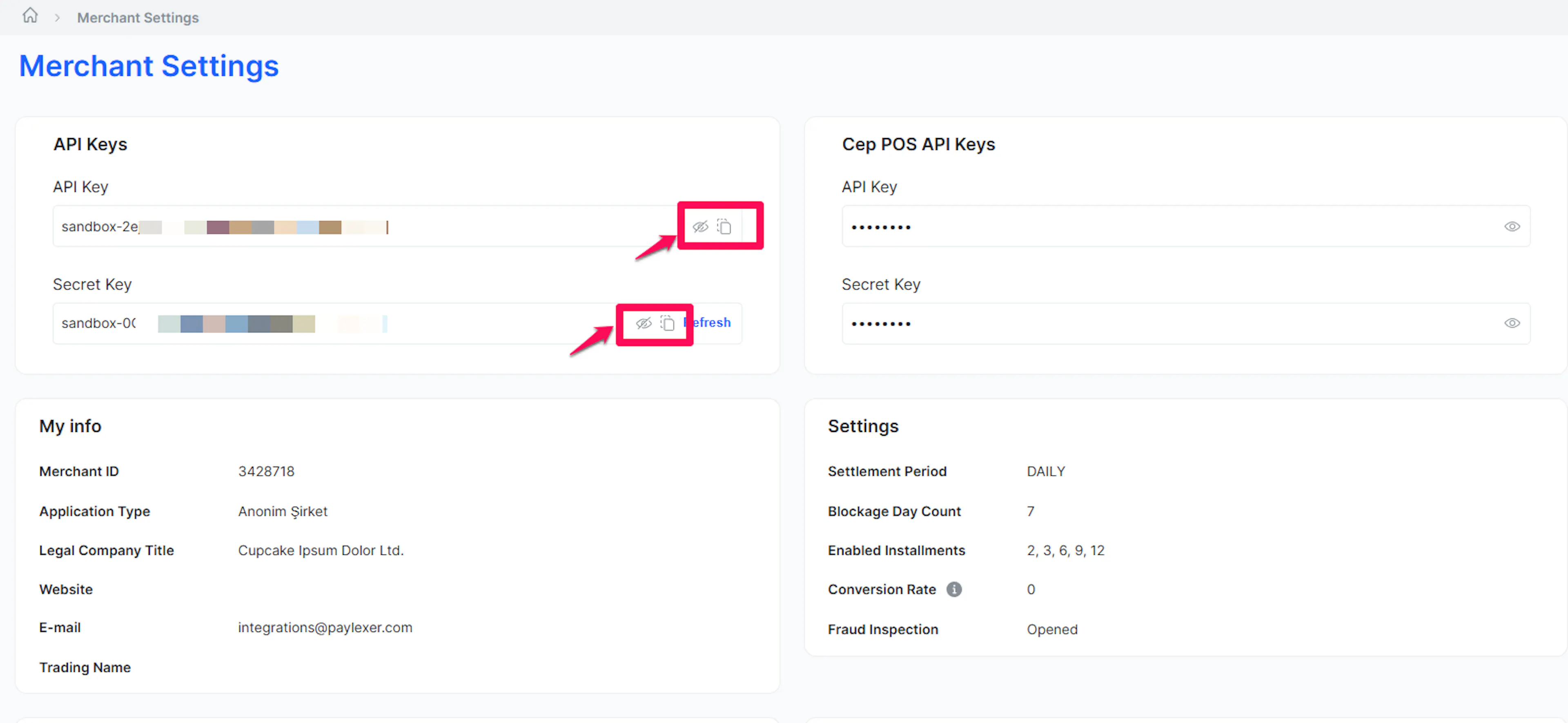
Your Secret Key is a private credential. Never share it or expose it in client-side code.
Adding Credentials to PayLexer
Open PayLexer Dashboard
Log in to your PayLexer dashboard and navigate to Payment Gateways -> iyzico.
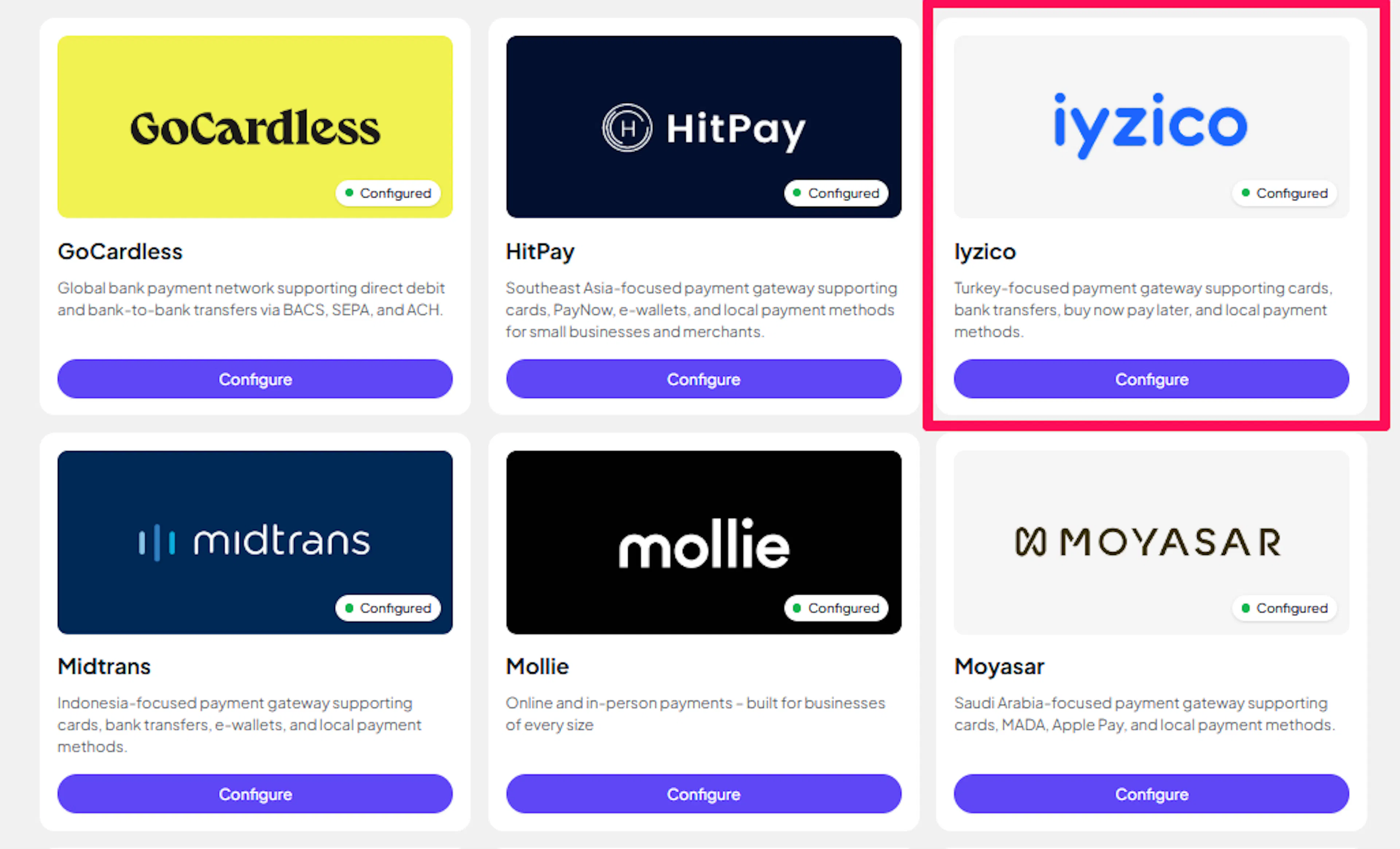
Enter your credentials
Paste the API Key and Secret Key you copied from iyzico.
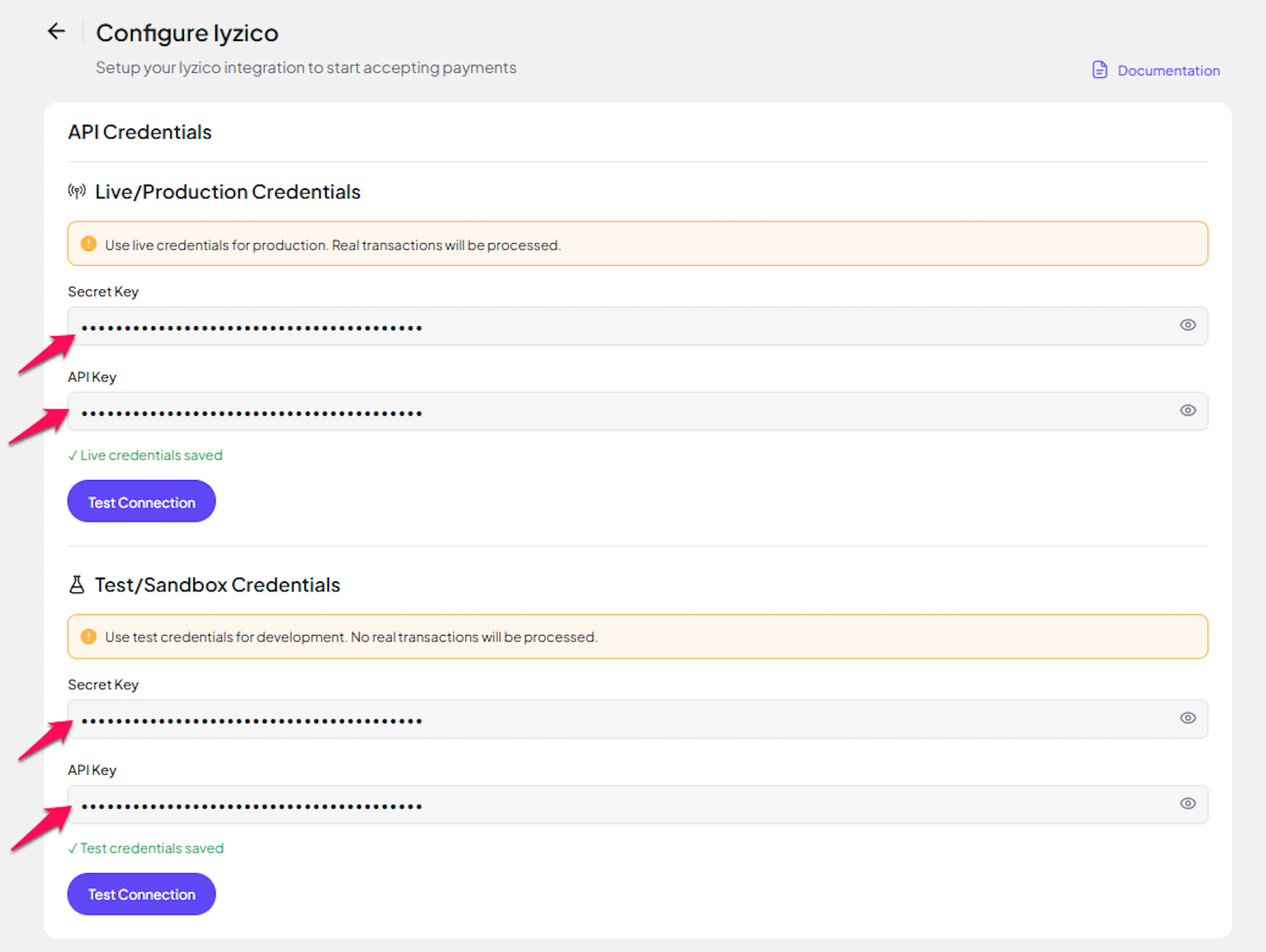
Understanding Live/Production and Sandbox Settings:
| Environment | Purpose |
|---|---|
| Live / Production (Mandatory) | Used for real transactions. Cannot be empty, even when testing. |
| Test / Sandbox (Optional) | Used for testing only. No real money is processed. |
How PayLexer selects credentials:
- Debug/Test mode ON -> Test credentials are used
- Debug/Test mode OFF -> Live credentials are used
Test and save
Click Test Connection to verify your credentials, then click Save Configuration.
Configuring Webhooks (Recommended)
Webhooks enable real-time payment updates and significantly improve reliability. iyzico webhooks are optional on PayLexer, but enabling them is strongly recommended.
Benefits of Webhooks:
- Instant payment status updates
- Reliable confirmation even if the customer closes the browser
- Fewer delays compared to relying on the return flow alone
iyzico signs webhook notifications with the X-IYZ-SIGNATURE-V3 header, using your iyzico Secret Key as the signing key.
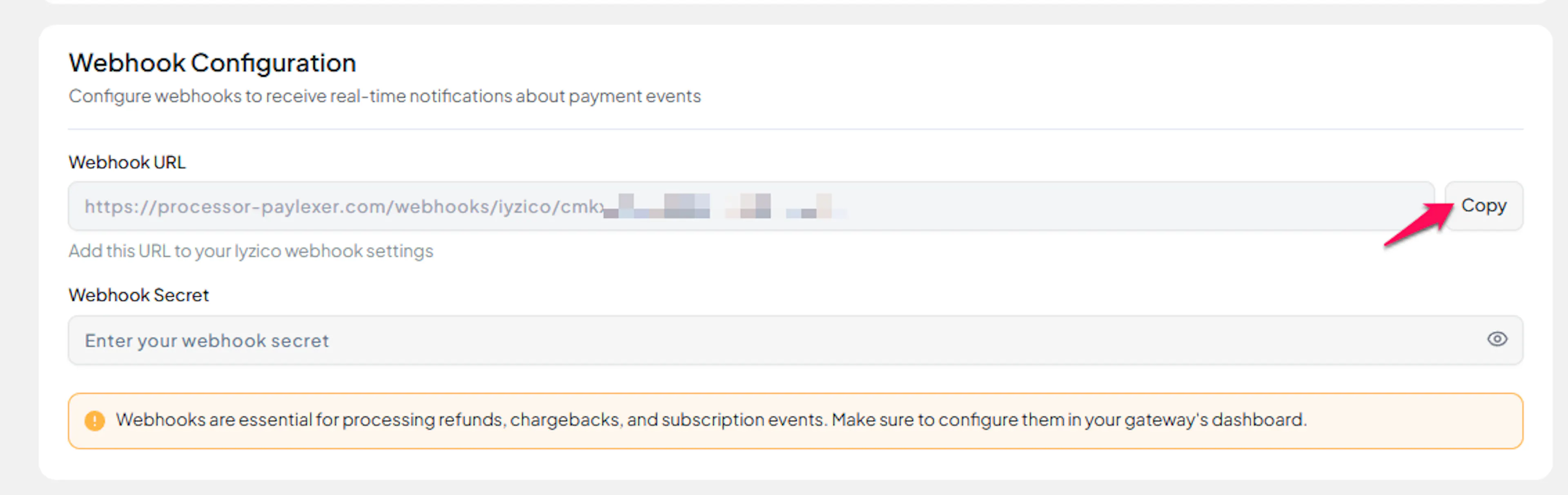
Copy your PayLexer webhook URL
In Payment Gateways -> iyzico, copy the Webhook URL shown in the configuration screen.
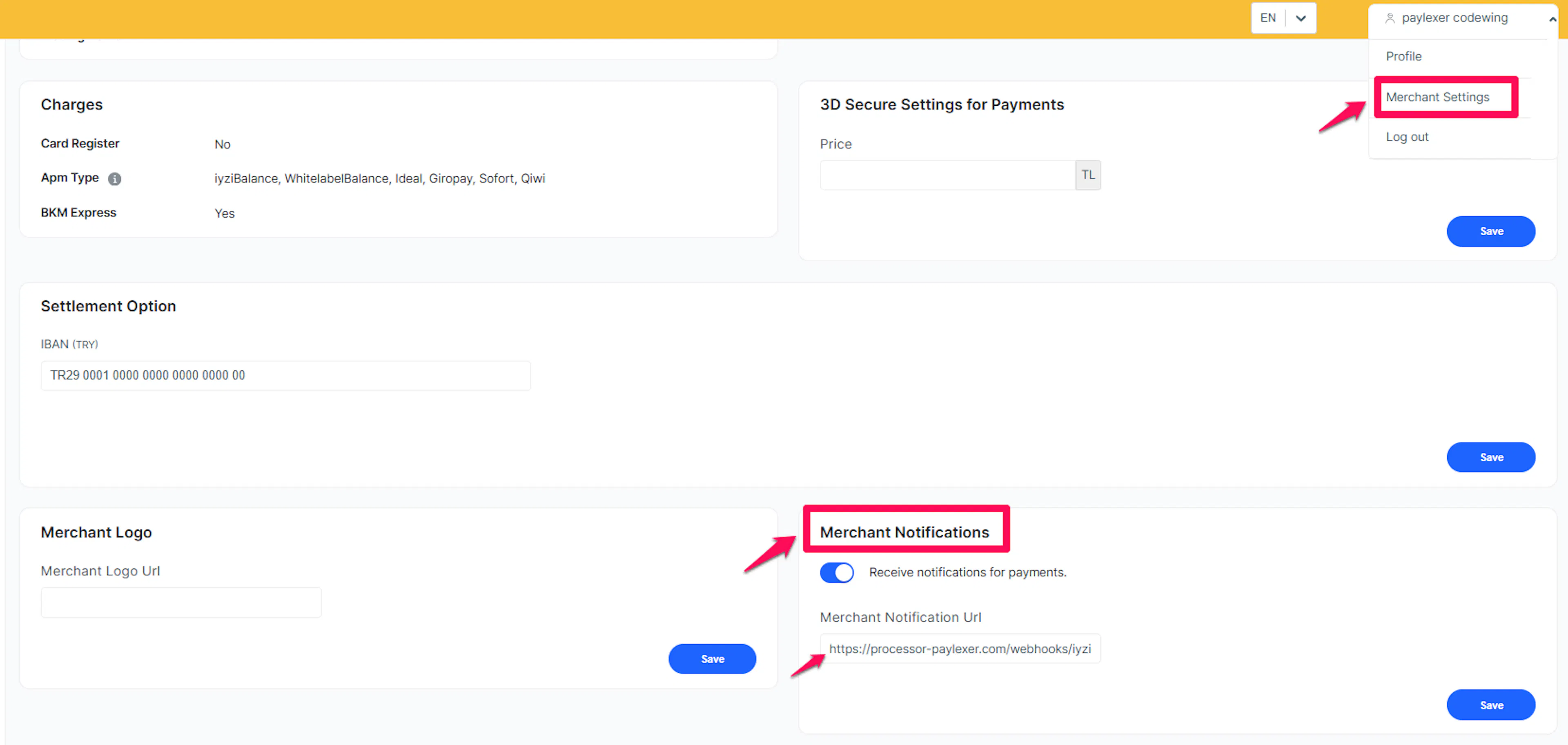
Register the URL in iyzico
In the iyzico merchant panel, go to Settings -> Merchant Settings -> Merchant Notifications. Turn on Receive notifications for payments, paste your PayLexer Webhook URL into the Merchant Notification Url field, and click Save.
Enable signature validation
To have iyzico send signed webhooks, email [entegrasyon@iyzico.com] and request that X-IYZ-SIGNATURE-V3 signatures be enabled for your account.
In Live mode, PayLexer rejects unsigned webhooks. Enable signature validation with iyzico before going live so real payment events are accepted.
Add the Webhook Secret (optional)
If you want to store a dedicated signing key, paste it into the optional Webhook Secret field in PayLexer, then click Save Configuration. If you leave it empty, PayLexer validates signatures using your iyzico Secret Key.
Integrate iyzico to Your Website
If you have already added and configured your site, you can enable iyzico in your existing setup.
Go to Websites
Navigate to Websites in your PayLexer dashboard.
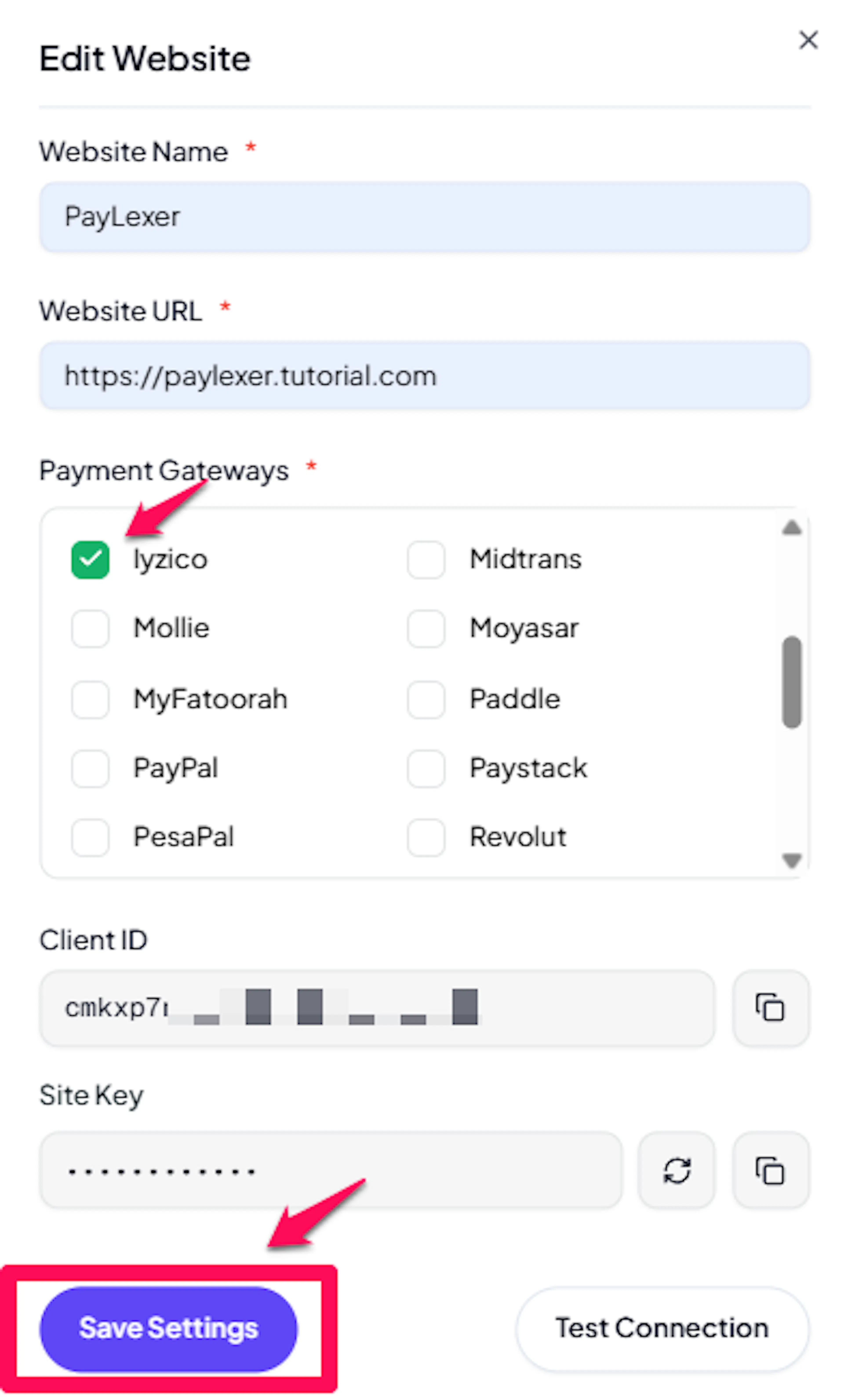
Edit your website
Click the Edit Icon of your added website.
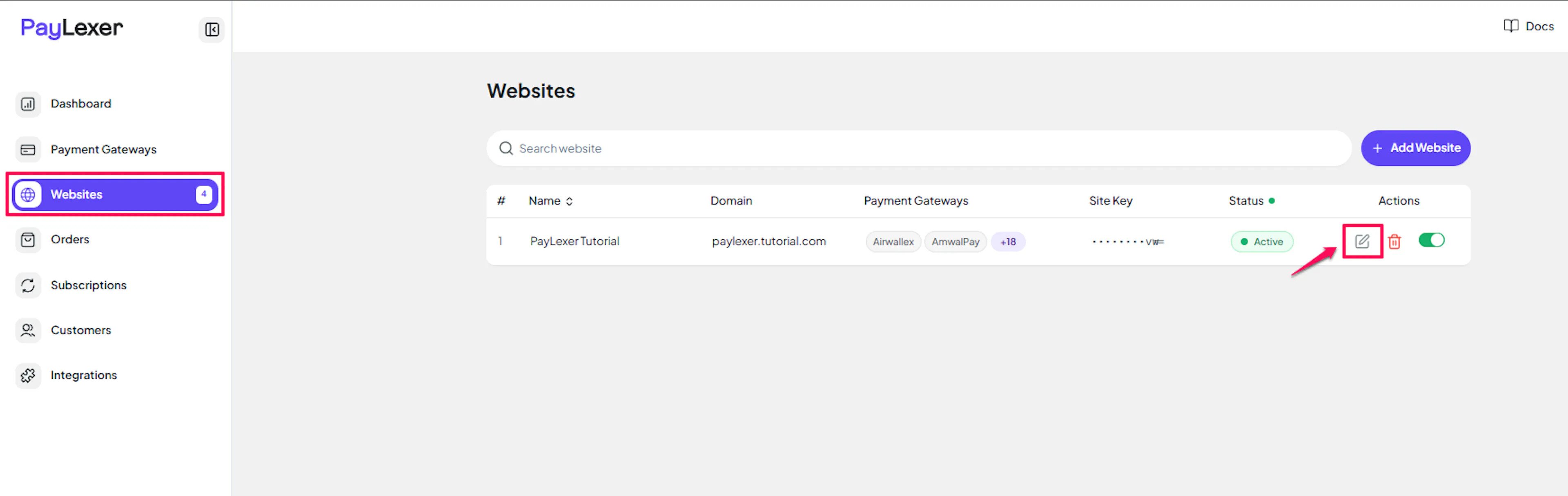
Enable iyzico
Click the checkbox to enable iyzico for the website.
If you haven't added a website yet, Continue to Add Your Website →
Troubleshooting
Best Practices
- Always test in Sandbox with test credentials before enabling iyzico in production.
- Enable webhooks and request signed webhooks from iyzico for reliable, real-time payment updates.
- Keep your Secret Key private and rotate it if you suspect it has been exposed.
- Confirm the checkout currency is one of TRY, USD, EUR, or GBP.
FAQs
Still Have Questions?
- iyzico Support: iyzico Help Center
- PayLexer Support: Contact Support