

PhaJay
Connect PhaJay to PayLexer to accept Lao bank QR payments and 3D Secure card payments through PhaJay's hosted payment page.
PhaJay is a payment facilitator based in Laos that connects one merchant account to the country's main banks: BCEL, JDB, LDB, Indochina Bank and ST Bank. Shoppers pay on PhaJay's own hosted payment page. In Lao kip they pick their bank and scan a QR code with their banking app, and in US dollars they pay by 3D Secure card. Payment details never reach PayLexer or your store.
- Supported Regions (Merchant Accounts): Laos
- Supported Currencies: LAK, USD
Supported currencies differ between sandbox and live:
| Environment | Supported currency | Payment method |
|---|---|---|
| Test / Sandbox | LAK only | Bank QR |
| Live / Production | LAK and USD | LAK: Bank QR, USD: 3D Secure card |
PhaJay has no sandbox for card payments, so a USD order is refused at checkout while Debug/Test mode is ON. Use LAK for sandbox testing. Any currency other than LAK or USD is refused in both modes.
Supported Features
- Hosted payment page that redirects shoppers to PhaJay
- Bank QR payments from BCEL, JDB, LDB, Indochina Bank and ST Bank in LAK
- 3D Secure Visa and Mastercard payments in USD
- Webhooks confirmed with PhaJay before any order is marked paid
- Shoppers sent to your thank-you page only once their payment is confirmed
PhaJay does not support subscriptions or recurring billing in PayLexer. Only one-time payments are available.
PayLexer doesn't support PhaJay refunds. Request full refunds via the PhaJay portal which return within 24 hours. BCEL fees are non-refundable, while JDB and Indochina Bank refunds are fee-free.
Before You Start
Make sure you have:
- PhaJay Account – Don't have one? Sign up for PhaJay →
- PayLexer Account – Required to configure the integration. Create your account →
- A website where you want to integrate
Looking for a different payment processor? View all supported gateways →
Configuring PhaJay
You need a Secret Key (and a Test Key for testing) from PhaJay for this integration.
Getting API Credentials
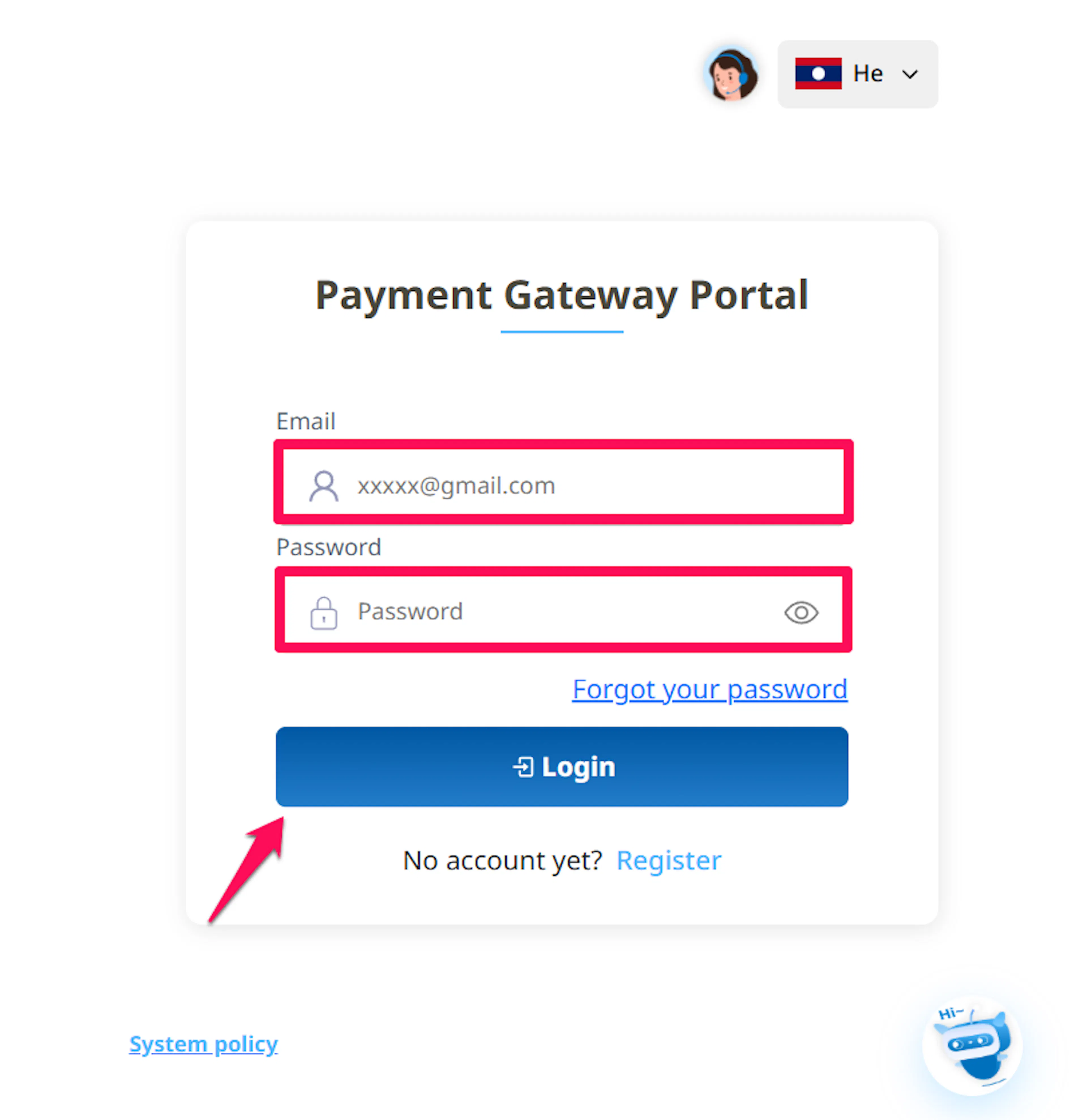
Sign in to the PhaJay portal
Log in to the PhaJay portal.
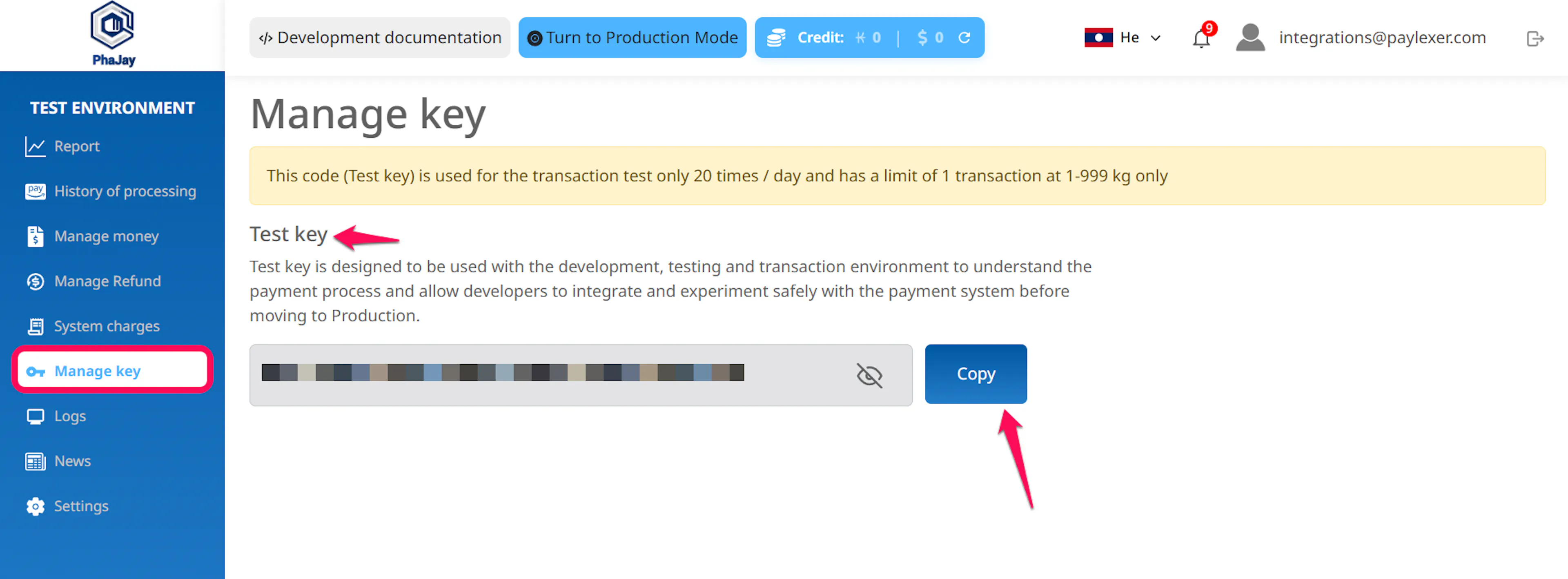
Open Key Management
Open Key Management. Your Test Key is available straight after registration. Your Secret Key for live payments appears once PhaJay approves your business through KYC.
Copy your keys
Copy the Test Key and, once available, the Secret Key. Keep them private, because anyone with a key can create payments on your account.
Live payments need PhaJay's KYC: your business registration details, an ID of the owner or representative, and a Lao bank account for settlement. See PhaJay's KYC guide.
Adding Credentials to PayLexer
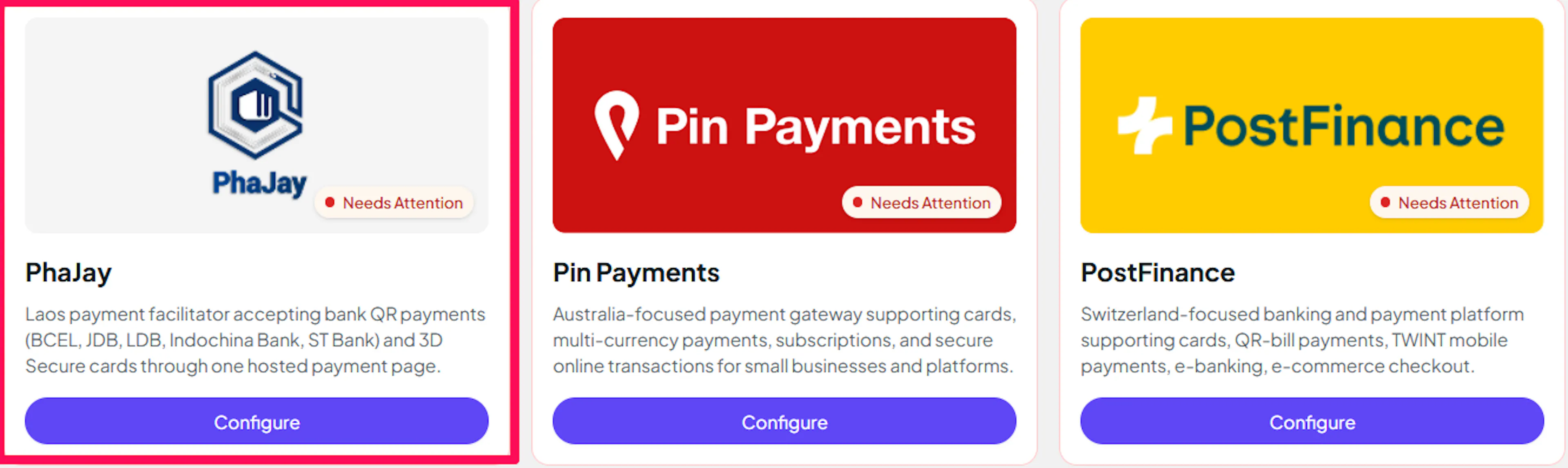
Open PayLexer Dashboard
Log in to your PayLexer dashboard and navigate to Payment Gateways → PhaJay.
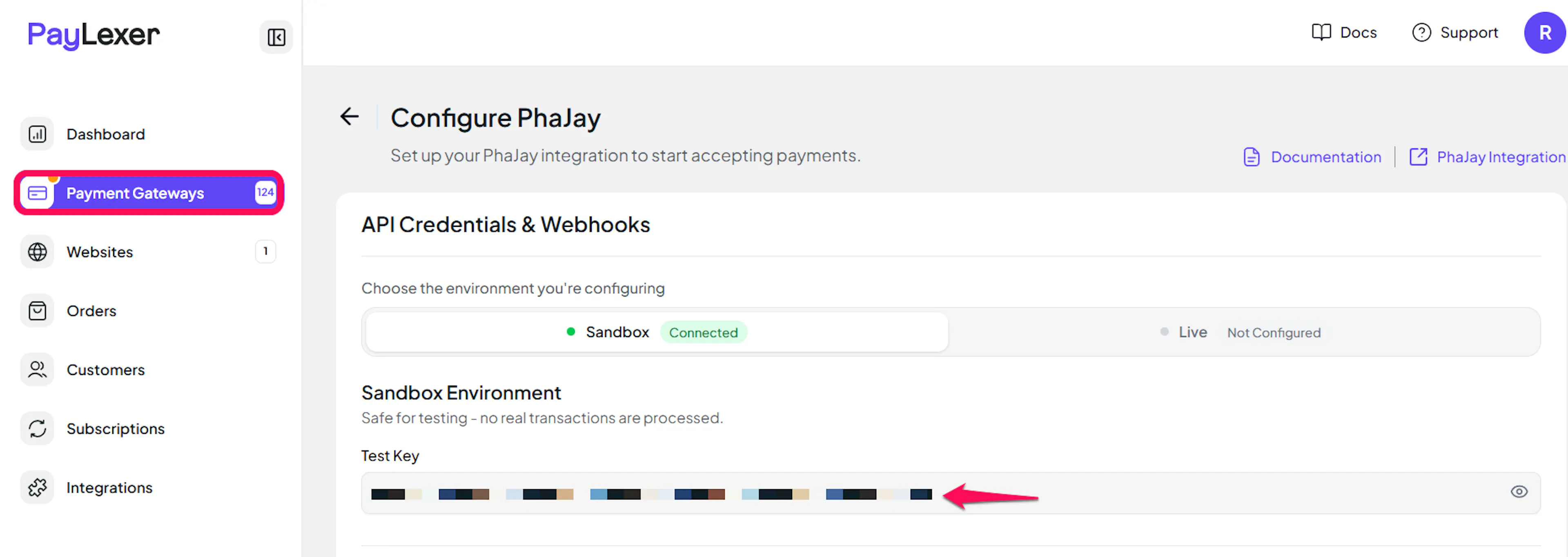
Enter your credentials
Paste your Secret Key into the Secret Key field under Live, and your Test Key into the Test Key field under Test.
Understanding Live/Production and Sandbox Settings:
| Environment | Purpose |
|---|---|
| Live / Production | Used for real transactions. Add your Secret Key once PhaJay has approved your KYC. |
| Test / Sandbox | Used for testing only. No real money is processed. Available straight after registration. |
How PayLexer selects credentials:
- Debug/Test mode ON → Test credentials are used
- Debug/Test mode OFF → Live credentials are used
Test and save
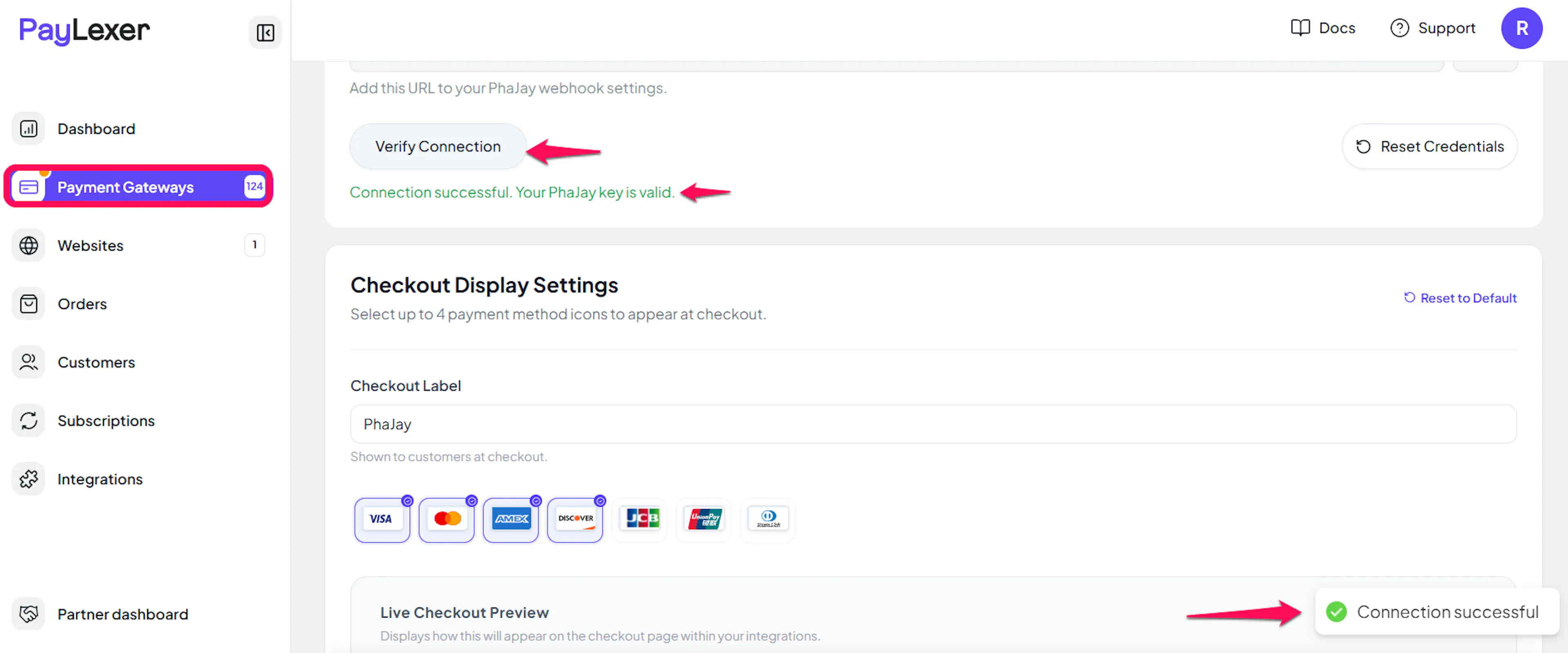
Click Save to save your configuration and verify your credentials. Click Verify Connection to test the connection.
Configuring Webhooks (Mandatory)
Webhooks enable real-time payment updates and significantly improve reliability.
Benefits of Webhooks:
- Instant payment status updates
- Orders completed as soon as the shopper pays
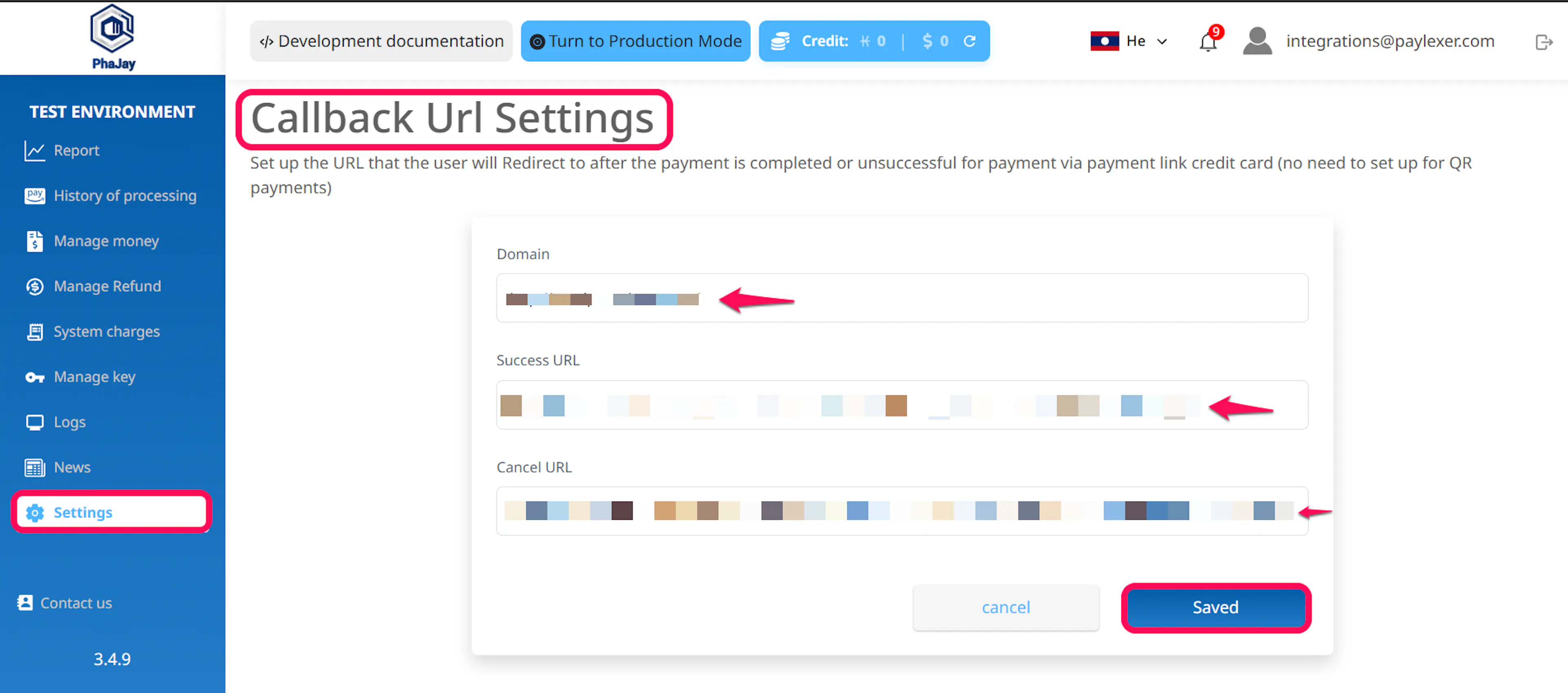
PhaJay takes its webhook and return addresses from your PhaJay portal settings, not from each payment. Without the webhook URL, bank QR payments never complete in PayLexer. Without the Success and Cancel URLs, shoppers are not returned to your store after paying.
Copy your PayLexer webhook URL
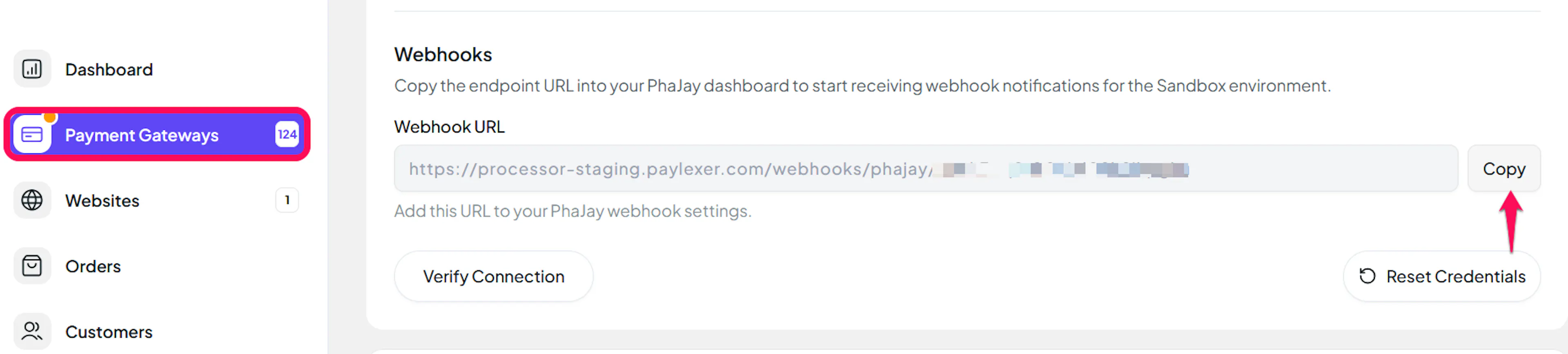
On the Payment Gateways → PhaJay page in PayLexer, copy the Webhook URL. It is generated for your account and shown as a read-only field.
Add the webhook URL in PhaJay
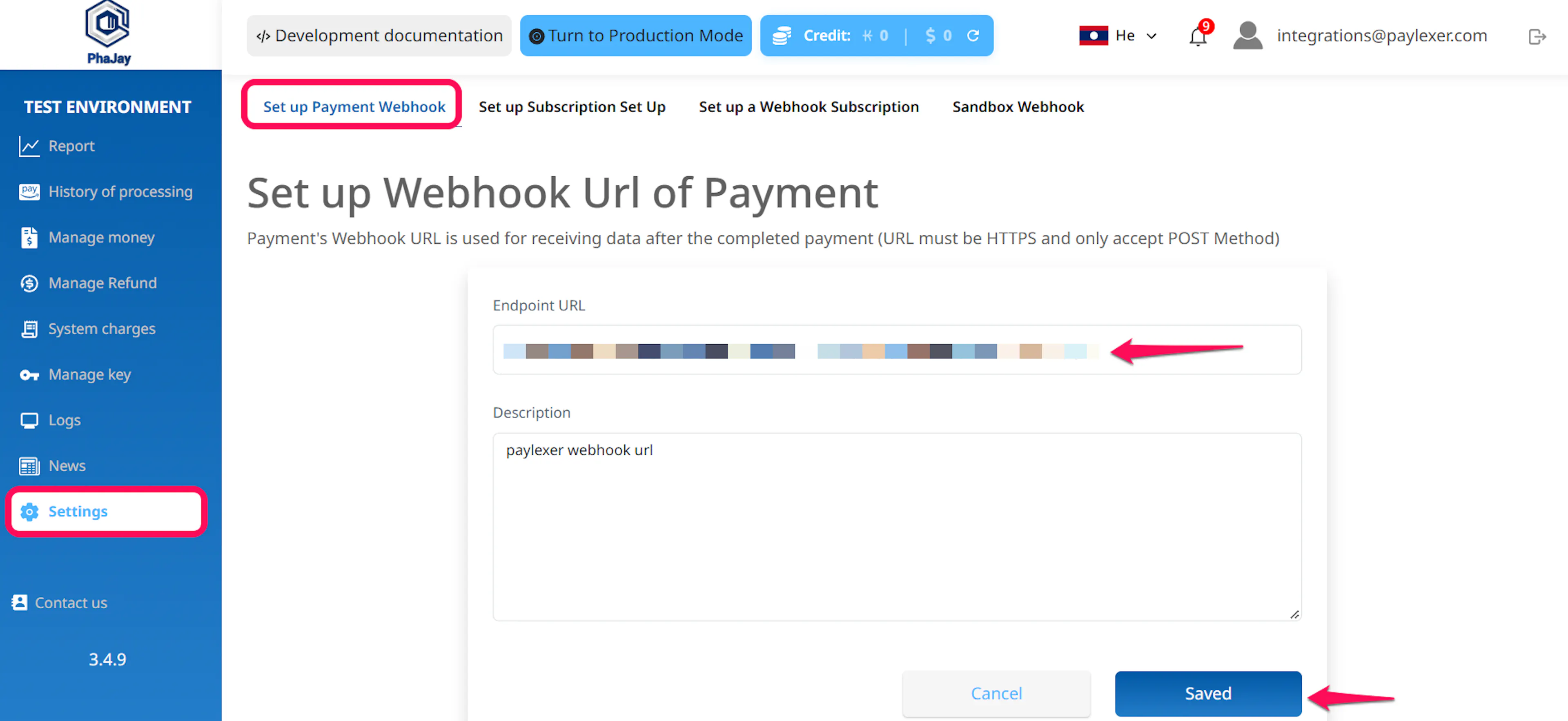
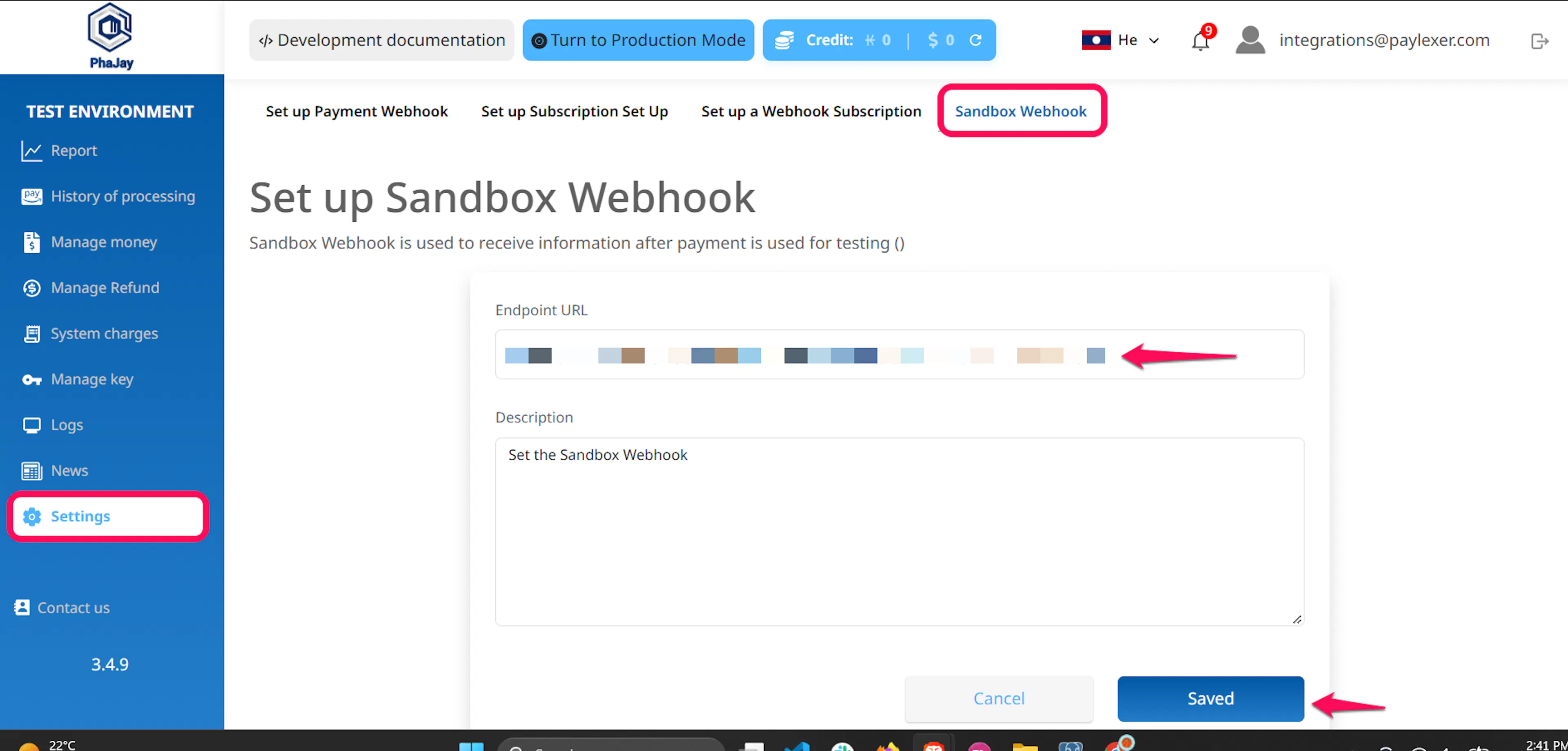
In the PhaJay portal, go to Settings. Paste the PayLexer webhook URL into both the Set up Payment Webhook and Sandbox Webhook tabs and save each one. Leave the subscription tabs empty.
There is no webhook secret to copy. PayLexer confirms every webhook directly with PhaJay before trusting it.
Set the Success and Cancel URLs
In the PhaJay portal, open Settings → Callback URL Settings, fill in these fields using the account ID from the end of your webhook URL, and save:
| PhaJay setting | Value |
|---|---|
| Domain | Your website's domain, for example yourstore.com |
| Success URL | https://processor.paylexer.com/redirect-callback/phajay?tenant=<your-account-id> |
| Cancel URL | https://processor.paylexer.com/redirect-callback/phajay?tenant=<your-account-id>&result=cancel |
PayLexer sends each shopper on to your store's thank-you page only once PhaJay has confirmed the payment, and back to checkout if they cancelled.
Integrate PhaJay to Your Website
If you have already added and configured your site, you can enable PhaJay in your existing setup.
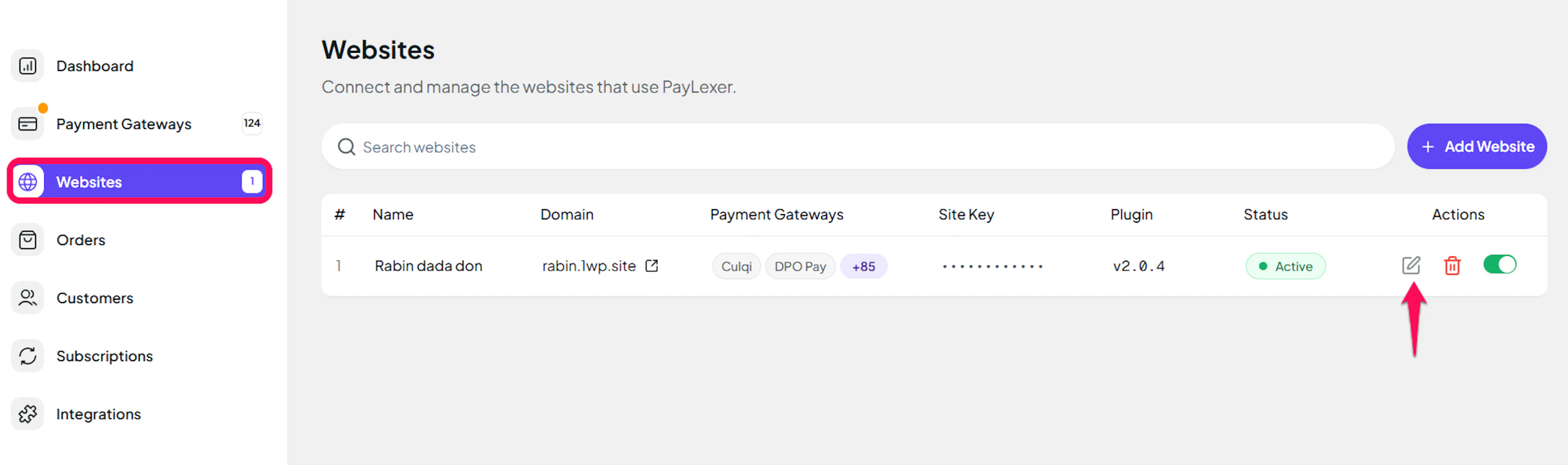
Go to Websites
Navigate to Websites in your PayLexer dashboard.
Edit your website
Click the Edit Icon of your added website.
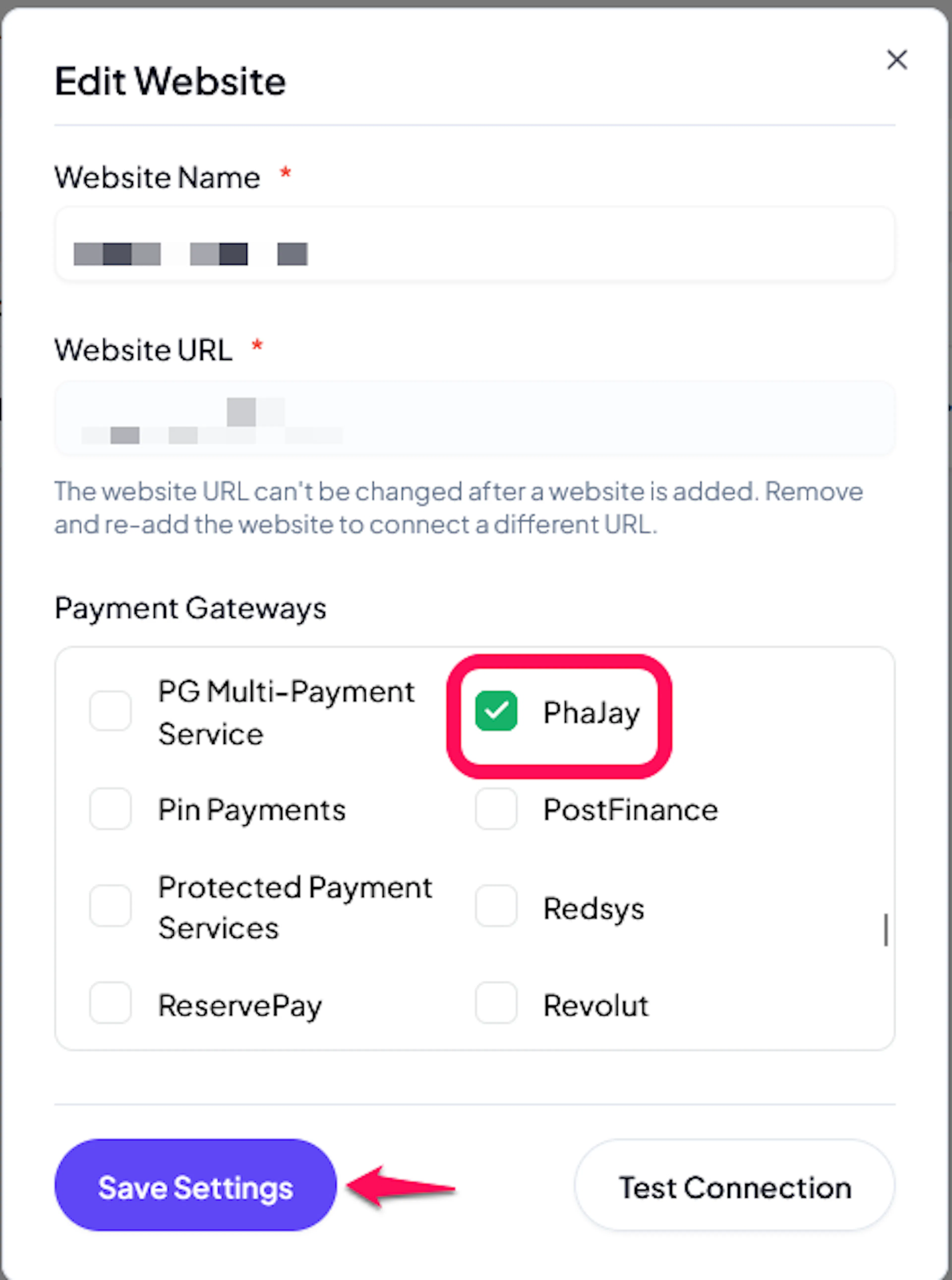
Enable PhaJay
Click the checkbox to enable PhaJay for the website.
If you haven't added a website yet, Continue to Add Your Website →
Troubleshooting
Best Practices
- Test in sandbox before enabling production. Pay sandbox QR codes with the PhaJay test app, not a real bank app.
- Set the webhook, Success and Cancel URLs in the PhaJay portal before taking your first live payment.
- Price products in LAK for bank QR payments, or USD for card payments.
- Expect product names in Lao or Thai to be shortened at the bank. BCEL rejects Lao and Thai characters, so PayLexer removes them from the payment description your shopper sees.
- Never share your Secret Key. It can create payments on your PhaJay account.
FAQs
Still Have Questions?
- PhaJay Support: PhaJay Help Center
- PayLexer Support: Contact Support