

PayU Africa
Connect PayU Africa to PayLexer to accept cards, EFT, bank transfers, and local payment methods in Nigeria and South Africa.
PayU Africa is PayU's payment business for Nigeria and South Africa, run on PayU's shared Middle East and Africa (MEA) platform and owned by Rapyd since 2025. PayU Nigeria and PayU South Africa are separate PayU companies with their own merchant portals and live systems, but they use the same payment page and the same kind of credentials, so PayLexer offers them as one gateway. Shoppers pay on PayU's hosted payment page, so card details never touch your website or PayLexer.
- Supported Regions (Merchant Accounts): Nigeria and South Africa
- Supported Currencies: NGN (Nigerian naira) and ZAR (South African rand)
This gateway appears in checkout only when the selected currency is NGN or ZAR. Which currencies and payment methods actually work is decided by your PayU store.
Supported Features
- Payments on PayU's hosted payment page, with the shopper returned to your store afterwards
- Cards (Visa, Mastercard, Verve) by default
- Optional local payment methods your PayU store has enabled, such as bank transfer (EFT), USSD, Scan to Pay, EFT Pro, Capitec Pay, and Payflex
- Full refunds from the PayLexer dashboard
- Automatic payment notifications, with no webhook setup required
- Failed and declined payments recorded on the order, so a shopper can retry the same order
- A Transaction ID on each order that opens your PayU merchant portal
- Separate test and live environments for safe testing
PayU Africa does not support subscriptions or partial refunds in PayLexer. PayU can store a card for repeat charges, but it does not bill on a schedule itself, so recurring plans are not offered on this gateway.
Before You Start
Make sure you have:
- PayU Account – PayU accounts are set up by PayU, not by self-service sign-up. Contact PayU Nigeria → or Contact PayU South Africa →
- PayLexer Account – Required to configure the integration. Create your account →
- A website where you want to integrate
Looking for a different payment processor? View all supported gateways →
Configuring PayU Africa
You need a SOAP Username, SOAP Password, and Safe Key from PayU for this integration. For live payments you also choose your PayU Country.
Getting API Credentials
PayU issues test and live credentials separately. Test credentials work only on PayU's test system, and live credentials work only on the live system of the country that issued them.
Get test credentials
PayU publishes public test stores for integration testing on its Test Credentials page. Copy the SOAP Username, SOAP Password, and Safe Key of a staging store, or ask PayU for a private test store of your own.
PayU runs one shared test system for both countries, at a South African (.co.za) address. Nigerian merchants use that same test system, so seeing a .co.za address while testing is expected.
Request live credentials from PayU
PayU provides live credentials once you confirm your test integration works. Contact your PayU account manager or PayU Nigeria Support / PayU South Africa Support to request them.
Find your credentials in the PayU merchant portal
Sign in to your country's merchant portal: PayU Nigeria merchant portal or PayU South Africa merchant portal.
Note which payment methods are enabled
Check with PayU which payment methods are switched on for your store. You pick the same methods in PayLexer.
Your SOAP Password authorises payments and refunds on your PayU store. Treat it like a password and never share it or place it in client-side code.
Adding Credentials to PayLexer
Open PayLexer Dashboard
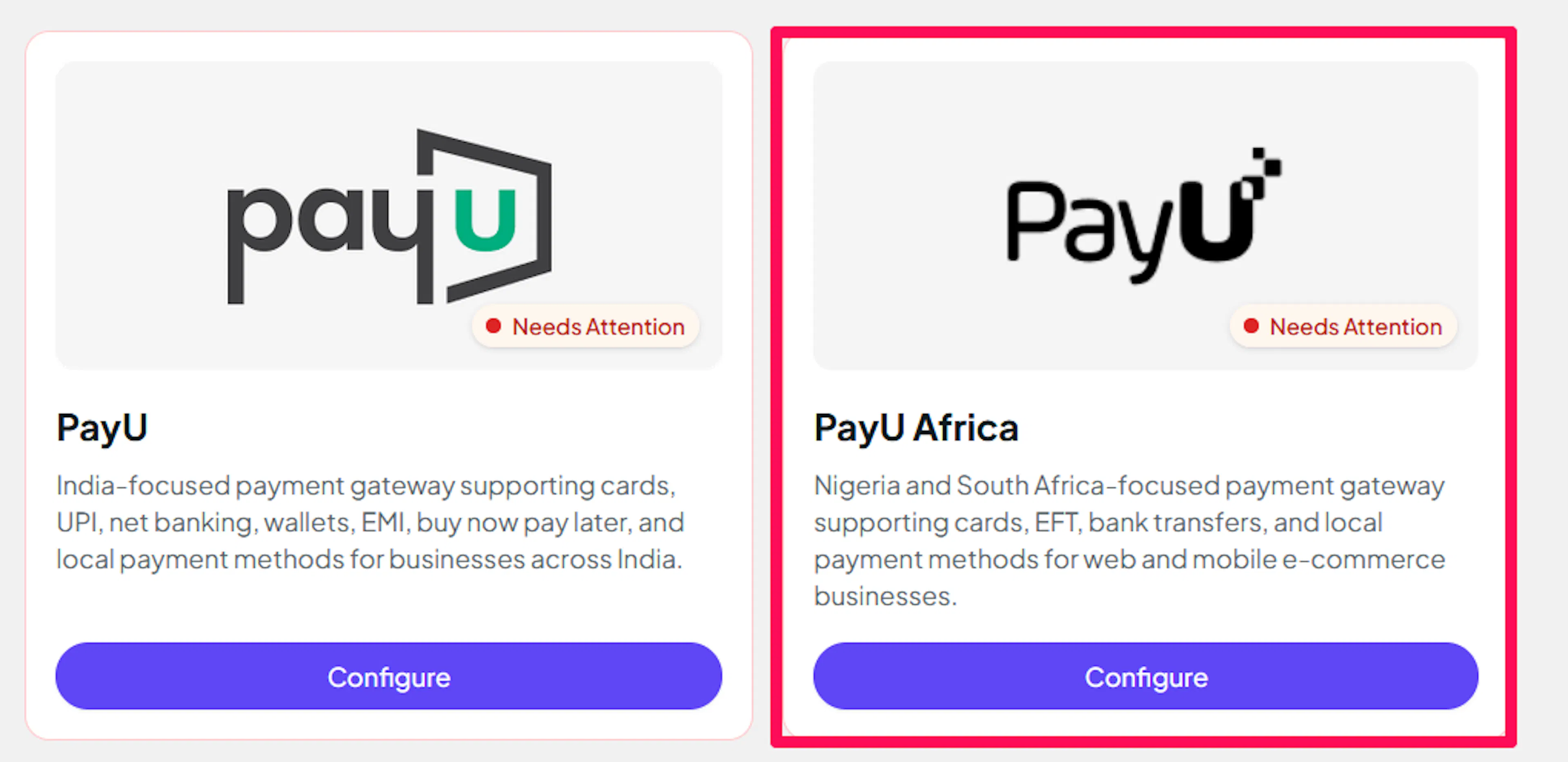
Log in to your PayLexer dashboard and navigate to Payment Gateways → PayU Africa.
Enter your credentials
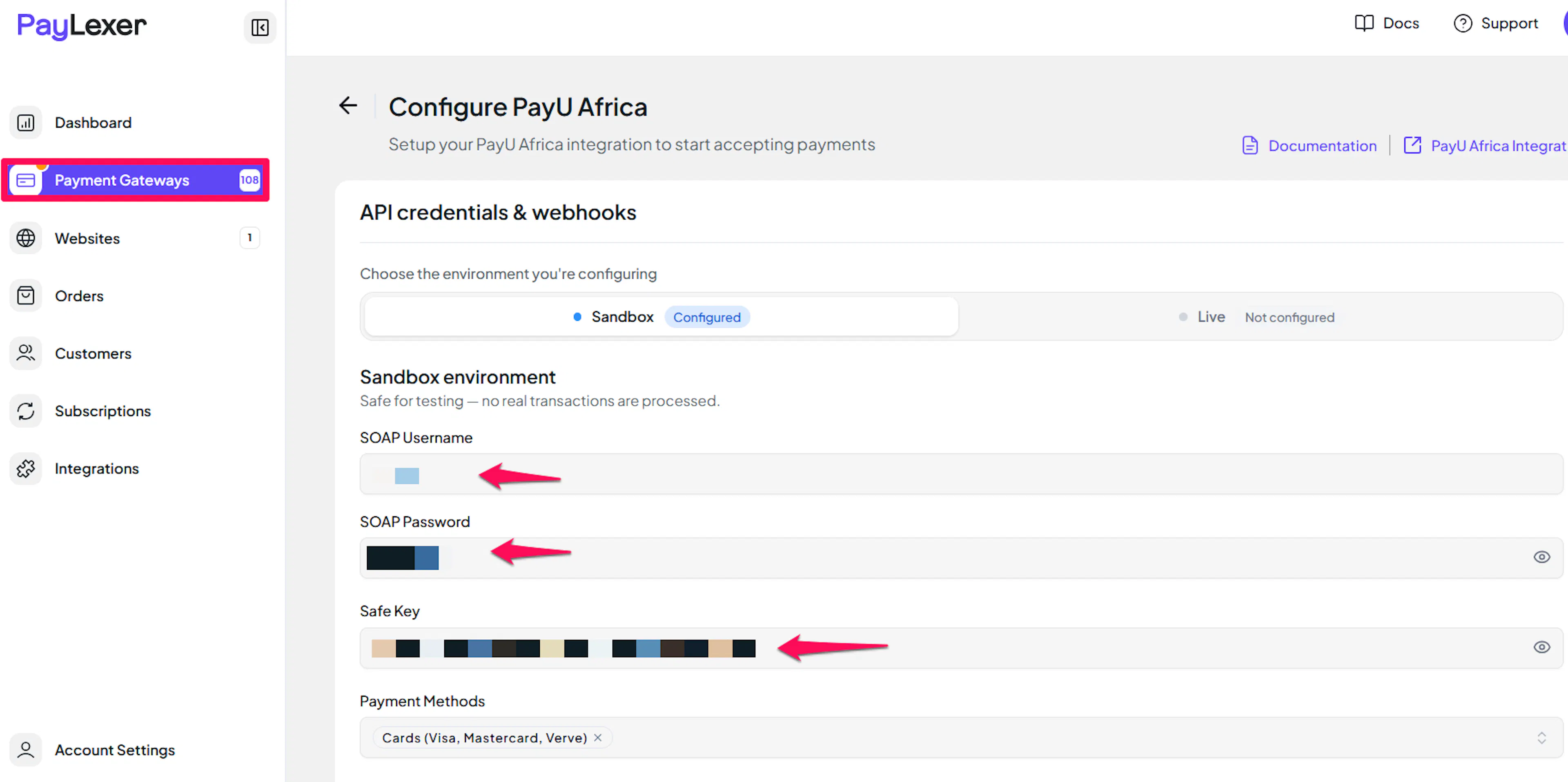
Paste the SOAP Username, SOAP Password, and Safe Key you copied from PayU into the corresponding fields, then complete the two choices below.
- PayU Country (live only) – Choose Nigeria or South Africa, whichever PayU company issued your live account. Live credentials cannot be saved without it. Test credentials have no country, because both countries share PayU's test system.
- Payment Methods (optional) – Tick the payment methods enabled on your PayU store. Leave it empty to offer cards only.
Understanding Live/Production and Sandbox Settings:
| Environment | Purpose |
|---|---|
| Live / Production | Used for real transactions. Sent to PayU Nigeria or PayU South Africa, based on PayU Country. |
| Test / Sandbox | Used for testing only. No real money is processed. Always sent to PayU's shared test system. |
How PayLexer selects credentials:
- Debug/Test mode ON → Test credentials are used
- Debug/Test mode OFF → Live credentials are used
Test and save
Click Save Changes to save your configuration and verify your credentials. Click Verify Connection to test the connection.
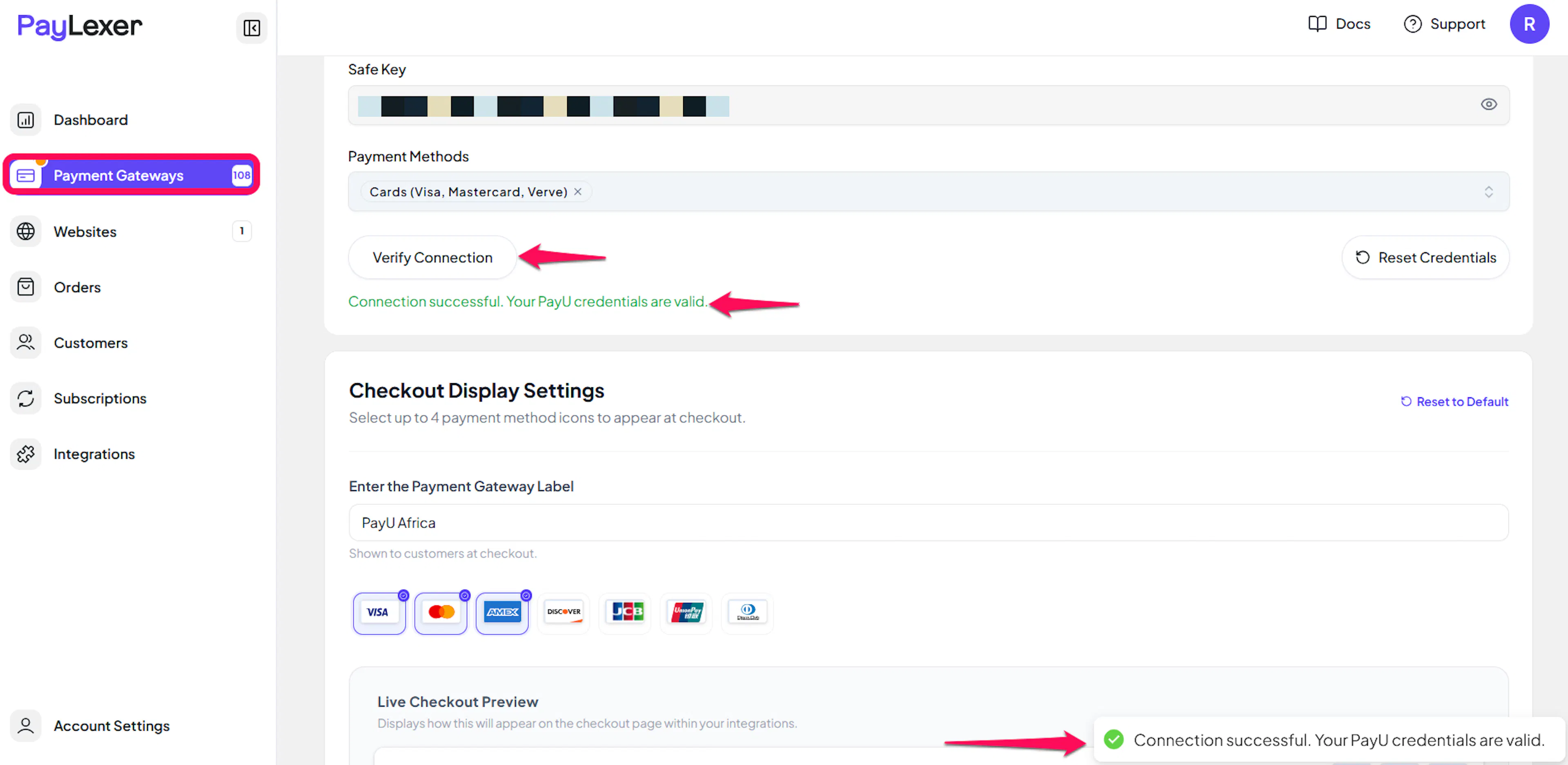
Verify Connection looks up a payment that does not exist, so nothing is created and nothing is charged. It tells you whether the problem is your SOAP Username and SOAP Password, or your Safe Key.
Webhooks (Automatic)
PayLexer sends PayU its own notification address with every payment it creates, so there is nothing to copy, paste, or configure in the PayU merchant portal, for either test or live.
Benefits of Webhooks:
- Instant payment status updates
- Failed and declined payments recorded automatically
- Accurate order status even if the shopper closes the browser before returning
How PayLexer handles the notification:
- PayU does not sign its notifications, so PayLexer never trusts one on its own. It looks the payment up directly with PayU using your credentials and only updates the order when PayU's own records agree
- A notification that cannot be confirmed with PayU is ignored and your order is left untouched
- PayU tries to deliver each notification three times. If all three fail, PayU emails you instead, and the order may stay pending in PayLexer until you check it in the PayU merchant portal
Integrate PayU Africa to Your Website
If you have already added and configured your site, you can enable PayU Africa in your existing setup.
Go to Websites
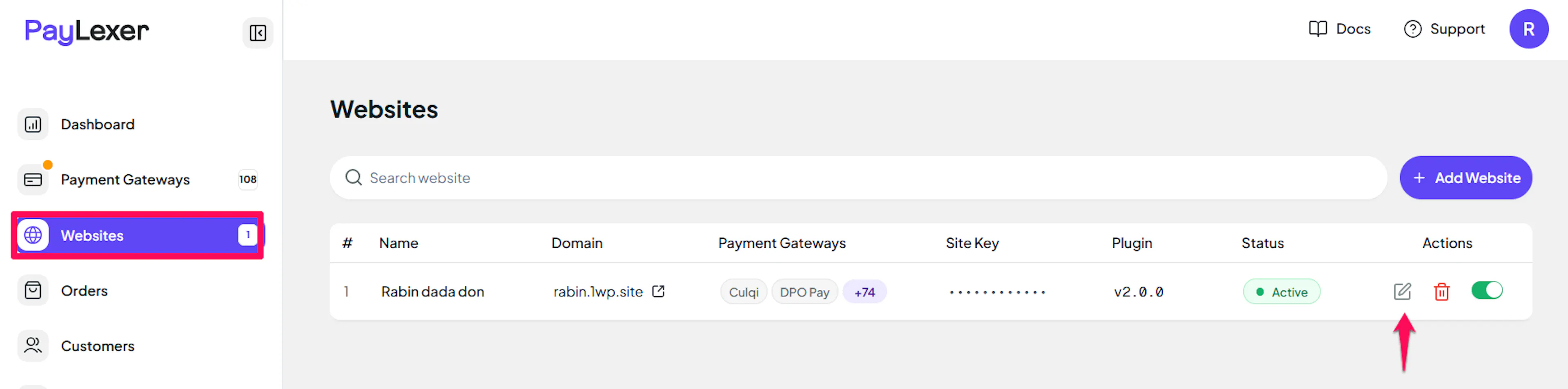
Navigate to Websites in your PayLexer dashboard.
Edit your website
Click the Edit Icon of your added website.
Enable PayU Africa
Click the checkbox to enable PayU Africa for the website.
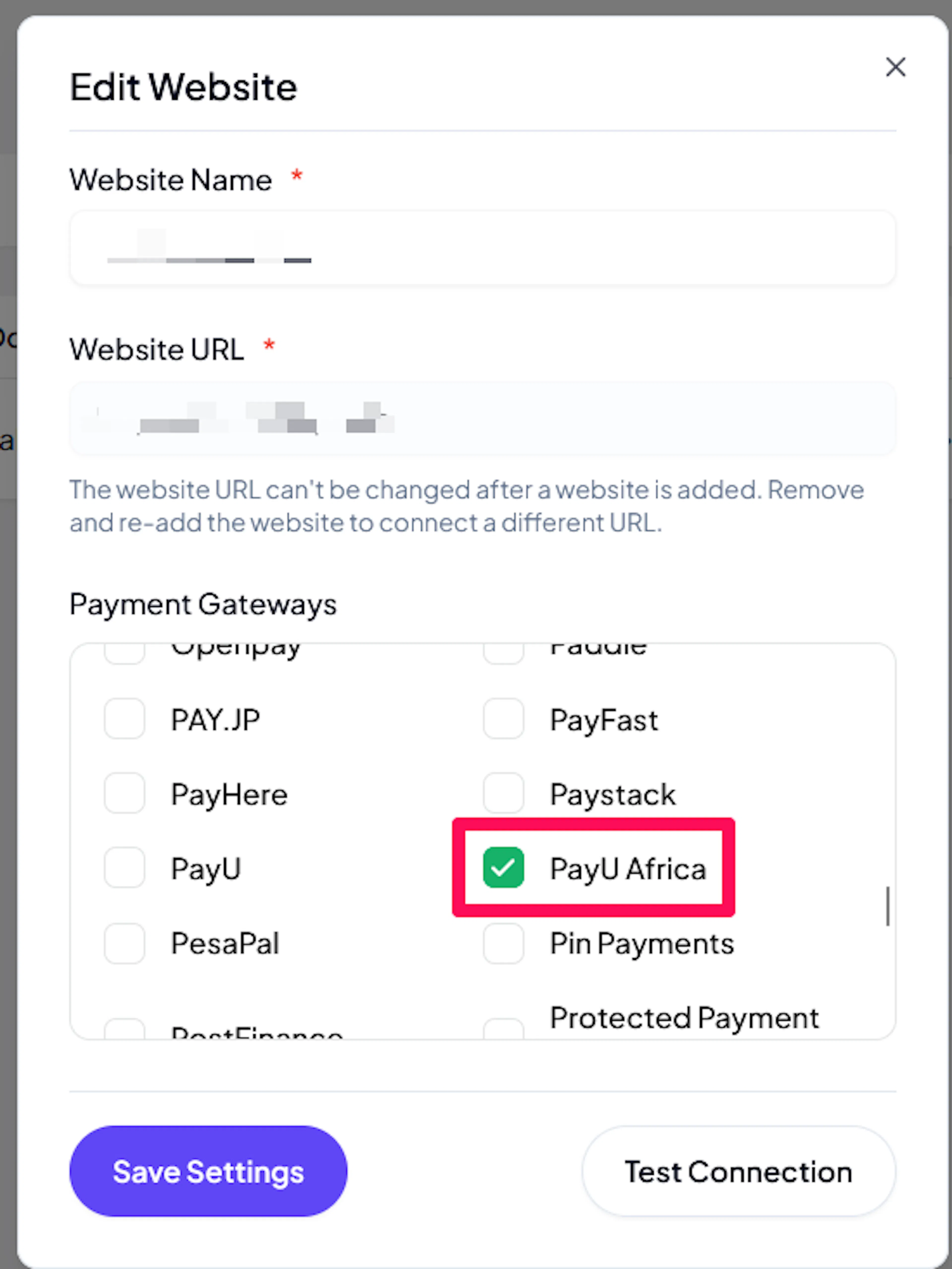
If you haven't added a website yet, Continue to Add Your Website →
Troubleshooting
Best Practices
- Test in the test environment (Debug/Test mode ON) before enabling production
- Choose the correct PayU Country for your live credentials before switching test mode off
- Tick only the payment methods PayU has enabled on your store
- Issue refunds from PayLexer rather than the PayU merchant portal, so your orders stay in sync
- Keep your SOAP Password private and ask PayU to rotate it if it may have been exposed
FAQs
Still Have Questions?
- PayU Support:
- PayU Nigeria: PayU Nigeria Help Center
- PayU South Africa: PayU South Africa Help Center
- PayLexer Support: Contact Support