

USAePay
Connect USAePay to PayLexer to accept card payments on USAePay's hosted payment form, with signed webhooks, full and partial refunds, and recurring billing run by USAePay.
USAePay is a US-focused card payment gateway owned by NMI, widely used by merchants and resellers across the United States and often set up through a bank or reseller. Shoppers pay on USAePay's own hosted payment form, so card data never touches the merchant's site, and USAePay runs the billing schedule for subscriptions itself.
- Supported Regions (Merchant Accounts): United States
- Supported Currencies: USD
This gateway appears in checkout only when the selected currency is USD.
Supported Features
- Card payments on USAePay's hosted payment form
- Full and partial refunds
- Recurring subscriptions billed by USAePay
- Subscriptions with an up-front sign-up fee
Free trials are not supported. USAePay always charges the shopper when the subscription is created.
Before You Start
Make sure you have:
- USAePay Account – USAePay issues live accounts through banks and resellers, not self-service. Need a test account first? Create a USAePay sandbox →
- PayLexer Account – Required to configure the integration. Create your account →
- A website where you want to integrate
Looking for a different payment processor? View all supported gateways →
Configuring USAePay
You need an API Key, an API Key PIN, and a Webhook Signature Key from USAePay for this integration.
Getting API Credentials
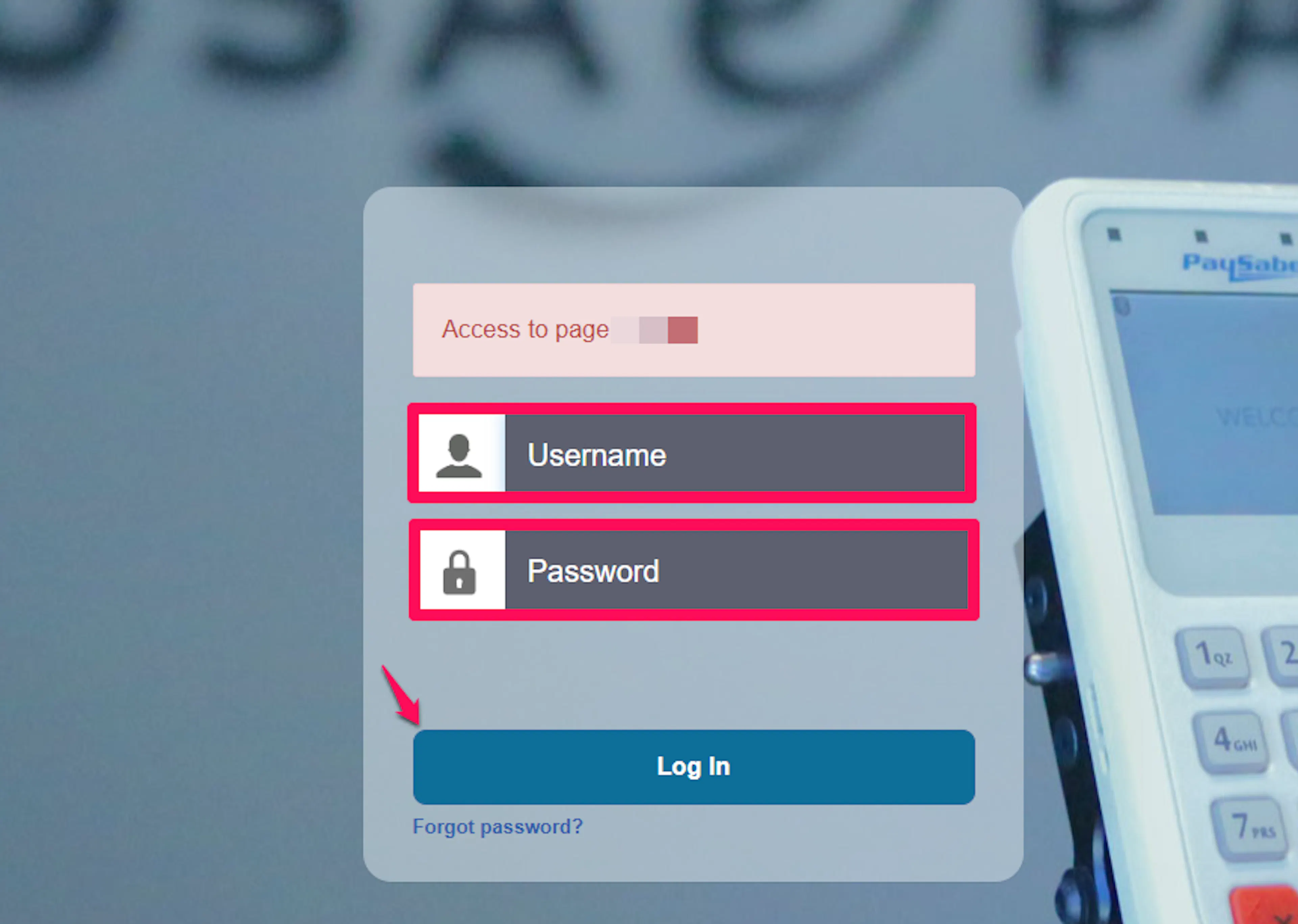
Log in to USAePay
Sign in to your USAePay console. The Sandbox has a separate login at developer.usaepay.com, and the Live console is at secure.usaepay.com.
Test mode on a Live account does not record transactions. Use a USAePay Sandbox account for testing.
Create a Source Key with a PIN
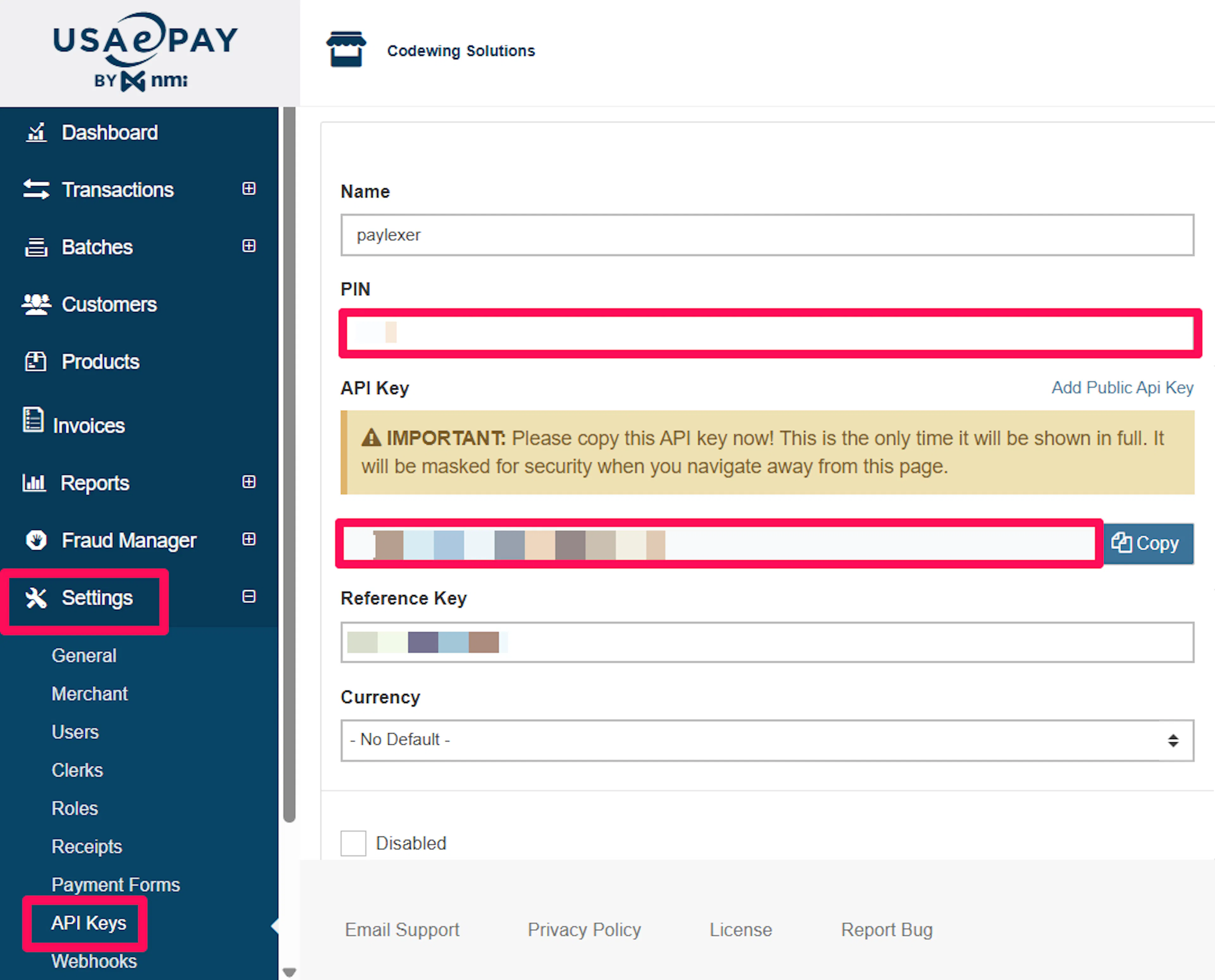
Go to Settings → API Keys (Source Keys) and add a new key. USAePay calls this a Source Key, and it is the API Key PayLexer asks for. Set a PIN on the key. The PIN is mandatory because it signs every payment form PayLexer creates, so the amount cannot be tampered with.
Allow refunds on the key
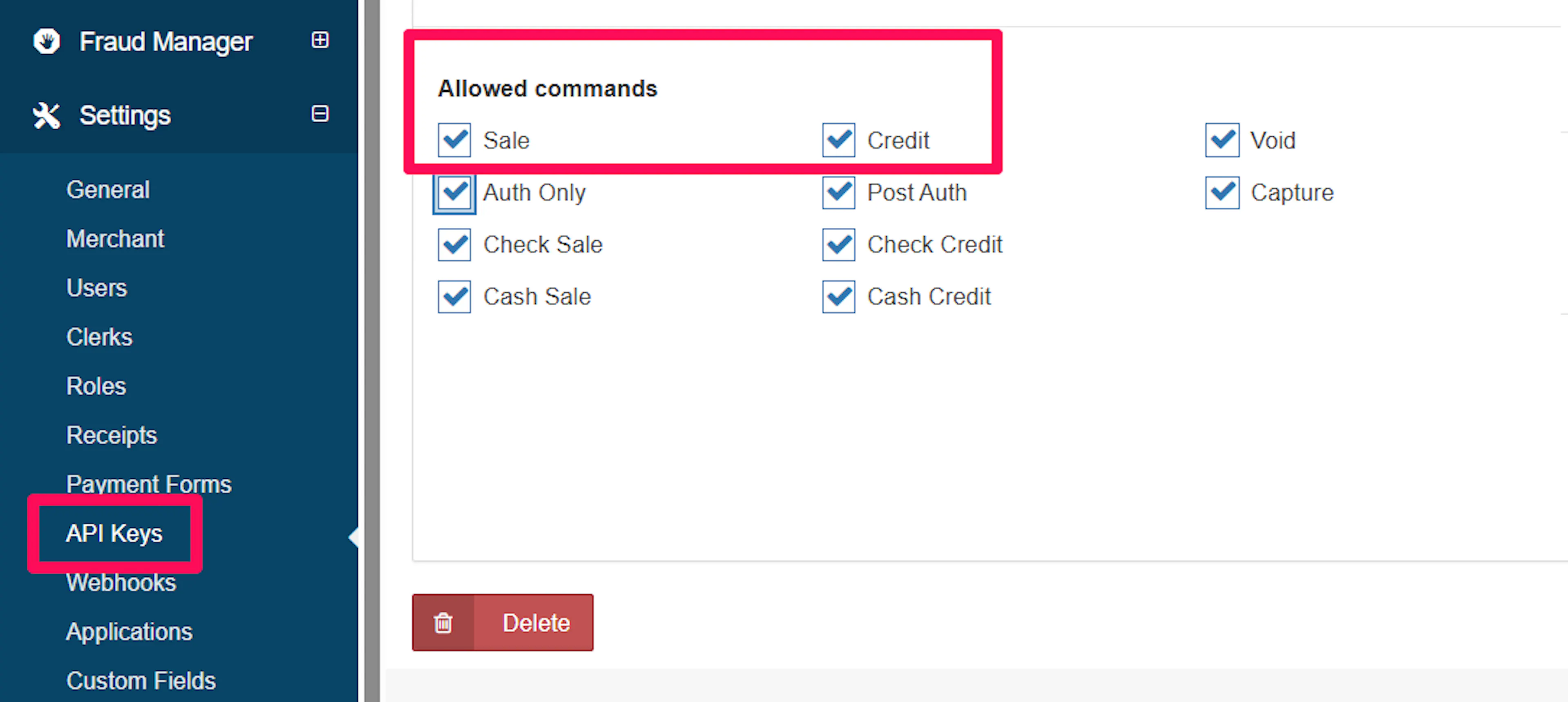
Under the key's Allowed Commands, make sure it is not restricted to Sale only. The key must also be permitted to run Credit (refund) commands, or every refund will be refused.
Copy the API Key and PIN
Copy the API Key value and note the PIN you set. Keep both secret, because together they authenticate and sign every charge.
Adding Credentials to PayLexer
Open PayLexer Dashboard
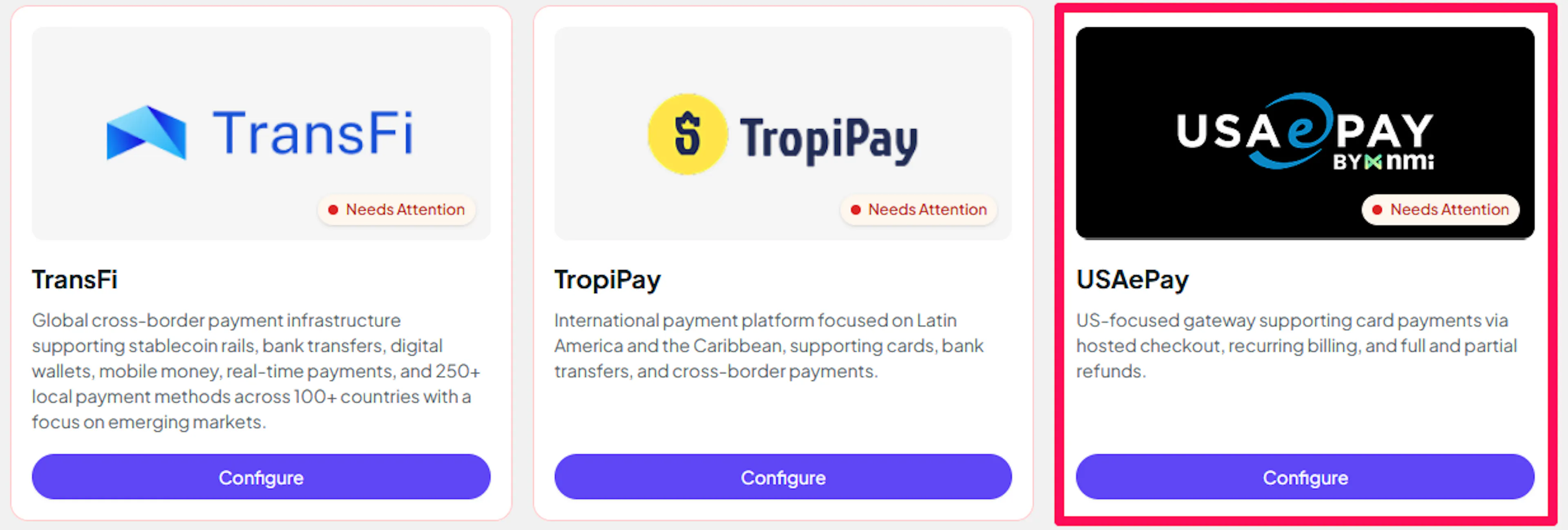
Log in to your PayLexer dashboard and navigate to Payment Gateways → USAePay.
Enter your credentials
Paste the API Key and API Key PIN you copied from USAePay into the corresponding fields.
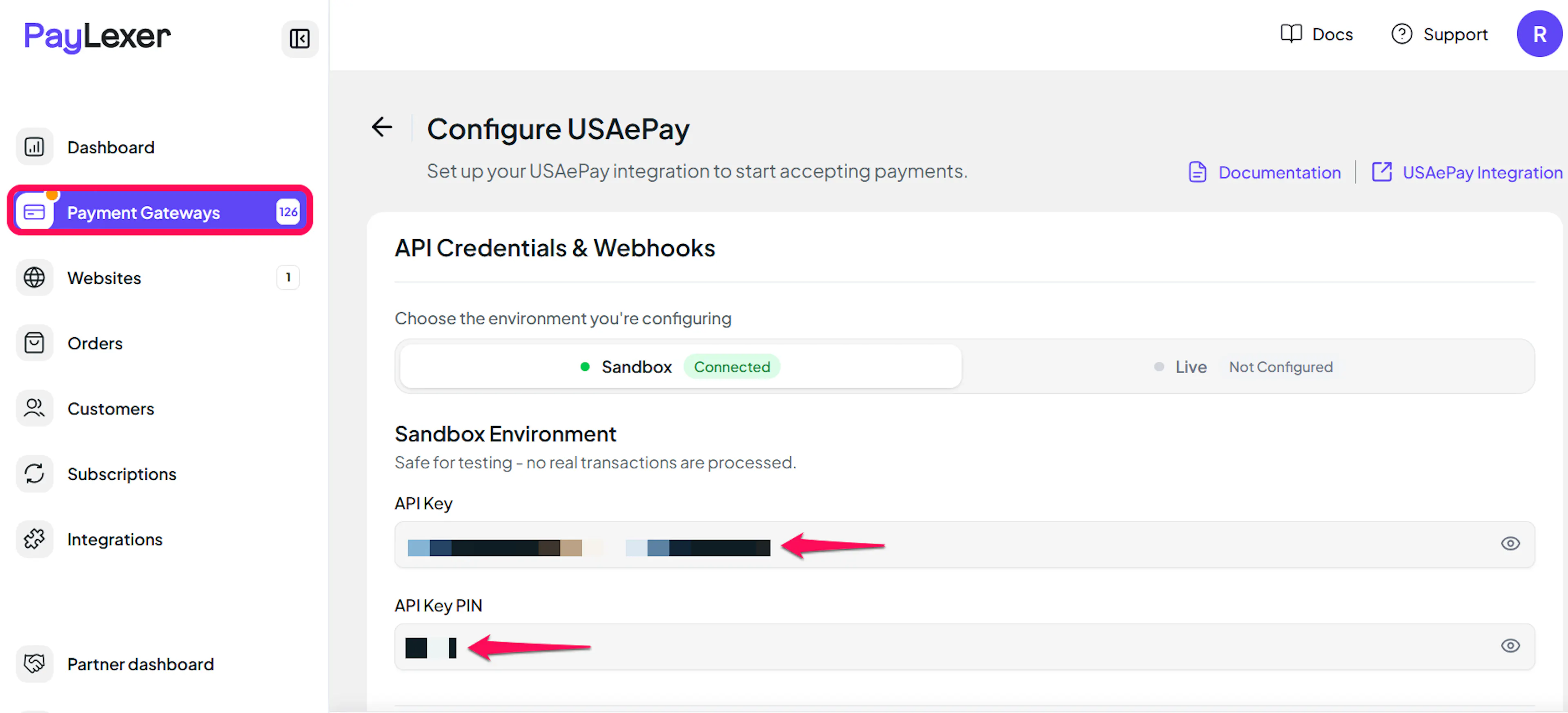
Understanding Live/Production and Sandbox Settings:
| Environment | Purpose |
|---|---|
| Live / Production | Used for real transactions. |
| Test / Sandbox | Used for testing only. No real money is processed. |
How PayLexer selects credentials:
- Debug/Test mode ON → Test credentials are used
- Debug/Test mode OFF → Live credentials are used
Test and save
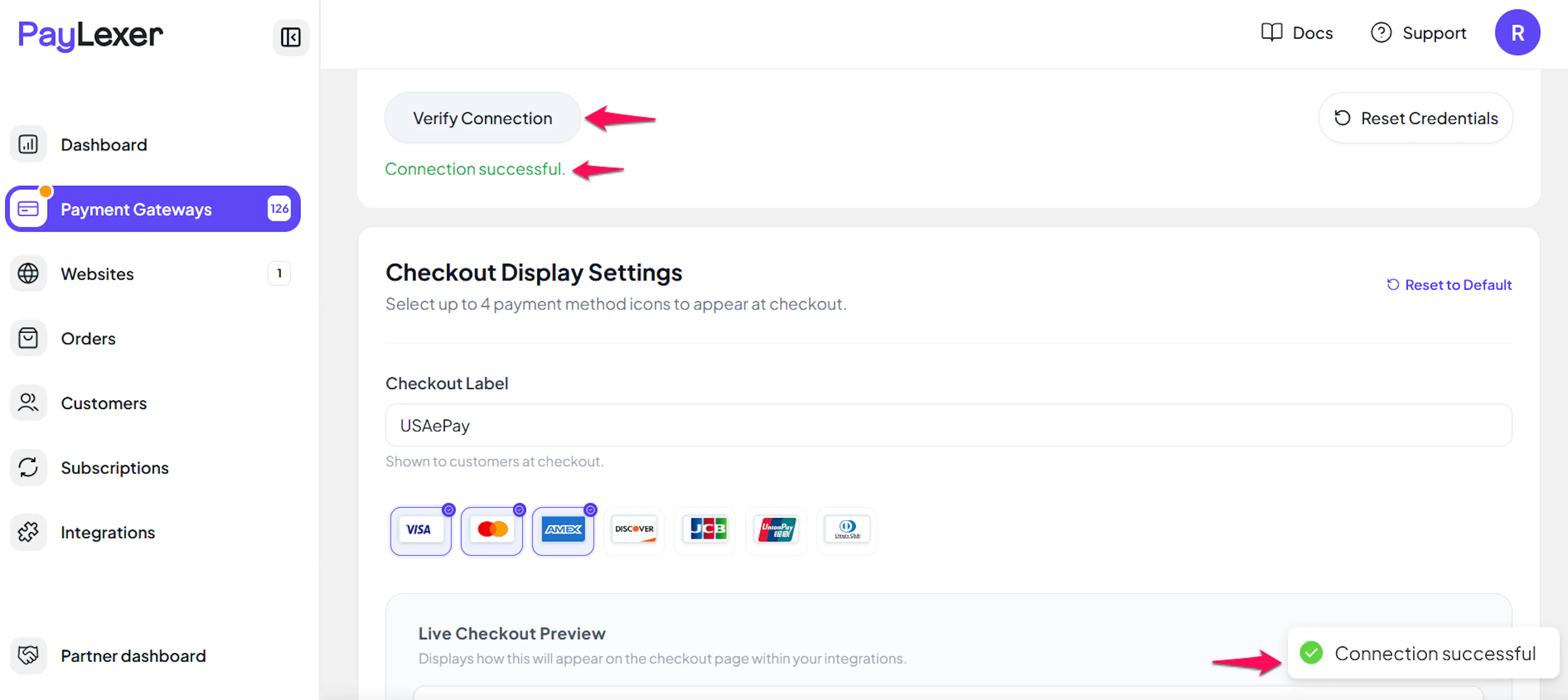
Click Save to save your configuration and verify your credentials, then click Verify Connection to confirm the API Key and PIN are valid.
Configuring Webhooks (Mandatory)
Webhooks enable real-time payment, refund, and subscription-renewal updates and significantly improve reliability.
Benefits of Webhooks:
- Instant payment status updates
- Automatic refund confirmation, including refunds issued from the USAePay console
- Subscription renewals recorded as USAePay bills each period
USAePay has no self-registration API, so you register the endpoint once, by hand, in your own USAePay console.
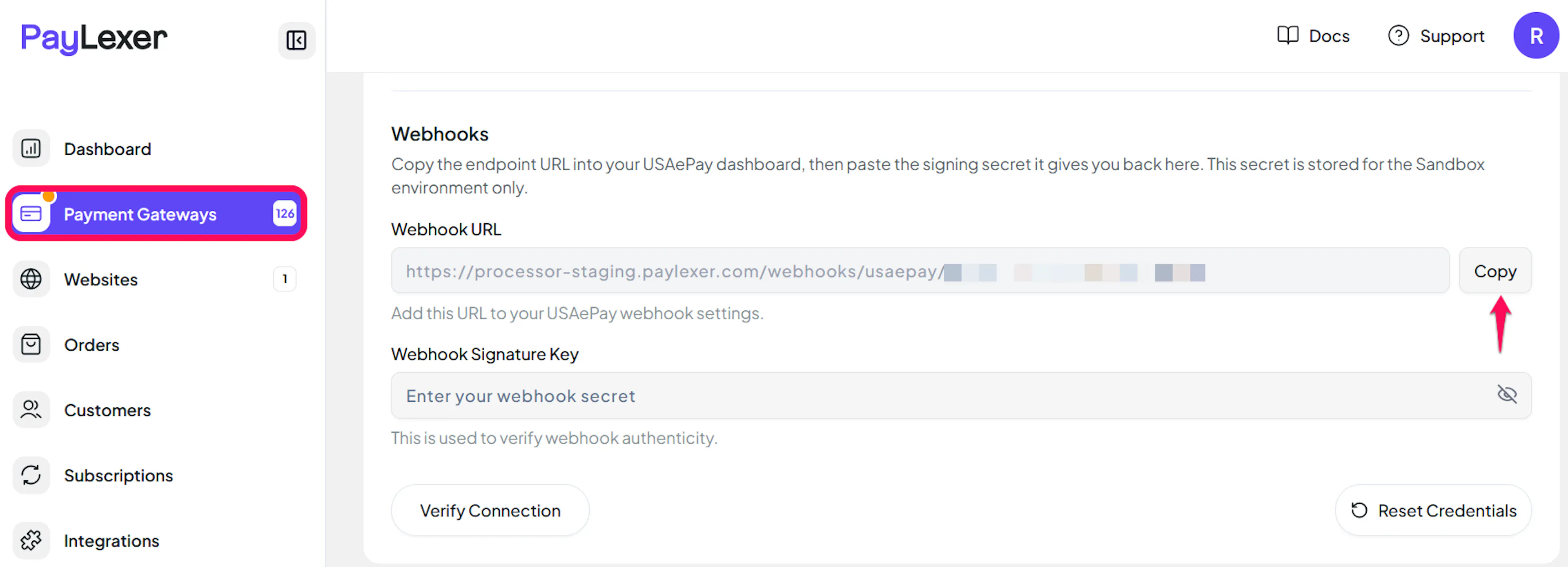
Copy your PayLexer webhook URL
In PayLexer → Payment Gateways → USAePay, copy the Webhook URL shown for your account.
Register the webhook in USAePay
In your USAePay console, go to Settings → Webhooks, add a webhook, and paste the PayLexer Webhook URL as the hook URL.
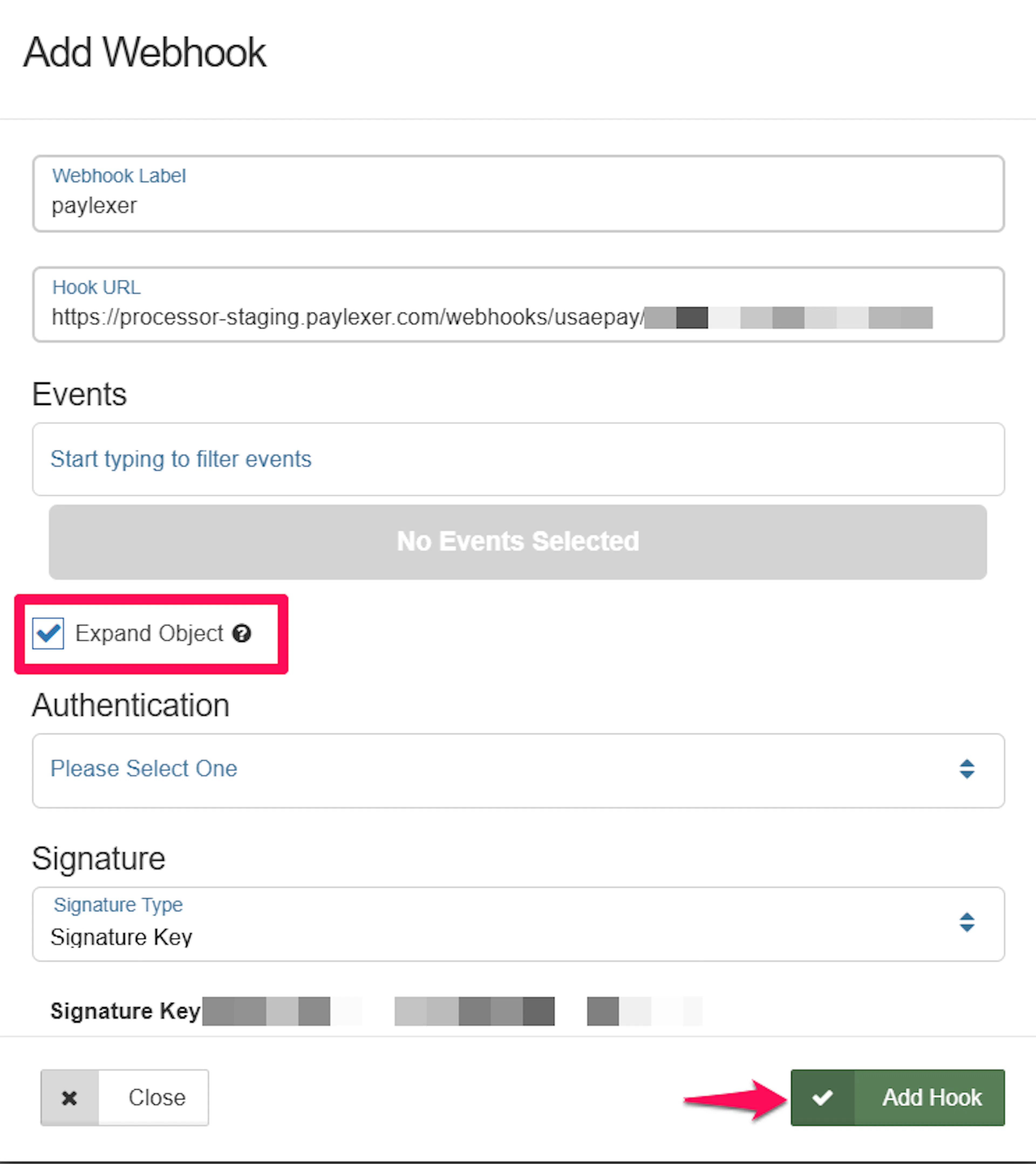
Turn on Expand Object for the webhook. Without it, USAePay's notifications do not say which order they belong to, so renewals and console refunds are lost.
Add the Webhook Signature Key to PayLexer
Copy the Webhook Signature Key from USAePay's webhook settings, then paste it into the Webhook Signature Key field in PayLexer, under the Live or Test tab to match the environment, and click Save.
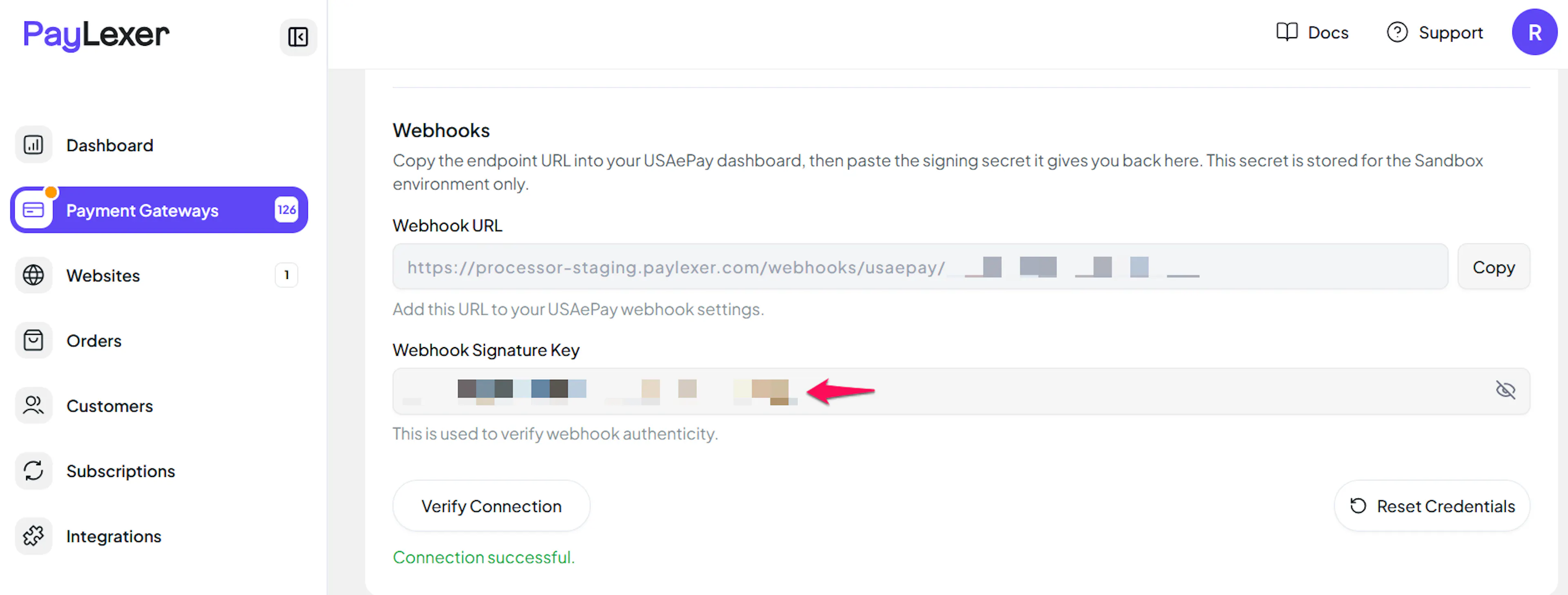
The Webhook Signature Key is separate from your API Key. Use the dedicated signature key from your USAePay webhook settings, not your payment API key.
Integrate USAePay to Your Website
If you have already added and configured your site, you can enable USAePay in your existing setup.
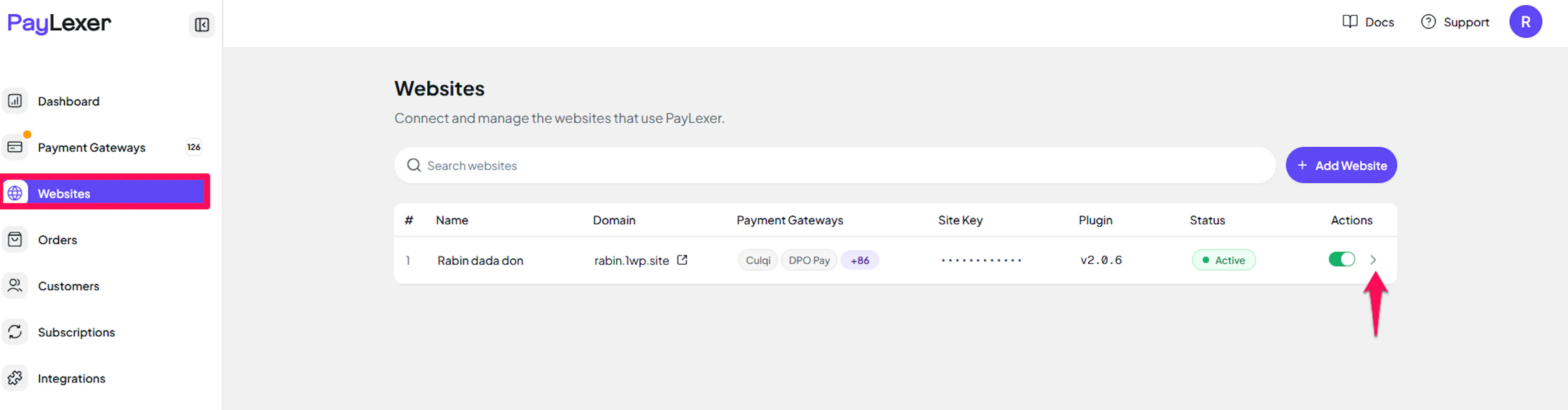
Go to Websites
Navigate to Websites in your PayLexer dashboard.
Open your website
Click the › arrow in the Actions column of your added website.
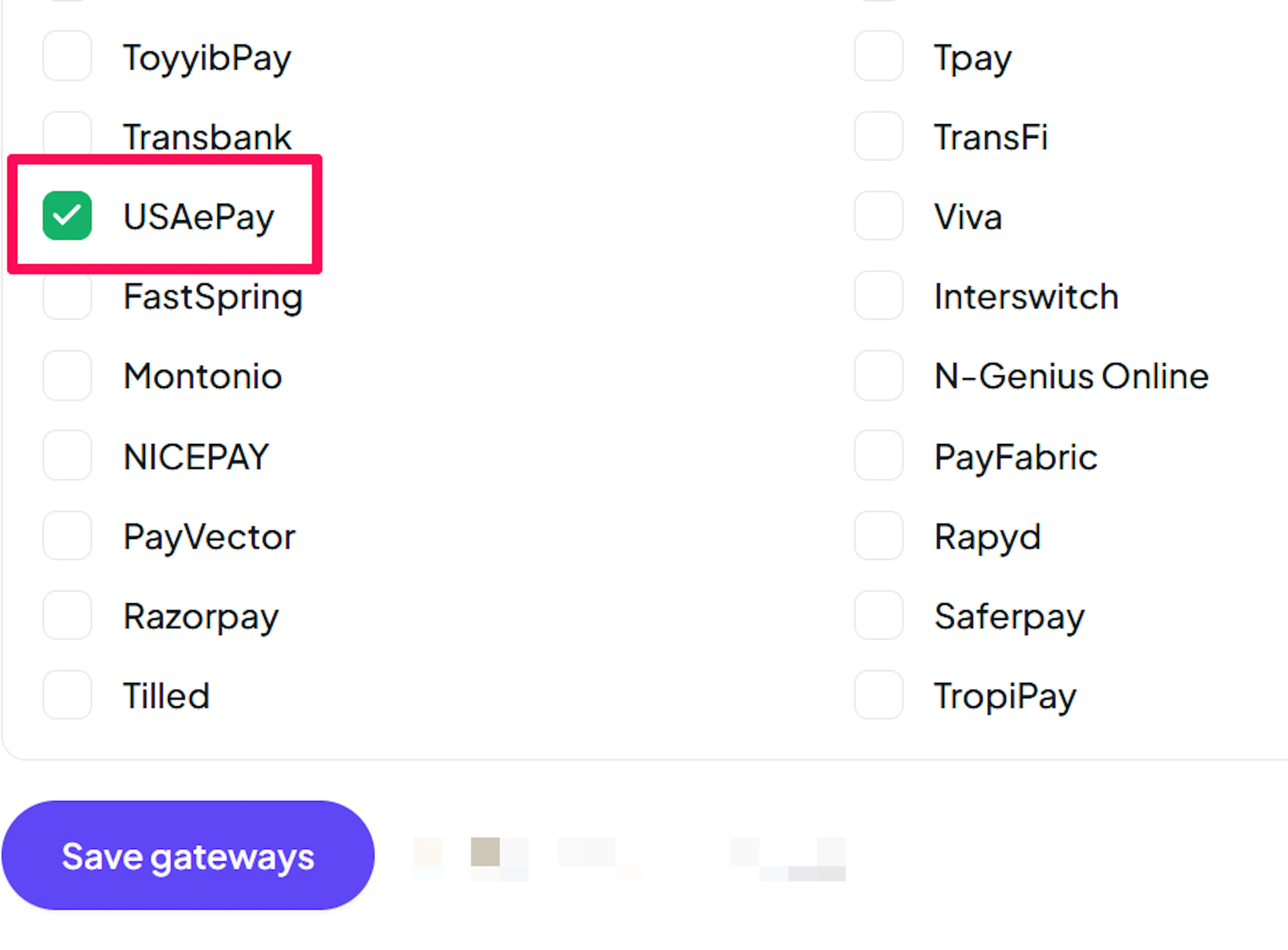
Enable USAePay
Click the checkbox to enable USAePay for the website.
If you haven't added a website yet, Continue to Add Your Website →
Troubleshooting
Best Practices
- Test in sandbox before enabling production.
- Register the webhook with Expand Object turned on, and keep the Webhook Signature Key in PayLexer in sync with the console.
- Leave the source key's Allowed Commands open enough to run Credit (refund) commands, not Sale only, and keep the API Key and PIN confidential.
- Refund through PayLexer or against the original transaction in the console. Refunds issued in the console still sync to PayLexer by webhook. Avoid the console's Quick Refund, which is a standalone credit that is not tied to the original payment and that USAePay does not cap.
- Price orders in USD so USAePay appears at checkout.
FAQs
Still Have Questions?
- USAePay Support:
- Support Email: support@usaepay.com
- Support Link: USAePay Support
- PayLexer Support: Contact Support