

PayHere
Connect PayHere to PayLexer to accept cards, Sri Lankan bank transfers, e-wallets, and local payment methods through a signed hosted checkout, with mandatory IPN webhooks for payment status updates.
PayHere is a Sri Lanka-focused payment gateway built for merchants selling to Sri Lankan customers. Alongside cards, it supports local bank transfers, e-wallets, and other regional payment methods through a single hosted checkout form. PayLexer builds a signed HTML form and redirects the shopper to PayHere to complete the payment, then returns them to your site.
- Supported Regions (Merchant Accounts): Sri Lanka
- Supported Currencies: LKR, USD, GBP, EUR, AUD - view full list
Supported Features
- PayLexer builds a signed HTML form and redirects the shopper to PayHere for cards, bank transfers, e-wallets, and other local payment methods
- Recurring subscriptions with optional sign-up fees
- Refunds processed directly from PayLexer through the PayHere Merchant API
- Real-time IPN (Instant Payment Notification) webhooks for payment and subscription status updates
PayHere has no payment status API. IPN webhooks are the only way PayLexer learns that a payment succeeded, failed, or was refunded. Keep your Merchant Secret correct and your webhook endpoint is reachable at all times.
Before You Start
Make sure you have:
- PayHere Account – Don't have one? Sign up for PayHere →
- PayLexer Account – Required to configure the integration. Create your account →
- A website where you want to integrate
Looking for a different payment processor? View all supported gateways →
Configuring PayHere
You need a Merchant ID, Merchant Secret, App ID, and App Secret from PayHere for this integration.
Getting API Credentials
PayHere uses separate merchant portals for sandbox and live: sandbox.payhere.lk for Test credentials and www.payhere.lk for Live credentials.
Merchant ID and Merchant Secret
Log in to the PayHere Merchant Portal
Log in to the sandbox portal for Test credentials, or the live portal for Live credentials.
Open Integrations
Navigate to Integrations. Your Merchant ID is displayed here.
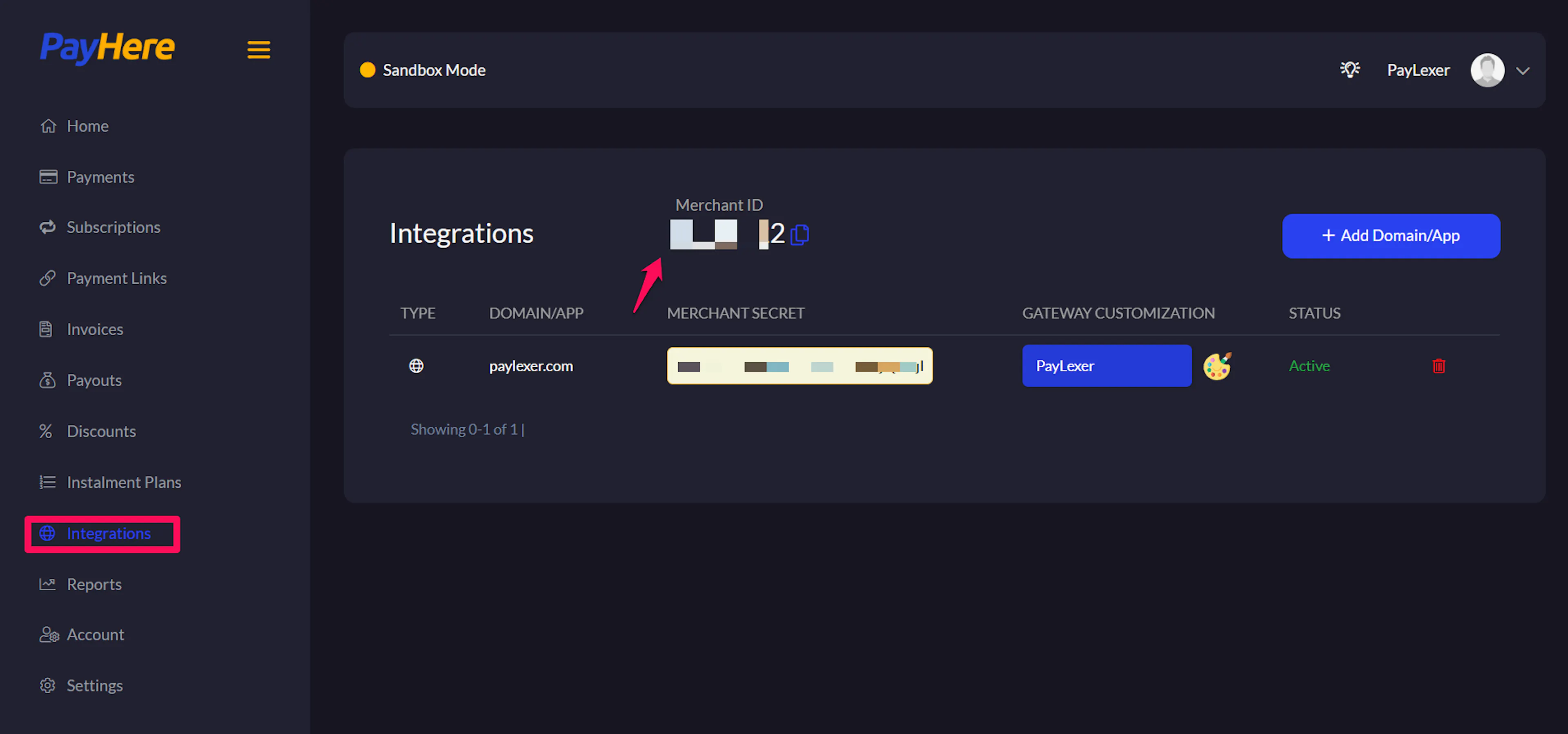
Your Merchant ID stays the same across every domain or app you add to the account.
Add your domain or app
Click Add Domain/App, fill in the form with your site's details, then click Save. Your Merchant Secret is generated and displayed once saving completes.
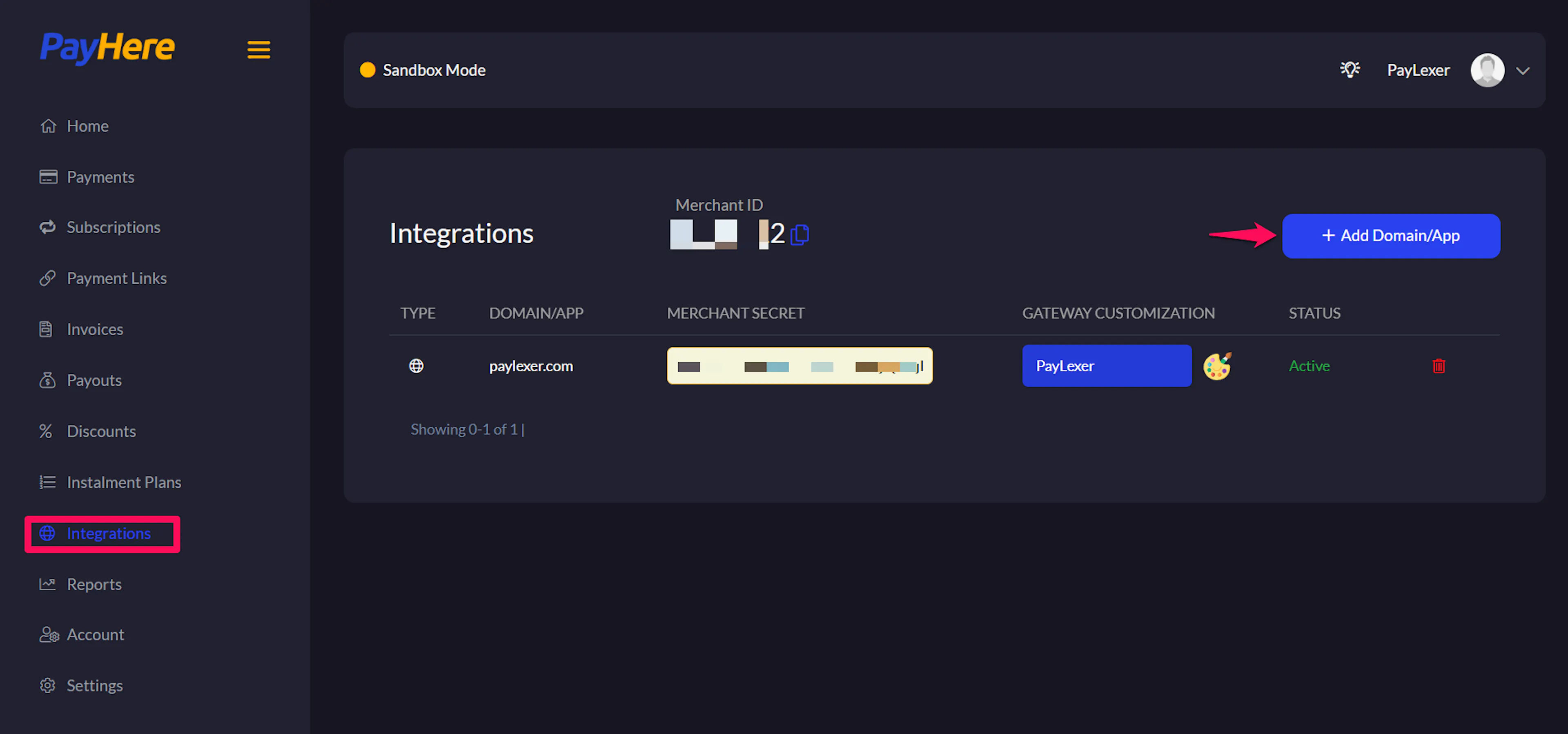
Merchant Secret is unique per domain or app. If you add multiple domains, keep track of which Merchant Secret belongs to which site.
App ID and App Secret
Open Settings
In the same PayHere portal, navigate to Settings and click Create API key.
Create the API key
Enter an App Name, then enter your site's domain in the Allowed Domains field. Select the permissions your integration needs, then click Save API Key.
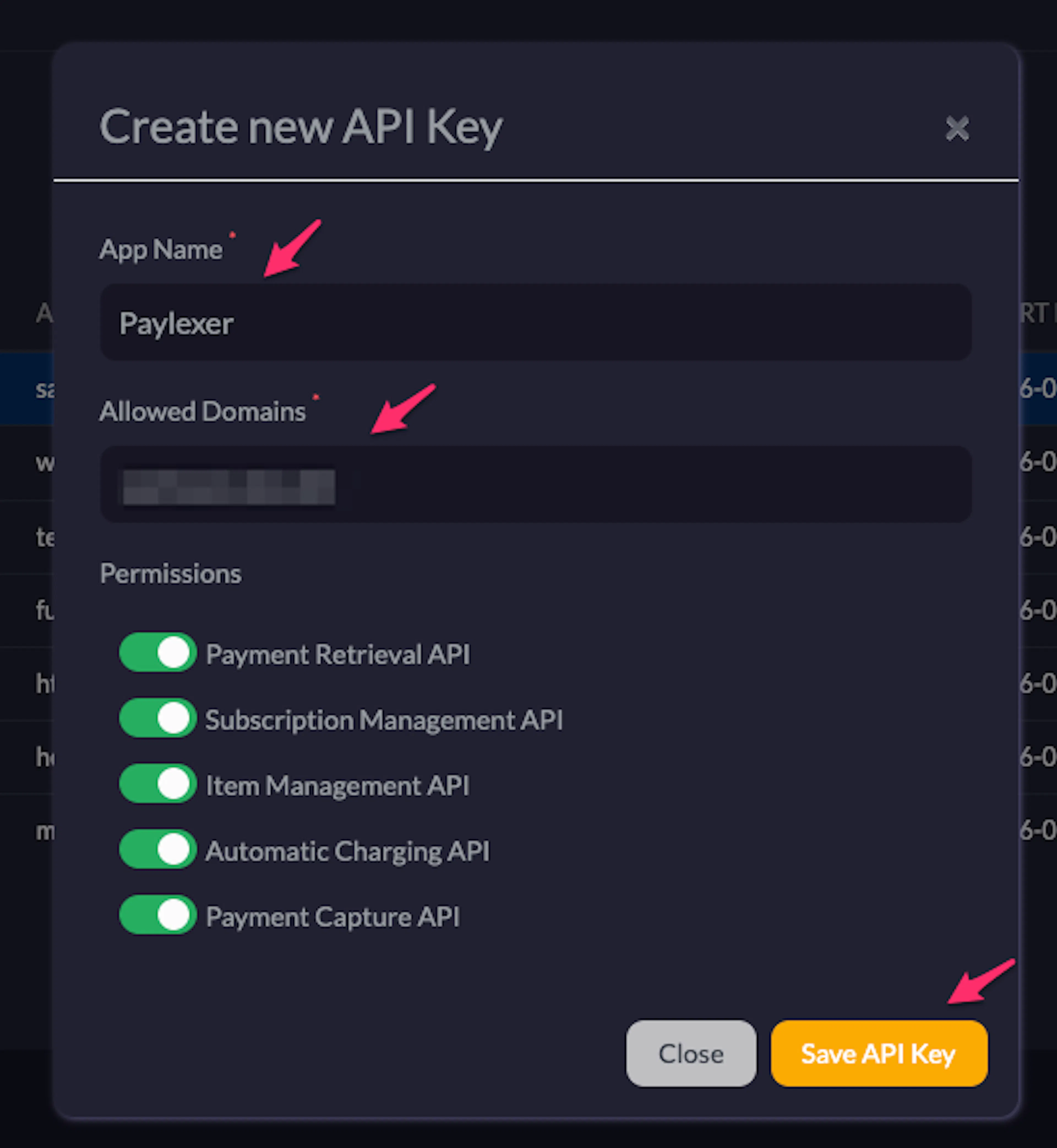
Copy your App ID and App Secret
Click View Credentials on the API key you created to reveal your App ID and App Secret.
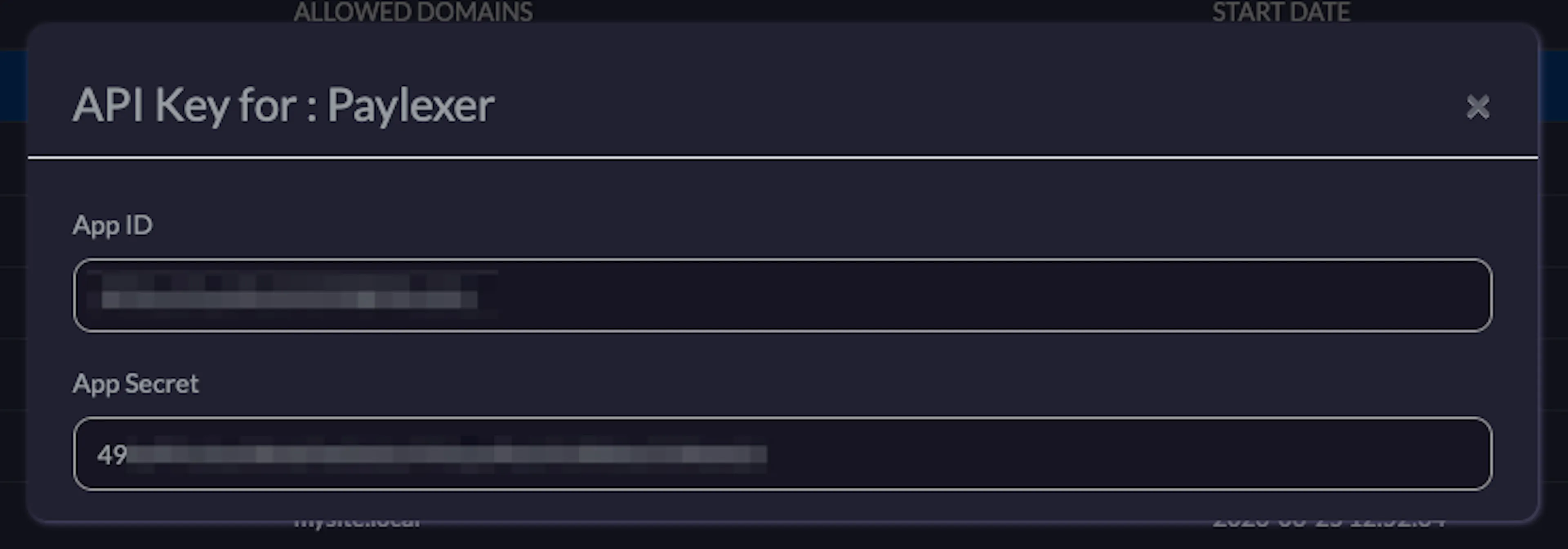
Treat the App Secret like a password. It authorizes access to the PayHere Merchant API for refunds and subscription management.
Adding Credentials to PayLexer
Open PayLexer Dashboard
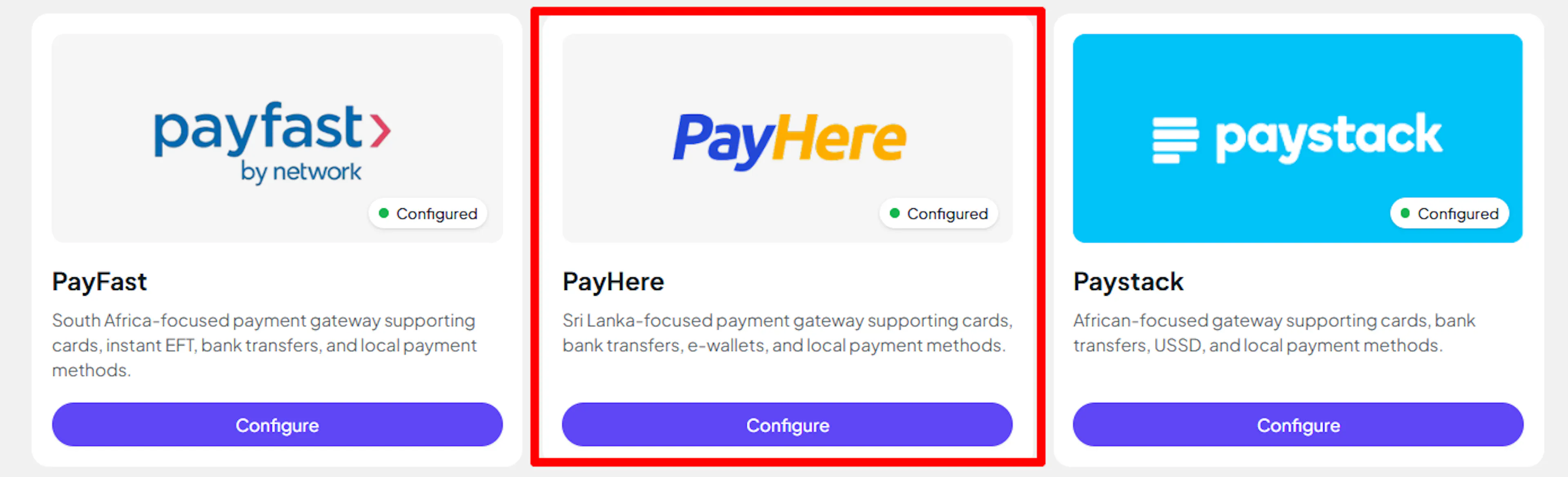
Log in to your PayLexer dashboard and navigate to Payment Gateways -> PayHere.
Enter your credentials
Paste the Merchant ID, Merchant Secret, App ID, and App Secret you copied from PayHere.
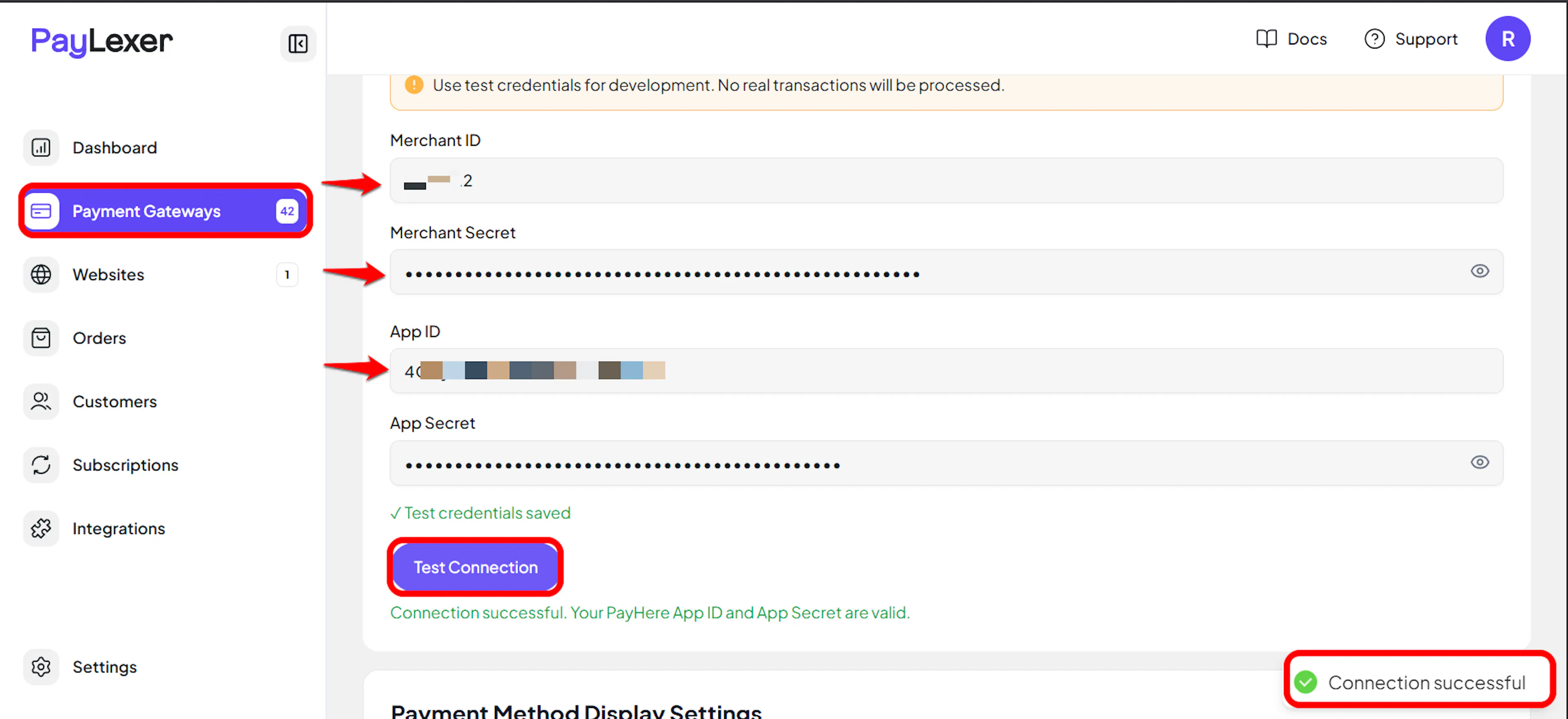
Understanding Live/Production and Sandbox Settings:
| Environment | Purpose |
|---|---|
| Live / Production (Mandatory) | Used for real transactions. Cannot be empty, even when testing. |
| Test / Sandbox (Optional) | Used for testing only. No real money is processed. |
How PayLexer selects credentials:
- Debug/Test mode ON → Test credentials are used
- Debug/Test mode OFF → Live credentials are used
Merchant ID and Merchant Secret are mandatory for both Live and Test. App ID and App Secret are mandatory when you fill in Test credentials, but optional for Live - checkout works without them, and they're only needed if you want to process refunds or manage subscriptions from PayLexer.
Test and save
Click Test Connection to verify your credentials, then click Save Configuration.
Merchant ID and Merchant Secret are required for both Live and Test. App ID and App Secret are required in Test, but optional in Live. They are only needed to process refunds or manage subscriptions from PayLexer.
Configuring Webhooks (Mandatory)
Webhooks enable real-time payment updates and significantly improve reliability.
Benefits of Webhooks:
- Instant payment status updates
- Automatic refund processing
- Dispute notifications
PayHere sends webhooks as an IPN (Instant Payment Notification): An HTTP POST to a notify_url that PayLexer sets automatically on every checkout and subscription request, signed with your Merchant Secret.
No manual webhook setup is required in the PayHere portal. Simply enter the correct Merchant Secret in PayLexer to enable automatic IPN delivery and signature verification. Since PayHere doesn't provide a payment status API, an incorrect or missing Merchant Secret will prevent payment and subscription status updates.
Integrate PayHere to Your Website
If you have already added and configured your site, you can enable PayHere in your existing setup.
Go to Websites
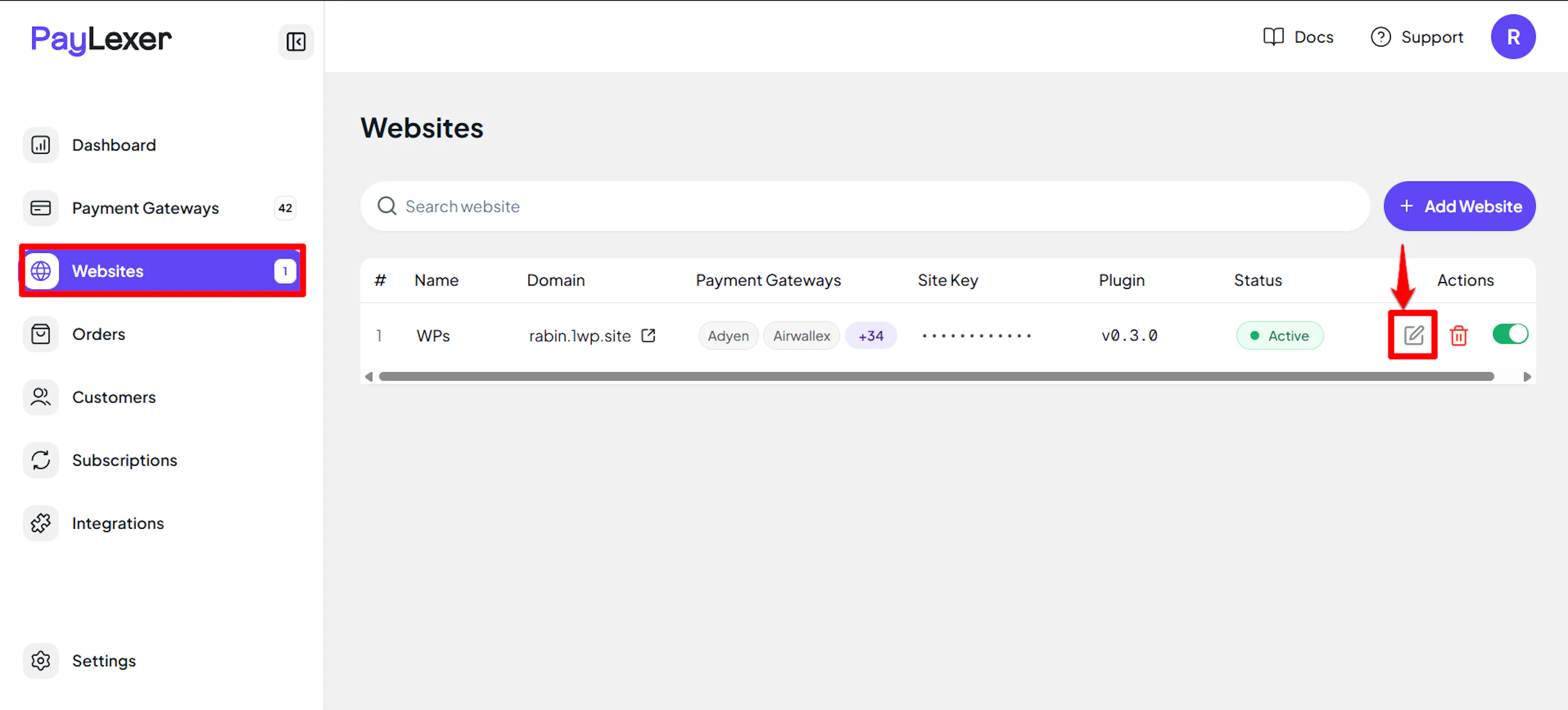
Navigate to Websites in your PayLexer dashboard.
Edit your website
Click the Edit Icon of your added website.
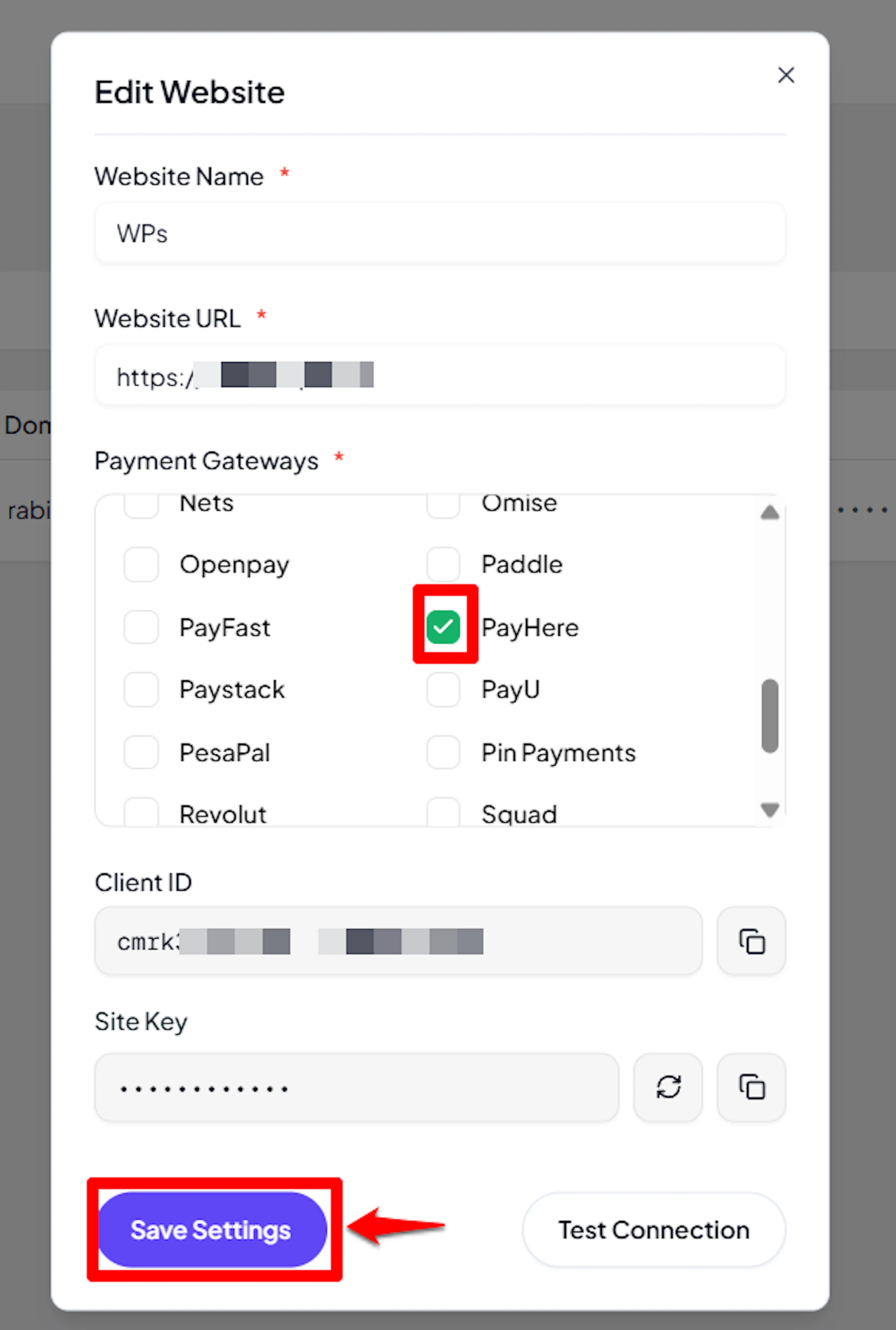
Enable PayHere
Click the checkbox to enable PayHere for the website.
If you haven't added a website yet, Continue to Add Your Website →
Troubleshooting
Best Practices
- Test in sandbox before enabling production. Use the sandbox portal and Test credentials to complete a full checkout and a full subscription authorization before switching to live.
- Keep your Merchant Secret and App Secret confidential, and regenerate them in the PayHere portal if you suspect exposure.
- Add App ID and App Secret for Live as soon as you plan to offer refunds or need to cancel subscriptions from PayLexer, since checkout alone does not require them.
- Treat your webhook endpoint as critical infrastructure: since PayHere has no status polling fallback, sustained webhook failures leave orders and subscriptions permanently pending.
FAQs
Still Have Questions?
- PayHere Support: PayHere Support Center
- PayLexer Support: Contact Support