

SumUp
Connect SumUp to PayLexer to accept card payments across Europe and global markets through a secure hosted checkout.
SumUp is a Europe-focused payment gateway that processes card payments through a secure, hosted checkout page. Through PayLexer, SumUp supports one-time card payments and refunds, with coverage across Europe and select global markets.
- Supported Regions (Merchant Accounts): Europe primary, US, Latin America (Brazil, Chile, Colombia), Australia
- Supported Currencies: EUR, GBP, USD, BRL, CLP, PLN, CHF, SEK, CZK, NOK, DKK, HUF, BGN
Supported Features
- Card payments via SumUp's hosted checkout
- Refunds supported through PayLexer
- Test and Live environments with isolated credentials
- Coverage across Europe and select global markets
- One-time payments only - subscriptions are not supported through PayLexer for SumUp
Before You Start
Make sure you have:
- SumUp Account - Don't have one? Sign up for SumUp →
- PayLexer Account - Required to configure the integration. Create your account →
- A website where you want to integrate
Looking for a different payment processor? View all supported gateways →
Configuring SumUp
You need an API Key and Merchant Code from SumUp for this integration. You will need credentials from both your sandbox (test) and live SumUp accounts.
Getting API Credentials
The retrieval flow is identical for both your sandbox and live accounts. Log in to your SumUp dashboard and follow the steps below. Repeat for the other account.
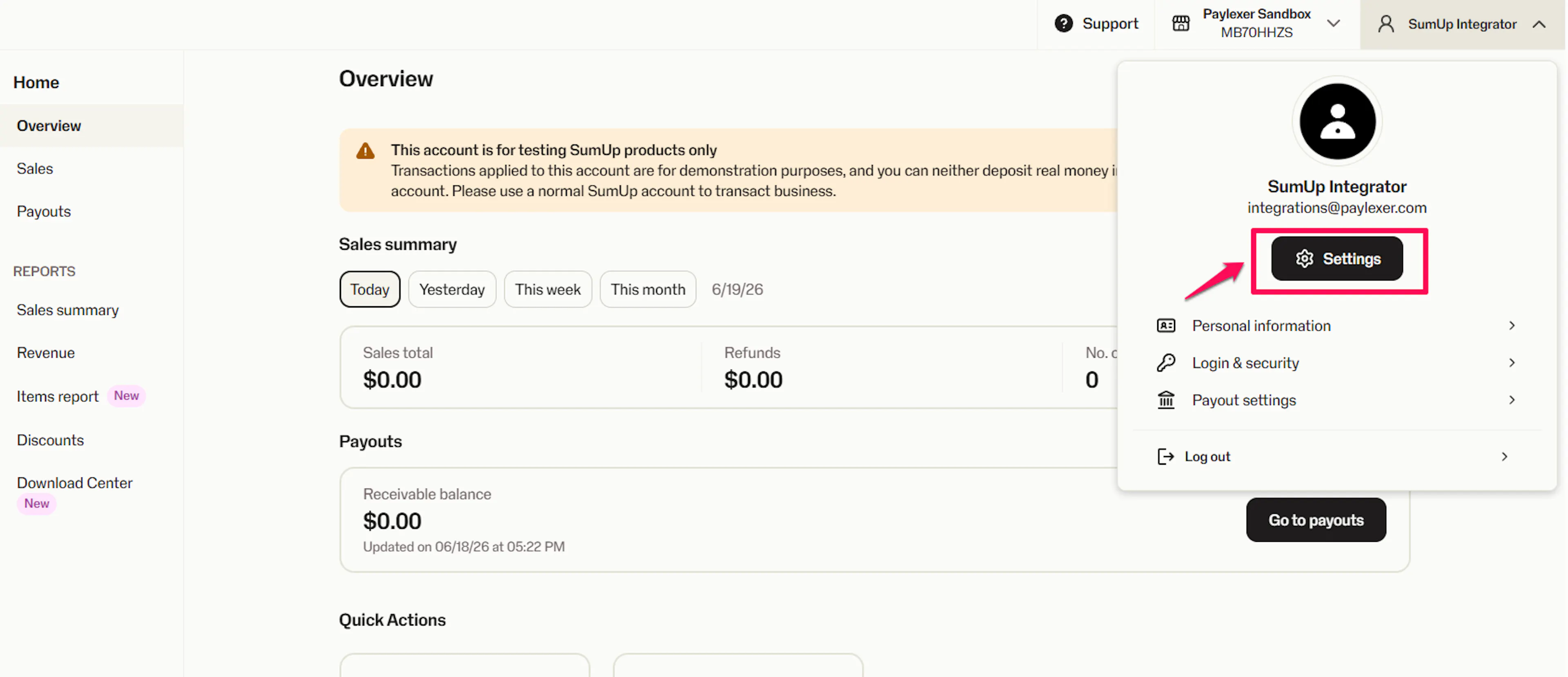
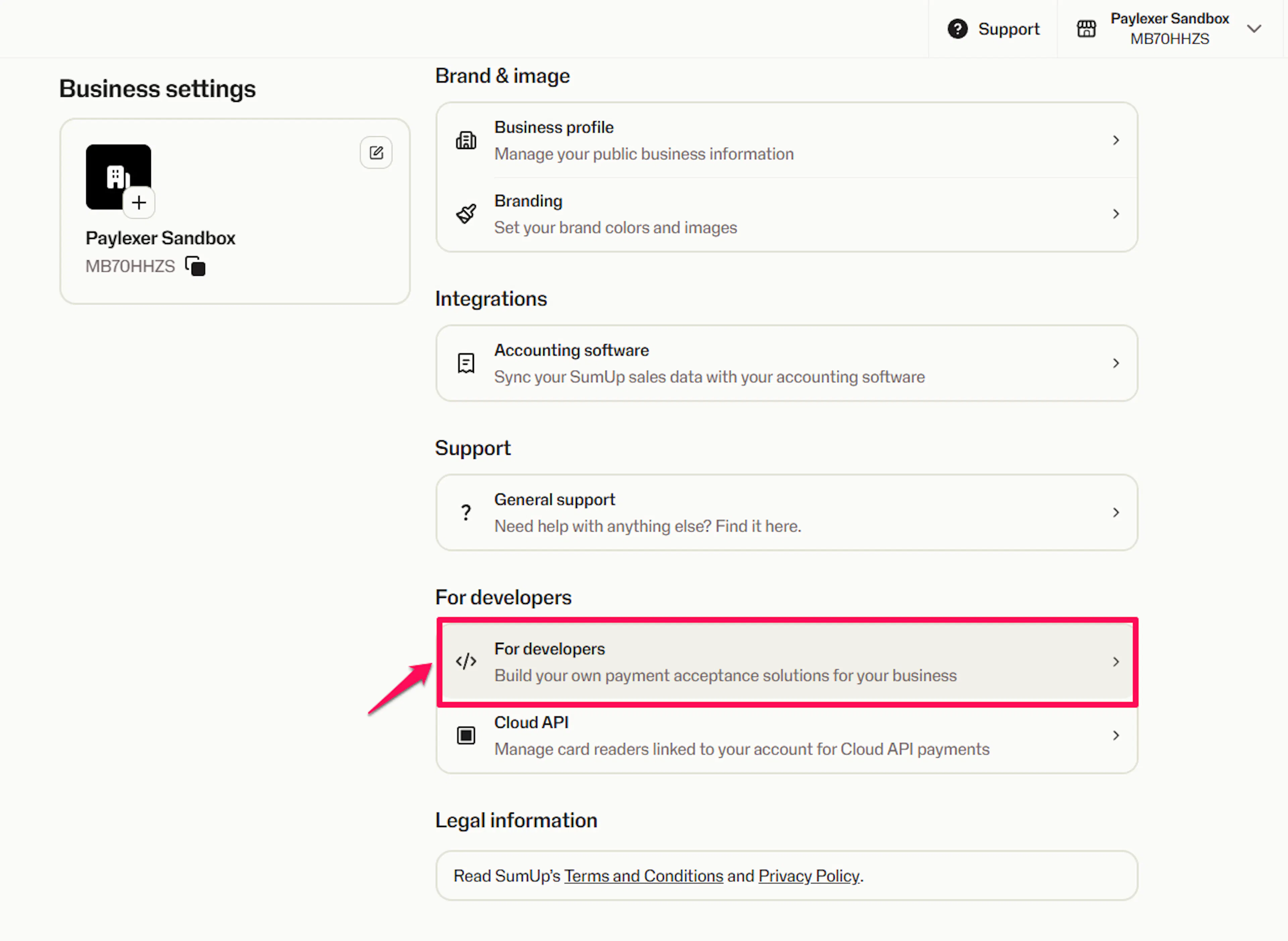
Open Developer Settings
From the sidebar or top navigation, go to Settings → Developer Settings.
Create an API Key
Select API Keys from the Developer Settings panel. Click Create API Key, enter a descriptive name (for example, "PayLexer"), and confirm.
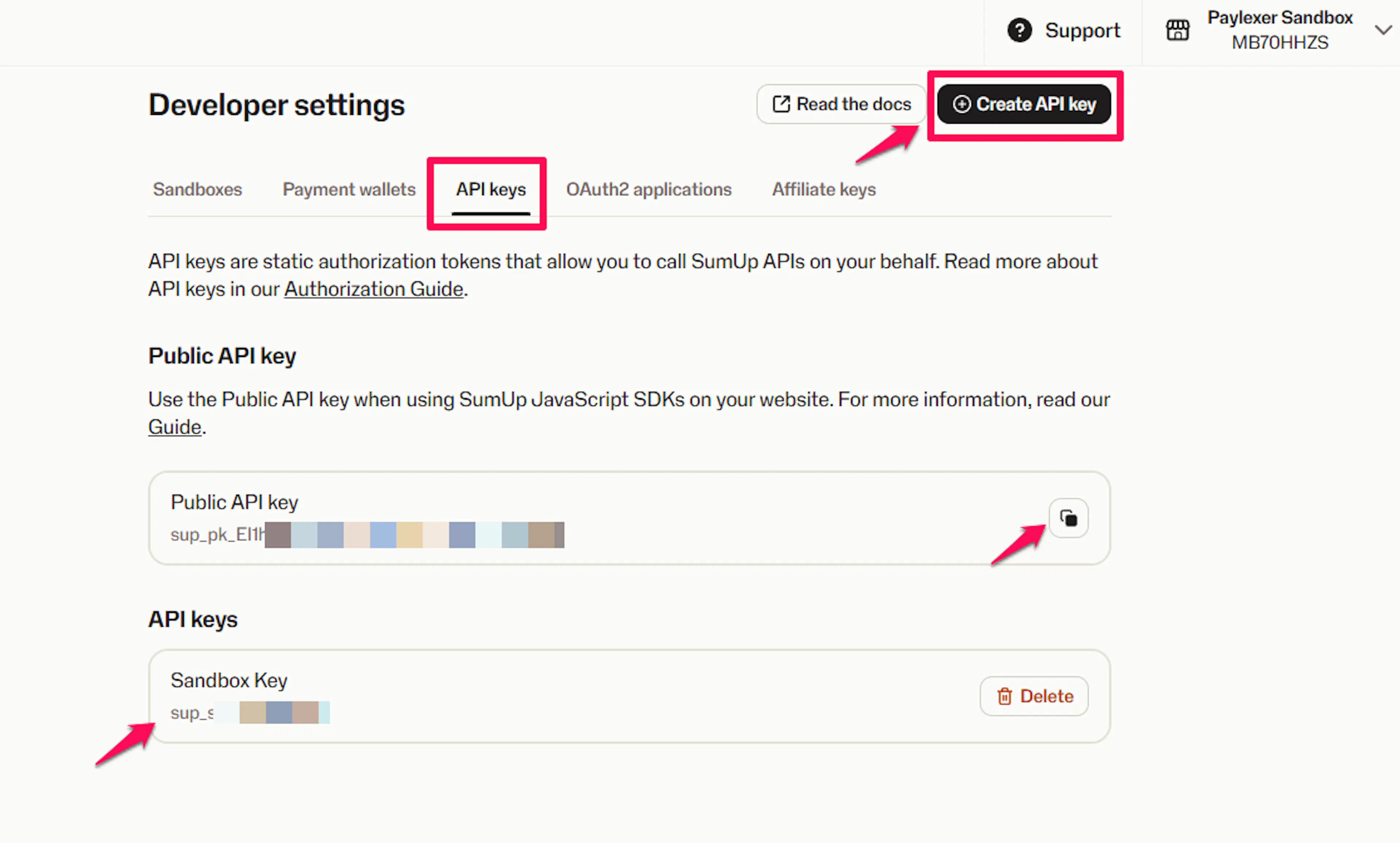
Copy the API Key immediately after creation. SumUp does not redisplay the full key after you leave this page, so store it safely. If you miss it, delete the key and create a new one.
Copy your Merchant Code
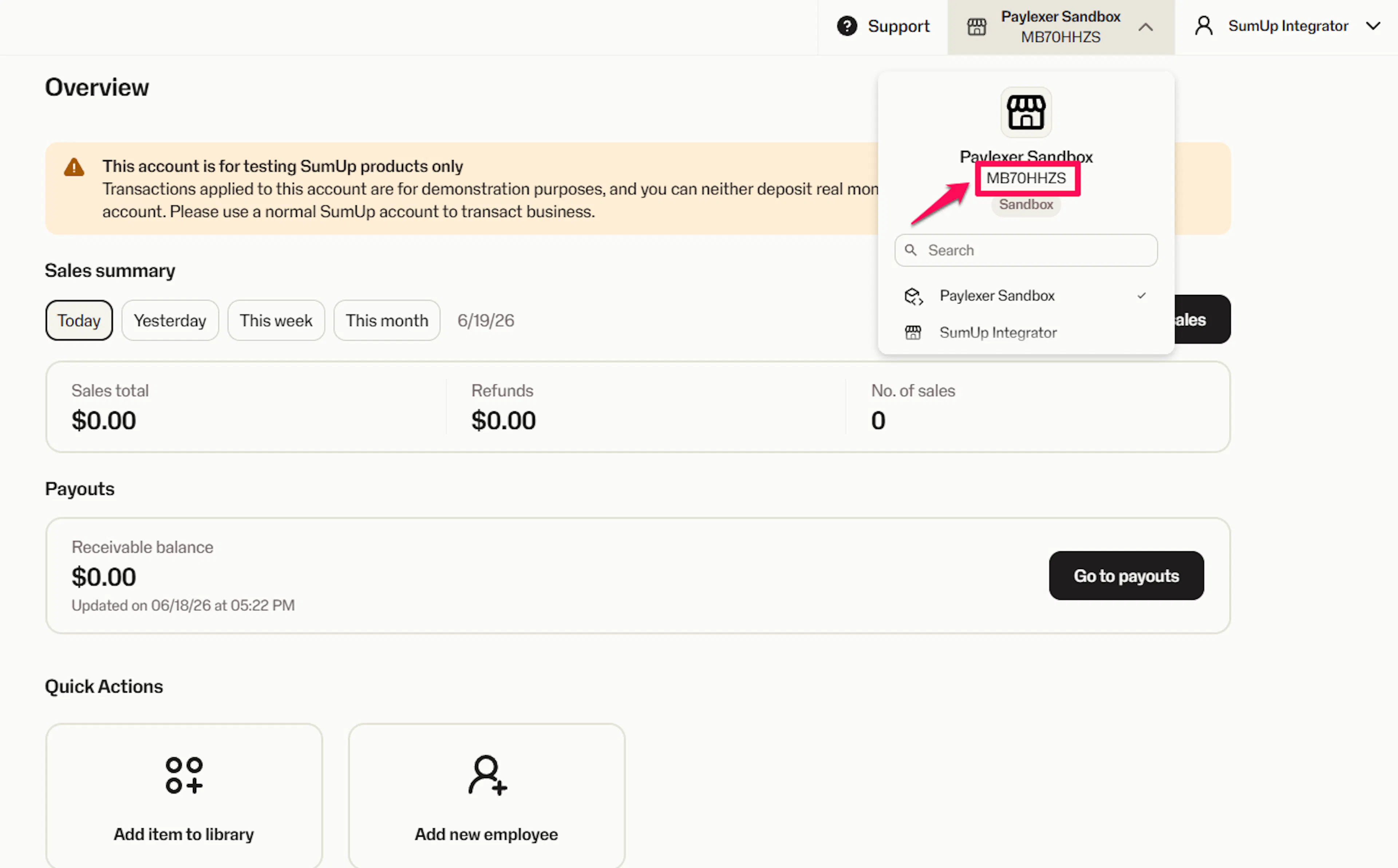
Your Merchant Code is shown in the business dropdown at the top of the SumUp dashboard. It is a short alphanumeric identifier for your merchant account.
Adding Credentials to PayLexer
Open PayLexer Dashboard
Log in to your PayLexer dashboard and navigate to Payment Gateways → SumUp.
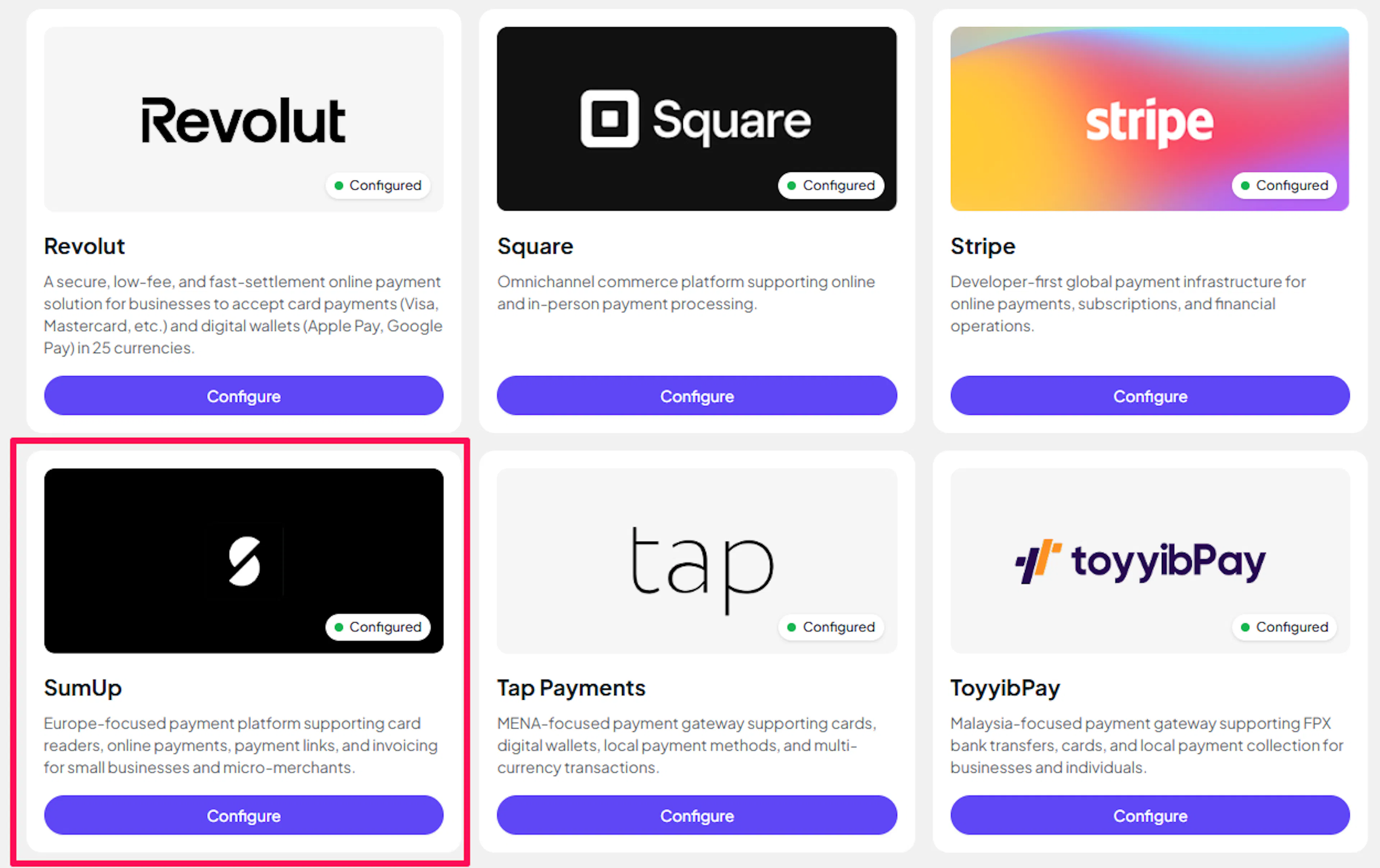
Enter your credentials
Paste your Live and Test credentials into the respective fields:
- API Key - the API Key from your SumUp live account
- Merchant Code - the Merchant Code from your SumUp live account
- API Key (Test) - the API Key from your SumUp sandbox account
- Merchant Code (Test) - the Merchant Code from your SumUp sandbox account
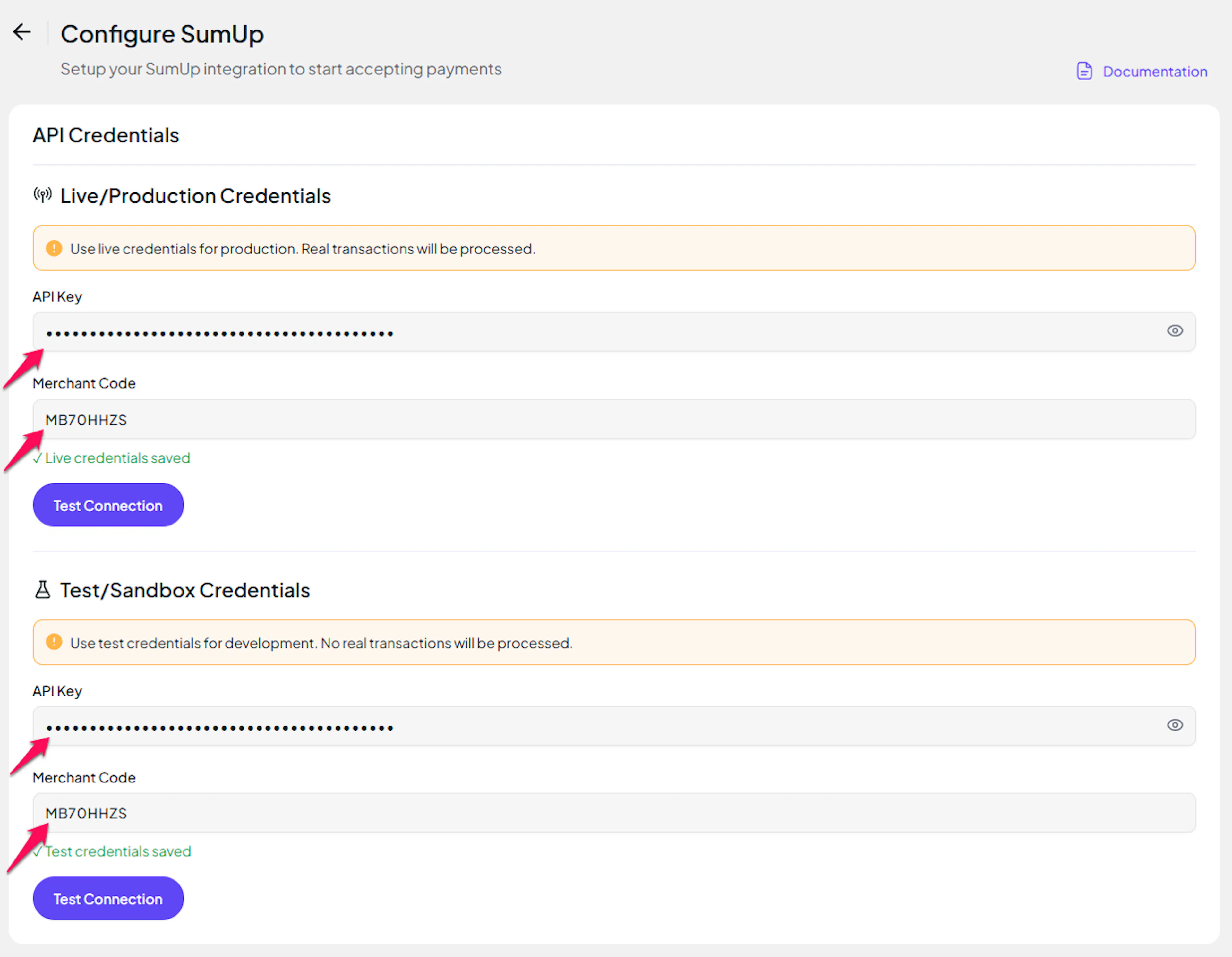
Understanding Live/Production and Sandbox Settings:
| Environment | Purpose |
|---|---|
| Live / Production (Mandatory) | Used for real transactions. Cannot be empty, even when testing. |
| Test / Sandbox (Optional) | Used for testing only. No real money is processed. |
How PayLexer selects credentials:
- Debug/Test mode ON → Test credentials are used
- Debug/Test mode OFF → Live credentials are used
Save your configuration
Click Save. PayLexer validates the credentials against SumUp's API and shows Connected if both environments authenticate successfully.
Credentials saved. You can now enable SumUp on any of your websites.
Webhooks
SumUp payment notifications are handled automatically by PayLexer - there is no webhook URL or secret to configure in the SumUp dashboard.
- PayLexer registers an endpoint with SumUp when creating payment, so status updates are delivered in real time
- A scheduled polling job reconciles any payments where the notification was not delivered (for example, if the customer closed the browser before completing checkout)
- Refunds are also reconciled via polling - SumUp does not send a separate refund notification
Integrate SumUp to Your Website
If you have already added and configured your site, you can enable SumUp in your existing setup.
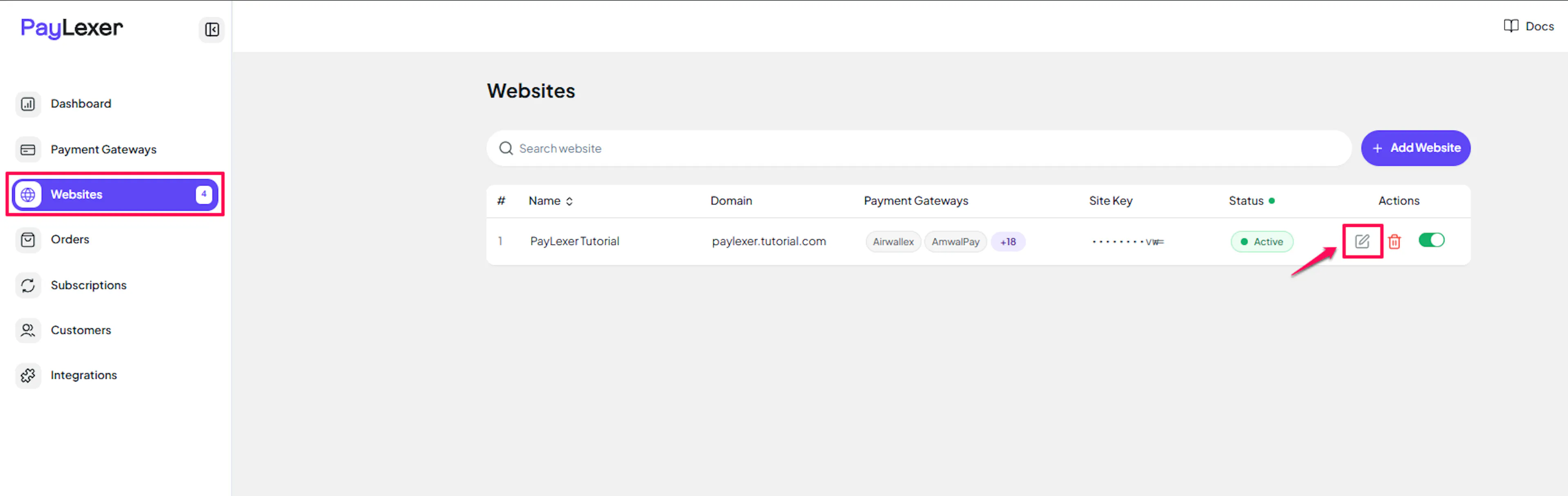
Go to Websites
Navigate to Websites in your PayLexer dashboard.
Edit your website
Click the Edit Icon of your added website.
Enable SumUp
Click the checkbox to enable SumUp for the website.
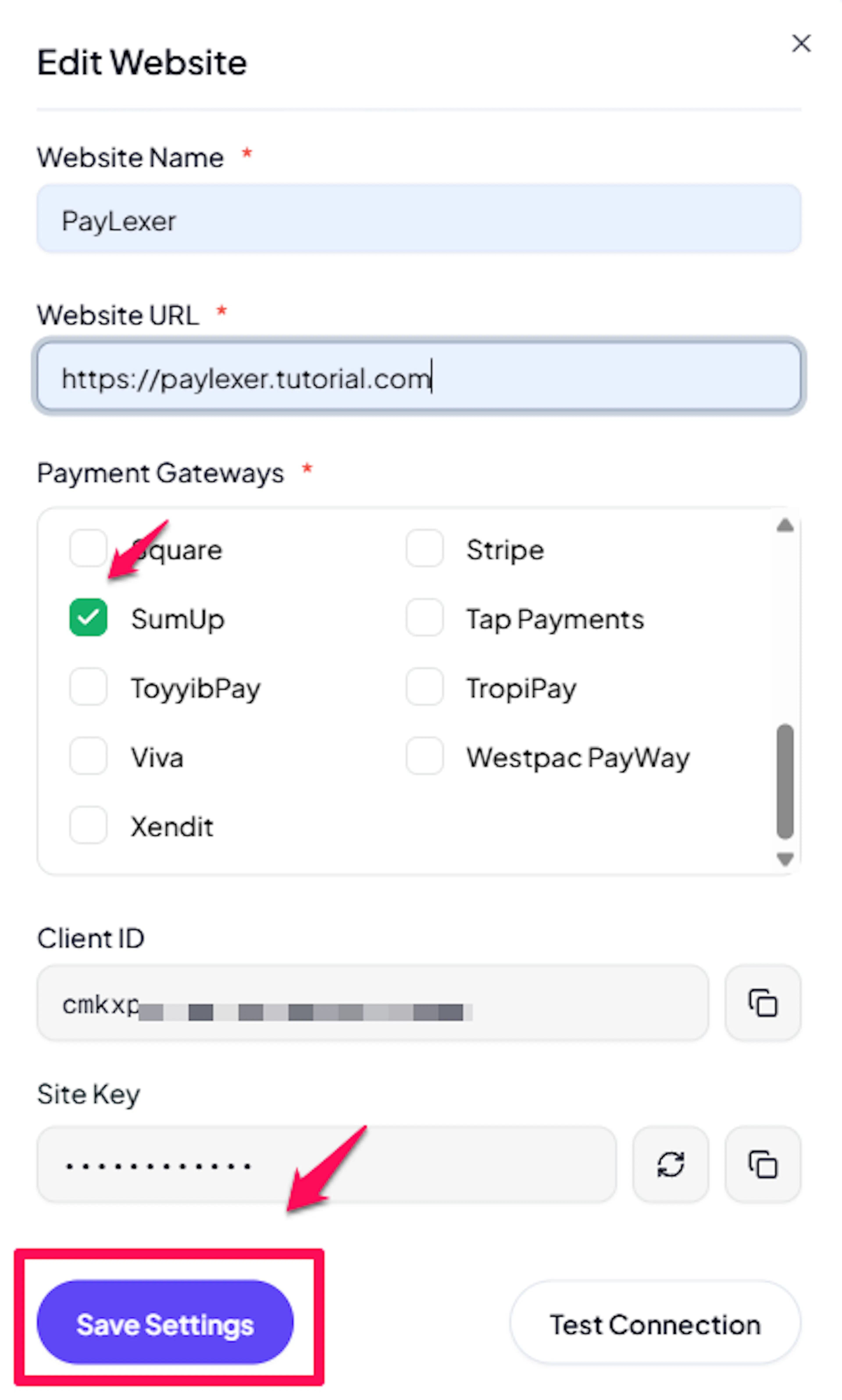
SumUp is now active for this website. Run a test transaction before switching off Debug/Test mode.
If you haven't added a website yet, Continue to Add Your Website →
Troubleshooting
Best Practices
- Run at least one full test transaction using your sandbox credentials and Debug/Test mode before going live.
- Create a dedicated API key in SumUp named after its purpose (for example, "PayLexer Production") so you can rotate or revoke it independently without affecting other integrations.
- If you suspect an API Key has been exposed, delete it in SumUp → Settings → Developer Settings → API Keys and create a new one immediately, then update the value in PayLexer.
- Confirm the checkout currency matches your SumUp merchant account configuration. SumUp rejects currencies the account is not enabled for.
- Use a unique order reference per transaction to make reconciliation against the SumUp Sales dashboard straightforward.
FAQs
Still Have Questions?
- SumUp Support: SumUp Help Center
- PayLexer Support: Contact Support
For SumUp API references and advanced configuration, see the SumUp developer documentation.