

Maya
Connect Maya (formerly PayMaya) to PayLexer to accept cards, QR Ph, e-wallets, and digital banking payments in Philippine Pesos through a hosted checkout page.
Maya is one of the Philippines' leading digital payment platforms, headquartered in Manila. It gives shoppers a single hosted checkout page to pay with cards, QR Ph, e-wallets, digital banking, and other local Philippine payment methods. PayLexer connects to Maya Checkout, so a shopper is redirected to Maya's own secure payment page, completes payment with whichever method they prefer, and returns to your site automatically once the payment is done.
- Supported Regions (Merchant Accounts): Philippines
- Supported Currencies: PHP
This gateway appears in checkout only when the selected currency is PHP.
Supported Features
- Hosted checkout page - the shopper is redirected to Maya to pay, then returned to your site, so no card details are ever typed on your own pages
- Local Philippine payment methods including cards, QR Ph, e-wallets, and digital banking
- Full refunds and same-day cancellations issued from PayLexer, confirmed by Maya immediately
- Automatic recovery for a payment confirmation that is delayed or never arrives
- Automatic detection of a refund or cancellation made directly in your Maya account, so PayLexer stays in sync even when you don't refund through PayLexer
Recurring subscriptions are not supported for Maya. This integration handles one-time payments only, with no sign-up fee or free trial options.
Before You Start
Make sure you have:
- Maya Account – Don't have one? Sign up for Maya →
- PayLexer Account – Required to configure the integration. Create your account →
- A website where you want to integrate
Looking for a different payment processor? View all supported gateways →
Configuring Maya
You need a Public Key and Secret Key from Maya for this integration.
Getting API Credentials
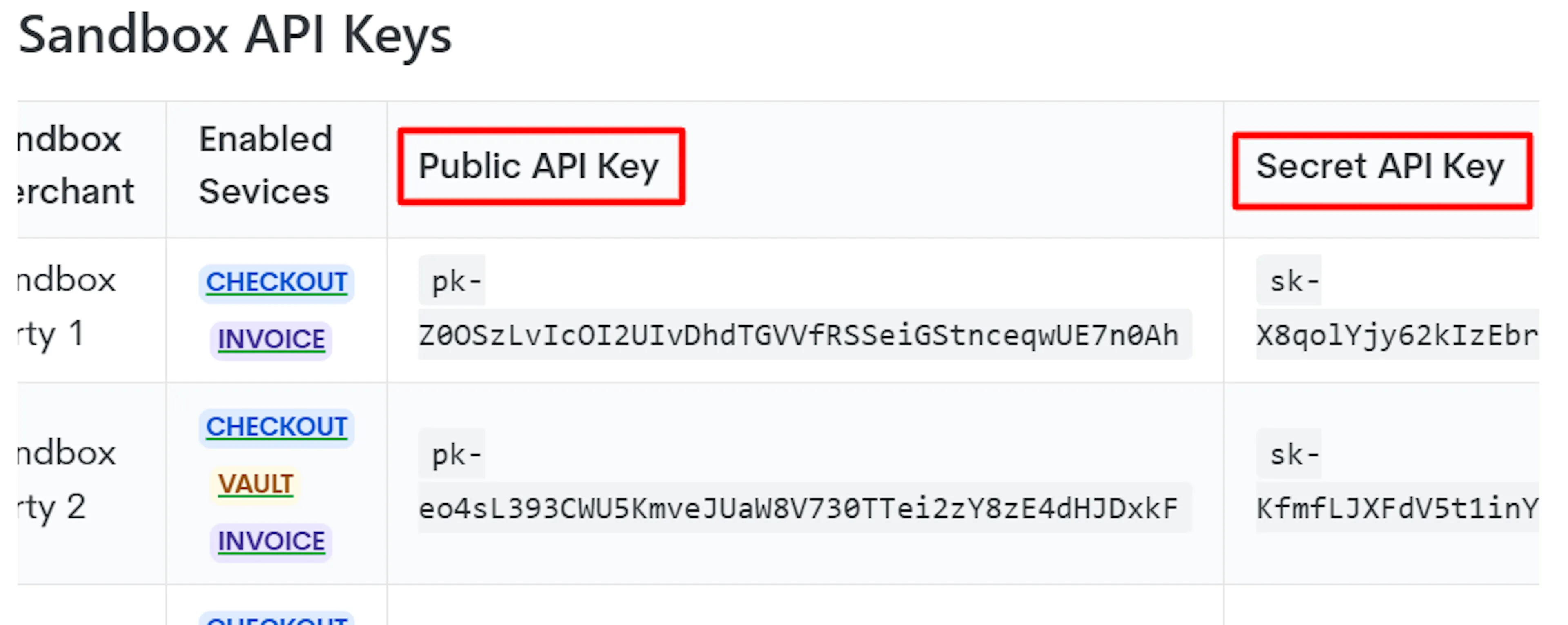
Get sandbox credentials for testing
No account is required for testing. Go to the Maya sandbox credentials reference and copy the published sandbox Public Key, Secret Key, and test card numbers.
Create a Maya Business Manager account
When you are ready to accept real payments, go to Maya Business Manager and create an account.
Complete KYC verification
Complete your business profile and upload the required documents, such as valid IDs, business permits, and SEC/DTI registration. Once Maya verifies your details, your account is activated.
For help during onboarding, email business.signup@maya.ph. If you are an existing Maya partner, contact your dedicated Maya Relationship Manager instead.
Generate your live API keys
Log in to Maya Business Manager, go to Solutions → Maya Checkout, and click Set up Online Payments. Fill in your website name, intended platform, and where you will use Maya Checkout, then click Submit.
Your Public Key and Secret Key are displayed only once, immediately after submitting. Copy and store both in a secure, encrypted location right away. Once you leave the screen, only masked values remain visible, and Maya cannot show you the original keys again.
Adding Credentials to PayLexer
Open PayLexer Dashboard
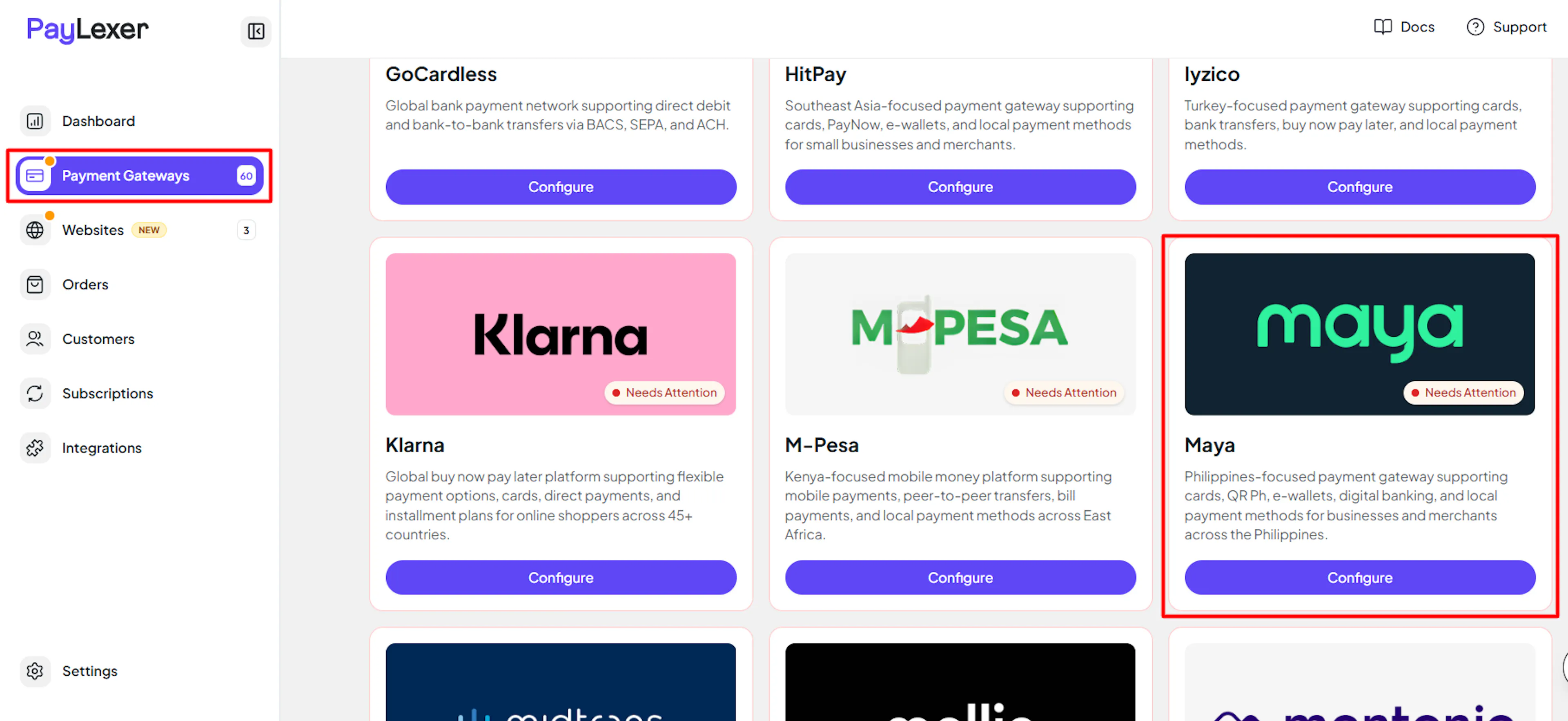
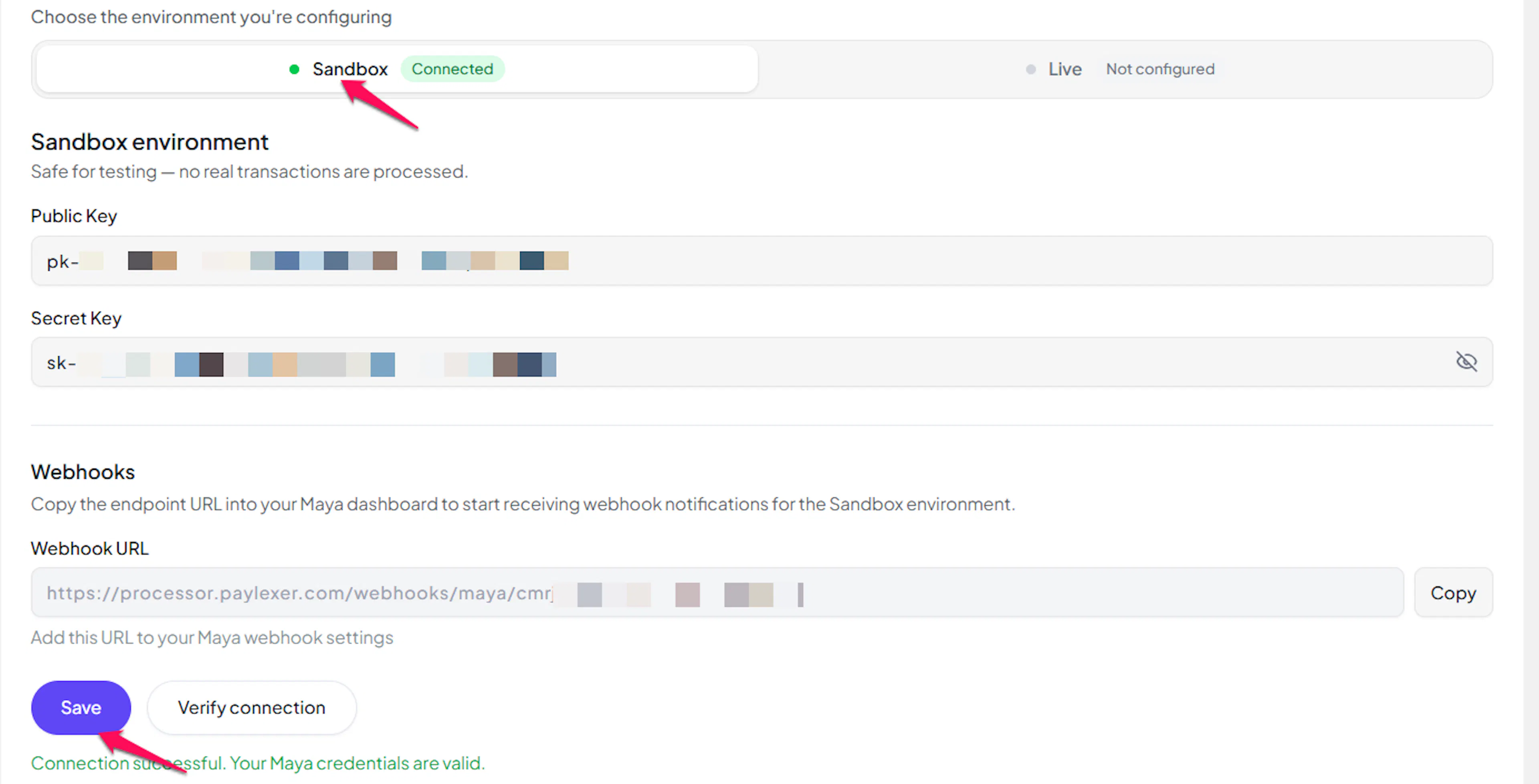
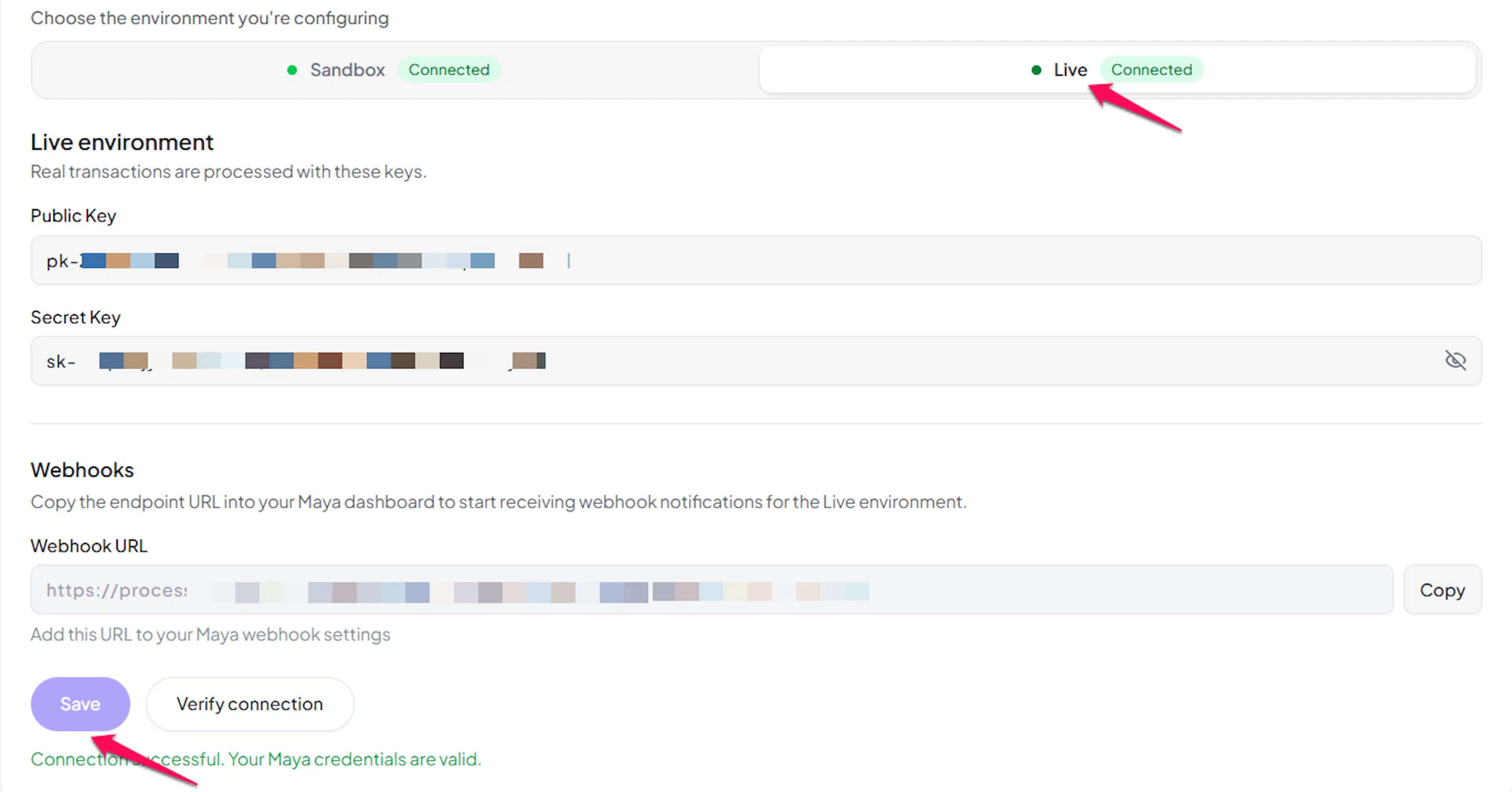
Log in to your PayLexer dashboard and navigate to Payment Gateways → Maya.
Enter your credentials
Paste the Public Key and Secret Key you copied from Maya into the corresponding fields.
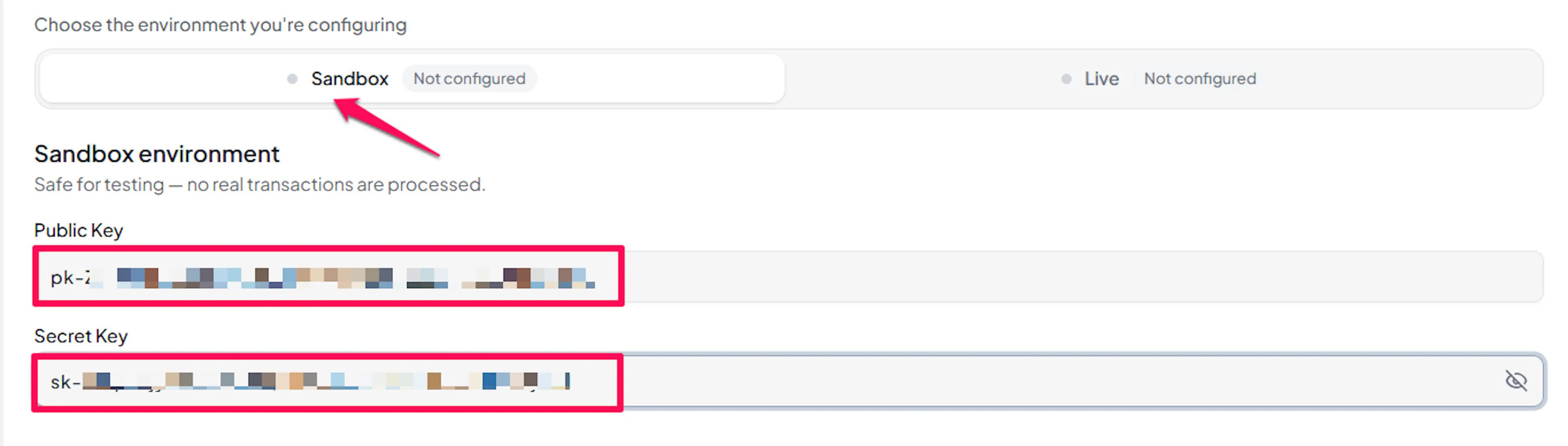
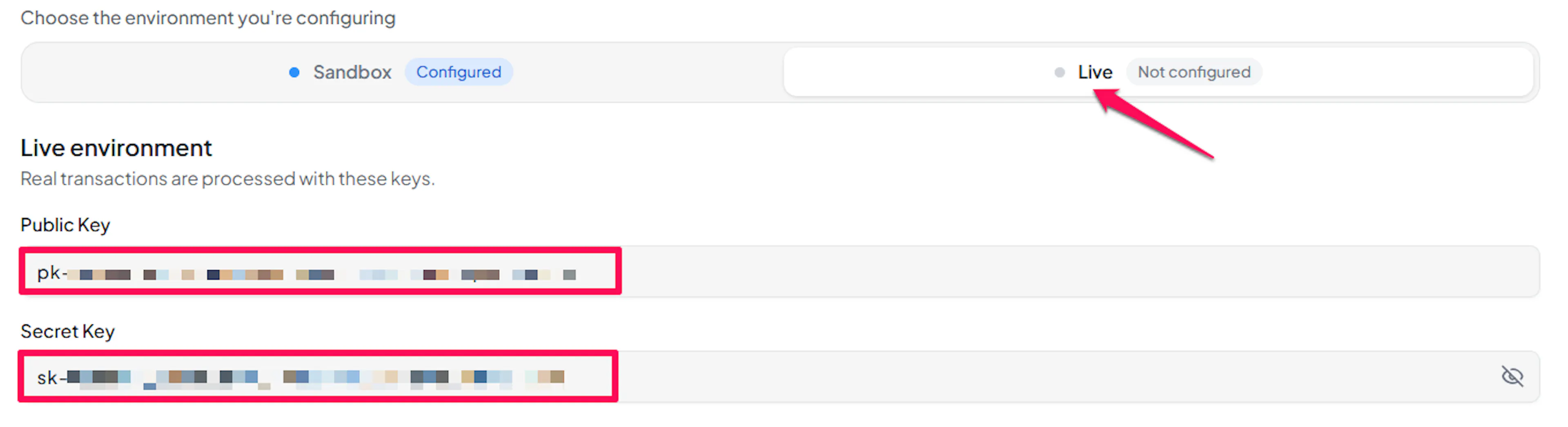
Understanding Live/Production and Sandbox Settings:
| Environment | Purpose |
|---|---|
| Live / Production (Mandatory) | Used for real transactions. Cannot be empty, even when testing. |
| Test / Sandbox (Optional) | Used for testing only. No real money is processed. |
How PayLexer selects credentials:
- Debug/Test mode ON → Test credentials are used
- Debug/Test mode OFF → Live credentials are used
Test and save
Click Save to save your configuration and verify your credentials. Click Verify Connection to test the connection.
Configuring Webhooks (Mandatory)
Webhooks enable real-time payment updates and significantly improve reliability.
Benefits of Webhooks:
- Instant payment status updates
- Automatic order reconciliation
- Faster confirmation than waiting on a manual status check
Unlike most gateways, Maya does not issue you a webhook signing secret to paste back into PayLexer. Instead, Maya verifies your webhook URL by checking that it only accepts notifications sent from Maya's own servers, so there is nothing extra for you to configure in PayLexer beyond registering the URL with Maya.
Copy your PayLexer webhook URL
In PayLexer → Payment Gateways → Maya, copy the Webhook URL shown for your account.

Add the webhook URL in Maya Business Manager
In Maya Business Manager, go to Settings → Webhooks, select the Merchant Account you want to configure, and paste the PayLexer webhook URL as your HTTPS webhook endpoint.
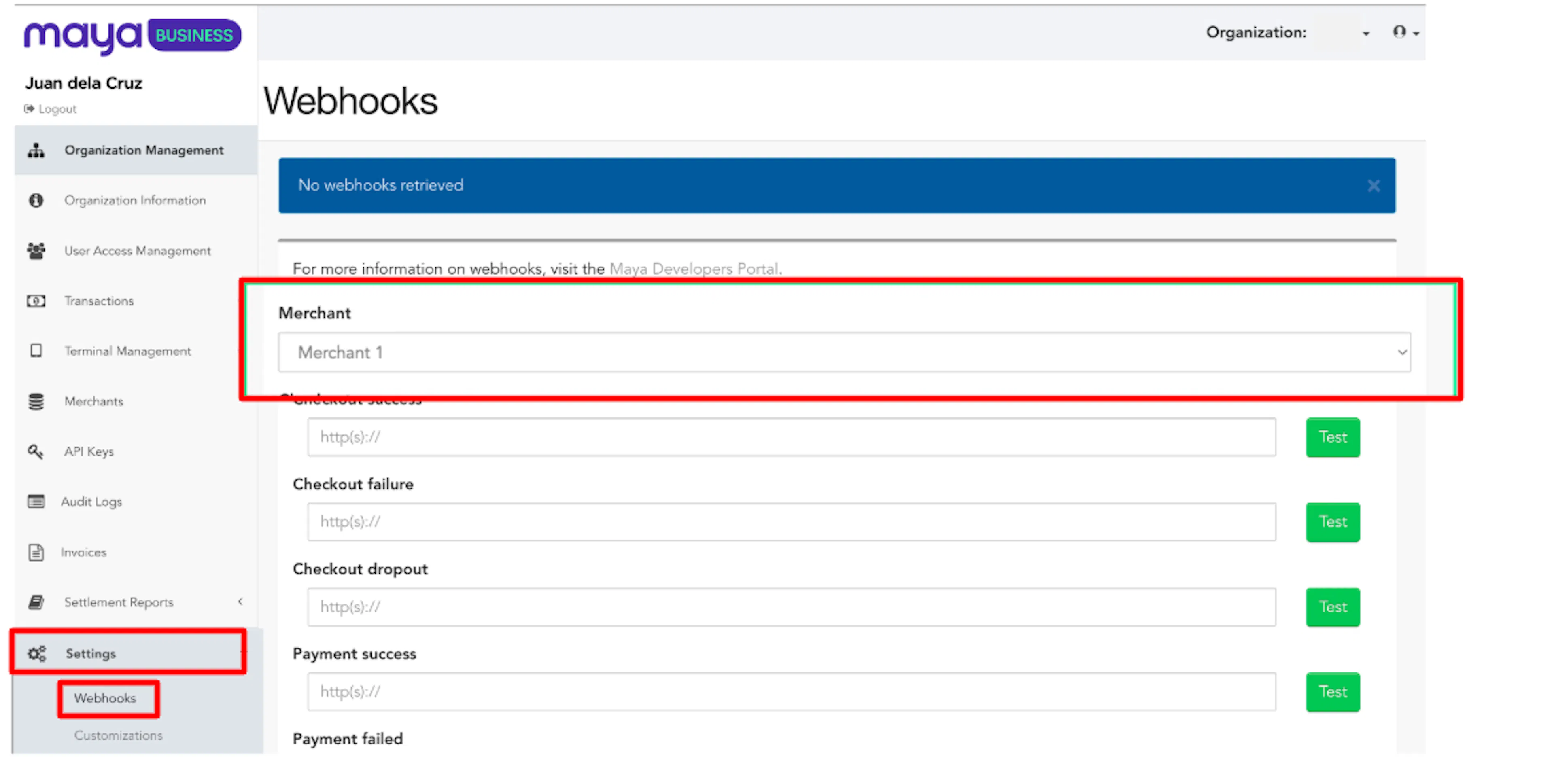
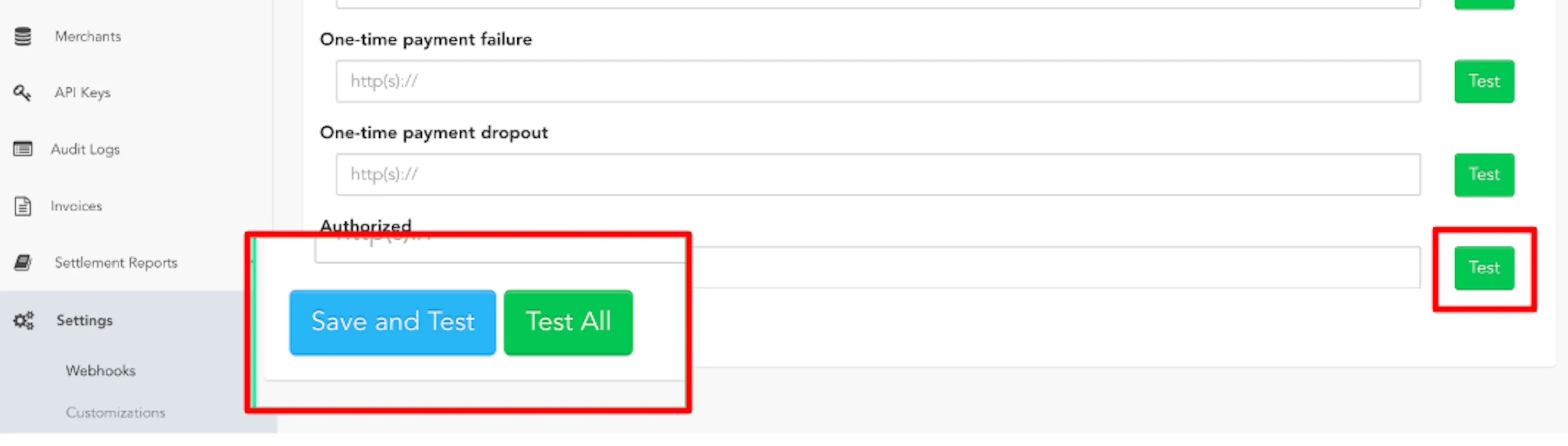
Register the URL for every event
Repeat the previous step for other events you want to be notified. Skipping an event means PayLexer never hears about that outcome in real time.
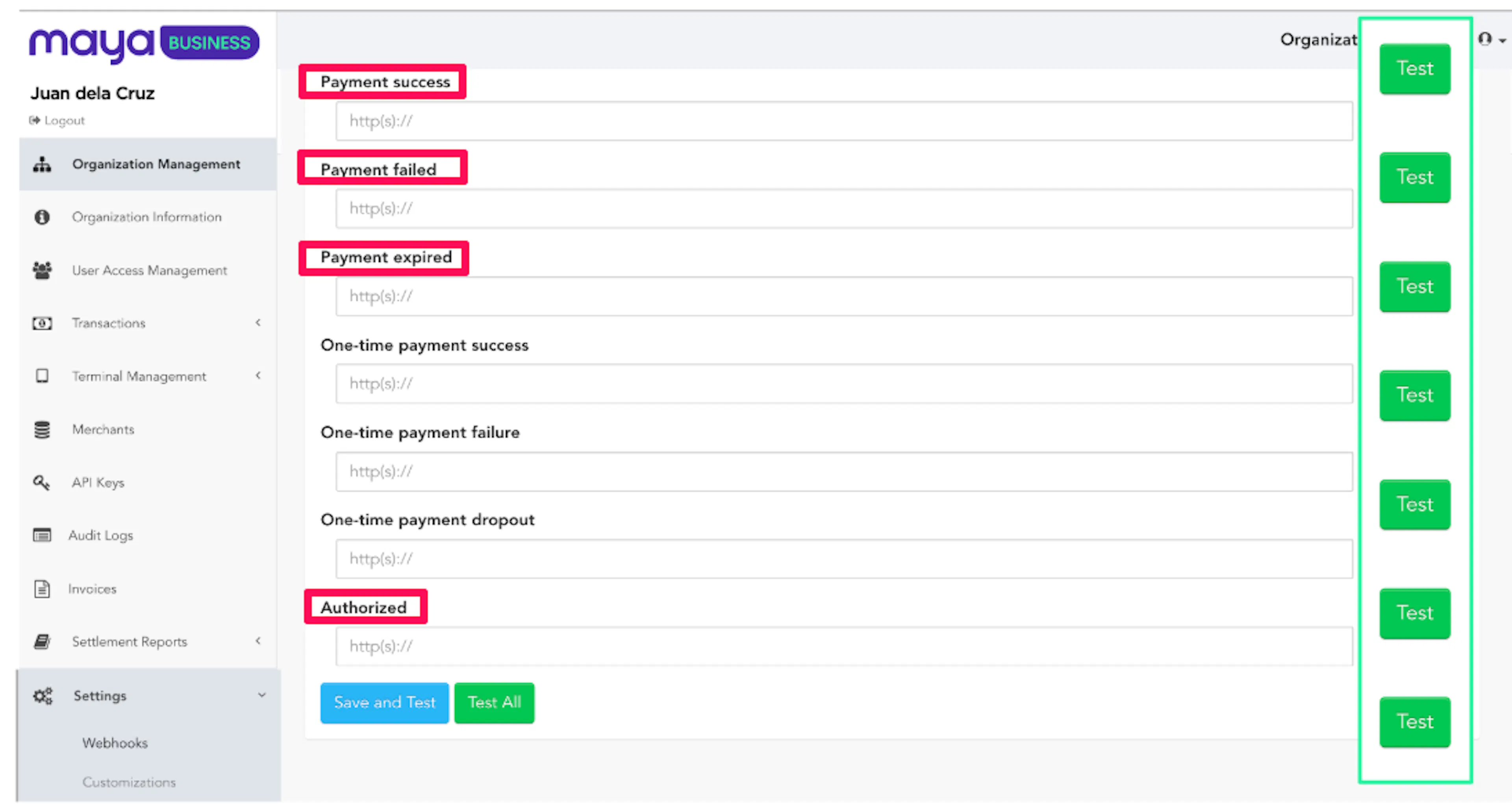
All five events use the same PayLexer webhook URL. Register the URL separately under each event type, not just once.
Save and test
Click Save and Test to register the webhook. Use the Test button next to it at any time afterward to verify Maya can reach your PayLexer webhook URL.
If a webhook notification is ever delayed or lost, PayLexer automatically re-checks any payment still showing as pending directly with Maya, so an order does not get stuck. Maya also sends no notification at all for a refund or cancellation you make directly inside Maya Business Manager, so PayLexer separately checks for those on a schedule to stay in sync.
Integrate Maya to Your Website
If you have already added and configured your site, you can enable Maya in your existing setup.
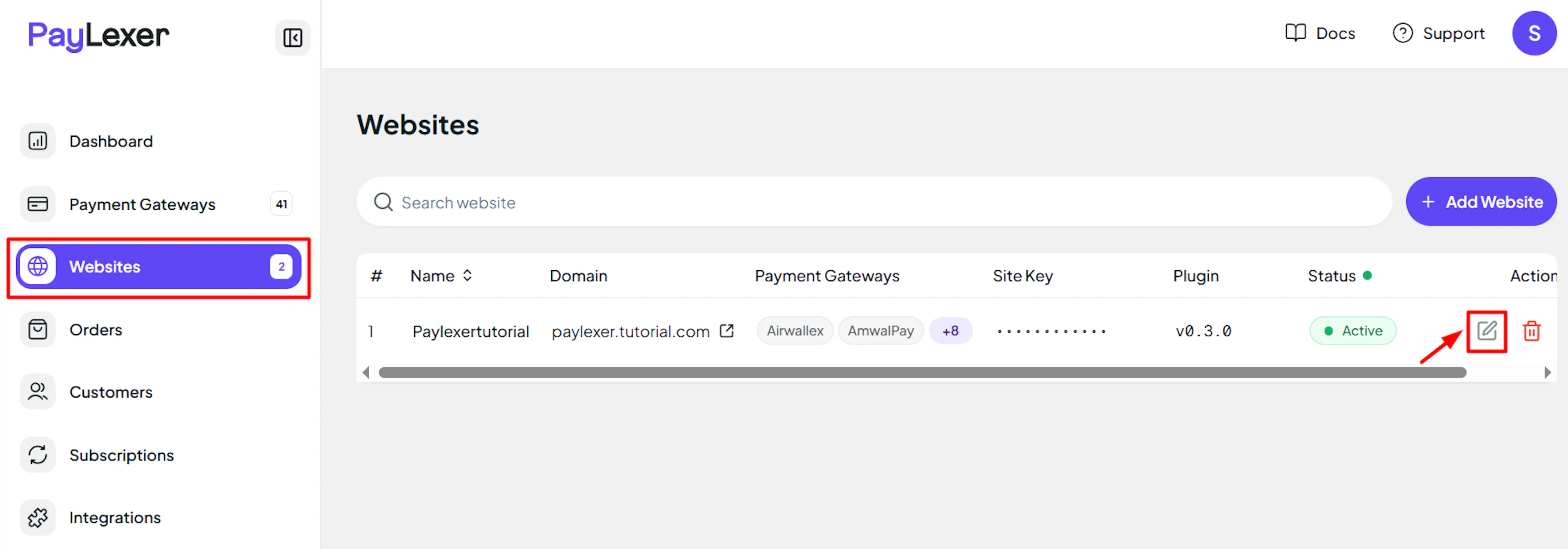
Go to Websites
Navigate to Websites in your PayLexer dashboard.
Edit your website
Click the Edit Icon of your added website.
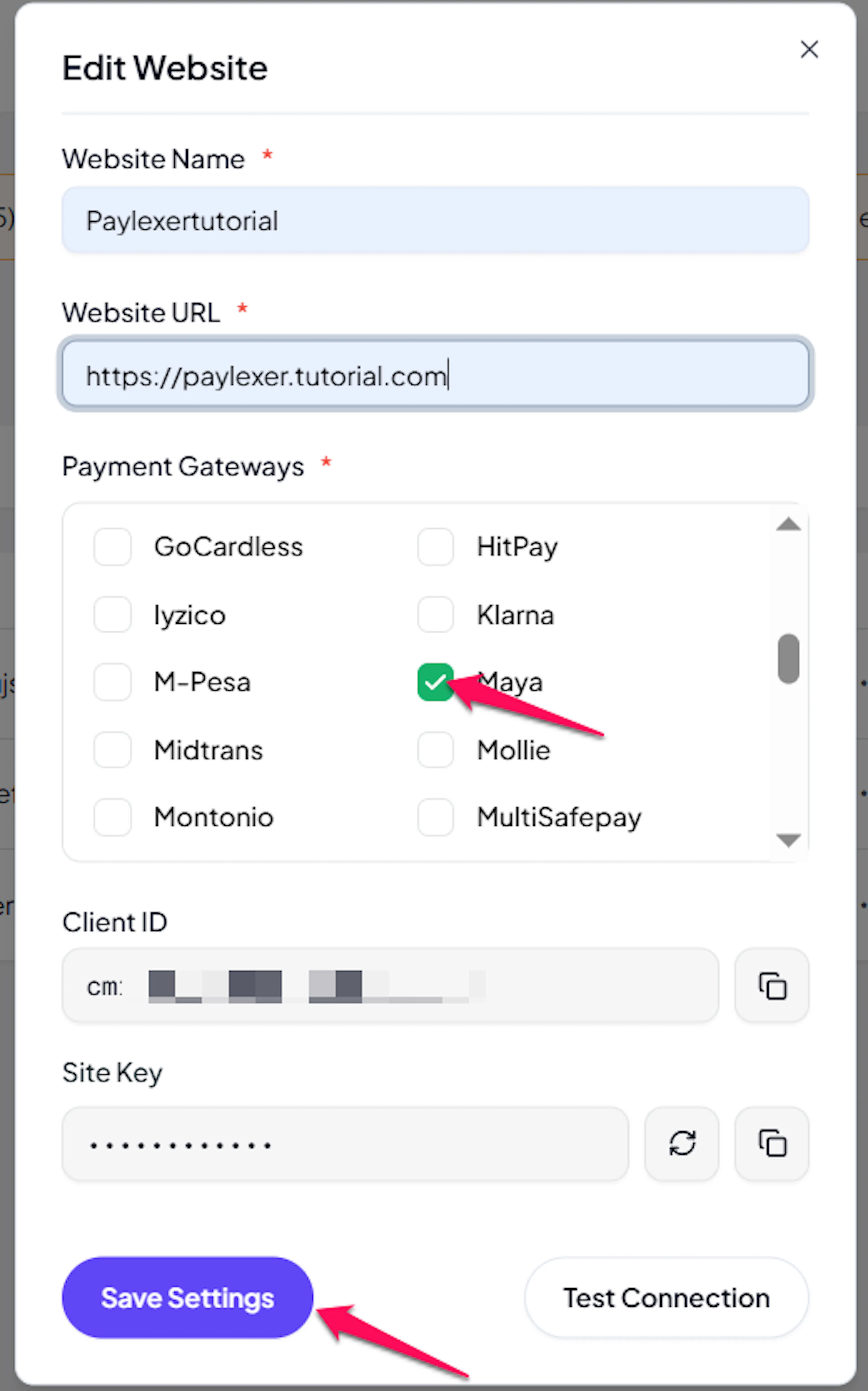
Enable Maya
Click the checkbox to enable Maya for the website.
If you haven't added a website yet, Continue to Add Your Website →
Troubleshooting
Best Practices
- Test in sandbox before enabling production. Complete a full payment with sandbox credentials, and confirm the order updates in PayLexer, before switching to live.
- Register your PayLexer webhook URL for all five Maya events, not just one or two, so every payment outcome updates in real time.
- Keep your Secret Key confidential, and request a new one from Maya if you suspect it has been exposed.
- Only charge in Philippine Pesos. A checkout in any other currency is rejected before Maya is ever contacted.
- Remember the same-day cancellation versus next-day refund split when planning how quickly you can reverse a charge.
- Use a different gateway for any recurring billing, since Maya handles one-time payments only.
FAQs
Still Have Questions?
- Maya Support: Maya Developer Documentation
- PayLexer Support: Contact Support