

FasterPay
Connect FasterPay to PayLexer to accept cards, e-wallets and local payment methods through FasterPay's hosted Checkout Page, with full and partial refunds.
FasterPay is a global online payment provider whose hosted Checkout Page lets shoppers pay by card, e-wallet or a local payment method in their country. Shoppers pay on FasterPay's own page, so your website never handles card data, and PayLexer brings the result back to your store automatically.
- Supported Regions (Merchant Accounts): Global
- Supported Currencies: USD, EUR, GBP, JPY, AUD, CAD, CHF, HKD, SGD, NZD, PLN, CZK, HUF, DKK, NOK, SEK - view full list
Supported Features
- Hosted Checkout Page for one-time payments by card, e-wallet or local payment method
- Full and partial refunds, including several partial refunds on one payment
- Automatic, signed payment and refund notifications with no webhook setup in FasterPay
- Separate sandbox and live business accounts, so test payments never touch real money
Before You Start
Make sure you have:
- FasterPay Account – Don't have one? Sign up for FasterPay →
- PayLexer Account – Required to configure the integration. Create your account →
- A website where you want to integrate
Looking for a different payment processor? View all supported gateways →
Configuring FasterPay
You need a Public Key and a Private Key from FasterPay for this integration.
Getting API Credentials
FasterPay gives each business account its own Public Key and Private Key. Testing uses a separate sandbox business account with its own keys, so collect a pair from each account.
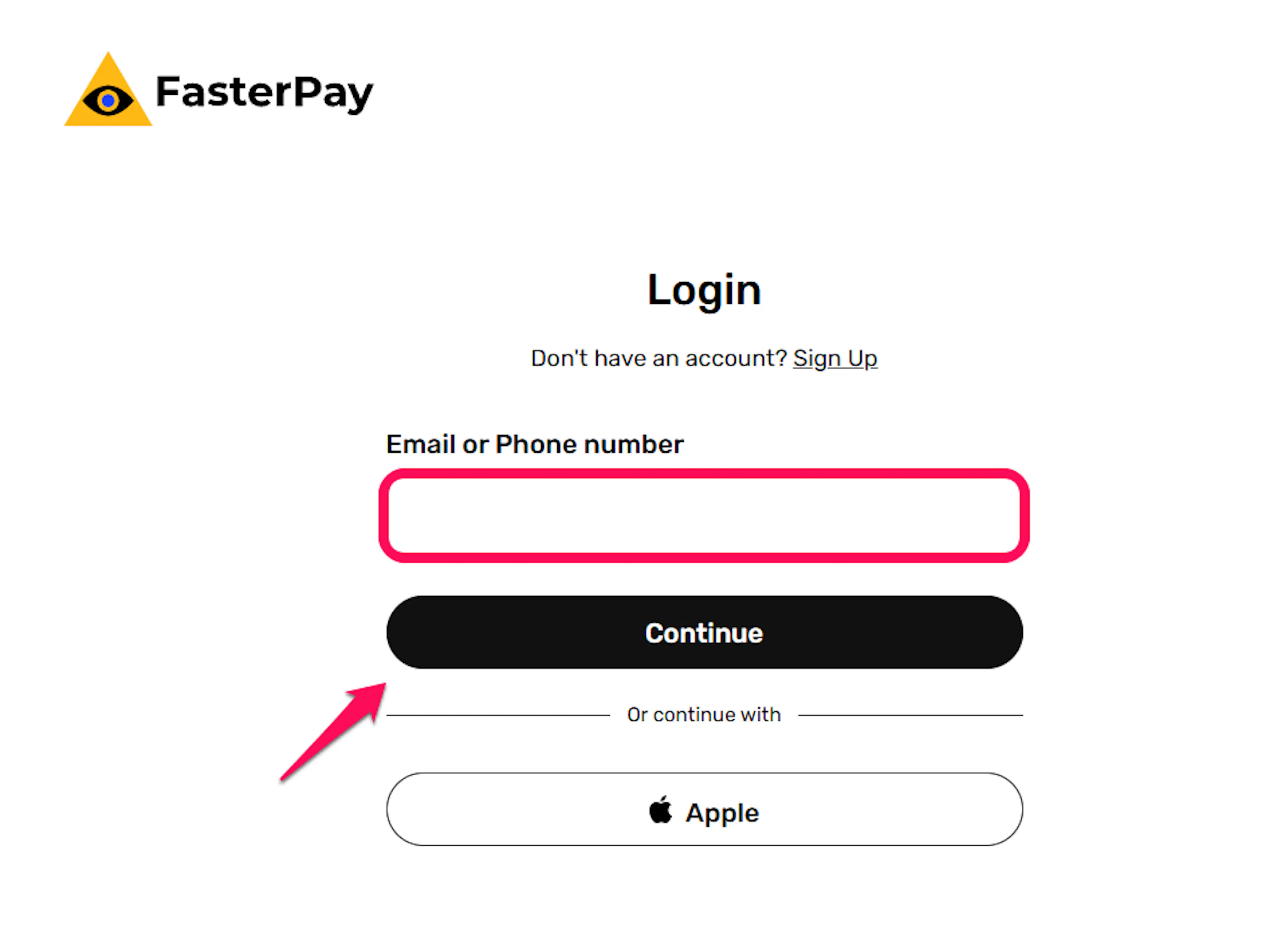
Log in to FasterPay
Go to the FasterPay business dashboard and sign in. Use your sandbox account for test keys and your live account for live keys.
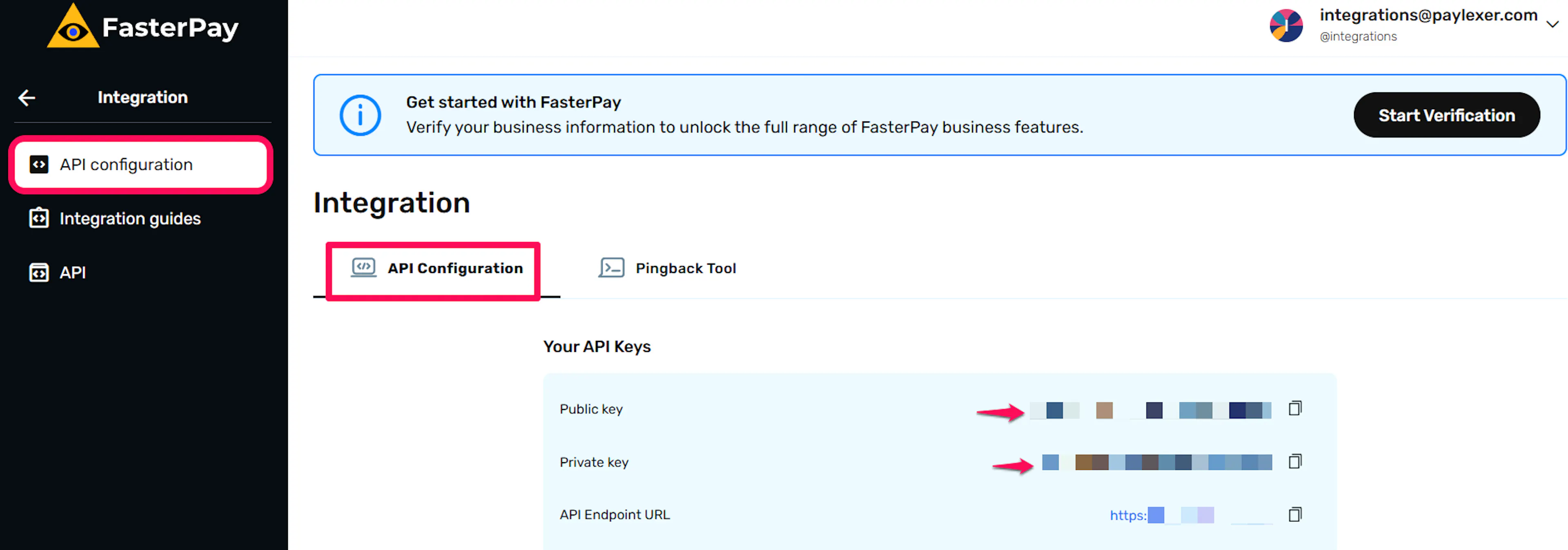
Open the API settings
Open the developer or API configuration section of the dashboard.
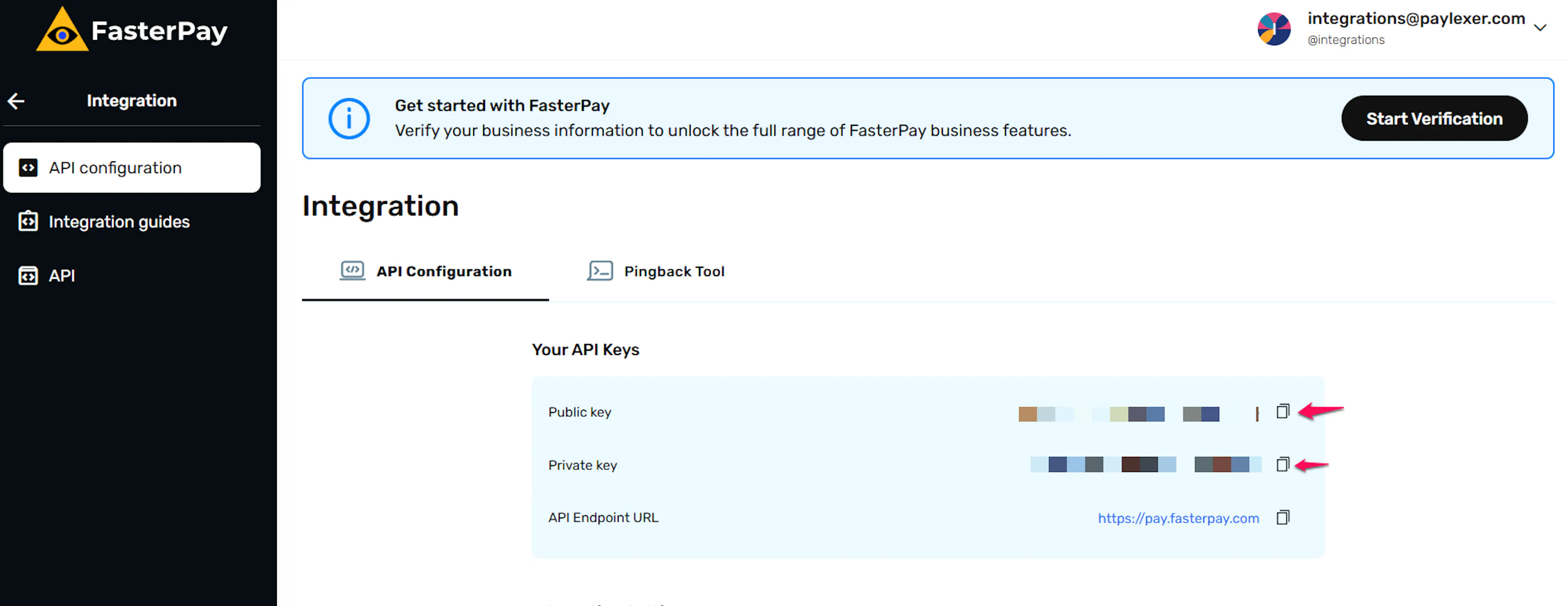
Copy your keys
Copy the Public Key and Private Key. Keep the Private Key secret. It signs every checkout PayLexer opens and verifies every notification FasterPay sends back.
Adding Credentials to PayLexer
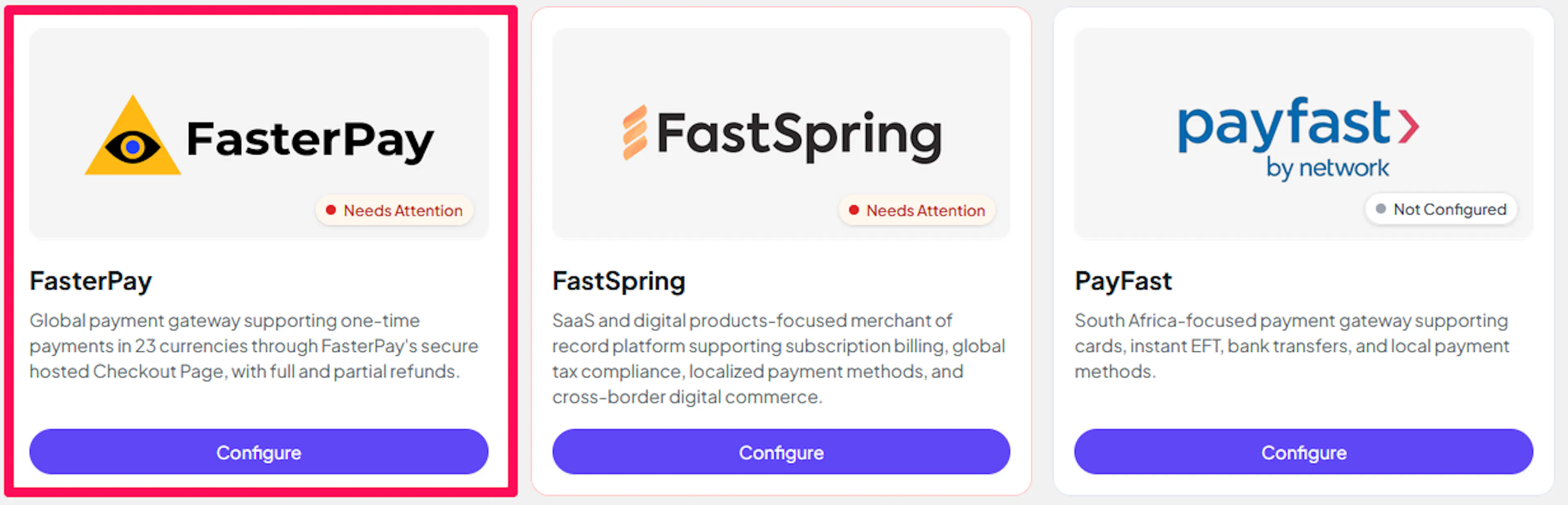
Open PayLexer Dashboard
Log in to your PayLexer dashboard and navigate to Payment Gateways → FasterPay.
Enter your credentials
Paste the Public Key and Private Key you copied from FasterPay into the corresponding fields. Use your live account's keys under the Live tab and your sandbox account's keys under the Sandbox tab.
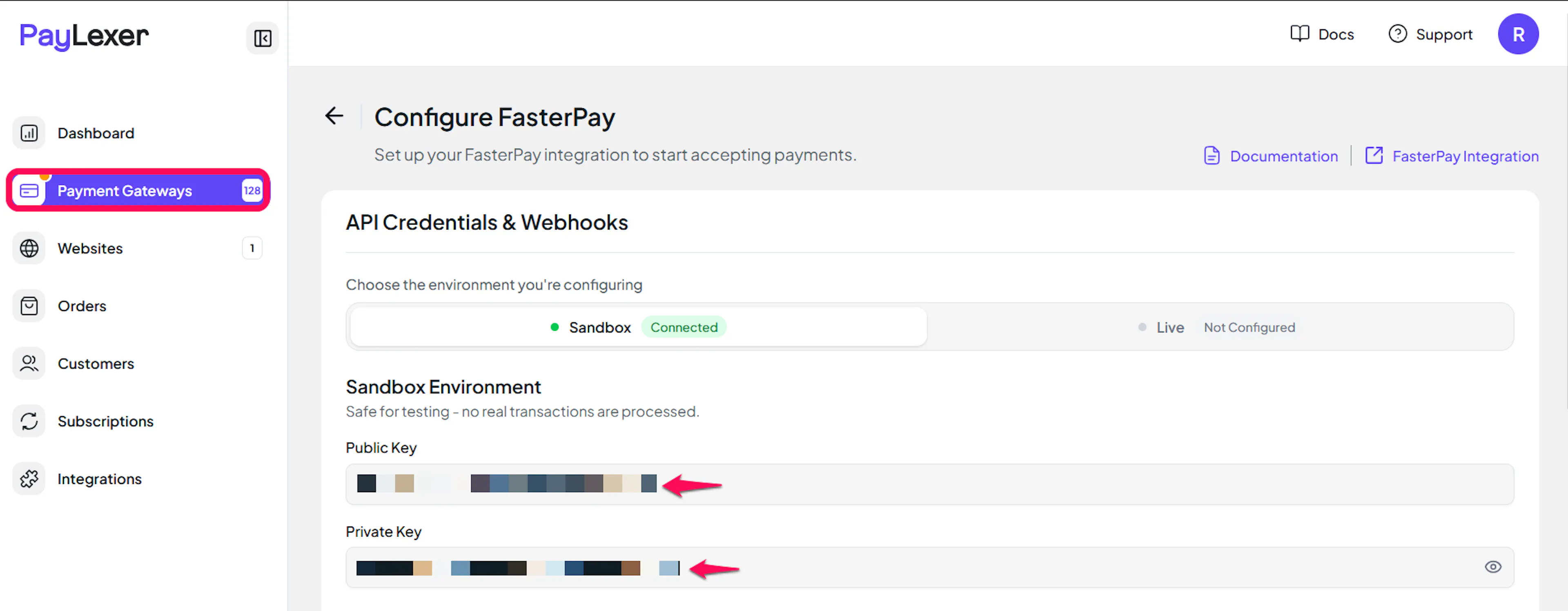
Understanding Live/Production and Sandbox Settings:
| Environment | Purpose |
|---|---|
| Live / Production (Mandatory) | Used for real transactions. Cannot be empty, even when testing. |
| Test / Sandbox (Optional) | Used for testing only. No real money is processed. |
How PayLexer selects credentials:
- Debug/Test mode ON → Test credentials are used
- Debug/Test mode OFF → Live credentials are used
Test and save
Click Save to save your configuration, then click Verify Connection.
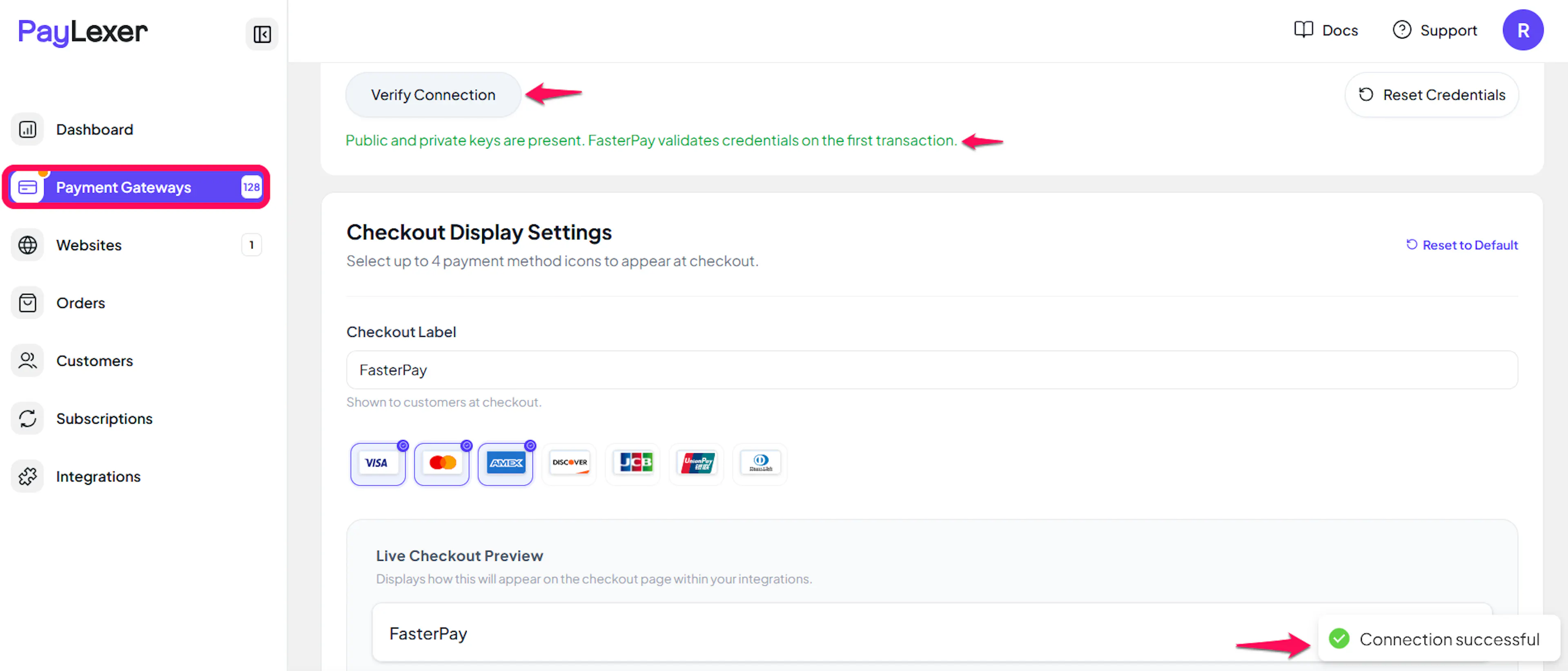
FasterPay can't test keys without opening a real payment, so Verify Connection only confirms that both keys are filled in. Run a test checkout in sandbox to confirm your keys work. Wrong keys show up as an error on FasterPay's page.
Webhooks (Automatic - No Setup Required)
FasterPay doesn't need a separate webhook secret or a Pingback URL from you. PayLexer sends FasterPay a notification address with every checkout, which takes priority over the Pingback URL in your FasterPay settings, and verifies each notification using the Private Key you already entered.
- No Pingback URL to add in FasterPay
- No separate signing secret to manage
- Payments and refunds are confirmed in near real time
Integrate FasterPay to Your Website
If you have already added and configured your site, you can enable FasterPay in your existing setup.
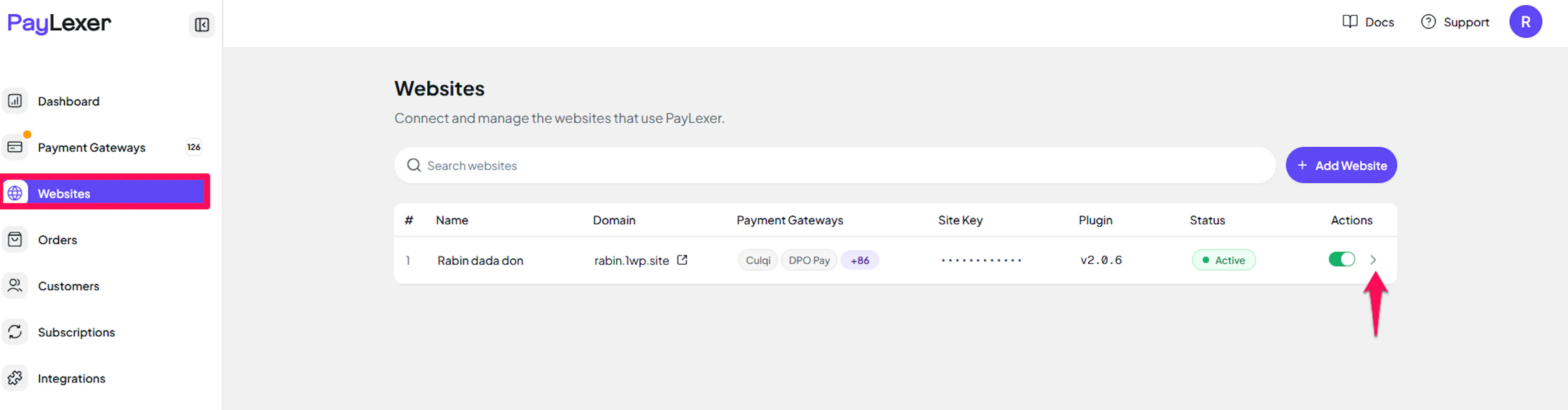
Go to Websites
Navigate to Websites in your PayLexer dashboard.
Open your website
Click the › arrow in the Actions column of your added website.
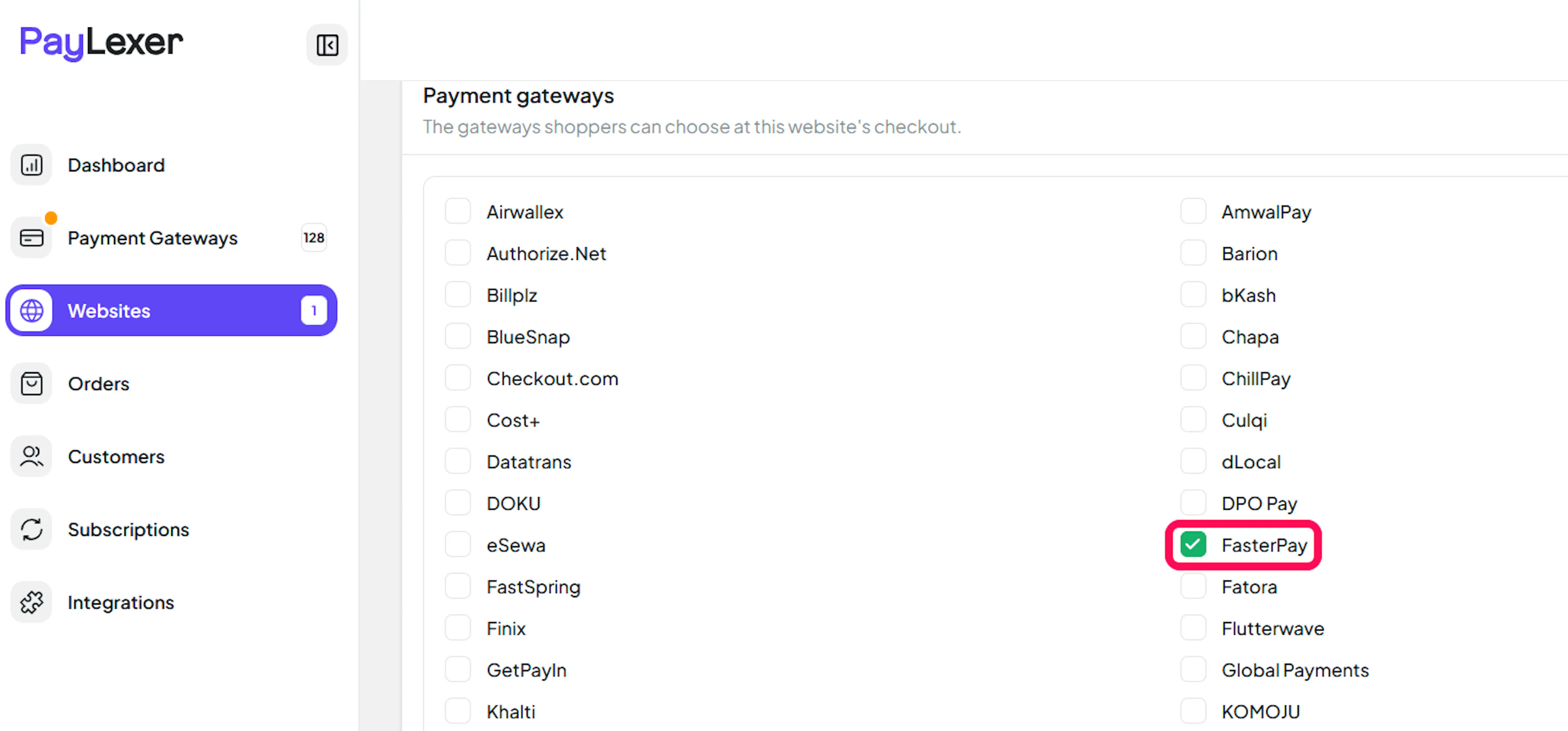
Enable FasterPay
Go to Payment Gateways tab and Click the checkbox to enable FasterPay for the website.
If you haven't added a website yet, Continue to Add Your Website →
Troubleshooting
Best Practices
- Test in sandbox before enabling production
- Use a separate FasterPay sandbox account for testing, and keep its keys under the Test tab
- Keep your Private Key secret and never share it outside PayLexer
- Issue refunds from PayLexer so your orders stay in sync
FAQs
Still Have Questions?
- FasterPay Support: Contact Support
- FasterPay Docs: FasterPay Documentation
- PayLexer Support: Contact Support