

Niubiz
Connect Niubiz to PayLexer to accept card payments in Peruvian Soles and US Dollars through Niubiz's own card form, shown over your existing checkout page.
Niubiz, formerly Visanet Perú, is Peru's largest card acquirer - the company that actually moves the money for most card payments made in the country. PayLexer integrates Niubiz's Botón de Pago, which opens Niubiz's own card form as a panel over your existing checkout page. The shopper never leaves your site, and the card number is typed straight into Niubiz, so PayLexer never sees or stores it.
- Supported Regions (Merchant Accounts): Peru
- Supported Currencies: PEN, USD
Supported Features
- Niubiz's own card form, opening as a panel over your checkout so the shopper stays on your site and card details never reach your pages
- Card payments in Peruvian Soles and US Dollars
- Immediate confirmation, answered while the shopper is still on your checkout rather than by a later notification
- Sandbox testing with Niubiz's published test credentials, before you hold a merchant account
Refunds are not issued from PayLexer for Niubiz. Refund in the Niubiz portal once the payment has settled, then mark the order refunded in your store by hand.
Before You Start
Make sure you have:
- Niubiz Merchant Account – Niubiz has no self-serve sign-up. Request affiliation through the Niubiz affiliation form.
- PayLexer Account – Required to configure the integration. Create your account →
- A website where you want to integrate
Looking for a different payment processor? View all supported gateways →
Configuring Niubiz
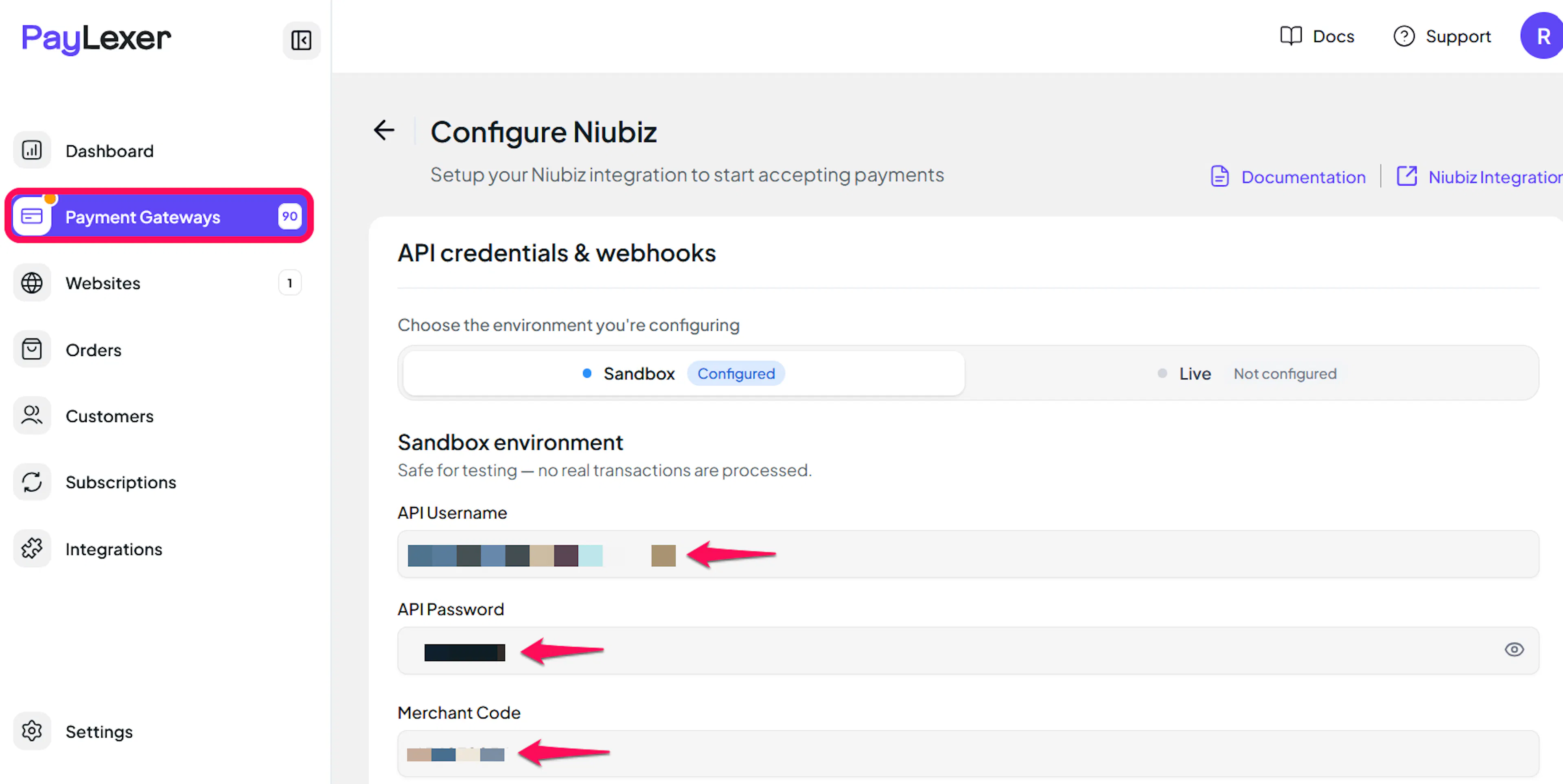
You need an API Username, API Password, and Merchant Code from Niubiz for this integration. Niubiz issues these; there is no dashboard where you can generate them yourself.
Getting API Credentials
Start with Niubiz's published test credentials
No account is needed to test. Niubiz publishes a working sandbox username, password, and merchant codes in the Data para pruebas table on its Niubiz test data page. They belong to Niubiz's own demo merchant and are not secrets.
Niubiz publishes four sandbox merchant codes, two per currency, split by how the payment settles. Use the automatic liquidation code for the currency you are testing: 456879852 for Soles, 456879853 for US Dollars. A code will not settle a currency it was not issued for.
Request affiliation for production
When you are ready to accept real payments, apply through the Niubiz affiliation form.
Niubiz issues your production API Username, API Password, and Merchant Code as part of that onboarding. Confirm at the same time which currencies your merchant code is enabled to settle.
Adding Credentials to PayLexer
Open PayLexer Dashboard
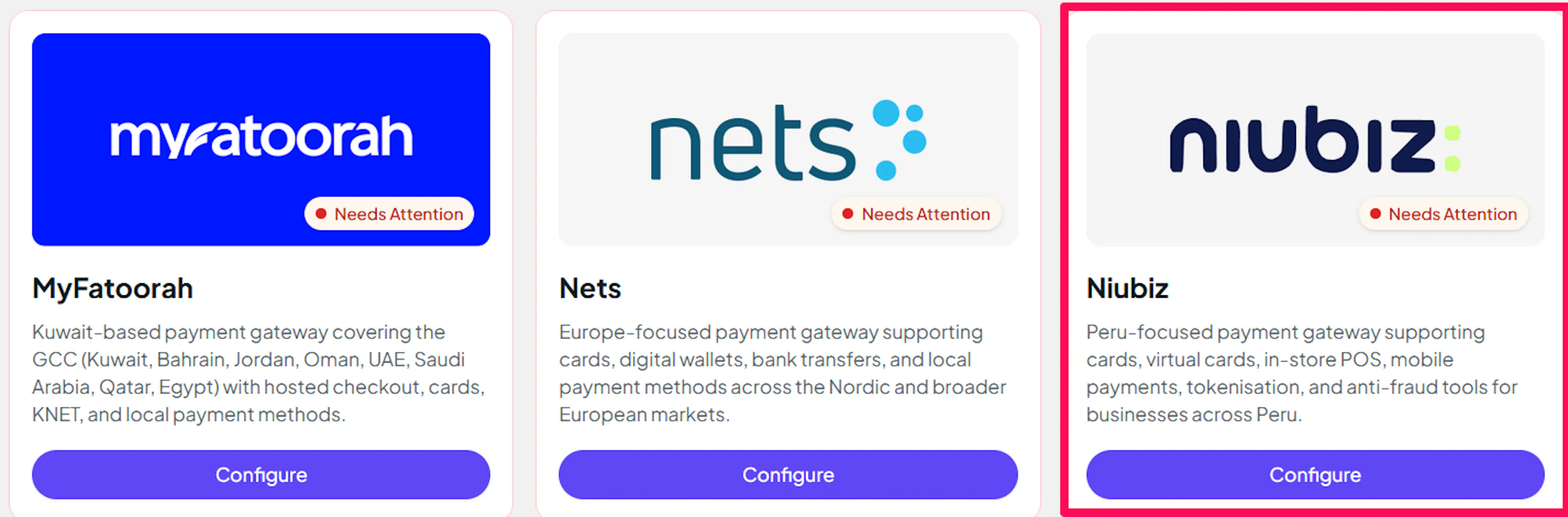
Log in to your PayLexer dashboard and navigate to Payment Gateways → Niubiz.
Enter your credentials
Paste the API Username, API Password, and Merchant Code into the corresponding fields. Use Niubiz's published sandbox values in the Test fields and your own production values in the Live fields.
Understanding Live/Production and Sandbox Settings:
| Environment | Purpose |
|---|---|
| Live / Production (Mandatory) | Used for real transactions. Cannot be empty, even when testing. |
| Test / Sandbox (Optional) | Used for testing only. No real money is processed. |
How PayLexer selects credentials:
- Debug/Test mode ON → Test credentials are used
- Debug/Test mode OFF → Live credentials are used
Test and save
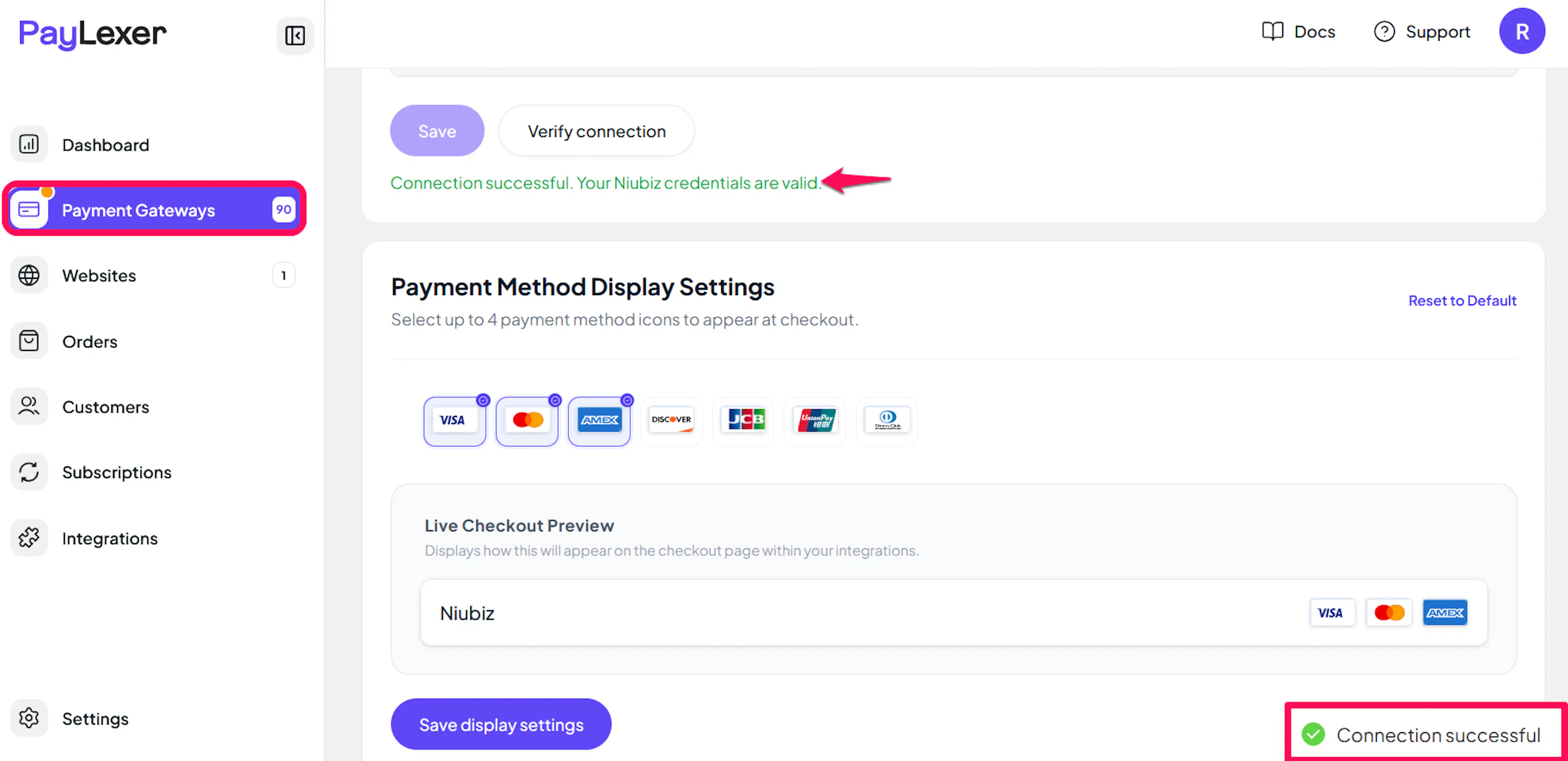
Click Save to save your configuration and verify your credentials. Click Verify Connection to test the connection.
Webhooks (Not Supported)
Niubiz does not support webhook integration.
- Payment updates are handled directly within Niubiz's processing flow
There is nothing for you to register or configure. Niubiz confirms the charge in the same moment it is made, while the shopper is still on your checkout, so an order does not depend on a later notification arriving.
Niubiz sends nothing back after a payment and offers no way to look one up afterwards, so the answer given at the moment of the charge is the only one there is.
Integrate Niubiz to Your Website
If you have already added and configured your site, you can enable Niubiz in your existing setup.
Go to Websites
Navigate to Websites in your PayLexer dashboard.
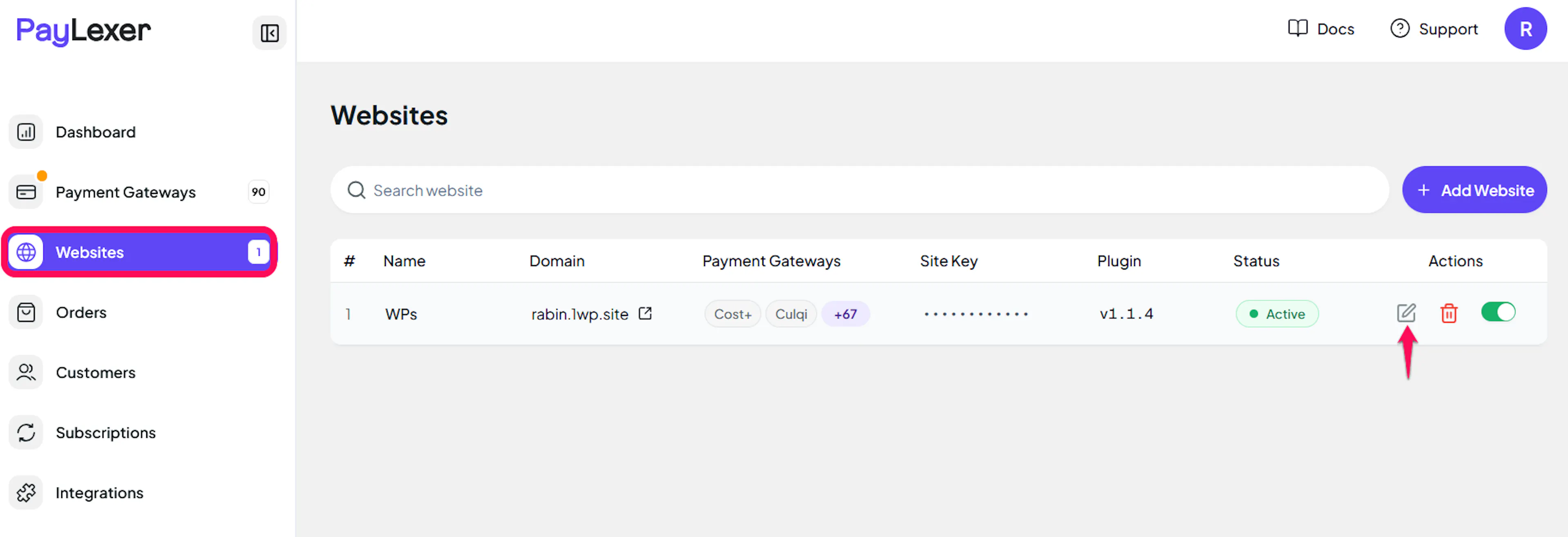
Edit your website
Click the Edit Icon of your added website.
Enable Niubiz
Click the checkbox to enable Niubiz for the website.
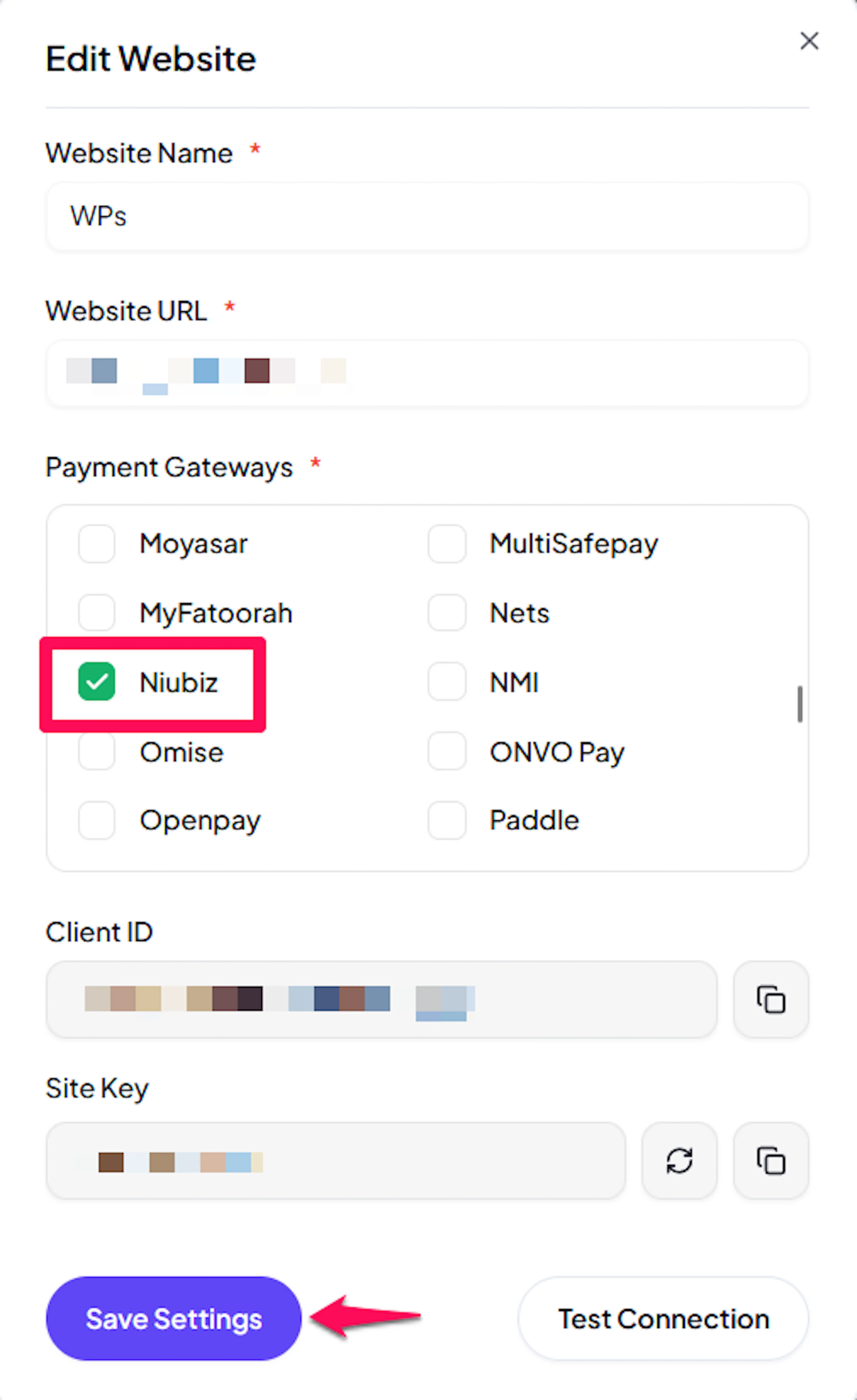
Niubiz is now active for this website. Run a test transaction before switching off Debug/Test mode.
If you haven't added a website yet, Continue to Add Your Website →
Troubleshooting
Best Practices
- Test in sandbox before enabling production. Niubiz publishes working sandbox credentials, so complete a full payment with Debug/Test mode ON and confirm the order updates before switching to live.
- Confirm with Niubiz which currencies your merchant code settles, so a shopper never hits a currency error after typing their card.
- Double-check the Merchant Code by hand. The connection test cannot tell a wrong nine-digit code from a right one.
- Keep your API Password confidential and ask Niubiz to reissue it if you suspect it has been exposed.
- Agree a refund process outside PayLexer, since Niubiz refunds are done in its portal and PayLexer cannot see them.
- Use a different gateway for any recurring billing, since Niubiz handles one-time payments only.
FAQs
Still Have Questions?
- Niubiz Support: Niubiz Support
- PayLexer Support: Contact Support